

A payment receipt arriving during a busy workday rarely feels unusual, particularly when the message uses familiar banking language.
KREMLIN exploits that brief moment of trust, then moves into the browser where financial activity normally feels safest.
Overview
A banking document starts the chain
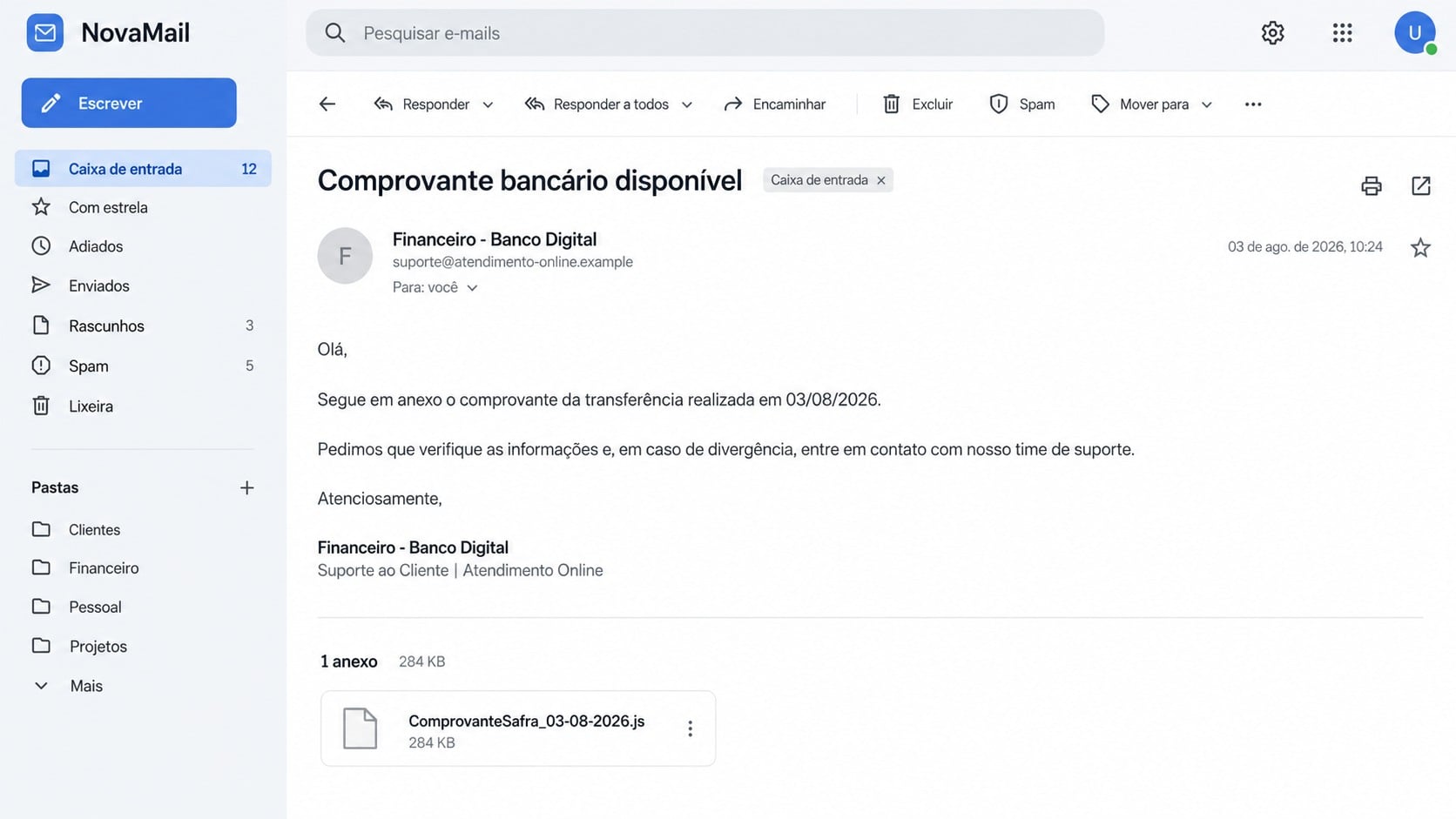
KREMLIN campaigns have used JavaScript files disguised as bank receipts, invoices, and company documents.
The lure targets Windows users, with strong evidence of a focus on Brazilian banking customers and Portuguese-speaking environments.
A filename can resemble a harmless comprovante, while the hidden extension identifies executable script content.
Opening the file begins a multistage loader rather than displaying the promised transaction record.
The malware installs a browser-level spy
KREMLIN’s defining component is a malicious extension placed into Chrome or Edge without normal store approval.
The extension can inspect tabs, cookies, site storage, page content, and data typed into selected websites.
It can also inject attacker-controlled HTML into a legitimate page, changing what the victim sees while browsing.
That makes a correct address bar less reassuring after the browser itself has been compromised.
The operation is broader than one extension
Researchers tracked related campaigns across fifteen months, combining JavaScript loaders, custom installers, browser manipulation, and remote access tools.
Ethereum smart contracts have been used to supply updated payload locations and command infrastructure.
The operation has impersonated twelve Brazilian banks and evolved through several delivery combinations.
Key warning signs include:
- A banking receipt arrives as a .js, .lnk, or unfamiliar script file.
- Windows reports an error immediately after the attachment opens.
- Node.js appears unexpectedly in a nonstandard folder.
- A scheduled task named MicrosoftNodeRuntimeUpdater appears without explanation.
- Chrome or Edge shows an extension you never installed.
- An extension requests cookies, tabs, storage, and web-request access.
- Banking pages display unfamiliar overlays or request repeated authentication.
- Sessions remain active after a password change.
Why Browser Banking Becomes the Target
Traditional password theft captures credentials at one moment. Browser compromise can observe an entire authenticated session.
Cookies and session tokens may keep a user signed in after the password has already been accepted.
Stealing those tokens can sometimes let an attacker bypass the first login stage.
Controls still vary by bank, and strong transaction approval can block unauthorized actions.
The extension looks like ordinary software
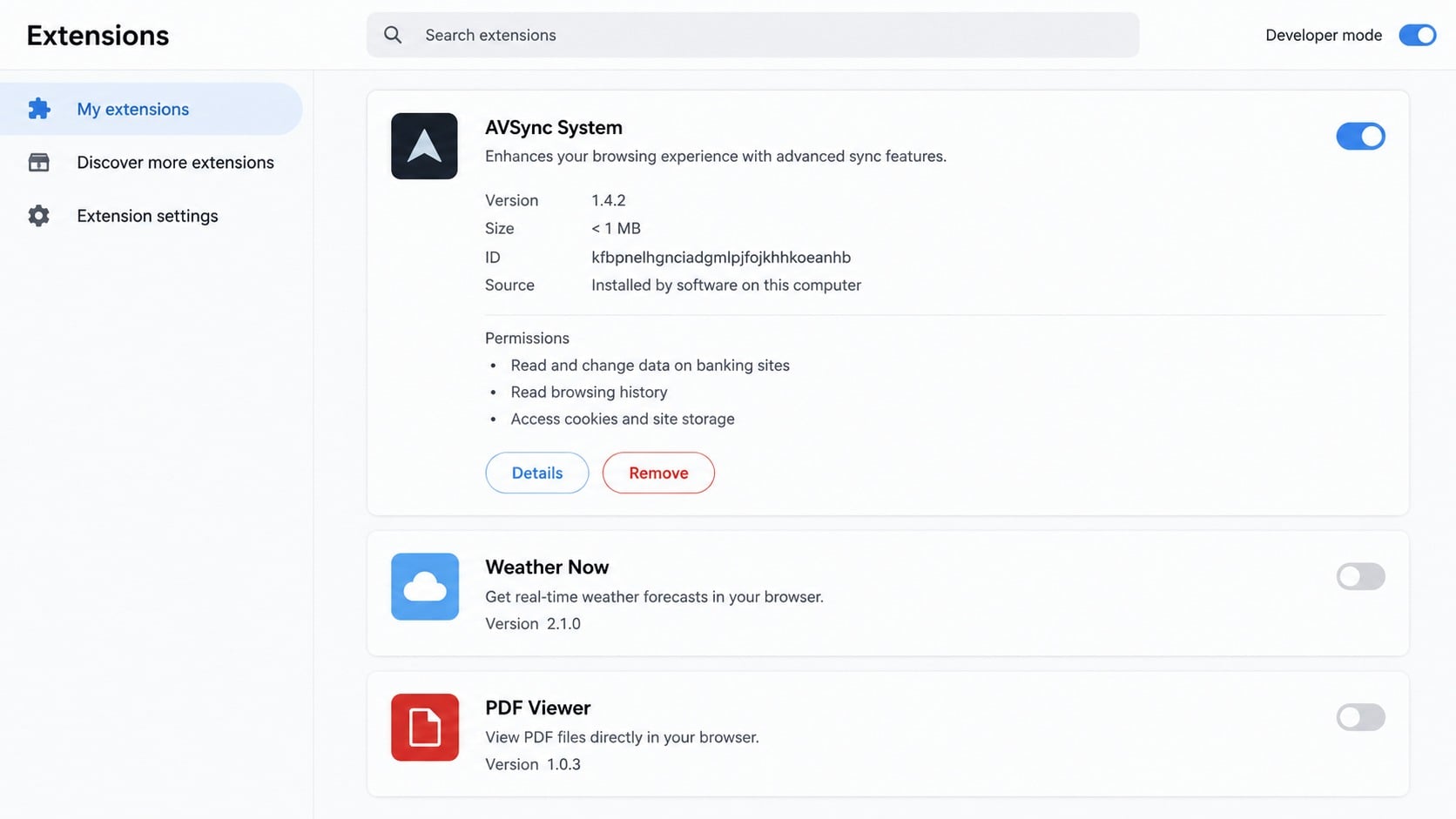
An analyzed sample masqueraded as AVSync, presenting itself as a routine browser component.
Behind that bland name, it requested access to tabs, cookies, storage, and web requests.
The installer manipulated Chromium security data so the browser would accept the extension as though it were legitimate.
Removing the visible icon alone may not eliminate the loader that installed it.
Page injection changes the victim’s reality
KREMLIN can obtain the source of an active page and deliver new HTML selected by its operator.
A false verification panel could appear over a genuine bank website rather than on an obvious lookalike domain.
The extension can report clicks and form interactions, giving the operator feedback during the deception.
Victims may believe they are responding to their bank because the surrounding page remains authentic.
Session theft extends beyond banking
Browser storage can contain access material for email, shopping, social media, cloud services, and business applications.
KREMLIN can collect cookies, local storage, session storage, tab details, and selected page information.
A compromised email session may enable password resets for other services, multiplying the original damage.
Recovery therefore requires session revocation, not only new passwords.
How the KREMLIN Banking Trojan Works
Step 1: A financial lure reaches the target
The infection begins with a message or download framed as a banking, payment, invoice, or company document.
Brazilian bank themes and Portuguese wording make the material feel locally relevant.
Specific dates, receipt language, and business context encourage the recipient to open the file before questioning its format.
A genuine receipt should not require a Windows JavaScript file to display ordinary transaction details.
Step 2: The script displays a false failure
When executed, the first stage can show an error message suggesting the promised document did not open.
That decoy reduces suspicion while the script performs checks and prepares the next stage.
The loader counts desktop files and running processes to identify sparse analysis environments.
If the computer looks like a sandbox, the program may stop before exposing its full behavior.
Step 3: Node.js and persistence are added
The loader obtains a Node.js runtime, decodes another stage, and establishes startup persistence.
A scheduled task named MicrosoftNodeRuntimeUpdater can launch the malicious Node.js process after user login.
The description borrows legitimate technical language about the V8 engine, making casual review less alarming.
Persistence runs shortly after sign-in, allowing the malware to survive a normal reboot.
Step 4: Ethereum supplies current payload locations
The next stage queries an Ethereum smart contract for URLs connected to modules and hosting locations.
This dead-drop design separates changing infrastructure from the script already installed on the computer.
Payloads have been concealed inside JPEG carriers or hosted through a mixture of attacker-controlled and abused public services.
Ordinary image extensions do not guarantee that downloaded content is harmless.
Step 5: A custom installer alters the browser
KREMLIN’s native installer performs environment checks and prepares the malicious extension.
It can manipulate Chromium preference integrity values, including data that normally prevents unauthorized extension changes.
The browser then loads the attacker-controlled extension without a normal store installation decision.
Chrome and Edge are central targets because both use Chromium foundations.
Step 6: The extension monitors and modifies sessions
The extension establishes a WebSocket connection and polls for instructions from its controller.
Available commands include screenshots, tab enumeration, cookie collection, storage theft, page-source extraction, and HTML injection.
Configuration updates can select domains for keylogging, request interception, header changes, or special redirection behavior.
The operator can adapt the attack when the victim visits a financial institution or another high-value service.
Step 7: Stolen data supports account takeover
Captured passwords, session tokens, cookies, and page data can support unauthorized access.
Injected forms may request codes or personal details that the legitimate bank never asked to re-enter.
Related campaigns have also distributed remote access malware, increasing the range of possible consequences.
Every browser session used after infection should be considered potentially exposed until the device is cleaned.
Lure, Infrastructure, and Banking Safety Checks
The bank name does not authenticate the attachment
Compare the full sender domain with addresses listed by the bank through its independently reached website.
Logos, signatures, Portuguese terminology, account themes, and realistic dates can all be copied.
Call the bank using the number printed on your card when a receipt arrives unexpectedly.
The file extension reveals the real action
Enable visible filename extensions in Windows and read the final suffix, not the attractive document icon.
A name ending in .js is executable script content, even when earlier text contains PDF, receipt, invoice, or image terms.
Do not open the file to test it. Submit it to your security team or delete it.
The extension’s origin matters more than its description
Review the browser’s extension page for items installed outside the official store or by software on the computer.
Permissions covering every website, cookies, web requests, page content, or banking domains deserve immediate scrutiny.
A friendly description like synchronization, protection, viewing, or productivity does not explain invasive privileges.
Financial activity must be checked outside the infected browser
Do not use the suspected browser to inspect balances, change credentials, or communicate with the bank.
Use a separate clean device and the official banking application or manually typed address.
Ask the bank to review sessions, beneficiaries, device registrations, transfers, cards, and recent security changes.
What the KREMLIN Extension Can Observe
The extension can enumerate open tabs and identify which page is currently active.
That information lets the controller wait for banking, email, or payment activity instead of acting blindly.
Cookie and storage access can reveal session identifiers, preferences, account metadata, and application tokens.
Some tokens expire quickly. Others remain valuable until revoked by the service or user.
Screenshot commands capture visible page content, including balances, names, partial account numbers, or transaction details.
Page-source collection exposes forms and values rendered inside the browser, depending on the website’s protections.
Injected HTML can place false instructions over a real page and ask for additional verification.
Keylogging rules may capture text typed into selected domains, including usernames, passwords, or one-time codes.
Request interception can observe or alter browser traffic at the extension level within granted permissions.
This combination makes KREMLIN more dangerous than a simple fake login page opened once.
Warning Signs After the Attachment Opens
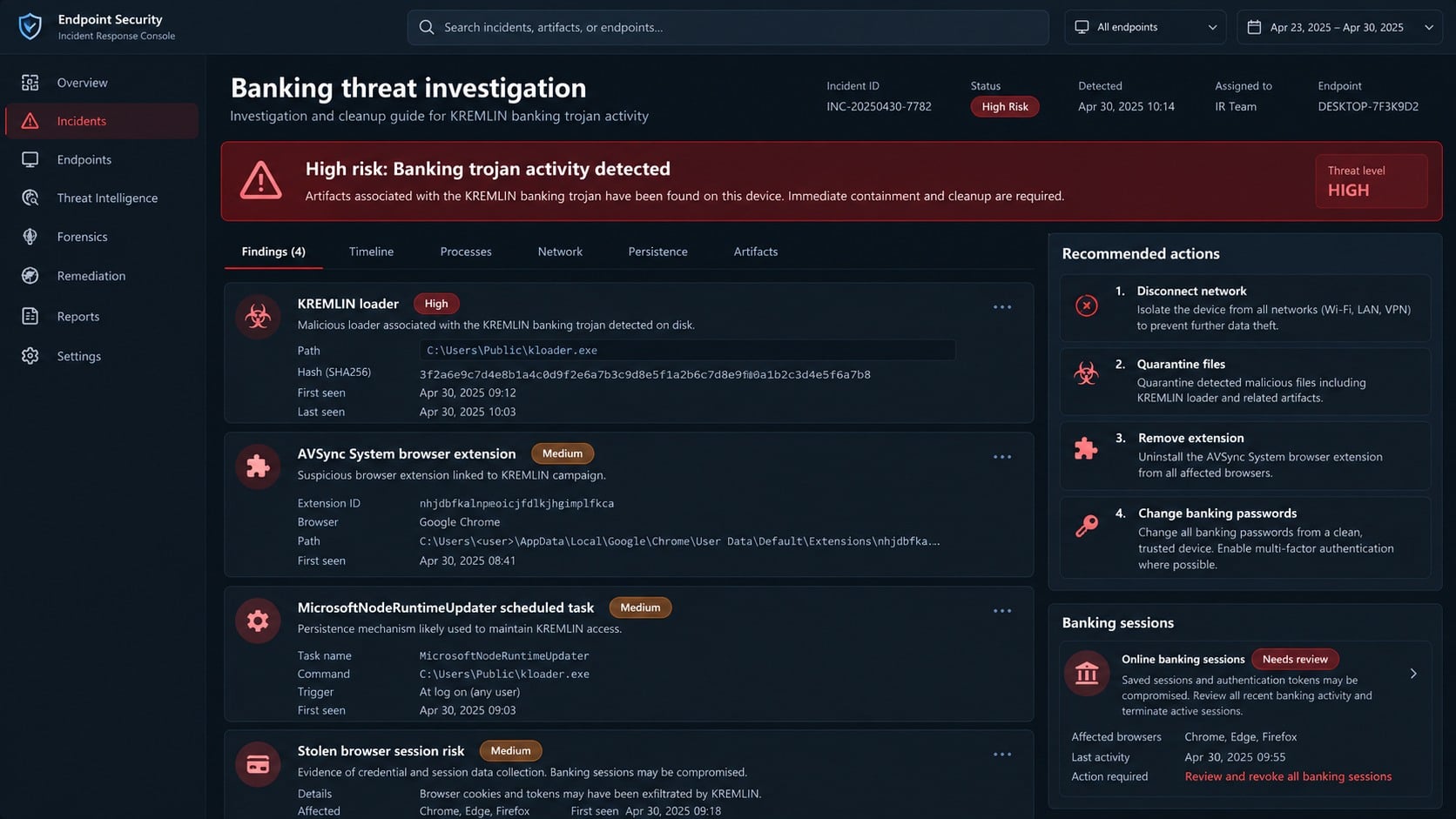
A single error message may be the only visible event during the initial compromise.
Check the wider timeline whenever a script attachment was opened, even if nothing apparently happened.
- A receipt or invoice opened through Windows Script Host.
- Node.exe appeared inside an unfamiliar user directory.
- A scheduled task was created immediately after the document error.
- Browser developer mode became enabled without your decision.
- An unknown extension appeared in Chrome or Edge.
- Banking pages began requesting unusual reauthentication or personal data.
- Tabs redirected, refreshed, or displayed overlays that colleagues did not see.
- New devices or sessions appeared in email and banking histories.
- Security software detected JavaScript, PowerShell, sideloading, or process injection.
- Outgoing financial activity no longer matches your approved actions.
Do not wait for several symptoms. Executing the suspicious attachment alone justifies immediate containment.
What to Do if You Have Fallen Victim to This Scam
- Take the computer offline. Disconnect wired and wireless networking before opening more accounts or continuing financial activity.
- Call your bank from a clean device. Explain that banking malware may have observed your browser and request immediate account monitoring.
- Revoke financial and email sessions. End remembered devices, browser sessions, payment tokens, and application access wherever those controls exist.
- Change passwords somewhere safe. Start with email and banking, use unique replacements, and reset recovery information that may have been viewed.
- Run a complete Malwarebytes scan. Malwarebytes can identify malicious scripts, loaders, extensions, persistence, and related payloads. Update it before scanning.
- Inspect every Chromium profile. Remove unknown extensions from Chrome and Edge, then review policies and shortcuts that could reinstall them.
- Check scheduled tasks and startup points. Look for MicrosoftNodeRuntimeUpdater, unexpected Node.js commands, and recently created user-level persistence.
- Review transactions and beneficiaries. Report unauthorized transfers immediately and ask whether new payees, devices, cards, or limits were added.
- Reduce future lure exposure. AdGuard can block many malicious advertising paths, deceptive redirects, and known phishing destinations before they load.
- Rebuild when assurance is impossible. A clean Windows installation may be the safest route after browser integrity and remote payload delivery were compromised.
Is Your Device Infected? Run a Free Malware Scan
Slow performance, constant pop-ups, or strange behavior? These are classic signs of a malware infection. The fastest way to find out is to scan your device with Malwarebytes Free — one of the most trusted malware removal tools available.
The free version detects and removes the most common threats, including:
- Adware — the cause of those annoying pop-ups
- Browser hijackers — unwanted redirects and changed homepages
- Trojans and spyware — hidden programs stealing your data
- Potentially unwanted programs (PUPs) — software you never asked for
👉 Select your device below — Windows, Mac, or Android — then follow the simple steps to download Malwarebytes, scan your system, and remove any threats it finds. The scan usually takes 5 to 20 minutes.
Run a Malware Scan with Malwarebytes for Windows
Malwarebytes is one of the most popular and trusted anti-malware tools for Windows — and it’s completely free for removing infections. It catches threats that many antivirus programs miss, including adware, browser hijackers, and trojans. Follow the steps below to scan and clean your PC in just a few minutes.
Download Malwarebytes
Click the button below to download the latest version of Malwarebytes for Windows from the official source. The free version is all you need — it will scan your computer and remove adware, browser hijackers, and other malicious software at no cost.
Download MalwarebytesOfficial installer for Windows 11 and 10. Your download starts right away.Want real-time protection? See Malwarebytes Premium Malwarebytes Free for WindowsScans and removes malware at no cost
-
Install Malwarebytes
When the download finishes, open your Downloads folder and double-click the MBSetup file. If Windows shows a User Account Control pop-up, click “Yes” to allow the installation.

Follow the On-Screen Prompts to Install Malwarebytes
The setup wizard will walk you through a few quick screens:
-
Choose where you’re installing the program — “Personal Computer” or “Work Computer” — then click Next.

-
Malwarebytes will now install on your device. This usually takes under a minute.

-
When installation is complete, the “Welcome to Malwarebytes” screen will open automatically.

-
On the final screen, click Open Malwarebytes to launch the program.

-
Enable “Scan for Rootkits”
Before scanning, turn on rootkit detection so Malwarebytes can find even the most hidden threats. Click the Settings gear icon on the left side of the screen.

In the settings menu, find “Scan for rootkits” and click the toggle so it turns blue.

Done? Click “Dashboard” in the left pane to return to the main screen.
Start the Scan
Click the blue Scan button. Malwarebytes will automatically update its virus database and start checking your computer for malware.

-
Wait for the Scan to Finish
The scan checks your entire system for browser hijackers and other malicious programs, so it can take 5 to 20 minutes depending on your computer. Feel free to do something else — just check back occasionally to see the progress.

-
Quarantine the Detected Threats
When the scan is done, you’ll see a list of everything Malwarebytes found — malware, adware, and potentially unwanted programs. Click the “Quarantine” button to remove all of them at once.

Malwarebytes will now remove the malicious files and registry entries and move them safely into quarantine.

-
Restart Your Computer
Some threats can only be fully removed after a reboot. If Malwarebytes asks you to restart, click Yes. Once you’re logged back in, Malwarebytes has finished removing the threats it found.

That’s it — your Windows PC is now clean of trojans, adware, and other malware, and should be back to running smoothly.
If you are still having problems with your computer after completing these instructions, then please follow one of the steps:
- Run a computer scan with ESET Online Scanner
- Ask for help in our Windows Malware Removal Help & Support forum.
Run a Malware Scan with Malwarebytes for Mac
Malwarebytes for Mac is a free on-demand scanner that removes the malware other security software tends to miss — adware, browser hijackers, and unwanted programs included. Cleaning an infected Mac with Malwarebytes has always been completely free, and it’s our go-to recommendation. Follow the steps below to scan and clean your Mac in just a few minutes.
-
Download Malwarebytes for Mac
Click the button below to download the latest version of Malwarebytes for Mac.
Download MalwarebytesOfficial installer for macOS. Your download starts right away.Want real-time protection? See Malwarebytes PremiumMalwarebytes Free for MacScans and removes malware at no cost -
Open the Malwarebytes setup file
When the download finishes, open your Downloads folder and double-click the setup file to begin the installation.

-
Follow the On-Screen Prompts to Install Malwarebytes
The Malwarebytes for Mac Installer will guide you through a few quick screens. Click “Continue” and keep following the prompts until the installation completes.



When the installation is complete, Malwarebytes opens to the Welcome to Malwarebytes screen. Click “Get started“.
-
Select “Personal Computer” or “Work Computer”
Malwarebytes will ask what type of computer you’re installing it on. Click either Personal Computer or Work Computer, whichever applies.

-
Start the Scan
Click the “Scan” button. Malwarebytes will automatically update its detection database and begin checking your Mac for malware.

-
Wait for the Scan to Finish
Malwarebytes will scan your Mac for adware, browser hijackers, and other malicious programs. This can take a few minutes, so feel free to do something else — just check back occasionally to see the progress.

-
Quarantine the Detected Threats
When the scan is done, you’ll see a list of everything Malwarebytes found. Click the “Quarantine” button to remove all the threats at once.

-
Restart Your Mac
Malwarebytes will now remove all the malicious files it found. Some threats can only be fully removed after a reboot — if Malwarebytes asks you to restart, allow it. Once you’re logged back in, your Mac is clean.

That’s it — your Mac is now free of adware, rogue browser extensions, and other potentially harmful software.
If you are still experiencing problems while trying to remove a malicious program from your computer, please ask for help in our Mac Malware Removal Help & Support forum.
Run a Malware Scan with Malwarebytes for Android
Malwarebytes for Android automatically detects and removes dangerous threats like malware and ransomware so you don’t have to worry about your most-used device being compromised. Aggressive detection of adware and potentially unwanted programs keeps your Android phone or tablet running smooth.
-
Download Malwarebytes for Android.
You can download Malwarebytes for Android by clicking the link below.
Get Malwarebytes for AndroidOpens Google Play in a new tab.Want real-time protection? See Malwarebytes Premium for AndroidMalwarebytes for AndroidScans your phone and removes malware at no cost -
Install Malwarebytes for Android on your phone.
In the Google Play Store, tap “Install” to install Malwarebytes for Android on your device.

When the installation process has finished, tap “Open” to begin using Malwarebytes for Android. You can also open Malwarebytes by tapping on its icon in your phone menu or home screen.

-
Follow the on-screen prompts to complete the setup process
When Malwarebytes will open, you will see the Malwarebytes Setup Wizard which will guide you through a series of permissions and other setup options.
This is the first of two screens that explain the difference between the Premium and Free versions. Swipe this screen to continue.
Tap on “Got it” to proceed to the next step.
Malwarebytes for Android will now ask for a set of permissions that are required to scan your device and protect it from malware. Tap on “Give permission” to continue.
Tap on “Allow” to permit Malwarebytes to access the files on your phone.
-
Update database and run a scan with Malwarebytes for Android
You will now be prompted to update the Malwarebytes database and run a full system scan.

Click on “Update database” to update the Malwarebytes for Android definitions to the latest version, then click on “Run full scan” to perform a system scan.

-
Wait for the Malwarebytes scan to complete.
Malwarebytes will now start scanning your phone for adware and other malicious apps. This process can take a few minutes, so we suggest you do something else and periodically check on the status of the scan to see when it is finished.

-
Click on “Remove Selected”.
When the scan has been completed, you will be presented with a screen showing the malware infections that Malwarebytes for Android has detected. To remove the malicious apps that Malwarebytes has found, tap on the “Remove Selected” button.

-
Restart your phone.
Malwarebytes for Android will now remove all the malicious apps that it has found. To complete the malware removal process, Malwarebytes may ask you to restart your device.
That’s it — your Android phone is now clean — no more malicious apps, adware, or browser redirects.
If you are still having problems with your phone after completing these instructions, then please follow one of the steps:
- Restore your phone to factory settings by going to Settings > General management > Reset > Factory data reset.
- Ask for help in our Mobile Malware Removal Help & Support forum.
Stay Protected: Block Ads and Malicious Sites
Now that your device is clean, keep it that way. Most infections start with a malicious ad or a fake download button — so blocking them at the source is your best defense.
We recommend AdGuard, which blocks malicious ads, phishing pages, and dangerous redirects before they can reach you.
👉 Download AdGuard and browse safely
How to Protect Banking Sessions
Keep file extensions visible and treat JavaScript, LNK, MSI, and command files as executable content.
Payment receipts normally arrive as portal records or standard documents, not scripts requiring Windows execution.
Use a dedicated browser profile for banking with the smallest possible extension set.
Remove extensions you no longer need and review permissions after every installation.
Enable bank notifications for transfers, beneficiary additions, card transactions, and login events.
Transaction signing or approval inside a separate banking application provides protection beyond a reused browser session.
Never approve a code or payment because a webpage overlay claims account verification is required.
When something looks different, close the browser and contact the institution independently.
Business environments should block script execution from email downloads and monitor browser policy changes.
Endpoint detection should connect the original script, Node.js runtime, scheduled task, installer, and extension activity.
Why Reinstalling the Browser Alone May Fail
The browser extension is installed by components outside the browser, so deleting one profile may leave the original loader active.
A scheduled task can restart malicious Node.js code after the user signs in again.
That surviving code may reinstall an extension, download replacements, or introduce a different payload later.
Browser synchronization can also restore unwanted settings when a compromised profile reconnects to the same account.
Back up essential bookmarks carefully, but avoid preserving extensions, browser executables, or unknown profile files.
Clean the Windows host first, then install the browser again from its official source.
Afterward, review extensions manually and reconnect synchronization only when the account and endpoint are both trusted.
Organizations should compare affected systems because a shared lure may have reached several employees simultaneously.
Frequently Asked Questions
Is KREMLIN connected to Russia?
No Russian connection was established. The name came from an author alias, while observed targeting centered on Brazilian banking users.
Can KREMLIN affect both Chrome and Edge?
Yes. Its installer targets Chromium-based browsers, and both Chrome and Edge rely on Chromium foundations.
Why does the malware download Node.js?
The runtime executes later JavaScript stages consistently, even when the victim never installed Node.js for legitimate development.
Does changing my bank password remove the danger?
No. The infected browser may steal the replacement and retain sessions. Clean the device and revoke active access first.
Can a legitimate banking address still look normal?
Yes. A malicious extension can inject content inside a genuine page, so an authentic address alone is insufficient after infection.
Should I remove only the AVSync extension?
No. The extension is one component. Persistence, loaders, helper files, and other delivered malware must also be investigated.
The Bottom Line
KREMLIN begins with an ordinary-looking financial file, then compromises the browser layer that users depend upon for trusted banking sessions.
If the lure was opened, isolate the device, contact the bank elsewhere, revoke sessions, remove every component, and consider a verified rebuild.

Join the discussion
0 commentsShare your experience or ask a question about this article.
Discussion
Start the conversation
Have a question or something useful to share? Add the first comment.