


A message about a signed purchase agreement can make a routine inbox feel suddenly urgent. The file name sounds like something a buyer, seller, lawyer, or colleague should open quickly.
This lure takes advantage of that pressure with a shared XLSX card and a familiar-looking document workflow. Its real target is not the agreement.
Overview
The document title creates deal pressure
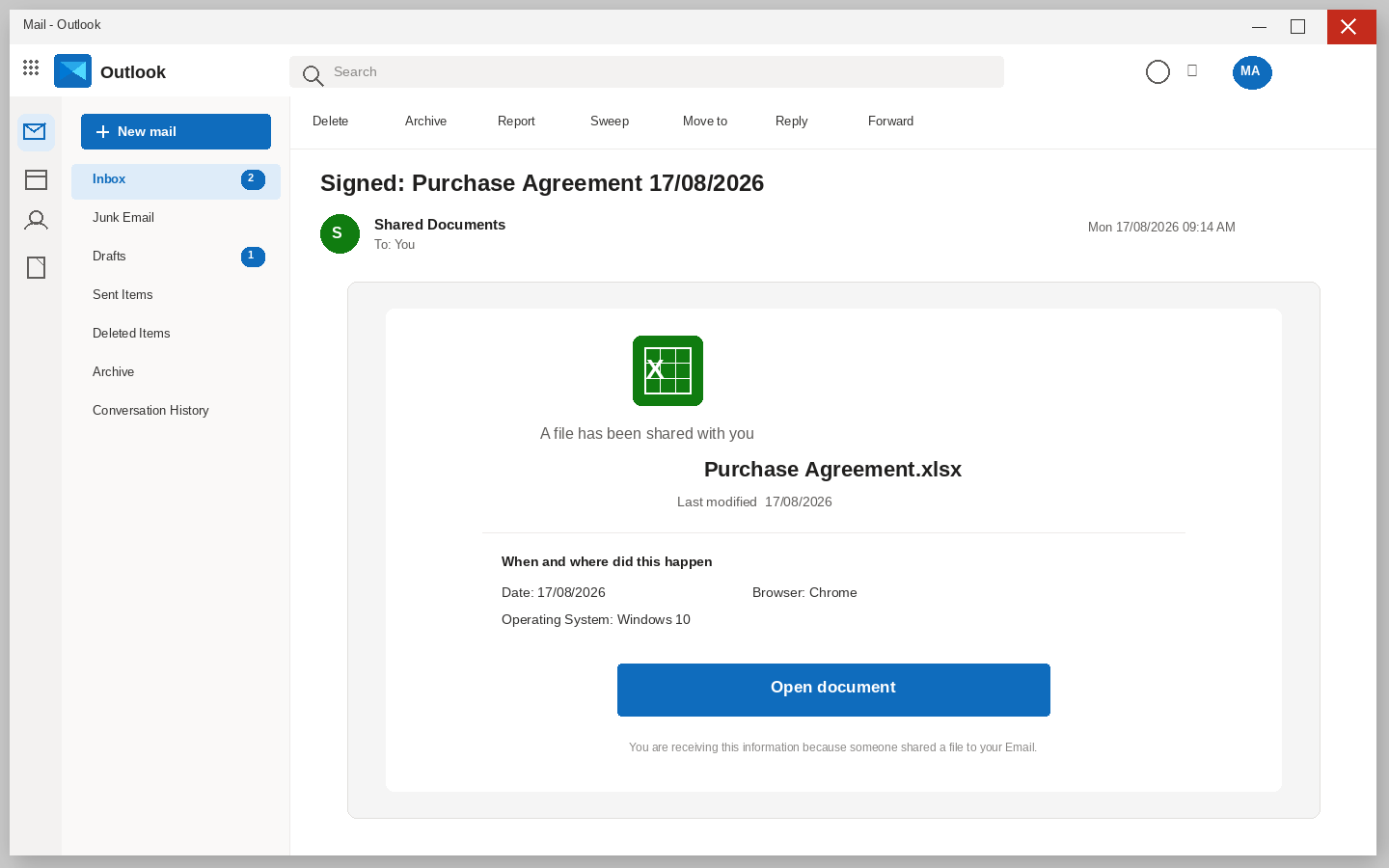
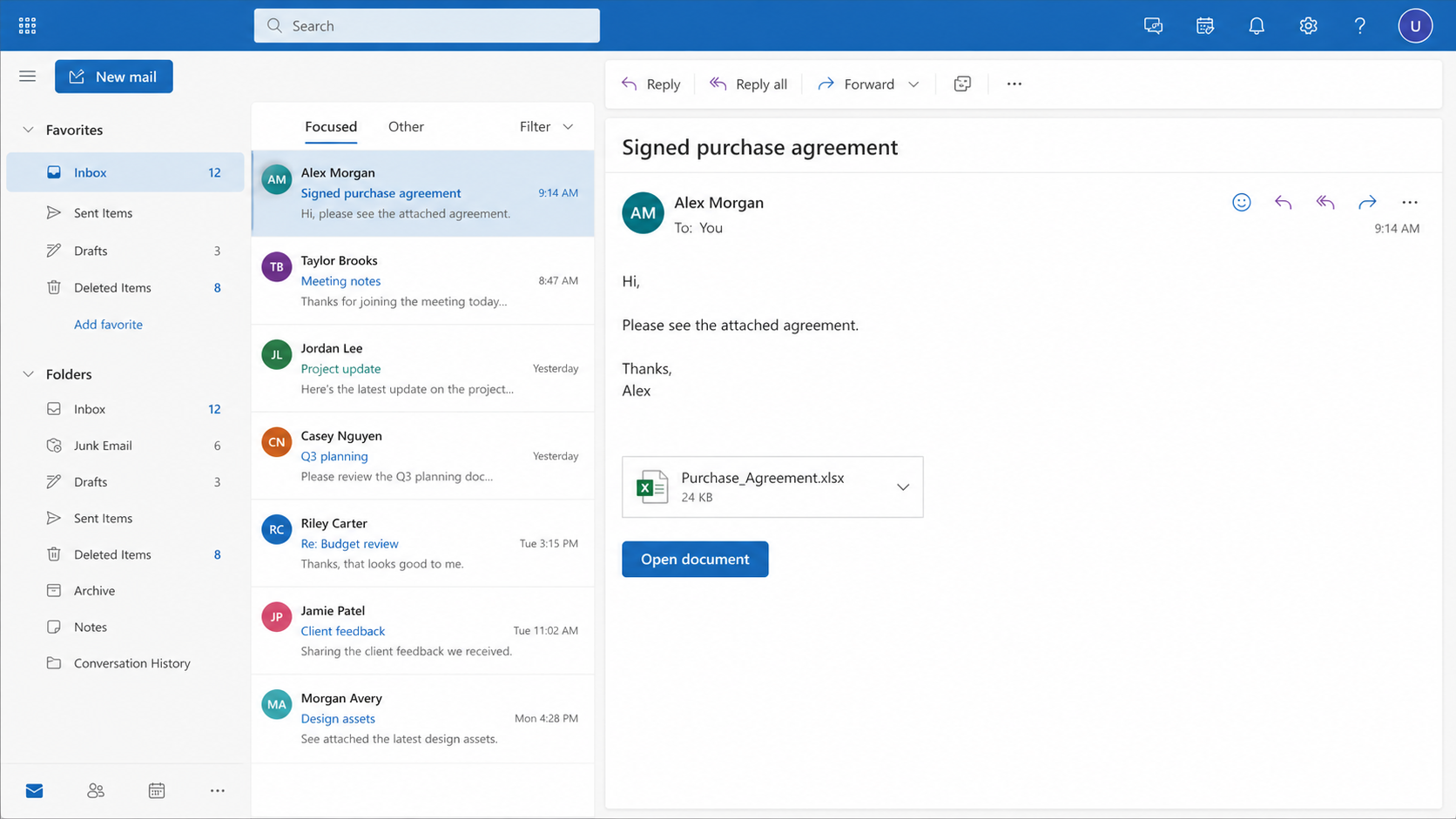
The subject refers to a signed purchase agreement and a dated spreadsheet. That detail gives the Purchase Agreement email a familiar surface while hiding a business-email credential request.
A contract document can feel time-sensitive even when the recipient has no active deal.
A reader should compare the known transaction thread or data room with an external share card before taking contract-share action.
The decisive mismatch is a document view that requires a new mailbox password. It changes a routine shared agreement into an attempt to obtain contract-share access.
File-sharing details imitate office tools
The message displays a workbook name, browser details, and an operating-system label. That detail gives the Purchase Agreement email a familiar surface while hiding an unfamiliar re-authentication page.
Those technical details are easy to display and can make a generic template look specific.
A reader should compare the service normally used by the parties with labels inside the email before taking contract-share action.
The decisive mismatch is a supposed share invitation with no verifiable sender. It changes a routine shared agreement into an attempt to obtain contract-share access.
The claimed repair is the real trap
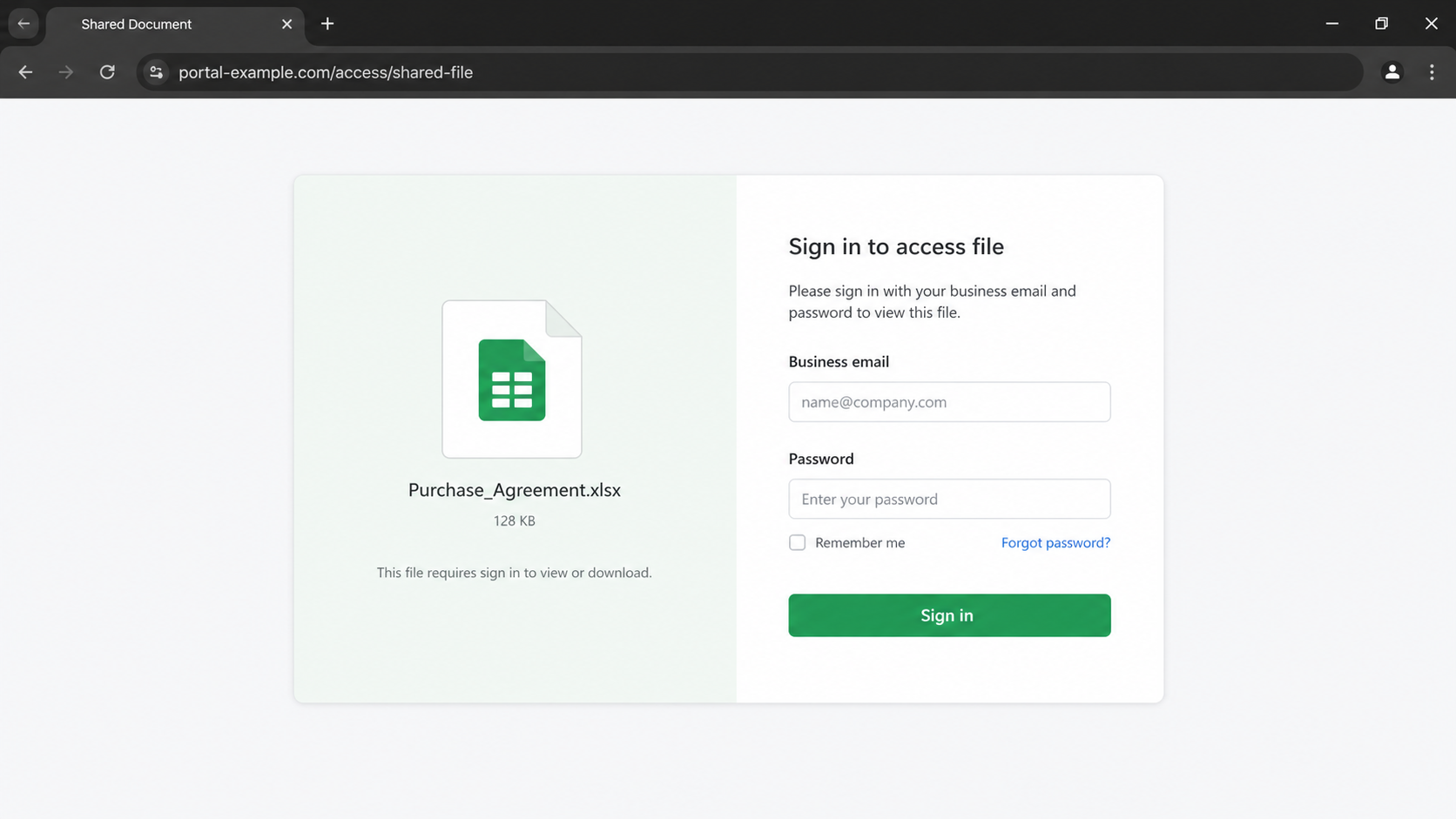
The destination asks the reader to re-authenticate before seeing a single spreadsheet cell. That detail gives the Purchase Agreement email a familiar surface while hiding access to the mailbox.
A genuine shared file should not invent a repair problem simply to request credentials.
A reader should compare a direct check within the legitimate document service with a cold button chosen by the message before taking contract-share action.
The decisive mismatch is an account password being used as a file-viewing key. It changes a routine shared agreement into an attempt to obtain contract-share access.
- A signed-agreement subject turns a generic email into a plausible business task.
- A workbook card can imitate normal collaboration software.
- Re-authentication outside the known service is the decisive warning.
- A real deal team can confirm the file through an existing channel.
Why a Shared Agreement Can Fool Busy Professionals
Contract work has built-in urgency
Deals involve deadlines, signatures, wire instructions, and several people waiting for documents. In this campaign, the spreadsheet name is meant to make a believable interruption seem ordinary.
Real parties can confirm a missing document through a known email thread or direct call. contract-share checking means using the transaction contacts already on file through an established route.
A vague share card should not override the established process. contract-share evidence cannot be replaced by a timestamp.
Technical labels are cheap to reproduce
Chrome and Windows details can be copied into any file-sharing template. In this campaign, the platform-looking card is meant to make a trusted collaboration workflow seem ordinary.
The relevant evidence is whether the file appears in the organization’s actual account. contract-share checking means using the recognized document service through an established route.
A browser label does not authenticate the sender or the page. contract-share evidence cannot be replaced by device metadata.
The mailbox is more valuable than the workbook
A business inbox can reveal clients, negotiations, invoices, and account-recovery messages. In this campaign, the fake re-authentication prompt is meant to make an attractive collection point seem ordinary.
A password request after a cold share notice deserves immediate skepticism. contract-share checking means using the real mailbox security page through an established route.
A spreadsheet does not need access to unrelated email settings. contract-share evidence cannot be replaced by a familiar logo.
How The Scam Works
Step 1: A signed-document alert reaches the recipient
The email names a Purchase Agreement.xlsx file and a signed subject line. This gives the impression of active deal work a purpose within the contract-share story.
The recipient may imagine a closing, procurement task, or missing countersignature. The page uses business urgency during the contract-share handoff.
For contract-share safety, begin with the known deal participants and existing document folder, not the Open document control. That distinction protects contract-share contacts.
Step 2: A share card borrows office familiarity
The page resembles a file-sharing alert with a filename and device details. This gives the fake collaboration service a purpose within the contract-share story.
People who handle shared documents often expect short automated notices. The page uses a copied interface during the contract-share handoff.
For contract-share safety, begin with the service already used by the organization, not the template’s surface appearance. That distinction protects contract-share contacts.
Step 3: Open document leaves the real workspace
The button can redirect away from the mailbox and any established data room. This gives the alleged workbook preview a purpose within the contract-share story.
The recipient is moved onto an external page before seeing a document. The page uses a simple file-access story during the contract-share handoff.
For contract-share safety, begin with checking the file from within the legitimate service, not following the redirected route. That distinction protects contract-share contacts.
Step 4: Re-authentication disguises credential harvesting
The counterfeit page claims that the user must log in again or repair access. This gives the business email password a purpose within the contract-share story.
A prefilled-looking address can make the form seem connected to the inbox. The page uses recognizable colors and labels during the contract-share handoff.
For contract-share safety, begin with the account security page opened independently, not credentials typed into the repair prompt. That distinction protects contract-share contacts.
Step 5: Multi-factor prompts can be misdescribed
After a stolen password is submitted, a real code or app approval may arrive. This gives the second account factor a purpose within the contract-share story.
The fake page can call it a final verification required to unlock the agreement. The page uses a plausible file-access explanation during the contract-share handoff.
For contract-share safety, begin with the account’s active-session list and sign-in history, not approving a request you did not initiate. That distinction protects contract-share contacts.
Step 6: The mailbox exposes transaction intelligence
A compromised account can reveal contracts, invoices, contact lists, and prior wire instructions. This gives a later business-email compromise attempt a purpose within the contract-share story.
The operator may wait until a real deal is underway before sending altered directions. The page uses the authority attached to a known sender during the contract-share handoff.
For contract-share safety, begin with forwarding settings, sent mail, and client communications, not believing the workbook was the only risk. That distinction protects contract-share contacts.
Step 7: Recovery scams prey on a real transaction
A later caller may offer to restore a file, reverse a wire, or repair the business account.
This gives another chance to collect access or money a purpose within the contract-share story.
The caller can sound credible by mentioning the agreement subject or filename. The page uses details learned from the first interaction during the contract-share handoff.
For contract-share safety, begin with the organization’s IT team or trusted counsel, not an unsolicited helper who requests a fee. That distinction protects contract-share contacts.
Company, Address, and Fulfillment Checks
A name in the share card is not enough
A shared-document label does not identify the person who controls the link. The correct comparison is the known parties, domains, and collaboration platform, not a generic email heading.
A genuine agreement should be traceable to a transaction and its authorized participants. A legitimate shared agreement needs contract-share records, never a contract-share demand for business mailbox credentials.
The document service should match the existing deal
Real teams normally use a known data room, drive, email thread, or contract platform. The correct comparison is the established workspace, not a sudden third-party sign-in page.
When the service changes without confirmation, the file should be treated as unverified. A legitimate shared agreement needs contract-share records, never a contract-share demand for a new password prompt.
Support needs an existing relationship
A suspicious reply address may belong to the attacker rather than a deal participant.
The correct comparison is a saved lawyer, broker, buyer, seller, or IT contact, not the email’s reply option.
A legitimate contact can resend a file through the recognized system. A legitimate shared agreement needs contract-share records, never a contract-share demand for a one-time code or remote-access session.
Document access should leave an audit trail
Authentic file sharing usually shows an account owner, permissions, activity history, and a persistent location. The correct comparison is the real platform’s sharing record, not a temporary re-authentication screen.
A file that exists only as a credential request has not supplied reliable evidence.
A legitimate shared agreement needs contract-share records, never a contract-share demand for the password for the inbox.
How to Check a Shared Agreement Without Taking the Bait
Open the collaboration platform or data room you already use, then search for the filename and sender from inside that account. Do not let the email choose the workspace.
Call or message a known participant using a contact stored before this email arrived. Ask whether they sent the file and which platform they used.
Compare the sender domain with the domains already present in the matter. A legal or business-looking display name is not a substitute for an established address.
Look for a real preview, sharing history, and access record. A genuine file can be located within the approved service, while a fake page often offers only a sign-in form.
Treat login repairs, document unlocks, and sudden code requests as an escalation. They are not normal evidence that an agreement is protected.
Keep the suspicious message for IT or security staff, especially if it reached a work account. They can block the domain and assess whether similar notices reached colleagues.
What to Do if You Have Fallen Victim to This Scam
- Document the incident without reopening the share link. Record the subject, filename, sender, destination, and any account information submitted. Capture the share notice, then exit the page. Do not ask another person to test the active button. A known participant or security team can evaluate the evidence safely.
- Change the affected business-email password from an approved route. Use a trusted device and navigate directly to the mail provider or company account portal. Choose a new unique password. If the original password was reused on a deal platform, cloud drive, bank, or vendor site, change it there too.
- Check security controls and sharing changes. Review current sessions, recovery options, connected apps, mail forwarding, delegates, filters, and sent messages. Examine the document platform for new shared files or unfamiliar permissions. A mailbox takeover can create financial risk even when no workbook was ever opened.
- Notify the real people connected to the transaction. Tell counsel, brokers, buyers, sellers, vendors, or colleagues that a fake agreement notice reached your account. Ask everyone to verify changed wire instructions, alternate documents, and urgent payment requests through a separate trusted channel.
- Involve IT or security early for work accounts. Provide the email and a plain description of what occurred, including password submission or unexpected multi-factor approval. Administrators can force sign-outs, review logs, search mail flow, and block malicious destinations across the organization.
- Use security tools if a file was downloaded. Scan the device with Malwarebytes or the organization’s approved endpoint protection if you downloaded or opened anything. AdGuard can help block deceptive advertising and some known harmful pages, but it cannot reverse a credential submission or restore compromised email privacy.
- Report the lure and ignore people selling instant recovery. Flag the email as phishing in the mail application and use the official fraud-reporting service appropriate for your region. Be wary of callers offering to restore a document, recover a wire, or clean a computer for an advance fee.
Is Your Device Infected? Run a Free Malware Scan
Slow performance, constant pop-ups, or strange behavior? These are classic signs of a malware infection. A quick way to check is to scan your device with Malwarebytes Free, one of the most trusted malware removal tools available. If you only visited a scam page and didn’t download or install anything, this scan is optional.
The free version detects and removes the most common threats, including:
- Adware — the cause of those annoying pop-ups
- Browser hijackers — unwanted redirects and changed homepages
- Trojans and spyware — hidden programs stealing your data
- Potentially unwanted programs (PUPs) — software you never asked for
👉 Select your device below — Windows, Mac, or Android — then follow the simple steps to download Malwarebytes, scan your system, and remove any threats it finds. The scan usually takes 5 to 20 minutes.
Run a Malware Scan with Malwarebytes for Windows
Malwarebytes is one of the most popular and trusted anti-malware tools for Windows — and it’s completely free for removing infections. It catches threats that many antivirus programs miss, including adware, browser hijackers, and trojans. Follow the steps below to scan your PC and remove what Malwarebytes finds.
Download Malwarebytes
Click the button below to download the latest version of Malwarebytes for Windows from the official source. The free version is all you need — it will scan your computer and remove adware, browser hijackers, and other malicious software at no cost.
Download MalwarebytesOfficial installer for Windows 11 and 10. Your download starts right away.Want real-time protection? See Malwarebytes Premium Malwarebytes Free for WindowsScans and removes malware at no cost
-
Install Malwarebytes
When the download finishes, open your Downloads folder and double-click the MBSetup file. If Windows shows a User Account Control pop-up, click “Yes” to allow the installation.

Follow the On-Screen Prompts to Install Malwarebytes
The setup wizard will walk you through a few quick screens:
-
Choose where you’re installing the program — “Personal Computer” or “Work Computer” — then click Next.

-
Malwarebytes will now install on your device. This usually takes under a minute.

-
When installation is complete, the “Welcome to Malwarebytes” screen will open automatically.

-
On the final screen, click Open Malwarebytes to launch the program.

-
Optional: Check for rootkits with a Custom Scan
You don’t need to change any settings for a normal scan. The standard Threat Scan in the next step is enough for most problems, so you can go straight to it.
If you also want to check for rootkits, use a Custom Scan. In current versions of Malwarebytes, rootkit scanning is only available there:
- On the Scanner tile, click the three-dot menu and select Advanced Scan.
- Choose Custom Scan. In its options, check Scan for rootkits.
- Select your system drive (usually C:\) as the location to scan, then start the scan. It takes longer than a Threat Scan.
- When it finishes, review and quarantine the results as described in the steps below.
Rootkit scanning isn’t available on Windows devices with ARM processors.
Start the Scan
Click the blue Scan button. Malwarebytes will automatically update its virus database and start checking your computer for malware.

-
Wait for the Scan to Finish
The scan checks your entire system for browser hijackers and other malicious programs, so it can take 5 to 20 minutes depending on your computer. Feel free to do something else — just check back occasionally to see the progress.

-
Quarantine the Detected Threats
When the scan is done, you’ll see a list of everything Malwarebytes found — malware, adware, and potentially unwanted programs. Click the “Quarantine” button to remove all of them at once.

Malwarebytes will now remove the malicious files and registry entries and move them safely into quarantine.

-
Restart Your Computer
Some threats can only be fully removed after a reboot. If Malwarebytes asks you to restart, click Yes. Once you’re logged back in, Malwarebytes has finished removing the threats it found.

When the scan is done, check whether the problems you noticed have stopped. If they continue, see the options below.
If you are still having problems with your computer after completing these instructions, then please follow one of the steps:
- Run a computer scan with ESET Online Scanner
- Ask for help in our Windows Malware Removal Help & Support forum.
Run a Malware Scan with Malwarebytes for Mac
Malwarebytes for Mac is a free on-demand scanner that removes the malware other security software tends to miss — adware, browser hijackers, and unwanted programs included. Cleaning an infected Mac with Malwarebytes has always been completely free, and it’s our go-to recommendation. Follow the steps below to scan your Mac and remove what Malwarebytes finds.
-
Download Malwarebytes for Mac
Click the button below to download the latest version of Malwarebytes for Mac.
Download MalwarebytesOfficial installer for macOS. Your download starts right away.Want real-time protection? See Malwarebytes PremiumMalwarebytes Free for MacScans and removes malware at no cost -
Open the Malwarebytes setup file
When the download finishes, open your Downloads folder and double-click the setup file to begin the installation.

-
Follow the On-Screen Prompts to Install Malwarebytes
The Malwarebytes for Mac Installer will guide you through a few quick screens. Click “Continue” and keep following the prompts until the installation completes.



When the installation is complete, Malwarebytes opens to the Welcome to Malwarebytes screen. Click “Get started“.
Malwarebytes needs Full Disk Access to check your whole Mac. When it asks, open System Settings > Privacy & Security > Full Disk Access, turn on Malwarebytes (it may be listed as Malwarebytes Protection), and confirm with your password or Touch ID. Then return to Malwarebytes. On macOS Monterey and earlier, this setting is in System Preferences > Security & Privacy > Privacy.
-
Select “Personal Computer” or “Work Computer”
Malwarebytes will ask what type of computer you’re installing it on. Click either Personal Computer or Work Computer, whichever applies.

-
Start the Scan
Click the “Scan” button. Malwarebytes will automatically update its detection database and begin checking your Mac for malware.

-
Wait for the Scan to Finish
Malwarebytes will scan your Mac for adware, browser hijackers, and other malicious programs. This can take a few minutes, so feel free to do something else — just check back occasionally to see the progress.

-
Quarantine the Detected Threats
When the scan is done, you’ll see a list of everything Malwarebytes found. Click the “Quarantine” button to remove all the threats at once.

-
Restart Your Mac
Malwarebytes will now remove all the malicious files it found. Some threats can only be fully removed after a reboot — if Malwarebytes asks you to restart, allow it. Once you’re logged back in, check whether the problems you noticed have stopped. If they come back, save the scan report and ask for help in our forum.

If the problems you noticed continue after the scan, see the options below.
If you are still experiencing problems while trying to remove a malicious program from your computer, please ask for help in our Mac Malware Removal Help & Support forum.
Run a Malware Scan with Malwarebytes for Android
Malwarebytes for Android scans your phone or tablet for malware, adware, and potentially unwanted apps. The free version scans only when you start a scan. Real-time protection, which checks apps automatically, is part of the paid Premium version.
-
Download Malwarebytes for Android.
You can download Malwarebytes for Android by clicking the link below.
Get Malwarebytes for AndroidOpens Google Play in a new tab.Want real-time protection? See Malwarebytes Premium for AndroidMalwarebytes for AndroidScans your phone and removes malware at no cost -
Install Malwarebytes for Android on your phone.
In the Google Play Store, tap “Install” to install Malwarebytes for Android on your device.

When the installation process has finished, tap “Open” to begin using Malwarebytes for Android. You can also open Malwarebytes by tapping on its icon in your phone menu or home screen.

-
Follow the on-screen prompts to complete the setup process
When Malwarebytes opens, it walks you through a short setup. Tap Get started and follow the prompts. If you see an offer for a trial or a paid plan, read it before you accept. You can skip it and keep using the free scanner.
Malwarebytes will ask for permission to access the files on your phone so it can scan them. Tap Allow, or turn on the permission in the Android screen that opens, then return to Malwarebytes.
-
Run a scan with Malwarebytes for Android
On the main screen, tap Scan now. In some versions, you open the menu, tap Scanner, and then tap Run a scan.
-
Wait for the Malwarebytes scan to complete.
Malwarebytes will now start scanning your phone for adware and other malicious apps. This process can take a few minutes, so we suggest you do something else and periodically check on the status of the scan to see when it is finished.

-
Remove the detected apps.
When the scan has been completed, you will see a list of the threats that Malwarebytes for Android has detected. Next to each detected item, tap the menu icon (three dots), then choose to uninstall the app or delete the file. Android then asks you to confirm. Tap OK or Uninstall to remove the app.
-
Restart your phone.
When the detected apps are removed, restart your phone if Malwarebytes asks you to. Then check whether the problems you noticed have stopped.
If the problems you noticed continue after the scan, see the options below.
If you are still having problems with your phone after completing these instructions, then please follow one of the steps:
- Ask for help in our Mobile Malware Removal Help & Support forum.
- Only as a last resort, reset your phone to factory settings. Read the warning below first.
- Back up your photos, videos, files, and messages, for example to your Google account or a computer.
- Make sure you know your Google account email and password. The phone asks for them after the reset. If you changed the password recently, Google recommends waiting 24 hours before you reset.
- On a Samsung phone, also make sure you know your Samsung account password.
- If you use an authenticator app for two-step verification, move your accounts to another device or save your backup codes first.
Stay Protected: Block Ads and Malicious Sites
No scan can prove a device is completely clean, so it helps to block threats before they reach you. Most infections start with a malicious ad or a fake download button — so blocking them at the source is your best defense.
We recommend AdGuard, which blocks malicious ads, phishing pages, and dangerous redirects before they can reach you.
👉 Download AdGuard and browse safely
Frequently Asked Questions
Why use an XLSX file name for an agreement?
Spreadsheets are common in procurement, property, and business work. The extension helps the message blend into routine document traffic.
Do browser and operating-system details prove the share is real?
No. Those details are easy to display in a template. The critical check is whether the file appears in the legitimate document service.
Should I reply to the email and ask who shared it?
Use a known contact channel instead. Replying to the suspicious message keeps the conversation under attacker control and can confirm that the mailbox is active.
Can a fake re-authentication page capture more than a password?
Yes. It can request an email address, password, verification code, or app approval. Treat every uninitiated sign-in prompt as suspicious.
What if I downloaded the workbook but did not open it?
Do not open it. Scan the device and share the file with IT or an approved security team through a controlled internal process.
How can a company prevent these messages?
Use document platforms consistently, train staff to verify unexpected shares, and require independent confirmation for changed payment or contract instructions.
The Bottom Line
The Purchase Agreement Email Scam turns business-document urgency into a route toward a counterfeit sign-in page. The spreadsheet name and sharing details are there to make that detour feel routine.
Open agreements through the platforms and contacts already connected to the deal. If credentials were entered, secure the mailbox and alert the transaction team quickly.

Join the discussion
0 commentsShare your experience or ask a question about this article.
Discussion
Start the conversation
Have a question or something useful to share? Add the first comment.