

A warning about “database loss” sounds more serious than an ordinary password reminder. It suggests that messages, contacts, or business records could disappear unless the recipient acts before a link expires.
The “Set Your Password To Avoid Database Loss” email is not protecting any database. It is a phishing message that directs recipients to a fake, personalized email login page and steals the credentials entered there.
Overview
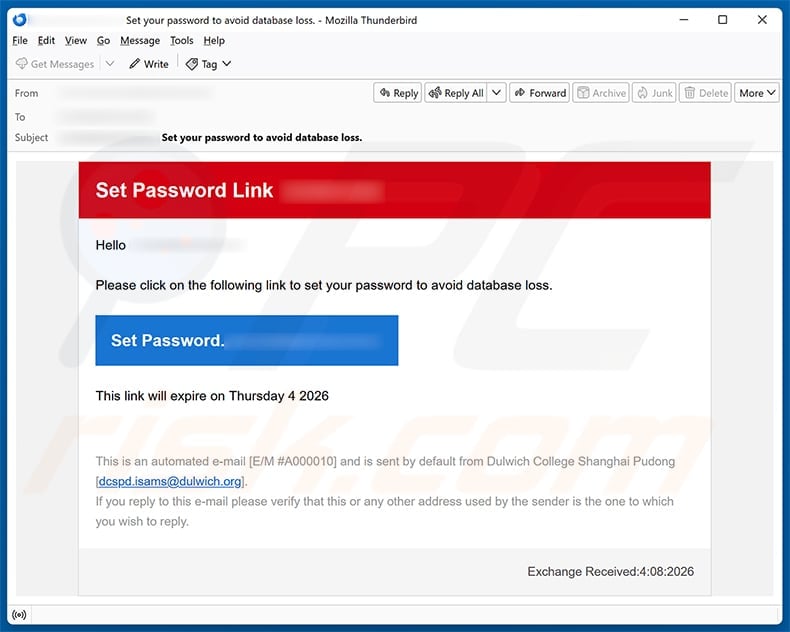
The “Set Your Password To Avoid Database Loss” scam arrives as a short password notice. Its subject may include the recipient’s own email address, followed by a warning that a password must be set to prevent database loss.
The body greets the recipient and provides a single link labeled “Set Password.” A fake expiration date adds urgency, encouraging the user to click before checking who sent the message or where the link goes.
There is no evidence that the recipient’s mailbox database is in danger. The link opens a fraudulent email login form published through IPFS, the InterPlanetary File System.
IPFS is a legitimate decentralized system for storing and distributing content. Criminals sometimes abuse public IPFS gateways because the content is addressed and shared differently from a conventional page hosted on one web server, which can complicate rapid removal.
The campaign examined for this article used an address ending in ipfs.inbrowser[.]link. That domain is not the recipient’s mail provider, employer, school, or hosting company.
What the phishing email says
The wording is intentionally minimal. A version uses the subject “Set your password to avoid database loss” and tells the recipient:
“Please click on the following link to set your password to avoid database loss.”
Set Password
The message also says the link will expire on a specified date. The date may be malformed or may not match the day on which the email arrives.
A short email can be effective because it gives the recipient fewer details to question. The attacker relies on the alarming phrase, the recipient’s displayed address, and the time limit to produce a quick click.
The phishing page changes to match the victim
The destination asks for an email address and password. It may adjust its colors, logo, and page layout according to the domain portion of the email address passed in the link.
For a Gmail address, the page may imitate Google’s sign-in design. A recipient using another provider may see a different theme. This customization is not proof that the page belongs to the provider. It can be performed automatically with images and templates stored in the phishing kit.
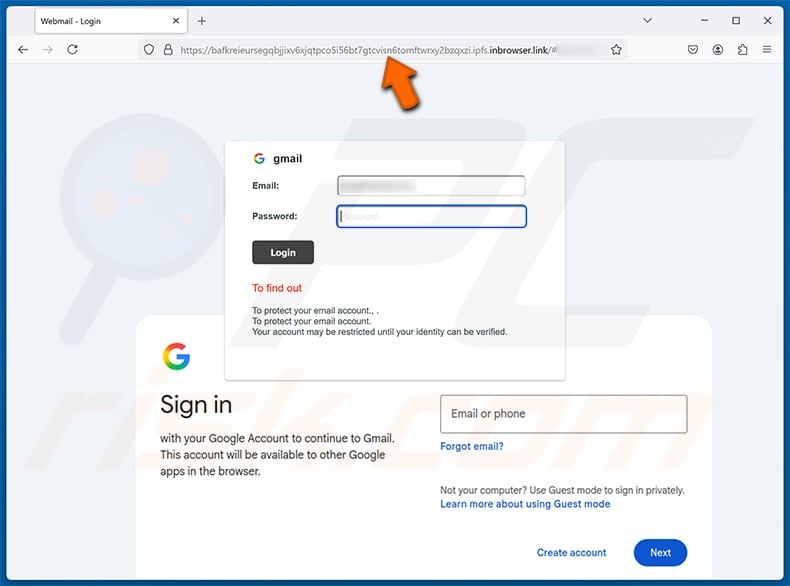
The browser’s address bar remains more trustworthy than the page artwork. If a Gmail-style form is loaded from an unfamiliar IPFS gateway rather than a Google domain, it is not a genuine Google sign-in page.
Why the “database loss” story does not make sense
Mail providers do not normally prevent data loss by asking users to submit their existing password to a page delivered through an unexpected email.
If a real service requires a password change, the user should be able to see the same notice after opening the service independently. The process should occur within the authenticated account or through a known password-recovery flow.
The phishing message does not identify the affected database, explain what caused the supposed risk, link to a verifiable service announcement, or provide a normal support path. “Database loss” is a vague technical phrase chosen to sound important.
Even administrators who genuinely manage databases should not respond through an unsolicited password link. They should use the organization’s approved console, password manager, or support channel.
The school or organization named in the footer is not involved
One examined version referenced an educational institution in the footer. That institution has no connection to the scam.
The sender may have forged the visible identity or abused a compromised organizational mailbox. A message sent from a real account can still be malicious if criminals have taken control of it.
This is why the sender address is only one part of verification. The request, destination domain, email headers, and independent confirmation all matter.
What criminals can do with the password
Email credentials provide access to private communications and a route into many connected accounts. An attacker can search the inbox for bank notices, invoices, cloud-storage links, client information, and password-reset messages.
The criminal may change the mailbox password, recovery address, phone number, or multi-factor settings to lock out the owner. If the same password was reused, automated login attempts can target other websites immediately.
A compromised business or school address also gives the attacker a trusted identity. They can send fake documents, payment requests, payroll changes, or additional phishing messages to people who recognize the sender.
Some attackers do not act immediately. They monitor conversations, create hidden forwarding rules, and wait until a valuable payment or document exchange is underway.
IPFS is not the proof of legitimacy
Decentralized storage has valid uses, and an IPFS URL is not automatically malicious. The warning comes from the context: an unexpected security email is asking for credentials on infrastructure unrelated to the account provider.
A phishing page can be removed from one public gateway and remain available through another if the underlying content is still accessible. Blocking one hostname may therefore stop only one route to the same kit.
Users do not need to understand the IPFS identifier to stay safe. They only need to follow one rule: never enter an account password after opening a link from an unexpected security notice.
Red flags in the database-loss email
- The recipient did not request a password setup or reset.
- The message threatens undefined “database loss” without technical or account-specific details.
- The email address in the subject creates artificial personalization.
- The link has a short expiration deadline designed to discourage verification.
- The sender’s institution or service identity does not match the link destination.
- The page is hosted through an unfamiliar IPFS gateway.
- The sign-in design changes according to the recipient’s email provider.
- The page requests an existing password instead of using the provider’s official recovery flow.
- The browser domain does not match the logo or provider name shown on the page.
Spelling mistakes can support the suspicion, but a message without mistakes can be just as dangerous. Criminals can copy professional templates and use automated writing tools.
How to check a real password notice
Open the provider’s official app or type its known address into a fresh browser tab. Do not copy the domain from the suspicious message.
Check the account’s security center for a matching alert. Review recent sign-ins and password-change activity. If the account belongs to a workplace or school, contact the IT team through a phone number, ticket portal, or internal channel you already know.
A password manager can help expose a fake page. It normally associates saved credentials with the correct domain and may refuse to autofill them on an unfamiliar IPFS site.
Multi-factor authentication also limits some damage, but it is not permission to enter the password. Attackers can request codes, send approval prompts, or use real-time phishing tools to capture both factors.
How The Scam Works
The campaign combines personalization, technical language, and a provider-matching login template. The following sequence shows how a recipient is moved from the inbox to credential theft.
1. The attacker collects active email addresses
Addresses may be scraped from websites and directories, purchased from data brokers, obtained from breaches, or discovered by sending messages to common username patterns.
Business and school accounts are attractive because they connect the attacker to trusted contacts and potentially valuable internal systems.
2. The recipient’s address is inserted into the subject or link
Automated mailing software can place each email address into the message. Personalization makes a mass campaign look like an account-specific warning.
The same value can be encoded into the URL so the destination knows which provider design to display and which address to prefill.
3. The scam invents a risk to stored data
The phrase “database loss” suggests irreversible damage. The victim may fear losing years of email or disrupting an organization.
The message never needs to prove that a database problem exists. Its goal is to create enough uncertainty for the recipient to click.
4. An expiration date shortens the decision window
The link supposedly stops working on a particular date. This familiar security pattern makes the request sound administrative.
Urgency is valuable to the attacker because independent verification takes time. A person who pauses to contact IT is much less likely to submit the password.
5. The link opens content through an IPFS gateway
The gateway retrieves the phishing page associated with a content identifier. The long, unfamiliar address can make it difficult for a nontechnical user to see what organization actually controls the destination.
No legitimate relationship is created simply because the page loads over HTTPS or through modern distributed technology.
6. The kit selects a familiar provider template
The page can examine the email domain and load matching branding. A Gmail user sees one style, while a Microsoft, Yahoo, or private-domain user may see another.
The provider logo is only an image. The address bar still shows the unrelated hosting location.
7. The victim enters the current password
The form may describe the action as setting, confirming, or synchronizing a password. In reality, it asks for a working credential that the attacker can test.
A password entered once should be considered stolen even if the page reports an error.
8. The phishing kit sends the credentials to the operator
The email address, password, IP address, browser information, and time of submission may be recorded. Some kits deliver the data to a messaging bot or remote panel instantly.
Fast delivery lets criminals attempt a login before the victim becomes suspicious and changes the password.
9. The attacker establishes persistence
After entering the mailbox, the criminal can create forwarding rules, add recovery methods, authorize an app, or generate app passwords.
Changing only the main password may not remove those hidden access paths. Account settings and active sessions must also be reviewed.
10. The compromised account expands the campaign
Messages sent from the victim’s real address are more likely to pass authentication checks and be trusted by contacts.
The attacker can repeat the same password warning, distribute malicious files, or impersonate the victim in payment and document requests.
What To Do If You Have Fallen Victim
Act promptly, but do not rush back through the phishing link. Recover the account only through the provider’s official website or your organization’s approved support process.
- Change the email password immediately. Use a trusted device and the provider’s known address. Choose a unique password that is long and unrelated to previous passwords.
- Contact IT if the account belongs to an organization. The team may need to revoke sessions, inspect logs, reset authentication, and check whether the attacker sent messages or accessed other systems.
- Replace reused passwords. Assume criminals will test the stolen combination elsewhere. Prioritize banking, cloud services, hosting, domain registration, social media, and workplace accounts.
- Enable strong multi-factor authentication. Use a passkey, hardware security key, or authenticator app when available. Avoid relying only on SMS for high-value administrative accounts.
- Revoke active sessions and connected apps. Sign out all devices, remove unknown OAuth connections, delete unfamiliar app passwords, and reject pending login approvals.
- Inspect recovery settings. Confirm the recovery email, phone number, security questions, and trusted devices. Remove anything the attacker added.
- Check forwarding rules and delegates. Delete unknown rules that copy, hide, archive, or delete messages. Review mailbox delegates and shared-access permissions.
- Search for signs of abuse. Review Sent, Trash, Drafts, and account activity. Look for password resets, financial messages, and conversations opened or deleted unexpectedly.
- Warn contacts. If the account sent suspicious messages, tell recipients not to open links, download files, change bank details, or provide credentials.
- Scan the device if another file was opened. The observed link targets credentials, but related campaigns can carry malware. Update the system and run trusted security software if an attachment or download was involved.
- Preserve and report the evidence. Save the email as a file with its headers, record the defanged URL, and report the message through the provider’s phishing tool and your organization’s security channel.
- Monitor for follow-up attacks. A confirmed address may receive fake support calls, multi-factor prompts, and recovery messages. Verify every contact independently.
The FTC recommends changing compromised passwords immediately, using multi-factor authentication, and contacting the provider through a known website or phone number. Its phishing guidance also advises reporting suspicious messages.
If you opened the page but did not submit a password, close it and avoid returning. Revoke notification permission if the page requested it, and verify that the browser did not download a file.
The Bottom Line
The “Set Your Password To Avoid Database Loss” email uses a fake technical emergency and expiring link to steal mailbox credentials. The IPFS-hosted destination can imitate the recipient’s provider, but the unfamiliar domain exposes the deception.
Do not set or confirm a password through an unexpected email. Open the real provider independently, contact IT through a known channel, and treat any password entered on the phishing page as compromised.








