

A warning says your mailbox has gone 60 days without validation. Complete a quick check before the deadline, or the account may be flagged for suspension and message delivery could be restricted.
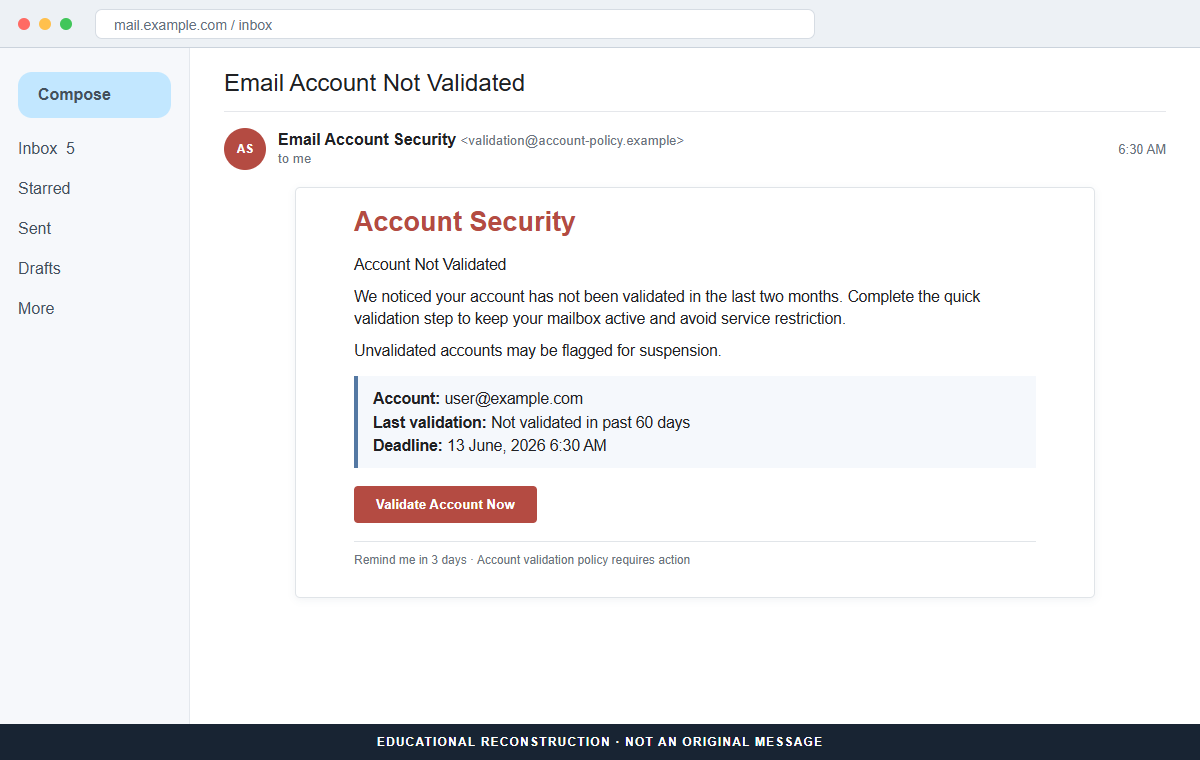
The Account Not Validated email is a phishing scam. Both the urgent Validate Account Now link and the calmer Remind Me in 3 Days option lead toward the same fraudulent sign-in page.
The second link is a clever detail. It makes the message feel like a normal service notification with flexible choices, even though postponing and acting immediately serve the same attacker-controlled destination.
Do not choose either option. Open the real provider account independently, review its security notices, and contact support through a known route if any validation requirement appears there.
Overview
The email invents a recurring 60-day validation policy
The message claims the mailbox has not been validated in the past two months and says all users must revalidate every 60 days to maintain full access. It does not identify the provider that supposedly created this policy.
A status line says “Last validation: Not validated in past 60 days,” while a precise date and 6:30 AM deadline create the appearance of an account-specific rule.
The values can be inserted into a mass-mail template.
Two choices disguise a single phishing path
Validate Account Now appears to be the urgent action. A separate Remind Me in 3 Days link looks less risky and suggests the recipient can keep the current status temporarily.
Both choices are controlled by the sender and can open the same credential-harvesting page. The postponement option is not proof of a functioning account policy.
The counterfeit login adapts to the recipient
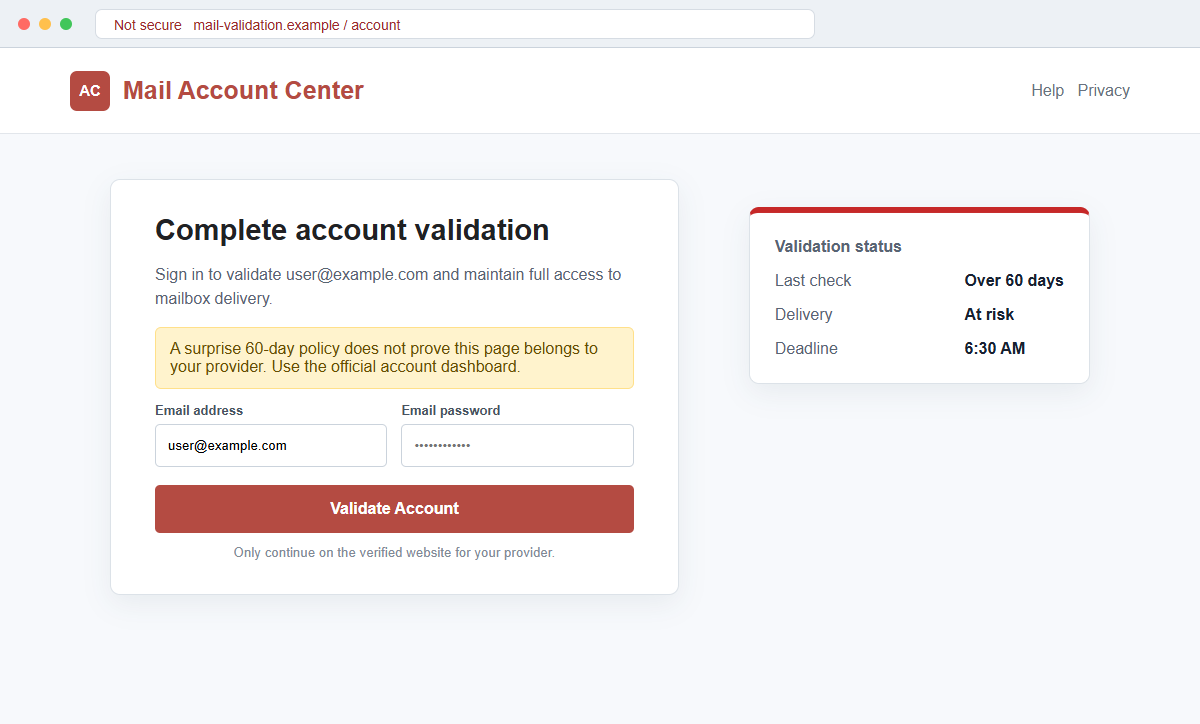
Although the destination reviewed in the campaign later became inactive, such pages can inspect the email domain and show a Gmail, Outlook, Yahoo, or generic webmail theme. The address may be prefilled automatically.
The password submitted to that form is sent to the criminal. Mailbox access can expose private messages and let the attacker reset banking, shopping, social, cloud, and workplace accounts.
- The subject says the email account is not validated.
- A two-month inactivity period is presented as a security failure.
- A universal 60-day policy is claimed without naming the provider.
- A precise morning deadline creates urgency.
- Suspension and delivery restrictions are threatened.
- The recipient can supposedly validate now or delay three days.
- Both options can lead to the same fraudulent destination.
- The login page may imitate the recipient's actual provider.
- A prefilled address creates false personalization.
- The requested password gives criminals a path into the real mailbox.
How Real Providers Handle Inactivity and Security Checks
Providers can require security reviews, password changes, or updated recovery information, especially after suspicious activity. Managed work and school accounts may also follow policies set by their own administrators.
Those requirements should appear inside the authenticated account and come from an identifiable service. A message that does not name the provider cannot establish which policy applies or where it is documented.
Major public policies do not support the claim that every mailbox must revalidate every 60 days.
Google, for example, describes personal accounts as inactive after at least two years without use, not simply because a special email validation button was ignored for two months.
That comparison does not define every provider's rules. It shows why recipients should verify the exact policy for their own account rather than accepting a universal statement in an unsolicited message.
Real security pages also live on stable domains. Gmail, Microsoft, Yahoo, a hosting company, or an employer should have a familiar account route that can be opened without using the alert.
If the account is active enough to receive and read the warning, a claim that it has not been validated may still be possible under some custom policy, but the sender must be independently authenticated before any password is entered.
Why the 60-Day Validation Warning Does Not Add Up
The message calls the account unvalidated but successfully addresses the same mailbox. It does not explain what validation means, what evidence is missing, or why ordinary sign-in activity did not satisfy the alleged requirement.
The policy is presented as universal while the provider remains unnamed. Different consumer, business, school, and hosted accounts use different identity and inactivity rules, so one unexplained 60-day statement cannot cover them all.
The deadline is precise but unsupported. There is no account portal reference, help article, policy version, support ticket, administrator name, or event history that a recipient can compare independently.
The Remind Me in 3 Days option creates interface realism. A phishing operator can label a second link however they like while sending both clicks to the same page.
A provider-themed login is not proof of provider ownership. The page can choose its colors and logo after reading the portion of the recipient's address that follows the @ symbol.
The actual test is simple: open the official account from a bookmark. If no matching notice, deadline, or validation task appears there, do not supply credentials to the email destination.
How the Account Not Validated Email Scam Works
Step 1: The campaign targets known and guessed mailboxes
Criminals collect addresses from public pages, marketing lists, data breaches, contact forms, and common company formats. A broad provider-neutral template allows the same campaign to reach many services.
The sender does not need to know when the account was created or last used. The 60-day status is fabricated inside the message.
Step 2: An invented policy turns normal activity into a problem
The email claims every user must revalidate regularly to preserve delivery. People who have never heard of the rule may assume they missed an earlier notice or that the provider recently changed its terms.
The lack of explanation can increase anxiety rather than reduce credibility, especially when the recipient depends on the mailbox for work.
Step 3: Suspension language adds a deadline
A specific date and early-morning time suggest an automated enforcement event. The recipient is warned that the account may be flagged and messages restricted after that point.
Urgency is designed to make clicking feel like routine prevention rather than a new security decision.
Step 4: The reminder link lowers the recipient's guard
Not everyone will choose Validate Account Now. By offering a three-day delay, the attacker creates a softer option for cautious users and makes the notification resemble a real workflow.
The alternative does not keep the current status. It can open the same page immediately, exposing the deception only after the click.
Step 5: The destination builds a familiar login on demand
A phishing kit can examine the address and display Gmail, Outlook, Yahoo, or generic webmail branding. The address is often prefilled so the victim only needs to type the password.
The page is still controlled by the criminal. Its full hostname, not its selected theme, determines where the credential is being sent.
Step 6: The stolen password is used against genuine services
Attackers try the credential on the real email provider and on other accounts where it may have been reused. They may also trigger multi-factor prompts or request a one-time code through a follow-up page.
A failed first attempt can cause the fake form to ask again, collecting a second likely password before redirecting the victim to the real inbox.
Step 7: Account access becomes a tool for fraud
Inside the mailbox, the attacker can find password resets, identity records, contacts, invoices, cloud links, and trusted conversations. Hidden forwarding and deletion rules may preserve access and conceal alerts.
The genuine address can then send scams to friends, coworkers, customers, or suppliers with far more credibility than the original validation message.
Company and Checkout Checks
Sign in from the official application or bookmark
Ignore both links in the email. Open the provider's app, type its known address, or use a saved password-manager entry, then inspect security and account notifications.
A legitimate requirement should remain visible when the alert itself is not used as the entry point.
Find the policy the email claims to enforce
Search the provider's official help center for validation, inactivity, suspension, and message-delivery rules. Check whether the stated 60-day interval and deadline exist for your account type.
Do not accept a policy page hosted on the same unfamiliar domain as the login form.
Ask the established administrator
For a work, school, or hosted mailbox, contact IT or the provider through a known ticket portal or number. Send the suspicious message as an attachment so its headers can be reviewed.
A real administrator can confirm policy status without asking you to reveal the current password by email.
Treat every link as untrusted, including the reminder
Hover over Validate Account Now and Remind Me in 3 Days. If they resolve to the same or an unrelated domain, the interface is only a lure.
Even different links can redirect to one credential page, so independent navigation remains the stronger check.
Warning Signs to Check Before You Act
- The provider behind the validation rule is not named.
- Validation is undefined and no missing requirement is explained.
- A universal 60-day policy is asserted without documentation.
- The warning reaches an account it describes as unvalidated.
- A precise deadline has no account record or ticket behind it.
- Suspension and delivery restrictions pressure immediate action.
- The reminder option can lead to the same destination as validation.
- The login theme changes according to the recipient's domain.
- The email address is prefilled to appear personalized.
- The full hostname does not match the real provider.
- The page requests the existing mailbox password.
- No matching task appears after an independent official login.
Account policies vary, but they are documented and visible through the real service. An unnamed 60-day rule that exists only inside a password-collection link should not be trusted.
What to Do if You Have Fallen Victim to This Scam
- Change the exposed password immediately. Open the email provider's official account and security dashboard through a saved bookmark or its official application, not through the Account Not Validated message. Set a long password through the real provider after that account-not message. Change matching or closely related passwords on other accounts.
- Treat the password entered after the account validation warning as compromised. Set a long password through the real provider after that account-not message. Change matching or closely related passwords on other accounts. Audit the authentication methods registered after this account-not case. Remove unknown telephone numbers, recovery addresses, app passwords, and security keys.
- End the access created through the account validation warning. Sign out all other sessions from the email provider’s official account page, revoke unfamiliar OAuth grants, and reconnect trusted mail applications only after the password change. This closes tokens that can survive a simple reset.
- Review the mailbox for changes connected with the account validation warning. Remove unknown forwarding addresses, delegates, inbox rules, filters, and automatic replies. The mailbox history surrounding this account-not incident may expose attacker activity. Inspect sent mail, deleted items, trash, and recovery messages.
- Protect the wider account chain. Prioritize email and every service that uses it for password recovery. The mailbox involved in that account-not message may unlock other accounts through reset links. Change those credentials before an intruder does.
- Review account security and recovery settings. Check recent sign-ins, active devices, recovery addresses, telephone numbers, multi-factor methods, app passwords, forwarding, inbox rules, delegates, and connected applications. Remove anything you did not authorize and preserve evidence of suspicious changes.
- Check the device used to open the account validation warning. Use Malwarebytes after that account-not message whenever an attachment or browser add-on was opened. Review installed software before returning to banking or email.
- Reduce the chance of reopening a related page. AdGuard or another reputable DNS and content blocker may stop known phishing hosts and malicious advertisements tied to the account validation warning. Keep checking destination addresses after this account-not case. New campaign domains can appear faster than blocklists update.
- Report the phishing message. Use the mail provider's Report Phishing control and notify the email provider or the organization's IT and security team. Keep the original headers for this account-not incident, not only a cropped screenshot. Administrators can use them to trace and block related messages.
- Warn mail administrator and recent contacts through a separate channel. Explain that the account validation warning may have exposed the account and ask them to distrust recent file shares, password requests, invoices, payment changes, or urgent replies until the timeline is confirmed.
- Expect follow-up fraud based on the account validation warning. Anyone citing this account-not incident while promising recovery must be verified independently. A demand for money first is a warning sign. Seek support for this account-not phishing attempt through known channels. A provider or incident responder verified for this account-not phishing attempt is safer than an unsolicited fixer.
Frequently Asked Questions
Is the Account Not Validated email genuine?
The reviewed email is phishing. It invents a 60-day validation requirement and directs both action choices to a fraudulent provider-style login page.
Do email accounts really require validation every 60 days?
Policies vary, particularly for managed accounts, but the message does not identify a provider or documented rule. Verify requirements inside the official account or with the real administrator.
Is the Remind Me in 3 Days link safer?
No. In this campaign, both the immediate and delayed options lead toward the same phishing destination. Button wording does not determine where a link goes.
Why can the fake page show my normal email provider?
Phishing kits can read the domain in your address and load matching colors, logos, and fields. That automatic customization does not authenticate the page.
What if the account dashboard shows a real security task?
Complete it inside that verified dashboard. A genuine task and a phishing email can exist at the same time, so the real warning does not make the email link safe.
What should I do if I only opened the email?
Reading the message alone normally does not expose a password. Report and delete it, and avoid clicking its links or opening any unexpected files.
The Bottom Line
The Account Not Validated scam uses an invented 60-day rule, a precise deadline, and two deceptive choices to lead recipients into a fake mailbox login.
Verify policies inside the known provider account and through established support. A page that adapts its branding to your address is still fraudulent when its hostname belongs to someone else.
If a password was submitted, replace it immediately, revoke sessions, inspect recovery and mailbox settings, secure linked accounts, notify the administrator, scan downloaded content, warn contacts, and report the phishing page.








