

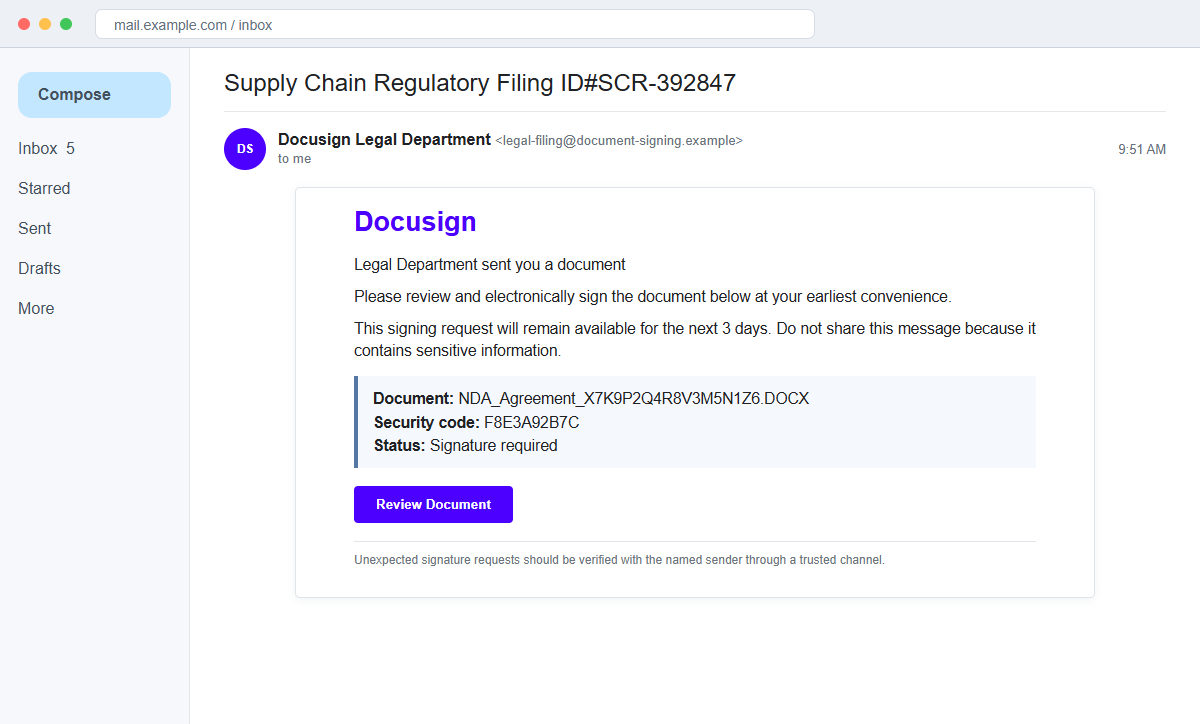
A Docusign-style email says the Legal Department sent a supply-chain filing that must be signed within three days. A regulatory reference, long NDA filename, and security code make the request look more formal than an ordinary attachment.
The DocuSign Legal Department email scam is a malware delivery campaign. The Review Document route leads to an ISO disc image rather than a normal agreement inside the real Docusign service.
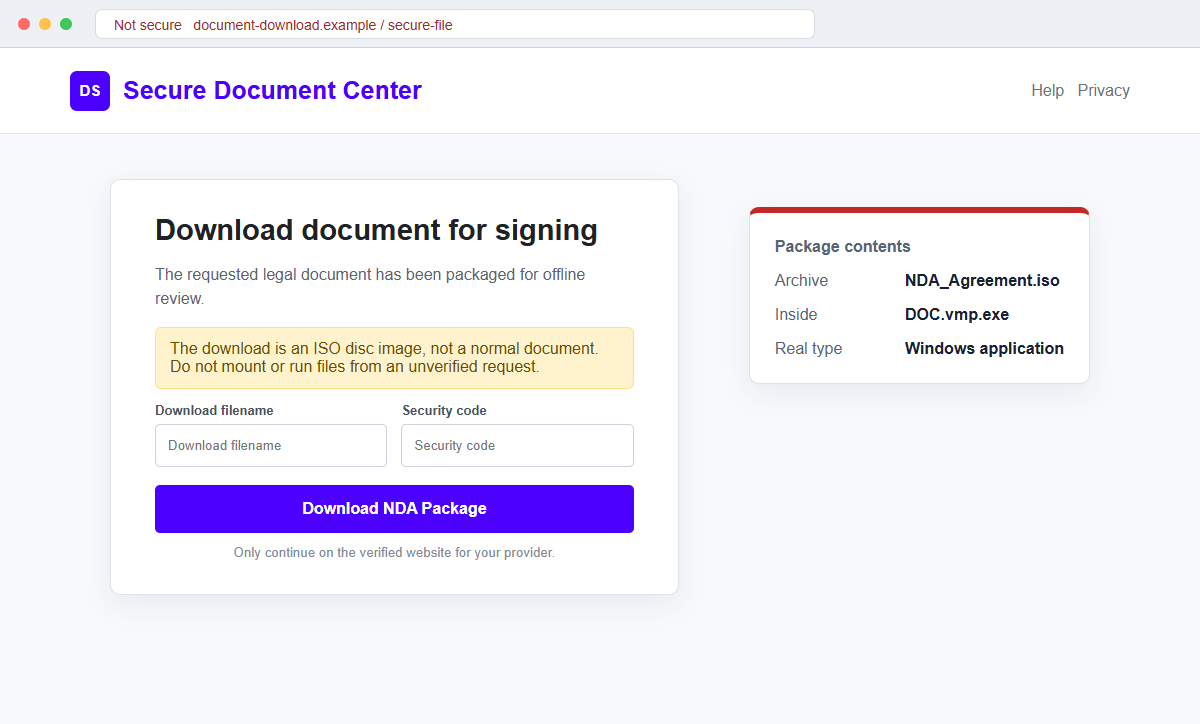
Inside the mounted image is a file whose name contains DOC but ends in .exe. That final extension reveals its real purpose: Windows treats it as an application, not as the document the victim expects.
Do not download, mount, or run the package. Verify an unexpected signature request through docusign.com and contact the named sender using details from an existing relationship.
Overview
A legal deadline makes the signature request difficult to ignore
The subject reads Supply Chain Regulatory Filing ID#SCR-392847. The body says a Legal Department sent an NDA for electronic signature and that the request will remain available for only three days.
Legal, compliance, and supply-chain language increases the perceived cost of delay. Employees may assume that a colleague, vendor, or customer initiated the document even when the sender is unfamiliar.
A security code and document name provide false reassurance
The message identifies NDA_Agreement_X7K9P2Q4R8V3M5N1Z6.DOCX and may display an alternative signing code. Those details imitate the structured notifications people expect from electronic-signature services.
The sender address and download destination do not belong to the verified Docusign service. A plausible reference number cannot repair that mismatch.
The downloaded package conceals a Windows executable
Interaction leads to an ISO disc image. Windows can mount this format as a virtual drive, making the content appear like files on removable media rather than a conventional downloaded archive.
The reviewed image contains NDA_Agreement_X7K9P2Q4R8V3M5N1Z6.DOC.vmp.exe. The embedded DOC text is decoration; the final .exe extension means opening it runs software that may steal information or cause other damage.
- The subject mentions a supply-chain regulatory filing.
- A supposed Legal Department requests an electronic signature.
- The request expires within three days.
- A long NDA filename makes the notice appear specific.
- An alternative signing code adds technical detail.
- The sender uses an unrelated third-party domain.
- Review Document leads outside docusign.com and docusign.net.
- The download is an ISO disc image.
- The file inside contains DOC in its name but ends in .exe.
- Running the executable can install malware on Windows.
How Genuine Docusign Requests Can Be Verified Safely
Docusign is a legitimate electronic-signature platform, but its brand is frequently impersonated because recipients are accustomed to clicking Review Document buttons. A real company name in an email does not prove where the message originated.
Official Docusign safety guidance says notification senders should use recognized Docusign domains, including docusign.com or docusign.net. Users should still confirm unexpected content and inspect the full destination before interacting.
Docusign provides an independent route for checking a document: open docusign.com directly and use the Access Documents feature with the unique security code. This avoids following the email's embedded link.
The company also accepts suspicious messages at verify@docusign.com. Forwarding the email as an attachment preserves details that can help its security team determine whether the notification is genuine or impersonated.
Official Docusign security resources warn about harmful attachments and state that the only attachments it sends by email are PDFs. A request that downloads an ISO, ZIP, EXE, or Office-style executable should not be treated as a normal signature workflow.
Even legitimate Docusign infrastructure can sometimes be abused by a malicious sender. The recipient must verify both the platform and the business purpose by contacting the supposed sender through a trusted, separate channel.
Why the ISO and Double-Looking Extension Matter
An ISO file is a disc image that can contain a complete directory of files. Modern Windows versions can mount it directly, which may make the contents feel more like a document package than a downloaded program.
Attackers use long filenames and multiple apparent extensions to exploit limited screen space and hidden-extension settings. A name containing .DOC does not make the file a Word document when the last extension is .exe.
Windows decides how to handle a file from its real extension and content, not from the most reassuring word in the name. Opening the executable launches code under the current user's account.
The specific malware family delivered by a campaign can change between messages or over time.
An executable may install an information stealer, remote-access trojan, ransomware loader, keylogger, or another payload, so response should not depend on seeing an obvious symptom.
A malicious program may run silently, copy browser credentials, inspect cryptocurrency wallets, record keystrokes, create persistence, or download additional components. The absence of a ransom note or pop-up does not prove that the device is clean.
The three-day deadline, security code, and NDA label all serve the same purpose: keep the recipient focused on completing a business task instead of asking why an e-signature service delivered executable software.
How the DocuSign Legal Department Email Scam Works
Step 1: A regulatory filing request arrives without prior context
The email reaches an employee who may handle contracts, procurement, legal matters, compliance, or vendor relationships. The subject includes a filing reference to look like part of an established process.
Attackers do not need to know the recipient's exact role. A broad campaign can rely on some recipients forwarding the message internally until it reaches someone willing to open it.
Step 2: Docusign branding supplies borrowed trust
The message uses the Docusign name, signature-request layout, legal footer, and Review Document button. Recipients recognize the workflow and may pay less attention to the actual sender address.
Brand assets are public and easy to copy. Only the verified domain, authenticated envelope, and independently confirmed sender establish a trustworthy request.
Step 3: A three-day deadline creates compliance pressure
The body warns that the signing request will remain available for a limited period. The recipient may fear delaying a regulatory filing or supply-chain agreement.
The deadline is not independently documented. It exists inside the same unverified email that benefits from the hurried decision.
Step 4: The review route downloads an ISO package
Clicking the button or following the alternative instructions leads to a disc-image download instead of displaying a document in the Docusign web interface.
A legitimate signing request should not require mounting a virtual drive and launching an unknown program to read an NDA.
Step 5: The file name disguises an executable as a document
Inside the image, the long filename includes DOC and other characters before the final .exe extension. On a narrow File Explorer column, the dangerous ending may be overlooked.
The icon may also resemble a document. The true extension and file properties matter more than the icon, descriptive text, or words embedded earlier in the name.
Step 6: Running the file executes malware on the device
Double-clicking the .exe starts a program. Depending on the delivered payload, it can steal stored credentials, monitor activity, create remote access, encrypt files, or retrieve additional malware.
The program may show a decoy document or no visible result. That behavior keeps the victim from realizing that code has already run.
Step 7: Stolen access supports wider organizational attacks
Compromised email, browser sessions, VPN credentials, cloud tokens, or password-manager data can give criminals access beyond one workstation. They may target finance teams, customers, or administrators next.
The original legal theme can continue from a hijacked account, producing more convincing signature requests for colleagues and business partners.
Company and Checkout Checks
Open Docusign independently and use the security code
Navigate to docusign.com from a saved bookmark or manually typed address. Use the official Access Documents feature rather than the email link.
If the code does not locate a matching envelope, do not download an alternative package supplied by the message.
Confirm the sender through an established channel
Contact the person or organization that supposedly sent the NDA using a known telephone number, existing email thread, vendor portal, or internal directory.
Ask for the envelope identifier, document purpose, and expected recipients without replying to the suspicious sender.
Inspect the complete address and attachment type
Official notification domains and document links should match Docusign's published guidance. Hover over the button, expand the URL, and reject unrelated or misspelled hosts.
Treat ISO, IMG, ZIP, EXE, script, and unexpected Office attachments as dangerous. A normal signature request should open safely within the verified service.
Show full Windows filename extensions
Configure File Explorer to display file name extensions and inspect file properties before opening downloads. The last extension determines whether the item is an application.
A filename ending in .exe is software even when DOC, PDF, NDA, invoice, or agreement appears earlier.
Warning Signs to Check Before You Act
- The legal document was not expected by the recipient.
- The sender address does not end in a recognized Docusign domain.
- A generic Legal Department is presented as the sender.
- The subject uses an intimidating regulatory filing reference.
- A three-day deadline creates unnecessary pressure.
- The document can be accessed only through the email's route.
- Review Document leads away from docusign.com or docusign.net.
- An ISO disc image is delivered instead of an online envelope.
- The file name includes DOC but ends in .exe.
- The recipient must run software to read the supposed NDA.
- No known colleague or vendor confirms the request.
- The email discourages sharing while demanding immediate action.
An electronic signature service should reduce the need to run unfamiliar files, not create it. Stop as soon as the workflow leaves the verified platform or delivers executable content.
What to Do if You Have Fallen Victim to This Scam
- Disconnect the affected Windows device from the network. Disable Wi-Fi, unplug Ethernet, and disconnect VPN access if the executable was opened. Isolation can reduce communication with command servers and prevent lateral movement while the incident is assessed.
- Notify the organization's security team immediately. Provide the original email, download address, ISO filename, executable filename, time opened, affected username, and device identifier. Do not delete evidence before the team captures what it needs.
- Run a complete security scan from a trusted state. Use Malwarebytes or another reputable security product to scan the device. For a business computer, follow the incident-response team's instructions because reimaging may be safer than trusting a cleaned installation.
- Change passwords from a different clean device. Prioritize email, VPN, cloud services, banking, social accounts, source-control systems, and password managers. Do not type new credentials on the possibly infected computer.
- Revoke sessions, tokens, and application passwords. Administrators should invalidate active sessions, refresh tokens, API keys, browser cookies, and remembered devices. Password changes alone may not remove access created through stolen session material.
- Review endpoint and account telemetry. Inspect process execution, persistence, network connections, new services, scheduled tasks, browser access, cloud logs, mailbox rules, and unusual authentication. Preserve forensic images or logs when the incident may affect regulated data.
- Warn colleagues and external partners. Tell potential recipients to ignore similar legal filings, NDA packages, and signature requests from the affected account. Use a separate verified channel and avoid forwarding the malicious file.
- Block campaign indicators across the organization. AdGuard or another reputable DNS and content blocker can stop some malicious domains for individuals. Business teams should also block the sender, URLs, hashes, and related infrastructure at mail, web, DNS, and endpoint layers.
- Report the impersonation to Docusign. Forward the suspicious email as an attachment to verify@docusign.com and use the platform's abuse-reporting options. Include the URL and filenames without uploading the executable to public services unless policy permits it.
- Review financial and sensitive-data exposure. If the device accessed banking, payroll, customer records, cryptocurrency wallets, or regulated information, notify the responsible teams and follow legal, insurer, and breach-response requirements.
- Ignore unsolicited malware-recovery offers. Do not pay someone who claims to decrypt, clean, or recover the device after contacting you unexpectedly. Use the employer's security team, a verified incident-response provider, insurer, or law enforcement.
Frequently Asked Questions
Is the DocuSign Legal Department email legitimate?
No. The reviewed campaign impersonates Docusign and downloads a malicious ISO package. A genuine request should be verified inside the official Docusign service.
Does Docusign send ISO or EXE files for signing?
Official Docusign security guidance says its email attachments are PDFs. A signature request that delivers an ISO, executable, or software package should be treated as dangerous.
Why does the filename contain DOC if it is malware?
Attackers insert reassuring words and extensions before the real ending. Windows uses the final .exe extension, so the file runs as an application rather than opening as a Word document.
What if I downloaded the ISO but never opened it?
Delete it without mounting or extracting it, empty the recycle bin, and run a security scan. Risk is substantially higher if the executable inside was launched.
What if I opened the executable and nothing happened?
Assume the device may be compromised. Malware can operate silently or display a decoy. Disconnect it, notify security, scan or reimage it, and change credentials from a clean device.
How can I report a suspicious Docusign message?
Forward the email as an attachment to verify@docusign.com, use Docusign's abuse-reporting feature, and notify the employer's security team and email provider.
The Bottom Line
The DocuSign Legal Department email scam turns a routine electronic-signature workflow into an ISO download containing a disguised Windows executable.
A filing reference, NDA name, security code, and three-day deadline do not make the package legitimate. Verify the envelope through docusign.com and never run software to view an unexpected agreement.
If the executable was opened, isolate the device, notify security, scan or reimage it, reset credentials from a clean system, revoke sessions, preserve logs, and warn anyone who may receive the same lure.

Join the discussion
0 commentsShare your experience or ask a question about this article.
Discussion
Start the conversation
Have a question or something useful to share? Add the first comment.