

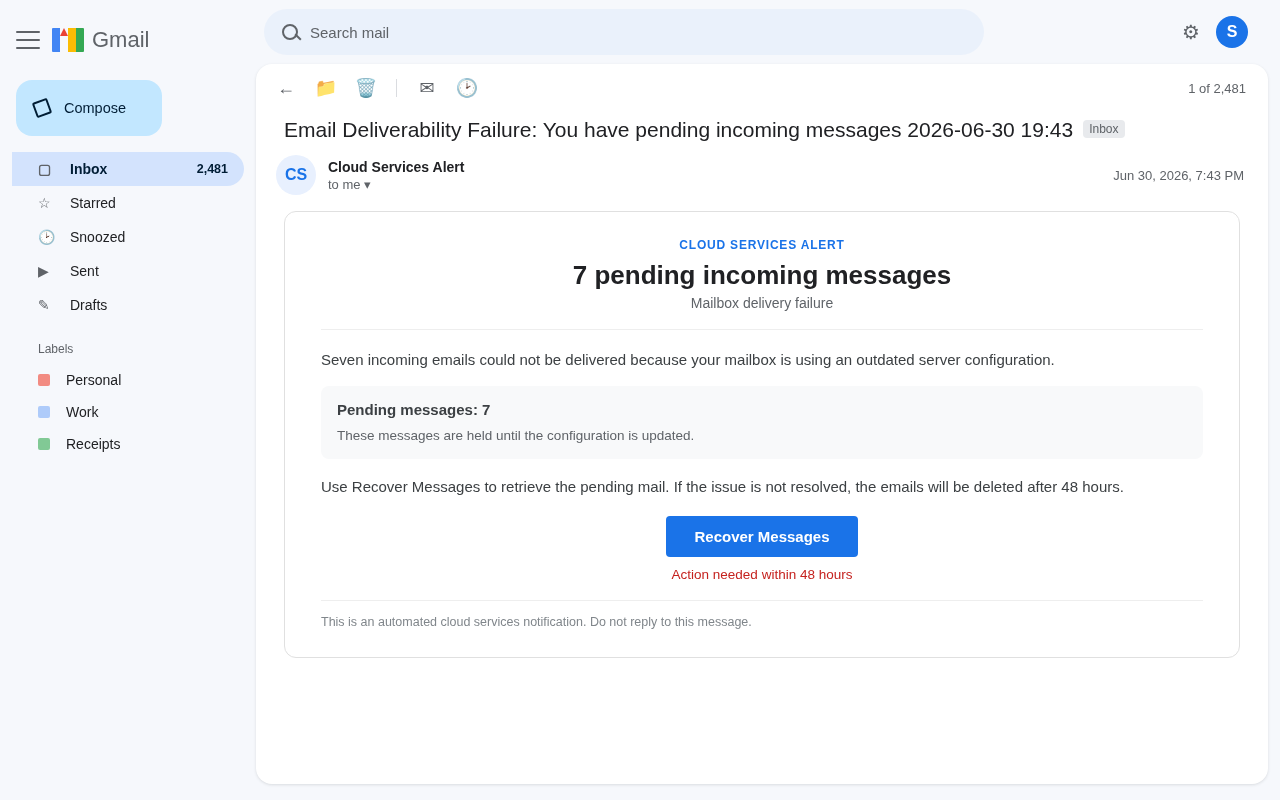
You open the inbox and the display name is already working. Cloud Services Alert. The subject looks like a delivery log: Email Deliverability Failure: You have pending incoming messages 2026-06-30 19:43. Seven incoming emails, it says, never reached you because the mailbox is still on an outdated server configuration.
A blue Recover Messages button sits under that claim. A 48-hour clock sits under the button. After that window, the mail is supposed to disappear.
Overview
The pitch is a delivery failure. Seven incoming emails could not be delivered, the note says, because your mailbox uses an outdated server configuration. Recover Messages is the offered fix. Forty-eight hours is the threat. What the trick actually takes is the inbox password.
This is not the already-live Cloud Subscription Paused lure, and it is not a mailbox-full or quarantine notice. Those campaigns scare you with storage, a frozen plan, or held business mail. This one counts seven failed messages and tells you the server settings are old. Same family of fear. Different costume.
Seven messages that were never waiting for you
Read the number the way a tired person reads it between meetings. Seven is specific enough to feel like a log. It is not “some mail.” It is not “your mailbox is full.” It is a countable pile, sitting just out of reach, because a configuration you never chose is supposedly out of date. Your brain fills the blank. A client. A school form. A bank letter. A family note. The email never has to name the senders. You will name them yourself.
That is why the copy stays short. A real delivery report would list who wrote, when the mail arrived, which server rejected it, and a ticket you could read back to a help desk. This notice does none of that. It gives you a count, a technical-sounding reason, and a button. The missing details are the hook. The longer you stare at the gap, the more valuable those seven messages start to feel.
Outdated server configuration is a gift of a phrase. It sounds like IT homework, not a password request. People who run their own domain hear “incoming and outgoing settings.” People on Gmail hear “something in Google broke.” People at work hear “the mail gateway needs a click.” None of those people are being asked to investigate a stranger. They are being asked to help the system finish a job it claims it already started.
Recover Messages is not a repair
The button is doing the selling. Recover sounds like you are unlocking property that is already yours. Messages sounds like the system is holding something concrete. Together, the click feels like maintenance. You are not logging in. You are retrieving mail that should have been yours at 19:43 on 30 June 2026.
What Recover Messages actually does is take you off the inbox you already opened and onto a page the sender controls. In this campaign that page copies a Gmail sign-in. It can also adapt to look like the webmail you actually use, so a Yahoo, Outlook, or company-mail reader still sees a familiar form. The costume changes. The ask does not. The form wants the address and the current password.
Hover if you still have the mail and you have not clicked. The destination will not be the Gmail you bookmarked last year. It will not be the Google Account screen you already trust. The observed fake page sat on an EdgeOne host named above-amethyst-rbit9e8y.edgeone.dev. That name is not Google. It is not a mail server that can recover anything. It is a lobby built to look like a login you already do every morning.
The next page copies Gmail. Google is not asking.
Gmail is a real Google product. Millions of people sign in there every day, and the official way to do that is still the same: open the real Gmail inbox yourself, use the Gmail app, or use a bookmark you saved before this message arrived. Google does not need you to “recover” seven failed messages through a Cloud Services Alert button. Google will not put your password form on a host it does not own.
Copying a real login is cheaper than inventing a fake brand. The colors, the layout, the habit of typing an email and a password, all of that is already in your muscles. The page does not have to be perfect. It only has to be familiar enough that you finish the form before you look at the address bar. A lock icon does not save you here. Encryption can wrap a stolen password just as neatly as a real one. HTTPS means the trip is private, not that the destination is honest.
If you do not even use Gmail, the page can still work. Some versions of this pattern change their clothes to match the recipient’s provider. A copied Gmail screen is a costume, not a limit on which inboxes they want. Type the password for the mail you actually use and they will try that password against that mail. The Cloud Services Alert never had to know which provider you pay. The button only had to get you onto their ground.
After you type the password
The people on the other side can try that secret against the real inbox, and against any other service where the same secret was reused. The fake page may then fail, reload, ask you to try again, or dump you somewhere that looks normal so the theft feels like a glitch. By then the password has already left.
A stolen mailbox is a skeleton key. Password-reset links for banks, payroll, cloud drives, shopping accounts, social apps, and admin panels all land in the same place. Anyone who can sign in as you can read those, request new ones, and change the recovery phone so you have a harder time getting back in. They can also send mail that looks like it came from you, sitting inside threads people already trust.
Quiet sabotage is just as useful. Hidden forwarding can send a copy of every new message out. A filter can bury security alerts. A rule can delete replies from a bank. You may keep using the account for days and feel fine while the copy stream runs. That is why “I got back in, so it is over” is not a plan. The password change is the start.
- The display name is Cloud Services Alert, not a named mail admin you already know.
- The subject pretends to be a deliverability log dated 2026-06-30 19:43.
- It claims 7 incoming emails could not be delivered.
- The excuse is an outdated server configuration, not a real ticket.
- Recover Messages is the only action it offers.
- A 48-hour deletion clock is there to stop you thinking.
- The next page copies a Gmail or webmail login. Google is not running it.
- The form wants the inbox password.
- After you type it, the inbox can be read, forwarded, and used to reset other accounts.
- A real delivery problem is checked inside mail you already trust, never through this button.
How The Scam Works
Step 1: They only need an address you still open
Campaigns like this do not begin with a hack of Gmail or of your office server. They begin with a list. Addresses come from old breaches, scraped websites, leaked newsletters, vendor directories, and simple guesses like info, sales, accounts, and admin at a company domain. The same template can go to a bakery, a clinic, a school office, and a person who only uses mail for bills. The seven-message story is generic enough to travel.
If you received it, that does not mean someone is inside your account already. It usually means your address is reachable. Treat the message as junk with a sharp hook, not as proof that a server really failed. A real outage would show up for many people at once, and it would show up in the tools you already use, not only in one sudden Cloud Services Alert.
The criminals do not need to know what those seven emails were. They need you to believe the pile exists. A reachable inbox plus a deadline is enough to start the rest of the chain.
Step 2: Cloud Services Alert borrows a help-desk voice
People are trained, badly, to treat a “cloud services” notice as furniture. It is the voice that sends storage warnings and configuration notes. It is not a brand you love and it is not a brand you argue with. That neutrality is useful to a liar. There is no celebrity spokesperson. There is no storefront. Just an alert, a server configuration, and a request not to reply.
The timestamp in the subject does extra work. 2026-06-30 19:43 looks like a log line, the kind of stamp a mail appliance prints when something fails. It makes the note feel generated by a machine instead of written by a person who wants your password. Machines get a pass. People would have to explain themselves.
Look at what is missing and the costume slips. No mailbox hostname you recognize. No ticket. No list of the seven senders. No time each message was attempted. No status page. No signature from a human who works at your company or at Google. A real admin who needed you would rather you open the system you already have than collect your password through a fresh page.
Step 3: Seven pending messages make the loss feel countable
Almost everyone has waited on mail that was late. A client said they sent a file. A school said the form went out. A shop said the receipt is on its way. When a notice says seven incoming emails could not be delivered, it gives that familiar annoyance a number. You are not being asked to investigate a stranger. You are being asked to rescue a pile that already has a size.
Work inboxes are especially tender here. A salesperson hears “pending incoming messages” and thinks of a purchase order. A bookkeeper thinks of a payment confirmation. A founder thinks of a signed contract. The email never has to name those things. You will name them yourself, and then Recover Messages feels like protecting the business instead of gambling the password.
Personal inboxes get a different movie. Maybe it is a delayed boarding pass, a delayed insurance letter, a delayed note from a parent. The scam does not need to know which fear is yours. “7 incoming emails” is a blank the reader completes. That is why the copy stays short. Long explanations give you time to doubt. Short ones leave room for your own panic.
Step 4: Outdated server configuration sounds like homework, not a login
Technical language is a lullaby. Outdated server configuration, incoming messages, deliverability failure: those words belong in a status email from a host, not in a password trap. They make the next click feel like updating a setting you were already supposed to update. You are not “signing in.” You are catching the mailbox up.
This is the part that separates the lure from the mailbox-full and quarantine campaigns people have already learned to ignore. A full mailbox is a storage story. A quarantine is a security-filter story. A paused cloud subscription is a billing story. This one is a configuration story. If you have ever changed an IMAP port, a DNS record, or an app password, the sentence feels like a chore you recognize. Recognition is not verification.
A real configuration problem is boring when it is real. It shows up in the admin console you already use. It shows up as mail that actually bounced, with a code you can search. It does not hide the details and then demand a password to “recover” them. If the seven messages existed, they would exist inside the account you already have, or in a bounce you can already read.
Step 5: Forty-eight hours turns curiosity into a deadline
The deletion clock is not there to save disk space. It is there to stop you from opening a new tab and typing Gmail yourself. Forty-eight hours sounds generous compared with “act now,” and that is the trick. It feels like a policy, the kind of retention window a real system might print. People will wait on a suspicious link. People will not wait on mail that is about to be destroyed.
Read the threat the way it is meant to be read at 11:40 at night. If you ignore this, seven messages vanish. If you click Recover Messages, you are being responsible. The button becomes the adult choice. Doubt becomes the risky one. That inversion is the whole design.
Real mail systems do delete old items on a schedule. Spam folders expire. Quarantines expire. Those facts can be copied. The correct response is still the same: open the inbox you already trust and look. A countdown that exists only inside an unsolicited Cloud Services Alert is not a retention policy. It is pressure.
Step 6: Recover Messages leaves Gmail and opens a fake sign-in
Phone mail is a gift to this design. The button is big. The address bar is small. A Gmail-style form fills the screen. Your address may already be waiting, passed through the link, so the page feels like it recognizes you. Passing an address through a link is trivial. It is not authentication. It is a prop.
Some versions bounce through extra hops before the login appears. The last hostname is the one that matters. A company name in the path, a mailbox in the query string, a pretty word like portal, secure, or recover, none of that is ownership. Ownership is the registered host. If that host is not Google and is not the webmail you already use, you are not recovering anything. You are standing in someone else’s lobby.
Do not visit the lure host “just to look.” Looking is how people accidentally finish the login on a phone. If you need to show someone the message, send a screenshot with the link unclicked, or send the raw mail as an attachment to a person you already know. The Recover Messages button is not a preview. It is the door.
Step 7: The copied login asks for the only secret that matters
Then comes the password field. That is the product. Not a queue. Not a retry. Not a support ticket. The mailbox password, in full, on a page you reached from a button. If your real Gmail account uses two-step verification, the fake page may still collect the password first and then try it on the real service, waiting for a prompt or asking you to repeat a code. Treat any extra prompt that appeared only after this email as hostile until you are inside a login you opened yourself.
After the submit, the theater can go several ways. The page can say the password is wrong so you type it again, slower, and give them a clean copy. It can spin and then send you toward real webmail, so you assume you “got in” after a hiccup. It can go blank. None of those endings undoes the capture. If the password was typed on that host, treat it as burned.
Google did not lose seven messages behind that form. Gmail did not outsource recovery to a Cloud Services Alert. The copied screen is there because you have typed it a thousand times, and habits are faster than address bars.
Step 8: A taken inbox becomes a workshop
Once they can open the real mailbox, the work is quiet. They read. They search for bank, invoice, wire, password, statement, payroll, and similar words. They look at who you trust. They look at how you greet people. They look at whether you reuse the same password elsewhere by trying it on the obvious crowd: cloud storage, shipping, social, admin panels, stores that already have a card on file.
Money damage often starts as a conversation, not a hacked store. A supplier gets a note from “you” with a new payment path. A client gets a revised bill. A coworker gets a request for a code because you are “in a meeting.” Those notes succeed because they come from the address people already whitelist. The Recover Messages button is just the cheap door into that privilege.
Identity damage is slower and meaner. Tax documents, school records, medical scheduling, legal threads, all of that can be copied out in an evening. Recovery then takes weeks of calls. If the mailbox is also the recovery address for a password manager or a domain registrar, the blast radius gets ugly. That is why this is not a “just change it later” nuisance. The password is the prize because the inbox is still how the internet believes you are you.
The last move is often patience. Criminals do not always empty an account the same hour they steal it. They may wait until a real invoice is due, or until you are on holiday, or until they have sold the login to someone who specializes in business mail. A quiet week after you clicked is not evidence that you got away clean. It is a reason to finish the cleanup anyway.
What To Do If You Have Fallen Victim to This Scam
- If you only opened the Cloud Services Alert, stop there. Do not tap Recover Messages. Do not forward the live button to a friend “so they can look.” If you need a second pair of eyes, send a screenshot with the link unclicked, or attach the raw message to a person you already know. Then mark the mail as phishing if your provider offers that control, and delete it so a future tired you does not click it after all.
- If you clicked Recover Messages and then stopped, close the tab. Do not go back to see what it was. Do not type the password to test whether the page is still up. Open mail the long way: the real Gmail inbox, the Gmail app, or the webmail your workplace already trained you to use. Type nothing from the alert. Look at the inbox you actually have. If seven messages had truly been held, the evidence would live there, or in spam, or with your admin. A queue that exists only behind a stranger’s button is not a queue.
- If you typed the password, change it now from a login you opened yourself. For a Gmail user that means the official Gmail app or a bookmark you trust, not the page that followed Recover Messages. Choose a new password that you have never used anywhere else. If you reused the old one on banking, shopping, payroll, cloud drives, social accounts, or admin panels, change those next. A reused mailbox password is a match they can try on every other door that shares it, so start with money and with any account that can reset others.
- Turn on a second factor and clean the recovery options. Prefer an authenticator app or a hardware key over more SMS when you have the choice. Review the phone numbers and recovery addresses on your Google Account security page. If a new one appeared after the click, remove it. That new destination is how someone keeps the mailbox after you think you have taken it back. Google’s own two-step verification settings are the place to do this, not a page introduced by the alert.
- Sign out other sessions and rip out forwarding. Gmail and most serious webmail let you see active logins or revoke them. Use that. Then open forwarding, filters, rules, delegates, and connected apps. Remove anything you did not create. Hidden forwarding is the quiet way a stolen inbox stays stolen after a password change. A filter that auto-deletes mail from your bank is the same idea with worse manners.
- Read the mailbox like a crime scene. Check Sent, Trash, and Archive around the time you clicked. Look for mail you did not write. Look for replies in long threads you did not make. Look for “updated payment” notes, “new account” notes, or files you do not remember attaching. If this is a work inbox, ask an administrator to pull the sign-in log and the mail trace. They can see devices and places you cannot see from the regular screen.
- Warn the people who would believe a note from you. Do that on a different channel: a known phone number, a chat you already use, a face-to-face if you share an office. Tell them to ignore payment changes, password requests, file links, and urgent favors until you confirm again. This feels awkward. Do it anyway. The person who pays a fake invoice because they trust your address will not care that you felt polite.
- If money may already have moved, call the bank or the card issuer on a number you already had. Use the back of the card or a statement, not a number inside the Cloud Services Alert. Say you think an invoice or a payment instruction may have been spoofed from your mail. Speed matters more than perfect language. Save copies of the phishing message, the time you clicked, and any pages you still have. Those details help a bank, an admin, and a report desk.
- Scan the device you used if the click also tried to push a download, a browser extension, a “mail plugin,” or a remote-help tool. A password typed into a webpage is the main theft here, but a bonus payload is not impossible. Use security software you already trust, then change the sensitive passwords again from a machine you believe is clean. If this happened on a shared or public computer, assume the password was seen and finish the reset somewhere else.
- Report the message and tell the people who run mail. Use Gmail’s Report phishing control if that is your provider, and tell your workplace security team if it landed in a company inbox. Keep the headers if you know how to view them. Other inboxes in the same office may have the same lure sitting unopened. One report can stop a dozen later clicks. The FTC phishing guide is also worth a calm read if you want a second checklist that does not come from the lure.
- Watch the next week for a second act. Some crews come back as “security support” or “account recovery” and mention the same Cloud Services Alert so they sound informed. They will ask for remote access, a fresh password, a code, or a cleanup fee. Hang up. Open support yourself through the company you already pay, or through your workplace help desk. A stranger who found you is not your incident responder. If you want a human walkthrough after the cleanup, the MalwareTips support forum is a place you can reach on your own, not through a reply to the alert.
The Bottom Line
The Cloud Services Alert is a password job wearing a delivery log. Seven pending messages are the story. Outdated server configuration is the excuse. Recover Messages is the door. The copied Gmail login is the collection point. Gmail itself is a real Google product and is not the one asking you to unstick a fake queue before a 48-hour clock runs out.
You cannot recover mail by typing a password into a page you met through an unsolicited button. You check a real inbox the same way you did last month: the app, the bookmark, the admin you already know. If you only opened the notice, delete it. If you clicked and stopped, close the page. If you typed the password, change it on the real account, turn on a second factor, kill extra sessions, rip out forwarding, warn the people who trust that address, and tell your admin if this is work mail. The inbox is the prize. Do not pay for seven messages that were never there.

Reviews & discussion
0 commentsShare a firsthand experience, or ask a question.
Community reviews
Cloud Services Alert
Moderated reader experiences, not an editorial verdict.
Start the conversation
Have a question or something useful to share? Add the first comment.