The 3-Minute Phone Trick Money Scam Exposed: Fake or Real Investigation?
Written by: Lapain Epuran
Published on:
An upbeat video says one hidden phone setting can produce more than $100 each day. The promise arrives just when bills feel especially heavy.
The presentation looks simple enough to try, yet the important details sit outside the dramatic headline. Those details deserve careful examination before anyone pays.
Overview
A secret setting promises effortless daily income
The 3-minute phone trick money scam suggests an ordinary smartphone contains a neglected feature that converts attention into daily payouts.
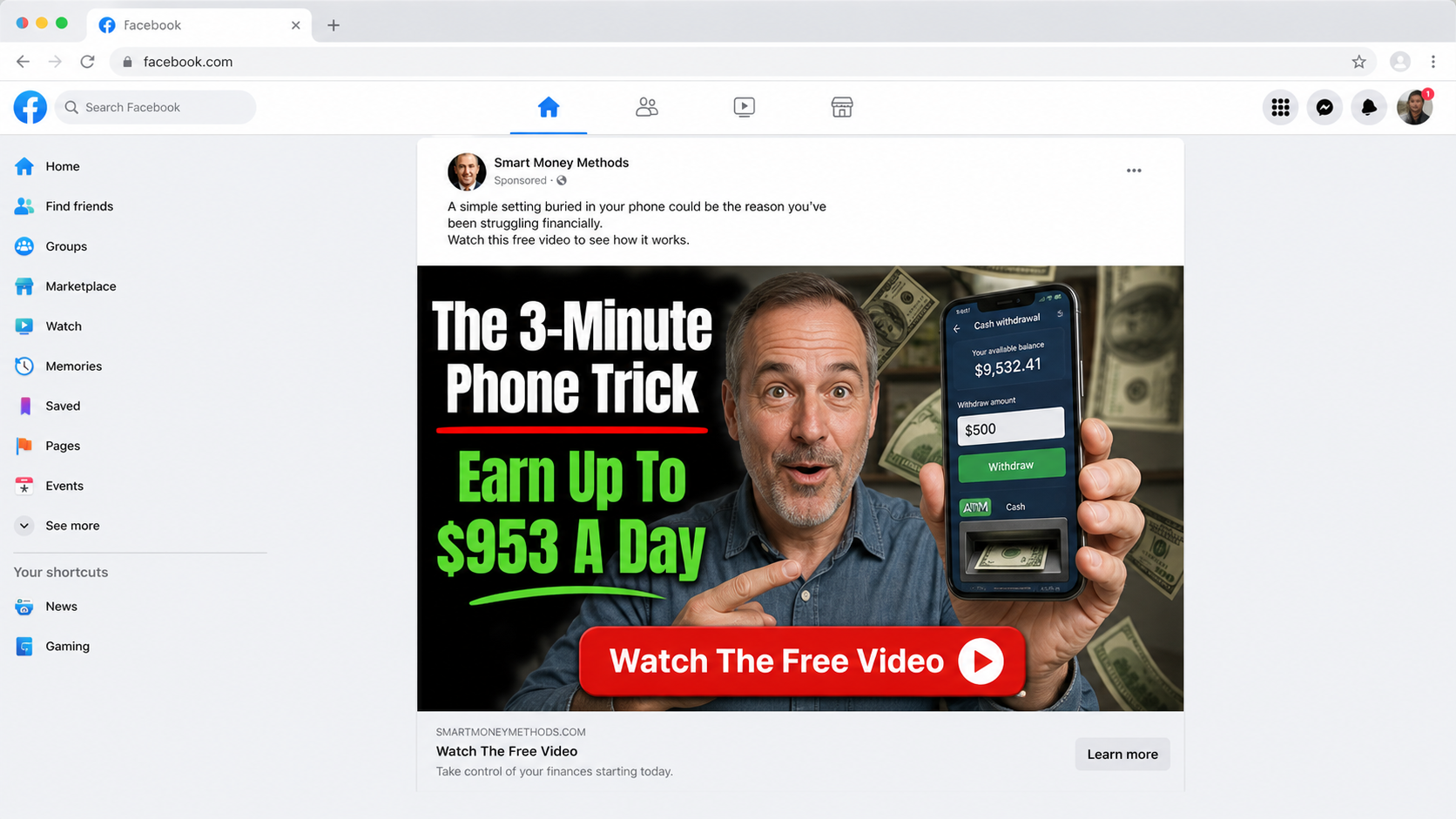
Some versions claim users can earn $953 every day. Others use different totals, but the promise remains unusually large, quick, and nearly automatic.
The pitch avoids explaining what customers sell, who pays them, why buyers exist, or how income is calculated. Mystery is presented as exclusivity.
That missing business model is the first major problem. A legitimate opportunity can describe its work before collecting a fee.
A hardship story lowers the viewer’s defenses
The sales video may introduce a parent facing medical bills, job loss, foreclosure, or another crisis. The character discovers the method after conventional options fail.
This story is not included merely for entertainment. It mirrors the anxiety of viewers searching for urgent income and makes skepticism feel unnecessarily cynical.
The narrator often emphasizes that no technical skills, audience, inventory, or experience are required. Each removed obstacle makes the offer sound accessible.
Yet earning substantial money normally requires a valuable product, service, asset, investment risk, or sustained work. The video does not make those realities disappear.
The free explanation ends at a paid doorway
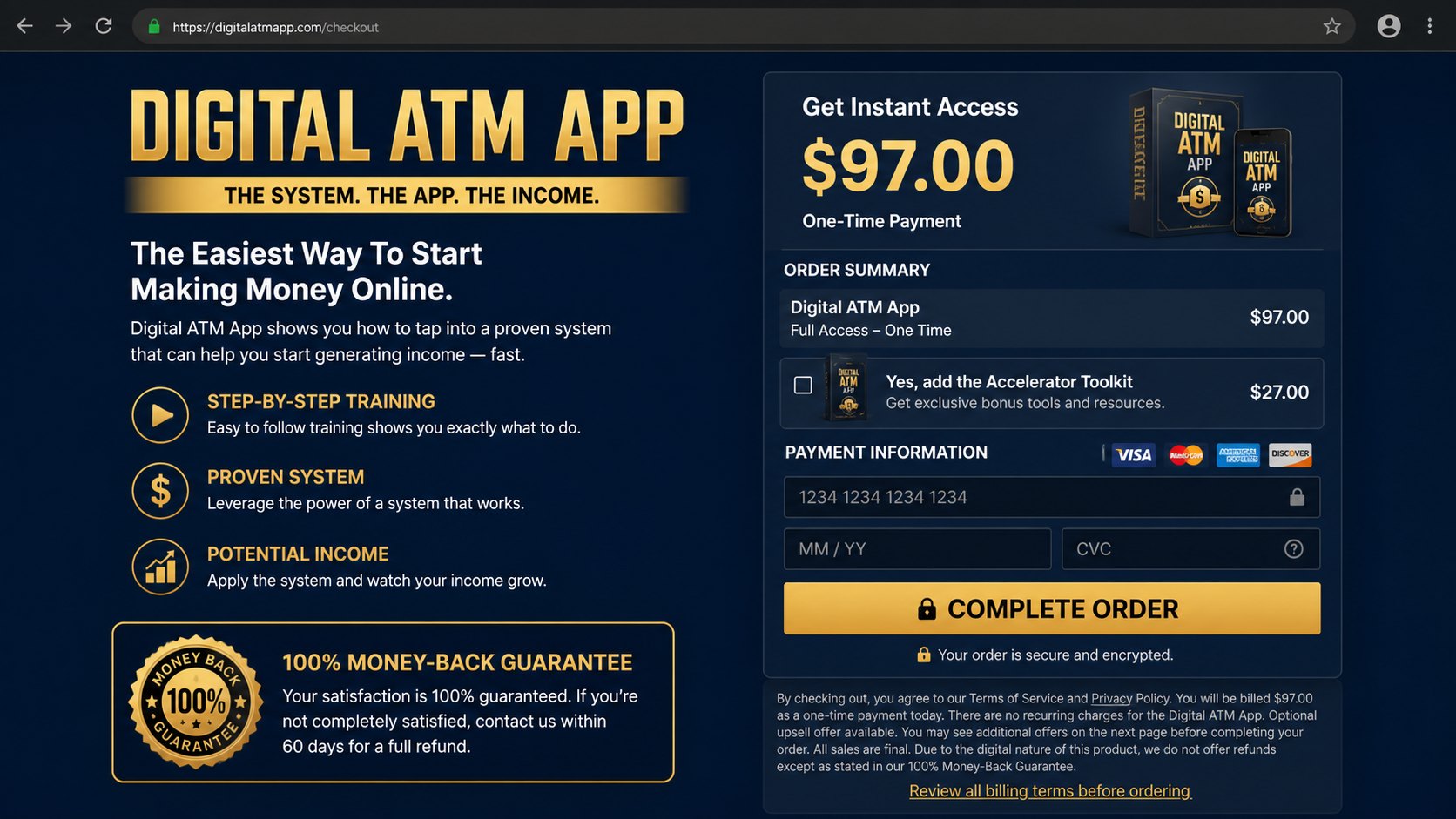
After repeated teasers, viewers reach an offer for a digital system. One observed version sold access under the name Digital ATM App for $97.
The name suggests a machine that dispenses money on demand. It does not describe a verified bank product or a hidden function inside the customer’s phone.
The $97 price is the front door, not proof of total cost. Digital funnels can place upgrades, coaching packages, tools, or recurring services afterward.
Buyers must judge the actual terms on their screen. Not every checkout uses the same add-ons, and operators can alter prices without changing the video.
A social advertisement promises extraordinary smartphone income.
A crisis narrative makes the opportunity feel emotionally relevant.
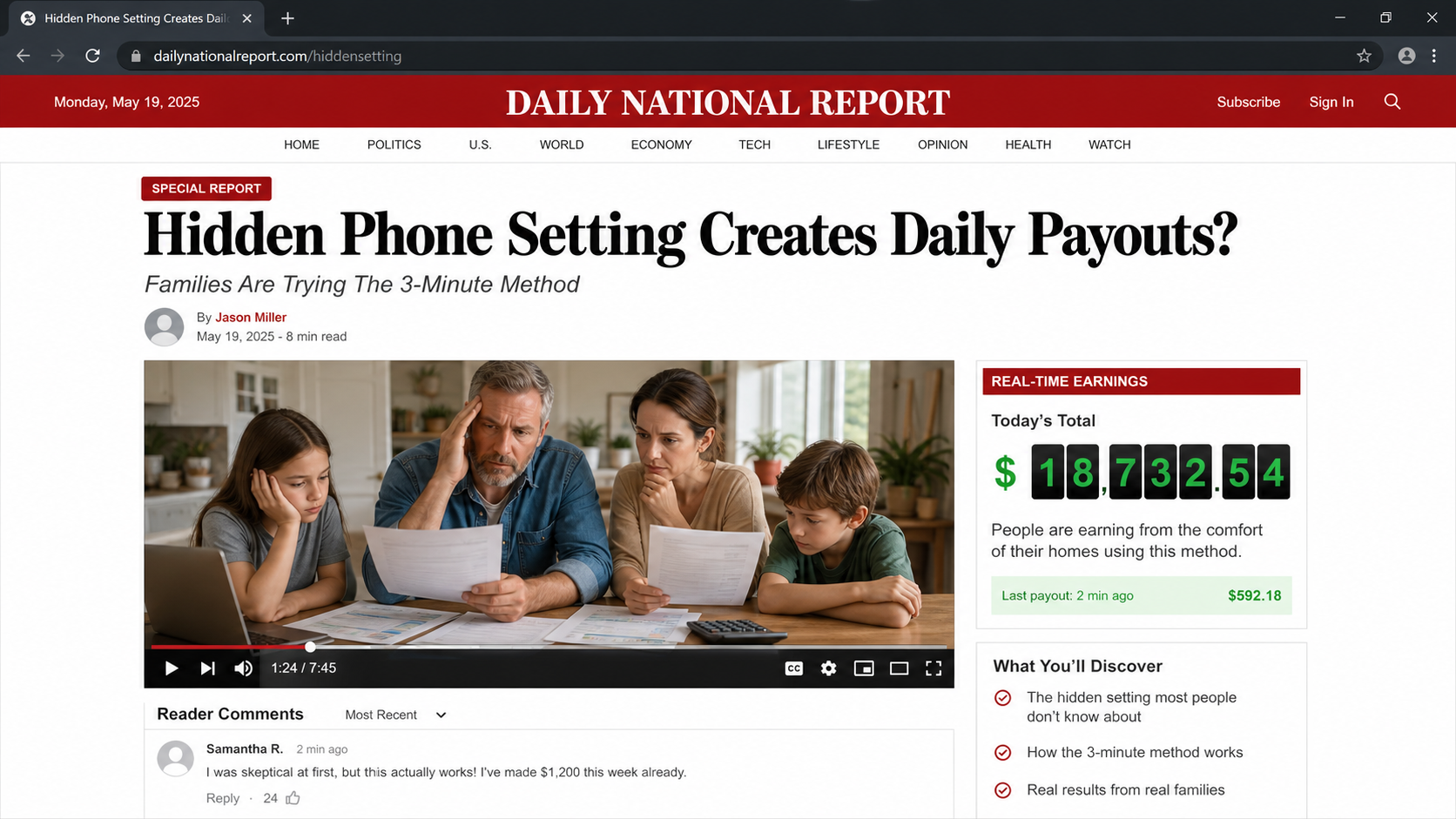
A fake editorial page resembles familiar television news.
A long presentation withholds the supposed method.
A $97 product appears after the free promise.
Additional offers may follow the first payment.
Clear evidence supporting the earnings claim is missing.
The FTC warns that guaranteed income, large returns, and “proven systems” are common signs of deceptive business offers. Success cannot be guaranteed by a video.
A seller making specific earnings claims should provide meaningful substantiation. Screenshots, anonymous comments, and animated counters do not show typical customer results.
The right question is practical: what exact work creates revenue, who purchases it, what expenses apply, and how many buyers achieved the advertised outcome?
How The Scam Works
Step 1: The ad finds people who need financial relief
Social platforms can target interests, age groups, locations, and behavior. A money-making promotion therefore reaches viewers already engaging with work-from-home material.
The opening frame uses a precise daily figure because specificity feels researched. “Up to $953” sounds more credible than a vague promise of extra cash.
“Up to” also protects the pitch rhetorically. The impressive number dominates the thumbnail, while the qualifier does little to explain typical performance.
A smartphone appears as the tool because almost everyone owns one. The viewer is encouraged to believe the necessary equipment is already in hand.
The ad asks for only a few minutes, not $97. That small first commitment makes the later payment request easier to reach.
Step 2: The landing page dresses advertising as journalism
After the click, a news-style page may display a red masthead, reporter byline, market ticker, video controls, and reader comments.
The format implies an independent newsroom investigated the method. In reality, the page’s buttons and stories may exist solely to move visitors toward checkout.
Look at the web address before reading the headline. A domain unrelated to the apparent publication exposes the borrowed costume.
Try opening the navigation in a separate tab. A copied advertorial often sends every menu item to the same presentation or leaves links nonfunctional.
News design is not evidence. Anyone controlling a website can reproduce familiar colors, typography, stock portraits, and breaking-news labels.
Step 3: The presenter sells possibility instead of a process
The video begins with outcomes: bills paid, debts cleared, time recovered, and family stress reduced. The income mechanism remains deliberately blurry.
A dramatic personal story gives the offer a hero and villain. “Big Tech,” banks, employers, or unnamed insiders may be blamed for hiding the opportunity.
That framing discourages ordinary questions. Doubt becomes evidence that the listener has been conditioned by the same system supposedly withholding the secret.
The speaker may show payment notifications or dashboard totals. Such images can be edited, staged, borrowed, or generated without demonstrating withdrawable profit.
Reliable earnings evidence needs context, dates, expenses, participant counts, and typical results. A rapid montage provides none of those safeguards.
Step 4: Time and scarcity push the viewer toward $97
The presentation repeatedly says access may close, the price may rise, or only a limited group can join. Digital inventory rarely justifies that urgency.
A countdown may reset after refresh. A “live” enrollment number may stay unchanged, revealing that the pressure is a page element.
By now, the viewer has invested significant attention. Paying $97 can feel like finishing a process rather than making a new financial decision.
The offer often compares the fee with a much larger supposed value. Inflated bonuses make the purchase seem discounted without establishing real market demand.
A refund badge appears nearby, reducing perceived risk. Obtaining that refund can still require contacting an unfamiliar vendor under specific conditions.
Step 5: The checkout collects payment before clarity
The order form asks for billing details while the product description remains broad. Buyers may receive videos, templates, links, or general training instead of automation.
A preselected toolkit or post-purchase upgrade can increase the charge. Another page may offer mentoring, traffic, licensing, or higher membership tiers.
Continuity billing is not present in every version. Customers should inspect checkboxes, linked terms, and confirmation emails for any renewable service.
The safest approach is to photograph each screen before paying. The record shows what was represented when the transaction occurred.
Never treat a one-time label as final until the receipt confirms it. Merchant systems can separate the initial product from later optional purchases.
Step 6: The buyer receives information, not an income machine
Access may lead to a members area containing generic online marketing lessons. The material might discuss affiliate links, traffic, content, or lead generation.
Those activities are not hidden smartphone settings. They require audiences, testing, compliance, expenses, and uncertain performance.
If the system depends on buying advertising, the $97 price understates the capital needed. If it depends on organic traffic, results can take months.
Some purchasers encounter more sales calls offering premium assistance. Pressure to “invest in yourself” can turn a small purchase into a costly sequence.
The original income promise becomes harder to evaluate because failures are blamed on effort, mindset, implementation, or failure to buy the advanced tier.
Step 7: Refund friction protects the funnel
A customer seeking cancellation may discover the public brand differs from the company on the receipt. Support addresses can route through outsourced help desks.
Representatives may offer extensions, replacement products, partial refunds, or additional coaching before accepting cancellation. Every detour delays a clear resolution.
Guarantees often exclude consumed digital content, advertising expenses, upgrades, or requests outside a narrow window. Buyers should read those restrictions immediately.
If support stops responding, payment disputes require documentation. A vague complaint is weaker than dated screenshots showing the claim, amount, and requested refund.
The funnel succeeds when embarrassment keeps customers silent. Reporting the transaction quickly is practical consumer protection, not an admission of carelessness.
What the Advertisement Never Explains
An online income method needs an economic engine. Money must come from customers, advertisers, investors, employers, or asset appreciation.
If the pitch cannot identify that source plainly, it has not explained a business. It has described a desired outcome.
Ask what is sold, the average price, the acquisition cost, refund rate, platform fees, taxes, and hours required. Profit appears only after those deductions.
Also ask how many purchasers earned nothing. Testimonials select unusual stories and do not reveal the experience of the whole customer group.
A dashboard total is not audited income. It may represent gross revenue, simulated credits, pending commissions, or numbers created for the presentation.
Seller, Earnings, Price, and Billing Checks
Find the company behind the checkout
Record the legal seller, support provider, merchant descriptor, business address, and governing law. A product nickname is not enough for accountability.
Search the address using maps and business records. A virtual mailbox or shared suite does not automatically prove fraud, but it limits transparency.
Call the listed number before ordering. Ask what the system teaches, whether upgrades follow, and who processes refunds.
Demand useful earnings evidence
Specific profit claims require more than isolated success stories. Ask for the period measured, participant population, typical result, costs, and written substantiation.
Check whether the seller distinguishes revenue from profit. A person can collect $1,000 while spending more than $1,000 to generate it.
Walk away when representatives guarantee success or say results depend entirely on attitude. A real business acknowledges uncertainty and operational risk.
Calculate the complete entry cost
Add the initial $97, optional tools, advertising budget, domain fees, software subscriptions, coaching, and payment processing. The advertised fee may be smallest.
Do not finance a package based on projected earnings. Debt remains payable even when the opportunity produces no income.
Compare the same educational topics with established courses, libraries, and free platform documentation before buying under pressure.
Inspect renewals, upgrades, and refund restrictions
Read every checkbox and linked policy before submitting the order. Search terms for subscription, recurring, monthly, annual, trial, continuity, and automatic renewal.
Capture the final cart and receipt. If an upgrade appears after payment, decline it until the first product proves useful.
Test support during the refund period rather than waiting. A silent help desk becomes far more expensive after the deadline.
What to Do if You Have Fallen Victim to This Scam
Stop purchasing additional upgrades. Do not send more money to unlock earnings, accelerate traffic, qualify for a refund, or rescue the first payment.
Download your evidence. Preserve the ad, advertorial, presentation, checkout, terms, member dashboard, emails, invoices, support conversations, and bank statement.
Request a refund immediately. Quote the order number, purchase date, misleading earnings claim, requested amount, and deadline in one concise written message.
Cancel every attached service. Identify trials, tool subscriptions, coaching plans, and renewals individually instead of asking only to cancel Digital ATM App.
Notify the payment provider. Explain any unauthorized amount, recurring charge, undelivered feature, or material difference between the sales claim and product.
Protect exposed credentials. Change reused passwords, enable multifactor authentication, and review email rules if the funnel requested account access.
Check the computer. Run Malwarebytes when downloads, remote-support tools, unknown extensions, or aggressive redirects appeared during the process.
Limit future malicious promotions. Configure AdGuard to reduce deceptive ad exposure, pop-ups, and tracking across commonly targeted browsing sessions.
Report the campaign. Send documentation to the FTC, the advertising platform, your state consumer office, and any impersonated publication.
Reject recovery offers. Anyone promising to retrieve the loss for an upfront fee may be targeting victims through a second scam.
Is Your Device Infected? Run a Free Malware Scan
Slow performance, constant pop-ups, or strange behavior? These are classic signs of a malware infection. The fastest way to find out is to scan your device with Malwarebytes Anti-Malware Free — one of the most trusted malware removal tools available.
The free version detects and removes the most common threats, including:
Adware — the cause of those annoying pop-ups
Browser hijackers — unwanted redirects and changed homepages
Trojans and spyware — hidden programs stealing your data
Potentially unwanted programs (PUPs) — software you never asked for
👉 Select your device below — Windows, Mac, or Android — then follow the simple steps to download Malwarebytes, scan your system, and remove any threats it finds. The whole process takes about 5 minutes.
Malwarebytes for WindowsMalwarebytes for MacMalwarebytes for Android
Run a Malware Scan with Malwarebytes for Windows
Malwarebytes is one of the most popular and trusted anti-malware tools for Windows — and it’s completely free for removing infections. It catches threats that many antivirus programs miss, including adware, browser hijackers, and trojans. Follow the steps below to scan and clean your PC in just a few minutes.
Download Malwarebytes
Click the button below to download the latest version of Malwarebytes for Windows from the official source. The free version is all you need — it will scan your computer and remove adware, browser hijackers, and other malicious software at no cost.
(The link opens in a new page where your download will start)
Install Malwarebytes
When the download finishes, open your Downloads folder and double-click the MBSetup file. If Windows shows a User Account Control pop-up, click “Yes” to allow the installation.
Follow the On-Screen Prompts to Install Malwarebytes
The setup wizard will walk you through a few quick screens:
Choose where you’re installing the program — “Personal Computer” or “Work Computer” — then click Next.
Malwarebytes will now install on your device. This usually takes under a minute.
When installation is complete, the “Welcome to Malwarebytes” screen will open automatically.
On the final screen, click Open Malwarebytes to launch the program.
Enable “Scan for Rootkits”
Before scanning, turn on rootkit detection so Malwarebytes can find even the most hidden threats. Click the Settings gear icon on the left side of the screen.
In the settings menu, find “Scan for rootkits” and click the toggle so it turns blue.
Done? Click “Dashboard” in the left pane to return to the main screen.
Start the Scan
Click the blue Scan button. Malwarebytes will automatically update its virus database and start checking your computer for malware.
Wait for the Scan to Finish
The scan checks your entire system for browser hijackers and other malicious programs, so it can take several minutes. Feel free to do something else — just check back occasionally to see the progress.
Quarantine the Detected Threats
When the scan is done, you’ll see a list of everything Malwarebytes found — malware, adware, and potentially unwanted programs. Click the “Quarantine” button to remove all of them at once.
Malwarebytes will now remove the malicious files and registry entries and move them safely into quarantine.
Restart Your Computer
Some threats can only be fully removed after a reboot. If Malwarebytes asks you to restart, click Yes. Once you’re logged back in, your PC is clean and you can continue with the next steps in this guide.
When the scan finishes, click Quarantine to remove everything Malwarebytes found. That’s it — your Windows PC is now clean of trojans, adware, and other malware, and should be back to running smoothly.
If your current antivirus allowed this malicious program on your computer, you may want to consider purchasing Malwarebytes Premium to protect against these types of threats in the future. If you are still having problems with your computer after completing these instructions, then please follow one of the steps:
Malwarebytes for Mac is a free on-demand scanner that removes the malware other security software tends to miss — adware, browser hijackers, and unwanted programs included. Cleaning an infected Mac with Malwarebytes has always been completely free, and it’s our go-to recommendation. Follow the steps below to scan and clean your Mac in just a few minutes.
Download Malwarebytes for Mac
Click the button below to download the latest version of Malwarebytes for Mac.
When the download finishes, open your Downloads folder and double-click the setup file to begin the installation.
Follow the On-Screen Prompts to Install Malwarebytes
The Malwarebytes for Mac Installer will guide you through a few quick screens. Click “Continue” and keep following the prompts until the installation completes.
When the installation is complete, Malwarebytes opens to the Welcome to Malwarebytes screen. Click “Get started“.
Select “Personal Computer” or “Work Computer”
Malwarebytes will ask what type of computer you’re installing it on. Click either Personal Computer or Work Computer, whichever applies.
Start the Scan
Click the “Scan” button. Malwarebytes will automatically update its detection database and begin checking your Mac for malware.
Wait for the Scan to Finish
Malwarebytes will scan your Mac for adware, browser hijackers, and other malicious programs. This can take a few minutes, so feel free to do something else — just check back occasionally to see the progress.
Quarantine the Detected Threats
When the scan is done, you’ll see a list of everything Malwarebytes found. Click the “Quarantine” button to remove all the threats at once.
Restart Your Mac
Malwarebytes will now remove all the malicious files it found. Some threats can only be fully removed after a reboot — if Malwarebytes asks you to restart, allow it. Once you’re logged back in, your Mac is clean.
Once the scan is done, remove every threat it detected. Your Mac is now free of adware, rogue browser extensions, and other potentially harmful software.
If your current antivirus allowed a malicious program on your computer, you might want to consider purchasing the full-featured version of Malwarebytes Anti-Malware to protect against these types of threats in the future. If you are still experiencing problems while trying to remove a malicious program from your computer, please ask for help in our Mac Malware Removal Help & Support forum.
Run a Malware Scan with Malwarebytes for Android
Malwarebytes for Android automatically detects and removes dangerous threats like malware and ransomware so you don’t have to worry about your most-used device being compromised. Aggressive detection of adware and potentially unwanted programs keeps your Android phone or tablet running smooth.
Download Malwarebytes for Android.
You can download Malwarebytes for Android by clicking the link below.
In the Google Play Store, tap “Install” to install Malwarebytes for Android on your device.
When the installation process has finished, tap “Open” to begin using Malwarebytes for Android. You can also open Malwarebytes by tapping on its icon in your phone menu or home screen.
Follow the on-screen prompts to complete the setup process
When Malwarebytes will open, you will see the Malwarebytes Setup Wizard which will guide you through a series of permissions and other setup options. This is the first of two screens that explain the difference between the Premium and Free versions. Swipe this screen to continue. Tap on “Got it” to proceed to the next step. Malwarebytes for Android will now ask for a set of permissions that are required to scan your device and protect it from malware. Tap on “Give permission” to continue. Tap on “Allow” to permit Malwarebytes to access the files on your phone.
Update database and run a scan with Malwarebytes for Android
You will now be prompted to update the Malwarebytes database and run a full system scan.
Click on “Update database” to update the Malwarebytes for Android definitions to the latest version, then click on “Run full scan” to perform a system scan.
Wait for the Malwarebytes scan to complete.
Malwarebytes will now start scanning your phone for adware and other malicious apps. This process can take a few minutes, so we suggest you do something else and periodically check on the status of the scan to see when it is finished.
Click on “Remove Selected”.
When the scan has been completed, you will be presented with a screen showing the malware infections that Malwarebytes for Android has detected. To remove the malicious apps that Malwarebytes has found, tap on the “Remove Selected” button.
Restart your phone.
Malwarebytes for Android will now remove all the malicious apps that it has found. To complete the malware removal process, Malwarebytes may ask you to restart your device.
After the scan, tap Remove Selected to delete all detected threats. Your Android phone is now clean — no more malicious apps, adware, or browser redirects.
If your current antivirus allowed a malicious app on your phone, you may want to consider purchasing the full-featured version of Malwarebytes to protect against these types of threats in the future. If you are still having problems with your phone after completing these instructions, then please follow one of the steps:
Restore your phone to factory settings by going to Settings > General management > Reset > Factory data reset.
Now that your device is clean, keep it that way. Most infections start with a malicious ad or a fake download button — so blocking them at the source is your best defense.
We recommend AdGuard, which blocks malicious ads, phishing pages, and dangerous redirects before they can reach you.
Is there really a three-minute phone setting that pays users?
No credible evidence shows that an ordinary hidden setting automatically generates the advertised daily income.
Smartphones can support legitimate work, but revenue requires an actual business activity, employer, buyer, or investment carrying genuine effort and risk.
What is Digital ATM App?
Digital ATM App is a name used for the paid offer at the end of this funnel. It should not be confused with banking software.
Buyers should evaluate the exact current product because content, price, operator, and follow-up offers can change.
Does the $97 payment guarantee access to everything?
Do not assume that. The initial price may cover only the entry product, while optional tools or higher tiers appear separately.
The order summary and receipt should state what the payment includes and whether any service renews.
Are the earnings screenshots reliable?
Not by themselves. Images can omit expenses, display gross sales, show unusual results, or be edited for advertising.
Meaningful proof describes typical outcomes across a defined customer group and includes the costs required to achieve them.
Can I dispute the charge if the material was delivered?
Dispute rights depend on the transaction, representations, payment method, and local rules. Contact the issuer promptly and describe facts accurately.
Receiving digital files does not automatically resolve a complaint about unauthorized billing or materially misleading promises.
How can I avoid similar offers?
Ignore guaranteed income, secret settings, countdowns, and unexplained daily totals. Search the seller and business model before opening the checkout.
Never pay merely because a video says hesitation is the only barrier separating ordinary people from easy wealth.
The Bottom Line
The 3-minute phone trick money scam presents an income fantasy before explaining any business. Its fake-news styling and hardship narrative are persuasion tools.
A $97 course cannot turn an unexplained phone setting into dependable profit. Clear economics and verifiable typical results should come before payment.
Close the funnel, preserve evidence if you paid, and choose opportunities that describe the work, costs, operator, and risks without theatrical secrecy.
10 Rules to Avoid Online Scams
Here are 10 practical safety rules to help you avoid malware, online shopping scams, crypto scams, and other online fraud. Each tip includes a quick “if you already got hit” action.
Stop and verify before you click, log in, download, or pay.
Most scams win by creating urgency. Verify using a trusted method: type the website address yourself, use the official app, or call a known number (not the one in the message).
If you already clicked: close the page, do not enter passwords, and run a malware scan.
Keep your operating system, browser, and apps updated.
Updates patch security holes used by malware and malicious ads. Turn on automatic updates where possible.
If you saw a scary “update now” pop-up: close it and update only through your device settings or the official app store.
Use layered protection: antivirus plus an ad blocker.
Antivirus helps block malware. An ad blocker reduces scam redirects, phishing pages, and malvertising.
If your browser is acting weird: remove unknown extensions, reset the browser, then run a full scan.
Install apps, software, and extensions only from official sources.
Avoid cracked software, “keygens,” and random downloads. During installs, choose Custom/Advanced and decline bundled offers you do not recognize.
If you already installed something suspicious: uninstall it, restart, and scan again.
Treat links and attachments as untrusted by default.
Phishing often impersonates delivery services, banks, and popular brands. If it is unexpected, do not open attachments or log in through the message.
If you entered credentials: change the password immediately and enable 2FA.
Shop safely: research the store, then pay with protection.
Be cautious with brand-new stores, “closing sale” stories, and prices that make no sense. Prefer credit cards or PayPal for dispute options. Avoid wire transfers, gift cards, and crypto payments.
If you already paid: contact your card issuer or PayPal quickly to dispute the transaction.
Crypto rule: never pay a “fee” to withdraw or recover money.
Common patterns include fake profits, then “tax,” “gas,” or “verification” fees. Another is a “recovery agent” who demands upfront crypto.
If you already sent crypto: stop paying, save evidence (wallet addresses, TXIDs, chats), and report the scam to the platform used.
Secure your accounts with unique passwords and 2FA (start with email).
Use a password manager and unique passwords for every account. Enable 2FA using an authenticator app when possible.
If you suspect an account takeover: change passwords, sign out of all devices, and review recent logins and recovery settings.
Back up important files and keep one backup offline.
Backups protect you from ransomware and device failure. Keep at least one backup on an external drive that is not always connected.
If you suspect infection: do not connect backup drives until the system is clean.
If you think you are a victim: stop losses, document evidence, and escalate fast.
Move quickly. Speed matters for disputes, account recovery, and limiting damage.
Stop payments and contact: do not send more money or respond to the scammer.
Call your bank or card issuer: block transactions, replace the card if needed, and start a dispute or chargeback.
Secure your email first: change the email password, enable 2FA, and remove unfamiliar recovery options.
Secure other accounts: change passwords, enable 2FA, and log out of all sessions.
Scan your device: remove suspicious apps or extensions, then run a full malware scan.
Save evidence: screenshots, emails, order pages, tracking pages, wallet addresses, TXIDs, and chat logs.
Report it: to the payment provider, marketplace, social platform, exchange, or wallet service involved.
These rules are intentionally simple. Most online losses happen when decisions are rushed. Slow down, verify independently, and use payment methods and account controls that give you recourse.
Hello! I'm Lapain Epuran, your go-to source for detailed and honest product reviews. From tech gadgets to miracle cures, I provide insights to help you make informed choices. Join me as we discover what's truly worth your time and money.