

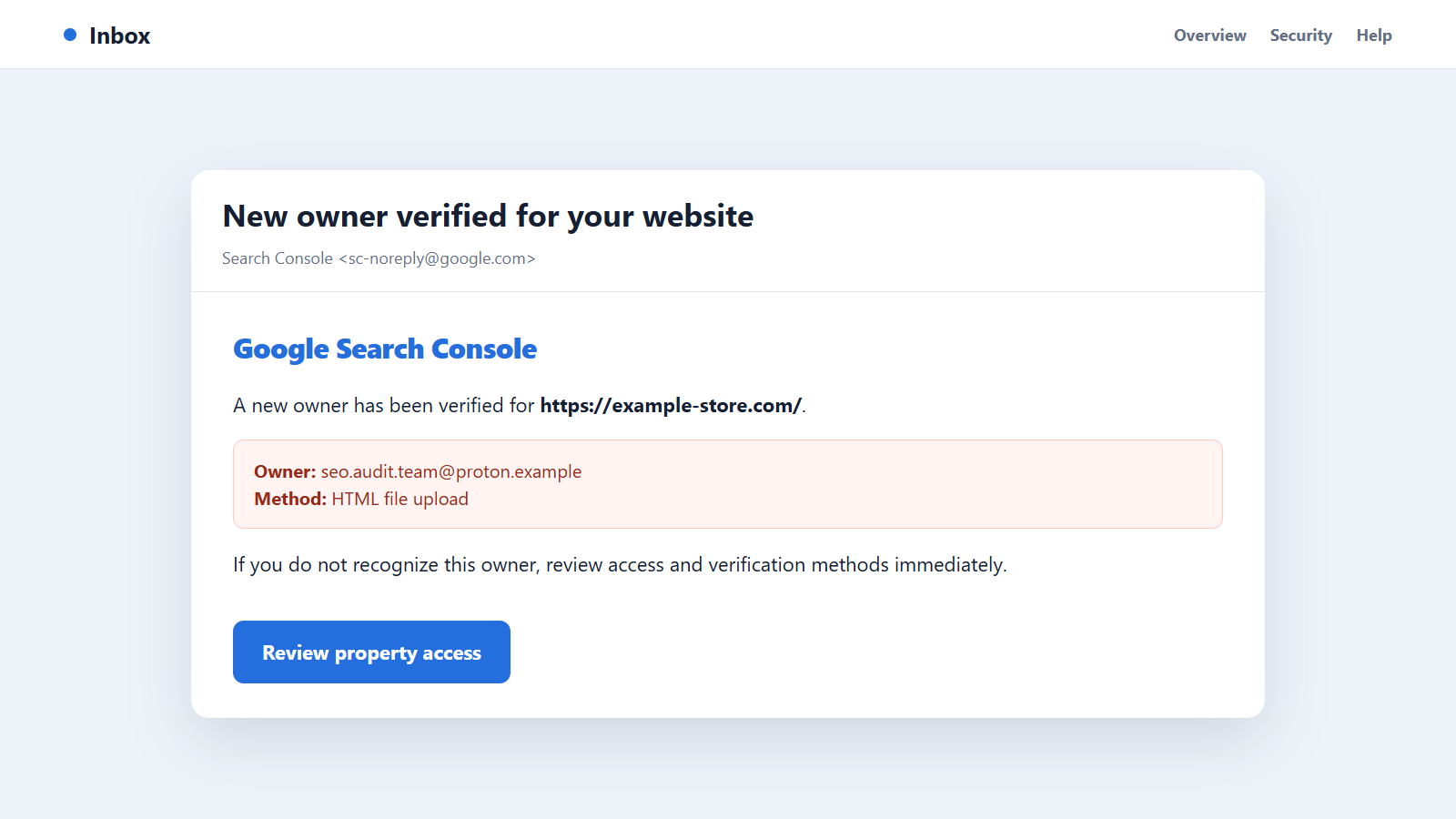
An email from Google Search Console says a new owner has been verified for your website. You do not recognize the address, and nobody on your team admits making the change.
The website ownership verification scam is not a routine invitation that can be solved by deleting one user. An unknown verified owner may mean someone has already changed your site, DNS, analytics, or tag-management account.
Overview
Website verification is legitimate, but an unauthorized token is dangerous
Search Console and other webmaster platforms need proof that a person controls a website before granting sensitive access. Common methods include an HTML file, a meta tag in the homepage, a DNS record, Google Analytics, or Google Tag Manager.
The verification process is not the scam. The danger appears when an attacker places or controls one of those tokens without the real owner’s permission.
An unknown owner usually points to a deeper compromise
A criminal who can upload a verification file or edit the site’s HTML may already have access to hosting, SFTP, a CMS administrator account, a vulnerable plugin, deployment credentials, or DNS.
Removing the person from Search Console addresses only one symptom. If the token and original entry point remain, the attacker may verify ownership again or continue changing the site directly.
Search access can support spam, phishing, and concealment
A verified owner can view search data and use tools that affect how Google interacts with the property. Attackers may monitor whether injected pages are discovered, submit spam URLs, inspect security warnings, or learn which parts of the compromise are visible.
The essential points are:
- A new-owner alert should be verified by opening Search Console independently.
- An HTML file or meta tag tied to an unknown owner must be removed from the website.
- DNS, Analytics, and Tag Manager can also provide verification.
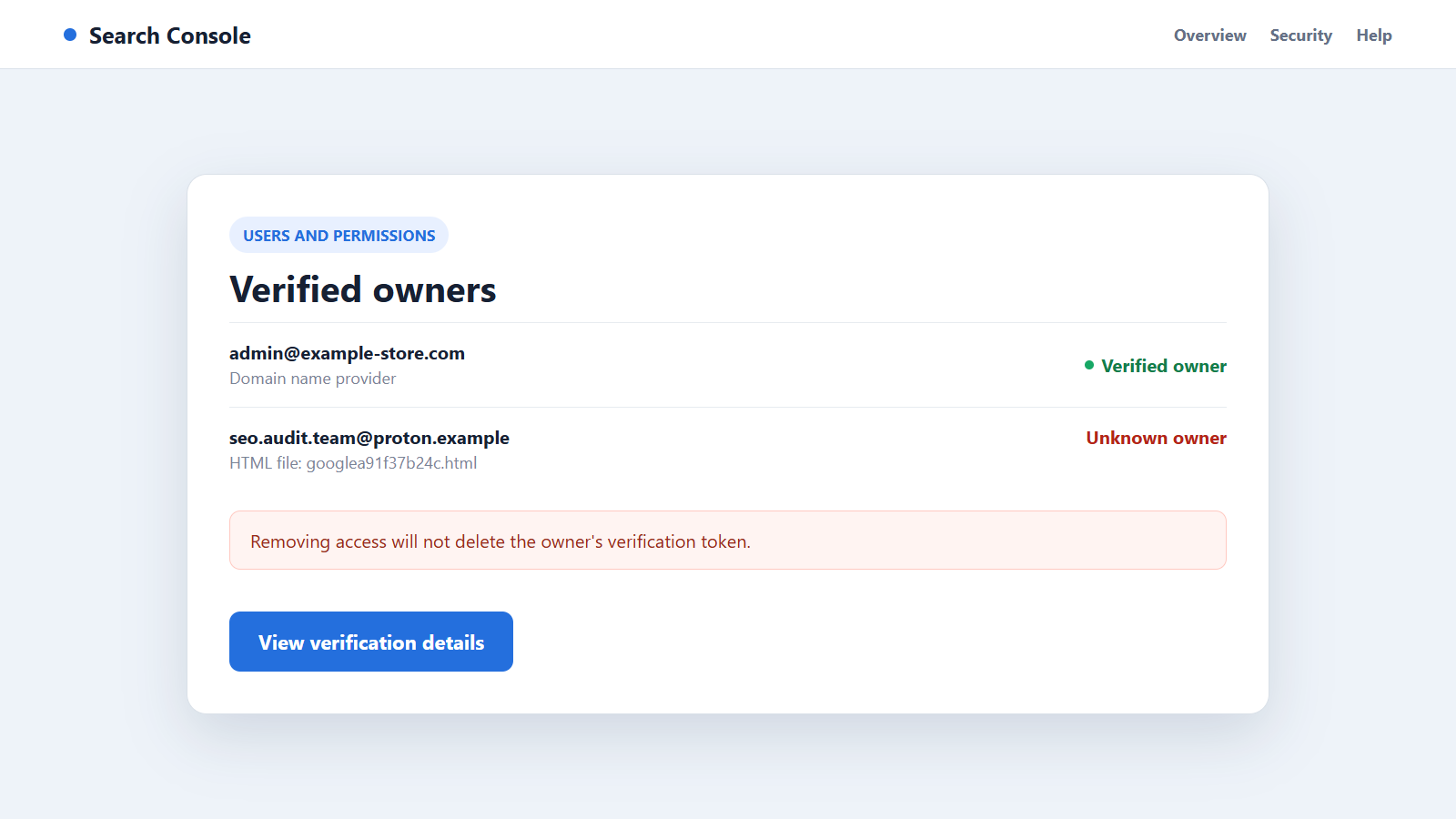
- Deleting a Search Console user does not automatically delete the verification token.
- A valid token can allow a removed owner to verify again.
- The website must be investigated for the vulnerability or stolen credential that made the change possible.
Treat the alert as an incident-response starting point, not as a request to click a convenient button inside the email.
The Main Ways Unauthorized Ownership Appears
A verification file is uploaded to the web root
The attacker places a small HTML file with a unique name and verification string where the search engine expects to find it. The file may look harmless because it contains only one line.
Its purpose is powerful: it demonstrates control of the site to the external service. Deleting unrelated malware while leaving this file can preserve the attacker’s ownership.
A meta tag is inserted into the homepage
A verification tag can be added inside the page’s head section through a theme file, template, SEO plugin, tag-injection feature, compromised deployment, or direct file edit.
The tag may survive a superficial cleanup if investigators examine only posts and uploads.
A DNS record grants domain-level ownership
Control of the registrar or DNS provider can allow an attacker to add a TXT verification record. This route can cover an entire domain and its subdomains rather than one URL prefix.
A website-file review will not find the problem because the token lives with the DNS host.
Analytics or Tag Manager access becomes a verification route
If an attacker gains sufficient rights in a linked Google Analytics or Tag Manager account, those permissions may be used to verify the website property.
This is why a complete review must include connected services, not only WordPress or the hosting account.
Why the Alert Can Be Misread or Ignored
Website teams often have several agencies, developers, marketers, and automated tools. An unfamiliar email address may initially look like a contractor someone else approved.
Attackers benefit from that uncertainty. They may choose a professional-looking account name or one that resembles a hosting, SEO, or analytics provider.
The verification file itself is small and does not behave like conventional malware. A scanner focused on executable code may not label a legitimate-format token as malicious.
The site can also appear normal to administrators while showing spam or redirects only to search crawlers, mobile visitors, or users from selected locations.
A developer may dismiss the notice after recognizing the website name but not the owner. That shortcut is risky because a genuine notification can reveal a real unauthorized change even when the email itself contains no malicious link.
Teams should compare the time of the ownership event with deployments, plugin changes, password resets, support tickets, and DNS edits. A matching authorized change can explain the alert; an unexplained timestamp narrows the incident window.
Finally, removing the visible user can create false reassurance. Google warns that an owner whose valid token remains may regain verified status.
How to Confirm the Alert Without Following a Phishing Link
Do not use the email button. Open a new browser tab, navigate to the official Search Console address, sign in, and select the exact property named in the message.
Open Settings, then Users and permissions. Review active users, verified owners, unused ownership tokens, and the ownership event history.
Ask authorized colleagues and vendors whether they recognize the account. Use a separate channel rather than replying to an address shown only in the alert.
Identify the verification method associated with the unknown owner. Google’s owner and permission guidance explains how to find HTML files, meta tags, DNS records, Analytics rights, and Tag Manager rights.
Preserve logs and a copy of the suspicious token before removal. Timestamps, IP addresses, file owners, login history, and deployment records can help identify the entry point.
Check more than the production homepage. Review staging sites, alternate hostnames, cached templates, deployment repositories, server-level include files, and control panels. The visible tag may be generated from a location that is easy to miss in WordPress.
If several people share one administrator account, rotate that credential and create named accounts with only the permissions each person needs. Individual accounts make later access reviews and incident timelines much clearer.
How the Website Ownership Verification Scam Works
Step 1: The attacker gains a path into the website ecosystem
The initial access may come from a stolen password, reused credential, vulnerable extension, compromised administrator device, exposed deployment key, insecure hosting panel, or hijacked DNS account.
The verification token is usually evidence of that access, not the original cause.
Step 2: A method that proves ownership is selected
The attacker chooses the easiest available route: file upload, homepage meta tag, DNS TXT record, Analytics permission, or Tag Manager control.
The method may be selected because it blends with normal website maintenance.
Step 3: The token is placed in the expected location
An HTML file is copied into the root, a meta tag enters a template, or a DNS record is added. The token is unique to the attacker’s account.
It does not need to steal data itself. Its job is to satisfy the external verification check.
Step 4: Search Console grants verified-owner access
The attacker submits the property and requests verification. Google sees the correct token and concludes that the account controls the site.
Existing verified owners may receive a legitimate new-owner notification at this stage.
Step 5: Spam or phishing content is added to the site
The criminal can inject doorway pages, fake stores, pharmaceutical spam, gambling pages, credential theft forms, or malicious redirects through the original website access.
The legitimate domain’s history can help those pages appear credible to users and search systems.
Step 6: Webmaster tools help the attacker observe the campaign
Search performance, indexing status, and security notices reveal whether injected pages are being found and when defenders react.
The operation may submit selected URLs or adjust tactics based on the information available.
Step 7: The visible owner is removed but the token survives
A site administrator may delete the suspicious account from Search Console without removing its verification method. That makes the dashboard look clean temporarily.
The attacker can re-verify while the file, tag, DNS record, or connected-service permission remains valid.
Step 8: Persistent access restores the compromise
A hidden administrator, web shell, stolen deployment token, scheduled task, or vulnerable plugin allows the criminal to return even after spam pages are deleted.
Complete recovery requires eradicating persistence, rotating credentials, patching the entry point, and monitoring for new changes.
Company, Address, and Fulfillment Checks
The notification must match an event inside the official service
A phishing email can imitate a new-owner warning. Confirm the property, account, and event by opening Search Console independently.
If no matching event exists, report the email as phishing and review the account for other suspicious sign-ins.
The requesting account must belong to a known person or vendor
Map every owner and user to a current employee, agency, developer, or service. Remove obsolete access even when it is not malicious.
An address that merely resembles a vendor name is not enough. Confirm it with the vendor through a known contact.
The verification address must be traced to its real storage layer
Determine whether the token lives in a web-root file, homepage template, DNS zone, Analytics account, or Tag Manager container. Each location has a different owner and audit trail.
Removing the wrong file or record can disrupt legitimate services, so match the exact token to the unknown account.
The claimed cleanup must include the original compromise
A successful response produces clean files, patched software, rotated secrets, reviewed administrator accounts, and verified connected services. Removing one dashboard user is not full remediation.
Monitor logs and search results after recovery to confirm that malicious pages, redirects, and ownership changes do not return.
Warning Signs of an Unauthorized Search Console Owner
- A new-owner alert names an email address nobody recognizes.
- A verification HTML file appears without a change ticket or deployment record.
- The homepage contains an unfamiliar verification meta tag.
- A DNS TXT record was added by an unknown account.
- Search results show pages that do not exist in the normal site navigation.
- Visitors report redirects that administrators cannot reproduce.
- Unknown CMS, hosting, Analytics, or Tag Manager administrators appear.
- A removed Search Console owner returns later.
The alert becomes more serious when it coincides with recent file changes, new administrators, traffic shifts, spam URLs, or authentication failures.
What to Do if You Have Fallen Victim to This Scam
- Confirm the owner inside Search Console. Open the service independently, select the correct property, and inspect Users and permissions, ownership details, unused tokens, and event history.
- Preserve incident evidence. Save the notification, unknown account, token value, timestamps, file metadata, access logs, DNS history, and recent administrator activity before making changes.
- Remove the exact verification token. Delete the attacker’s HTML file, meta tag, DNS record, Analytics permission, or Tag Manager permission. Google’s unknown-owner instructions explain why this step matters.
- Remove the unauthorized owner. After the token is gone, revoke the account in Search Console and review unused tokens that could allow re-verification.
- Contain the original access path. Disable suspicious accounts, rotate hosting, CMS, SFTP, database, deployment, registrar, and cloud credentials, and require strong multi-factor authentication.
- Patch and inspect the website. Update the CMS, themes, plugins, server packages, and custom code. Look for web shells, modified templates, scheduled tasks, injected users, and unexpected files.
- Scan administrator devices. Use Malwarebytes to check systems that held website credentials, especially if browser sessions, passwords, or deployment keys may have been stolen.
- Reduce future malicious access. AdGuard can block many known phishing and malware destinations during browsing, but server hardening and credential rotation remain essential.
- Remove injected content carefully. Delete spam pages and redirects, restore known-good files, check sitemaps, and use Search Console only after the site itself is clean.
- Monitor for recurrence. Watch ownership events, file integrity, administrator creation, DNS changes, search queries, indexed URLs, and outbound redirects for several weeks.
Frequently Asked Questions
Is every new Search Console owner notification a scam?
No. A colleague or vendor may have completed legitimate verification. Confirm the account through your team and inspect the event inside Search Console.
Can I fix the problem by deleting the unknown user?
Not by itself. Google states that a valid verification token can allow the owner to verify again, and the underlying website compromise may still exist.
Where can a verification token be hidden?
Common locations include an HTML file in the site root, a homepage meta tag, a DNS TXT record, Google Analytics permissions, and Google Tag Manager permissions.
Does the unknown owner control my hosting account?
Not necessarily, but placing many verification tokens requires some form of site or connected-account control. Investigate hosting, CMS, DNS, deployment, and administrator access.
Should I delete every verification file I find?
No. Match each token to its verified owner before removal. Deleting a legitimate token can revoke access or affect connected services.
When should I involve a security professional?
Get help when you cannot identify the entry point, malicious changes return, customer data may be exposed, or the attacker has server, DNS, cloud, or multiple administrator footholds.
The Bottom Line
The website ownership verification scam can begin with one small token but reveal a much larger compromise. The unknown Search Console owner is often one visible part of an attacker-controlled path into the site.
Verify the alert independently, remove both the owner and exact token, then investigate and close the original access route before considering the incident resolved.

Join the discussion
0 commentsShare your experience or ask a question about this article.
Discussion
Start the conversation
Have a question or something useful to share? Add the first comment.