


Silent Groom Pro promises to turn a tense pet-care chore into a quiet, controlled routine. That simple idea has made its advertisements unusually persuasive.
Before ordering, however, shoppers should understand what is genuinely useful, what remains promotional, and which details can make a return unexpectedly difficult.
Overview
Silent Groom Pro is a real type of pet grooming tool
Silent Groom Pro is a rechargeable rotary grinder designed to shorten pet nails with an abrasive wheel instead of a clipper blade.
The product category is legitimate. Veterinary clinics, groomers, and established pet brands sell similar grinders in many sizes and power levels.
A grinder can give careful owners more control because it removes a small amount of nail with each pass.
That slower approach may help when dark nails make the sensitive quick difficult to see. It does not remove the need for patience.
The tool also cannot guarantee a calm pet. Noise tolerance, vibration sensitivity, previous grooming experiences, and training all influence the result.
The marketing turns ordinary features into exceptional promises
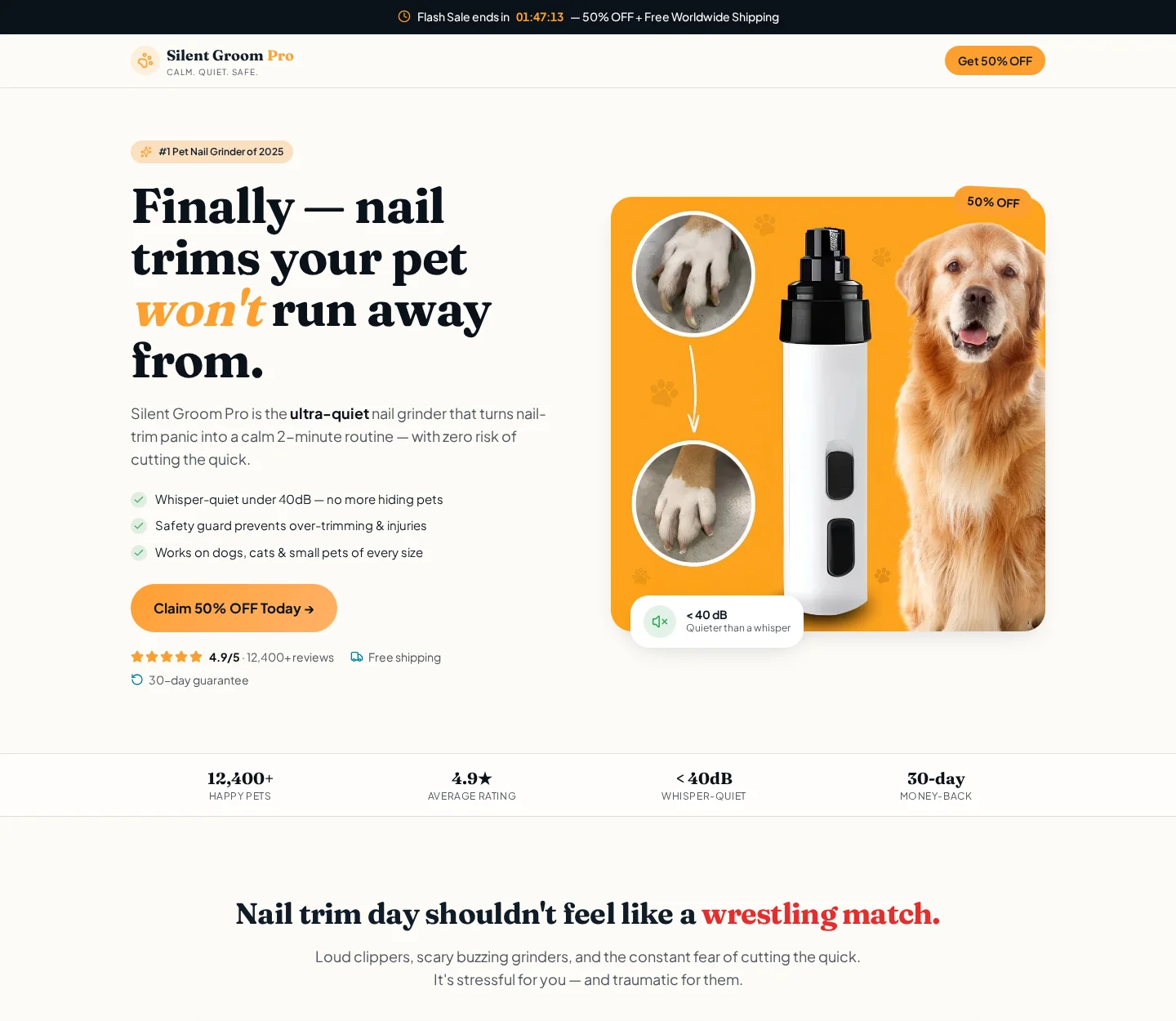
The sales page calls Silent Groom Pro the number one pet nail grinder of 2025 and describes operation below 40 decibels.
It also promises zero risk of cutting the quick, a seven-hour battery, broad pet compatibility, and a two-minute routine.
Several statements are presented beside large ratings and customer counts controlled by the seller. They are not substitutes for independent product testing.
- The advertised rating is 4.9 out of 5 from more than 12,400 reviews.
- The headline offer displays a 50% discount and free worldwide shipping.
- The page presents a 30-day guarantee beside the purchase button.
- Bundle pricing encourages customers to buy three or five grinders.
- The advertisement says the safety guard prevents over-trimming and injuries.
A protective opening can reduce accidental contact, but no guard makes nail care risk-free. Grinding too long in one spot creates heat and discomfort.
Our finding is more nuanced than a simple scam label
Silent Groom Pro does not appear to be an imaginary product. Buyers can receive a functioning grinder, and some reviewers report satisfactory results.
The concern is value and expectation. Similar-looking grinders are widely sold through large marketplaces, often at lower prices and with easier returns.
Independent feedback is mixed. Positive customers mention responsive support, while critical reviewers describe weak power, noticeable vibration, noise, or return friction.
That combination points to an aggressively marketed commodity tool, not proof that every order is fraudulent or every unit is defective.
Our recommendation is to compare specifications and return costs before buying. Do not rely on a countdown, a seller-hosted rating, or the word “silent.”
What Silent Groom Pro Claims to Do
The central pitch is emotional rather than technical. Clippers are shown as frightening and dangerous, while the grinder is presented as calm and nearly effortless.
This contrast addresses a real fear. Many owners worry about cutting the quick, especially after a pet has reacted badly during an earlier trim.
The advertisement says the device stays below 40 decibels, supposedly making it quieter than a whisper and suitable for nervous animals.
A decibel figure requires context. Distance, measurement method, wheel speed, nail contact, surface resonance, and surrounding noise can change the reading.
The site also says the grinder works for dogs, cats, and small pets of every size. Power and opening dimensions matter more than broad compatibility language.
A tool strong enough for a large dog’s thick nails may feel excessive for a tiny animal. A weak motor may stall against dense nails.
The claimed seven-hour battery sounds generous, but runtime is not the only performance measure. Torque under contact and charging reliability are equally important.
Most households need only brief sessions. A smaller real-world runtime could still be adequate, while a long runtime would not compensate for poor grinding strength.
How the Silent Groom Pro Offer Works
Step 1: The advertisement begins with a stressful problem
The visitor sees frightened pets, sharp clippers, scratched owners, or nails that have grown too long between professional appointments.
That opening creates urgency without using a conventional emergency. The owner is encouraged to feel that postponing the purchase could harm the pet.
The solution then appears unusually gentle. Soft colors, calm language, and a compact white grinder make the change feel safe and immediate.
This storytelling is effective because it speaks to affection and guilt. It does not demonstrate how a particular pet will respond.
Step 2: Specific numbers make the grinder look independently proven
Figures such as under 40 decibels, seven hours, 12,400 reviews, and 4.9 stars create an impression of measured certainty.
The page does not clearly show a complete independent acoustic report, standardized battery test, or auditable review methodology beside those figures.
Numbers can be accurate, selective, estimated, or simply promotional. A careful buyer asks who measured them and under which conditions.
Step 3: A permanent-looking sale discourages comparison
A countdown and 50% discount frame the visit as a temporary opportunity. Free worldwide shipping adds another reason to finish the order quickly.
The displayed saving has meaning only if the regular price is genuine and the product is not routinely sold at the discounted amount.
Before paying, search large retailers for comparable grinders. Compare motor speed, guard sizes, warranty, delivery estimate, and the actual return destination.
Step 4: Bundle tiers increase the order before one unit is tested
The offer promotes one grinder, a two-plus-one bundle, and a three-plus-two package. The largest option can look cheapest on a per-unit basis.
Most households do not need five pet nail grinders. The bundle mainly increases the transaction value before the buyer knows whether one works well.
Giving extras to friends sounds practical, but unopened spare units can also complicate a return if the policy treats bundles as one order.
Step 5: The order passes through a separate direct-response checkout
The promotional page sends buyers toward an order domain rather than a familiar pet retailer. That separation can make the responsible seller less obvious.
Record the merchant name shown at checkout and on the card statement. It may differ from the brand printed on the landing page.
Check every optional warranty, protection plan, quantity selector, and shipping line. Do not assume the first visible price equals the final total.
Step 6: Delivery decides whether the marketing survives contact with reality
A real grinder can arrive and still disappoint. Common points include motor strength, wheel alignment, charging, vibration, accessories, and the pet’s reaction.
Test the device without touching the pet first. Listen for wobbling, examine the guard, and confirm that speed controls operate consistently.
If the animal becomes distressed, stop. Forcing a frightened pet can create a lasting aversion and make future grooming harder.
Step 7: The guarantee becomes important only after the package is opened
The sales page highlights a short guarantee, but the practical process may require prior approval, photographs, original packaging, and paid return postage.
Reviews connected with the wider seller describe both helpful resolutions and frustrating return negotiations. Individual reports do not predict every case.
They do show why written instructions matter. Never mail a return to an address found independently without receiving authorization for that specific order.
What Independent Feedback Actually Shows
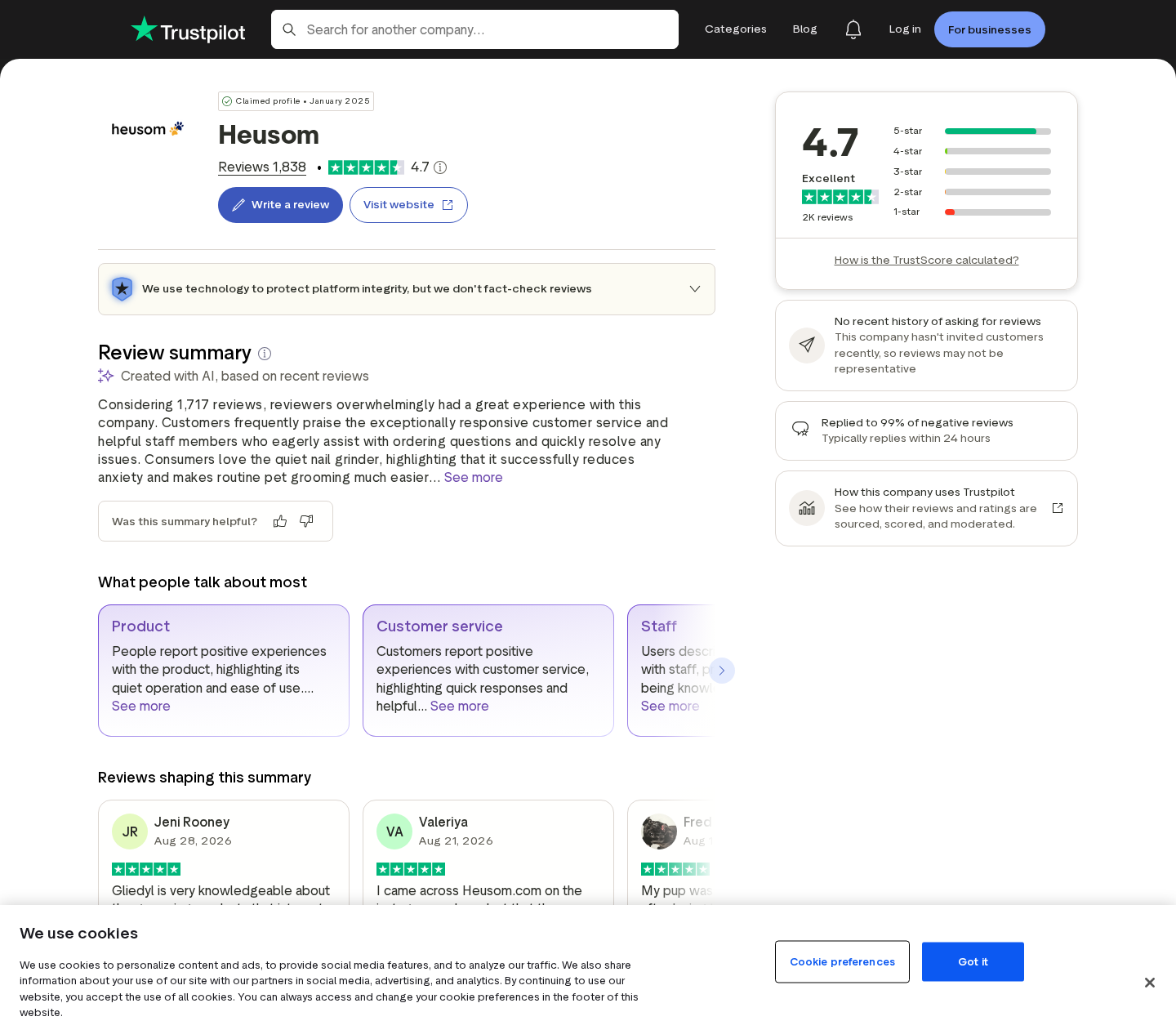
The Heusom review profile associated with Silent Groom Pro shows a strong overall rating and a large volume of customer feedback.
Many customers praise communication and say the grinder made nail care easier. Those experiences deserve inclusion because the product can satisfy some buyers.
Critical reviews describe a different result. Complaints mention low power, greater noise than expected, vibration, delayed parcels, or disagreement about refunds.
The company replies publicly to many negative posts. Its responses often say the grinder is quieter, not completely silent, and invite direct contact.
That clarification is revealing. A product name can imply silence even when the seller later describes the claim in comparative terms.
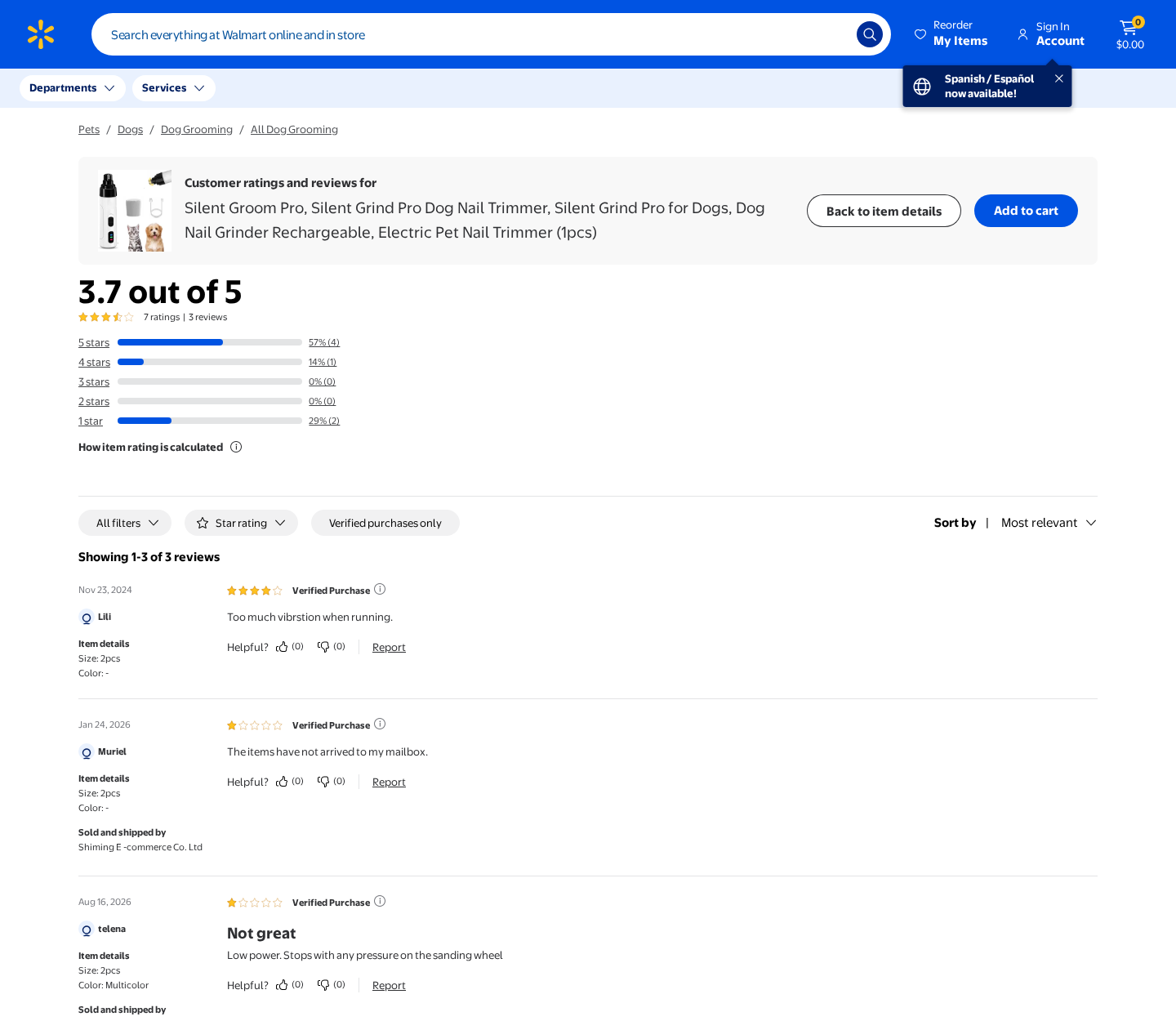
A marketplace listing for a similarly named grinder shows a lower rating and comments about weak power or non-arrival. Sellers and batches may differ.
Visual similarity alone does not prove identical internal parts. It does establish that this design is not obviously unique to one premium brand.
Use reviews to identify recurring failure points, not to calculate a guaranteed outcome. Ratings can combine different products, countries, fulfillment periods, and expectations.
Safety and Practical Use
A nail grinder is a rotating tool. Used carelessly, it can heat the nail, catch fur, irritate skin, or frighten the animal.
Long-haired pets need special attention. Keep hair away from the rotating wheel, and use a guard only if it provides adequate access and visibility.
Introduce the sound at a distance. Reward calm behavior, keep the first session brief, and let the animal investigate the switched-off tool.
Remove tiny amounts from each nail. Pause frequently so heat cannot build, and never chase a perfect shape while the pet is struggling.
Watch for the lighter center that appears as the quick approaches. If you are uncertain, ask a veterinarian or professional groomer for a demonstration.
Keep styptic powder available. Even experienced owners can make mistakes, and a prepared response is safer than assuming a guard makes bleeding impossible.
Do not use a damaged, wobbling, or overheating grinder. Stop if the charging port becomes hot, the wheel cracks, or the motor changes pitch.
Clean dust from the opening after use and store the device dry. Follow the supplied charging instructions rather than substituting a random high-power adapter.
Nail dust can irritate eyes and airways. Work in a ventilated area, keep the grinder away from food, and wash hands afterward.
Inspect every accessory before starting. A cracked wheel, loose cap, damaged guard, or frayed cable is a reason to postpone grooming.
Pets with painful paws, infected nails, injuries, or mobility problems need veterinary guidance before any home trimming routine begins.
Keep sessions predictable. Using the same location, reward, towel, and order of paws can reduce uncertainty for a nervous animal.
If progress remains stressful, stop measuring success by nail length. A calm ten-second introduction can be more valuable than finishing one paw.
Company, Address, and Fulfillment Checks
The brand name is not the complete seller identity
Silent Groom Pro appears inside a direct-response sales operation connected with Heusom. Buyers should identify the legal merchant before entering payment details.
Match the checkout entity with the receipt, policy pages, parcel label, and card descriptor. Inconsistent names do not prove fraud, but they complicate disputes.
A support contact should answer product-specific questions
Ask which company sells the grinder, where returns go, who pays postage, and whether an opened unit remains eligible.
A useful support team should answer directly. A generic reply that avoids the product, destination, or deadline leaves the customer carrying unnecessary risk.
The fulfillment address may not be a headquarters
Packages and returns can move through third-party warehouses. A fulfillment center handles inventory without designing the product or managing the brand.
Do not describe a warehouse as fake merely because several companies use it. Instead, determine which legal entity remains responsible for the transaction.
Generic sourcing changes the value calculation
Similar grinders appear across major marketplaces at lower prices. That suggests customers may be paying heavily for advertising, bundles, and intermediary fulfillment.
Generic manufacturing is not automatically unsafe or deceptive. The problem arises when ordinary hardware is sold as exclusive without transparent specifications or testing.
What to Do if Your Silent Groom Pro Order Has a Problem
- Stop using an unsafe unit. Disconnect a grinder that overheats, wobbles, smells burned, exposes wiring, or behaves unpredictably. Do not test it again on an animal.
- Preserve the complete offer. Save the landing page, price, bundle choice, guarantee, delivery estimate, checkout total, receipt, card descriptor, and every support message.
- Document performance clearly. Record a short video showing charging, motor speed, unusual sound, wheel movement, or stalling. Keep the packaging, cable, guards, and inserts.
- Request a written remedy. State whether you want replacement or refund. Ask for authorization, the full destination, deadline, required tracking, and responsibility for postage.
- Describe the issue accurately. Use “defective” or “not as described” when supported. Do not claim non-delivery if tracking proves a parcel arrived.
- Escalate before deadlines expire. If the seller blocks a valid request, contact the card issuer or payment provider with your dated evidence and exact timeline.
- Check the device that placed the order. If an advertisement triggered downloads or suspicious redirects, scan with Malwarebytes and remove unfamiliar browser extensions.
- Reduce future advertising traps. AdGuard can block many intrusive ads and redirect chains. It cannot verify product quality, so continue checking sellers independently.
Is Your Device Infected? Run a Free Malware Scan
Slow performance, constant pop-ups, or strange behavior? These are classic signs of a malware infection. A quick way to check is to scan your device with Malwarebytes Free, one of the most trusted malware removal tools available. If you only visited a scam page and didn’t download or install anything, this scan is optional.
The free version detects and removes the most common threats, including:
- Adware — the cause of those annoying pop-ups
- Browser hijackers — unwanted redirects and changed homepages
- Trojans and spyware — hidden programs stealing your data
- Potentially unwanted programs (PUPs) — software you never asked for
👉 Select your device below — Windows, Mac, or Android — then follow the simple steps to download Malwarebytes, scan your system, and remove any threats it finds. The scan usually takes 5 to 20 minutes.
Run a Malware Scan with Malwarebytes for Windows
Malwarebytes is one of the most popular and trusted anti-malware tools for Windows — and it’s completely free for removing infections. It catches threats that many antivirus programs miss, including adware, browser hijackers, and trojans. Follow the steps below to scan your PC and remove what Malwarebytes finds.
Download Malwarebytes
Click the button below to download the latest version of Malwarebytes for Windows from the official source. The free version is all you need — it will scan your computer and remove adware, browser hijackers, and other malicious software at no cost.
Download MalwarebytesOfficial installer for Windows 11 and 10. Your download starts right away.Want real-time protection? See Malwarebytes Premium Malwarebytes Free for WindowsScans and removes malware at no cost
-
Install Malwarebytes
When the download finishes, open your Downloads folder and double-click the MBSetup file. If Windows shows a User Account Control pop-up, click “Yes” to allow the installation.

Follow the On-Screen Prompts to Install Malwarebytes
The setup wizard will walk you through a few quick screens:
-
Choose where you’re installing the program — “Personal Computer” or “Work Computer” — then click Next.

-
Malwarebytes will now install on your device. This usually takes under a minute.

-
When installation is complete, the “Welcome to Malwarebytes” screen will open automatically.

-
On the final screen, click Open Malwarebytes to launch the program.

-
Optional: Check for rootkits with a Custom Scan
You don’t need to change any settings for a normal scan. The standard Threat Scan in the next step is enough for most problems, so you can go straight to it.
If you also want to check for rootkits, use a Custom Scan. In current versions of Malwarebytes, rootkit scanning is only available there:
- On the Scanner tile, click the three-dot menu and select Advanced Scan.
- Choose Custom Scan. In its options, check Scan for rootkits.
- Select your system drive (usually C:\) as the location to scan, then start the scan. It takes longer than a Threat Scan.
- When it finishes, review and quarantine the results as described in the steps below.
Rootkit scanning isn’t available on Windows devices with ARM processors.
Start the Scan
Click the blue Scan button. Malwarebytes will automatically update its virus database and start checking your computer for malware.

-
Wait for the Scan to Finish
The scan checks your entire system for browser hijackers and other malicious programs, so it can take 5 to 20 minutes depending on your computer. Feel free to do something else — just check back occasionally to see the progress.

-
Quarantine the Detected Threats
When the scan is done, you’ll see a list of everything Malwarebytes found — malware, adware, and potentially unwanted programs. Click the “Quarantine” button to remove all of them at once.

Malwarebytes will now remove the malicious files and registry entries and move them safely into quarantine.

-
Restart Your Computer
Some threats can only be fully removed after a reboot. If Malwarebytes asks you to restart, click Yes. Once you’re logged back in, Malwarebytes has finished removing the threats it found.

When the scan is done, check whether the problems you noticed have stopped. If they continue, see the options below.
If you are still having problems with your computer after completing these instructions, then please follow one of the steps:
- Run a computer scan with ESET Online Scanner
- Ask for help in our Windows Malware Removal Help & Support forum.
Run a Malware Scan with Malwarebytes for Mac
Malwarebytes for Mac is a free on-demand scanner that removes the malware other security software tends to miss — adware, browser hijackers, and unwanted programs included. Cleaning an infected Mac with Malwarebytes has always been completely free, and it’s our go-to recommendation. Follow the steps below to scan your Mac and remove what Malwarebytes finds.
-
Download Malwarebytes for Mac
Click the button below to download the latest version of Malwarebytes for Mac.
Download MalwarebytesOfficial installer for macOS. Your download starts right away.Want real-time protection? See Malwarebytes PremiumMalwarebytes Free for MacScans and removes malware at no cost -
Open the Malwarebytes setup file
When the download finishes, open your Downloads folder and double-click the setup file to begin the installation.

-
Follow the On-Screen Prompts to Install Malwarebytes
The Malwarebytes for Mac Installer will guide you through a few quick screens. Click “Continue” and keep following the prompts until the installation completes.



When the installation is complete, Malwarebytes opens to the Welcome to Malwarebytes screen. Click “Get started“.
Malwarebytes needs Full Disk Access to check your whole Mac. When it asks, open System Settings > Privacy & Security > Full Disk Access, turn on Malwarebytes (it may be listed as Malwarebytes Protection), and confirm with your password or Touch ID. Then return to Malwarebytes. On macOS Monterey and earlier, this setting is in System Preferences > Security & Privacy > Privacy.
-
Select “Personal Computer” or “Work Computer”
Malwarebytes will ask what type of computer you’re installing it on. Click either Personal Computer or Work Computer, whichever applies.

-
Start the Scan
Click the “Scan” button. Malwarebytes will automatically update its detection database and begin checking your Mac for malware.

-
Wait for the Scan to Finish
Malwarebytes will scan your Mac for adware, browser hijackers, and other malicious programs. This can take a few minutes, so feel free to do something else — just check back occasionally to see the progress.

-
Quarantine the Detected Threats
When the scan is done, you’ll see a list of everything Malwarebytes found. Click the “Quarantine” button to remove all the threats at once.

-
Restart Your Mac
Malwarebytes will now remove all the malicious files it found. Some threats can only be fully removed after a reboot — if Malwarebytes asks you to restart, allow it. Once you’re logged back in, check whether the problems you noticed have stopped. If they come back, save the scan report and ask for help in our forum.

If the problems you noticed continue after the scan, see the options below.
If you are still experiencing problems while trying to remove a malicious program from your computer, please ask for help in our Mac Malware Removal Help & Support forum.
Run a Malware Scan with Malwarebytes for Android
Malwarebytes for Android scans your phone or tablet for malware, adware, and potentially unwanted apps. The free version scans only when you start a scan. Real-time protection, which checks apps automatically, is part of the paid Premium version.
-
Download Malwarebytes for Android.
You can download Malwarebytes for Android by clicking the link below.
Get Malwarebytes for AndroidOpens Google Play in a new tab.Want real-time protection? See Malwarebytes Premium for AndroidMalwarebytes for AndroidScans your phone and removes malware at no cost -
Install Malwarebytes for Android on your phone.
In the Google Play Store, tap “Install” to install Malwarebytes for Android on your device.

When the installation process has finished, tap “Open” to begin using Malwarebytes for Android. You can also open Malwarebytes by tapping on its icon in your phone menu or home screen.

-
Follow the on-screen prompts to complete the setup process
When Malwarebytes opens, it walks you through a short setup. Tap Get started and follow the prompts. If you see an offer for a trial or a paid plan, read it before you accept. You can skip it and keep using the free scanner.
Malwarebytes will ask for permission to access the files on your phone so it can scan them. Tap Allow, or turn on the permission in the Android screen that opens, then return to Malwarebytes.
-
Run a scan with Malwarebytes for Android
On the main screen, tap Scan now. In some versions, you open the menu, tap Scanner, and then tap Run a scan.
-
Wait for the Malwarebytes scan to complete.
Malwarebytes will now start scanning your phone for adware and other malicious apps. This process can take a few minutes, so we suggest you do something else and periodically check on the status of the scan to see when it is finished.

-
Remove the detected apps.
When the scan has been completed, you will see a list of the threats that Malwarebytes for Android has detected. Next to each detected item, tap the menu icon (three dots), then choose to uninstall the app or delete the file. Android then asks you to confirm. Tap OK or Uninstall to remove the app.
-
Restart your phone.
When the detected apps are removed, restart your phone if Malwarebytes asks you to. Then check whether the problems you noticed have stopped.
If the problems you noticed continue after the scan, see the options below.
If you are still having problems with your phone after completing these instructions, then please follow one of the steps:
- Ask for help in our Mobile Malware Removal Help & Support forum.
- Only as a last resort, reset your phone to factory settings. Read the warning below first.
- Back up your photos, videos, files, and messages, for example to your Google account or a computer.
- Make sure you know your Google account email and password. The phone asks for them after the reset. If you changed the password recently, Google recommends waiting 24 hours before you reset.
- On a Samsung phone, also make sure you know your Samsung account password.
- If you use an authenticator app for two-step verification, move your accounts to another device or save your backup codes first.
Stay Protected: Block Ads and Malicious Sites
No scan can prove a device is completely clean, so it helps to block threats before they reach you. Most infections start with a malicious ad or a fake download button — so blocking them at the source is your best defense.
We recommend AdGuard, which blocks malicious ads, phishing pages, and dangerous redirects before they can reach you.
👉 Download AdGuard and browse safely
How to Choose a Better Pet Nail Grinder
Start with the pet, not the advertisement. Nail thickness, body size, coat length, temperament, and grooming experience should guide the purchase.
Look for published speed settings, replaceable wheel details, guard dimensions, charging specifications, and a manual available before checkout.
Prefer retailers that show the manufacturer, model number, realistic delivery date, domestic return option, and reviews tied to one exact listing.
Compare the final amount, not a percentage discount. A slightly higher local price can be cheaper once return shipping and support access are considered.
Professional help is reasonable when nails are overgrown, the quick has lengthened, the pet bites, or an owner feels unsafe handling the paws.
Frequently Asked Questions
Is Silent Groom Pro a scam?
It appears to be a real grinder sold through aggressive direct-response marketing. Evidence supports caution about claims, value, and returns, not a blanket nonexistent-product accusation.
Is Silent Groom Pro completely silent?
No rotary grinder is literally silent. The seller emphasizes low noise, while its public replies clarify that the device is quieter rather than soundless.
Can the guard prevent every injury?
No. A guard may limit contact, but heat, over-grinding, caught fur, frightened movement, and incorrect technique still create risks.
Why are similar grinders cheaper elsewhere?
Direct-response prices include advertising, affiliates, support, and fulfillment. Similar appearance does not prove identical internals, so compare specifications alongside price.
Does the product enroll buyers in automatic refills?
We found bundle selling, not a consumable refill model. Still, read the final checkout for protection plans or memberships before authorizing payment.
Should I buy Silent Groom Pro?
Only after comparing established alternatives and confirming return costs. Choose a seller with clear specifications and convenient recourse if the grinder disappoints.
The Bottom Line
Silent Groom Pro is a plausible grooming tool wrapped in advertising that promises remarkable quiet, safety, convenience, and popularity. Those promises deserve more scrutiny than the sales page provides.
A grinder may help a patient owner, but it cannot guarantee a calm pet or eliminate injury. Compare alternatives, test gently, and preserve your return rights.

Join the discussion
0 commentsShare your experience or ask a question about this article.
Discussion
Start the conversation
Have a question or something useful to share? Add the first comment.