

Ryoko Pro is advertised as a pocket-sized answer to expensive roaming, unsafe public networks, and unreliable travel internet.
The device exists, yet the offer becomes less simple once the included data, renewal terms, speed limits, and return process are read together.
Overview
Ryoko Pro is a portable cellular hotspot, not free internet
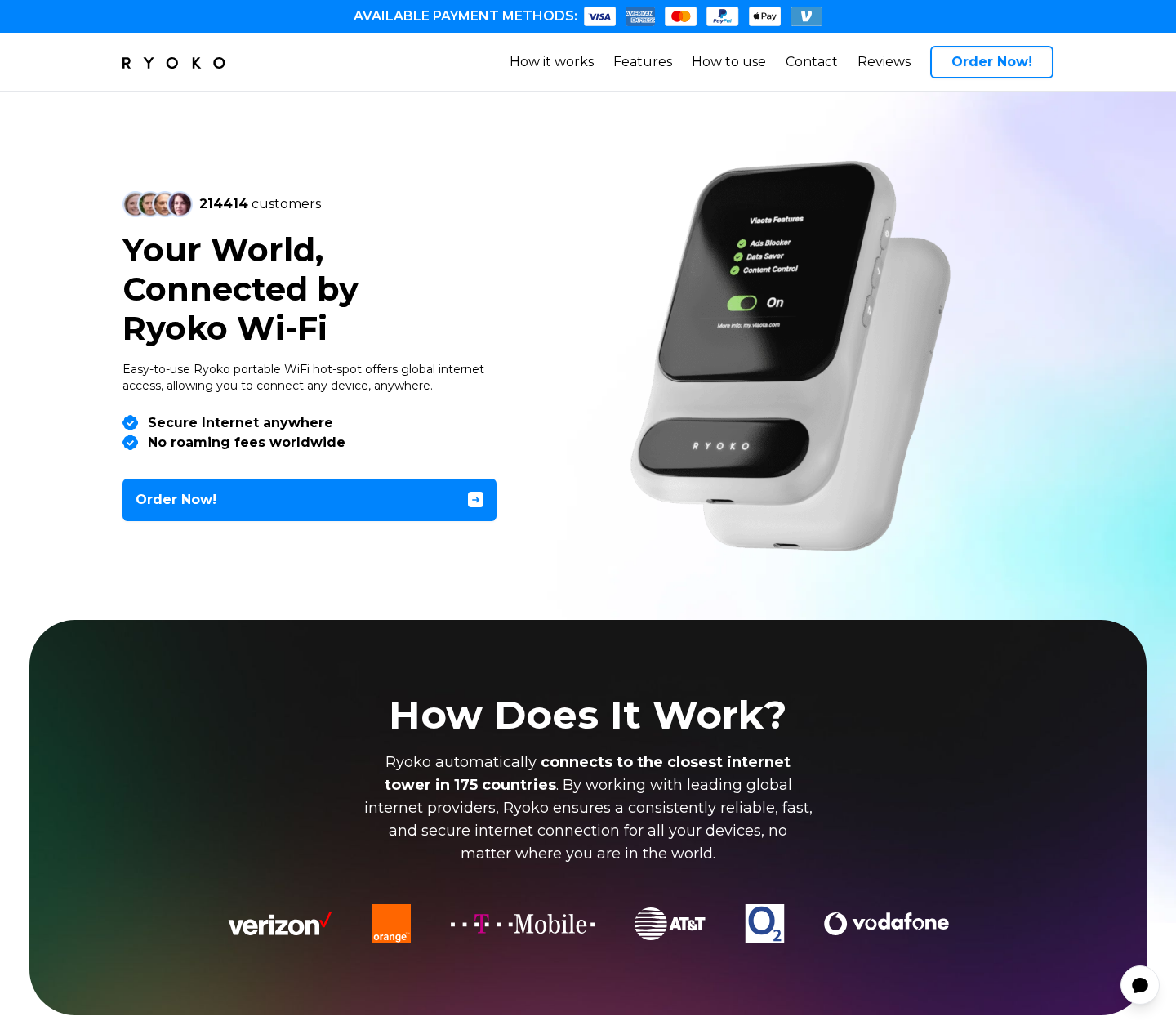
Ryoko Pro is a small mobile router that shares a cellular data connection with phones, laptops, tablets, and other WiFi devices.
It uses a SIM and nearby mobile networks. The hotspot creates a local WiFi connection, but the internet still depends on paid cellular service.
This distinction is easy to miss when advertisements emphasize global access, no roaming fees, and instant connectivity across 175 countries.
A hotspot can be useful for travelers, remote workers, families, or anyone who wants an alternative to hotel and airport WiFi.
It cannot create coverage where partner networks have no usable signal. Mountains, rural areas, buildings, congestion, and local restrictions still affect service.
The starter package includes only a small amount of temporary data
The terms say a Viaota SIM accompanies the device and includes 500MB of prepaid data valid for 30 days.
Five hundred megabytes can disappear quickly. Video calls, streaming, cloud backups, map downloads, and operating-system updates may consume it within hours.
After the starter allowance, customers must purchase more data or maintain a plan. The hardware price therefore is not the complete cost.
- The advertised hotspot can connect as many as ten devices.
- The seller promotes speeds reaching 150Mb/s under favorable conditions.
- The product page claims up to eight hours of battery life.
- Viaota plans can renew automatically until the customer cancels.
- The supplied SIM is part of the supported system.
- Using another SIM may be unsupported and can affect warranty coverage.
These details do not make Ryoko Pro fraudulent. They show why “buy the device and connect anywhere” is an incomplete description.
Our verdict separates the hardware from the marketing
Ryoko Pro appears to be a real portable hotspot sold by an identifiable company with published terms and a return policy.
The concern is presentation. “No roaming fees worldwide” can sound like data is included indefinitely, although continued use requires paid service.
The word “unlimited” also needs qualification. Certain Viaota plans reduce speed sharply after a usage threshold rather than providing unlimited high-speed data.
We would not call the device itself a scam. Buyers should evaluate it as a locked ecosystem with recurring connectivity costs and conditional performance.
For many travelers, an unlocked hotspot, local eSIM, or phone tethering plan may offer clearer pricing and greater flexibility.
What the Ryoko Pro Advertising Promises
The landing page presents travel connectivity as an effortless choice. Turn on the device, join its WiFi network, and use the nearest partner tower.
The site highlights 175 countries and names major mobile networks. That creates the impression of a universal service with predictable speed everywhere.
Cellular roaming never works uniformly. The available network, frequency bands, local agreements, signal strength, and plan priority change from one location to another.
The stated 150Mb/s speed should be understood as “up to,” not a minimum. Actual performance may be dramatically lower during congestion or after throttling.
The seller also promotes an advertising, malware, and phishing blocker through the Viaota service. Network filtering can reduce exposure but cannot guarantee safety.
A malicious page can still appear, a legitimate account can be phished, and downloaded malware can bypass simple domain blocking.
The eight-hour battery claim is another best-case figure. Signal strength, connected devices, traffic volume, battery age, and temperature influence actual runtime.
None of these limitations is unusual for mobile hotspots. The issue is whether the sales page gives them enough weight beside the bold benefits.
How the Ryoko Pro WiFi Offer Works
Step 1: The advertisement targets roaming anxiety
Travelers know the frustration of airport WiFi, hotel passwords, expensive carrier passes, and warnings about using an unsecured public network.
Ryoko Pro packages all those concerns into one compact solution. A polished device image makes the offer feel simpler than comparing mobile plans.
The message is especially effective before a trip, when buyers face a deadline and may not have time to research local connectivity.
Step 2: The hardware price receives more attention than data pricing
The customer first evaluates the physical hotspot and promotional discount. Ongoing data charges become relevant only after the device needs more than 500MB.
A fair comparison must combine the router cost, plan price, taxes, shipping, possible activation costs, and expected usage over the whole trip.
Someone streaming several hours daily needs a very different plan from a traveler checking messages and maps.
Step 3: The included SIM connects the buyer to Viaota
The terms describe the Ryoko SIM as issued through Viaota. It is not simply a neutral router paired with whichever carrier the owner chooses.
The supplied service handles network access across participating countries. That convenience also gives the provider control over plans, throttling, account management, and support.
Third-party SIM use is not officially supported. The terms warn that doing so can void the warranty, even if the hardware accepts the card.
Step 4: The starter data creates a short demonstration period
The 500MB allowance lets a new owner activate the device and confirm basic service without immediately choosing a larger package.
It is not enough for normal high-volume travel use. Automatic photo uploads alone can consume a substantial portion before the customer notices.
Disable background updates and cloud synchronization during the test. This makes the available data useful for checking speed, coverage, and device stability.
Step 5: Continued access requires a top-up or subscription
Once the allowance expires or is consumed, the customer enters the Viaota plan system. Some options are recurring rather than one-time purchases.
The terms say subscriptions renew automatically until canceled. A paused plan can resume, so pausing should not be confused with permanent termination.
Read the billing date, currency, tax treatment, data amount, renewal frequency, and cancellation procedure before selecting any plan.
Step 6: “Unlimited” service may become extremely slow
Viaota terms describe fair-use limits. A plan marketed as unlimited may reduce speed after 15GB, potentially to 256kbps for the remaining period.
At that speed, simple messages may work, but video, large downloads, remote meetings, and modern websites can become frustrating or impractical.
The service technically continues, which explains the unlimited label. The experience is not equivalent to unlimited high-speed data.
Step 7: Performance depends on circumstances outside the seller’s control
The device chooses available partner coverage. It cannot force a strong signal, reserve tower capacity, or guarantee that local networks prioritize roaming traffic.
When service disappoints, buyers may blame the hardware, data provider, host network, building, or plan without knowing which layer caused the problem.
Test in several locations before trusting it for essential work. Keep an alternative connection for emergencies and time-sensitive travel.
Step 8: Returning the device requires the formal process
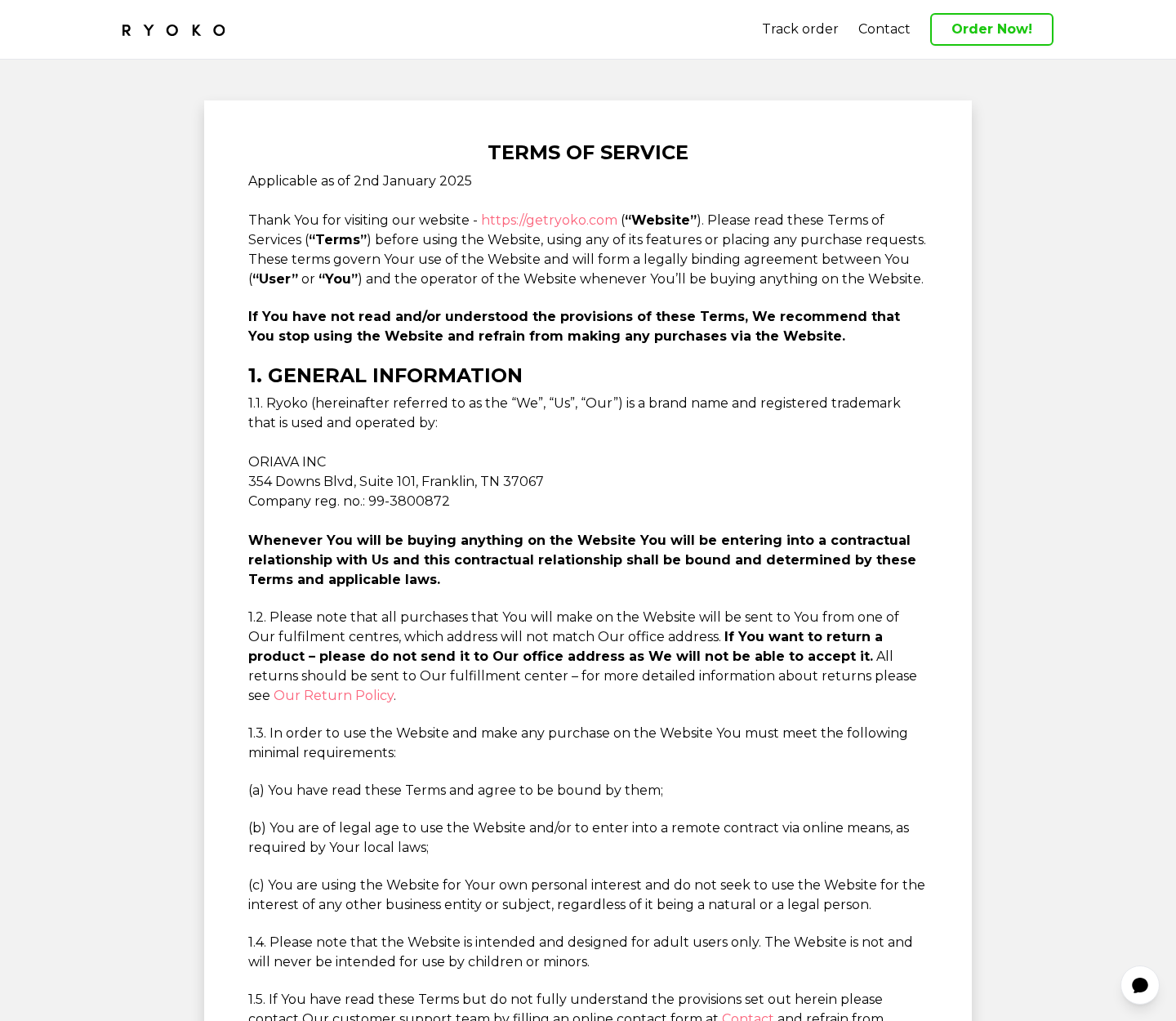
The store advertises 60 days, but customers must contact support, obtain an authorization, and send the item to the specified fulfillment address.
The buyer generally pays return shipping, and original delivery fees are not refunded. The product must meet the stated condition requirements.
Never send it to the Tennessee office listed in the terms. The company explicitly says returns go to a separate fulfillment center.
The Data Plan Details That Matter Most
Portable hotspot reviews often focus on the device while treating data as an accessory. In practice, the service determines most of the daily experience.
Start by estimating usage. Messaging and occasional navigation consume little, while high-definition video, gaming downloads, and cloud synchronization consume far more.
Check whether the plan counts both uploads and downloads. Video conferencing sends substantial data even when the user is not sharing a screen.
Look for the high-speed allowance rather than the word “unlimited.” The useful figure is how much data remains fast before fair-use restrictions begin.
Ask what happens at the threshold. Providers may throttle speed, charge for additional data, or stop service until the next cycle.
Confirm which country list applies to the chosen plan. “Available in 175 countries” does not prove that every package covers every destination equally.
Verify whether the account renews on a calendar date or purchase anniversary. Time-zone differences can matter when canceling near the deadline.
If the trip is short, compare a one-time data package with a renewing plan. A cheaper monthly rate can cost more if forgotten after returning home.
Security Claims Need Realistic Expectations
Using a personal hotspot can reduce dependence on open public WiFi. It does not make every online action private, authenticated, or harmless.
Traffic still passes through cellular networks and internet services. Use encrypted websites, strong account passwords, multifactor authentication, and device updates.
A network-level ad blocker can prevent some known advertising and malicious domains from loading. New or compromised domains may remain accessible.
Phishing often happens on websites that closely copy real brands. No hotspot can determine whether a payment request or login prompt is contextually genuine.
The device password also matters. Change any default WiFi credential, use modern encryption, and avoid sharing access with strangers.
Review connected devices periodically. An unfamiliar client can consume data, reduce performance, and expose traffic inside the local network.
For sensitive work, use company-approved security tools. A travel router’s marketing badge should never replace an employer’s VPN and access policies.
Company, Address, and Fulfillment Checks
The terms identify ORIAVA INC as the operator
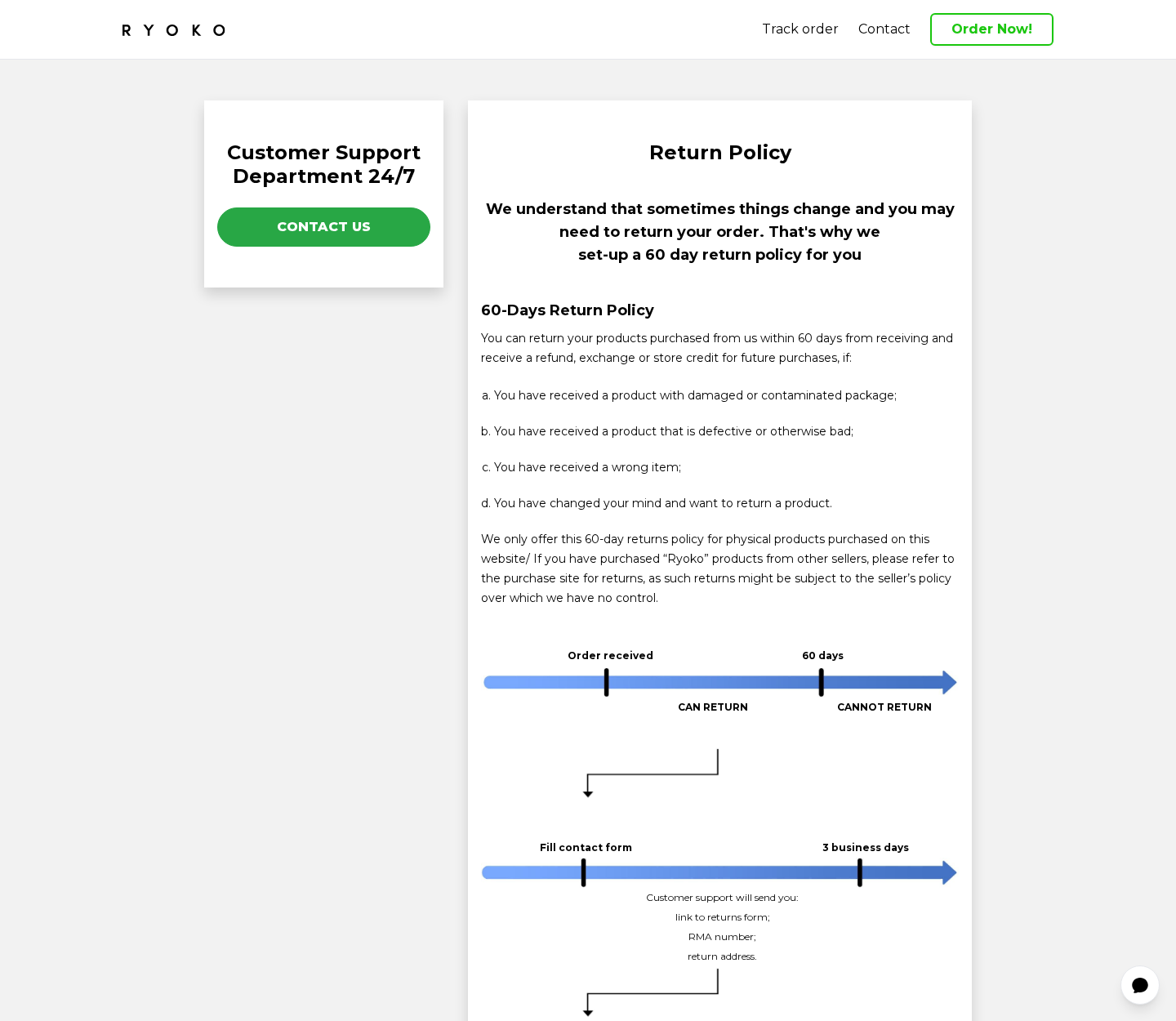
Ryoko’s terms name ORIAVA INC, company registration number 99-3800872, at 354 Downs Boulevard, Suite 101, Franklin, Tennessee 37067.
That is stronger disclosure than many anonymous gadget funnels provide. It gives buyers an entity to compare with the receipt and statement.
The office is not the return destination
The same document warns customers not to mail products to the office. Returns must go to a fulfillment center supplied through customer support.
This arrangement can be legitimate, but buyers should obtain the destination before estimating postage or assuming the return is domestic.
The terms disclose possible manufacturing and delivery from China
Ryoko says goods may be manufactured or delivered from China. That disclosure explains why the brand, office, factory, and shipping origin can differ.
Chinese manufacturing is not proof of poor quality. The relevant questions are model traceability, testing, warranty service, and practical return costs.
Support spans hardware and a separate connectivity service
A failing router, inactive SIM, weak host network, account problem, and disputed subscription are different issues that may require different support paths.
Write down which company charged each amount. Ask whether Ryoko, Viaota, a payment processor, or a local carrier controls the disputed service.
What to Do if You Have a Ryoko Pro Billing or Service Problem
- Check the account before troubleshooting hardware. Confirm remaining data, plan status, renewal date, supported country, and whether fair-use throttling has started.
- Test one device in several places. Disable background updates, connect a single phone, record speed and signal, then repeat outdoors and elsewhere.
- Cancel correctly. Use the Viaota account method for data plans and preserve the confirmation. Pausing, deleting an app, or powering off Ryoko is insufficient.
- Request return authorization promptly. Ask for the exact address, authorization number, required condition, deadline, refund amount, and postage responsibility in writing.
- Keep transaction evidence. Save the advertisement, country coverage, selected plan, final checkout, device serial number, delivery label, invoices, and support replies.
- Dispute only after a clear unresolved problem. Give the payment provider an accurate timeline if unauthorized renewals continue or a qualifying refund is refused.
- Scan suspicious devices and browsers. If an advertisement caused unusual downloads or redirects, use Malwarebytes and remove unfamiliar software or extensions.
- Block aggressive advertising safely. AdGuard can reduce malicious ad chains, although it cannot improve cellular coverage or cancel a data subscription.
Is Your Device Infected? Run a Free Malware Scan
Slow performance, constant pop-ups, or strange behavior? These are classic signs of a malware infection. The fastest way to find out is to scan your device with Malwarebytes Free — one of the most trusted malware removal tools available.
The free version detects and removes the most common threats, including:
- Adware — the cause of those annoying pop-ups
- Browser hijackers — unwanted redirects and changed homepages
- Trojans and spyware — hidden programs stealing your data
- Potentially unwanted programs (PUPs) — software you never asked for
👉 Select your device below — Windows, Mac, or Android — then follow the simple steps to download Malwarebytes, scan your system, and remove any threats it finds. The scan usually takes 5 to 20 minutes.
Run a Malware Scan with Malwarebytes for Windows
Malwarebytes is one of the most popular and trusted anti-malware tools for Windows — and it’s completely free for removing infections. It catches threats that many antivirus programs miss, including adware, browser hijackers, and trojans. Follow the steps below to scan and clean your PC in just a few minutes.
Download Malwarebytes
Click the button below to download the latest version of Malwarebytes for Windows from the official source. The free version is all you need — it will scan your computer and remove adware, browser hijackers, and other malicious software at no cost.
Download MalwarebytesOfficial installer for Windows 11 and 10. Your download starts right away.Want real-time protection? See Malwarebytes Premium Malwarebytes Free for WindowsScans and removes malware at no cost
-
Install Malwarebytes
When the download finishes, open your Downloads folder and double-click the MBSetup file. If Windows shows a User Account Control pop-up, click “Yes” to allow the installation.

Follow the On-Screen Prompts to Install Malwarebytes
The setup wizard will walk you through a few quick screens:
-
Choose where you’re installing the program — “Personal Computer” or “Work Computer” — then click Next.

-
Malwarebytes will now install on your device. This usually takes under a minute.

-
When installation is complete, the “Welcome to Malwarebytes” screen will open automatically.

-
On the final screen, click Open Malwarebytes to launch the program.

-
Enable “Scan for Rootkits”
Before scanning, turn on rootkit detection so Malwarebytes can find even the most hidden threats. Click the Settings gear icon on the left side of the screen.

In the settings menu, find “Scan for rootkits” and click the toggle so it turns blue.

Done? Click “Dashboard” in the left pane to return to the main screen.
Start the Scan
Click the blue Scan button. Malwarebytes will automatically update its virus database and start checking your computer for malware.

-
Wait for the Scan to Finish
The scan checks your entire system for browser hijackers and other malicious programs, so it can take 5 to 20 minutes depending on your computer. Feel free to do something else — just check back occasionally to see the progress.

-
Quarantine the Detected Threats
When the scan is done, you’ll see a list of everything Malwarebytes found — malware, adware, and potentially unwanted programs. Click the “Quarantine” button to remove all of them at once.

Malwarebytes will now remove the malicious files and registry entries and move them safely into quarantine.

-
Restart Your Computer
Some threats can only be fully removed after a reboot. If Malwarebytes asks you to restart, click Yes. Once you’re logged back in, Malwarebytes has finished removing the threats it found.

That’s it — your Windows PC is now clean of trojans, adware, and other malware, and should be back to running smoothly.
If you are still having problems with your computer after completing these instructions, then please follow one of the steps:
- Run a computer scan with ESET Online Scanner
- Ask for help in our Windows Malware Removal Help & Support forum.
Run a Malware Scan with Malwarebytes for Mac
Malwarebytes for Mac is a free on-demand scanner that removes the malware other security software tends to miss — adware, browser hijackers, and unwanted programs included. Cleaning an infected Mac with Malwarebytes has always been completely free, and it’s our go-to recommendation. Follow the steps below to scan and clean your Mac in just a few minutes.
-
Download Malwarebytes for Mac
Click the button below to download the latest version of Malwarebytes for Mac.
Download MalwarebytesOfficial installer for macOS. Your download starts right away.Want real-time protection? See Malwarebytes PremiumMalwarebytes Free for MacScans and removes malware at no cost -
Open the Malwarebytes setup file
When the download finishes, open your Downloads folder and double-click the setup file to begin the installation.

-
Follow the On-Screen Prompts to Install Malwarebytes
The Malwarebytes for Mac Installer will guide you through a few quick screens. Click “Continue” and keep following the prompts until the installation completes.



When the installation is complete, Malwarebytes opens to the Welcome to Malwarebytes screen. Click “Get started“.
-
Select “Personal Computer” or “Work Computer”
Malwarebytes will ask what type of computer you’re installing it on. Click either Personal Computer or Work Computer, whichever applies.

-
Start the Scan
Click the “Scan” button. Malwarebytes will automatically update its detection database and begin checking your Mac for malware.

-
Wait for the Scan to Finish
Malwarebytes will scan your Mac for adware, browser hijackers, and other malicious programs. This can take a few minutes, so feel free to do something else — just check back occasionally to see the progress.

-
Quarantine the Detected Threats
When the scan is done, you’ll see a list of everything Malwarebytes found. Click the “Quarantine” button to remove all the threats at once.

-
Restart Your Mac
Malwarebytes will now remove all the malicious files it found. Some threats can only be fully removed after a reboot — if Malwarebytes asks you to restart, allow it. Once you’re logged back in, your Mac is clean.

That’s it — your Mac is now free of adware, rogue browser extensions, and other potentially harmful software.
If you are still experiencing problems while trying to remove a malicious program from your computer, please ask for help in our Mac Malware Removal Help & Support forum.
Run a Malware Scan with Malwarebytes for Android
Malwarebytes for Android automatically detects and removes dangerous threats like malware and ransomware so you don’t have to worry about your most-used device being compromised. Aggressive detection of adware and potentially unwanted programs keeps your Android phone or tablet running smooth.
-
Download Malwarebytes for Android.
You can download Malwarebytes for Android by clicking the link below.
Get Malwarebytes for AndroidOpens Google Play in a new tab.Want real-time protection? See Malwarebytes Premium for AndroidMalwarebytes for AndroidScans your phone and removes malware at no cost -
Install Malwarebytes for Android on your phone.
In the Google Play Store, tap “Install” to install Malwarebytes for Android on your device.

When the installation process has finished, tap “Open” to begin using Malwarebytes for Android. You can also open Malwarebytes by tapping on its icon in your phone menu or home screen.

-
Follow the on-screen prompts to complete the setup process
When Malwarebytes will open, you will see the Malwarebytes Setup Wizard which will guide you through a series of permissions and other setup options.
This is the first of two screens that explain the difference between the Premium and Free versions. Swipe this screen to continue.
Tap on “Got it” to proceed to the next step.
Malwarebytes for Android will now ask for a set of permissions that are required to scan your device and protect it from malware. Tap on “Give permission” to continue.
Tap on “Allow” to permit Malwarebytes to access the files on your phone.
-
Update database and run a scan with Malwarebytes for Android
You will now be prompted to update the Malwarebytes database and run a full system scan.

Click on “Update database” to update the Malwarebytes for Android definitions to the latest version, then click on “Run full scan” to perform a system scan.

-
Wait for the Malwarebytes scan to complete.
Malwarebytes will now start scanning your phone for adware and other malicious apps. This process can take a few minutes, so we suggest you do something else and periodically check on the status of the scan to see when it is finished.

-
Click on “Remove Selected”.
When the scan has been completed, you will be presented with a screen showing the malware infections that Malwarebytes for Android has detected. To remove the malicious apps that Malwarebytes has found, tap on the “Remove Selected” button.

-
Restart your phone.
Malwarebytes for Android will now remove all the malicious apps that it has found. To complete the malware removal process, Malwarebytes may ask you to restart your device.
That’s it — your Android phone is now clean — no more malicious apps, adware, or browser redirects.
If you are still having problems with your phone after completing these instructions, then please follow one of the steps:
- Restore your phone to factory settings by going to Settings > General management > Reset > Factory data reset.
- Ask for help in our Mobile Malware Removal Help & Support forum.
Stay Protected: Block Ads and Malicious Sites
Now that your device is clean, keep it that way. Most infections start with a malicious ad or a fake download button — so blocking them at the source is your best defense.
We recommend AdGuard, which blocks malicious ads, phishing pages, and dangerous redirects before they can reach you.
👉 Download AdGuard and browse safely
Better Alternatives for Different Travelers
Phone tethering is often simplest when the existing carrier includes a generous hotspot allowance and affordable international roaming.
An eSIM can be better for an unlocked compatible phone. It removes separate hardware and lets travelers compare country-specific data packages.
An unlocked travel router offers flexibility for families or multiple laptops. Confirm supported bands and SIM compatibility before buying.
Local prepaid SIMs can provide excellent value during longer stays. Airport prices may be higher than official carrier stores in town.
No option wins everywhere. Compare total trip cost, device count, destination coverage, technical comfort, and the need for a backup connection.
Business travelers should ask whether their employer permits personal hotspots for company systems. Security rules can prohibit unapproved routers despite convenient coverage.
Families should divide the expected allowance across every phone and tablet. One child’s automatic video downloads can exhaust shared high-speed data silently.
Cruise ships and aircraft require separate attention. Terrestrial cellular plans usually do not include onboard satellite networks, which can generate exceptional charges.
Border regions create another surprise. A hotspot may connect to a network in the neighboring country, changing availability or plan treatment.
Emergency calling is also different. A data-only hotspot should not be treated as a guaranteed replacement for ordinary voice service.
Before departure, download maps, tickets, hotel details, translation data, and essential documents offline. This preserves the connection for needs that cannot wait.
Frequently Asked Questions
Is Ryoko Pro WiFi a scam?
Ryoko Pro is a real hotspot offer with published terms. The main risks involve marketing clarity, recurring data costs, throttling, compatibility, and returns.
Does Ryoko Pro provide free internet forever?
No. The supplied SIM includes 500MB for 30 days. Continued usage requires another data purchase or a plan.
What does no roaming fees mean?
It means the Viaota plan price is intended to replace ordinary carrier roaming charges. It does not mean cellular data has no cost.
Is Ryoko Pro truly unlimited?
Some plans may continue after the high-speed allowance, but speed can fall sharply after fair-use limits. Read the exact package conditions.
Can I use my own SIM card?
The terms say third-party SIM use is unsupported and may affect warranty coverage. An unlocked alternative is safer if SIM freedom is important.
Should I buy Ryoko Pro for international travel?
Buy only after comparing an eSIM, phone roaming, and unlocked hotspots. Confirm destination coverage and calculate hardware plus data costs.
The Bottom Line
Ryoko Pro WiFi is not magic free internet. It is a cellular router tied to a Viaota SIM, a small starter allowance, and paid ongoing data.
The hardware may suit some travelers, but the marketing leaves essential qualifications in the terms. Compare total costs, test early, and cancel recurring service deliberately.

Join the discussion
0 commentsShare your experience or ask a question about this article.
Discussion
Start the conversation
Have a question or something useful to share? Add the first comment.