

An unexpected message says your hosting server just received a new antivirus. Keeping the mailbox active supposedly requires one quick human-verification click.
The notice sounds technical enough to feel routine. Yet the path from that button to a password box deserves a much closer look.
Overview
The email invents a server-side antivirus event
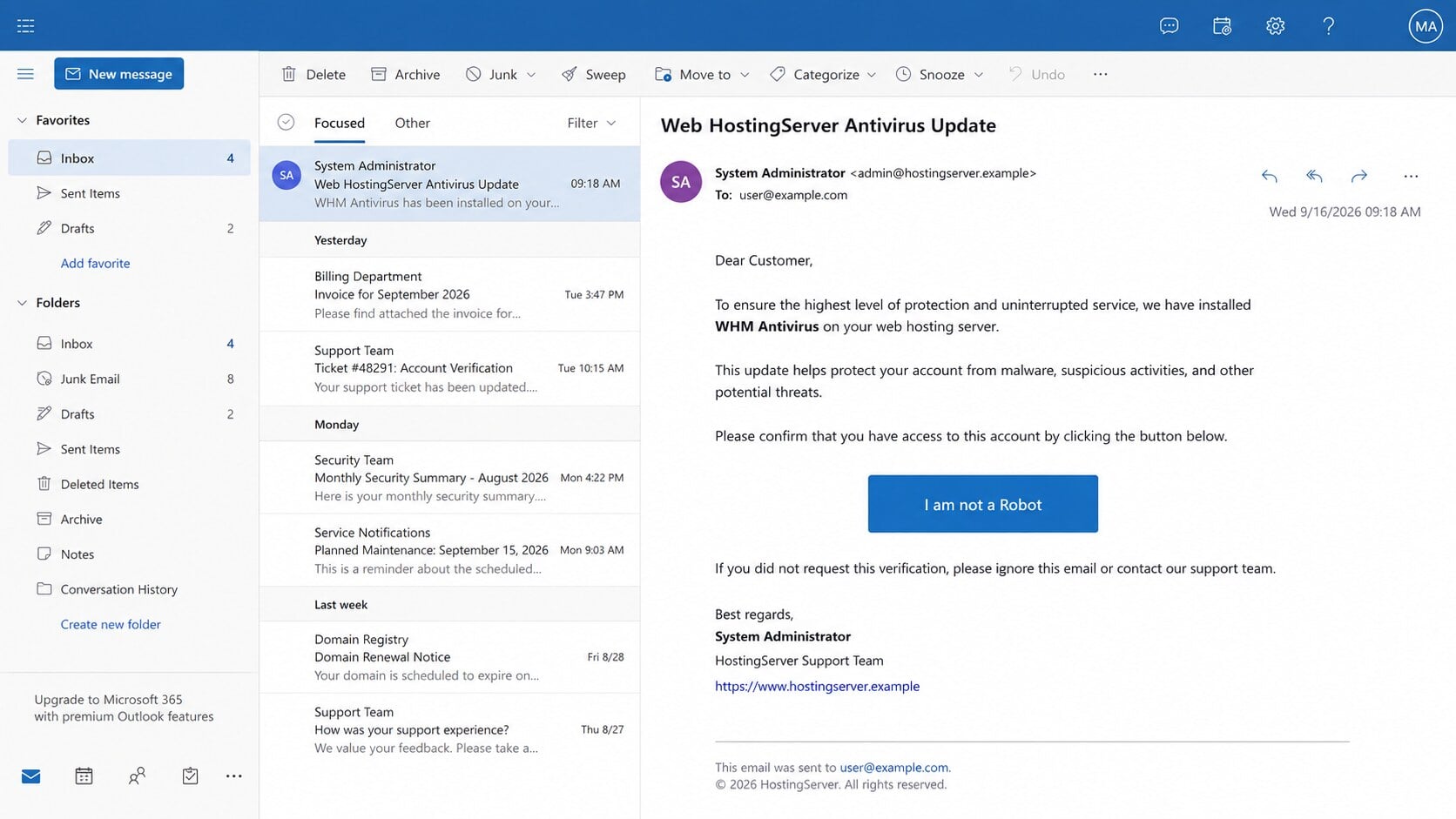
The Webmail Antivirus Update email scam claims a hosting server automatically installed something called WHM Antivirus. It then says the recipient must confirm access.
That story mixes familiar hosting words with an unusual request. A server update should not require a mailbox user to prove humanity through an emailed button.
The button leads away from the real provider
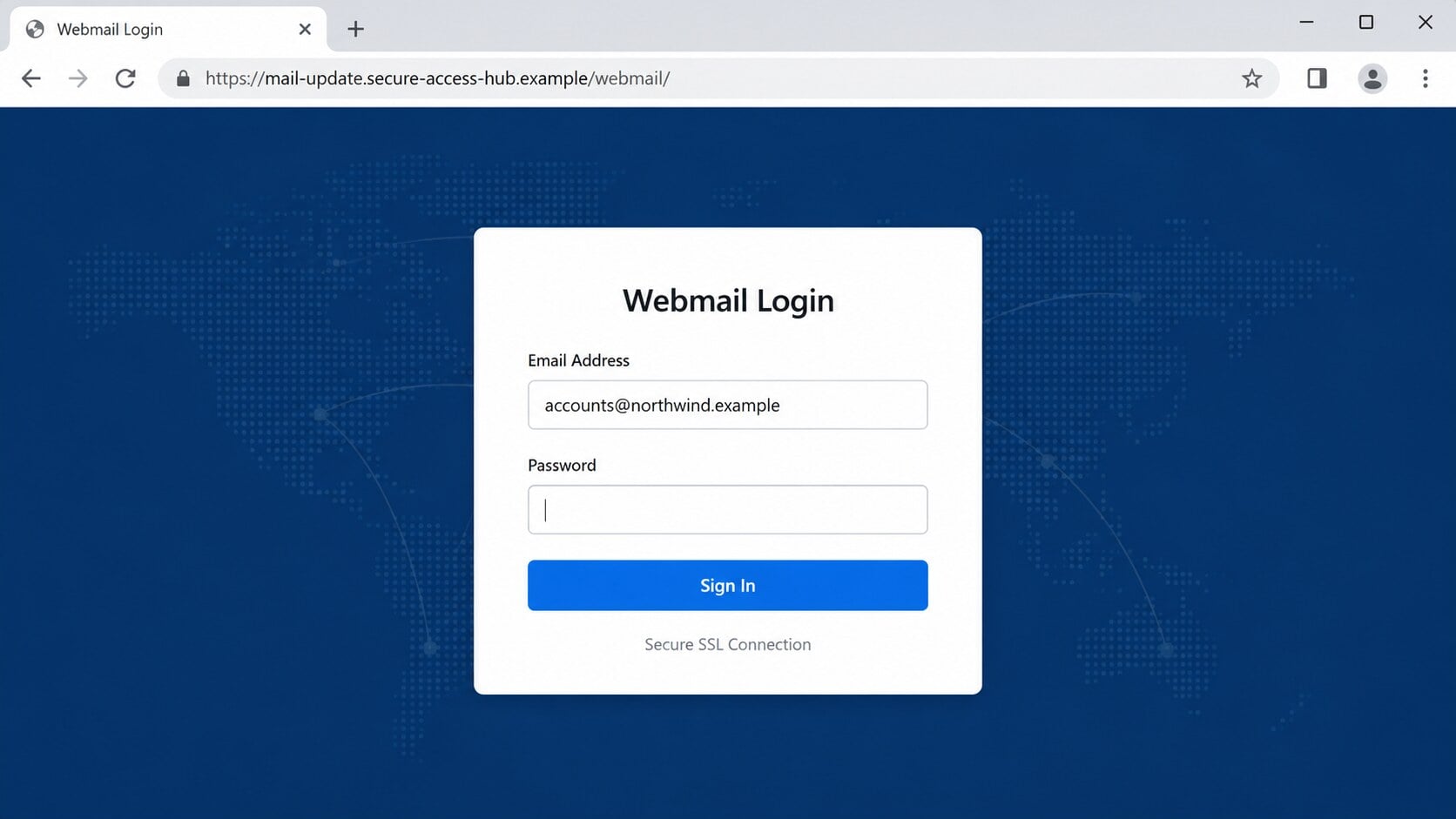
The link can open a generic Webmail Login page on an unrelated or compromised website. The recipient’s address may already appear in the form.
Only the password remains blank. That personalization creates continuity between the email and page, even though neither belongs to the actual hosting provider.
The real target is the mailbox and hosting account
A stolen webmail password can expose private messages, password resets, invoices, customer data, domain notices, and administrator conversations.
If the same credential opens a hosting panel, the damage can extend to websites, DNS records, databases, backups, and additional mailboxes.
- The update was not requested or announced inside the real hosting panel.
- The message uses broad terms instead of a provider name and ticket number.
- An unusual human-verification button replaces normal account authentication.
- The destination asks for an email password on an unrelated domain.
- A “Secure SSL Connection” label is offered as proof without proving ownership.
Why the WHM Antivirus Story Sounds Convincing
Hosting customers regularly receive legitimate notices about server maintenance, malware scanning, control-panel upgrades, certificates, storage limits, and blocked outgoing mail.
Many recipients do not manage those systems daily. Technical wording can therefore feel authoritative even when the underlying request makes little operational sense.
WHM commonly refers to WebHost Manager, a real administrative interface used in hosting environments. The acronym gives the message borrowed credibility.
However, a recognizable acronym is not evidence that the named update exists. Criminals can place real technical terms beside an invented product or event.
The safest question is not whether the email looks professional. Ask whether the same alert appears after entering the known hosting dashboard independently.
What a Legitimate Hosting Security Notice Usually Provides
A genuine notice normally identifies the provider, affected service, account or server, maintenance window, support channel, and a verifiable incident or ticket reference.
It may instruct an administrator to sign in through the usual portal. It should not ask for a mailbox password on a third-party page.
Providers can deploy security components without asking every mailbox user to click an “I am not a Robot” button.
If verification is necessary, it should occur inside the provider’s established authentication flow, not through an unrecognized link embedded in an unsolicited email.
A legitimate support team can also confirm the notice using contact details from an existing invoice, bookmark, contract, or the provider’s independently opened website.
How the Webmail Antivirus Update Email Scam Works
Step 1: A technical-looking alert arrives unexpectedly
The message presents itself as an automatic Web HostingServer notification. It says the server has been upgraded with a new antivirus component.
The wording is deliberately broad. That allows one template to target people using many different hosting companies and mail systems.
The recipient may be addressed by email rather than name. An external sender can still insert the address from a purchased or stolen mailing list.
Step 2: Account safety is tied to immediate verification
The email claims confirmation is needed to keep the mailbox active and protected. That turns a supposed security improvement into a deadline.
No specific infection, file, quarantine event, or affected website is shown. The warning remains vague because there is no real server diagnosis behind it.
The “I am not a Robot” label makes the task resemble a common anti-bot check. In reality, it is simply a styled hyperlink.
Step 3: The link records interest and redirects the visitor
Clicking can send the browser through a tracking or redirection address before the final phishing page appears.
That intermediate request confirms the mailbox is monitored. It can also reveal the browser, approximate location, device type, and campaign identifier.
Some operators filter automated scanners or unsuitable visitors. A harmless page may appear during one inspection while the intended recipient sees the credential form.
Step 4: A borrowed website hosts the fake login
The credential page may sit inside a compromised website belonging to an unrelated organization. The legitimate owner might not know that hidden files were uploaded.
Other campaigns use inexpensive hosting, cloud storage, or a disposable subdomain. None of those locations becomes trustworthy because HTTPS is enabled.
The browser’s padlock only means traffic is encrypted to that domain. It does not confirm that the domain belongs to the recipient’s email provider.
Step 5: The page requests the missing password
The email address may be prefilled from a parameter inside the link. This detail makes the page feel connected to a real account.
The password field is the collection point. Submitting it sends the secret to infrastructure controlled by the phishing operator.
The form may display an error and ask again. A second attempt can capture another password variation or reassure the victim that a simple typo occurred.
Step 6: Criminals test the credentials quickly
Stolen credentials can be tested against webmail, hosting panels, cloud storage, domain registrars, customer portals, and other services.
If multifactor authentication is enabled, the attacker may trigger approval prompts or present another page asking for a one-time code.
Password reuse expands the reach. One mailbox secret can become an entry point to several accounts when the same combination appears elsewhere.
Step 7: The compromised account supports deeper fraud
Inside an inbox, criminals can search for invoices, password resets, hosting credentials, customer requests, and conversations involving payments.
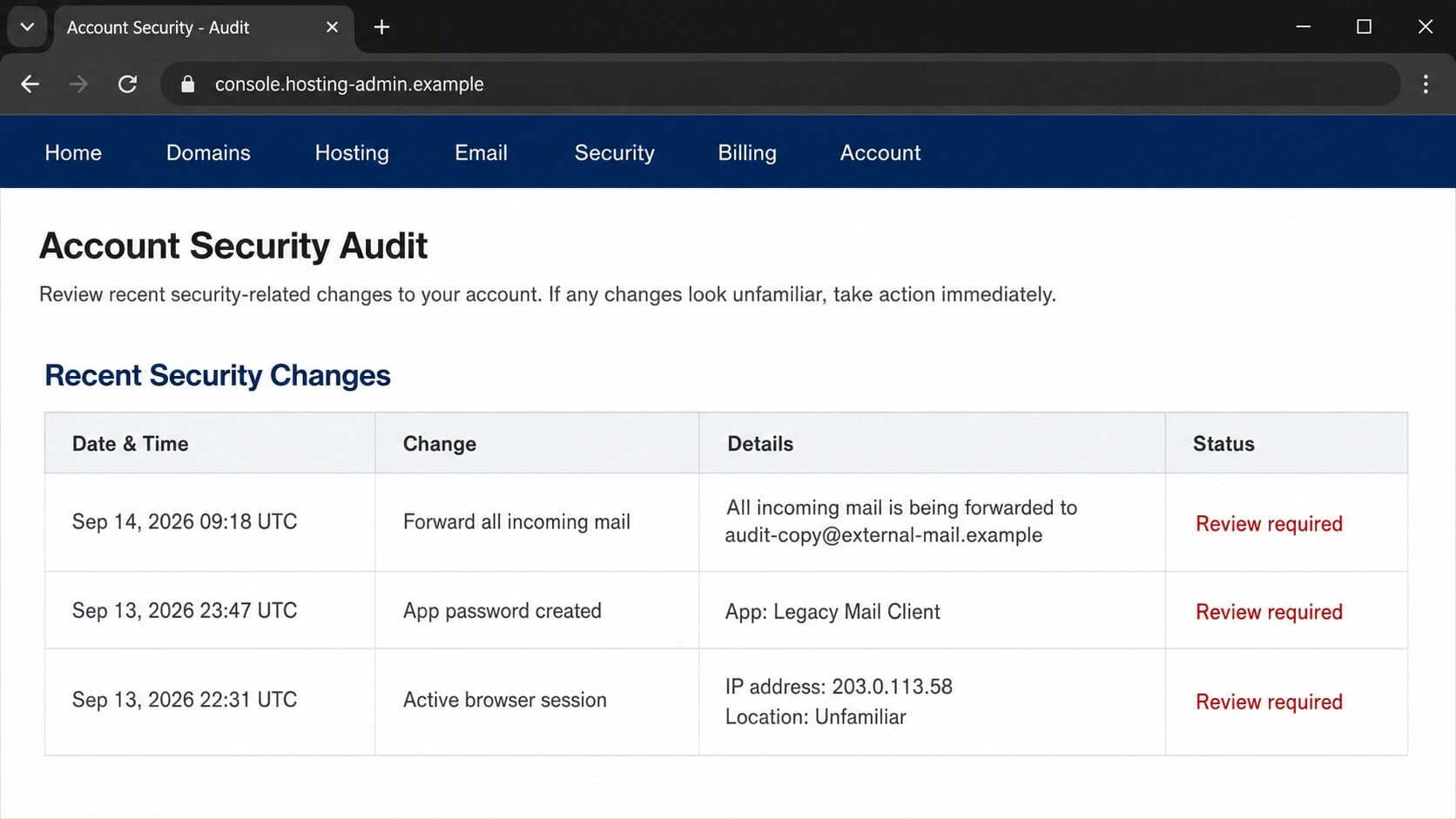
They may create forwarding rules, add an app password, register another recovery address, or maintain an active session after the victim changes one password.
A genuine mailbox can send convincing phishing to customers and coworkers. Replies may arrive in the compromised inbox and strengthen the next stage.
Sender, Hosting, and Destination Checks
The display name does not identify the sender
“System Administrator” and “Web HostingServer” are labels chosen by whoever created the message. Expand the sender details and inspect the full address.
Compare the sending domain with previous invoices and genuine support mail. A different domain deserves verification even when the visible name looks familiar.
The page address matters more than its design
A copied login form can reproduce colors, spacing, and security language. Ownership is determined by the complete hostname in the address bar.
Look for unrelated organizations, deep folder paths, free hosting, cloud-file URLs, misspellings, or extra words placed around a familiar service name.
Support should confirm the event independently
Open the provider’s normal portal from a bookmark and check notices or tickets. Call a known number when the message concerns business infrastructure.
Do not use contact details supplied only by the questionable email. A fake support address can simply return the victim to the same operator.
The requested credential exposes the real purpose
A hosting antivirus update does not need the secret password of an individual mailbox. Cross-service password requests are a decisive warning.
If a page asks for credentials, identify which service owns the page and why that service requires them. Vague “verification” is not an adequate answer.
What Criminals Can Do With Hosting-Related Email Access
Hosting mailboxes often contain more operational information than personal inboxes. Renewal notices, DNS changes, backups, and customer requests can reveal valuable pathways.
An attacker might reset the hosting-panel password through email. From there, website files can be modified, malicious redirects added, or additional phishing pages planted.
Domain registrar messages can expose transfer or verification workflows. If registrar access is also compromised, DNS records may be changed to redirect visitors or intercept mail.
Invoice conversations create opportunities for payment diversion. Criminals can watch until a real payment is expected, then insert altered bank instructions.
They can also steal contact lists and send messages from the trusted domain. Recipients are more likely to open a link arriving from a familiar business address.
The compromise may remain quiet. Forwarding and app passwords allow continued monitoring without filling the Sent folder with obvious spam.
Why a Hosting Mailbox Requires a Wider Incident Review
A business mailbox rarely stands alone. The same control panel may connect email accounts, domain records, websites, backups, billing, and administrator permissions.
That connection changes the response. Securing only the mailbox may leave another route open if the stolen password also works inside the hosting dashboard.
Check whether the affected account can create mailboxes, edit DNS records, upload website files, or view customer information. Each permission expands the possible damage.
Review administrator logs for unfamiliar logins, password resets, new users, changed recovery details, and recently generated API credentials.
Inspect DNS records carefully. An attacker who changes mail routing or verification records can redirect messages and impersonate the domain beyond one compromised inbox.
Website owners should also examine modified files, newly installed plugins, scheduled tasks, and unexpected redirects. Hosting access can turn one phishing incident into several attacks.
Contact the hosting provider through its official support page when logs are incomplete. Ask for session revocation and a review of recent account-level changes.
Finally, tell coworkers which mailbox was affected. They can scrutinize recent requests from that address and report anything that felt unusual.
Warning Signs in the Webmail Antivirus Update Email
- You did not receive a matching alert inside the real hosting dashboard.
- The message names WHM Antivirus without identifying the vendor or version.
- The recipient must verify humanity to keep an email account active.
- The button’s destination differs from the established provider domain.
- The login page already knows the email address but asks for its password.
- Generic “secure connection” wording substitutes for verifiable provider information.
- No account number, server hostname, incident record, or support ticket can be confirmed.
- The email pressures action but provides no safe route through the normal portal.
One signal can have an innocent explanation. Several appearing together make the message unsafe enough to verify outside the email.
Reading the message alone does not normally compromise the device. Risk begins when a link, form, download, or approval prompt is used.
What to Do if You Have Fallen Victim to This Scam
Act from a clean browser session and the provider’s independently opened website. If this is a business account, involve the hosting administrator immediately.
- Change the exposed mailbox password. Use a unique replacement and never follow the original email link again.
- Secure the hosting account. Reset its password separately if credentials were shared, reused, or recoverable through the affected inbox.
- Revoke active sessions. End unfamiliar sessions and remove unknown app passwords, API tokens, connected applications, and recovery methods.
- Inspect mailbox rules. Delete suspicious forwarding, filters, delegates, automatic replies, and hidden rules that redirect or suppress security messages.
- Review website and DNS changes. Check file modifications, administrator accounts, scheduled tasks, redirects, DNS records, certificates, and recent deployments.
- Enable stronger authentication. Add phishing-resistant multifactor protection to webmail, hosting, registrar, and cloud accounts where available.
- Preserve the evidence. Save the original email, full headers, link destination, submission time, and screenshots for the provider’s investigation.
- Warn affected contacts. Tell customers or coworkers if the mailbox sent messages, attachments, invoices, or password requests during the compromise window.
- Scan downloaded files. Malwarebytes can detect malicious installers or scripts if the page delivered something beyond the credential form.
- Block related destinations. AdGuard can reduce exposure to known phishing pages and malicious advertising, although account recovery still requires manual action.
- Report the campaign. Notify the email provider, hosting company, abused website owner, registrar, and appropriate fraud-reporting authority.
Is Your Device Infected? Run a Free Malware Scan
Slow performance, constant pop-ups, or strange behavior? These are classic signs of a malware infection. The fastest way to find out is to scan your device with Malwarebytes Free — one of the most trusted malware removal tools available.
The free version detects and removes the most common threats, including:
- Adware — the cause of those annoying pop-ups
- Browser hijackers — unwanted redirects and changed homepages
- Trojans and spyware — hidden programs stealing your data
- Potentially unwanted programs (PUPs) — software you never asked for
👉 Select your device below — Windows, Mac, or Android — then follow the simple steps to download Malwarebytes, scan your system, and remove any threats it finds. The scan usually takes 5 to 20 minutes.
Run a Malware Scan with Malwarebytes for Windows
Malwarebytes is one of the most popular and trusted anti-malware tools for Windows — and it’s completely free for removing infections. It catches threats that many antivirus programs miss, including adware, browser hijackers, and trojans. Follow the steps below to scan and clean your PC in just a few minutes.
Download Malwarebytes
Click the button below to download the latest version of Malwarebytes for Windows from the official source. The free version is all you need — it will scan your computer and remove adware, browser hijackers, and other malicious software at no cost.
Download MalwarebytesOfficial installer for Windows 11 and 10. Your download starts right away.Want real-time protection? See Malwarebytes Premium Malwarebytes Free for WindowsScans and removes malware at no cost
-
Install Malwarebytes
When the download finishes, open your Downloads folder and double-click the MBSetup file. If Windows shows a User Account Control pop-up, click “Yes” to allow the installation.

Follow the On-Screen Prompts to Install Malwarebytes
The setup wizard will walk you through a few quick screens:
-
Choose where you’re installing the program — “Personal Computer” or “Work Computer” — then click Next.

-
Malwarebytes will now install on your device. This usually takes under a minute.

-
When installation is complete, the “Welcome to Malwarebytes” screen will open automatically.

-
On the final screen, click Open Malwarebytes to launch the program.

-
Enable “Scan for Rootkits”
Before scanning, turn on rootkit detection so Malwarebytes can find even the most hidden threats. Click the Settings gear icon on the left side of the screen.

In the settings menu, find “Scan for rootkits” and click the toggle so it turns blue.

Done? Click “Dashboard” in the left pane to return to the main screen.
Start the Scan
Click the blue Scan button. Malwarebytes will automatically update its virus database and start checking your computer for malware.

-
Wait for the Scan to Finish
The scan checks your entire system for browser hijackers and other malicious programs, so it can take 5 to 20 minutes depending on your computer. Feel free to do something else — just check back occasionally to see the progress.

-
Quarantine the Detected Threats
When the scan is done, you’ll see a list of everything Malwarebytes found — malware, adware, and potentially unwanted programs. Click the “Quarantine” button to remove all of them at once.

Malwarebytes will now remove the malicious files and registry entries and move them safely into quarantine.

-
Restart Your Computer
Some threats can only be fully removed after a reboot. If Malwarebytes asks you to restart, click Yes. Once you’re logged back in, Malwarebytes has finished removing the threats it found.

That’s it — your Windows PC is now clean of trojans, adware, and other malware, and should be back to running smoothly.
If you are still having problems with your computer after completing these instructions, then please follow one of the steps:
- Run a computer scan with ESET Online Scanner
- Ask for help in our Windows Malware Removal Help & Support forum.
Run a Malware Scan with Malwarebytes for Mac
Malwarebytes for Mac is a free on-demand scanner that removes the malware other security software tends to miss — adware, browser hijackers, and unwanted programs included. Cleaning an infected Mac with Malwarebytes has always been completely free, and it’s our go-to recommendation. Follow the steps below to scan and clean your Mac in just a few minutes.
-
Download Malwarebytes for Mac
Click the button below to download the latest version of Malwarebytes for Mac.
Download MalwarebytesOfficial installer for macOS. Your download starts right away.Want real-time protection? See Malwarebytes PremiumMalwarebytes Free for MacScans and removes malware at no cost -
Open the Malwarebytes setup file
When the download finishes, open your Downloads folder and double-click the setup file to begin the installation.

-
Follow the On-Screen Prompts to Install Malwarebytes
The Malwarebytes for Mac Installer will guide you through a few quick screens. Click “Continue” and keep following the prompts until the installation completes.



When the installation is complete, Malwarebytes opens to the Welcome to Malwarebytes screen. Click “Get started“.
-
Select “Personal Computer” or “Work Computer”
Malwarebytes will ask what type of computer you’re installing it on. Click either Personal Computer or Work Computer, whichever applies.

-
Start the Scan
Click the “Scan” button. Malwarebytes will automatically update its detection database and begin checking your Mac for malware.

-
Wait for the Scan to Finish
Malwarebytes will scan your Mac for adware, browser hijackers, and other malicious programs. This can take a few minutes, so feel free to do something else — just check back occasionally to see the progress.

-
Quarantine the Detected Threats
When the scan is done, you’ll see a list of everything Malwarebytes found. Click the “Quarantine” button to remove all the threats at once.

-
Restart Your Mac
Malwarebytes will now remove all the malicious files it found. Some threats can only be fully removed after a reboot — if Malwarebytes asks you to restart, allow it. Once you’re logged back in, your Mac is clean.

That’s it — your Mac is now free of adware, rogue browser extensions, and other potentially harmful software.
If you are still experiencing problems while trying to remove a malicious program from your computer, please ask for help in our Mac Malware Removal Help & Support forum.
Run a Malware Scan with Malwarebytes for Android
Malwarebytes for Android automatically detects and removes dangerous threats like malware and ransomware so you don’t have to worry about your most-used device being compromised. Aggressive detection of adware and potentially unwanted programs keeps your Android phone or tablet running smooth.
-
Download Malwarebytes for Android.
You can download Malwarebytes for Android by clicking the link below.
Get Malwarebytes for AndroidOpens Google Play in a new tab.Want real-time protection? See Malwarebytes Premium for AndroidMalwarebytes for AndroidScans your phone and removes malware at no cost -
Install Malwarebytes for Android on your phone.
In the Google Play Store, tap “Install” to install Malwarebytes for Android on your device.

When the installation process has finished, tap “Open” to begin using Malwarebytes for Android. You can also open Malwarebytes by tapping on its icon in your phone menu or home screen.

-
Follow the on-screen prompts to complete the setup process
When Malwarebytes will open, you will see the Malwarebytes Setup Wizard which will guide you through a series of permissions and other setup options.
This is the first of two screens that explain the difference between the Premium and Free versions. Swipe this screen to continue.
Tap on “Got it” to proceed to the next step.
Malwarebytes for Android will now ask for a set of permissions that are required to scan your device and protect it from malware. Tap on “Give permission” to continue.
Tap on “Allow” to permit Malwarebytes to access the files on your phone.
-
Update database and run a scan with Malwarebytes for Android
You will now be prompted to update the Malwarebytes database and run a full system scan.

Click on “Update database” to update the Malwarebytes for Android definitions to the latest version, then click on “Run full scan” to perform a system scan.

-
Wait for the Malwarebytes scan to complete.
Malwarebytes will now start scanning your phone for adware and other malicious apps. This process can take a few minutes, so we suggest you do something else and periodically check on the status of the scan to see when it is finished.

-
Click on “Remove Selected”.
When the scan has been completed, you will be presented with a screen showing the malware infections that Malwarebytes for Android has detected. To remove the malicious apps that Malwarebytes has found, tap on the “Remove Selected” button.

-
Restart your phone.
Malwarebytes for Android will now remove all the malicious apps that it has found. To complete the malware removal process, Malwarebytes may ask you to restart your device.
That’s it — your Android phone is now clean — no more malicious apps, adware, or browser redirects.
If you are still having problems with your phone after completing these instructions, then please follow one of the steps:
- Restore your phone to factory settings by going to Settings > General management > Reset > Factory data reset.
- Ask for help in our Mobile Malware Removal Help & Support forum.
Stay Protected: Block Ads and Malicious Sites
Now that your device is clean, keep it that way. Most infections start with a malicious ad or a fake download button — so blocking them at the source is your best defense.
We recommend AdGuard, which blocks malicious ads, phishing pages, and dangerous redirects before they can reach you.
👉 Download AdGuard and browse safely
If only the page opened and nothing was entered or downloaded, close it, report the email, and check the Downloads folder.
If a password was submitted, treat it as exposed even when the page displayed an error. Phishing forms often fail visibly after succeeding silently.
Frequently Asked Questions
Is WHM Antivirus a real update I must confirm by email?
The campaign’s notice is not a trustworthy update. Verify any hosting security change inside the established provider portal or with independently contacted support.
Does the HTTPS padlock prove the webmail login is safe?
No. HTTPS encrypts the connection to the displayed domain. It does not prove that the domain belongs to your hosting or email provider.
Why was my email address already filled in?
The phishing link can carry the address as encoded text or a campaign parameter. Personalization does not require prior access to the mailbox.
Am I infected if I only read the email?
Usually not. Reading alone is different from opening a malicious attachment, running a download, approving access, or entering credentials on the destination.
Should I change only my email password?
No. Also secure hosting, registrar, cloud, and other accounts using that credential or relying on the mailbox for password recovery.
Can Malwarebytes recover a stolen account?
No. It can remove malicious software from a device. Password changes, session revocation, mailbox-rule cleanup, and provider support are still necessary.
The Bottom Line
The Webmail Antivirus Update email scam turns invented server maintenance into a reason to collect a mailbox password on an unrelated website.
Ignore the emailed verification button. Open the normal hosting portal directly and confirm any real notice through support details you already trust.
If credentials were entered, secure webmail, hosting, registrar, and recovery settings quickly. The inbox can become the doorway to every connected service.

Join the discussion
0 commentsShare your experience or ask a question about this article.
Discussion
Start the conversation
Have a question or something useful to share? Add the first comment.