

A free game cheat can look harmless when a familiar video channel demonstrates it. One download may quietly place far more than a mod on Windows.
REVSTEALER is built for that ordinary moment of trust. Understanding its reach matters before a stolen gaming session becomes a much wider account emergency.

Overview
REVSTEALER is a Windows information stealer
REVSTEALER is malware designed to collect credentials, authentication cookies, wallet data, files, screenshots, clipboard contents, and detailed information about an infected Windows system.
Security researchers track the activity as REF2859. A recent retrohunt matched roughly 4,700 samples submitted during the previous year, indicating broad and sustained distribution.
The name describes only its first job. Operators can send additional modules that mine cryptocurrency, replace copied wallet addresses, run phishing overlays, or create a proxy.
That modular design makes an infection unpredictable. Two victims may run similar installers yet experience different follow-on activity, depending on instructions received from the operator.
Hijacked video channels supply convincing bait
Observed campaigns targeted gamers with short videos advertising free cheats and mod menus. Some videos appeared on established channels that criminals had taken over.
An older channel carries history, subscribers, comments, and familiar presentation. Those signals can make a malicious download feel safer than a link from an unknown account.
Related files also impersonated recognizable software categories, including messaging tools, torrent clients, game-peripheral utilities, and 3D applications. The packaging can change without changing the payload.
Searching the file name alone may therefore provide false reassurance. A copied product name says nothing reliable about who signed, hosted, or built the executable.
The theft reaches far beyond one game
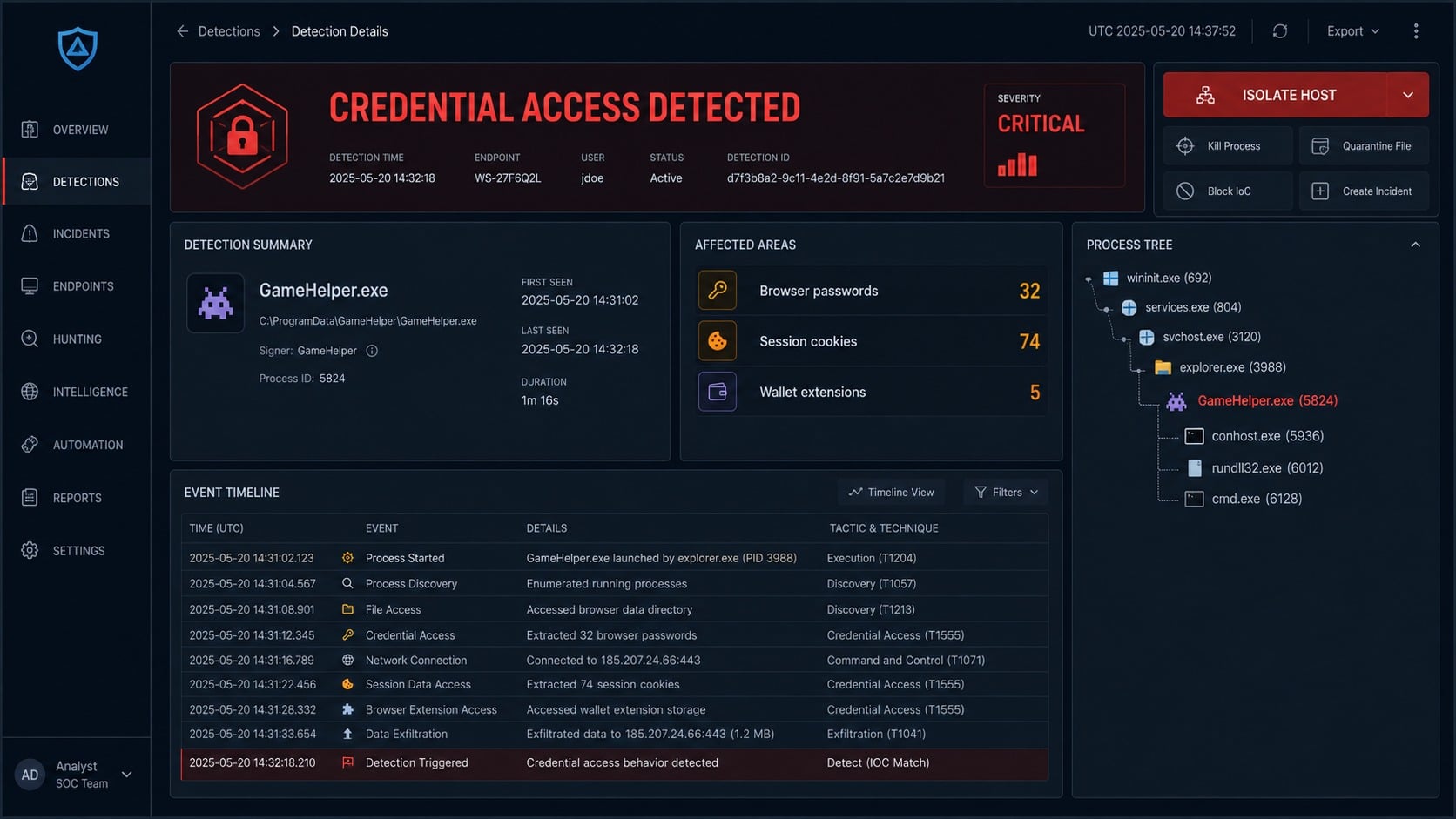
REVSTEALER targets browser passwords and cookies, 225 Chromium extension identifiers, 51 standalone wallet applications, messaging clients, password managers, VPN tools, and authentication applications.
Gaming platforms are valuable targets because inventories, purchases, rare items, saved payment methods, and established accounts can be resold or abused for further fraud.
Researchers documented interest in Steam, Roblox, Minecraft, Battle.net, Electronic Arts, and Battlestate Games data. Some stolen sessions can bypass the need for a password.
The malware also inventories running processes, installed applications, environment variables, system language, keyboard layout, hardware, username, hostname, and other profiling details.
- Fake cheats and mod menus are a documented delivery theme.
- Compromised video channels can make the promotion look established.
- Browser passwords, cookies, wallets, and gaming sessions are targeted.
- Additional modules can expand the compromise after installation.
- Anti-analysis checks help some samples avoid automated sandboxes.
- A blockchain-based fallback can help restore command-and-control access.
Silence after installation is not reassuring. Information stealers are designed to work without obvious windows, ransom notes, or visible performance changes.
A password can remain unchanged while its corresponding session cookie is stolen. That cookie may let an intruder enter an account without repeating the normal login.
For that reason, recovery must include session revocation and token review. Changing one password without ending active sessions may leave an attacker connected.
How the REVSTEALER Infection Works
Step 1: A trusted-looking channel advertises a free advantage
The approach often begins with a video promising a cheat, trainer, unlocker, or mod. Fast demonstrations make the download appear tested and effective.
Criminals may seize a channel that already has subscribers. The attacker inherits its reputation, while viewers see history that appears inconsistent with a disposable malware account.
AI-generated narration or footage can produce many promotions quickly. A polished clip is evidence of editing, not evidence that the linked installer is safe.
Comments may be restricted, manufactured, or left over from older legitimate content. Engagement numbers cannot authenticate the file offered beneath a compromised video.
Step 2: The link opens a dedicated download site
The description sends viewers to a page created around the promised tool. Dark gaming graphics, feature lists, update dates, and compatibility claims reduce hesitation.
The website may say antivirus warnings are false positives because cheats manipulate games. That explanation trains the victim to ignore the exact alert that could stop infection.
Password-protected archives are another warning sign. Encryption can prevent email gateways, browsers, and security services from inspecting the executable before the user extracts it.
A domain can disappear while the campaign continues elsewhere. The operator only needs to replace the landing page and publish a new link under another video.
Step 3: A disguised executable receives permission to run
The downloaded file may borrow the name and icon of the advertised cheat or an unrelated utility. Windows still executes the code contained inside it.
Instructions may request an antivirus exclusion, administrator approval, or temporary protection disablement. Each request removes a barrier that normally limits unknown software.
REVSTEALER samples have also used metadata associated with familiar applications. Metadata can be copied, so it should never replace a signature and reputation check.
Once launched, the program can establish itself before the promised interface appears. A fake error or empty window may simply distract from background activity.
Step 4: The malware evaluates whether the system looks genuine
REVSTEALER performs ten environmental checks and assigns points for characteristics associated with analysis systems, including limited memory, fewer processor cores, virtualization, or suspicious usernames.
If the combined score reaches its threshold, the sample can terminate. This behavior reduces the evidence collected by automated services that inspect files briefly.
The malware also checks language and keyboard settings associated with certain regional locations. A matching environment can cause it to exit before conducting theft.
A clean result from one sandbox therefore does not prove every execution will be harmless. Behavior can change according to the machine and network environment.
Step 5: Credentials, cookies, wallets, and files are collected
On a qualifying computer, the stealer looks through supported browsers, extensions, applications, and user folders. It selects material that can be monetized or reused.
Browser stores may expose saved passwords, cookies, autofill records, and authentication state. Wallet extensions and standalone clients can expose sensitive configuration or key material.
The malware can capture the screen and clipboard while listing software and processes. That context helps criminals understand what the victim uses and what to target next.
Its browser-focused code includes a debugger-assisted technique for obtaining Chrome App-Bound Encryption material from memory, undermining protection intended to restrict credential decryption.
Step 6: Stolen data leaves the computer
Collected information is packaged and sent to command-and-control infrastructure. The operator can sort victims by wallets, gaming accounts, browser data, location, or installed software.
REVSTEALER contains a primary server address and a fallback mechanism. If the main server fails, it can query Polygon blockchain endpoints for replacement connection information.
The blockchain does not contain the stolen passwords. It functions as a resilient signpost that can direct infected systems toward newly selected infrastructure.
This arrangement complicates takedowns because removing one server may not end communication. A replacement address can be published without redistributing the original malware.
Step 7: Optional modules deepen the compromise
Operators can deploy separate components after the initial theft. One module replaces cryptocurrency addresses copied to the clipboard, redirecting payments to an attacker-controlled destination.
Another can create a reverse SOCKS5 proxy. Criminal traffic may then pass through the victim’s internet connection and appear to originate from that household or workplace.
A mining module can consume resources and establish persistence. A phishing-oriented module can collect more wallet information, display overlays, and deliver additional payloads.
These additions explain why cleanup cannot focus on one executable. The system may contain several related programs, scheduled launch points, or altered settings.
Download, File, Account, and Device Checks
Trace the download back to its actual source
Open browser download history from a safe review context and record the original page, referring video, file name, and time. Do not reopen the payload.
Compare the domain with the official developer’s independently located website. A video description, pinned comment, or redirect page is not an authoritative download channel.
Check whether the channel recently changed topics, branding, language, or upload frequency. Sudden unrelated cheat videos can indicate that an established account was hijacked.
Preserve links and screenshots before reporting the campaign. The page may vanish quickly, while those records help platforms connect related uploads and accounts.
Inspect the file without running it again
Note the full filename and extension. Windows may hide known extensions, allowing a file ending in .exe to appear like a document or compressed archive.
Review its digital signature through file properties. A missing signature is concerning, while a signature from an unrelated publisher also requires careful investigation.
Submit the file hash or a non-confidential sample to reputable multi-engine analysis services. Results can change as vendors add detections after research becomes available.
Do not treat a small number of clean detections as approval. Packed malware and environment-aware samples can evade automated analysis, especially during new campaigns.
Review accounts for session theft
Start with email because it controls password resets for other services. Examine sign-in history, recovery addresses, forwarding rules, application passwords, and authorized applications.
Next review gaming, wallet, messaging, cloud, banking, and shopping accounts used on the computer. Look for unfamiliar sessions, trades, purchases, messages, or profile changes.
End every active session where the service permits it. Revoke remembered devices, connected applications, browser tokens, API keys, and backup codes before creating replacements.
Wallet seed phrases stored or displayed on the infected computer must be treated as exposed. Move remaining assets using a clean environment and a newly created wallet.
Check the entire Windows system
Disconnect the computer from networks before cleanup when active compromise is suspected. This limits exfiltration, proxy traffic, mining tasks, and delivery of further modules.
Review startup entries, scheduled tasks, services, browser extensions, installed programs, and security exclusions. Do not delete unfamiliar system entries solely because their names look unusual.
Run a complete Malwarebytes scan and a second trusted offline or on-demand scan. Quarantine findings, restart as directed, then scan again after signatures update.
AdGuard can reduce exposure to malicious advertisements and known deceptive domains. It cannot remove REVSTEALER or invalidate credentials already copied from the computer.
Check Windows Defender protection history for settings changed near execution time. A malicious exclusion may continue hiding related files after the obvious payload disappears.
Compare installed applications with trusted inventory or earlier restore records. Unfamiliar utilities added within minutes of the cheat download deserve focused examination.
Review outbound connections and router records when available. Proxy activity from SoftManager can continue making the infected connection useful after credential collection finishes.
Mining-related heat or processor load may appear intermittently because operators control tasking. Normal performance during one inspection does not rule out LockAppHost.
Organizations should hunt across endpoints for matching hashes, filenames, domains, and parent processes. One employee’s download may reveal a broader lure campaign.
Document the clean-state decision. Record scans, rebuild steps, credential rotations, token revocations, and monitoring results so unresolved exposure does not become assumed closure.

What to Do if REVSTEALER Infected Your Computer
- Disconnect the computer. Turn off Wi-Fi and unplug Ethernet. Avoid signing into accounts from the suspected system while containment and scanning are underway.
- Use a clean device for recovery. Begin with the primary email account, change its password, enable multifactor authentication, and remove unfamiliar recovery methods.
- Revoke sessions and tokens. Sign out everywhere across browsers, gaming services, messaging platforms, cloud accounts, password managers, and financial services used on Windows.
- Protect cryptocurrency assets. If seeds, keys, or wallets touched the computer, create a clean wallet elsewhere and transfer remaining funds carefully.
- Contact financial providers. Report unauthorized transfers or card activity immediately. Ask about transaction recalls, account monitoring, replacement cards, and additional verification.
- Secure gaming accounts. Contact official support, preserve purchase receipts, review marketplace trades, revoke shared access, and warn contacts about messages sent by the intruder.
- Scan the whole system. Run Malwarebytes, follow with another reputable scanner, remove unauthorized exclusions, and investigate every persistence finding before reconnecting. Turn on AdGuard to reduce exposure to poisoned ads.
- Consider a clean rebuild. Reinstall Windows when system trust cannot be restored, especially after administrator execution, multiple modules, wallet exposure, or continuing detections.
- Preserve useful evidence. Save the download URL, video address, channel name, timestamps, file hash, detections, account alerts, and transaction identifiers.
- Report the campaign. Notify the video platform, hosting provider, relevant account services, and local cybercrime reporting channel using preserved evidence.
Is Your Device Infected? Run a Free Malware Scan
Slow performance, constant pop-ups, or strange behavior? These are classic signs of a malware infection. The fastest way to find out is to scan your device with Malwarebytes Free — one of the most trusted malware removal tools available.
The free version detects and removes the most common threats, including:
- Adware — the cause of those annoying pop-ups
- Browser hijackers — unwanted redirects and changed homepages
- Trojans and spyware — hidden programs stealing your data
- Potentially unwanted programs (PUPs) — software you never asked for
👉 Select your device below — Windows, Mac, or Android — then follow the simple steps to download Malwarebytes, scan your system, and remove any threats it finds. The scan usually takes 5 to 20 minutes.
Run a Malware Scan with Malwarebytes for Windows
Malwarebytes is one of the most popular and trusted anti-malware tools for Windows — and it’s completely free for removing infections. It catches threats that many antivirus programs miss, including adware, browser hijackers, and trojans. Follow the steps below to scan and clean your PC in just a few minutes.
Download Malwarebytes
Click the button below to download the latest version of Malwarebytes for Windows from the official source. The free version is all you need — it will scan your computer and remove adware, browser hijackers, and other malicious software at no cost.
Download MalwarebytesOfficial installer for Windows 11 and 10. Your download starts right away.Want real-time protection? See Malwarebytes Premium Malwarebytes Free for WindowsScans and removes malware at no cost
-
Install Malwarebytes
When the download finishes, open your Downloads folder and double-click the MBSetup file. If Windows shows a User Account Control pop-up, click “Yes” to allow the installation.

Follow the On-Screen Prompts to Install Malwarebytes
The setup wizard will walk you through a few quick screens:
-
Choose where you’re installing the program — “Personal Computer” or “Work Computer” — then click Next.

-
Malwarebytes will now install on your device. This usually takes under a minute.

-
When installation is complete, the “Welcome to Malwarebytes” screen will open automatically.

-
On the final screen, click Open Malwarebytes to launch the program.

-
Enable “Scan for Rootkits”
Before scanning, turn on rootkit detection so Malwarebytes can find even the most hidden threats. Click the Settings gear icon on the left side of the screen.

In the settings menu, find “Scan for rootkits” and click the toggle so it turns blue.

Done? Click “Dashboard” in the left pane to return to the main screen.
Start the Scan
Click the blue Scan button. Malwarebytes will automatically update its virus database and start checking your computer for malware.

-
Wait for the Scan to Finish
The scan checks your entire system for browser hijackers and other malicious programs, so it can take 5 to 20 minutes depending on your computer. Feel free to do something else — just check back occasionally to see the progress.

-
Quarantine the Detected Threats
When the scan is done, you’ll see a list of everything Malwarebytes found — malware, adware, and potentially unwanted programs. Click the “Quarantine” button to remove all of them at once.

Malwarebytes will now remove the malicious files and registry entries and move them safely into quarantine.

-
Restart Your Computer
Some threats can only be fully removed after a reboot. If Malwarebytes asks you to restart, click Yes. Once you’re logged back in, Malwarebytes has finished removing the threats it found.

That’s it — your Windows PC is now clean of trojans, adware, and other malware, and should be back to running smoothly.
If you are still having problems with your computer after completing these instructions, then please follow one of the steps:
- Run a computer scan with ESET Online Scanner
- Ask for help in our Windows Malware Removal Help & Support forum.
Run a Malware Scan with Malwarebytes for Mac
Malwarebytes for Mac is a free on-demand scanner that removes the malware other security software tends to miss — adware, browser hijackers, and unwanted programs included. Cleaning an infected Mac with Malwarebytes has always been completely free, and it’s our go-to recommendation. Follow the steps below to scan and clean your Mac in just a few minutes.
-
Download Malwarebytes for Mac
Click the button below to download the latest version of Malwarebytes for Mac.
Download MalwarebytesOfficial installer for macOS. Your download starts right away.Want real-time protection? See Malwarebytes PremiumMalwarebytes Free for MacScans and removes malware at no cost -
Open the Malwarebytes setup file
When the download finishes, open your Downloads folder and double-click the setup file to begin the installation.

-
Follow the On-Screen Prompts to Install Malwarebytes
The Malwarebytes for Mac Installer will guide you through a few quick screens. Click “Continue” and keep following the prompts until the installation completes.



When the installation is complete, Malwarebytes opens to the Welcome to Malwarebytes screen. Click “Get started“.
-
Select “Personal Computer” or “Work Computer”
Malwarebytes will ask what type of computer you’re installing it on. Click either Personal Computer or Work Computer, whichever applies.

-
Start the Scan
Click the “Scan” button. Malwarebytes will automatically update its detection database and begin checking your Mac for malware.

-
Wait for the Scan to Finish
Malwarebytes will scan your Mac for adware, browser hijackers, and other malicious programs. This can take a few minutes, so feel free to do something else — just check back occasionally to see the progress.

-
Quarantine the Detected Threats
When the scan is done, you’ll see a list of everything Malwarebytes found. Click the “Quarantine” button to remove all the threats at once.

-
Restart Your Mac
Malwarebytes will now remove all the malicious files it found. Some threats can only be fully removed after a reboot — if Malwarebytes asks you to restart, allow it. Once you’re logged back in, your Mac is clean.

That’s it — your Mac is now free of adware, rogue browser extensions, and other potentially harmful software.
If you are still experiencing problems while trying to remove a malicious program from your computer, please ask for help in our Mac Malware Removal Help & Support forum.
Run a Malware Scan with Malwarebytes for Android
Malwarebytes for Android automatically detects and removes dangerous threats like malware and ransomware so you don’t have to worry about your most-used device being compromised. Aggressive detection of adware and potentially unwanted programs keeps your Android phone or tablet running smooth.
-
Download Malwarebytes for Android.
You can download Malwarebytes for Android by clicking the link below.
Get Malwarebytes for AndroidOpens Google Play in a new tab.Want real-time protection? See Malwarebytes Premium for AndroidMalwarebytes for AndroidScans your phone and removes malware at no cost -
Install Malwarebytes for Android on your phone.
In the Google Play Store, tap “Install” to install Malwarebytes for Android on your device.

When the installation process has finished, tap “Open” to begin using Malwarebytes for Android. You can also open Malwarebytes by tapping on its icon in your phone menu or home screen.

-
Follow the on-screen prompts to complete the setup process
When Malwarebytes will open, you will see the Malwarebytes Setup Wizard which will guide you through a series of permissions and other setup options.
This is the first of two screens that explain the difference between the Premium and Free versions. Swipe this screen to continue.
Tap on “Got it” to proceed to the next step.
Malwarebytes for Android will now ask for a set of permissions that are required to scan your device and protect it from malware. Tap on “Give permission” to continue.
Tap on “Allow” to permit Malwarebytes to access the files on your phone.
-
Update database and run a scan with Malwarebytes for Android
You will now be prompted to update the Malwarebytes database and run a full system scan.

Click on “Update database” to update the Malwarebytes for Android definitions to the latest version, then click on “Run full scan” to perform a system scan.

-
Wait for the Malwarebytes scan to complete.
Malwarebytes will now start scanning your phone for adware and other malicious apps. This process can take a few minutes, so we suggest you do something else and periodically check on the status of the scan to see when it is finished.

-
Click on “Remove Selected”.
When the scan has been completed, you will be presented with a screen showing the malware infections that Malwarebytes for Android has detected. To remove the malicious apps that Malwarebytes has found, tap on the “Remove Selected” button.

-
Restart your phone.
Malwarebytes for Android will now remove all the malicious apps that it has found. To complete the malware removal process, Malwarebytes may ask you to restart your device.
That’s it — your Android phone is now clean — no more malicious apps, adware, or browser redirects.
If you are still having problems with your phone after completing these instructions, then please follow one of the steps:
- Restore your phone to factory settings by going to Settings > General management > Reset > Factory data reset.
- Ask for help in our Mobile Malware Removal Help & Support forum.
Stay Protected: Block Ads and Malicious Sites
Now that your device is clean, keep it that way. Most infections start with a malicious ad or a fake download button — so blocking them at the source is your best defense.
We recommend AdGuard, which blocks malicious ads, phishing pages, and dangerous redirects before they can reach you.
👉 Download AdGuard and browse safely
Frequently Asked Questions
Is REVSTEALER only dangerous to gamers?
No. Gaming lures are a delivery method, but the malware targets browsers, wallets, password managers, messaging applications, VPN data, files, clipboard contents, and authentication material.
Can changing my passwords remove REVSTEALER?
No. Password changes protect accounts, while security scanning or a clean rebuild addresses the infected system. Both tracks are necessary after confirmed execution.
Why should I revoke sessions after changing passwords?
Some services keep existing sessions active after a password change. Revocation invalidates stolen cookies or tokens that may otherwise continue granting access.
Will Malwarebytes recover stolen information?
Malwarebytes can detect and remove malicious components, but it cannot retrieve data already exfiltrated. Account, wallet, and financial recovery must proceed separately.
Does a clean antivirus result prove the download was safe?
Not always. New, packed, or environment-aware malware may initially evade detection. Recheck later and investigate behavior, persistence, and account activity.
Should I trust a cheat site that explains detections as false positives?
No. That explanation deliberately encourages disabling protection. Obtain software through accountable official channels and avoid tools requiring security exclusions for routine installation.
The Bottom Line
REVSTEALER turns a free cheat into broad credential theft. Its reach includes browsers, wallets, gaming sessions, system details, and optional modules with additional capabilities.
If the file ran, isolate Windows, clean or rebuild it, then recover every important account from a trusted device. Treat exposed wallet material as permanently compromised.

Join the discussion
0 commentsShare your experience or ask a question about this article.
Discussion
Start the conversation
Have a question or something useful to share? Add the first comment.