


A tiny camera that promises professional security without wiring or monthly fees sounds like an easy upgrade. The price makes the decision feel almost harmless.
GuardHouse Camera deserves a closer look because the strongest sales promises do not match the complaints, checkout experiences, and technical limitations surrounding the offer.
Overview
A real mini camera is being sold
GuardHouse Camera is not an imaginary object. Buyers report receiving a small Wi-Fi camera that connects through a mobile application and can accept local storage.
The important question is not whether a parcel exists. It is whether the delivered hardware, final charge, required application, and return experience match the advertisement.
Public complaints repeatedly describe weak batteries, poor night vision, setup trouble, unexpected charges, costly additions, and support difficulties. Those reports require context, not dismissal.
The marketing makes an inexpensive device sound premium
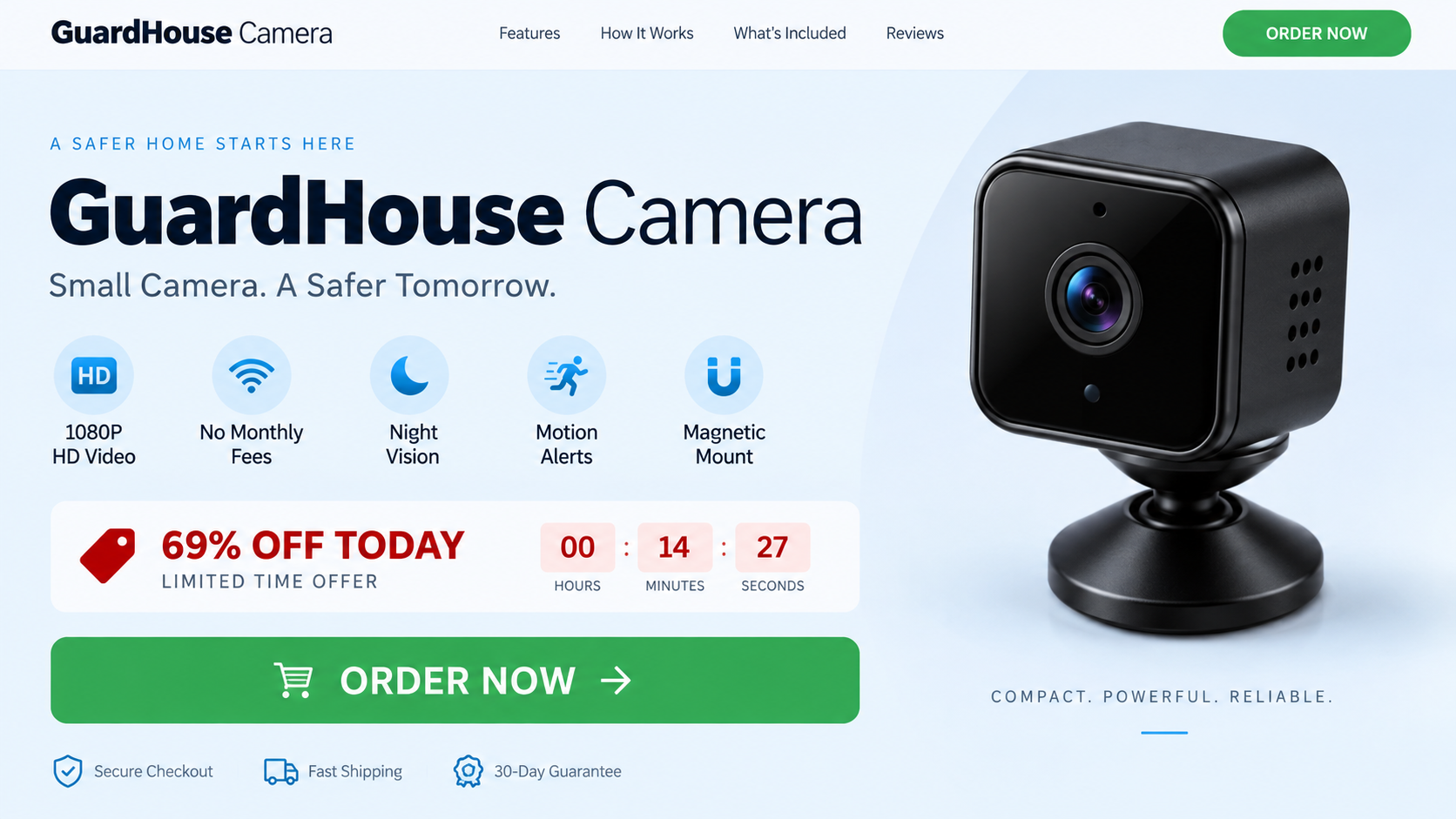
The sales page promotes 1080P video, instant motion alerts, wide-angle coverage, outdoor use, easy setup, and no monthly fees. Discounts reach 69% in some versions.
Similar cube cameras are widely available through marketplaces and private-label suppliers. Their low manufacturing cost does not automatically make them fraudulent, but it changes the value comparison.
A generic camera cannot become a reliable home-security system merely because a landing page adds dramatic burglary language, countdowns, glowing graphics, and thousands of glowing reviews.
Billing and support complaints create the greater risk
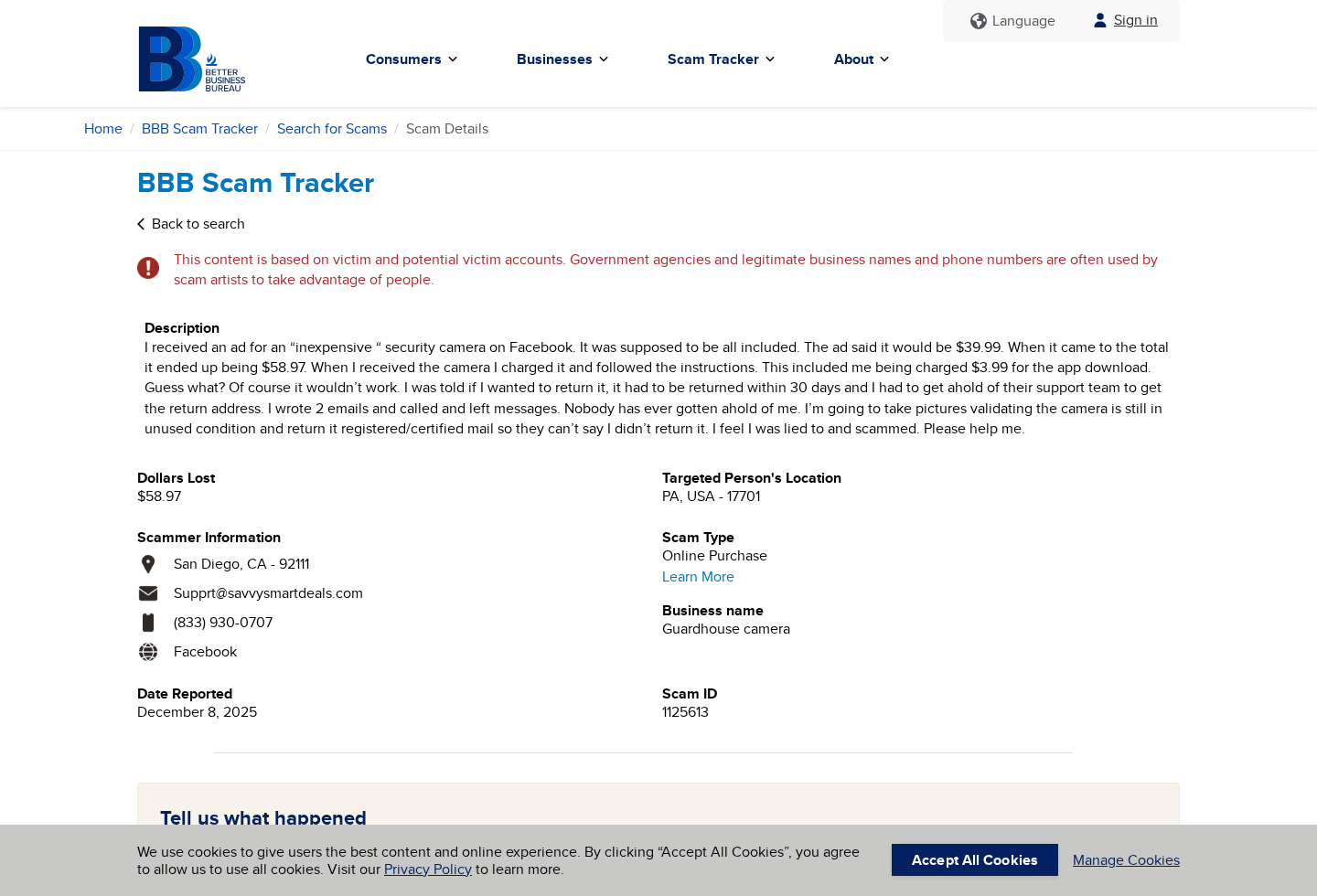
A BBB Scam Tracker report describes a $39.99 Facebook offer becoming $58.97, followed by a $3.99 application charge and unanswered return requests.
Other BBB complaints involving Savvy Smart Deals allege added cameras, memory cards, warranties, shipping fees, or a VIP package that buyers say they did not knowingly choose.
These are consumer allegations, not court findings. However, the consistency of the themes makes the final checkout and post-purchase process especially important.
- The camera is a real, inexpensive mini Wi-Fi device, not a complete professional security system.
- The seller currently lists a price of $89.99 while advertising large promotional savings.
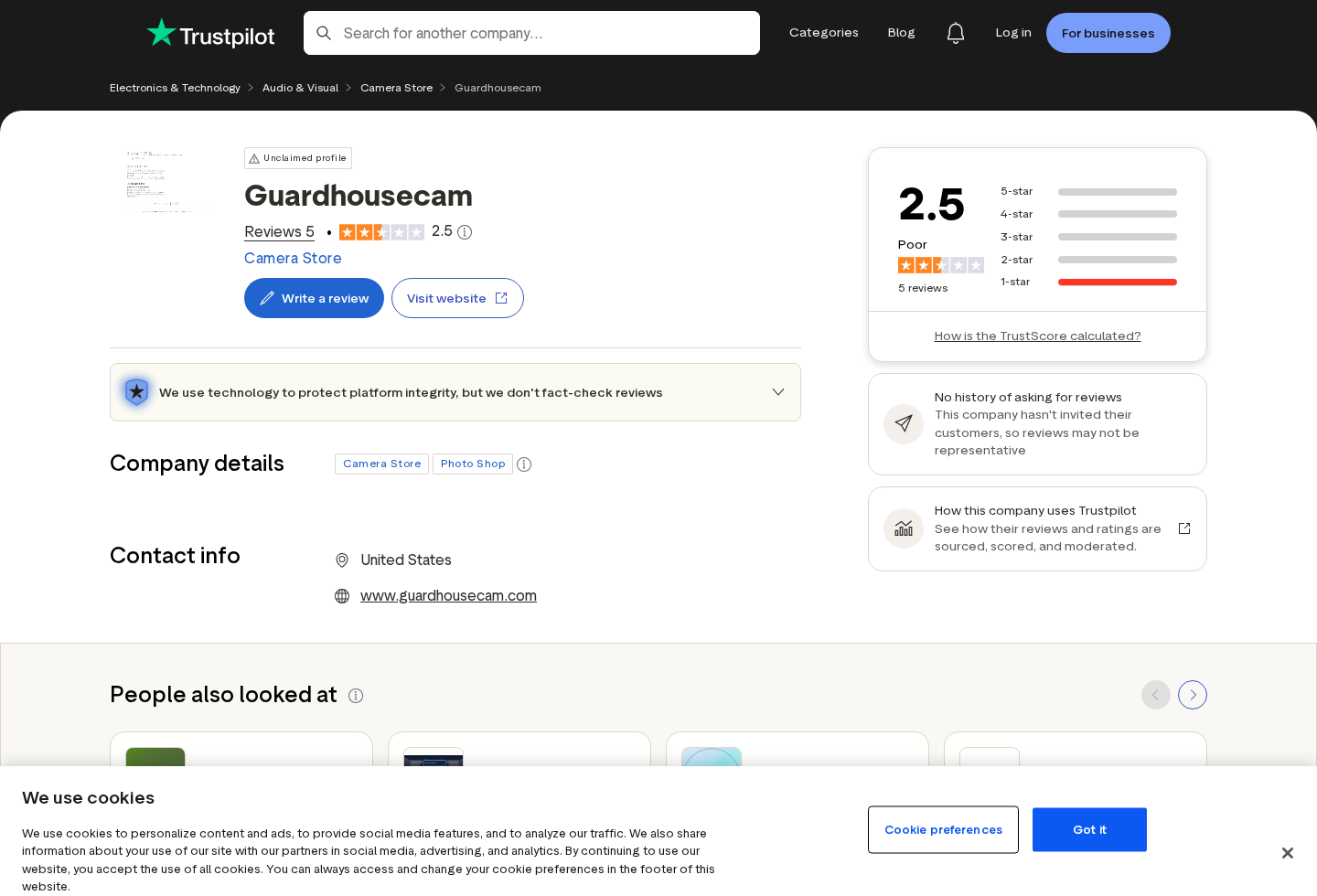
- Customer-controlled reviews claim a 2.5 TrustScore from five reviews, all rated one star when checked.
- Complaints mention one-to-two-hour battery life, ineffective night vision, application trouble, and unresponsive support.
- Some buyers allege their checkout total included additions or quantities they did not expect.
- The advertised promise of no monthly fees conflicts with reports that useful application features required payment.
- The safest conclusion is that the hardware exists, while its value, billing clarity, and dependability remain serious concerns.
What GuardHouse Camera Actually Appears to Be
The device shown in current advertising is a palm-sized black cube with a fixed wide-angle lens, internal battery, Wi-Fi connection, magnetic mount, and microSD support.
That description fits a broad category of inexpensive cameras sold by many factories and resellers. Model names, shells, applications, and packaging can change without changing the underlying hardware.
The seller says the camera provides 1080P recording, infrared night vision, 150-degree coverage, motion alerts, live mobile access, two-way audio, rechargeable power, and weather resistance.
Those specifications come from promotional material. We found no independent laboratory report confirming image resolution, weather resistance, encryption, battery duration, motion accuracy, or long-term application support.
A camera can technically record video while still performing poorly as security equipment. Useful evidence requires stable power, accurate timestamps, dependable storage, and accessible recordings.
Night vision also depends on infrared illumination, sensor quality, lens aperture, distance, and surrounding light. A dark-room demonstration does not establish useful outdoor identification range.
One BBB complainant said night visibility reached only two or three feet despite an advertised range of 32 feet. That allegation concerns performance, not merely preference.
Battery language deserves special attention. Continuous video and Wi-Fi transmission consume far more power than occasional standby operation triggered by motion.
If reviewers receive only one or two hours, the device cannot provide the all-night monitoring implied by a 24/7 security pitch unless it remains plugged in.
A constantly powered generic camera introduces other questions. Buyers should verify heat management, charger quality, cable placement, data security, and whether the device has recognized safety certifications.
Why the Advertisement Is So Persuasive
The funnel begins with fear. Porch theft, break-ins, unattended children, pets, and vulnerable relatives make a fast purchase feel like responsible protection.
Next, the page compares the tiny camera with expensive installed systems. That comparison makes a low-cost gadget appear to replace equipment designed for continuous operation and professional support.
The advertised discount then creates urgency. A 69% reduction sounds exceptional, although shoppers cannot verify whether the crossed-out reference price reflects meaningful prior sales.
Large review counts and near-perfect ratings provide reassurance at precisely the moment a careful buyer might pause. Seller-controlled testimonials cannot substitute for independent testing or representative feedback.
The words wireless and rechargeable are also easy to misunderstand. Wireless usually describes network connectivity, not unlimited operation without a power cable.
No monthly fees can be technically true for local storage while cloud recordings, advanced playback, or certain application features still require payment. Buyers need feature-level disclosure.
The sales page currently promotes both 30-day and 90-day guarantee language in different places. Conflicting return promises make the controlling policy difficult to identify.
That confusion matters because return eligibility may depend on authorization, deadlines, unopened packaging, shipping costs, and the address supplied by customer service.
How the GuardHouse Camera Sales Trap Works
Step 1: A social advertisement turns anxiety into urgency
The advertisement presents a frightening scenario, then offers a small camera as an immediate answer. Emotional momentum arrives before specifications, privacy, or return terms.
Videos may imply that the device captures clear faces at night, covers large outdoor areas, and protects property continuously without professional installation.
The viewer is encouraged to solve a serious security concern during one browsing session. That urgency discourages comparison with established indoor cameras carrying verified warranties.
Step 2: A dramatic discount establishes an artificial value
The page displays a high reference price beside a steep reduction. Without reliable pricing history, the percentage says little about the device’s ordinary market value.
Low-cost marketplace cameras with similar shapes and features offer a more useful comparison. Buyers should compare hardware, application name, battery rating, and supported storage.
A countdown or midnight deadline may restart for another visitor. Check again in a private window or on another day before treating urgency as genuine.
Step 3: Seller-controlled proof removes hesitation
Thousands of verified-review claims, satisfaction seals, and confident feature statements surround the order button. The page does not explain the review collection or verification method.
Independent feedback presents a different picture. When checked, Trustpilot showed five reviews, a 2.5 score, and all reviewers selecting one star.
The small sample cannot predict every order, but it directly contradicts the impression of overwhelming, uniformly positive independent experience.
Step 4: The checkout introduces quantities and extras
After selecting a camera, a customer can encounter bundle upgrades, second-camera offers, storage cards, extended protection, warranties, shipping, or membership-style additions.
Several BBB complainants alleged that their totals included items they did not knowingly request. One described an expected $89.99 purchase becoming $195.54.
Another alleged that a $19.99 additional-camera offer resulted in a separate $94.95 charge. The business responses disputed intentional additions in some cases.
Take a screenshot of every checkout screen. Confirm quantity, recurring language, shipping, protection plans, and total before authorizing payment.
Step 5: Setup exposes technical and subscription friction
Delivery does not end the risk. The buyer must identify the correct application, create an account, grant permissions, connect Wi-Fi, and configure storage.
Complaints describe applications freezing, requesting payment details, or presenting subscriptions. A security camera should not require unexplained card entry simply to complete basic setup.
Application permissions can include camera, microphone, local network, notifications, location, and storage. Grant only functions necessary for operation and review the developer identity.
Never install an application from a file sent through email or chat. Use the official Apple App Store or Google Play listing named in verified documentation.
Step 6: Returns become expensive and slow
If the device disappoints, support may offer a partial refund to keep it. That avoids international or domestic return handling for the seller.
Consumers report needing authorization and a specific return address. They may pay original shipping, return postage, or deductions that consume much of a small refund.
One current contact page lists 7365 Mission Gorge Road, Suite B, San Diego, California 92120. The BBB Scam Tracker report lists a nearby 92111 location.
Never mail a return to an address found only through search. Obtain written authorization tied to the order, then use tracked delivery and preserve the receipt.
Company, Address, and Fulfillment Checks
The seller identity appears across several brands
GuardHouse Camera is linked through complaints and current product pages to Savvy Smart Deals. The broader store sells numerous heavily advertised gadgets and accessories.
A GuardHouse contact page unexpectedly contains copy about another product named InstaHeat. Reused brand text suggests a shared direct-response template rather than a focused camera manufacturer.
This does not prove criminal ownership. It does mean shoppers should identify the merchant on the receipt instead of relying only on the logo above the product.
The listed addresses need context
The contact page provides a San Diego return address, while complaint records mention different nearby postal information. Neither location proves where the camera was designed or manufactured.
A returns suite may be a fulfillment warehouse, service contractor, mailbox, or logistics partner. It should not automatically be described as corporate headquarters.
Compare the website, terms, card statement, shipping label, return authorization, and state registration. Contradictions deserve a written explanation before money changes hands.
Phone and email access should work before ordering
Public pages have shown 833-930-0707, 800-797-6129, support@guardhousecamera.com, and support@savvysmartdeals.com. Multiple contacts can be legitimate, but responsibility should be clear.
Call before buying. Ask whether the exact camera works without cloud payment, which application it uses, how long continuous battery operation lasts, and where returns go.
If support cannot answer those basic questions, do not assume it will become more responsive after a disputed charge or defective delivery.
The manufacturing and security chain remains unclear
The promotional pages do not prominently identify an original equipment manufacturer, hardware model, firmware maintainer, application developer, encryption design, or software-support period.
There is not enough evidence to state that every unit was manufactured in China. Generic electronics commonly cross several suppliers, importers, warehouses, and white-label sellers.
For a networked camera inside a home, an unknown software chain is not a minor issue. Privacy and security support matter as much as image sharpness.
Privacy and Home-Security Risks Buyers May Miss
A Wi-Fi camera can see private spaces, hear conversations, identify daily routines, and expose children or visitors. Weak account security can turn a cheap gadget into a liability.
Use a unique password and enable multi-factor authentication if the application supports it. Never reuse an email password or router administrator password for the camera account.
Place the device on a separate guest or Internet-of-Things network when possible. This limits its access to computers, shared folders, and other sensitive household equipment.
Review whether video travels through remote servers. Local microSD storage does not necessarily mean live viewing remains local or encrypted end to end.
Look for a published privacy policy naming the application operator, countries of processing, retention period, deletion process, security contacts, and breach-notification procedure.
If those details are absent, avoid bedrooms, nurseries, bathrooms, workspaces with confidential documents, or any location where a compromise would be especially harmful.
Outdoor use requires a real ingress-protection rating. Words such as weather-resistant do not replace an IP code, testing standard, temperature range, and suitable power connection.
A low-cost camera may still suit temporary indoor monitoring. It should not be trusted as the only evidence source for burglary protection, personal safety, or critical care.
Warning Signs Visible in the GuardHouse Offer
- A security device is promoted mainly through urgency, fear, countdowns, and a 69% discount.
- The sales page presents thousands of positive reviews without explaining the independent verification process.
- Technical claims lack independent testing for battery life, night range, weather resistance, or data security.
- Contact copy contains references to another product, suggesting a reused sales template.
- Guarantee language varies between 30 days, 90 days, lifetime protection, and satisfaction promises.
- Complaint patterns include added quantities, accessories, warranties, memberships, and unexpected totals.
- Some customers allege the required application introduced extra payment or subscription pressure.
- Independent reviewers describe support delays, bounced messages, or difficulty obtaining a complete refund.
- The original equipment maker, firmware support period, and application security practices remain unclear.
- Continuous wireless recording is implied even though customer reports question practical battery duration.
No single warning proves every transaction is deceptive. Together, they show why a low advertised price can lead to a much more complicated purchase.
A reputable camera seller should publish precise specifications, demonstrate the application, disclose every optional charge, and provide a return policy that survives real customer use.
GuardHouse currently asks buyers to trust marketing where independent testing and consistent post-sale evidence should appear.
What to Do if You Have Fallen Victim to This Scam
- Preserve the complete order trail. Save the advertisement, product page, each checkout screen, confirmation, invoice, shipping label, application name, card descriptor, emails, and photographs of everything received.
- Compare the authorized total with the statement. Write down every difference involving quantity, shipping, memory cards, warranties, memberships, application fees, or duplicate charges. Specific discrepancies make disputes easier to evaluate.
- Cancel optional services in writing. Tell the merchant to stop memberships, cloud storage, protection plans, and future billing. Request confirmation that cancellation does not depend on returning the hardware.
- Request a return authorization promptly. Quote the applicable guarantee, describe the performance problem, and ask for the exact address and authorization number. Do not accept only verbal instructions.
- Ship with tracking and proof. Photograph the camera, accessories, serial label, packaging, and sealed parcel. Keep carrier acceptance, tracking, delivery, and signature records until the refund settles.
- Challenge unauthorized charges accurately. Contact the card issuer before its deadline. Separate a poor product from quantities or services you never approved, and provide screenshots supporting each claim.
- Remove the camera from your network. Reset it, revoke application permissions, delete cloud recordings, change reused passwords, and remove unknown devices or integrations from the router.
- Scan devices used during setup. Run Malwarebytes on computers or Android devices that opened suspicious downloads. If intrusive advertisements continue, AdGuard can reduce malicious redirects while you investigate.
- Report the pattern. U.S. buyers can submit evidence to the FTC and BBB. Include the seller name, phone, address, card descriptor, dates, and exact disputed amount.
- Replace critical coverage with proven equipment. Choose a camera with documented updates, strong account protection, independent tests, and support from a retailer that accepts straightforward returns.
Is Your Device Infected? Run a Free Malware Scan
Slow performance, constant pop-ups, or strange behavior? These are classic signs of a malware infection. A quick way to check is to scan your device with Malwarebytes Free, one of the most trusted malware removal tools available. If you only visited a scam page and didn’t download or install anything, this scan is optional.
The free version detects and removes the most common threats, including:
- Adware — the cause of those annoying pop-ups
- Browser hijackers — unwanted redirects and changed homepages
- Trojans and spyware — hidden programs stealing your data
- Potentially unwanted programs (PUPs) — software you never asked for
👉 Select your device below — Windows, Mac, or Android — then follow the simple steps to download Malwarebytes, scan your system, and remove any threats it finds. The scan usually takes 5 to 20 minutes.
Run a Malware Scan with Malwarebytes for Windows
Malwarebytes is one of the most popular and trusted anti-malware tools for Windows — and it’s completely free for removing infections. It catches threats that many antivirus programs miss, including adware, browser hijackers, and trojans. Follow the steps below to scan your PC and remove what Malwarebytes finds.
Download Malwarebytes
Click the button below to download the latest version of Malwarebytes for Windows from the official source. The free version is all you need — it will scan your computer and remove adware, browser hijackers, and other malicious software at no cost.
Download MalwarebytesOfficial installer for Windows 11 and 10. Your download starts right away.Want real-time protection? See Malwarebytes Premium Malwarebytes Free for WindowsScans and removes malware at no cost
-
Install Malwarebytes
When the download finishes, open your Downloads folder and double-click the MBSetup file. If Windows shows a User Account Control pop-up, click “Yes” to allow the installation.

Follow the On-Screen Prompts to Install Malwarebytes
The setup wizard will walk you through a few quick screens:
-
Choose where you’re installing the program — “Personal Computer” or “Work Computer” — then click Next.

-
Malwarebytes will now install on your device. This usually takes under a minute.

-
When installation is complete, the “Welcome to Malwarebytes” screen will open automatically.

-
On the final screen, click Open Malwarebytes to launch the program.

-
Optional: Check for rootkits with a Custom Scan
You don’t need to change any settings for a normal scan. The standard Threat Scan in the next step is enough for most problems, so you can go straight to it.
If you also want to check for rootkits, use a Custom Scan. In current versions of Malwarebytes, rootkit scanning is only available there:
- On the Scanner tile, click the three-dot menu and select Advanced Scan.
- Choose Custom Scan. In its options, check Scan for rootkits.
- Select your system drive (usually C:\) as the location to scan, then start the scan. It takes longer than a Threat Scan.
- When it finishes, review and quarantine the results as described in the steps below.
Rootkit scanning isn’t available on Windows devices with ARM processors.
Start the Scan
Click the blue Scan button. Malwarebytes will automatically update its virus database and start checking your computer for malware.

-
Wait for the Scan to Finish
The scan checks your entire system for browser hijackers and other malicious programs, so it can take 5 to 20 minutes depending on your computer. Feel free to do something else — just check back occasionally to see the progress.

-
Quarantine the Detected Threats
When the scan is done, you’ll see a list of everything Malwarebytes found — malware, adware, and potentially unwanted programs. Click the “Quarantine” button to remove all of them at once.

Malwarebytes will now remove the malicious files and registry entries and move them safely into quarantine.

-
Restart Your Computer
Some threats can only be fully removed after a reboot. If Malwarebytes asks you to restart, click Yes. Once you’re logged back in, Malwarebytes has finished removing the threats it found.

When the scan is done, check whether the problems you noticed have stopped. If they continue, see the options below.
If you are still having problems with your computer after completing these instructions, then please follow one of the steps:
- Run a computer scan with ESET Online Scanner
- Ask for help in our Windows Malware Removal Help & Support forum.
Run a Malware Scan with Malwarebytes for Mac
Malwarebytes for Mac is a free on-demand scanner that removes the malware other security software tends to miss — adware, browser hijackers, and unwanted programs included. Cleaning an infected Mac with Malwarebytes has always been completely free, and it’s our go-to recommendation. Follow the steps below to scan your Mac and remove what Malwarebytes finds.
-
Download Malwarebytes for Mac
Click the button below to download the latest version of Malwarebytes for Mac.
Download MalwarebytesOfficial installer for macOS. Your download starts right away.Want real-time protection? See Malwarebytes PremiumMalwarebytes Free for MacScans and removes malware at no cost -
Open the Malwarebytes setup file
When the download finishes, open your Downloads folder and double-click the setup file to begin the installation.

-
Follow the On-Screen Prompts to Install Malwarebytes
The Malwarebytes for Mac Installer will guide you through a few quick screens. Click “Continue” and keep following the prompts until the installation completes.



When the installation is complete, Malwarebytes opens to the Welcome to Malwarebytes screen. Click “Get started“.
Malwarebytes needs Full Disk Access to check your whole Mac. When it asks, open System Settings > Privacy & Security > Full Disk Access, turn on Malwarebytes (it may be listed as Malwarebytes Protection), and confirm with your password or Touch ID. Then return to Malwarebytes. On macOS Monterey and earlier, this setting is in System Preferences > Security & Privacy > Privacy.
-
Select “Personal Computer” or “Work Computer”
Malwarebytes will ask what type of computer you’re installing it on. Click either Personal Computer or Work Computer, whichever applies.

-
Start the Scan
Click the “Scan” button. Malwarebytes will automatically update its detection database and begin checking your Mac for malware.

-
Wait for the Scan to Finish
Malwarebytes will scan your Mac for adware, browser hijackers, and other malicious programs. This can take a few minutes, so feel free to do something else — just check back occasionally to see the progress.

-
Quarantine the Detected Threats
When the scan is done, you’ll see a list of everything Malwarebytes found. Click the “Quarantine” button to remove all the threats at once.

-
Restart Your Mac
Malwarebytes will now remove all the malicious files it found. Some threats can only be fully removed after a reboot — if Malwarebytes asks you to restart, allow it. Once you’re logged back in, check whether the problems you noticed have stopped. If they come back, save the scan report and ask for help in our forum.

If the problems you noticed continue after the scan, see the options below.
If you are still experiencing problems while trying to remove a malicious program from your computer, please ask for help in our Mac Malware Removal Help & Support forum.
Run a Malware Scan with Malwarebytes for Android
Malwarebytes for Android scans your phone or tablet for malware, adware, and potentially unwanted apps. The free version scans only when you start a scan. Real-time protection, which checks apps automatically, is part of the paid Premium version.
-
Download Malwarebytes for Android.
You can download Malwarebytes for Android by clicking the link below.
Get Malwarebytes for AndroidOpens Google Play in a new tab.Want real-time protection? See Malwarebytes Premium for AndroidMalwarebytes for AndroidScans your phone and removes malware at no cost -
Install Malwarebytes for Android on your phone.
In the Google Play Store, tap “Install” to install Malwarebytes for Android on your device.

When the installation process has finished, tap “Open” to begin using Malwarebytes for Android. You can also open Malwarebytes by tapping on its icon in your phone menu or home screen.

-
Follow the on-screen prompts to complete the setup process
When Malwarebytes opens, it walks you through a short setup. Tap Get started and follow the prompts. If you see an offer for a trial or a paid plan, read it before you accept. You can skip it and keep using the free scanner.
Malwarebytes will ask for permission to access the files on your phone so it can scan them. Tap Allow, or turn on the permission in the Android screen that opens, then return to Malwarebytes.
-
Run a scan with Malwarebytes for Android
On the main screen, tap Scan now. In some versions, you open the menu, tap Scanner, and then tap Run a scan.
-
Wait for the Malwarebytes scan to complete.
Malwarebytes will now start scanning your phone for adware and other malicious apps. This process can take a few minutes, so we suggest you do something else and periodically check on the status of the scan to see when it is finished.

-
Remove the detected apps.
When the scan has been completed, you will see a list of the threats that Malwarebytes for Android has detected. Next to each detected item, tap the menu icon (three dots), then choose to uninstall the app or delete the file. Android then asks you to confirm. Tap OK or Uninstall to remove the app.
-
Restart your phone.
When the detected apps are removed, restart your phone if Malwarebytes asks you to. Then check whether the problems you noticed have stopped.
If the problems you noticed continue after the scan, see the options below.
If you are still having problems with your phone after completing these instructions, then please follow one of the steps:
- Ask for help in our Mobile Malware Removal Help & Support forum.
- Only as a last resort, reset your phone to factory settings. Read the warning below first.
- Back up your photos, videos, files, and messages, for example to your Google account or a computer.
- Make sure you know your Google account email and password. The phone asks for them after the reset. If you changed the password recently, Google recommends waiting 24 hours before you reset.
- On a Samsung phone, also make sure you know your Samsung account password.
- If you use an authenticator app for two-step verification, move your accounts to another device or save your backup codes first.
Stay Protected: Block Ads and Malicious Sites
No scan can prove a device is completely clean, so it helps to block threats before they reach you. Most infections start with a malicious ad or a fake download button — so blocking them at the source is your best defense.
We recommend AdGuard, which blocks malicious ads, phishing pages, and dangerous redirects before they can reach you.
👉 Download AdGuard and browse safely
Frequently Asked Questions
Is GuardHouse Camera a completely fake product?
No. A physical mini camera is shipped in many reported cases. The concerns involve value, performance, checkout clarity, application costs, privacy, and the return experience.
Does GuardHouse Camera work without a subscription?
The seller advertises local microSD storage without monthly fees. Some reviewers allege useful application access required payment, so confirm each feature before ordering.
Why do some buyers receive a larger charge?
Complaints mention bundles, extra cameras, cards, warranties, shipping, and VIP additions. Review the final authorization carefully and retain screenshots of every selection.
Is the camera suitable for outdoor security?
Do not rely on broad weather-resistance language. Demand an IP rating, operating temperatures, safe power guidance, night-range evidence, and warranty coverage for outdoor exposure.
Can the camera create a privacy risk?
Yes. Any internet-connected camera can expose video, audio, routines, and account data. Use unique credentials, limited placement, current firmware, and a separated network.
Should I buy it if the price is very low?
Compare the complete delivered price with established brands. Include storage, subscription, cables, return postage, application support, security updates, and the cost of failure.
The Bottom Line
GuardHouse Camera appears to be a real low-cost mini camera wrapped in marketing that promises far more certainty, endurance, and protection than independent evidence supports.
Complaint patterns involving weak performance, confusing additions, application friction, and difficult refunds make the offer unusually risky, even when a package reaches the buyer.
For home security, dependable hardware, transparent billing, protected software, and reachable support matter more than a countdown, a 69% discount, or a wall of perfect testimonials.

Join the discussion
0 commentsShare your experience or ask a question about this article.
Discussion
Start the conversation
Have a question or something useful to share? Add the first comment.