


A famous fashion name, supportive footwear, and a sudden 50% discount create an offer that feels both practical and prestigious.
The advertisements for “BOSS Fashion Orthopedic Sneakers” rely on that impression, while the seller, product origin, and customer experience tell a very different story.
Overview
The advertisement blurs a familiar brand with generic footwear
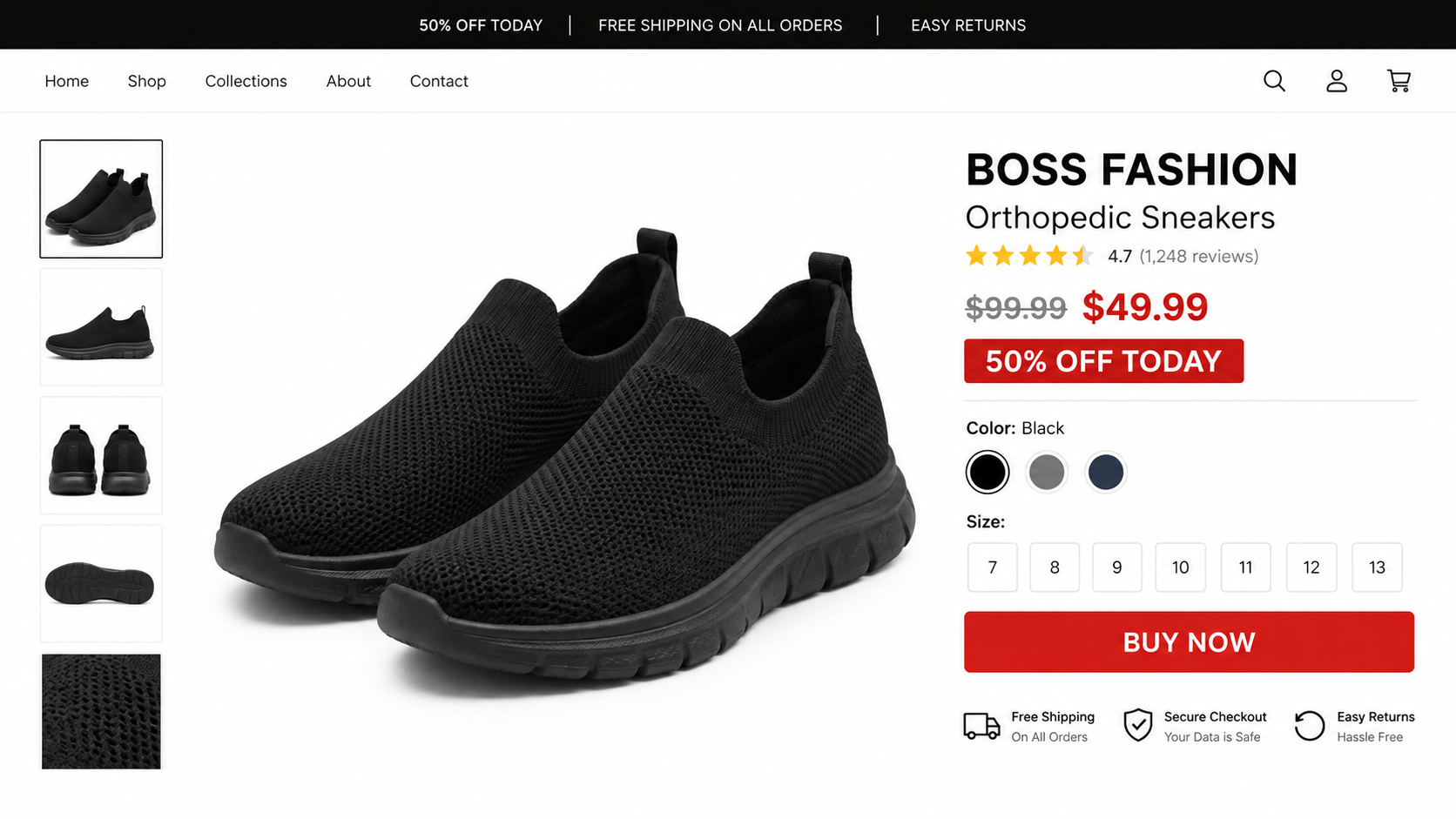
Social and display advertisements have promoted shoes using phrases such as BOSS Fashion, orthopedic sneakers, and 50% off, then directed shoppers to Vivance-related stores.
The wording can make viewers assume a connection with HUGO BOSS. We found no evidence that the advertised generic slip-ons were official HUGO BOSS products.
The brand’s official footwear catalog lists named sneakers with clear materials, product identifiers, retail prices, and authorized sales channels. The viral orthopedic offer does not match that presentation.
Buyers describe missing, incorrect, or very cheap shoes
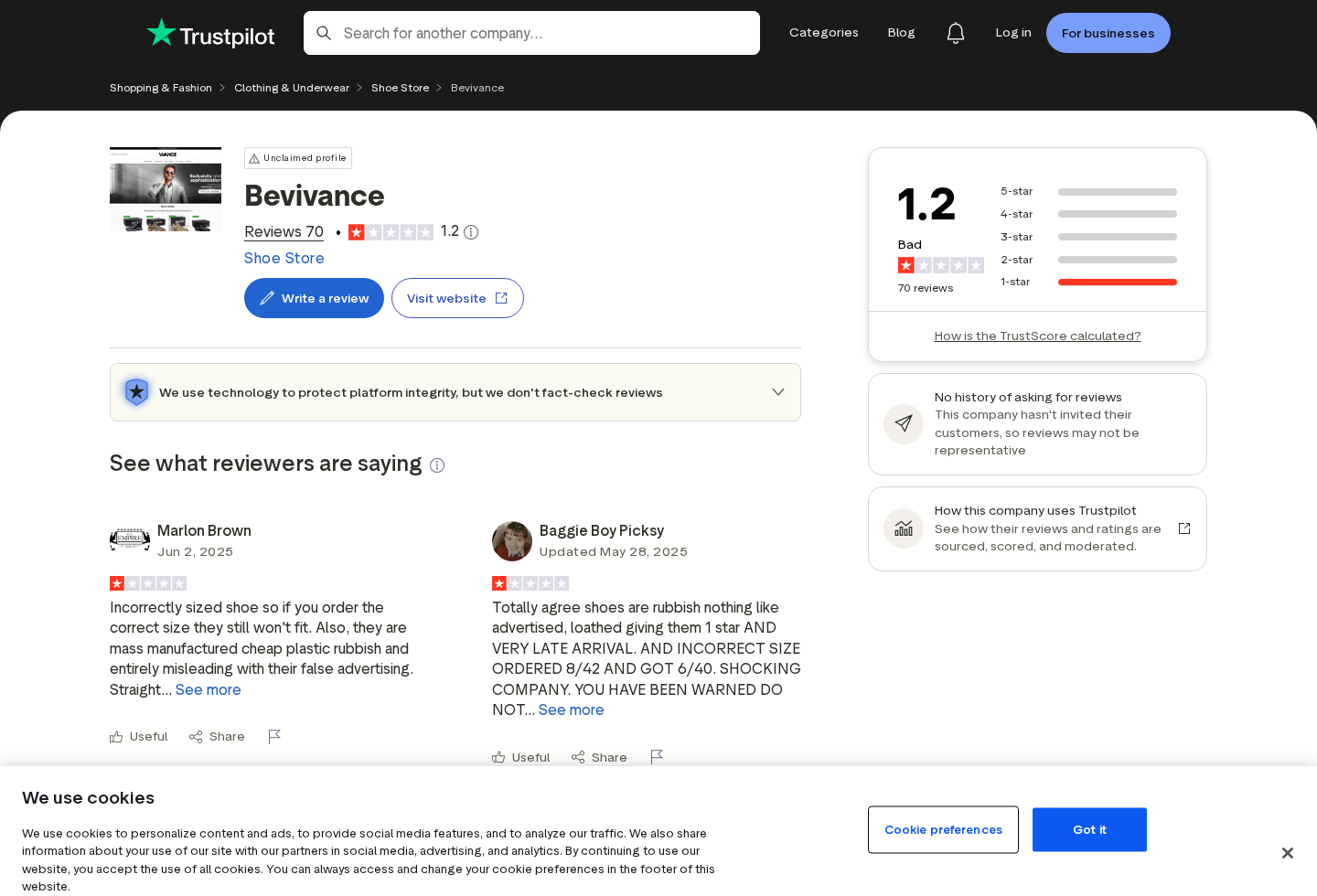
Trustpilot showed Bevivance with a 1.2 TrustScore from 70 reviews when checked. Visible complaints described poor quality, wrong sizes, late delivery, missing orders, and difficult support.
One reviewer said shoes arrived bearing the word Fashion rather than BOSS. Others reported crushed packaging, no size marking, or months without delivery.
These reports are individual allegations, not proof of every transaction. Their repeated themes align with a high-risk cross-border dropshipping pattern.
Several similar domains weaken accountability
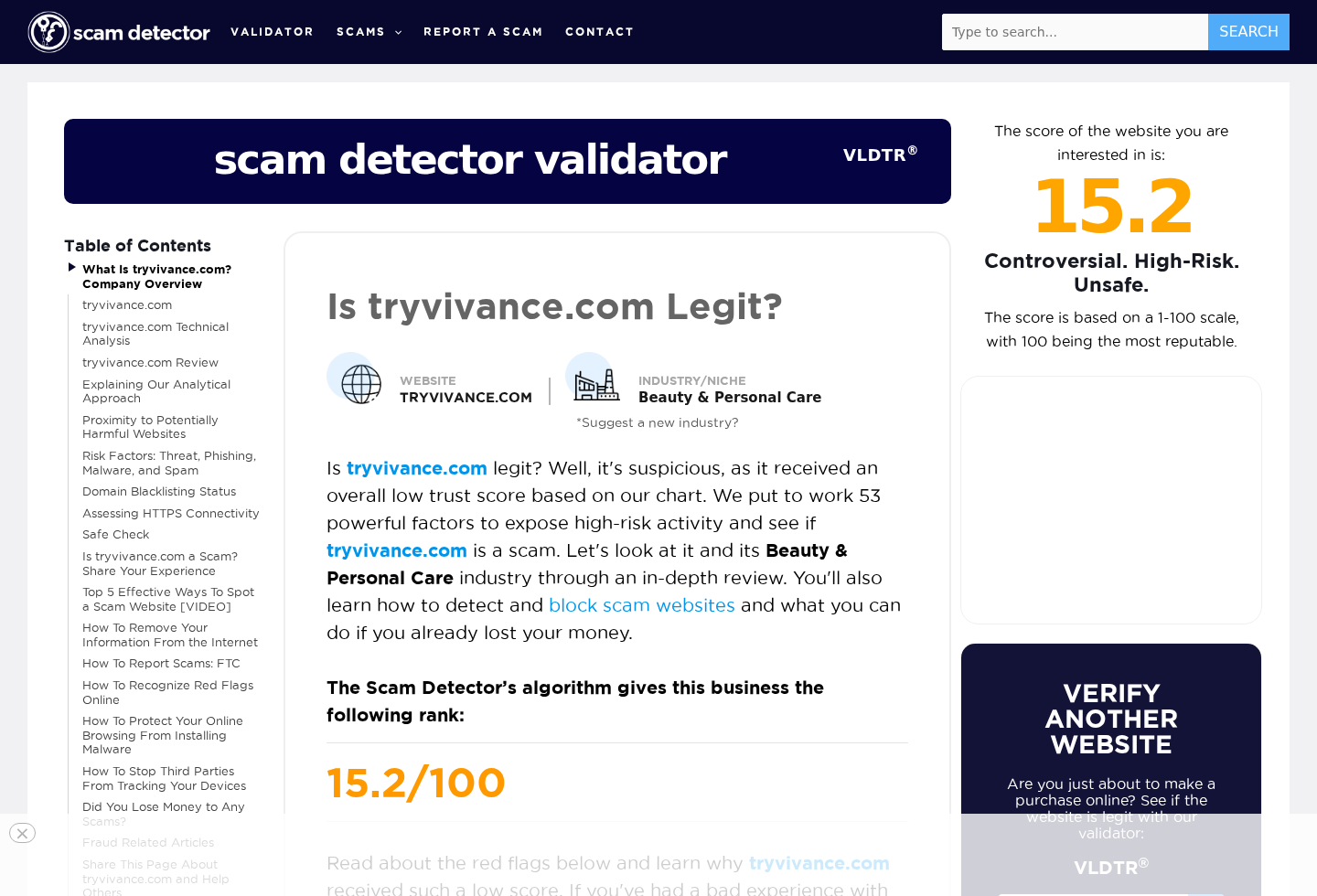
The campaign has been associated with names including Vivance, WeVivance, UseVivance, Bevivance, and TryVivance. Changing domains can separate current ads from earlier complaints.
Some sites later disappeared, redirected, or became difficult to contact. A shopper searching only the exact current domain may miss the history attached to related names.
The durable warning is the story, not one URL: brand-like wording, generic supportive shoes, dramatic markdowns, and a seller with unclear responsibility.
- The advertised slip-ons do not appear in the official HUGO BOSS catalog as the claimed orthopedic product.
- The word BOSS can function as suggestive marketing even when the delivered shoe carries different labeling.
- Reverse-image searches reportedly connect similar designs with inexpensive marketplace footwear.
- Independent complaints allege non-delivery, wrong sizes, poor materials, multiple pairs, and unanswered messages.
- Bevivance displayed a 1.2 TrustScore, with overwhelmingly negative public feedback when reviewed.
- Related domains and store names make it harder to identify one continuing merchant history.
- Orthopedic language is not supported by visible clinical testing, medical certification, or individualized fitting.
What “Orthopedic” Should Mean, and What It Does Not Prove
Orthopedic footwear is designed around a specific mechanical or medical need. Important features can include depth, stable heel counters, removable insoles, width choices, and controlled support.
A generic mesh slip-on may feel soft and flexible. Comfort during a short trial does not establish correction of pronation, relief of neuropathy, or treatment of foot disease.
Arch support also is not universal. A shape that helps one person can cause pressure, instability, or pain for another, especially when sizing is inconsistent.
Legitimate therapeutic claims should identify the responsible manufacturer, materials, construction, intended use, testing, limitations, and relevant professional guidance.
The viral advertisements emphasize pain relief, posture, shock absorption, and all-day support without presenting independent clinical evidence for the exact shoe.
A foam insole or thick sole can cushion impact. It cannot automatically diagnose or correct plantar fasciitis, arthritis, bunions, diabetes-related problems, or nerve symptoms.
People with diabetes, reduced sensation, circulation problems, open wounds, or major deformities need properly fitted footwear and medical advice. A social advertisement is not a fitting.
Even healthy buyers need accurate internal length and width. A vague conversion chart and unmarked product can make returns almost inevitable.
Cross-border sellers sometimes require customers to pay return postage to an overseas warehouse. That cost can approach the original price of inexpensive footwear.
The result is a practical refund barrier. The buyer may accept a partial refund or keep unusable shoes because pursuing the stated guarantee costs too much.
Why the Brand-Like Name Works
BOSS is a recognizable word and a famous fashion mark. Placing it beside Fashion and Sneakers invites an association even without reproducing every official design element.
The advertisement may avoid a direct statement that HUGO BOSS manufactures the product. The visual impression still benefits from the shopper’s existing brand recognition.
That ambiguity is powerful because buyers scan quickly. A sale banner, black typography, polished shoe photograph, and premium reference price can fill in the missing connection.
Search results can make the confusion worse. Affiliate pages repeat the phrase, automated storefronts list similar keywords, and copied reviews increase apparent legitimacy.
The term orthopedic adds another trust signal. It suggests expertise and health benefits, although the seller may provide no podiatrist, standard, study, or certification.
Finally, a closing-down or limited-time discount discourages verification. Buyers fear losing a bargain before checking the official brand catalog or store reputation.
A reliable offer should identify whether the goods are licensed, who manufactured them, and what trademark appears on the delivered item.
If the seller cannot state those facts plainly, the brand association is doing more work than the product evidence.
How the Fake BOSS Orthopedic Sneaker Ad Scam Works
Step 1: A video or banner borrows premium expectations
The ad presents sleek slip-ons beside BOSS Fashion wording, orthopedic benefits, and a 50% reduction. The combination appeals to shoppers seeking comfort and status.
Many viewers recognize BOSS but do not notice the missing HUGO BOSS retailer connection. The product name remains just ambiguous enough to pass a rushed glance.
Claims about foot pain or posture add urgency for older buyers. Discomfort can make a low-risk-looking solution feel worth trying immediately.
Step 2: The click opens an unfamiliar storefront
Instead of the official fashion company’s domain, the visitor reaches a store carrying a name such as Vivance, UseVivance, WeVivance, Bevivance, or TryVivance.
The site can look polished, with menus, guarantees, testimonials, size charts, countdowns, and secure-payment icons. Appearance alone does not establish authorization or business history.
Search the merchant name independently. Do not rely on reviews placed inside the same site that controls the order button.
Step 3: Generic shoes receive medical and luxury language
The page describes arch support, pressure relief, breathable materials, shock absorption, lightweight construction, and premium comfort. Those features are common marketing descriptions for inexpensive slip-ons.
Reverse-image results can reveal visually identical footwear through wholesale platforms or unrelated sellers at much lower prices. Similarity suggests white-label sourcing, though it cannot identify one factory conclusively.
The absence of a verifiable model number makes comparison harder. Shoppers receive a story and a photo instead of traceable product specifications.
Step 4: Scarcity and discounts accelerate payment
Closing timers, disappearing stock messages, holiday pricing, and 50% banners suggest the decision must happen now. Reference prices may not reflect established retail history.
A countdown that returns after refreshing is a sales device, not a real inventory clock. Search the offer from another browser before accepting the claimed deadline.
Pay particular attention to quantity selectors. Complaints allege that some purchasers received or were billed for two pairs after trying to order one.
Step 5: Fulfillment reveals the product mismatch
Some buyers report no parcel for weeks or months. Others describe a small bag containing crushed, unmarked, incorrectly sized, or cheaply constructed shoes.
A delivered item may say Fashion instead of BOSS. That difference matters because the advertisement’s implied value depended on the familiar name.
Document the shipping origin, label, shoe markings, sole, insole, size, packaging, and materials before wearing them outdoors.
Step 6: The refund becomes the final obstacle
Email addresses may stop responding, websites may disappear, and no phone number may be available. A return address can be supplied only after repeated contact.
Customers can be asked to ship internationally at their own expense. Partial refunds may be offered to avoid the return, leaving the seller with most revenue.
Card deadlines continue while support delays. A buyer who waits for promises can lose the easiest dispute window.
Company, Address, and Fulfillment Checks
The store names do not establish one accountable company
Vivance, WeVivance, UseVivance, Bevivance, and TryVivance appear around related offers and complaints. Branding overlap does not automatically prove identical legal ownership.
It does show why the checkout entity matters. Record the legal name, payment processor, order email, descriptor, and terms instead of relying on the storefront header.
If no legal entity appears before payment, the customer cannot easily verify registration, jurisdiction, or responsibility for warranty obligations.
A shipping or return location may only be a logistics stop
Cross-border shops often use consolidators, forwarding addresses, and fulfillment warehouses. The location printed on a parcel may not accept returns or answer consumer claims.
Never assume a domestic label means domestic ownership or inventory. Compare the dispatch scan, customs information, return instruction, terms, and card statement.
An address associated with many unrelated online brands may be a warehouse. That is useful context, but it is not proof of where marketing decisions originated.
Missing phone support is a serious warning
Customers describe sending repeated emails without a reply. A retailer selling size-sensitive footwear should offer a dependable correction process before fulfillment begins.
Test support before ordering. Ask whether one pair can be canceled, where it ships from, who pays return postage, and whether tried-on shoes remain eligible.
A generic answer that ignores the exact product is evidence of weak service. Save it before deciding whether to proceed.
The original manufacturer remains unverified
The campaign does not provide a traceable factory, model code, material specification, medical test, or evidence connecting the shoe to HUGO BOSS.
It is reasonable to describe the shoes as apparently generic or private-label based on the available evidence. A particular country of manufacture should not be asserted without a label.
Photograph country markings and packaging if a pair arrives. Product origin, seller location, advertising operator, and fulfillment center can all be different places.
What the Complaint Pattern Shows
One complaint can reflect a shipping accident or size mistake. Dozens of similar reports across months indicate a process problem worthy of stronger caution.
Bevivance’s Trustpilot page showed 70 reviews and a 1.2 score when checked. Recent visible posts criticized incorrect sizing, cheap materials, late arrival, and misleading presentation.
Earlier reviewers described orders placed in December that had not arrived by February or March. Others said emails produced no meaningful response.
Several reports specifically used the BOSS orthopedic sneaker description. That link is stronger than complaints about an unrelated product sold by the same storefront.
A reviewer described paying for one pair, then seeing a second pair added. Another said two shabby pairs arrived without clear sizes or boxes.
These statements remain allegations from users. They should be presented as complaints, not independently proven facts about every shipment.
The seller’s extremely low public rating still matters because it measures the support environment a future customer may enter if anything goes wrong.
Size-sensitive, health-marketed footwear creates predictable returns. A business without responsive exchanges is poorly suited to that category, even if some parcels arrive correctly.
Warning Signs Before Ordering Similar Shoes
- A famous-looking brand phrase appears, but the destination is not the official company or an authorized retailer.
- The actual shoe lacks a model name, manufacturer, material breakdown, country label, and traceable product code.
- Orthopedic benefits are promised without clinical evidence, medical certification, or information about who designed the support.
- The discount relies on a high crossed-out price that cannot be confirmed through normal retail history.
- Independent reviews report the wrong branding, sizes, quantities, quality, or no delivery.
- The storefront has several similar domain names, making complaint history difficult to follow.
- Only email support is offered, or messages receive generic responses after the order ships.
- Customers must request a hidden return address and may pay costly international postage.
- The site uses seller-controlled testimonials while external profiles show overwhelmingly negative experiences.
- Urgency encourages immediate checkout before the shopper checks the official brand catalog.
A legitimate unbranded shoe can still be inexpensive and comfortable. The deception begins when name association and medical language manufacture value the evidence does not support.
Do not let a partial similarity to a luxury brand replace normal product verification. The invoice should tell you exactly what trademarked product you purchased.
When the merchant cannot answer that question, the safest choice is to buy supportive footwear from a known seller with practical exchanges.
What to Do if You Have Fallen Victim to This Scam
- Save the advertisement and product promise. Capture the BOSS wording, orthopedic claims, discount, photographs, size chart, guarantee, checkout, merchant identity, confirmation, and delivery estimate before pages disappear.
- Inspect the parcel before normal wear. Photograph the outer label, customs data, packaging, logo, size, sole, insole, defects, and both shoes. Keep tags attached whenever possible.
- Compare exactly what was ordered. Note missing branding, wrong size, changed color, extra quantity, inferior construction, or non-delivery. Separate objective differences from comfort preferences.
- Request cancellation or return immediately. Use every listed email and the payment-platform contact. Ask for a written address, authorization, deadline, postage responsibility, and refund amount.
- Do not mail to an unconfirmed label address. A fulfillment facility may reject returns. Obtain instructions connected to your order and ship only with tracking and delivery evidence.
- Refuse unfair partial settlements carefully. Calculate whether a proposed percentage covers the mismatch. Accepting it may close the dispute, so understand the payment provider’s rules first.
- Contact the card issuer promptly. Provide proof of counterfeit implication, wrong merchandise, duplicate quantity, or missing delivery. Use precise facts and meet all filing deadlines.
- Secure accounts used during purchase. Change reused passwords and monitor statements. Run Malwarebytes if the store prompted unusual downloads, and use AdGuard against repeated malicious shopping redirects.
- Report trademark-style deception. Notify the genuine brand through its official website, then report the advertisement to the platform and relevant national consumer authority.
- Seek professional help for foot problems. Stop wearing painful or poorly fitting shoes. A podiatrist or qualified fitter can recommend safe support for medical needs.
Is Your Device Infected? Run a Free Malware Scan
Slow performance, constant pop-ups, or strange behavior? These are classic signs of a malware infection. A quick way to check is to scan your device with Malwarebytes Free, one of the most trusted malware removal tools available. If you only visited a scam page and didn’t download or install anything, this scan is optional.
The free version detects and removes the most common threats, including:
- Adware — the cause of those annoying pop-ups
- Browser hijackers — unwanted redirects and changed homepages
- Trojans and spyware — hidden programs stealing your data
- Potentially unwanted programs (PUPs) — software you never asked for
👉 Select your device below — Windows, Mac, or Android — then follow the simple steps to download Malwarebytes, scan your system, and remove any threats it finds. The scan usually takes 5 to 20 minutes.
Run a Malware Scan with Malwarebytes for Windows
Malwarebytes is one of the most popular and trusted anti-malware tools for Windows — and it’s completely free for removing infections. It catches threats that many antivirus programs miss, including adware, browser hijackers, and trojans. Follow the steps below to scan your PC and remove what Malwarebytes finds.
Download Malwarebytes
Click the button below to download the latest version of Malwarebytes for Windows from the official source. The free version is all you need — it will scan your computer and remove adware, browser hijackers, and other malicious software at no cost.
Download MalwarebytesOfficial installer for Windows 11 and 10. Your download starts right away.Want real-time protection? See Malwarebytes Premium Malwarebytes Free for WindowsScans and removes malware at no cost
-
Install Malwarebytes
When the download finishes, open your Downloads folder and double-click the MBSetup file. If Windows shows a User Account Control pop-up, click “Yes” to allow the installation.

Follow the On-Screen Prompts to Install Malwarebytes
The setup wizard will walk you through a few quick screens:
-
Choose where you’re installing the program — “Personal Computer” or “Work Computer” — then click Next.

-
Malwarebytes will now install on your device. This usually takes under a minute.

-
When installation is complete, the “Welcome to Malwarebytes” screen will open automatically.

-
On the final screen, click Open Malwarebytes to launch the program.

-
Optional: Check for rootkits with a Custom Scan
You don’t need to change any settings for a normal scan. The standard Threat Scan in the next step is enough for most problems, so you can go straight to it.
If you also want to check for rootkits, use a Custom Scan. In current versions of Malwarebytes, rootkit scanning is only available there:
- On the Scanner tile, click the three-dot menu and select Advanced Scan.
- Choose Custom Scan. In its options, check Scan for rootkits.
- Select your system drive (usually C:\) as the location to scan, then start the scan. It takes longer than a Threat Scan.
- When it finishes, review and quarantine the results as described in the steps below.
Rootkit scanning isn’t available on Windows devices with ARM processors.
Start the Scan
Click the blue Scan button. Malwarebytes will automatically update its virus database and start checking your computer for malware.

-
Wait for the Scan to Finish
The scan checks your entire system for browser hijackers and other malicious programs, so it can take 5 to 20 minutes depending on your computer. Feel free to do something else — just check back occasionally to see the progress.

-
Quarantine the Detected Threats
When the scan is done, you’ll see a list of everything Malwarebytes found — malware, adware, and potentially unwanted programs. Click the “Quarantine” button to remove all of them at once.

Malwarebytes will now remove the malicious files and registry entries and move them safely into quarantine.

-
Restart Your Computer
Some threats can only be fully removed after a reboot. If Malwarebytes asks you to restart, click Yes. Once you’re logged back in, Malwarebytes has finished removing the threats it found.

When the scan is done, check whether the problems you noticed have stopped. If they continue, see the options below.
If you are still having problems with your computer after completing these instructions, then please follow one of the steps:
- Run a computer scan with ESET Online Scanner
- Ask for help in our Windows Malware Removal Help & Support forum.
Run a Malware Scan with Malwarebytes for Mac
Malwarebytes for Mac is a free on-demand scanner that removes the malware other security software tends to miss — adware, browser hijackers, and unwanted programs included. Cleaning an infected Mac with Malwarebytes has always been completely free, and it’s our go-to recommendation. Follow the steps below to scan your Mac and remove what Malwarebytes finds.
-
Download Malwarebytes for Mac
Click the button below to download the latest version of Malwarebytes for Mac.
Download MalwarebytesOfficial installer for macOS. Your download starts right away.Want real-time protection? See Malwarebytes PremiumMalwarebytes Free for MacScans and removes malware at no cost -
Open the Malwarebytes setup file
When the download finishes, open your Downloads folder and double-click the setup file to begin the installation.

-
Follow the On-Screen Prompts to Install Malwarebytes
The Malwarebytes for Mac Installer will guide you through a few quick screens. Click “Continue” and keep following the prompts until the installation completes.



When the installation is complete, Malwarebytes opens to the Welcome to Malwarebytes screen. Click “Get started“.
Malwarebytes needs Full Disk Access to check your whole Mac. When it asks, open System Settings > Privacy & Security > Full Disk Access, turn on Malwarebytes (it may be listed as Malwarebytes Protection), and confirm with your password or Touch ID. Then return to Malwarebytes. On macOS Monterey and earlier, this setting is in System Preferences > Security & Privacy > Privacy.
-
Select “Personal Computer” or “Work Computer”
Malwarebytes will ask what type of computer you’re installing it on. Click either Personal Computer or Work Computer, whichever applies.

-
Start the Scan
Click the “Scan” button. Malwarebytes will automatically update its detection database and begin checking your Mac for malware.

-
Wait for the Scan to Finish
Malwarebytes will scan your Mac for adware, browser hijackers, and other malicious programs. This can take a few minutes, so feel free to do something else — just check back occasionally to see the progress.

-
Quarantine the Detected Threats
When the scan is done, you’ll see a list of everything Malwarebytes found. Click the “Quarantine” button to remove all the threats at once.

-
Restart Your Mac
Malwarebytes will now remove all the malicious files it found. Some threats can only be fully removed after a reboot — if Malwarebytes asks you to restart, allow it. Once you’re logged back in, check whether the problems you noticed have stopped. If they come back, save the scan report and ask for help in our forum.

If the problems you noticed continue after the scan, see the options below.
If you are still experiencing problems while trying to remove a malicious program from your computer, please ask for help in our Mac Malware Removal Help & Support forum.
Run a Malware Scan with Malwarebytes for Android
Malwarebytes for Android scans your phone or tablet for malware, adware, and potentially unwanted apps. The free version scans only when you start a scan. Real-time protection, which checks apps automatically, is part of the paid Premium version.
-
Download Malwarebytes for Android.
You can download Malwarebytes for Android by clicking the link below.
Get Malwarebytes for AndroidOpens Google Play in a new tab.Want real-time protection? See Malwarebytes Premium for AndroidMalwarebytes for AndroidScans your phone and removes malware at no cost -
Install Malwarebytes for Android on your phone.
In the Google Play Store, tap “Install” to install Malwarebytes for Android on your device.

When the installation process has finished, tap “Open” to begin using Malwarebytes for Android. You can also open Malwarebytes by tapping on its icon in your phone menu or home screen.

-
Follow the on-screen prompts to complete the setup process
When Malwarebytes opens, it walks you through a short setup. Tap Get started and follow the prompts. If you see an offer for a trial or a paid plan, read it before you accept. You can skip it and keep using the free scanner.
Malwarebytes will ask for permission to access the files on your phone so it can scan them. Tap Allow, or turn on the permission in the Android screen that opens, then return to Malwarebytes.
-
Run a scan with Malwarebytes for Android
On the main screen, tap Scan now. In some versions, you open the menu, tap Scanner, and then tap Run a scan.
-
Wait for the Malwarebytes scan to complete.
Malwarebytes will now start scanning your phone for adware and other malicious apps. This process can take a few minutes, so we suggest you do something else and periodically check on the status of the scan to see when it is finished.

-
Remove the detected apps.
When the scan has been completed, you will see a list of the threats that Malwarebytes for Android has detected. Next to each detected item, tap the menu icon (three dots), then choose to uninstall the app or delete the file. Android then asks you to confirm. Tap OK or Uninstall to remove the app.
-
Restart your phone.
When the detected apps are removed, restart your phone if Malwarebytes asks you to. Then check whether the problems you noticed have stopped.
If the problems you noticed continue after the scan, see the options below.
If you are still having problems with your phone after completing these instructions, then please follow one of the steps:
- Ask for help in our Mobile Malware Removal Help & Support forum.
- Only as a last resort, reset your phone to factory settings. Read the warning below first.
- Back up your photos, videos, files, and messages, for example to your Google account or a computer.
- Make sure you know your Google account email and password. The phone asks for them after the reset. If you changed the password recently, Google recommends waiting 24 hours before you reset.
- On a Samsung phone, also make sure you know your Samsung account password.
- If you use an authenticator app for two-step verification, move your accounts to another device or save your backup codes first.
Stay Protected: Block Ads and Malicious Sites
No scan can prove a device is completely clean, so it helps to block threats before they reach you. Most infections start with a malicious ad or a fake download button — so blocking them at the source is your best defense.
We recommend AdGuard, which blocks malicious ads, phishing pages, and dangerous redirects before they can reach you.
👉 Download AdGuard and browse safely
Frequently Asked Questions
Are BOSS Fashion Orthopedic Sneakers made by HUGO BOSS?
We found no evidence of that connection. The advertised generic slip-ons did not appear as an official HUGO BOSS orthopedic product in the brand catalog.
Do buyers receive any shoes?
Experiences vary. Some reviewers report no delivery, while others describe receiving cheap, wrong-sized, unboxed, or differently branded footwear after long delays.
Are the shoes medically orthopedic?
The advertising uses orthopedic language, but visible materials do not establish clinical testing, individualized fitting, professional design, or treatment effectiveness for specific conditions.
Why are there several Vivance names?
Related campaigns have appeared under Vivance-style storefronts and domains. The precise ownership relationship is unclear, which makes the legal checkout entity especially important.
Can I return a wrong pair?
A return may be possible, but complaints describe difficult contact and expensive shipping. Obtain authorization in writing and preserve tracking before sending anything.
What should I buy instead?
Choose a recognized footwear retailer offering accurate measurements, width options, clear materials, accessible exchanges, and professional fitting when pain or medical conditions are involved.
The Bottom Line
The viral BOSS Fashion Orthopedic Sneakers offer appears to use luxury-brand association and health language to sell generic footwear through unstable or poorly supported storefronts.
Public complaints about missing orders, wrong sizes, added pairs, weak quality, and unavailable service make the bargain far riskier than the polished advertisement suggests.
Ignore the impressive name and inspect the accountable seller, genuine product code, evidence for orthopedic claims, delivered total, and realistic return path before paying.

Join the discussion
0 commentsShare your experience or ask a question about this article.
Discussion
Start the conversation
Have a question or something useful to share? Add the first comment.