An unexpected $970.16 credit sounds like good news, especially when the message says a disputed payment was finally reversed.
The email invites a quick review, but the transaction story changes once its button and destination are examined together.
Overview
A Supposed $970.16 Credit Attracts Immediate Attention
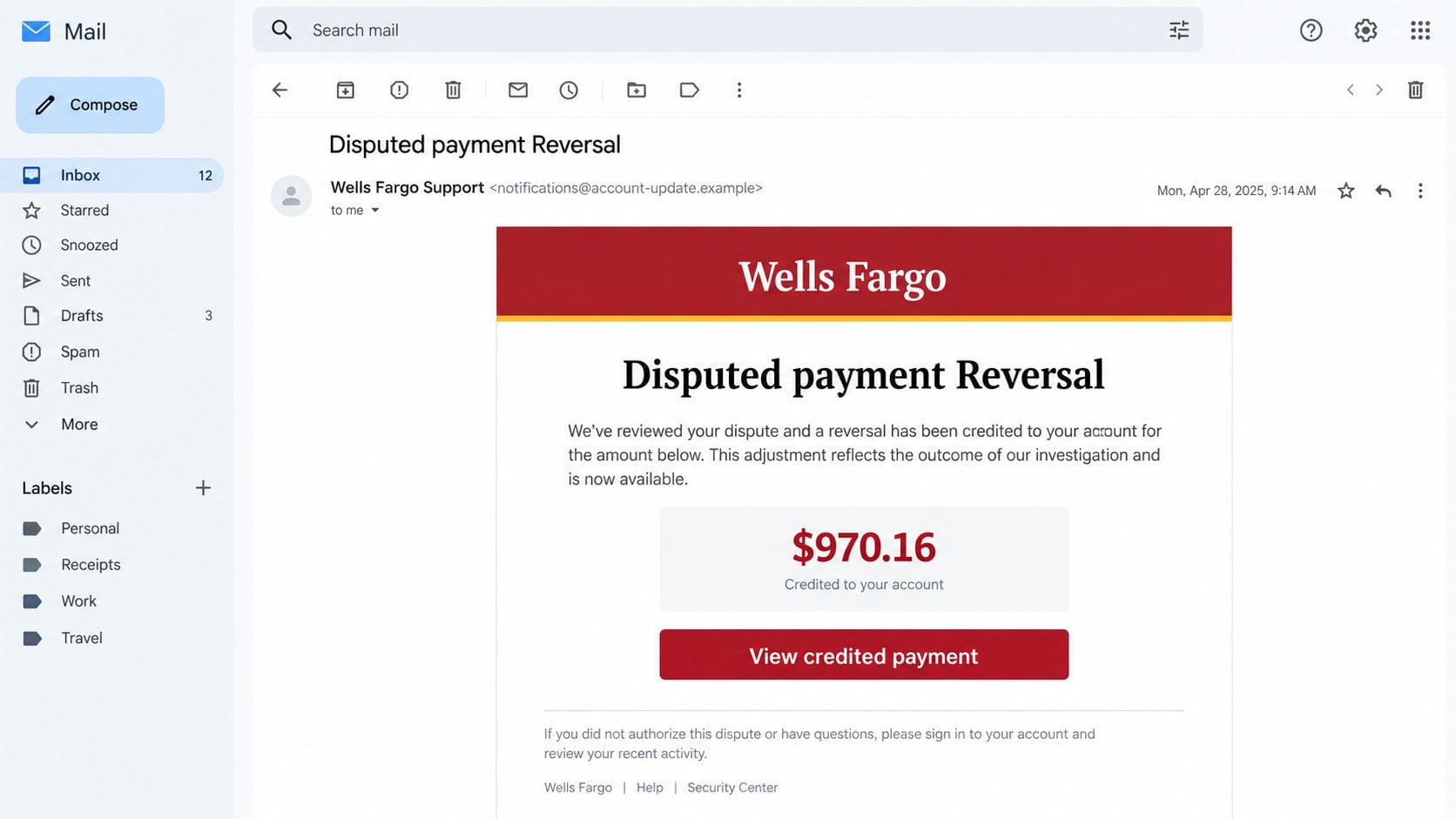
The Wells Fargo Disputed Payment Reversal email claims a disputed $970.16 transaction was credited to the recipient’s account.
It tells the reader to review the payment and obtain a one-time verification code. A button labeled “View credited payment” provides the route.
The amount is precise rather than rounded. Specific figures often feel connected to a real investigation, even when the recipient remembers no matching dispute.
A credit creates two reactions that help the scammer. Existing customers may want confirmation, while noncustomers may fear fraudulent activity under their identity.
Both reactions encourage a click. The message does not need to know whether the recipient actually banks with Wells Fargo.
The Button Opens a Counterfeit Bank Sign-On Page
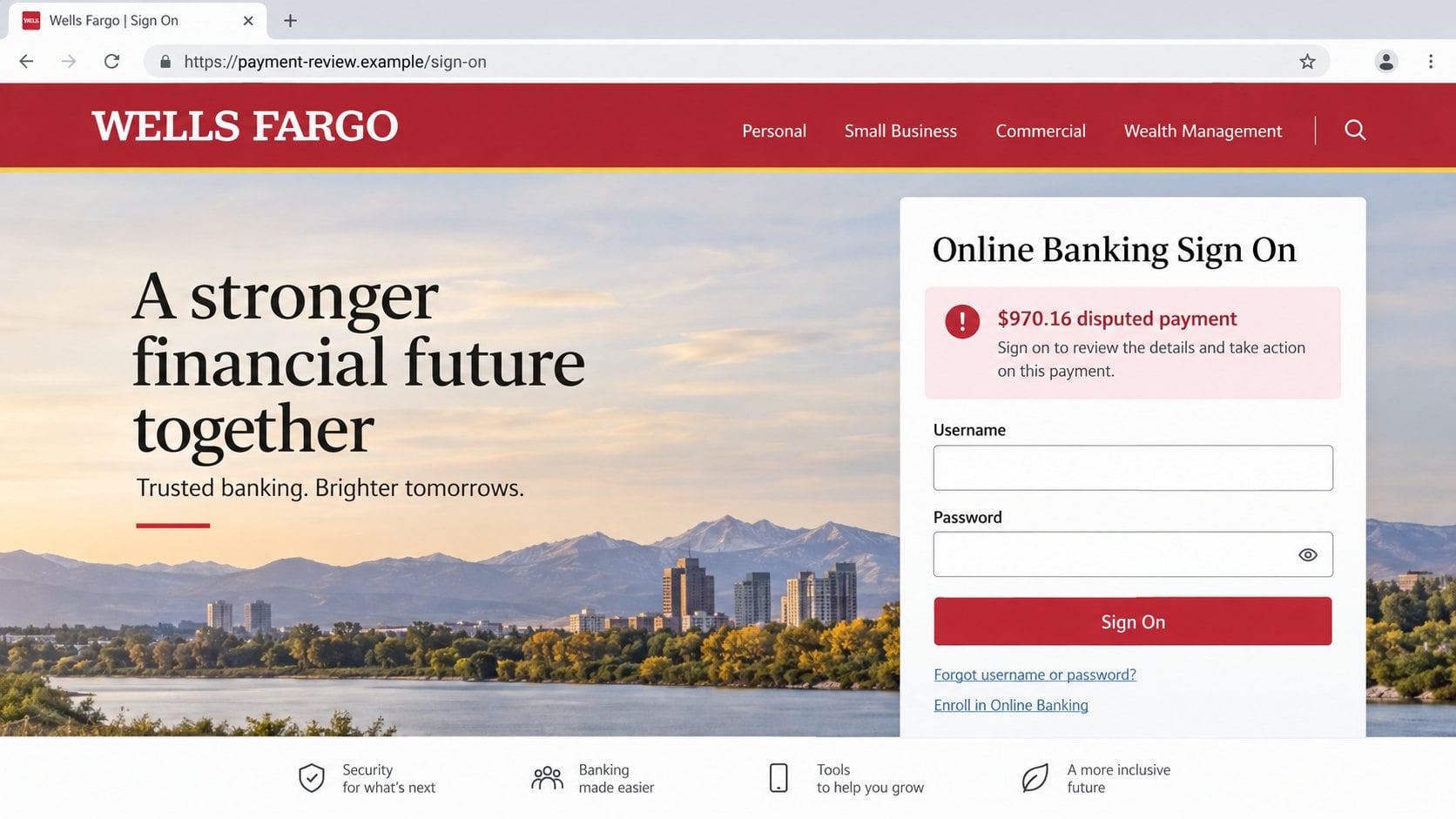
The destination is not the official Wells Fargo website. It is an unrelated domain dressed to resemble an online banking portal.
The page requests a username and password. Later screens may ask for a one-time code, card details, Social Security information, or other verification data.
Visual similarities do not create a connection with the bank. Logos, red colors, navigation labels, and familiar footer links can be copied.
The address bar exposes the separation. A padlock can encrypt the counterfeit page while still delivering submitted data to its operator.
Wells Fargo is not involved in this campaign. Criminals misuse the bank’s identity because recognizable financial branding increases trust and urgency.
Bank Credentials Can Produce Immediate Financial Harm
Online banking access gives criminals opportunities to view balances, change contact details, add recipients, and attempt transfers or payment fraud.
A captured one-time code can help them pass an additional security check. That code protects only when it is never relayed to an unsolicited page.
The email announces an unexpected $970.16 credit.
A dispute theme explains why action seems necessary.
Borrowed bank branding creates familiarity.
The button hides an unrelated website.
The false portal requests banking credentials.
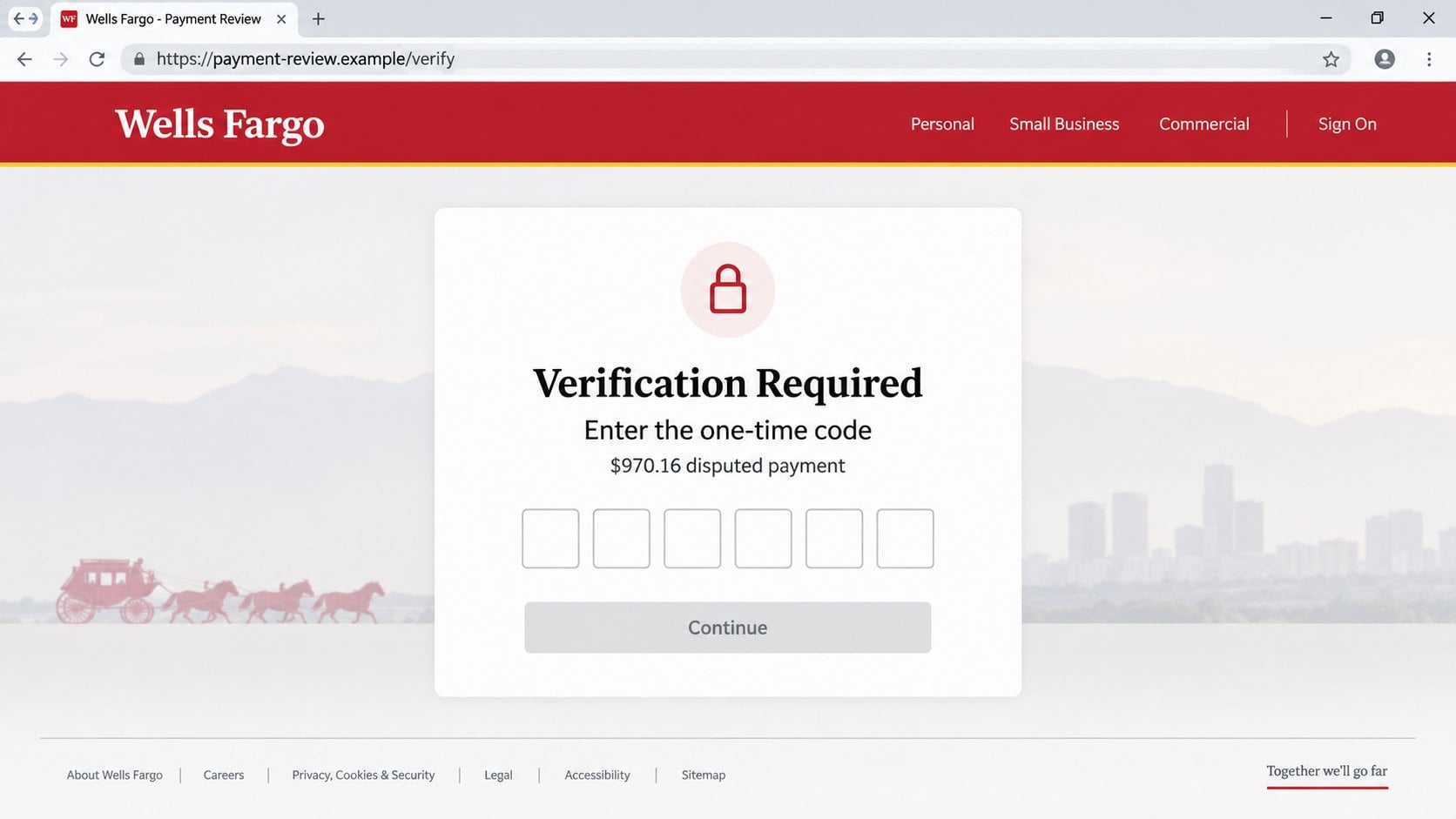
A second page may collect a one-time code.
Stolen access can lead to transfers and identity theft.
Reading the email alone does not alter a bank account. The greatest danger begins when credentials, codes, card details, or personal data are submitted.
A genuine dispute reversal should already appear inside the official banking application or independently opened account website.
How the Wells Fargo Disputed Payment Reversal Scam Works
Step 1: The Campaign Announces Money Returning
The message arrives with a subject saying a disputed payment was credited. Positive financial news can disarm the caution triggered by a charge notice.
The amount $970.16 is large enough to matter but plausible for travel, electronics, services, or a significant household purchase.
Recipients who filed another dispute may assume the amount is related. Others click because they need to understand a transaction they never reported.
Large campaigns rely on coincidence. Among thousands of recipients, some will have a recent dispute or an account with the named bank.
Step 2: Familiar Bank Design Supplies Confidence
The email uses a red header, recognizable bank name, restrained wording, and a professional button. These elements can be recreated from public examples.
A display name may say “Wells Fargo Support,” while the full sender address belongs to a domain unrelated to the bank.
The footer may include security language to appear responsible. Fraudulent emails often tell readers to protect accounts while directing them toward theft.
Spelling and layout are weak tests. A polished message can remain fraudulent, while legitimate automated notices occasionally contain awkward formatting.
Step 3: The Credit Review Button Becomes the Funnel
The message provides one prominent action. Instead of explaining the dispute, it requires the recipient to leave the inbox and authenticate.
The link can pass through tracking or redirect pages before reaching the final host. Operators use that flexibility to replace blocked destinations.
A visible bank name inside the link text is meaningless when the actual registered domain belongs to someone else.
Opening the bank application independently breaks the funnel. The scammer loses control over the route, page, and information requested.
Step 4: A Copied Portal Requests the Username and Password
The landing page imitates online banking with fields for a username and password. It may repeat the disputed amount beside the form.
This repetition connects the page to the email story. The visitor can overlook the address bar because the visible details seem consistent.
Submitted credentials may be forwarded instantly to an operator. Automated bots can also test them against the real bank within seconds.
An error message does not mean the data stayed safe. The page can collect information before claiming a sign-in failure.
Step 5: The Criminal Requests a One-Time Code
If the bank challenges the attempted login, the victim may receive a genuine verification code. The fake page then asks for that code.
The code message usually warns against sharing it. Entering the code on another website still shares it with the person controlling that form.
Attackers may coordinate in real time because codes expire quickly. Loading screens and repeated prompts keep the victim engaged while the login proceeds.
Additional forms can request card numbers, PINs, addresses, tax identifiers, or security answers. Each request expands the possible fraud.
Step 6: Access Is Used for Theft and Persistence
After entering the account, criminals can inspect balances and recent transactions. That information helps them choose believable follow-up stories.
They may change alerts, add a transfer recipient, or link an external account. Some actions trigger verification, which explains continued contact with the victim.
Fraudsters can call while impersonating the bank and reference details obtained from the account. Accurate information makes the second approach harder to question.
Personal data within statements can also support identity theft. Financial harm may continue after the original credentials are replaced.
How to Verify the $970.16 Credit Alert
Check the Account Through the Official Application
Do not use the email button. Open the Wells Fargo application directly or type the known banking address into a new browser window.
Review account activity, secure messages, and dispute history. A genuine $970.16 reversal should appear as a posted or pending transaction.
If no record exists, the email claim is unsupported. Do not keep testing the message link to discover why.
Noncustomers should not follow the link either. Contact the bank through its official public channel if identity misuse remains a concern.
Compare the Sender With Verified Bank Mail
Expand the full sender information and inspect the Reply-To address. Compare both with notices already confirmed through the account.
An unrelated domain is a decisive warning. A familiar display name does not override the address that actually transmitted the message.
Authentication results can reveal spoofing, but a pass is not complete proof. Criminals can properly authenticate mail sent from domains they control.
Look for account-specific context without revealing new information. Generic salutations and missing dispute references weaken the message’s credibility.
Read the Link Destination Carefully
Preview the button address without opening it. The registered domain must belong to the bank, not a vaguely financial website.
Extra words, hyphens, or subdomains can create a convincing visual pattern. Ownership depends on the core registered domain.
Never enter banking credentials through a link delivered by surprise email. Starting from the official application eliminates most domain confusion.
Call the Bank Using a Trusted Number
Use the number printed on the physical card, shown inside the official application, or published on the independently opened bank website.
Ask whether the dispute, credit, and recent login attempts are genuine. Bank staff can investigate without asking for your complete password.
Never call a number supplied only by a suspicious email or webpage. Callback scams depend on keeping every contact route under criminal control.
If the representative asks for a code you did not initiate, end the call and reconnect through the trusted number.
What to Do If You Fell Victim to the Wells Fargo Credit Scam
Financial phishing requires quick, direct action. Contact the real bank first, then secure associated email and identity information.
Call Wells Fargo through an official channel immediately.
Explain that credentials or a one-time code may have been entered on a counterfeit website. Ask for the account to be secured.
Request review of logins, transfers, new recipients, contact changes, linked accounts, and pending transactions. Record the case reference.
Change online banking credentials safely.
Use the official application or an address you entered independently. Create a unique password and update the username if the bank recommends it.
Do not reuse the previous password anywhere. Replace matching credentials on email and other financial services.
Revoke sessions and reset authentication methods.
Ask the bank to invalidate active sessions, remembered devices, and digital-wallet connections. Remove any device you do not recognize.
Review telephone numbers, email addresses, security questions, and multifactor options. Confirm that alerts still reach you.
Dispute unauthorized activity without delay.
Report transfers, purchases, account changes, or applications you did not authorize. Follow the bank’s instructions and submit supporting evidence promptly.
Monitor linked accounts because criminals may move funds indirectly. Freeze compromised cards and replace them when advised.
Secure the email account tied to banking.
Change its password, end unknown sessions, inspect forwarding rules, and remove suspicious connected applications.
Email access can reset bank credentials and intercept alerts. Enable phishing-resistant multifactor authentication where the provider supports it.
Scan devices if anything was downloaded.
The observed campaign centers on credential theft, but a related page could deliver malware. Run a complete Malwarebytes scan after any download or installation.
AdGuard can block many known phishing and malicious advertising destinations. It supports safer browsing but does not replace direct bank verification.
Protect your identity and preserve evidence.
Save the email, headers, fake addresses, screenshots, codes received, and bank correspondence. Do not preserve passwords in plain text.
If tax or identity data was disclosed, consider credit freezes or fraud alerts. Report significant loss to police and the relevant national authority.
Is Your Device Infected? Run a Free Malware Scan
Slow performance, constant pop-ups, or strange behavior? These are classic signs of a malware infection. The fastest way to find out is to scan your device with Malwarebytes Anti-Malware Free — one of the most trusted malware removal tools available.
The free version detects and removes the most common threats, including:
Adware — the cause of those annoying pop-ups
Browser hijackers — unwanted redirects and changed homepages
Trojans and spyware — hidden programs stealing your data
Potentially unwanted programs (PUPs) — software you never asked for
👉 Select your device below — Windows, Mac, or Android — then follow the simple steps to download Malwarebytes, scan your system, and remove any threats it finds. The whole process takes about 5 minutes.
Malwarebytes for WindowsMalwarebytes for MacMalwarebytes for Android
Run a Malware Scan with Malwarebytes for Windows
Malwarebytes is one of the most popular and trusted anti-malware tools for Windows — and it’s completely free for removing infections. It catches threats that many antivirus programs miss, including adware, browser hijackers, and trojans. Follow the steps below to scan and clean your PC in just a few minutes.
Download Malwarebytes
Click the button below to download the latest version of Malwarebytes for Windows from the official source. The free version is all you need — it will scan your computer and remove adware, browser hijackers, and other malicious software at no cost.
(The link opens in a new page where your download will start)
Install Malwarebytes
When the download finishes, open your Downloads folder and double-click the MBSetup file. If Windows shows a User Account Control pop-up, click “Yes” to allow the installation.
Follow the On-Screen Prompts to Install Malwarebytes
The setup wizard will walk you through a few quick screens:
Choose where you’re installing the program — “Personal Computer” or “Work Computer” — then click Next.
Malwarebytes will now install on your device. This usually takes under a minute.
When installation is complete, the “Welcome to Malwarebytes” screen will open automatically.
On the final screen, click Open Malwarebytes to launch the program.
Enable “Scan for Rootkits”
Before scanning, turn on rootkit detection so Malwarebytes can find even the most hidden threats. Click the Settings gear icon on the left side of the screen.
In the settings menu, find “Scan for rootkits” and click the toggle so it turns blue.
Done? Click “Dashboard” in the left pane to return to the main screen.
Start the Scan
Click the blue Scan button. Malwarebytes will automatically update its virus database and start checking your computer for malware.
Wait for the Scan to Finish
The scan checks your entire system for browser hijackers and other malicious programs, so it can take several minutes. Feel free to do something else — just check back occasionally to see the progress.
Quarantine the Detected Threats
When the scan is done, you’ll see a list of everything Malwarebytes found — malware, adware, and potentially unwanted programs. Click the “Quarantine” button to remove all of them at once.
Malwarebytes will now remove the malicious files and registry entries and move them safely into quarantine.
Restart Your Computer
Some threats can only be fully removed after a reboot. If Malwarebytes asks you to restart, click Yes. Once you’re logged back in, your PC is clean and you can continue with the next steps in this guide.
When the scan finishes, click Quarantine to remove everything Malwarebytes found. That’s it — your Windows PC is now clean of trojans, adware, and other malware, and should be back to running smoothly.
If your current antivirus allowed this malicious program on your computer, you may want to consider purchasing Malwarebytes Premium to protect against these types of threats in the future. If you are still having problems with your computer after completing these instructions, then please follow one of the steps:
Malwarebytes for Mac is a free on-demand scanner that removes the malware other security software tends to miss — adware, browser hijackers, and unwanted programs included. Cleaning an infected Mac with Malwarebytes has always been completely free, and it’s our go-to recommendation. Follow the steps below to scan and clean your Mac in just a few minutes.
Download Malwarebytes for Mac
Click the button below to download the latest version of Malwarebytes for Mac.
When the download finishes, open your Downloads folder and double-click the setup file to begin the installation.
Follow the On-Screen Prompts to Install Malwarebytes
The Malwarebytes for Mac Installer will guide you through a few quick screens. Click “Continue” and keep following the prompts until the installation completes.
When the installation is complete, Malwarebytes opens to the Welcome to Malwarebytes screen. Click “Get started“.
Select “Personal Computer” or “Work Computer”
Malwarebytes will ask what type of computer you’re installing it on. Click either Personal Computer or Work Computer, whichever applies.
Start the Scan
Click the “Scan” button. Malwarebytes will automatically update its detection database and begin checking your Mac for malware.
Wait for the Scan to Finish
Malwarebytes will scan your Mac for adware, browser hijackers, and other malicious programs. This can take a few minutes, so feel free to do something else — just check back occasionally to see the progress.
Quarantine the Detected Threats
When the scan is done, you’ll see a list of everything Malwarebytes found. Click the “Quarantine” button to remove all the threats at once.
Restart Your Mac
Malwarebytes will now remove all the malicious files it found. Some threats can only be fully removed after a reboot — if Malwarebytes asks you to restart, allow it. Once you’re logged back in, your Mac is clean.
Once the scan is done, remove every threat it detected. Your Mac is now free of adware, rogue browser extensions, and other potentially harmful software.
If your current antivirus allowed a malicious program on your computer, you might want to consider purchasing the full-featured version of Malwarebytes Anti-Malware to protect against these types of threats in the future. If you are still experiencing problems while trying to remove a malicious program from your computer, please ask for help in our Mac Malware Removal Help & Support forum.
Run a Malware Scan with Malwarebytes for Android
Malwarebytes for Android automatically detects and removes dangerous threats like malware and ransomware so you don’t have to worry about your most-used device being compromised. Aggressive detection of adware and potentially unwanted programs keeps your Android phone or tablet running smooth.
Download Malwarebytes for Android.
You can download Malwarebytes for Android by clicking the link below.
In the Google Play Store, tap “Install” to install Malwarebytes for Android on your device.
When the installation process has finished, tap “Open” to begin using Malwarebytes for Android. You can also open Malwarebytes by tapping on its icon in your phone menu or home screen.
Follow the on-screen prompts to complete the setup process
When Malwarebytes will open, you will see the Malwarebytes Setup Wizard which will guide you through a series of permissions and other setup options. This is the first of two screens that explain the difference between the Premium and Free versions. Swipe this screen to continue. Tap on “Got it” to proceed to the next step. Malwarebytes for Android will now ask for a set of permissions that are required to scan your device and protect it from malware. Tap on “Give permission” to continue. Tap on “Allow” to permit Malwarebytes to access the files on your phone.
Update database and run a scan with Malwarebytes for Android
You will now be prompted to update the Malwarebytes database and run a full system scan.
Click on “Update database” to update the Malwarebytes for Android definitions to the latest version, then click on “Run full scan” to perform a system scan.
Wait for the Malwarebytes scan to complete.
Malwarebytes will now start scanning your phone for adware and other malicious apps. This process can take a few minutes, so we suggest you do something else and periodically check on the status of the scan to see when it is finished.
Click on “Remove Selected”.
When the scan has been completed, you will be presented with a screen showing the malware infections that Malwarebytes for Android has detected. To remove the malicious apps that Malwarebytes has found, tap on the “Remove Selected” button.
Restart your phone.
Malwarebytes for Android will now remove all the malicious apps that it has found. To complete the malware removal process, Malwarebytes may ask you to restart your device.
After the scan, tap Remove Selected to delete all detected threats. Your Android phone is now clean — no more malicious apps, adware, or browser redirects.
If your current antivirus allowed a malicious app on your phone, you may want to consider purchasing the full-featured version of Malwarebytes to protect against these types of threats in the future. If you are still having problems with your phone after completing these instructions, then please follow one of the steps:
Restore your phone to factory settings by going to Settings > General management > Reset > Factory data reset.
Now that your device is clean, keep it that way. Most infections start with a malicious ad or a fake download button — so blocking them at the source is your best defense.
We recommend AdGuard, which blocks malicious ads, phishing pages, and dangerous redirects before they can reach you.
Why a Refund Story Can Be More Persuasive Than a Charge
People expect fraudulent messages to demand money. A credit announcement feels positive, reducing the defensive reaction associated with an overdue bill.
The recipient may interpret caution as risking the refund. That reversal makes clicking feel like protecting money rather than exposing an account.
A disputed payment also implies previous security checks. The story suggests the bank already investigated and now needs only a final confirmation.
The exact $970.16 figure resembles transaction data. Precision is easy to invent but psychologically stronger than a round amount.
Existing disputes create coincidence. A person waiting for any refund may connect the email with a real case despite different details.
Noncustomers face a separate fear. They may believe someone opened an account in their name and click to investigate identity theft.
The scam therefore works across two groups with opposite assumptions. One sees expected banking activity, while the other sees unauthorized banking activity.
Direct account access resolves both situations safely. Real credits and identity alerts should be visible through official support.
One-Time Codes Do Not Protect Against Every Phishing Page
A one-time code adds security when the user knows which action generated it and enters it only into the correct service.
Real-time phishing turns the victim into a relay. The criminal starts a genuine login, then asks the victim to pass along the resulting code.
The code itself may describe the action. Read every message completely and deny any request you did not initiate.
Push notifications deserve the same caution. Repeated prompts can be an attempt to wear down the account owner.
Passkeys and hardware security keys resist common counterfeit-domain attacks because authentication is tied to the correct website.
Even strong authentication cannot fix information submitted through separate forms. Card numbers, identity data, and security answers still require careful handling.
Never disclose a code to someone who calls unexpectedly. A real employee does not need your code to cancel fraud they claim to see.
If a code arrives unexpectedly, open the official application and inspect activity. Do not return to the page that caused it.
Report repeated prompts to the bank. They can indicate that a password is already known and needs immediate replacement.
Security succeeds when each signal is interpreted in context. A code is not permission to continue an unfamiliar process.
Frequently Asked Questions
Is the $970.16 Wells Fargo credit real?
Not because the email says so. Confirm the transaction inside the official account or with bank support reached through a trusted number.
Is Wells Fargo responsible for the email?
No. Criminals copy the bank’s name and appearance. The fraudulent sender and unrelated destination are not operated by Wells Fargo.
What if I do not have a Wells Fargo account?
Delete the message after reporting it. If identity theft concerns remain, contact the bank independently and review your credit reports.
Can the fake page steal a one-time code?
Yes. A counterfeit verification screen can relay a valid code to criminals attempting a real login at that moment.
Does clicking alone expose my bank account?
Usually, credentials or other interaction are needed. Close the page, check downloads, and contact the bank if any sensitive detail was entered.
Should I reply to ask whether the message is genuine?
No. Replying confirms an active address and keeps contact inside the scammer’s channel. Verify through the bank’s official application or telephone number.
The Bottom Line
The Wells Fargo Disputed Payment Reversal scam uses a fictional $970.16 credit to lead recipients toward counterfeit banking and verification screens.
Review transactions only through the official account, protect one-time codes, and call the bank immediately if credentials or financial information were exposed.
10 Rules to Avoid Online Scams
Here are 10 practical safety rules to help you avoid malware, online shopping scams, crypto scams, and other online fraud. Each tip includes a quick “if you already got hit” action.
Stop and verify before you click, log in, download, or pay.
Most scams win by creating urgency. Verify using a trusted method: type the website address yourself, use the official app, or call a known number (not the one in the message).
If you already clicked: close the page, do not enter passwords, and run a malware scan.
Keep your operating system, browser, and apps updated.
Updates patch security holes used by malware and malicious ads. Turn on automatic updates where possible.
If you saw a scary “update now” pop-up: close it and update only through your device settings or the official app store.
Use layered protection: antivirus plus an ad blocker.
Antivirus helps block malware. An ad blocker reduces scam redirects, phishing pages, and malvertising.
If your browser is acting weird: remove unknown extensions, reset the browser, then run a full scan.
Install apps, software, and extensions only from official sources.
Avoid cracked software, “keygens,” and random downloads. During installs, choose Custom/Advanced and decline bundled offers you do not recognize.
If you already installed something suspicious: uninstall it, restart, and scan again.
Treat links and attachments as untrusted by default.
Phishing often impersonates delivery services, banks, and popular brands. If it is unexpected, do not open attachments or log in through the message.
If you entered credentials: change the password immediately and enable 2FA.
Shop safely: research the store, then pay with protection.
Be cautious with brand-new stores, “closing sale” stories, and prices that make no sense. Prefer credit cards or PayPal for dispute options. Avoid wire transfers, gift cards, and crypto payments.
If you already paid: contact your card issuer or PayPal quickly to dispute the transaction.
Crypto rule: never pay a “fee” to withdraw or recover money.
Common patterns include fake profits, then “tax,” “gas,” or “verification” fees. Another is a “recovery agent” who demands upfront crypto.
If you already sent crypto: stop paying, save evidence (wallet addresses, TXIDs, chats), and report the scam to the platform used.
Secure your accounts with unique passwords and 2FA (start with email).
Use a password manager and unique passwords for every account. Enable 2FA using an authenticator app when possible.
If you suspect an account takeover: change passwords, sign out of all devices, and review recent logins and recovery settings.
Back up important files and keep one backup offline.
Backups protect you from ransomware and device failure. Keep at least one backup on an external drive that is not always connected.
If you suspect infection: do not connect backup drives until the system is clean.
If you think you are a victim: stop losses, document evidence, and escalate fast.
Move quickly. Speed matters for disputes, account recovery, and limiting damage.
Stop payments and contact: do not send more money or respond to the scammer.
Call your bank or card issuer: block transactions, replace the card if needed, and start a dispute or chargeback.
Secure your email first: change the email password, enable 2FA, and remove unfamiliar recovery options.
Secure other accounts: change passwords, enable 2FA, and log out of all sessions.
Scan your device: remove suspicious apps or extensions, then run a full malware scan.
Save evidence: screenshots, emails, order pages, tracking pages, wallet addresses, TXIDs, and chat logs.
Report it: to the payment provider, marketplace, social platform, exchange, or wallet service involved.
These rules are intentionally simple. Most online losses happen when decisions are rushed. Slow down, verify independently, and use payment methods and account controls that give you recourse.
Hello! I'm Lapain Epuran, your go-to source for detailed and honest product reviews. From tech gadgets to miracle cures, I provide insights to help you make informed choices. Join me as we discover what's truly worth your time and money.