

Most suspicious emails pretend security rules do not exist. This one takes a smarter approach by claiming those rules are the reason it arrived.
The message calls itself an authorized awareness exercise, turning familiar workplace training language into the first test of its credibility.
Overview
An Authorized Exercise Becomes the Disguise
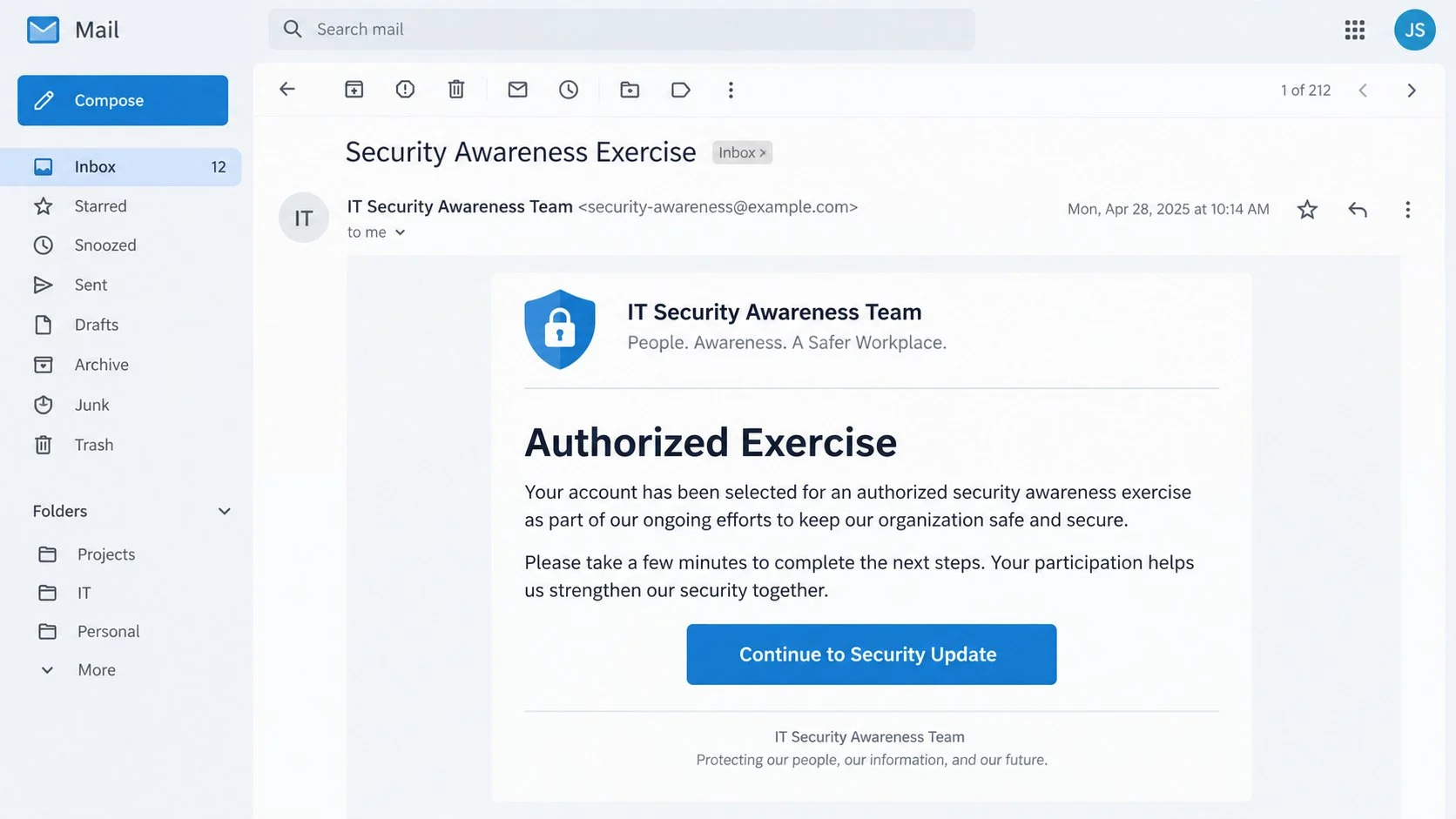
The Security Awareness Exercise email claims the recipient’s account was selected for an official workplace security activity.
It appears to come from an IT Security Awareness Team and asks the employee to continue to a security update.
The wording repeatedly emphasizes authorization. That repetition is designed to suppress the natural hesitation people feel before clicking an external link.
Many organizations conduct genuine phishing simulations and mandatory training. Criminals borrow that familiar process because employees already expect unusual messages during exercises.
The apparent lesson is itself the lure. The recipient may believe interacting is required, monitored, and approved by management.
The Training Button Opens a Fake Webmail Page
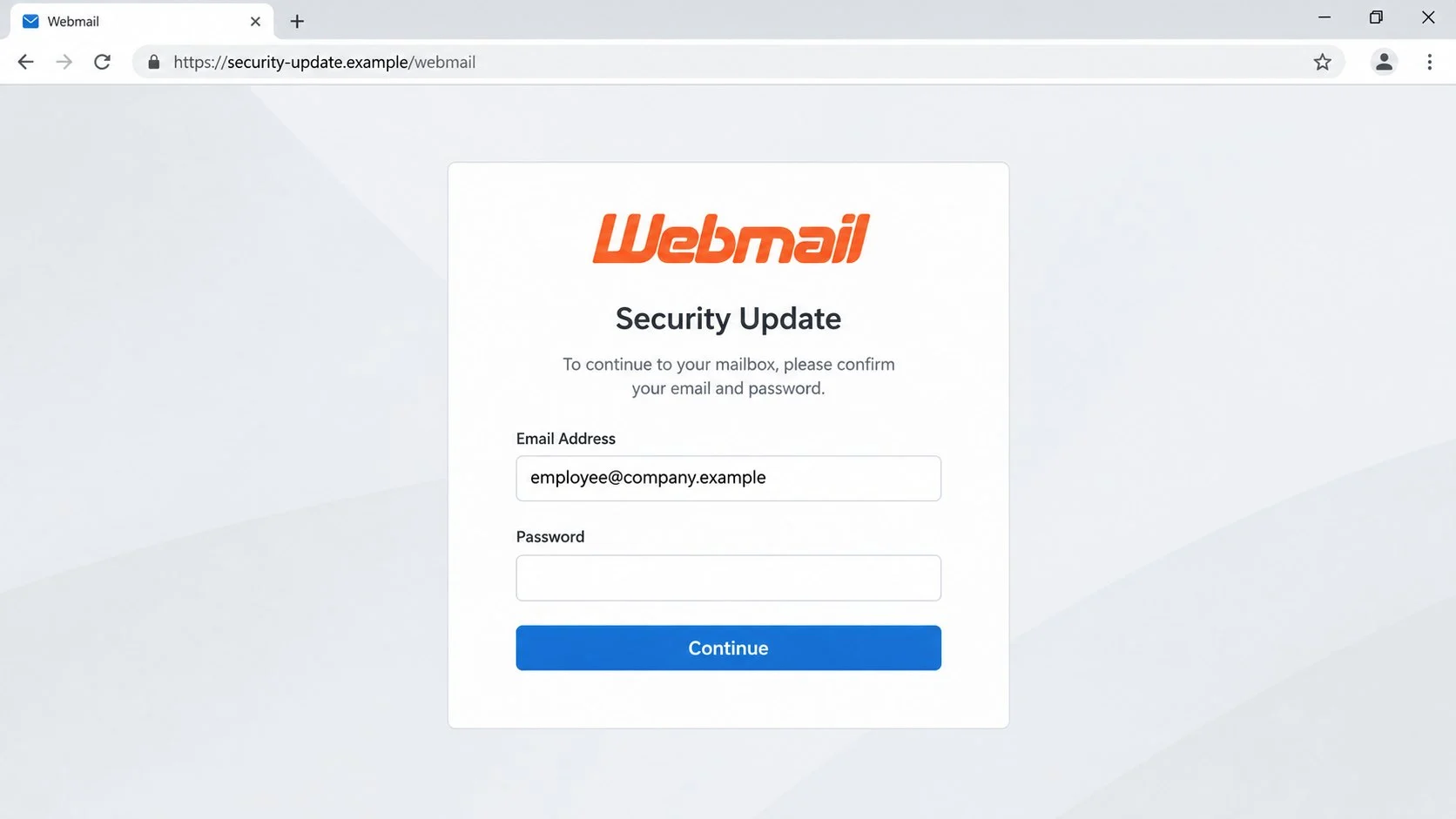
The “Continue to Security Update” button leads outside the employer’s established systems. The destination imitates a webmail sign-in portal.
Observed versions have used a cPanel-style page on a domain unrelated to the organization. The address may already be inserted into the form.
That prefilled field comes from the link, not from a trusted session. Passing an email address inside a URL requires no access to the account.
The page asks for the mailbox password. Submitting it sends the secret to whoever operates the counterfeit portal.
No legitimate awareness exercise should collect a real password through an external form. Training should teach that behavior is unsafe, not require it.
Workplace Access Gives the Criminal Context and Reach
A compromised business mailbox contains organizational charts, vendor conversations, shared documents, meeting invitations, and internal vocabulary.
Attackers can study those details before impersonating employees. They may target payroll, finance, human resources, administrators, or external suppliers.
- The message claims to be an authorized exercise.
- IT and security language lowers suspicion.
- A participation request creates workplace pressure.
- The button leads to an external webmail page.
- The address may be prefilled for realism.
- The form collects the employee’s password.
- A hijacked inbox enables internal phishing.
The employer, security team, and cPanel project are not responsible for a campaign simply because their names or visual patterns appear.
Reading the email does not complete any exercise and usually does not infect the computer. Risk rises when the recipient follows its external instructions.
How the Security Awareness Exercise Scam Works
Step 1: Attackers Choose a Message Employees Are Trained to Notice
Security notices receive attention because ignoring them may violate policy. Employees can worry that nonparticipation will be recorded or reported.
Awareness programs also vary between companies. A recipient may not know exactly which vendor, sender, or platform the employer uses.
That uncertainty gives the scam room. The message needs to resemble a plausible program, not match one documented process perfectly.
Campaigns can target business addresses gathered from company websites, professional networks, breached databases, or previous compromises.
Step 2: Repeated Claims of Authorization Reduce Doubt
The email may open and close by calling the exercise authorized. It can mention organizational safety, ongoing training, or required participation.
These phrases sound reassuring because they address the exact concern a cautious employee might raise about clicking.
However, an unverified sender cannot authorize itself. Authority must come from known policy, internal communication, and a trustworthy domain.
A shield icon and professional layout strengthen the impression. Visual polish remains easy to reproduce and carries no administrative approval.
Step 3: A Single Button Directs the Employee Outside
The call to action says “Continue to Security Update,” blending training and account maintenance into one vague task.
Vagueness is useful because the landing page can decide what happens next. The email avoids describing a specific course, module, or learning objective.
The link may include the recipient’s address in an encoded parameter. The destination reads it and displays the same address inside a form.
Redirects or compromised sites can sit between the message and the final page. That chain complicates filtering and hides the endpoint from casual inspection.
Step 4: The External Page Copies Webmail Styling
The destination can resemble cPanel Webmail or another common service. Familiar fields and spacing encourage routine sign-in behavior.
The page may say authentication is needed before training begins. This explanation connects the password form to the exercise without proving anything.
The browser address remains more reliable than the artwork. An unrelated domain cannot become an employer portal through copied colors or text.
HTTPS also offers no ownership guarantee. It protects data in transit to the fraudulent host, which is precisely where criminals want it delivered.
Step 5: Real Credentials Are Captured During a Fake Lesson
The victim enters an actual work address and password, believing the action is part of an approved internal process.
The page can transmit those values immediately. It may then display an error, promise a training module, or redirect to a genuine site.
A second password prompt can gather alternate versions. A delay spinner gives the operator time to test access while the employee waits.
If multifactor authentication is enabled, follow-up pages or messages may request a code or approval. Accepting them can complete the takeover.
Step 6: The Compromised Account Targets Coworkers
An attacker inside a real mailbox can send messages that pass normal email authentication and appear within existing conversations.
They may distribute more training invitations, fake shared documents, payroll forms, or urgent payment requests. Internal trust increases the response rate.
Mailbox rules can conceal replies and security alerts. OAuth grants or application passwords may preserve access after the main password changes.
The incident can expand beyond email if the same credentials protect cloud applications, remote access, collaboration tools, or administrative panels.
How to Verify a Security Awareness Exercise
Review the Organization’s Documented Training Process
Check the employee portal, onboarding materials, previous announcements, or security handbook. Genuine campaigns should use known platforms and recognizable scheduling.
A real simulation may intentionally appear suspicious, but reporting it should not harm the employee. The process should reward caution.
Training notifications usually identify a course, deadline, sponsor, or portal. An ambiguous “security update” deserves separate confirmation.
If the company has no published process, ask the security team to document one. Predictability helps employees reject fraudulent exceptions.
Contact IT Through the Internal Directory
Use a known help-desk ticket, internal chat, or directory number. Do not reply to the message or use a contact link within it.
Provide the sender, subject, arrival time, and visible button destination. The team can compare those details with any approved exercise.
Security staff should be able to confirm the platform without asking for the employee’s password. No support representative needs that secret.
Reporting may reveal a wider campaign. Administrators can search other mailboxes and block the destination before more accounts are affected.
Inspect the Real Destination and URL Parameters
Hover over the button or use an approved mail-security preview. Identify the registered domain and compare it with known company resources.
Notice whether the address appears inside the URL. That parameter explains personalization without implying a verified session.
Unknown external hosts, free project pages, or misspelled company domains should not receive workplace credentials.
Examine External Labels and Sender Authentication
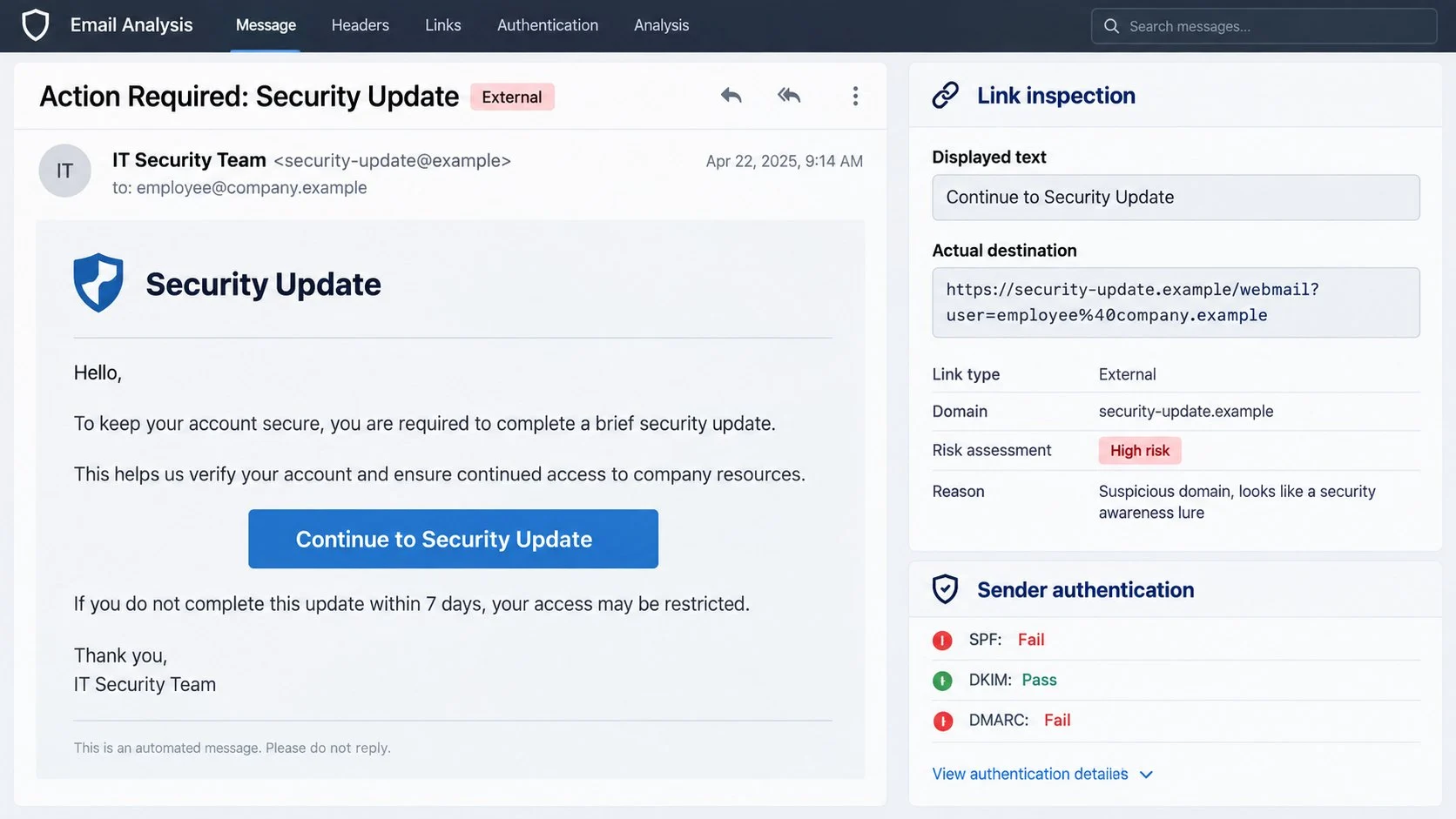
Many organizations mark mail from outside senders. A supposed internal security instruction carrying an external label should trigger careful verification.
Read the full From and Reply-To addresses. A display name can claim “IT Security Team” without any connection to the employer.
Authentication failures strengthen the case against the message. Authentication passes only prove control of the sending domain, not membership in your organization.
Compare prior legitimate training messages. Stable sender domains, portal addresses, and course formats form a practical baseline.
What to Do If You Fell Victim to the Security Awareness Scam
Report the incident quickly and without embarrassment. Criminals deliberately borrowed a process that employees are expected to follow.
- Disconnect from the fraudulent flow and preserve details.
Close the page and deny any pending authentication prompt. Save the email, headers, destination, and time of interaction.
Do not forward the active link broadly. Submit it through the organization’s established phishing-reporting method.
- Call the internal security or help-desk team.
Use the directory, employee portal, or previously known contact route. Explain exactly which information or approvals were provided.
Administrators can disable sessions, search logs, block infrastructure, and notify other employees faster than an individual user can.
- Change the work password through the official system.
Create a unique credential from a trusted device and avoid patterns based on the old password. Replace reused copies elsewhere.
Follow company policy if password changes require a managed device or support approval. Never return to the email link.
- Revoke sessions, tokens, and unknown applications.
Ask administrators to end active sessions and inspect OAuth grants, application passwords, delegates, recovery methods, and enrolled devices.
Remove unfamiliar entries. A password reset alone may leave authorized tokens functioning.
- Audit the mailbox for persistence and misuse.
Check forwarding, inbox rules, sent items, deleted mail, automatic replies, and message-trace records. Preserve unauthorized changes before removal.
Warn recipients if the account sent phishing or payment requests. Give them the subject and timing without repeating live links.
- Scan after downloads or software execution.
The documented lure seeks credentials, but related campaigns can deliver malicious attachments. Use Malwarebytes for a complete scan after opening files or running software.
AdGuard helps intercept numerous dangerous sites and advertising chains. It complements organizational filtering but cannot certify an internal training program.
- Monitor business systems connected to the identity.
Review collaboration platforms, cloud storage, payroll, remote access, and financial tools for unusual activity. Prioritize systems using the same sign-on identity.
Record incident and ticket numbers. Notify legal, privacy, or financial teams when sensitive company or customer data may have been exposed.
Is Your Device Infected? Run a Free Malware Scan
Slow performance, constant pop-ups, or strange behavior? These are classic signs of a malware infection. The fastest way to find out is to scan your device with Malwarebytes Free — one of the most trusted malware removal tools available.
The free version detects and removes the most common threats, including:
- Adware — the cause of those annoying pop-ups
- Browser hijackers — unwanted redirects and changed homepages
- Trojans and spyware — hidden programs stealing your data
- Potentially unwanted programs (PUPs) — software you never asked for
👉 Select your device below — Windows, Mac, or Android — then follow the simple steps to download Malwarebytes, scan your system, and remove any threats it finds. The scan usually takes 5 to 20 minutes.
Run a Malware Scan with Malwarebytes for Windows
Malwarebytes is one of the most popular and trusted anti-malware tools for Windows — and it’s completely free for removing infections. It catches threats that many antivirus programs miss, including adware, browser hijackers, and trojans. Follow the steps below to scan and clean your PC in just a few minutes.
Download Malwarebytes
Click the button below to download the latest version of Malwarebytes for Windows from the official source. The free version is all you need — it will scan your computer and remove adware, browser hijackers, and other malicious software at no cost.
Download MalwarebytesOfficial installer for Windows 11 and 10. Your download starts right away.Want real-time protection? See Malwarebytes Premium Malwarebytes Free for WindowsScans and removes malware at no cost
-
Install Malwarebytes
When the download finishes, open your Downloads folder and double-click the MBSetup file. If Windows shows a User Account Control pop-up, click “Yes” to allow the installation.

Follow the On-Screen Prompts to Install Malwarebytes
The setup wizard will walk you through a few quick screens:
-
Choose where you’re installing the program — “Personal Computer” or “Work Computer” — then click Next.

-
Malwarebytes will now install on your device. This usually takes under a minute.

-
When installation is complete, the “Welcome to Malwarebytes” screen will open automatically.

-
On the final screen, click Open Malwarebytes to launch the program.

-
Enable “Scan for Rootkits”
Before scanning, turn on rootkit detection so Malwarebytes can find even the most hidden threats. Click the Settings gear icon on the left side of the screen.

In the settings menu, find “Scan for rootkits” and click the toggle so it turns blue.

Done? Click “Dashboard” in the left pane to return to the main screen.
Start the Scan
Click the blue Scan button. Malwarebytes will automatically update its virus database and start checking your computer for malware.

-
Wait for the Scan to Finish
The scan checks your entire system for browser hijackers and other malicious programs, so it can take 5 to 20 minutes depending on your computer. Feel free to do something else — just check back occasionally to see the progress.

-
Quarantine the Detected Threats
When the scan is done, you’ll see a list of everything Malwarebytes found — malware, adware, and potentially unwanted programs. Click the “Quarantine” button to remove all of them at once.

Malwarebytes will now remove the malicious files and registry entries and move them safely into quarantine.

-
Restart Your Computer
Some threats can only be fully removed after a reboot. If Malwarebytes asks you to restart, click Yes. Once you’re logged back in, Malwarebytes has finished removing the threats it found.

That’s it — your Windows PC is now clean of trojans, adware, and other malware, and should be back to running smoothly.
If you are still having problems with your computer after completing these instructions, then please follow one of the steps:
- Run a computer scan with ESET Online Scanner
- Ask for help in our Windows Malware Removal Help & Support forum.
Run a Malware Scan with Malwarebytes for Mac
Malwarebytes for Mac is a free on-demand scanner that removes the malware other security software tends to miss — adware, browser hijackers, and unwanted programs included. Cleaning an infected Mac with Malwarebytes has always been completely free, and it’s our go-to recommendation. Follow the steps below to scan and clean your Mac in just a few minutes.
-
Download Malwarebytes for Mac
Click the button below to download the latest version of Malwarebytes for Mac.
Download MalwarebytesOfficial installer for macOS. Your download starts right away.Want real-time protection? See Malwarebytes PremiumMalwarebytes Free for MacScans and removes malware at no cost -
Open the Malwarebytes setup file
When the download finishes, open your Downloads folder and double-click the setup file to begin the installation.

-
Follow the On-Screen Prompts to Install Malwarebytes
The Malwarebytes for Mac Installer will guide you through a few quick screens. Click “Continue” and keep following the prompts until the installation completes.



When the installation is complete, Malwarebytes opens to the Welcome to Malwarebytes screen. Click “Get started“.
-
Select “Personal Computer” or “Work Computer”
Malwarebytes will ask what type of computer you’re installing it on. Click either Personal Computer or Work Computer, whichever applies.

-
Start the Scan
Click the “Scan” button. Malwarebytes will automatically update its detection database and begin checking your Mac for malware.

-
Wait for the Scan to Finish
Malwarebytes will scan your Mac for adware, browser hijackers, and other malicious programs. This can take a few minutes, so feel free to do something else — just check back occasionally to see the progress.

-
Quarantine the Detected Threats
When the scan is done, you’ll see a list of everything Malwarebytes found. Click the “Quarantine” button to remove all the threats at once.

-
Restart Your Mac
Malwarebytes will now remove all the malicious files it found. Some threats can only be fully removed after a reboot — if Malwarebytes asks you to restart, allow it. Once you’re logged back in, your Mac is clean.

That’s it — your Mac is now free of adware, rogue browser extensions, and other potentially harmful software.
If you are still experiencing problems while trying to remove a malicious program from your computer, please ask for help in our Mac Malware Removal Help & Support forum.
Run a Malware Scan with Malwarebytes for Android
Malwarebytes for Android automatically detects and removes dangerous threats like malware and ransomware so you don’t have to worry about your most-used device being compromised. Aggressive detection of adware and potentially unwanted programs keeps your Android phone or tablet running smooth.
-
Download Malwarebytes for Android.
You can download Malwarebytes for Android by clicking the link below.
Get Malwarebytes for AndroidOpens Google Play in a new tab.Want real-time protection? See Malwarebytes Premium for AndroidMalwarebytes for AndroidScans your phone and removes malware at no cost -
Install Malwarebytes for Android on your phone.
In the Google Play Store, tap “Install” to install Malwarebytes for Android on your device.

When the installation process has finished, tap “Open” to begin using Malwarebytes for Android. You can also open Malwarebytes by tapping on its icon in your phone menu or home screen.

-
Follow the on-screen prompts to complete the setup process
When Malwarebytes will open, you will see the Malwarebytes Setup Wizard which will guide you through a series of permissions and other setup options.
This is the first of two screens that explain the difference between the Premium and Free versions. Swipe this screen to continue.
Tap on “Got it” to proceed to the next step.
Malwarebytes for Android will now ask for a set of permissions that are required to scan your device and protect it from malware. Tap on “Give permission” to continue.
Tap on “Allow” to permit Malwarebytes to access the files on your phone.
-
Update database and run a scan with Malwarebytes for Android
You will now be prompted to update the Malwarebytes database and run a full system scan.

Click on “Update database” to update the Malwarebytes for Android definitions to the latest version, then click on “Run full scan” to perform a system scan.

-
Wait for the Malwarebytes scan to complete.
Malwarebytes will now start scanning your phone for adware and other malicious apps. This process can take a few minutes, so we suggest you do something else and periodically check on the status of the scan to see when it is finished.

-
Click on “Remove Selected”.
When the scan has been completed, you will be presented with a screen showing the malware infections that Malwarebytes for Android has detected. To remove the malicious apps that Malwarebytes has found, tap on the “Remove Selected” button.

-
Restart your phone.
Malwarebytes for Android will now remove all the malicious apps that it has found. To complete the malware removal process, Malwarebytes may ask you to restart your device.
That’s it — your Android phone is now clean — no more malicious apps, adware, or browser redirects.
If you are still having problems with your phone after completing these instructions, then please follow one of the steps:
- Restore your phone to factory settings by going to Settings > General management > Reset > Factory data reset.
- Ask for help in our Mobile Malware Removal Help & Support forum.
Stay Protected: Block Ads and Malicious Sites
Now that your device is clean, keep it that way. Most infections start with a malicious ad or a fake download button — so blocking them at the source is your best defense.
We recommend AdGuard, which blocks malicious ads, phishing pages, and dangerous redirects before they can reach you.
👉 Download AdGuard and browse safely
How Real Security Training Should Differ
A responsible program has an identified owner. Employees know which team sponsors it and how to contact that team independently.
The platform and domain are documented before an urgent campaign begins. Staff should not learn a new sign-in route from one surprise email.
Training never needs a real password entered into a simulation form. Simulated login pages should record behavior without collecting reusable secrets.
Reporting a suspicious exercise should count as success. Punishing cautious employees teaches the opposite of safe verification.
Organizations should explain external-email labels and preserve them in simulations. Training that removes real safeguards can create harmful habits.
Follow-up education should appear through a known portal. It can explain the missed indicators without requesting further authentication through the original message.
Privacy rules should define what is measured, who can see results, and how long records remain. Transparency builds trust in the program.
Security teams should coordinate with the help desk. Frontline support must recognize active simulations and genuine criminal copies.
Employees need a reporting button that works on desktop and mobile. Complicated reporting encourages people to solve uncertain messages alone.
Most importantly, training should reinforce one consistent rule: verify unexpected credential requests through a channel the message did not supply.
Why This Lure Is Especially Dangerous at Work
Security departments hold legitimate authority. Employees may comply quickly because the message appears tied to policy, audits, or performance expectations.
The subject also discourages outside discussion. A recipient might assume asking a coworker would reveal or invalidate a confidential simulation.
Remote and hybrid work increase uncertainty about internal processes. New vendors and cloud tools can arrive without in-person explanation.
A compromised account has social proof. Coworkers recognize the address, signature, writing patterns, and previous conversation history.
Attackers can read organizational language before writing new lures. Project names, leadership titles, and scheduled events make impersonation more precise.
One mailbox can expose distribution lists and shared drives. The damage may extend beyond the employee whose password was captured.
Administrative or finance accounts create greater risk, but every employee can provide a route toward someone with broader permissions.
Segmentation, least privilege, conditional access, and phishing-resistant authentication reduce what one stolen password can accomplish.
Monitoring should flag unusual forwarding, impossible travel, mass downloads, new OAuth grants, and atypical sending behavior.
A blame-free reporting culture is equally important. Fast disclosure often determines whether one compromised account becomes an organizational incident.
Frequently Asked Questions
Could my employer send a real security exercise email?
Yes. Confirm it through the documented training portal or internal security team, especially when the message requests sign-in or leaves the company domain.
Would a legitimate simulation ask for my actual password?
No responsible exercise should collect reusable credentials. Report any page that asks for a real workplace password on an external domain.
Why was my email address already filled in?
The button can include the address as a URL parameter. Prefilling proves only that the campaign knew where it sent the message.
What if I approved a multifactor prompt afterward?
Contact security immediately. The approval may have completed an attacker’s login, so sessions and authentication methods need urgent review.
Can the message pass email authentication and still be fraudulent?
Yes. Attackers can authenticate mail from domains they own. The claimed organizational relationship and destination must still be verified.
Should I be embarrassed for following a training-themed lure?
No. The deception exploits normal workplace expectations. Rapid, accurate reporting is the most useful response and can protect colleagues.
The Bottom Line
The Security Awareness Exercise scam disguises credential theft as an approved workplace lesson, then routes employees to a counterfeit webmail sign-in page.
Verify training through internal channels, never provide real passwords to simulations, and alert security immediately after any interaction with the false portal.

Join the discussion
0 commentsShare your experience or ask a question about this article.
Discussion
Start the conversation
Have a question or something useful to share? Add the first comment.