

An unexpected email saying your HSBC card was registered with Apple Pay can create an instant jolt. If you did not add the card, the natural reaction is to cancel the change before somebody starts spending.
That urgency is exactly what makes this message dangerous. The safest response begins outside the email, with a calm check of your real accounts and the details the sender hopes you will overlook.
Overview
What is the HSBC Apple Pay registration email scam?
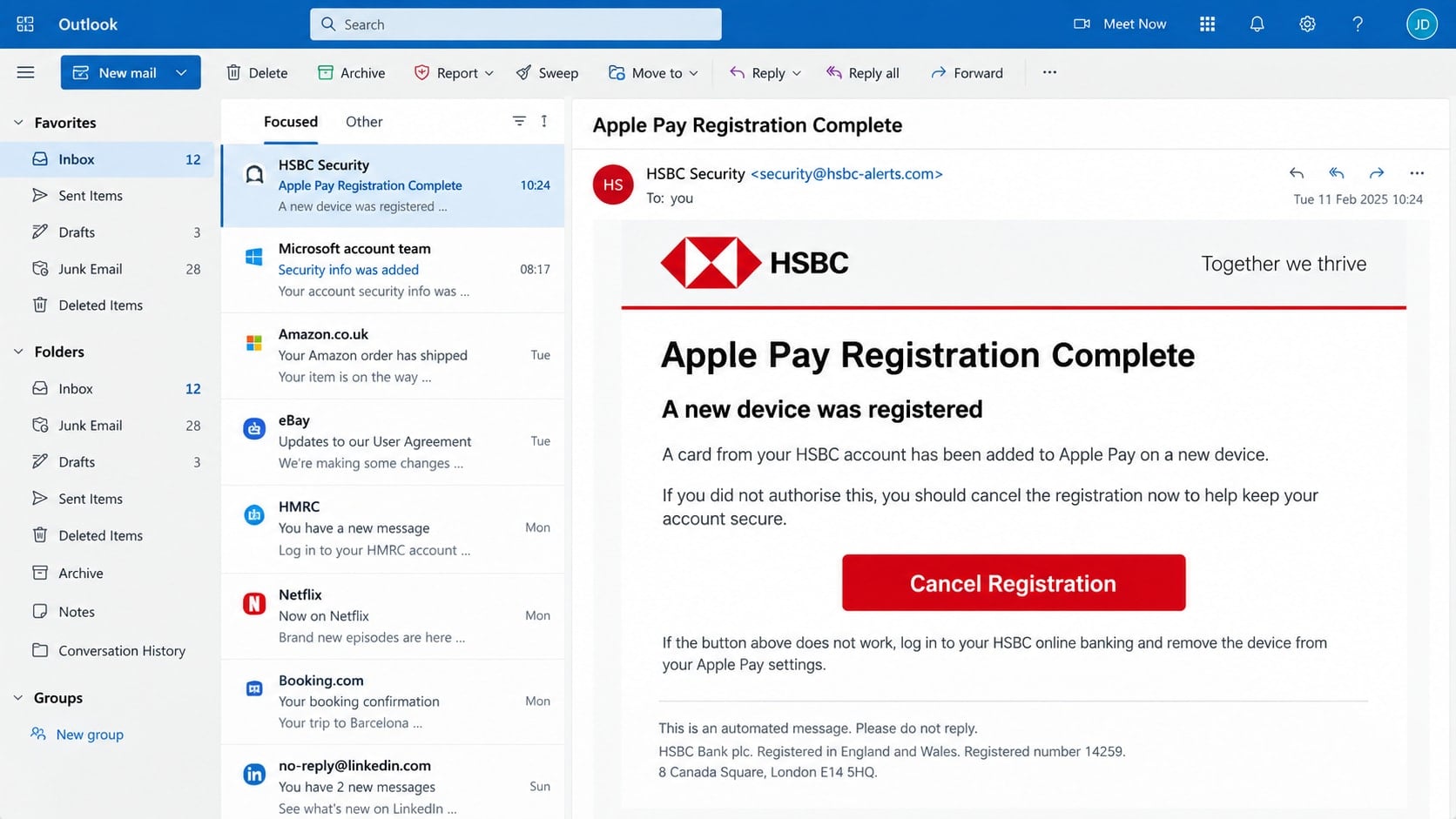
The HSBC Apple Pay registration email scam is a phishing message that claims a bank card has just been added to a digital wallet. It tells the recipient to follow a link if the registration was not authorized. That link may open a copied bank sign-in page built to capture credentials and security information.
The message uses the HSBC and Apple Pay names without permission. HSBC does support Apple Pay, and genuine wallet-registration notices can exist, but neither company needs you to sign in through an unfamiliar email link to cancel a suspicious registration.
Why can the warning feel believable?
A digital-wallet alert describes a familiar fraud scenario. It may include the last four digits of a card, a believable time, a case number, or wording copied from a real bank notification. A polished logo and a sender name such as “HSBC Security” make the message easy to skim rather than examine.
There is an added complication: on May 15, 2026, HSBC UK acknowledged that a technical error caused some customers to receive unexpected emails about cards being added to Apple Pay, Google Pay, or Samsung Pay. A surprising message is therefore not automatically proof of phishing. It must be verified through the bank’s real channels.
What should make you stop?
- The email asks you to use a Cancel, Review, or Verify button.
- The visible sender name says HSBC, but the address uses another domain.
- The link opens a page whose address is not an official HSBC domain.
- The page asks for a full password, card PIN, security code, or one-time code.
- The message threatens an immediate loss unless you act within minutes.
- A reply or call-back number appears only inside the suspicious email.
Do not decide from one clue alone. A sender address can be spoofed, and a familiar logo proves nothing. The reliable test is to open the HSBC app yourself or type the bank’s known website address, then compare the alert with your cards, wallet, and recent activity.
How the HSBC Apple Pay Registration Email Scam Works
Step 1: A security alert arrives without warning
The email says a card was successfully enrolled in Apple Pay, often from a device or location the recipient does not recognize. The subject may use words such as “Registration confirmed,” “New wallet detected,” or “Action required.” It is designed to look like an automated bank notice rather than a sales message.
Criminals do not need to know whether you bank with HSBC. Large campaigns send the same template to thousands of addresses. Enough recipients will be HSBC customers, have an iPhone, or simply worry that an old card is being misused.
Some messages include partial personal information collected from earlier breaches, marketing databases, or public sources. Seeing your name or telephone number can make the warning feel targeted, but it does not prove that the sender has access to your bank account.
Step 2: The email turns uncertainty into urgency
The message presents two uncomfortable possibilities: ignore it and risk fraudulent payments, or click immediately to stop the registration. A short deadline discourages the recipient from opening the bank app, calling the number on the card, or asking another person to examine the message.
The wording may claim that the card will remain active on the unknown device until the verification is complete. In reality, a bank can investigate suspected wallet enrollment without directing a customer through a random email page. Urgency is being used to control the route you take.
Even a genuine-looking cancellation button can hide another destination. On a desktop browser, hovering over it may reveal an unrelated address. On any device, the safest choice is not to test the link at all.
Step 3: The button opens a copied sign-in page
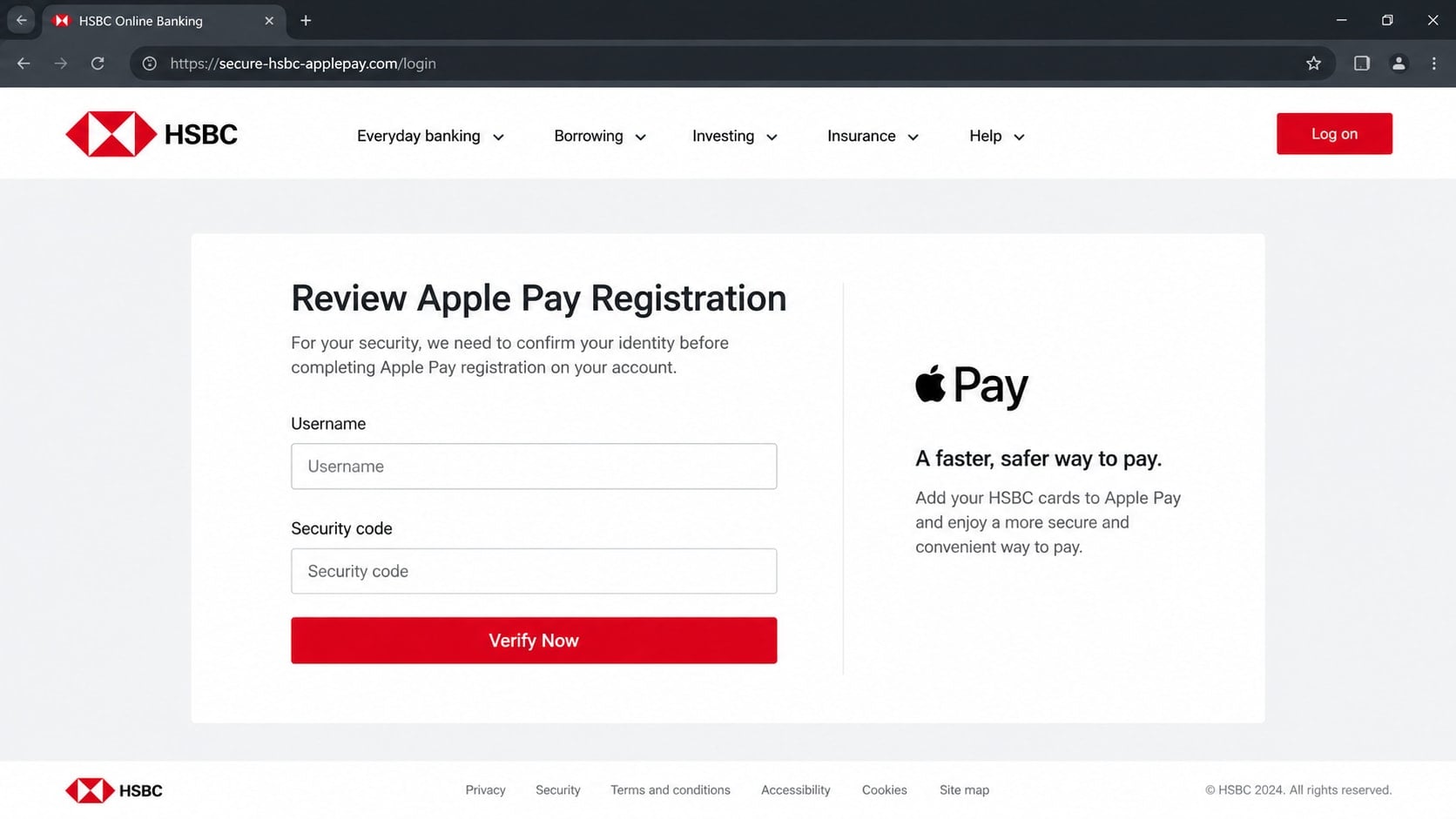
The landing page may reproduce HSBC colors, menus, legal text, and accessibility links. It can use HTTPS and display a padlock because those features only show that the connection to that site is encrypted. They do not establish that HSBC owns the site.
The address bar is more useful than the artwork. Attackers register names containing words such as hsbc, secure, wallet, verify, or applepay, then place the real brand name inside a longer unrelated domain. On a small screen, the misleading portion may be visible while the actual domain is easy to miss.
The reconstructed page below illustrates how little visual difference there may be between a copied sign-in form and a bank page. It is not an HSBC page and should not be treated as evidence of a specific live phishing domain.
Step 4: The form collects banking credentials
The first screen often requests a username or online-banking identifier. A second may ask for memorable information, a password, card details, or a telephone number. Splitting the requests across several pages makes the process feel more like a normal security check.
A phishing page can validate formatting without contacting HSBC. It may reject a short number, hide password characters, and show a loading animation. These interface details are inexpensive to copy and should never be confused with authentication.
Information entered on the page is sent to the attacker. The victim may then be redirected to the real HSBC website or shown a message that the request is complete, reducing the chance that the theft is noticed immediately.
Step 5: A one-time code is requested in real time
If criminals try the stolen credentials while the victim is still on the fake site, the real bank may send a security code or approval prompt. The phishing page asks for that code under the pretext of confirming the cancellation.
The code may actually authorize a sign-in, add a payee, approve a transfer, or enroll another device. Read the genuine bank notification carefully. Its description matters more than the instructions displayed by the page that caused it to arrive.
Never approve a request you did not initiate. A person claiming to be from the bank should not ask you to read back a one-time code or move money to a “safe” account. End the contact and call the number printed on your physical card or listed in the official app.
Step 6: The theft expands beyond one password
With working credentials, an attacker may examine balances, contact details, and recent payments. The information can support a more convincing follow-up call. The caller may quote details obtained from the compromised account and claim to be helping with the original Apple Pay alert.
If the same password was reused elsewhere, email and shopping accounts may also be tested. Control of an email inbox can make account recovery easier for the criminal, so securing email is as important as changing the bank password.
The original message may remain useful even after the phishing page disappears. Save it for reporting, but do not forward it casually to friends with the active link intact. Use the bank’s designated phishing-report address instead.
How to Verify an HSBC Apple Pay Alert
Check the sender and reply path
Expand the message details and inspect the complete From, Reply-To, and Return-Path fields. A display name can say HSBC while the underlying address belongs to an unrelated service. Spelling changes, added words, and free mailbox providers deserve attention.
Authentication results such as SPF, DKIM, and DMARC can help, but most people should not rely on them as the only verdict. A compromised legitimate mailbox may pass checks, while forwarding can complicate results. Treat headers as clues and verify the event separately.
Open HSBC and Apple Wallet yourself
Close the email. Launch the HSBC app from your normal app icon or enter the bank’s known web address manually. Review cards, recent transactions, messages, and device or wallet information if those options are available.
Then check Apple Wallet directly on your own Apple device. Do not install an app suggested by the email. If a card is present that you did not add, contact HSBC promptly through a verified channel and follow the bank’s instructions.
Compare card and device activity
Look for a corresponding alert inside the bank app, not just in the email inbox. Compare the last four card digits and any device details, but remember that partial card information can be exposed elsewhere. Absence of an unknown wallet does not excuse credentials already entered on a fake page.
If you received an unexpected registration notice during a known service error, official updates may explain it. That context still does not make an embedded email link safe. Checking independently resolves both a genuine technical mistake and a phishing attempt without guessing.
Use verified support details
Use the number on the back of the card, the contact option in the official HSBC app, or the contact details on a website address you typed yourself. Do not call a number printed only in the suspicious message or returned by an advertisement in search results.
HSBC advises customers to forward suspicious emails to phishing@hsbc.com and not to click links or open attachments. Regional procedures can differ, so use the support route for the country and account you actually hold.
What to Do if You Have Fallen Victim to This Scam
- Stop interacting with the message.
Close the phishing page and do not submit another code in an attempt to undo the first action. Do not continue a call or chat that began from the email. A criminal may use your concern to request increasingly sensitive information.
Keep the email, page address, and time of the incident for reporting. Capture the visible details without revisiting unknown downloads or completing unfinished forms.
- Contact HSBC through an official channel.
Call the number on your card or use secure support in the official app. Explain exactly what you entered, whether you approved a notification, and whether any payment or wallet enrollment appeared. Clear details help the bank choose the right protective steps.
Ask whether the card, online-banking access, digital-wallet tokens, or pending transfers need action. Do not assume that changing one password removes a card already enrolled elsewhere.
- Change exposed passwords from a trusted device.
Change the HSBC password using the genuine app or site. If it was reused, give every affected account a unique password, beginning with the email account used for recovery. Turn on the strongest additional authentication each service supports.
Review email forwarding rules, recovery addresses, and signed-in sessions. Attackers who reach the inbox may create rules that hide bank warnings or password-reset messages.
- Review transactions and wallet activity.
Check recent and pending activity, including small payments that might test a card. Report anything you do not recognize through the bank’s official process. Save case numbers and note when each report was made.
Continue checking after the first day. Stolen details may be used later, and some transactions take time to appear. Follow the bank’s guidance on statements, replacement cards, and disputes.
- Secure the device if anything was installed.
A simple phishing form does not automatically infect a device. However, if the message led you to install an app, browser extension, profile, or remote-access tool, remove it and run a Malwarebytes scan. Review installed apps and permissions for anything unfamiliar.
AdGuard can help reduce exposure to some malicious advertising and known tracking destinations. It cannot determine whether a bank alert is genuine, recover stolen credentials, or replace the bank’s investigation.
- Report the phishing attempt.
Forward the original message to the bank’s phishing address where appropriate, then mark it as phishing in your email service. In the United States, you can also report the incident at ReportFraud.ftc.gov.
If money was lost, provide law enforcement or the relevant fraud-reporting service with the complete timeline and payment details. Avoid posting full card numbers, security codes, or account screenshots publicly.
- Expect follow-up impersonation.
After an incident, a caller may claim the first attack has been detected and offer to finish securing the account. Treat every unexpected contact as new. Hang up and return to the official number yourself.
Never pay a recovery agent who promises guaranteed reimbursement or special access to the bank. Genuine disputes and investigations follow documented channels; they do not require cryptocurrency, gift cards, or secrecy.
Frequently Asked Questions
Is every HSBC Apple Pay registration email a scam?
No. A genuine enrollment can generate a real notice, and HSBC UK has acknowledged at least one technical error that sent unexpected wallet-registration emails. Verify the event in the official app or with the number on your card instead of judging only by the email.
What if the email came from an address that looks official?
An address can be spoofed, a real mailbox can be compromised, and display names are easy to imitate. An official-looking sender lowers no barriers by itself. Avoid its links and confirm the event through a channel you opened independently.
Can someone add my card to Apple Pay without the physical card?
Enrollment controls vary by bank and circumstance, but stolen card and identity information can be abused. Contact the card issuer promptly if an unknown wallet appears. The bank can assess the token and determine which account protections are necessary.
Does the padlock prove the HSBC sign-in page is safe?
No. The padlock means the connection is encrypted. Criminal sites can obtain certificates too. Read the full domain carefully, and preferably avoid reaching online banking through an email link at all.
What if I clicked but entered nothing?
Close the page and clear any download it initiated. Simply opening a modern webpage is usually less serious than submitting credentials or installing software, but update the browser and scan the device if it behaved unexpectedly. Continue monitoring the relevant account.
Should I cancel my card immediately?
Contact HSBC and describe what happened. The bank can decide whether to block a digital-wallet token, freeze activity, replace the card, or take another step. Do not rely on a cancellation form reached from the suspicious email.
The Bottom Line
The HSBC Apple Pay registration email scam works because the underlying warning is plausible. A real cardholder could reasonably worry about an unfamiliar wallet, and a polished message can make the embedded button feel like the fastest solution.
Use a route the email cannot control. Check the official app, inspect Apple Wallet, and contact HSBC through verified details. If you entered information, act promptly and explain exactly what was exposed.








