DarkTortilla RAT Malware Exposed: Complete Removal and Recovery Guide Now
Written by: Lapain Epuran
Published on:
A quiet computer is not necessarily a clean computer. Some threats are built to avoid pop-ups, slowdowns, and every warning that might make their owner investigate.
DarkTortilla RAT follows that quieter model. Its interest in browser data and multiple outbound channels makes a suspected infection worth treating seriously.
Overview
What DarkTortilla RAT is
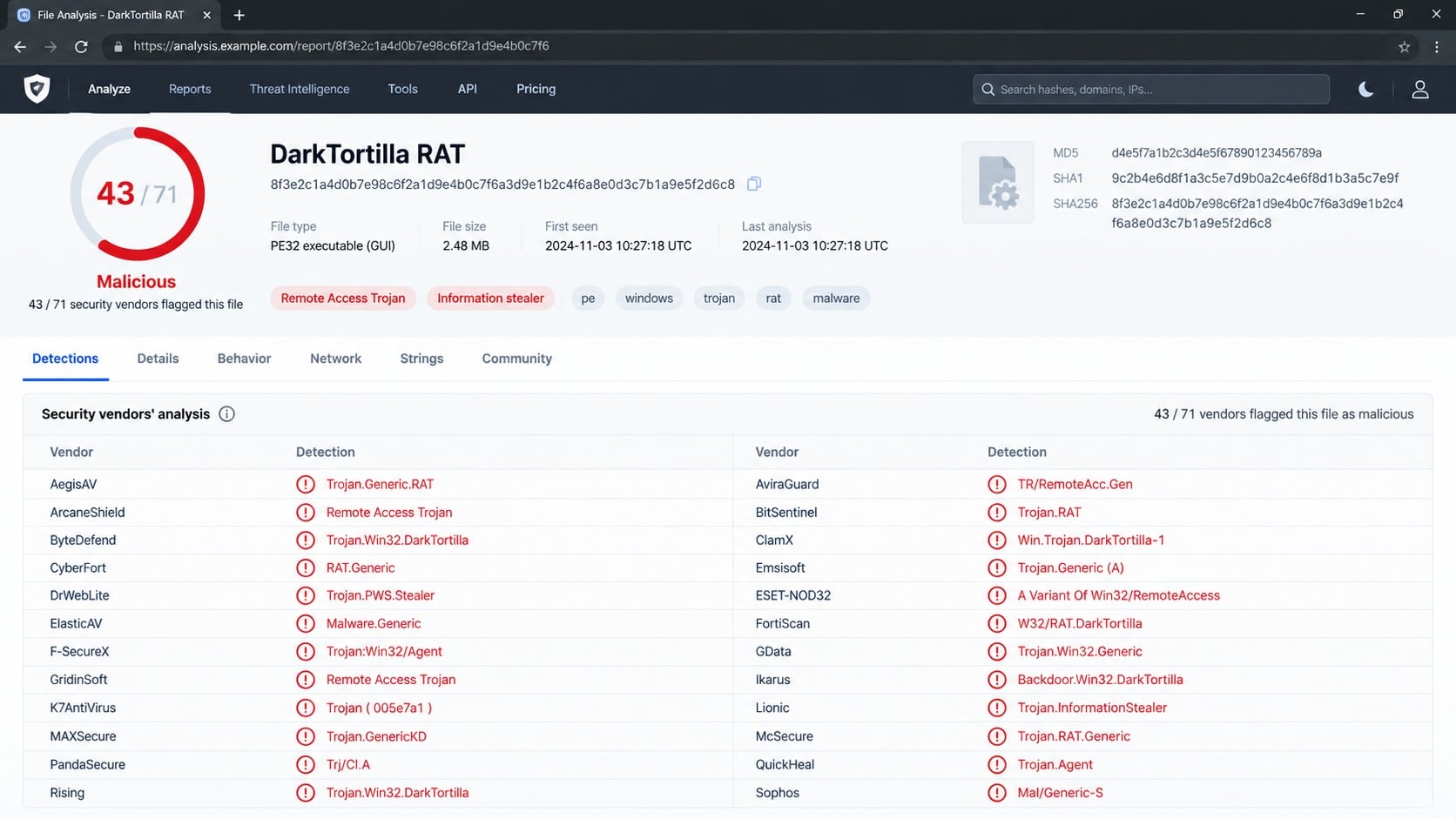
DarkTortilla is a remote access trojan with information-stealing capabilities. A RAT gives an outside operator a path to interact with an infected system.
Its reported collection targets include saved browser passwords, session cookies, browser-profile data, and stored payment card details.
The malware is designed to work silently. A victim may continue browsing normally while sensitive data is gathered in the background.
How stolen information leaves the computer
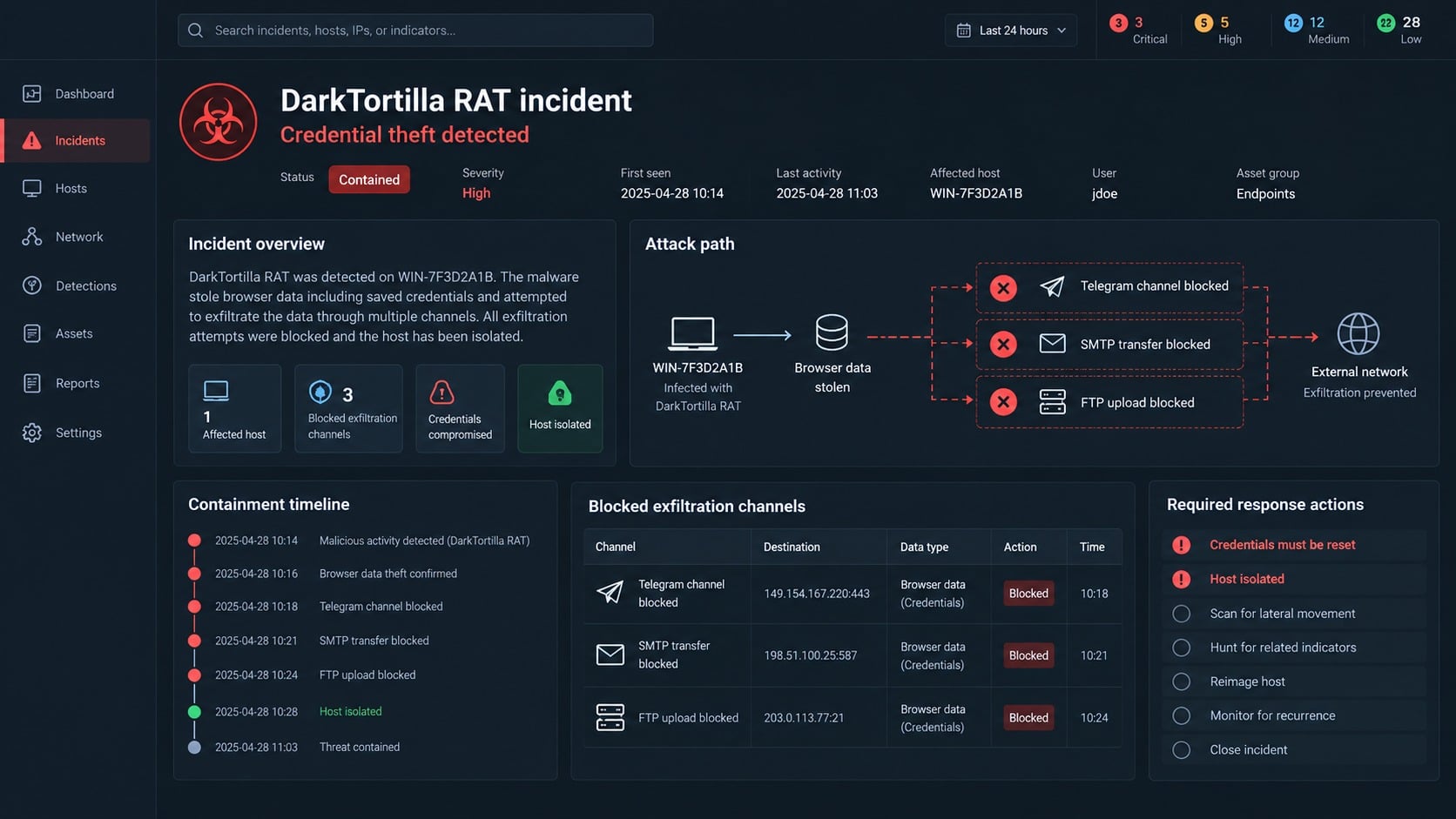
DarkTortilla reportedly uses three exfiltration routes: a Telegram bot, SMTP email, and FTP uploads to an external server.
Using several routes improves resilience. Blocking one service may not stop the same collected package from leaving through another channel.
Before transmission, gathered data can be staged inside a text file placed in a publicly writable Windows location.
What an infection can expose
Passwords saved in Chromium-based and Gecko-based browsers.
Session cookies that may bypass an ordinary password prompt.
Browser profiles containing account and browsing information.
Stored card numbers, expiration dates, and cardholder names.
The device’s public IP address and approximate network location.
Access that can support identity theft, account hijacking, and further malware delivery.
The risk continues after file removal because stolen credentials and cookies remain usable. Endpoint cleanup and account recovery must therefore happen together.
How DarkTortilla RAT Works
Step 1: A malicious file reaches the target
The examined code contains VBScript and VBA components, which are commonly associated with malicious Office documents and phishing attachments.
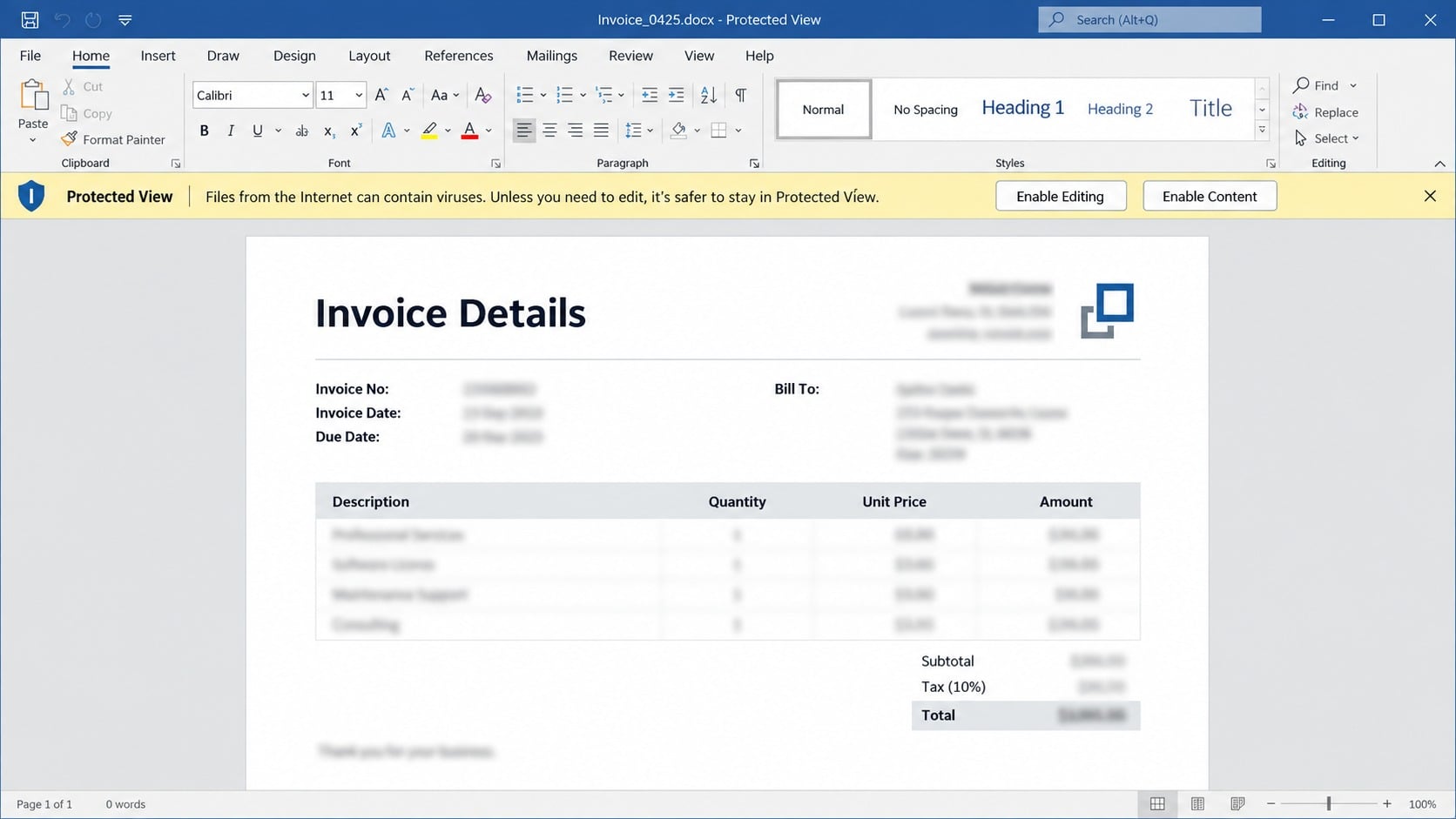
A typical lure may describe an invoice, shipping notice, job document, bank record, or employer file. The attachment appears relevant enough to open.
Protected View initially limits active content. The document may claim that the user must enable editing or macros to reveal hidden information.
That request is dangerous because macros can execute instructions outside the visible document. A blank page can conceal a working installation chain.
DarkTortilla-type threats can also arrive through fake downloads, pirated applications, peer-to-peer packages, malicious advertisements, or illegal activation tools.
The common feature is untrusted execution. Something obtained from outside a verified source is allowed to run with the user’s permissions.
Step 2: Scripted components launch the payload
When active content is approved, a hidden routine can create files, launch a command interpreter, contact a server, or start another embedded component.
VBScript and VBA are legitimate technologies. Their presence becomes suspicious when an unexpected document uses them to start concealed system activity.
The first-stage file may not contain every capability. Downloading a later payload lets attackers change the final malware without rebuilding the original lure.
Security controls can interrupt this chain at several points: attachment scanning, macro restrictions, script blocking, reputation checks, and behavior monitoring.
If those layers fail, the user may see only a document error while the trojan starts behind the application.
A quick close does not reverse code that already executed. The device should be isolated and assessed if active content was enabled.
Step 3: DarkTortilla surveys the infected environment
Once active, the malware can identify system and network details useful for organizing victims. It reportedly queries an external service for the public IP address.
The operator can use that value to estimate region, recognize repeated connections, and distinguish home, business, or hosted environments.
The trojan may locate installed browsers, profile directories, stored-login databases, cookie stores, and encryption material used to protect browser data locally.
This reconnaissance is usually invisible. Task Manager may show an unfamiliar process, but malware can choose names that resemble ordinary software.
CPU and network use may remain low. The absence of obvious performance problems should never be treated as proof of safety.
Endpoint logs and security detections are more reliable than visual symptoms when investigating a stealthy information stealer.
Step 4: Browser credentials and cookies are collected
Modern browsers encrypt saved passwords, but they must also decrypt them for the signed-in operating-system user. Malware running in that context can abuse the same mechanisms.
DarkTortilla reportedly accesses browser databases and local encryption keys to recover credentials saved by Chrome, Edge, Firefox, Brave, Opera, and numerous other browsers.
Session cookies are especially valuable. A valid cookie can represent an already authenticated session, allowing access without entering the account password again.
That is why changing a password alone may not expel an intruder. Existing sessions and refresh tokens need explicit revocation.
Browser profiles can also reveal visited services and account names. This information helps criminals prioritize financial, business, cryptocurrency, and email targets.
Deleting browser history after infection cannot recover data already copied. Incident response must assume collection may have occurred before detection.
Step 5: Payment card and identity data are packaged
DarkTortilla’s reported card module looks for numbers, expiration dates, and cardholder names saved in browser data.
Supported formats span several major card networks. The malware does not need to display a fake checkout when card data already exists locally.
Collected details can be combined with cookies, usernames, IP information, and browser profiles to create a more useful victim package.
The temporary staging file simplifies transmission. It may contain a structured record ready to send through several communications methods.
Data theft can happen quickly, so isolating the machine matters even if the security alert appears moments after the suspicious file ran.
Card issuers should be notified when browser-stored payment information was accessible. Monitoring alone may be insufficient for high-confidence compromise.
Step 6: Three outbound channels carry the stolen package
One route sends information to a Telegram bot, providing near-real-time delivery through a commonly available messaging platform.
Another uses SMTP, the protocol associated with sending email. A third uploads data to an attacker-selected server using FTP.
Redundancy complicates containment. A network that blocks Telegram may still permit outbound mail or FTP traffic.
Likewise, deleting one command destination from a firewall rule does not prove the endpoint has stopped collecting information.
Successful response isolates the host, removes the malware, blocks known destinations, searches for related infections, and resets exposed identities.
Network controls are valuable evidence and containment layers, but endpoint eradication remains necessary.
Why Password Changes Alone Are Not Enough
A password reset protects only one authentication secret. DarkTortilla also targets cookies that can preserve active sessions.
Users should select “sign out everywhere” or its equivalent for affected services. Administrators may need to revoke refresh tokens centrally.
Saved card data creates a separate financial problem. Replacing an account password does not change the card number already copied.
The trojan may also have delivered another payload. Removing a single detected file cannot guarantee that every added component disappeared.
Finally, changing credentials on the infected computer can expose the new values immediately. Recovery should begin from a separate trusted device.
A complete plan cleans or rebuilds the endpoint, invalidates sessions, replaces credentials, protects payment methods, and monitors downstream activity.
How to Identify a DarkTortilla RAT Infection
Review security detections and quarantine history
Different antivirus engines may use generic names such as remote-access trojan, information stealer, injector, or suspicious VB malware.
Record the file path, detection time, hash, action, and original source. Those details help determine what ran and whether similar files exist elsewhere.
Do not restore a quarantined file simply because one engine used a generic label. Context matters more than a friendly-looking filename.
Trace recent documents and downloads
Review email attachments, browser downloads, archives, cracked software, and documents opened shortly before the alert.
Ask whether Protected View was dismissed or macros were enabled. A remembered prompt can establish the likely infection window.
Preserve the original lure for investigation without reopening it. Business users should follow their incident-reporting procedure.
Inspect processes, startup points, and staged files
Look for unfamiliar processes, scheduled tasks, startup entries, services, and files in public or temporary directories.
Manual deletion is risky because malware can mimic system names. Use trusted scanners and experienced incident responders for high-confidence removal.
A process ending after reboot does not confirm eradication. Persistence may launch only under certain user actions or schedules.
Examine account and network evidence
Search for outbound Telegram, SMTP, and FTP activity that the user cannot explain. Correlate it with the suspected execution time.
Review online accounts for unfamiliar sessions, password changes, authorized applications, transactions, or login alerts.
Network evidence can prove data left the host, while clean logs cannot conclusively prove nothing was stolen.
What to Do If DarkTortilla RAT Infected Your Computer
Isolate the machine immediately. Disconnect Wi-Fi and Ethernet. Do not sign into email, banking, shopping, or work services from the suspected host.
Preserve evidence when required. On company equipment, contact security from another device before restarting or deleting files. Live information may matter.
Run trusted offline and full scans. Use Malwarebytes plus the operating system’s built-in protection. Quarantine confirmed threats and scan every attached drive.
Consider a clean rebuild. Reinstall from trusted media when remote access occurred, additional payloads appeared, or responders cannot establish complete eradication.
Reset identities from a clean device. Prioritize email, password managers, banking, business accounts, cryptocurrency services, and any credentials saved in browsers.
Revoke all active sessions. Invalidate cookies, tokens, app passwords, remembered devices, and unknown multi-factor methods rather than relying on password changes.
Protect payment cards and finances. Contact issuers, replace exposed cards when advised, review transactions, and watch credit or identity records.
Use AdGuard after recovery. It can reduce malicious advertising and redirect exposure, but it cannot clean an infected endpoint or recover stolen data.
Is Your Device Infected? Run a Free Malware Scan
Slow performance, constant pop-ups, or strange behavior? These are classic signs of a malware infection. The fastest way to find out is to scan your device with Malwarebytes Anti-Malware Free — one of the most trusted malware removal tools available.
The free version detects and removes the most common threats, including:
Adware — the cause of those annoying pop-ups
Browser hijackers — unwanted redirects and changed homepages
Trojans and spyware — hidden programs stealing your data
Potentially unwanted programs (PUPs) — software you never asked for
👉 Select your device below — Windows, Mac, or Android — then follow the simple steps to download Malwarebytes, scan your system, and remove any threats it finds. The whole process takes about 5 minutes.
Malwarebytes for WindowsMalwarebytes for MacMalwarebytes for Android
Run a Malware Scan with Malwarebytes for Windows
Malwarebytes is one of the most popular and trusted anti-malware tools for Windows — and it’s completely free for removing infections. It catches threats that many antivirus programs miss, including adware, browser hijackers, and trojans. Follow the steps below to scan and clean your PC in just a few minutes.
Download Malwarebytes
Click the button below to download the latest version of Malwarebytes for Windows from the official source. The free version is all you need — it will scan your computer and remove adware, browser hijackers, and other malicious software at no cost.
(The link opens in a new page where your download will start)
Install Malwarebytes
When the download finishes, open your Downloads folder and double-click the MBSetup file. If Windows shows a User Account Control pop-up, click “Yes” to allow the installation.
Follow the On-Screen Prompts to Install Malwarebytes
The setup wizard will walk you through a few quick screens:
Choose where you’re installing the program — “Personal Computer” or “Work Computer” — then click Next.
Malwarebytes will now install on your device. This usually takes under a minute.
When installation is complete, the “Welcome to Malwarebytes” screen will open automatically.
On the final screen, click Open Malwarebytes to launch the program.
Enable “Scan for Rootkits”
Before scanning, turn on rootkit detection so Malwarebytes can find even the most hidden threats. Click the Settings gear icon on the left side of the screen.
In the settings menu, find “Scan for rootkits” and click the toggle so it turns blue.
Done? Click “Dashboard” in the left pane to return to the main screen.
Start the Scan
Click the blue Scan button. Malwarebytes will automatically update its virus database and start checking your computer for malware.
Wait for the Scan to Finish
The scan checks your entire system for browser hijackers and other malicious programs, so it can take several minutes. Feel free to do something else — just check back occasionally to see the progress.
Quarantine the Detected Threats
When the scan is done, you’ll see a list of everything Malwarebytes found — malware, adware, and potentially unwanted programs. Click the “Quarantine” button to remove all of them at once.
Malwarebytes will now remove the malicious files and registry entries and move them safely into quarantine.
Restart Your Computer
Some threats can only be fully removed after a reboot. If Malwarebytes asks you to restart, click Yes. Once you’re logged back in, your PC is clean and you can continue with the next steps in this guide.
When the scan finishes, click Quarantine to remove everything Malwarebytes found. That’s it — your Windows PC is now clean of trojans, adware, and other malware, and should be back to running smoothly.
If your current antivirus allowed this malicious program on your computer, you may want to consider purchasing Malwarebytes Premium to protect against these types of threats in the future. If you are still having problems with your computer after completing these instructions, then please follow one of the steps:
Malwarebytes for Mac is a free on-demand scanner that removes the malware other security software tends to miss — adware, browser hijackers, and unwanted programs included. Cleaning an infected Mac with Malwarebytes has always been completely free, and it’s our go-to recommendation. Follow the steps below to scan and clean your Mac in just a few minutes.
Download Malwarebytes for Mac
Click the button below to download the latest version of Malwarebytes for Mac.
When the download finishes, open your Downloads folder and double-click the setup file to begin the installation.
Follow the On-Screen Prompts to Install Malwarebytes
The Malwarebytes for Mac Installer will guide you through a few quick screens. Click “Continue” and keep following the prompts until the installation completes.
When the installation is complete, Malwarebytes opens to the Welcome to Malwarebytes screen. Click “Get started“.
Select “Personal Computer” or “Work Computer”
Malwarebytes will ask what type of computer you’re installing it on. Click either Personal Computer or Work Computer, whichever applies.
Start the Scan
Click the “Scan” button. Malwarebytes will automatically update its detection database and begin checking your Mac for malware.
Wait for the Scan to Finish
Malwarebytes will scan your Mac for adware, browser hijackers, and other malicious programs. This can take a few minutes, so feel free to do something else — just check back occasionally to see the progress.
Quarantine the Detected Threats
When the scan is done, you’ll see a list of everything Malwarebytes found. Click the “Quarantine” button to remove all the threats at once.
Restart Your Mac
Malwarebytes will now remove all the malicious files it found. Some threats can only be fully removed after a reboot — if Malwarebytes asks you to restart, allow it. Once you’re logged back in, your Mac is clean.
Once the scan is done, remove every threat it detected. Your Mac is now free of adware, rogue browser extensions, and other potentially harmful software.
If your current antivirus allowed a malicious program on your computer, you might want to consider purchasing the full-featured version of Malwarebytes Anti-Malware to protect against these types of threats in the future. If you are still experiencing problems while trying to remove a malicious program from your computer, please ask for help in our Mac Malware Removal Help & Support forum.
Run a Malware Scan with Malwarebytes for Android
Malwarebytes for Android automatically detects and removes dangerous threats like malware and ransomware so you don’t have to worry about your most-used device being compromised. Aggressive detection of adware and potentially unwanted programs keeps your Android phone or tablet running smooth.
Download Malwarebytes for Android.
You can download Malwarebytes for Android by clicking the link below.
In the Google Play Store, tap “Install” to install Malwarebytes for Android on your device.
When the installation process has finished, tap “Open” to begin using Malwarebytes for Android. You can also open Malwarebytes by tapping on its icon in your phone menu or home screen.
Follow the on-screen prompts to complete the setup process
When Malwarebytes will open, you will see the Malwarebytes Setup Wizard which will guide you through a series of permissions and other setup options. This is the first of two screens that explain the difference between the Premium and Free versions. Swipe this screen to continue. Tap on “Got it” to proceed to the next step. Malwarebytes for Android will now ask for a set of permissions that are required to scan your device and protect it from malware. Tap on “Give permission” to continue. Tap on “Allow” to permit Malwarebytes to access the files on your phone.
Update database and run a scan with Malwarebytes for Android
You will now be prompted to update the Malwarebytes database and run a full system scan.
Click on “Update database” to update the Malwarebytes for Android definitions to the latest version, then click on “Run full scan” to perform a system scan.
Wait for the Malwarebytes scan to complete.
Malwarebytes will now start scanning your phone for adware and other malicious apps. This process can take a few minutes, so we suggest you do something else and periodically check on the status of the scan to see when it is finished.
Click on “Remove Selected”.
When the scan has been completed, you will be presented with a screen showing the malware infections that Malwarebytes for Android has detected. To remove the malicious apps that Malwarebytes has found, tap on the “Remove Selected” button.
Restart your phone.
Malwarebytes for Android will now remove all the malicious apps that it has found. To complete the malware removal process, Malwarebytes may ask you to restart your device.
After the scan, tap Remove Selected to delete all detected threats. Your Android phone is now clean — no more malicious apps, adware, or browser redirects.
If your current antivirus allowed a malicious app on your phone, you may want to consider purchasing the full-featured version of Malwarebytes to protect against these types of threats in the future. If you are still having problems with your phone after completing these instructions, then please follow one of the steps:
Restore your phone to factory settings by going to Settings > General management > Reset > Factory data reset.
Now that your device is clean, keep it that way. Most infections start with a malicious ad or a fake download button — so blocking them at the source is your best defense.
We recommend AdGuard, which blocks malicious ads, phishing pages, and dangerous redirects before they can reach you.
After removal, update Windows, browsers, document software, and every installed application. Close vulnerabilities before restoring normal use.
Run a second complete scan after restarting. Review startup entries and confirm that security protections remain enabled.
Restore personal files from a backup created before the suspected infection. Scan the backup and avoid restoring executables, scripts, or unknown documents blindly.
Reinstall browsers rather than importing entire compromised profiles. Bookmarks are safer to restore than extensions, cookies, or synchronized settings.
Install extensions individually from official listings. Remove saved card data and avoid storing highly sensitive credentials directly in browsers.
For high-value or business systems, a clean operating-system installation offers stronger assurance than manual file removal.
How to Prevent Similar RAT Infections
Do not enable macros or active content in documents received unexpectedly. Confirm the sender through a separate channel when a file is genuinely important.
Obtain software from official developers and reputable stores. Pirated applications, key generators, and unofficial activation tools are frequent malware carriers.
Keep real-time protection active and allow cloud-delivered analysis where appropriate. Behavior monitoring can catch malicious scripting that static scanning misses.
Use unique passwords inside a dedicated password manager. Avoid saving payment cards in multiple browser profiles.
Enable multi-factor authentication, preferably passkeys or hardware keys. Remember that stolen sessions still require revocation after endpoint compromise.
Restrict outbound FTP and unnecessary SMTP in managed networks. Alert on unusual messaging-bot connections from endpoints that do not need them.
Back up important data offline or in protected versioned storage. Test restoration before an incident makes the backup essential.
Teach users that an attachment’s appearance is not a safety signal. The dangerous instruction is often “Enable Content,” not the visible invoice.
Those assets can support account takeover, payment fraud, identity theft, and more targeted attacks.
Will I notice DarkTortilla running?
Possibly not. Information stealers and RATs are designed to remain quiet, and visible symptoms may be absent.
Security alerts, strange account sessions, unusual network traffic, or an unexpected macro document may provide the first clue.
Can changing every password solve the problem?
No. The malware must be removed or the computer rebuilt, and active sessions must be revoked because stolen cookies may bypass passwords.
Make changes from a clean device so the new credentials are not collected again.
Why does DarkTortilla use Telegram, email, and FTP?
Multiple outbound routes improve reliability for the operator. If one service is blocked or unavailable, another may still deliver the stolen package.
Defenders need endpoint containment and broader network review rather than blocking only one destination.
Do I need to format the entire drive?
Not in every case. Trusted security tools may remove a contained infection, especially when evidence shows no additional payload or remote activity.
A clean reinstall is safer when the scope is uncertain, sensitive systems were exposed, or detections keep returning.
Is opening a suspicious document enough to become infected?
Protected View can prevent active content from running. Risk increases when the user enables editing, approves macros, or launches an embedded file.
Still, report and scan after suspicious interaction because delivery methods can vary and unpatched vulnerabilities may require fewer steps.
The Bottom Line
DarkTortilla RAT combines remote-access risk with browser and payment-data theft, then uses three separate channels to move collected information away from the infected computer.
Isolation, thorough cleanup, session revocation, credential replacement, and financial monitoring are all necessary. Treat a clean rebuild as the safest option when the intrusion scope remains unclear.
10 Rules to Avoid Online Scams
Here are 10 practical safety rules to help you avoid malware, online shopping scams, crypto scams, and other online fraud. Each tip includes a quick “if you already got hit” action.
Stop and verify before you click, log in, download, or pay.
Most scams win by creating urgency. Verify using a trusted method: type the website address yourself, use the official app, or call a known number (not the one in the message).
If you already clicked: close the page, do not enter passwords, and run a malware scan.
Keep your operating system, browser, and apps updated.
Updates patch security holes used by malware and malicious ads. Turn on automatic updates where possible.
If you saw a scary “update now” pop-up: close it and update only through your device settings or the official app store.
Use layered protection: antivirus plus an ad blocker.
Antivirus helps block malware. An ad blocker reduces scam redirects, phishing pages, and malvertising.
If your browser is acting weird: remove unknown extensions, reset the browser, then run a full scan.
Install apps, software, and extensions only from official sources.
Avoid cracked software, “keygens,” and random downloads. During installs, choose Custom/Advanced and decline bundled offers you do not recognize.
If you already installed something suspicious: uninstall it, restart, and scan again.
Treat links and attachments as untrusted by default.
Phishing often impersonates delivery services, banks, and popular brands. If it is unexpected, do not open attachments or log in through the message.
If you entered credentials: change the password immediately and enable 2FA.
Shop safely: research the store, then pay with protection.
Be cautious with brand-new stores, “closing sale” stories, and prices that make no sense. Prefer credit cards or PayPal for dispute options. Avoid wire transfers, gift cards, and crypto payments.
If you already paid: contact your card issuer or PayPal quickly to dispute the transaction.
Crypto rule: never pay a “fee” to withdraw or recover money.
Common patterns include fake profits, then “tax,” “gas,” or “verification” fees. Another is a “recovery agent” who demands upfront crypto.
If you already sent crypto: stop paying, save evidence (wallet addresses, TXIDs, chats), and report the scam to the platform used.
Secure your accounts with unique passwords and 2FA (start with email).
Use a password manager and unique passwords for every account. Enable 2FA using an authenticator app when possible.
If you suspect an account takeover: change passwords, sign out of all devices, and review recent logins and recovery settings.
Back up important files and keep one backup offline.
Backups protect you from ransomware and device failure. Keep at least one backup on an external drive that is not always connected.
If you suspect infection: do not connect backup drives until the system is clean.
If you think you are a victim: stop losses, document evidence, and escalate fast.
Move quickly. Speed matters for disputes, account recovery, and limiting damage.
Stop payments and contact: do not send more money or respond to the scammer.
Call your bank or card issuer: block transactions, replace the card if needed, and start a dispute or chargeback.
Secure your email first: change the email password, enable 2FA, and remove unfamiliar recovery options.
Secure other accounts: change passwords, enable 2FA, and log out of all sessions.
Scan your device: remove suspicious apps or extensions, then run a full malware scan.
Save evidence: screenshots, emails, order pages, tracking pages, wallet addresses, TXIDs, and chat logs.
Report it: to the payment provider, marketplace, social platform, exchange, or wallet service involved.
These rules are intentionally simple. Most online losses happen when decisions are rushed. Slow down, verify independently, and use payment methods and account controls that give you recourse.
Hello! I'm Lapain Epuran, your go-to source for detailed and honest product reviews. From tech gadgets to miracle cures, I provide insights to help you make informed choices. Join me as we discover what's truly worth your time and money.