

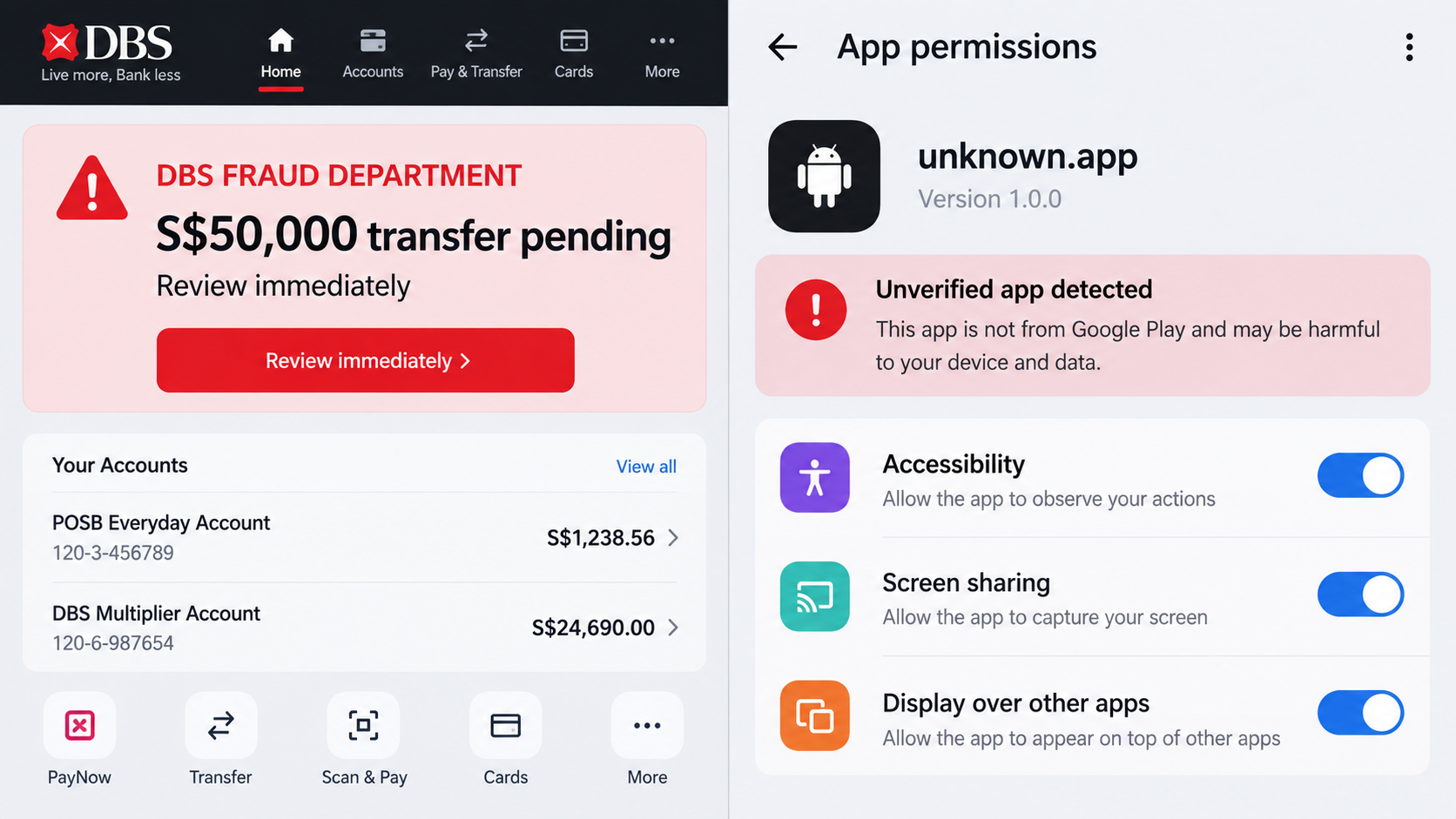
A message that appears to come from a bank warns that S$50,000 is about to leave the account. When the customer tries to respond, the screen freezes and the device seems to resist every attempt to call for help.
The frightening alert is only the visible part of the attack. The real device compromise may have started several days earlier with an innocent-looking downloaded mobile app.
Overview
The scam begins before the fake banking warning
Victims are persuaded to install an app from a link, unofficial store, advertisement, chat, or downloaded Android package. The app may pretend to offer food, classes, shopping, device support, or another ordinary service.
Installation alone is not always enough. The victim is coached into granting accessibility, screen overlay, notification, screen-sharing, or device-control permissions that give the software unusual visibility and power.
The bank alert creates panic while malware is already active
Once the device is prepared, the criminals send a fake DBS or POSB fraud notification, place an impersonation call, or display an overlay claiming a very large transfer is pending. The victim naturally attempts to open banking or contact the bank.
Malware can observe taps, capture screens, cover legitimate windows, intercept notifications, or remotely control input. Some variants lock or darken the screen so the victim cannot see or stop what happens next.
The attackers use the trusted device to reach the account
Banking credentials, card details, and one-time codes may be captured through overlays or observed as they are entered. A remote operator can also guide the victim through approvals while pretending to investigate the fraudulent transfer.
DBS has introduced protections that restrict digibank access when it detects malicious apps, sideloaded apps with accessibility enabled, or active screen sharing. Such a block is a safety response, not a request to weaken device security.
- An ad, link, or caller promotes an app outside an official store.
- The app requests accessibility, overlay, or screen-sharing permission.
- A fake DBS warning invents an urgent, high-value transfer.
- The victim is pushed to open banking while the attacker can observe.
- Remote control or overlays capture credentials and approval codes.
- The screen may be locked while criminals move or attempt to move funds.
What Remote-Control Malware Can Actually Do
Android accessibility services exist to help people interact with their devices. A malicious app that receives this permission may be able to read interface text, monitor actions, press buttons, or automate navigation.
Screen overlay permission allows one app to place content over another. A criminal can imitate a bank sign-in form while the real app is underneath, collecting a username and password without the victim realizing the screen is false.
Screen-sharing and remote-support tools have legitimate purposes, but they become dangerous when an unknown caller controls the session. The operator may see balances, watch codes arrive, alter payee details, or direct the victim to approve a transfer.
Notification access can expose security alerts and one-time passwords. Device-administrator privileges can make removal harder, while battery-optimization exemptions may help the malware remain active in the background.
The app does not need a visibly malicious name. A clean icon, plausible service description, and working front page can conceal an abusive permission request. The source and permissions matter more than the surface design.
How the DBS Remote Control Malware Scam Works
Step 1: An attractive offer leads outside trusted app stores
The victim sees a social-media ad, message, or search result for a discount, delivery, class, investment, or support service. The next page says the app must be downloaded directly because it is unavailable in the normal store.
Instructions may explain how to allow installation from unknown sources. That unusual step is presented as routine troubleshooting rather than a major security decision.
Step 2: The app requests powerful permissions
After installation, the app asks for accessibility access, screen overlay, notifications, or screen sharing. It may claim these are needed to confirm identity, apply a coupon, complete payment, or fix compatibility.
The victim sees ordinary system dialogs, so the request can feel legitimate. The operating system is confirming that the user granted permission, not that the app deserves it.
Step 3: Criminals create a false DBS emergency
A message or call claims that an enormous transfer is pending, a digital token has expired, or the account is under attack. The stated amount is chosen to trigger immediate action.
The attacker may already know the victim’s name or bank from earlier data collection. Personal details make the warning persuasive but do not prove the caller has legitimate bank access.
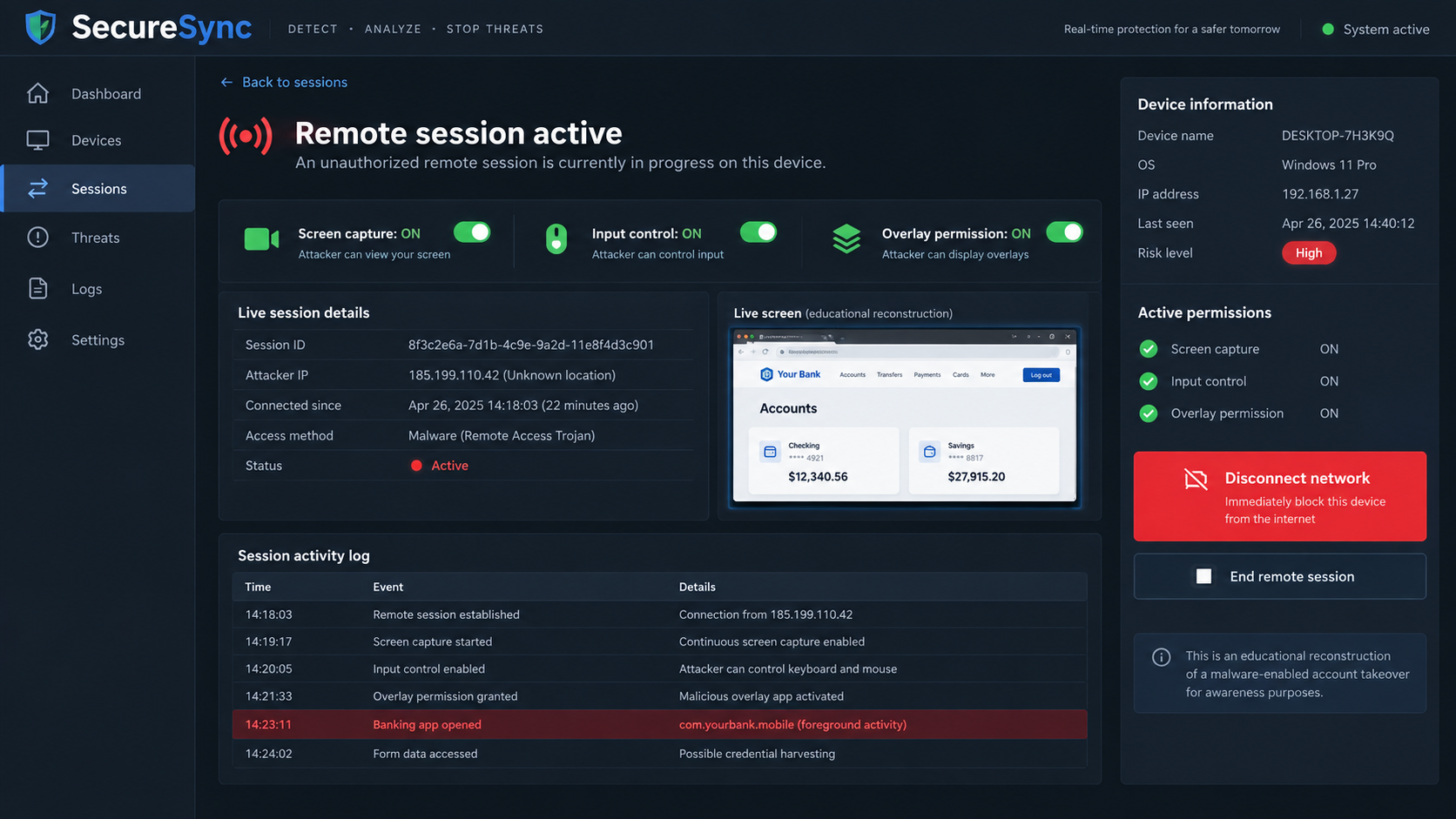
Step 4: The victim opens banking under observation
The caller says the transaction must be reviewed inside digibank or asks the victim to verify a balance. With remote viewing active, the criminal can observe account details and the sequence used to authenticate.
A fake overlay may capture credentials while appearing to be the real sign-in screen. The attacker can also change what the victim sees, making a fraudulent approval look like a cancellation.
Step 5: The device is blocked while the account is targeted
Remote-control functions may dim, freeze, or lock the display. A threatening message can discourage the victim from restarting the device or contacting the bank from another line.
During that period, criminals may add payees, initiate transfers, alter limits, enroll cards, or capture codes. Even unsuccessful attempts can expose enough information for later attacks.
Step 6: Follow-up impersonation extends the theft
If the first transfer fails, another caller may pose as DBS, police, ScamShield, or a recovery specialist. The victim is told to move money to a “safe” account or pay a verification deposit.
Real banks and police do not protect funds by asking customers to transfer them to a stranger’s account. A second caller who knows the incident details may simply be part of the same operation.
Warning Signs Before the Bank Account Is Touched
The earliest warning is usually the download route. A seller, recruiter, instructor, or support agent who insists on sending an installation file through chat is asking the user to bypass the review and update systems built into official stores.
The next clue is a mismatch between purpose and permission. A restaurant voucher does not need to observe every tap. A delivery tracker does not need to draw over banking screens. A class-registration app does not need remote input control.
Scammers may stay on a call while the victim changes settings. Step-by-step coaching prevents reflection and lets the caller explain away each system warning before the user can evaluate it.
An app that asks to disable Play Protect, security scanning, battery safeguards, or digibank’s anti-malware restriction should be treated as hostile. Genuine customer support does not need protection features removed to process an order.
Unexpected heat, battery drain, data use, screen activity, notification disappearance, or settings changes can indicate background abuse. These symptoms have innocent causes, but they deserve immediate investigation after an untrusted installation.
A bank warning that appears only as an overlay may disappear when the device restarts or when the suspicious app is removed. That difference helps distinguish local screen manipulation from an alert stored in the official account history.
Silence can also be suspicious. Malware with notification access may hide bank warnings or SMS codes so the victim does not see transactions. Check the account from a clean device rather than assuming no notification means no activity.
Families should agree on a simple rule: no app installation or security-setting change while an unsolicited caller is directing the process. Ending the call creates the time needed to verify the offer and protects less technical users from live coaching.
Businesses using DBS IDEAL should separate approval roles and review administrator access regularly. Dual authorization and sensible transaction limits can reduce the damage one compromised device is able to cause.
Employees should report unexpected support requests rather than solving them privately. A security team can block domains, identify other recipients, preserve logs, and warn colleagues before the same lure reaches another device.
Customers should also review transfer limits before an incident occurs. Lower daily limits, locked cards, and transaction notifications can slow an attacker and create an earlier warning while the bank investigates unusual activity.
Company, Address, and Fulfillment Checks
Install banking and service apps only from official stores
Use Google Play or Apple’s App Store and confirm the developer shown in the listing. Do not install an APK sent through chat, an ad, or a website merely because the page uses a familiar logo.
If an app says security settings must be weakened, stop. A legitimate merchant can provide another way to use the service without bypassing core protections.
Examine permissions before granting them
A shopping, food, or class app should not need accessibility control, screen overlay, notification reading, or continuous screen sharing. Deny requests that do not match the app’s purpose.
Review previously granted permissions in system settings. Remove access from software you do not recognize, but if active compromise is suspected, disconnect first and use a separate clean device to contact the bank.
Contact DBS through a clean, independent route
Do not use a number or link in the warning. From another device, use the hotline printed on the card or listed on the official DBS website. DBS identifies 1800-339-6963 in Singapore and +65 6339-6963 from overseas for fraud concerns.
If digibank blocks access because it detects malware or screen sharing, treat that as a warning. Do not disable the protection on instructions from an unknown caller.
Read every approval prompt in full
A one-time password or digital-token prompt should identify the action and amount. Reject any request you did not start, even if a supposed fraud agent says approval is necessary to cancel it.
Never share banking credentials, card details, or OTPs by phone or chat. DBS and Singapore Police advise that banks do not send clickable login links through SMS or email.
What to Do if You Have Fallen Victim to This Scam
- Cut the connection. Enable airplane mode, disconnect Wi-Fi, or power the device off. If remote control prevents this, move out of network range or ask the carrier for help.
- Call DBS from another clean device. Ask the fraud team to block digital access, cards, and suspicious transfers. Use the DBS Safety Switch if directed through an official channel.
- Do not bank on the compromised device. Password changes made while malware can still observe the screen may be captured immediately.
- Preserve evidence safely. Note the app name, download link, caller numbers, transaction details, permissions, and timeline. Screenshots are useful if they can be taken without reconnecting or exposing more data.
- Remove the malware properly. Revoke device-administrator or accessibility access, uninstall suspicious apps, and run a reputable scan such as Malwarebytes. A factory reset may be necessary for a high-risk compromise.
- Block the delivery routes used by the scam. AdGuard can reduce malicious ads and known phishing pages, but it cannot neutralize malware already installed or replace a full device reset.
- Change credentials from a clean device. Replace banking, email, Google or Apple account, and reused passwords. Review multi-factor methods, recovery contacts, and active sessions.
- Report the incident. Contact Singapore Police, use the ScamShield reporting options, and give the bank the police-report reference when available.
- Watch for secondary scams. Ignore anyone promising to recover funds for a fee or asking you to move money to a protected account.
After a reset, reinstall apps only from official stores and restore only trusted data. If sensitive work or identity documents were accessible, notify the relevant organization and monitor for misuse beyond the bank account.
Frequently Asked Questions
Can a legitimate app be used for remote-access fraud?
Yes. Remote-support software can be genuine while the person directing its use is a criminal. Never grant an unsolicited caller control of a device used for banking.
Why does DBS block digibank when screen sharing is active?
The restriction reduces the chance that malware or a remote operator can observe credentials and transactions. Access returns after detected risks are removed.
Is every DBS fraud alert fake?
No. Banks send real alerts, but a recipient should verify them through the official app or independently sourced number, never through a link or caller instruction in the alert.
Does turning off the screen stop the attacker?
Not necessarily. Malware can continue running in the background. Disconnect the network, contact the bank from another device, and clean or reset the compromised device.
What is sideloading?
Sideloading means installing an app from outside the device’s official app store. It can be legitimate in specialized settings, but scam instructions use it to bypass store review and warnings.
Should I approve a transaction to cancel it?
No. An approval authorizes an action; it does not reverse one. Reject prompts you did not initiate and contact DBS independently.
The Bottom Line
The fake DBS alert is often the final pressure tactic, not the beginning of the compromise. The decisive mistake occurs when an untrusted app receives accessibility, overlay, or remote-control permissions.
Disconnect first, contact the bank from a separate clean device, and never weaken a security block for someone who called or messaged you. A bank warning can be checked; a stranger should never control the device used to check it.








