BTMOB Android RAT Exposed: Fake Streaming Apps and Remote Phone Takeover
Written by: Lapain Epuran
Published on:
The app page promises the show you wanted, but the download arrives as an Android package from a website you have never used.
It may install quickly and ask for one more setting. That extra request deserves a closer look before you tap Allow.
Overview
What BTMOB is
BTMOB is an Android remote access trojan, or RAT. It gives an operator a way to observe and control parts of an infected device.
Researchers describe it as a commercial malware offering, not a normal consumer app. Its builder can create variants for different criminal customers.
That matters because one BTMOB sample may not look exactly like another. The visible app name, icon, and claimed purpose can change.
The observed campaign used fake streaming and cryptocurrency-themed websites, with app-store-like pages directing visitors to install Android packages.
Activity was seen mainly in Brazil, with some signs in Argentina. Those observations do not mean every infected device is in those countries.
What the malware can do after permission is granted
BTMOB’s purpose is remote access and data collection. Reported capabilities include reading contacts, SMS, call logs, and other device information.
Some variants can take screenshots and support interactive control. The exact actions available depend on the installed sample and permissions.
Accessibility access is especially important. It can let malicious software read screen content and perform taps on a user’s behalf.
That does not mean every Accessibility prompt is malicious. Screen readers and assistive tools use the same Android feature legitimately.
The danger is granting this broad control to a sideloaded app whose purpose does not justify it.
The fastest way to evaluate an unfamiliar download
Check whether the app came from a website rather than the store you normally trust.
Read the exact publisher and package name, not just the icon or marketing page.
Question why a streaming or coin-tracking app needs Accessibility, SMS, or notification access.
Keep the device updated and use its built-in app protection before opening the package.
An app-store-style design is not an app-store listing. A page can copy ratings and familiar layout while delivering a file from its own server.
If you have already installed the package, do not panic. Preserve the evidence and move to the practical checks below.
The Difference Between a Bad Download and a Full Compromise
Visitors can encounter a lure without installing anything. A download may also be saved without being opened. Those are different exposure levels.
Installation crosses a larger boundary. Android may then ask the user to permit apps from that source or confirm a separate package installation.
Broad permissions cross another boundary. A sideloaded app with Accessibility access can gain more opportunity to interact with screens and settings.
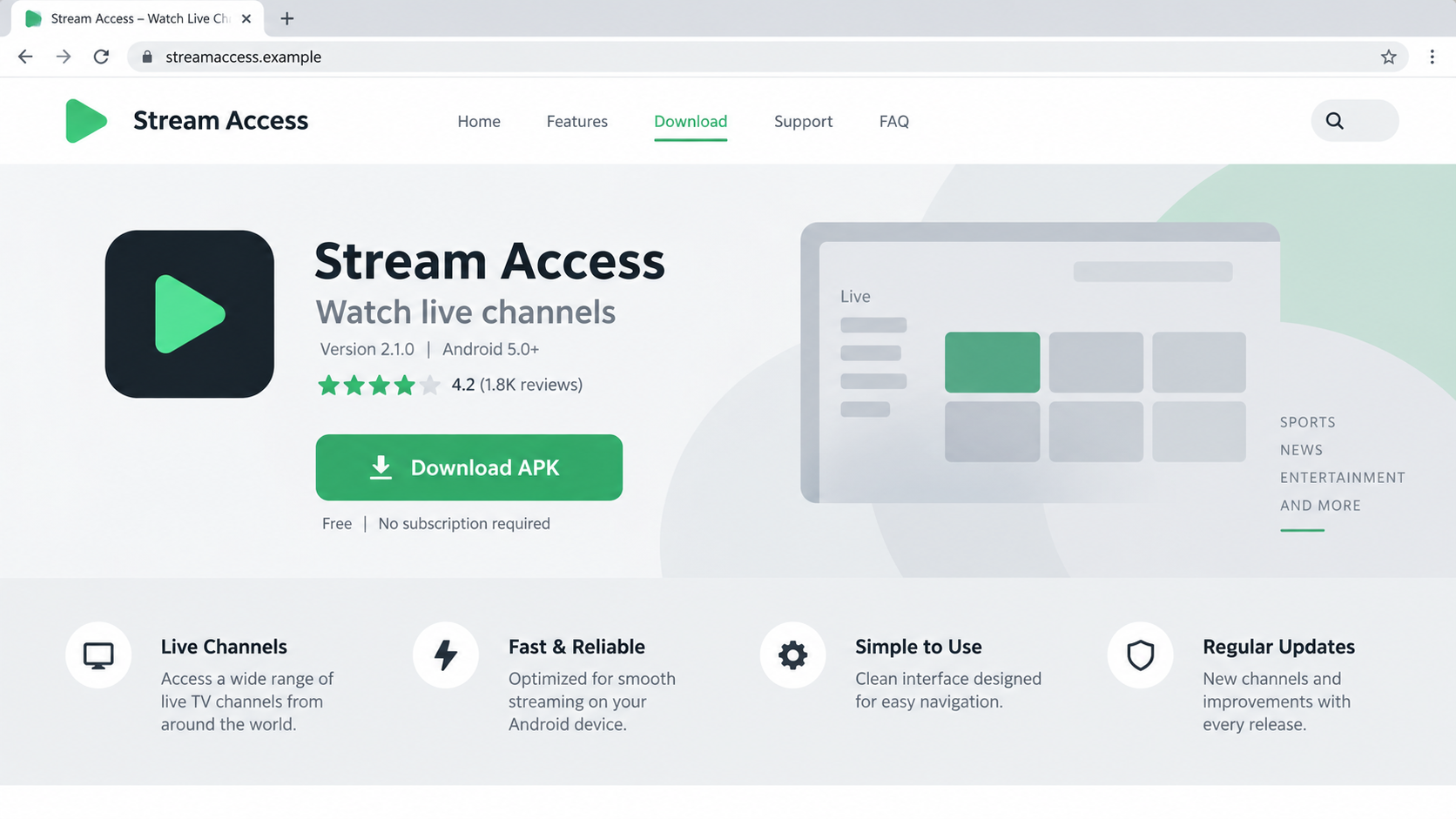
The illustration above shows a generic APK lure. It is not an image of the BTMOB campaign’s exact website or a real app listing.
Think back to the order of prompts. Did a website send you to a download? Did the new app tell you to change a system setting?
Those details are often more useful than the app name, which an attacker can swap between campaigns.
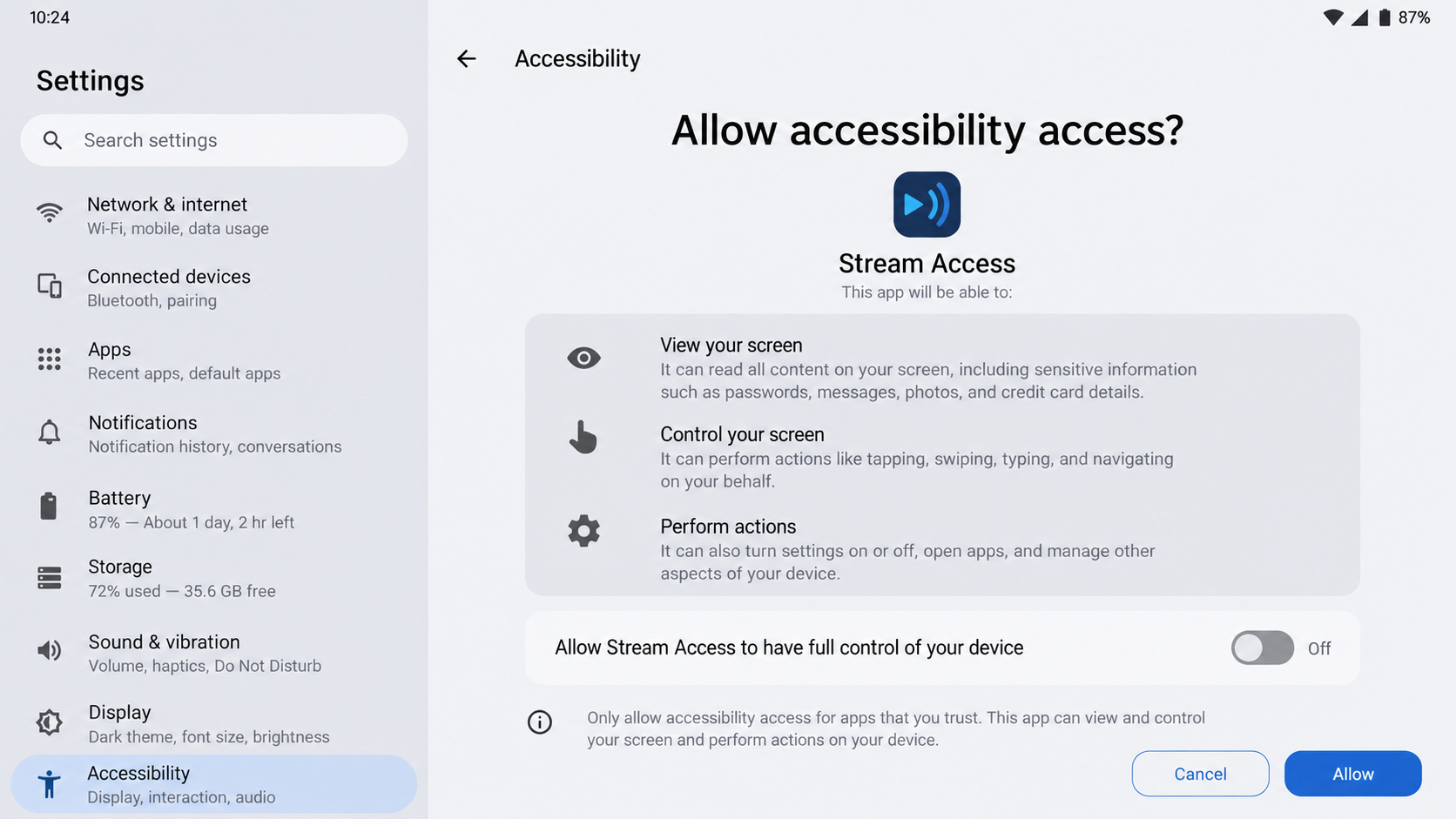
The next image reconstructs the type of Accessibility warning that should stop a reader from granting control casually.
How a BTMOB Android Infection Can Work
Step 1: A useful-looking service attracts the visitor
Investigators found fake sites promising streaming access or cryptocurrency-related features. These are plausible reasons for someone to search for a mobile app.
The lure may appear through an advertisement, a message, or search results. The public reporting does not establish one universal delivery channel.
The site presents the download as a convenient shortcut to the desired content. It may borrow the visual language of a reputable app store.
Do not equate that appearance with review by an actual store. Check the page’s address and the publisher independently.
A legitimate service should not need you to ignore Android’s installation warnings simply to watch a stream or check market prices.
Step 2: The visitor receives an Android package
The malicious file is an APK, an Android application package. Installing it from outside a trusted store requires a deliberate sideloading path.
Attackers can describe that path as standard setup. They may say the app is unavailable in your region or offers an exclusive version.
That story does not make the package safe. The source, signature, requested permissions, and observed behavior all matter.
If you only downloaded an APK and did not install it, delete the file after recording where it came from.
If you did install it, do not assume a harmless icon means the app is harmless. Malicious behavior can run behind an ordinary-looking screen.
Step 3: The app asks for powerful Android permissions
BTMOB has used Accessibility abuse to help obtain broader device access. A prompt may say the permission is needed for playback or verification.
Accessibility can let an app inspect displayed information and click through dialogs. That is far more control than a media player normally needs.
Other sensitive requests, including SMS or notification access, increase concern when the app has no clear reason to need them.
Read each system warning rather than the instruction written by the new app. Android’s warning describes the capability being granted.
If the prompt feels disproportionate to the advertised service, deny it and uninstall the app.
Step 4: The trojan contacts its operator
Once running, a RAT communicates with an attacker-controlled service for commands and data transfer. The exact endpoint may differ between samples.
This can happen quietly while the phone looks normal. A sudden battery drain or unexpected data use can be a clue, not a diagnosis.
Investigators have reported data collection that can include device details, contacts, messages, logs, and screenshots.
What was actually taken from one phone cannot be established from the malware family’s capability list alone.
Security logs, the installed sample, and account activity provide a more reliable incident picture than guessing from symptoms.
Step 5: Remote actions can exploit the access already granted
With sufficient permissions, an operator may navigate the device or capture information visible on screen. Some variants offer more functions than others.
That creates a risk for messaging, account recovery, and financial apps used on the same phone.
Changing a password on a phone still under attacker control can expose the new password. Use a separate clean device for account recovery.
Where work data is present, notify the employer before wiping the phone. They may need logs or device-management records.
Do not keep using the suspect app to test whether it works. Each extra session gives it more opportunities to observe activity.
Step 6: A renamed copy may return through another lure
BTMOB’s builder model makes superficial differences unsurprising. A different icon or website can still lead to the same underlying malware family.
That is why blocking one app name alone is an incomplete defense. The installation route and permission pattern deserve attention.
Use official stores when possible, review the developer, and avoid links that push an APK as the only way to access a popular service.
Even official stores are not a guarantee, but they add a review and update channel absent from random download pages.
After cleanup, revisit the original lure and remove saved links or browser permissions that might bring you back.
Why BTMOB Can Be Hard to Recognize by Name
Malware-as-a-service changes what a victim sees. Different customers can build or distribute variations while keeping the underlying remote-access purpose.
One installer may resemble a streaming player. Another may advertise a crypto tool. A warning tied only to one icon becomes obsolete quickly.
Instead, reconstruct the path. Which website offered the file? Which app installed? What permissions appeared afterward?
The timeline can reveal a pattern that a single antivirus label cannot. Note the date of the download and the first unfamiliar setting change.
Do not post the APK publicly while asking for help. A sample may contain personal data, and sharing it can expose others to the file.
For a company-managed phone, the device-management team may have an installation inventory that helps identify the exact package.
On a personal phone, Android’s app information screen can show install source and permission history, although options vary by version.
Some legitimate apps are installed outside a store in specialized workplaces. That is why source alone is a risk signal, not a universal verdict.
BTMOB’s combination of an untrusted package and excessive access is more telling than either fact by itself.
What to Do About Data That May Already Have Left
Removing malware stops future collection, but it cannot pull back information already copied from a phone.
Consider what was on the device during the suspected period: messages, contact lists, work email, saved passwords, or wallet applications.
If sensitive conversations were exposed, tell affected contacts to distrust unexpected requests that appear to come from your number.
For financial apps, check transaction history and registered devices. A phone compromise does not necessarily mean funds moved, but delay narrows your options.
For cryptocurrency, inspect wallet activity from a clean device. If recovery phrases may have been displayed on the compromised phone, seek specialist guidance immediately.
Do not type a recovery phrase into a website that claims it will check whether you are safe. That creates another theft opportunity.
Keep the recovery sequence calm and prioritized: primary email, financial accounts, messaging, then less critical services.
Document what you change. A clear timeline helps you notice any new activity that persists after the phone is cleaned.
If a recovery service promises to reverse stolen messages or remote access instantly, be skeptical. No single button can undo every account exposure.
Download, Permission, Account, and Network Checks
Trace the exact APK source
Look at browser downloads, message history, and the app’s install source. A streaming page that delivered an APK deserves more scrutiny than an ordinary store listing.
Keep the URL or a screenshot for your security team, but do not revisit the page from the suspect phone.
Review Accessibility and other special access
In Android settings, inspect Accessibility, notification access, device admin, and installation permissions for unfamiliar apps.
Names can be misleading. Match each entry to a real app you chose and a permission it genuinely needs.
Inspect account sessions from a clean device
Check email, messaging, banking, and cryptocurrency accounts for unfamiliar sign-ins or transactions. Start with the accounts used most recently on the phone.
Do not assume a clean bank statement means the device is clean. A RAT may collect information before any financial action appears.
Watch network and device behavior carefully
Unusual background data, overheating, or battery use can support an investigation, but many benign apps cause similar symptoms.
A reputable scan and expert review are stronger evidence. If work accounts were used, include your device-management team.
What to Do if You Installed a Suspected BTMOB App
Stop using the phone for sensitive accounts. If active remote control is suspected, switch it to airplane mode after recording the app name and relevant screens.
Use a separate trusted device for passwords. Change primary email and financial credentials there. Review multifactor methods and active sessions before resuming normal use.
Revoke the app’s powerful permissions. Check Accessibility, notification access, device admin, and unknown-app installation rights. If a setting cannot be changed, seek professional help.
Remove the suspect app and scan. Use a reputable Android security tool such as Malwarebytes. AdGuard can reduce risky web exposure, but it cannot remove a RAT by itself.
Check financial and messaging accounts. Contact your bank promptly about unauthorized activity. Warn contacts if your messages were used to send suspicious links.
Consider a clean reset for persistent compromise. Back up essential personal files, not unknown APKs. Restore apps from trusted sources and update Android before signing in again.
Report workplace exposure. If company accounts were on the phone, give security staff the timeline and app source before deleting evidence or resetting a managed device.
Is Your Device Infected? Run a Free Malware Scan
Slow performance, constant pop-ups, or strange behavior? These are classic signs of a malware infection. The fastest way to find out is to scan your device with Malwarebytes Anti-Malware Free — one of the most trusted malware removal tools available.
The free version detects and removes the most common threats, including:
Adware — the cause of those annoying pop-ups
Browser hijackers — unwanted redirects and changed homepages
Trojans and spyware — hidden programs stealing your data
Potentially unwanted programs (PUPs) — software you never asked for
👉 Select your device below — Windows, Mac, or Android — then follow the simple steps to download Malwarebytes, scan your system, and remove any threats it finds. The whole process takes about 5 minutes.
Malwarebytes for WindowsMalwarebytes for MacMalwarebytes for Android
Run a Malware Scan with Malwarebytes for Windows
Malwarebytes is one of the most popular and trusted anti-malware tools for Windows — and it’s completely free for removing infections. It catches threats that many antivirus programs miss, including adware, browser hijackers, and trojans. Follow the steps below to scan and clean your PC in just a few minutes.
Download Malwarebytes
Click the button below to download the latest version of Malwarebytes for Windows from the official source. The free version is all you need — it will scan your computer and remove adware, browser hijackers, and other malicious software at no cost.
(The link opens in a new page where your download will start)
Install Malwarebytes
When the download finishes, open your Downloads folder and double-click the MBSetup file. If Windows shows a User Account Control pop-up, click “Yes” to allow the installation.
Follow the On-Screen Prompts to Install Malwarebytes
The setup wizard will walk you through a few quick screens:
Choose where you’re installing the program — “Personal Computer” or “Work Computer” — then click Next.
Malwarebytes will now install on your device. This usually takes under a minute.
When installation is complete, the “Welcome to Malwarebytes” screen will open automatically.
On the final screen, click Open Malwarebytes to launch the program.
Enable “Scan for Rootkits”
Before scanning, turn on rootkit detection so Malwarebytes can find even the most hidden threats. Click the Settings gear icon on the left side of the screen.
In the settings menu, find “Scan for rootkits” and click the toggle so it turns blue.
Done? Click “Dashboard” in the left pane to return to the main screen.
Start the Scan
Click the blue Scan button. Malwarebytes will automatically update its virus database and start checking your computer for malware.
Wait for the Scan to Finish
The scan checks your entire system for browser hijackers and other malicious programs, so it can take several minutes. Feel free to do something else — just check back occasionally to see the progress.
Quarantine the Detected Threats
When the scan is done, you’ll see a list of everything Malwarebytes found — malware, adware, and potentially unwanted programs. Click the “Quarantine” button to remove all of them at once.
Malwarebytes will now remove the malicious files and registry entries and move them safely into quarantine.
Restart Your Computer
Some threats can only be fully removed after a reboot. If Malwarebytes asks you to restart, click Yes. Once you’re logged back in, your PC is clean and you can continue with the next steps in this guide.
When the scan finishes, click Quarantine to remove everything Malwarebytes found. That’s it — your Windows PC is now clean of trojans, adware, and other malware, and should be back to running smoothly.
If your current antivirus allowed this malicious program on your computer, you may want to consider purchasing Malwarebytes Premium to protect against these types of threats in the future. If you are still having problems with your computer after completing these instructions, then please follow one of the steps:
Malwarebytes for Mac is a free on-demand scanner that removes the malware other security software tends to miss — adware, browser hijackers, and unwanted programs included. Cleaning an infected Mac with Malwarebytes has always been completely free, and it’s our go-to recommendation. Follow the steps below to scan and clean your Mac in just a few minutes.
Download Malwarebytes for Mac
Click the button below to download the latest version of Malwarebytes for Mac.
When the download finishes, open your Downloads folder and double-click the setup file to begin the installation.
Follow the On-Screen Prompts to Install Malwarebytes
The Malwarebytes for Mac Installer will guide you through a few quick screens. Click “Continue” and keep following the prompts until the installation completes.
When the installation is complete, Malwarebytes opens to the Welcome to Malwarebytes screen. Click “Get started“.
Select “Personal Computer” or “Work Computer”
Malwarebytes will ask what type of computer you’re installing it on. Click either Personal Computer or Work Computer, whichever applies.
Start the Scan
Click the “Scan” button. Malwarebytes will automatically update its detection database and begin checking your Mac for malware.
Wait for the Scan to Finish
Malwarebytes will scan your Mac for adware, browser hijackers, and other malicious programs. This can take a few minutes, so feel free to do something else — just check back occasionally to see the progress.
Quarantine the Detected Threats
When the scan is done, you’ll see a list of everything Malwarebytes found. Click the “Quarantine” button to remove all the threats at once.
Restart Your Mac
Malwarebytes will now remove all the malicious files it found. Some threats can only be fully removed after a reboot — if Malwarebytes asks you to restart, allow it. Once you’re logged back in, your Mac is clean.
Once the scan is done, remove every threat it detected. Your Mac is now free of adware, rogue browser extensions, and other potentially harmful software.
If your current antivirus allowed a malicious program on your computer, you might want to consider purchasing the full-featured version of Malwarebytes Anti-Malware to protect against these types of threats in the future. If you are still experiencing problems while trying to remove a malicious program from your computer, please ask for help in our Mac Malware Removal Help & Support forum.
Run a Malware Scan with Malwarebytes for Android
Malwarebytes for Android automatically detects and removes dangerous threats like malware and ransomware so you don’t have to worry about your most-used device being compromised. Aggressive detection of adware and potentially unwanted programs keeps your Android phone or tablet running smooth.
Download Malwarebytes for Android.
You can download Malwarebytes for Android by clicking the link below.
In the Google Play Store, tap “Install” to install Malwarebytes for Android on your device.
When the installation process has finished, tap “Open” to begin using Malwarebytes for Android. You can also open Malwarebytes by tapping on its icon in your phone menu or home screen.
Follow the on-screen prompts to complete the setup process
When Malwarebytes will open, you will see the Malwarebytes Setup Wizard which will guide you through a series of permissions and other setup options. This is the first of two screens that explain the difference between the Premium and Free versions. Swipe this screen to continue. Tap on “Got it” to proceed to the next step. Malwarebytes for Android will now ask for a set of permissions that are required to scan your device and protect it from malware. Tap on “Give permission” to continue. Tap on “Allow” to permit Malwarebytes to access the files on your phone.
Update database and run a scan with Malwarebytes for Android
You will now be prompted to update the Malwarebytes database and run a full system scan.
Click on “Update database” to update the Malwarebytes for Android definitions to the latest version, then click on “Run full scan” to perform a system scan.
Wait for the Malwarebytes scan to complete.
Malwarebytes will now start scanning your phone for adware and other malicious apps. This process can take a few minutes, so we suggest you do something else and periodically check on the status of the scan to see when it is finished.
Click on “Remove Selected”.
When the scan has been completed, you will be presented with a screen showing the malware infections that Malwarebytes for Android has detected. To remove the malicious apps that Malwarebytes has found, tap on the “Remove Selected” button.
Restart your phone.
Malwarebytes for Android will now remove all the malicious apps that it has found. To complete the malware removal process, Malwarebytes may ask you to restart your device.
After the scan, tap Remove Selected to delete all detected threats. Your Android phone is now clean — no more malicious apps, adware, or browser redirects.
If your current antivirus allowed a malicious app on your phone, you may want to consider purchasing the full-featured version of Malwarebytes to protect against these types of threats in the future. If you are still having problems with your phone after completing these instructions, then please follow one of the steps:
Restore your phone to factory settings by going to Settings > General management > Reset > Factory data reset.
Now that your device is clean, keep it that way. Most infections start with a malicious ad or a fake download button — so blocking them at the source is your best defense.
We recommend AdGuard, which blocks malicious ads, phishing pages, and dangerous redirects before they can reach you.
No. It is a remote access trojan offered to criminals. A visible app that delivers it may use an unrelated name and icon.
Does BTMOB always arrive through streaming sites?
No. Streaming and cryptocurrency lures were observed. Other distribution routes are possible because the malware can be repackaged.
Why is Accessibility access a warning sign?
It can let software read screens and perform actions. The permission is legitimate for assistive tools, but suspicious for an unknown streaming APK.
Can I tell from battery drain alone?
No. Battery drain has many causes. Treat it as a reason to inspect the device, not proof of a particular malware family.
Should I change passwords on the infected phone?
Use a separate trusted device first. A RAT with screen access may see credentials entered on the compromised phone.
Will a factory reset always solve everything?
A properly completed reset can remove most ordinary Android malware, but account credentials and financial damage need separate recovery.
The Bottom Line
BTMOB turns an attractive app download into an opportunity for remote access. The dangerous step is granting broad control to an untrusted package.
Verify the source, deny unnecessary permissions, and move account recovery to a clean device if the suspicious app was installed.
10 Rules to Avoid Online Scams
Here are 10 practical safety rules to help you avoid malware, online shopping scams, crypto scams, and other online fraud. Each tip includes a quick “if you already got hit” action.
Stop and verify before you click, log in, download, or pay.
Most scams win by creating urgency. Verify using a trusted method: type the website address yourself, use the official app, or call a known number (not the one in the message).
If you already clicked: close the page, do not enter passwords, and run a malware scan.
Keep your operating system, browser, and apps updated.
Updates patch security holes used by malware and malicious ads. Turn on automatic updates where possible.
If you saw a scary “update now” pop-up: close it and update only through your device settings or the official app store.
Use layered protection: antivirus plus an ad blocker.
Antivirus helps block malware. An ad blocker reduces scam redirects, phishing pages, and malvertising.
If your browser is acting weird: remove unknown extensions, reset the browser, then run a full scan.
Install apps, software, and extensions only from official sources.
Avoid cracked software, “keygens,” and random downloads. During installs, choose Custom/Advanced and decline bundled offers you do not recognize.
If you already installed something suspicious: uninstall it, restart, and scan again.
Treat links and attachments as untrusted by default.
Phishing often impersonates delivery services, banks, and popular brands. If it is unexpected, do not open attachments or log in through the message.
If you entered credentials: change the password immediately and enable 2FA.
Shop safely: research the store, then pay with protection.
Be cautious with brand-new stores, “closing sale” stories, and prices that make no sense. Prefer credit cards or PayPal for dispute options. Avoid wire transfers, gift cards, and crypto payments.
If you already paid: contact your card issuer or PayPal quickly to dispute the transaction.
Crypto rule: never pay a “fee” to withdraw or recover money.
Common patterns include fake profits, then “tax,” “gas,” or “verification” fees. Another is a “recovery agent” who demands upfront crypto.
If you already sent crypto: stop paying, save evidence (wallet addresses, TXIDs, chats), and report the scam to the platform used.
Secure your accounts with unique passwords and 2FA (start with email).
Use a password manager and unique passwords for every account. Enable 2FA using an authenticator app when possible.
If you suspect an account takeover: change passwords, sign out of all devices, and review recent logins and recovery settings.
Back up important files and keep one backup offline.
Backups protect you from ransomware and device failure. Keep at least one backup on an external drive that is not always connected.
If you suspect infection: do not connect backup drives until the system is clean.
If you think you are a victim: stop losses, document evidence, and escalate fast.
Move quickly. Speed matters for disputes, account recovery, and limiting damage.
Stop payments and contact: do not send more money or respond to the scammer.
Call your bank or card issuer: block transactions, replace the card if needed, and start a dispute or chargeback.
Secure your email first: change the email password, enable 2FA, and remove unfamiliar recovery options.
Secure other accounts: change passwords, enable 2FA, and log out of all sessions.
Scan your device: remove suspicious apps or extensions, then run a full malware scan.
Save evidence: screenshots, emails, order pages, tracking pages, wallet addresses, TXIDs, and chat logs.
Report it: to the payment provider, marketplace, social platform, exchange, or wallet service involved.
These rules are intentionally simple. Most online losses happen when decisions are rushed. Slow down, verify independently, and use payment methods and account controls that give you recourse.
Hello! I'm Lapain Epuran, your go-to source for detailed and honest product reviews. From tech gadgets to miracle cures, I provide insights to help you make informed choices. Join me as we discover what's truly worth your time and money.