ToxicPanda 2.0 Android Trojan Exposed: Bank Overlays and ADB Takeover Risk
Written by: Lapain Epuran
Published on:
A new app claims it cannot finish setup until you enable a secure connection. The next screen asks to control your phone’s network traffic.
That request might look like technical housekeeping. On an unfamiliar app, it deserves a much harder question: who gains control after you agree?
Overview
What ToxicPanda 2.0 is
ToxicPanda is an Android banking trojan. Newer ToxicPanda 2.0 research describes an expanded toolkit for device control and financial credential theft.
It is not a security update, bank feature, or ordinary VPN app. The visible installer can pretend to serve an unrelated purpose.
Researchers have documented fake installation flows that ask for a VPN connection, broad device permissions, and access to Android’s debugging features.
Those are not routine requirements for opening a bank account or installing a harmless utility.
Capabilities vary across samples and campaigns. A published feature list does not establish that every victim encountered every screen described below.
What makes the newer version especially concerning
Research described overlays prepared for hundreds of financial applications across multiple countries. An overlay can hide a fake prompt over a real app.
PIN-capture logic was also identified for many targeted applications. These counts describe targeting configurations, not confirmed stolen PIN totals.
The newer malware can receive many remote commands. Some observed flows use Wireless Debugging and ADB pairing to seek deeper device control.
ADB is a legitimate Android developer interface. Abuse of it is dangerous because commands can reach beyond an ordinary app’s expected behavior.
A fake VPN step may also interfere with protective services. The exact effect should be assessed on the specific device, not assumed from the label.
Warning signs in the installation sequence
An app from an unknown source says setup fails unless you approve a VPN connection.
It asks for Accessibility access despite offering no clear assistive function.
It directs you into Developer options or Wireless Debugging.
A bank app suddenly displays an unfamiliar PIN, password, or verification screen.
Any one prompt can have a legitimate use in another context. The combination, especially after a sideloaded download, is the concern.
When unsure, stop. A real bank can confirm its installation process through a number printed on your card or its official app store listing.
Why the Fake Setup Flow Is So Effective
Most people expect an app to ask for a few permissions. They may not realize that different Android prompts hand over very different powers.
A notification permission is not the same as screen control. A VPN connection is not the same as signing into a bank.
Criminals can blur those boundaries by presenting each request as a necessary step in one harmless-sounding installation checklist.
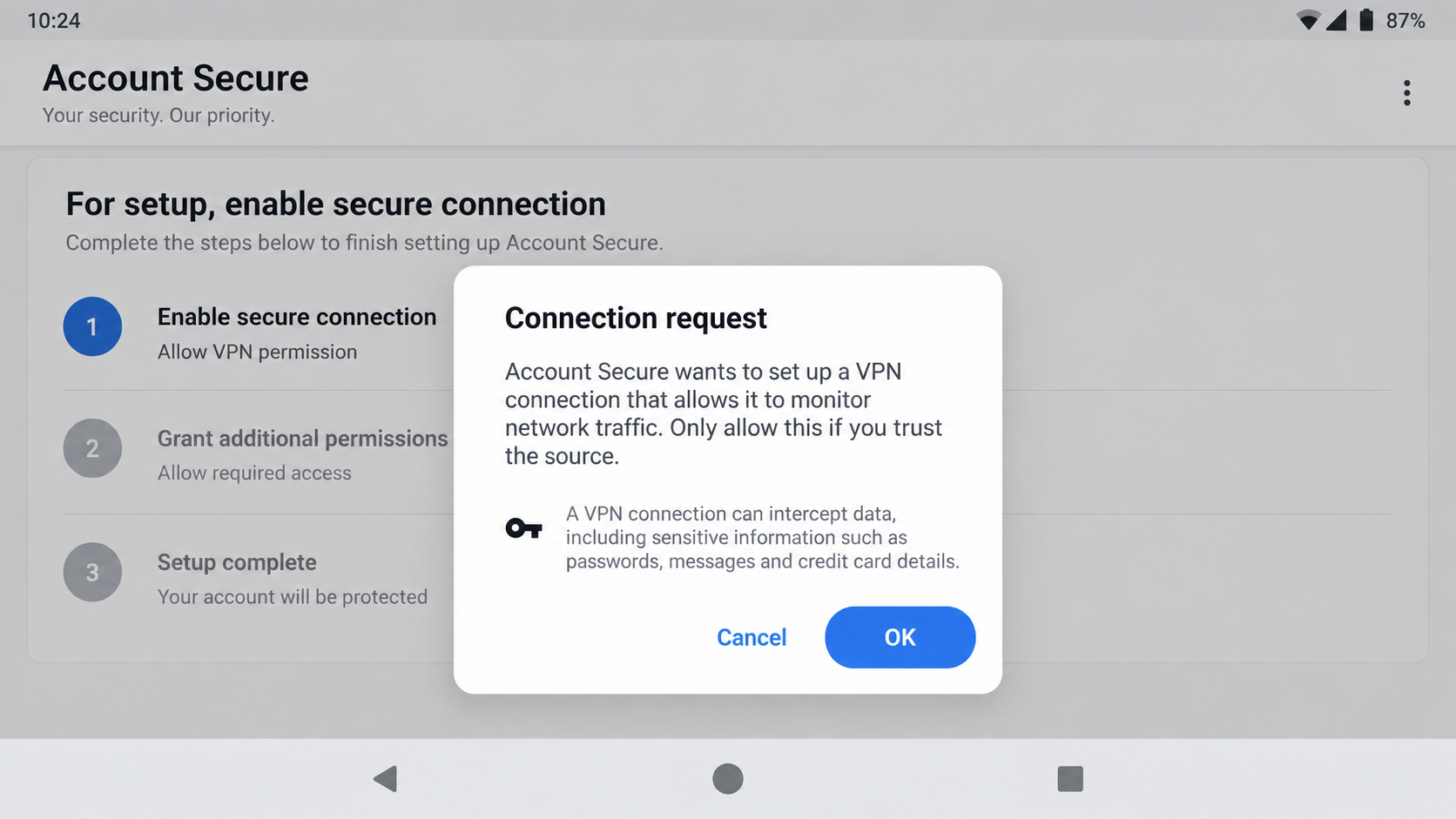
The first image is a fictional reconstruction of a VPN request. It illustrates the decision point, not a verified screenshot of ToxicPanda.
Even the phrase “secure connection” can mislead. A VPN permission gives an app a position in network handling; it does not make the app safe.
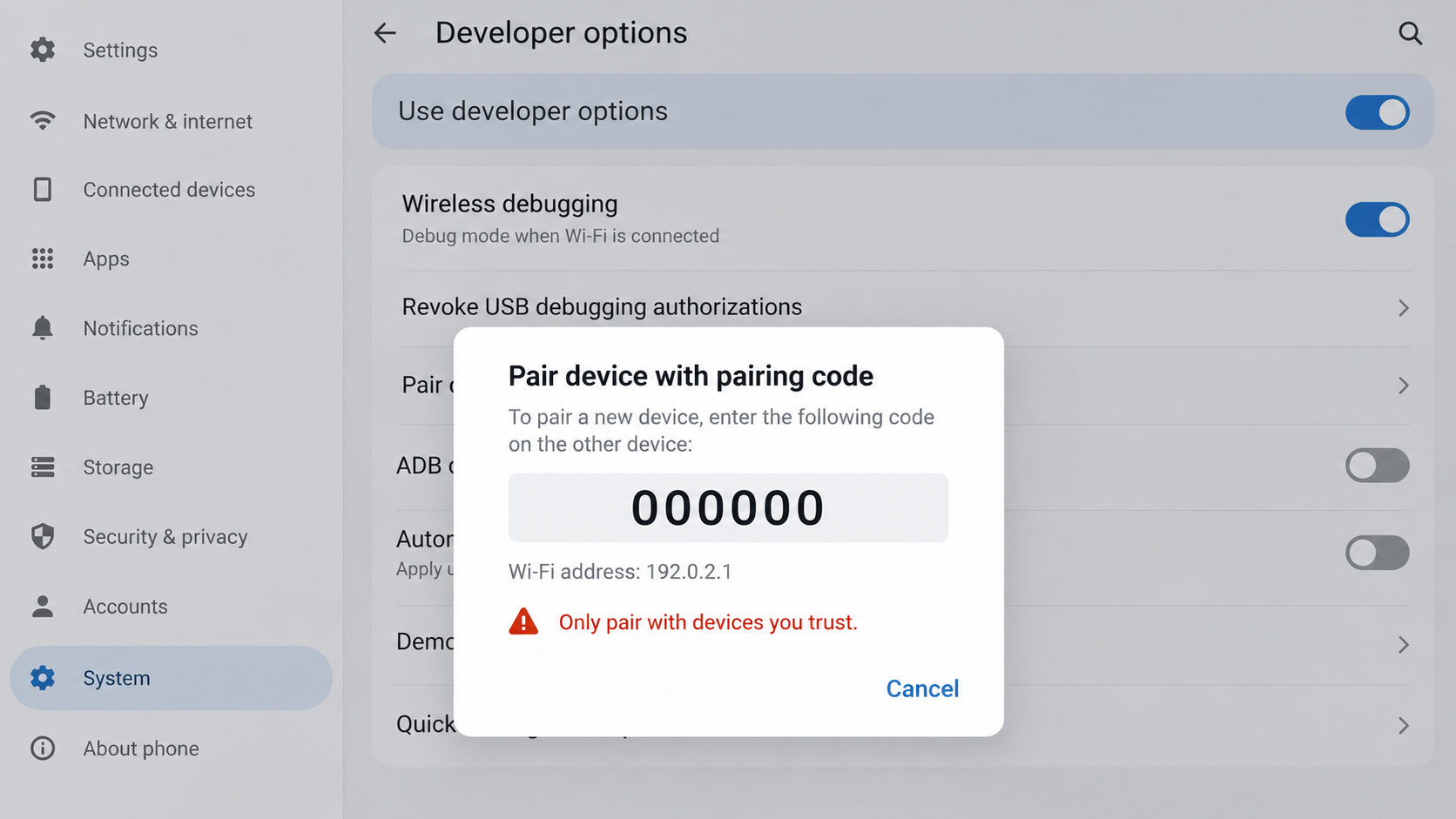
Another concerning step is Wireless Debugging. Many owners never need that developer feature, so a consumer app guiding them there deserves immediate skepticism.
The second image illustrates that setting with placeholder values. It is not a pairing code from a real incident.
How a ToxicPanda 2.0 Infection Can Work
Step 1: An attacker supplies a convincing installer
The victim first receives a link or package for what appears to be a useful app. The exact disguise can differ between campaigns.
Some newer samples were distributed through cloud-hosted storage. The use of a major cloud provider does not certify the file’s safety.
The installer may claim it needs special setup before its promised function becomes available. That story prepares the user for unusual prompts.
Before installing, check the developer, source, package name, and whether the same app exists through an official store.
If the only route is an APK sent through a message or unfamiliar site, treat the request as high risk.
Step 2: The app asks for network-level permission
Researchers described a deceptive installation page that requests VPN approval. It may frame this as protection or a way to finish setup.
In the reported mechanism, that permission could help block or interfere with Google Play and related services.
Do not read a VPN dialog as a certificate of trust. It tells you what access the app wants, not why it should receive it.
If you were not deliberately installing a VPN from a provider you chose, deny the request and remove the app.
Check whether other protective services were changed after installation. A disabled scanner or inaccessible store can be a meaningful clue.
Step 3: Accessibility and overlays widen the attack
ToxicPanda can abuse Accessibility and display fake interfaces over selected apps. An overlay may ask for a banking PIN or password.
The genuine bank app may still be open underneath, which makes the imitation harder to recognize by context alone.
Researchers identified overlay configurations for hundreds of financial apps, but that is a prepared target list, not a count of compromised customers.
Be wary of a sudden reauthentication prompt after installing an unrelated app. Contact the bank from another device before entering details.
Do not assume a familiar icon proves you are seeing the bank’s own screen. A malicious overlay can mimic it.
Step 4: Wireless Debugging may grant deeper control
Some analyzed variants can guide or automate ADB pairing through Wireless Debugging. ADB is intended for trusted development and troubleshooting workflows.
Pairing can provide shell-level operations that an ordinary banking app should never request from a consumer.
The user may see Developer options, a pairing code, or a system dialog that seems unrelated to the original app.
That mismatch is a red flag. Do not follow instructions to enable Wireless Debugging for a finance utility or account verification.
If you already paired an unknown device, disconnect from networks and seek help before continuing sensitive activity.
Step 5: The operator can target financial sessions
Once sufficient access is established, the malware can receive commands and attempt to capture credentials or facilitate fraudulent actions.
It may collect screen information, react to app activity, or show a fake PIN prompt at a useful moment.
The exact outcome depends on which permissions were granted, the malware configuration, and the defenses on that phone.
A legitimate bank can verify account activity, but it cannot by itself prove the device is clean.
Use a separate trusted device to check balances, recent transfers, registered devices, and new payees.
Step 6: Cleanup must address device and accounts separately
Removing the visible app may not settle every question if debugging access, secondary packages, or stolen credentials were involved.
Likewise, changing a bank password does not remove code still running on the phone. Both sides need attention.
Investigate from a clean device, preserve evidence for a bank or employer, and plan a reset if trust in the handset cannot be restored.
After resetting, reinstall apps through known stores and apply current Android updates before restoring accounts.
Do not restore an unknown APK from a backup simply because it was installed before the problem became obvious.
What These Android Permissions Really Mean
A VPN permission lets an app create a network path for device traffic. It is a powerful setting, not a general badge of safety.
Accessibility is different. It can read and act on screen content, which helps genuine assistive software but can also automate malicious actions.
Wireless Debugging is another separate boundary. It allows a paired device to send development commands without a USB cable.
The malware’s setup flow can try to make all three appear like ordinary checkpoints in one installation.
They are not interchangeable. Approving a VPN does not authorize debugging, and enabling debugging does not prove the network connection is secure.
Read each Android warning on its own terms. Ask why the advertised app needs that exact capability at that exact moment.
A bank app should have an established installation path. It should not require you to pair a debugger or grant an unrelated utility screen control.
When a prompt includes a code, do not share it with a supposed support agent who contacted you first.
If you use developer tools legitimately, check the list of paired devices rather than assuming Wireless Debugging was enabled by malware.
Separating Evidence From the Family’s Capability List
Reports about ToxicPanda 2.0 describe what analysts found in examined samples. They do not reveal what happened to every person who installed a variant.
A configured overlay for a bank is evidence of targeting. It is not proof that a customer opened the bank app or submitted a PIN.
A command set showing remote-control functions indicates capability. Investigators still need logs or other artifacts to prove a command ran on one phone.
The same caution applies to cloud-hosted files. Storage location can help trace delivery, but it does not identify the owner of an infected account.
For readers, this distinction prevents both complacency and panic. The threat is serious without needing to inflate every possibility into a confirmed loss.
If you suspect exposure, focus on the actions you can verify: what you installed, what you approved, and what accounts changed.
Save bank notifications and security alerts with timestamps. They are more useful than a general statement that the phone “felt strange.”
Let your bank and security provider assess that evidence while you protect access from a clean device.
Some account providers can show a history of new device registrations or changed security methods. Review those records before closing the incident.
A clean scan result is helpful, but it does not validate bank activity or undo a password that may already have been exposed.
Do not return to the questionable installer to obtain its terms or support number. The same site may deliver a changed package.
Installer, VPN, Debugging, and Bank Checks
Trace the source of the package
Review downloads, chats, browser history, and installed apps. Record the original link without reopening it on the affected phone.
Cloud-hosted file storage is a delivery method, not evidence that a provider approved the APK.
Inspect VPN and special permissions
Check active VPN profiles, Accessibility services, device admin, notification access, and unknown-app installation rights.
Remove permissions from an unfamiliar app only after documenting them if you may need an incident report.
Review Developer options and ADB pairing
If Wireless Debugging is enabled unexpectedly, turn it off and revoke unknown pairings. Ask a technician for help if settings appear locked.
Do not share pairing codes with anyone claiming to be bank support. A legitimate bank does not need ADB access to protect your account.
Check financial exposure promptly
From a clean device, review transfers, recipients, cards, logins, and device registrations. Tell the bank about the suspected Android compromise.
Ask what protective steps are available, including transaction limits or temporary account restrictions where appropriate.
What to Do if ToxicPanda May Be on Your Phone
Stop entering financial information. Close banking apps on the suspect phone. Use another trusted device or contact the bank by a verified number.
Record the installation path. Save the app name, source link, permissions, VPN profile, and any Wireless Debugging prompts for your bank or incident responder.
Isolate the device if active control is suspected. Disconnect Wi-Fi and mobile data after documenting the situation. Avoid using the phone for password changes.
Secure accounts from a clean device. Change important passwords, revoke sessions, review multifactor methods, and ask the bank to watch for unauthorized transfers.
Remove dangerous access and scan. Disable unfamiliar VPN, Accessibility, and debugging connections. Run Malwarebytes for Android. AdGuard can reduce malicious browsing exposure, not cure an existing trojan.
Plan a clean rebuild when needed. A factory reset is sensible if deep access may have been granted. Back up essential personal files but avoid restoring unknown apps.
Notify others with a stake in the phone. Tell a workplace security team if company accounts were present, and preserve any bank case number for follow-up.
Is Your Device Infected? Run a Free Malware Scan
Slow performance, constant pop-ups, or strange behavior? These are classic signs of a malware infection. The fastest way to find out is to scan your device with Malwarebytes Anti-Malware Free — one of the most trusted malware removal tools available.
The free version detects and removes the most common threats, including:
Adware — the cause of those annoying pop-ups
Browser hijackers — unwanted redirects and changed homepages
Trojans and spyware — hidden programs stealing your data
Potentially unwanted programs (PUPs) — software you never asked for
👉 Select your device below — Windows, Mac, or Android — then follow the simple steps to download Malwarebytes, scan your system, and remove any threats it finds. The whole process takes about 5 minutes.
Malwarebytes for WindowsMalwarebytes for MacMalwarebytes for Android
Run a Malware Scan with Malwarebytes for Windows
Malwarebytes is one of the most popular and trusted anti-malware tools for Windows — and it’s completely free for removing infections. It catches threats that many antivirus programs miss, including adware, browser hijackers, and trojans. Follow the steps below to scan and clean your PC in just a few minutes.
Download Malwarebytes
Click the button below to download the latest version of Malwarebytes for Windows from the official source. The free version is all you need — it will scan your computer and remove adware, browser hijackers, and other malicious software at no cost.
(The link opens in a new page where your download will start)
Install Malwarebytes
When the download finishes, open your Downloads folder and double-click the MBSetup file. If Windows shows a User Account Control pop-up, click “Yes” to allow the installation.
Follow the On-Screen Prompts to Install Malwarebytes
The setup wizard will walk you through a few quick screens:
Choose where you’re installing the program — “Personal Computer” or “Work Computer” — then click Next.
Malwarebytes will now install on your device. This usually takes under a minute.
When installation is complete, the “Welcome to Malwarebytes” screen will open automatically.
On the final screen, click Open Malwarebytes to launch the program.
Enable “Scan for Rootkits”
Before scanning, turn on rootkit detection so Malwarebytes can find even the most hidden threats. Click the Settings gear icon on the left side of the screen.
In the settings menu, find “Scan for rootkits” and click the toggle so it turns blue.
Done? Click “Dashboard” in the left pane to return to the main screen.
Start the Scan
Click the blue Scan button. Malwarebytes will automatically update its virus database and start checking your computer for malware.
Wait for the Scan to Finish
The scan checks your entire system for browser hijackers and other malicious programs, so it can take several minutes. Feel free to do something else — just check back occasionally to see the progress.
Quarantine the Detected Threats
When the scan is done, you’ll see a list of everything Malwarebytes found — malware, adware, and potentially unwanted programs. Click the “Quarantine” button to remove all of them at once.
Malwarebytes will now remove the malicious files and registry entries and move them safely into quarantine.
Restart Your Computer
Some threats can only be fully removed after a reboot. If Malwarebytes asks you to restart, click Yes. Once you’re logged back in, your PC is clean and you can continue with the next steps in this guide.
When the scan finishes, click Quarantine to remove everything Malwarebytes found. That’s it — your Windows PC is now clean of trojans, adware, and other malware, and should be back to running smoothly.
If your current antivirus allowed this malicious program on your computer, you may want to consider purchasing Malwarebytes Premium to protect against these types of threats in the future. If you are still having problems with your computer after completing these instructions, then please follow one of the steps:
Malwarebytes for Mac is a free on-demand scanner that removes the malware other security software tends to miss — adware, browser hijackers, and unwanted programs included. Cleaning an infected Mac with Malwarebytes has always been completely free, and it’s our go-to recommendation. Follow the steps below to scan and clean your Mac in just a few minutes.
Download Malwarebytes for Mac
Click the button below to download the latest version of Malwarebytes for Mac.
When the download finishes, open your Downloads folder and double-click the setup file to begin the installation.
Follow the On-Screen Prompts to Install Malwarebytes
The Malwarebytes for Mac Installer will guide you through a few quick screens. Click “Continue” and keep following the prompts until the installation completes.
When the installation is complete, Malwarebytes opens to the Welcome to Malwarebytes screen. Click “Get started“.
Select “Personal Computer” or “Work Computer”
Malwarebytes will ask what type of computer you’re installing it on. Click either Personal Computer or Work Computer, whichever applies.
Start the Scan
Click the “Scan” button. Malwarebytes will automatically update its detection database and begin checking your Mac for malware.
Wait for the Scan to Finish
Malwarebytes will scan your Mac for adware, browser hijackers, and other malicious programs. This can take a few minutes, so feel free to do something else — just check back occasionally to see the progress.
Quarantine the Detected Threats
When the scan is done, you’ll see a list of everything Malwarebytes found. Click the “Quarantine” button to remove all the threats at once.
Restart Your Mac
Malwarebytes will now remove all the malicious files it found. Some threats can only be fully removed after a reboot — if Malwarebytes asks you to restart, allow it. Once you’re logged back in, your Mac is clean.
Once the scan is done, remove every threat it detected. Your Mac is now free of adware, rogue browser extensions, and other potentially harmful software.
If your current antivirus allowed a malicious program on your computer, you might want to consider purchasing the full-featured version of Malwarebytes Anti-Malware to protect against these types of threats in the future. If you are still experiencing problems while trying to remove a malicious program from your computer, please ask for help in our Mac Malware Removal Help & Support forum.
Run a Malware Scan with Malwarebytes for Android
Malwarebytes for Android automatically detects and removes dangerous threats like malware and ransomware so you don’t have to worry about your most-used device being compromised. Aggressive detection of adware and potentially unwanted programs keeps your Android phone or tablet running smooth.
Download Malwarebytes for Android.
You can download Malwarebytes for Android by clicking the link below.
In the Google Play Store, tap “Install” to install Malwarebytes for Android on your device.
When the installation process has finished, tap “Open” to begin using Malwarebytes for Android. You can also open Malwarebytes by tapping on its icon in your phone menu or home screen.
Follow the on-screen prompts to complete the setup process
When Malwarebytes will open, you will see the Malwarebytes Setup Wizard which will guide you through a series of permissions and other setup options. This is the first of two screens that explain the difference between the Premium and Free versions. Swipe this screen to continue. Tap on “Got it” to proceed to the next step. Malwarebytes for Android will now ask for a set of permissions that are required to scan your device and protect it from malware. Tap on “Give permission” to continue. Tap on “Allow” to permit Malwarebytes to access the files on your phone.
Update database and run a scan with Malwarebytes for Android
You will now be prompted to update the Malwarebytes database and run a full system scan.
Click on “Update database” to update the Malwarebytes for Android definitions to the latest version, then click on “Run full scan” to perform a system scan.
Wait for the Malwarebytes scan to complete.
Malwarebytes will now start scanning your phone for adware and other malicious apps. This process can take a few minutes, so we suggest you do something else and periodically check on the status of the scan to see when it is finished.
Click on “Remove Selected”.
When the scan has been completed, you will be presented with a screen showing the malware infections that Malwarebytes for Android has detected. To remove the malicious apps that Malwarebytes has found, tap on the “Remove Selected” button.
Restart your phone.
Malwarebytes for Android will now remove all the malicious apps that it has found. To complete the malware removal process, Malwarebytes may ask you to restart your device.
After the scan, tap Remove Selected to delete all detected threats. Your Android phone is now clean — no more malicious apps, adware, or browser redirects.
If your current antivirus allowed a malicious app on your phone, you may want to consider purchasing the full-featured version of Malwarebytes to protect against these types of threats in the future. If you are still having problems with your phone after completing these instructions, then please follow one of the steps:
Restore your phone to factory settings by going to Settings > General management > Reset > Factory data reset.
Now that your device is clean, keep it that way. Most infections start with a malicious ad or a fake download button — so blocking them at the source is your best defense.
We recommend AdGuard, which blocks malicious ads, phishing pages, and dangerous redirects before they can reach you.
No. The VPN request is one part of a malicious installation flow in some samples, not evidence of a trustworthy privacy service.
Were 349 bank customers confirmed robbed?
No. The reported figure refers to financial applications represented in targeting configurations, not a verified count of victims or losses.
What is Wireless Debugging?
It is a legitimate Android developer feature that allows trusted devices to connect for debugging. Malware can abuse it for broader control.
Does seeing a bank overlay mean the real app is infected?
Not necessarily. A separate malicious app can place a false screen over a legitimate bank app and capture information there.
Can I just uninstall the suspicious app?
Uninstalling helps, but review VPN profiles, debugging pairings, other installed packages, account sessions, and financial activity as well.
Should I call my bank before resetting?
Yes if financial details may be exposed. Use a verified number and ask whether they need evidence or can restrict risky transactions.
The Bottom Line
ToxicPanda 2.0 can turn a fake setup sequence into deep Android access and banking credential theft. The permission prompts are the turning points.
Decline unexpected VPN and debugging requests. If you approved them, protect accounts from another device and rebuild the phone carefully.
10 Rules to Avoid Online Scams
Here are 10 practical safety rules to help you avoid malware, online shopping scams, crypto scams, and other online fraud. Each tip includes a quick “if you already got hit” action.
Stop and verify before you click, log in, download, or pay.
Most scams win by creating urgency. Verify using a trusted method: type the website address yourself, use the official app, or call a known number (not the one in the message).
If you already clicked: close the page, do not enter passwords, and run a malware scan.
Keep your operating system, browser, and apps updated.
Updates patch security holes used by malware and malicious ads. Turn on automatic updates where possible.
If you saw a scary “update now” pop-up: close it and update only through your device settings or the official app store.
Use layered protection: antivirus plus an ad blocker.
Antivirus helps block malware. An ad blocker reduces scam redirects, phishing pages, and malvertising.
If your browser is acting weird: remove unknown extensions, reset the browser, then run a full scan.
Install apps, software, and extensions only from official sources.
Avoid cracked software, “keygens,” and random downloads. During installs, choose Custom/Advanced and decline bundled offers you do not recognize.
If you already installed something suspicious: uninstall it, restart, and scan again.
Treat links and attachments as untrusted by default.
Phishing often impersonates delivery services, banks, and popular brands. If it is unexpected, do not open attachments or log in through the message.
If you entered credentials: change the password immediately and enable 2FA.
Shop safely: research the store, then pay with protection.
Be cautious with brand-new stores, “closing sale” stories, and prices that make no sense. Prefer credit cards or PayPal for dispute options. Avoid wire transfers, gift cards, and crypto payments.
If you already paid: contact your card issuer or PayPal quickly to dispute the transaction.
Crypto rule: never pay a “fee” to withdraw or recover money.
Common patterns include fake profits, then “tax,” “gas,” or “verification” fees. Another is a “recovery agent” who demands upfront crypto.
If you already sent crypto: stop paying, save evidence (wallet addresses, TXIDs, chats), and report the scam to the platform used.
Secure your accounts with unique passwords and 2FA (start with email).
Use a password manager and unique passwords for every account. Enable 2FA using an authenticator app when possible.
If you suspect an account takeover: change passwords, sign out of all devices, and review recent logins and recovery settings.
Back up important files and keep one backup offline.
Backups protect you from ransomware and device failure. Keep at least one backup on an external drive that is not always connected.
If you suspect infection: do not connect backup drives until the system is clean.
If you think you are a victim: stop losses, document evidence, and escalate fast.
Move quickly. Speed matters for disputes, account recovery, and limiting damage.
Stop payments and contact: do not send more money or respond to the scammer.
Call your bank or card issuer: block transactions, replace the card if needed, and start a dispute or chargeback.
Secure your email first: change the email password, enable 2FA, and remove unfamiliar recovery options.
Secure other accounts: change passwords, enable 2FA, and log out of all sessions.
Scan your device: remove suspicious apps or extensions, then run a full malware scan.
Save evidence: screenshots, emails, order pages, tracking pages, wallet addresses, TXIDs, and chat logs.
Report it: to the payment provider, marketplace, social platform, exchange, or wallet service involved.
These rules are intentionally simple. Most online losses happen when decisions are rushed. Slow down, verify independently, and use payment methods and account controls that give you recourse.
Hello! I'm Lapain Epuran, your go-to source for detailed and honest product reviews. From tech gadgets to miracle cures, I provide insights to help you make informed choices. Join me as we discover what's truly worth your time and money.