FAN Courier Locker Text Scam: How a Delivery Link Steals WhatsApp Codes
Written by: Lapain Epuran
Published on:
A text says a parcel is waiting for you, but its locker has not been chosen. It lands on an ordinary day when a delivery would not be surprising.
The message offers a quick fix. Before you touch its link, there is one question worth asking: why would a courier need anything beyond your delivery details?
Overview
A parcel message that sounds routine
The FAN Courier locker text scam impersonates a real Romanian delivery company. It says a parcel is linked to your telephone number and asks you to select a pickup locker.
That request fits a familiar situation. Many people use parcel lockers, and delivery companies do send operational updates. The scam borrows that ordinary expectation.
Bitdefender documented a large Romanian SMS campaign in March 2026, reporting that more than one million people received messages. FAN Courier also warned customers about deceptive delivery links.
Neither report means FAN Courier itself is fraudulent. Its name and customer habits are being used by outsiders who want people to visit a counterfeit page.
The strange turn after the link
The fake delivery page eventually asks for a WhatsApp verification code. That is the decisive clue, because a parcel service has no reason to register your WhatsApp number.
The code may arrive by genuine WhatsApp registration SMS or call. That does not make the courier request legitimate. Someone is trying to activate your account elsewhere.
When the code is typed into the fake page, the attacker can finish that registration attempt. The victim may then lose access while the attacker contacts friends.
In the reported operation, the follow-up messages asked contacts for urgent loans. The money request appears to come from a familiar profile, not from a stranger.
What the evidence does and does not establish
Bitdefender observed a specific delivery-to-WhatsApp takeover sequence. FAN Courier’s own warning says fake courier pages can seek personal details, card data, or WhatsApp codes.
Those are related risks, not proof that every suspicious courier message uses the same form. Some versions seek a small delivery fee instead of account access.
Use the message’s requested action to judge the exposure:
A link alone does not prove the sender has a parcel for you.
A WhatsApp code request signals an account-registration attempt.
A card form creates a separate payment-data risk.
An unfamiliar app download raises a device-security concern.
A friend asking for money after a takeover needs independent confirmation.
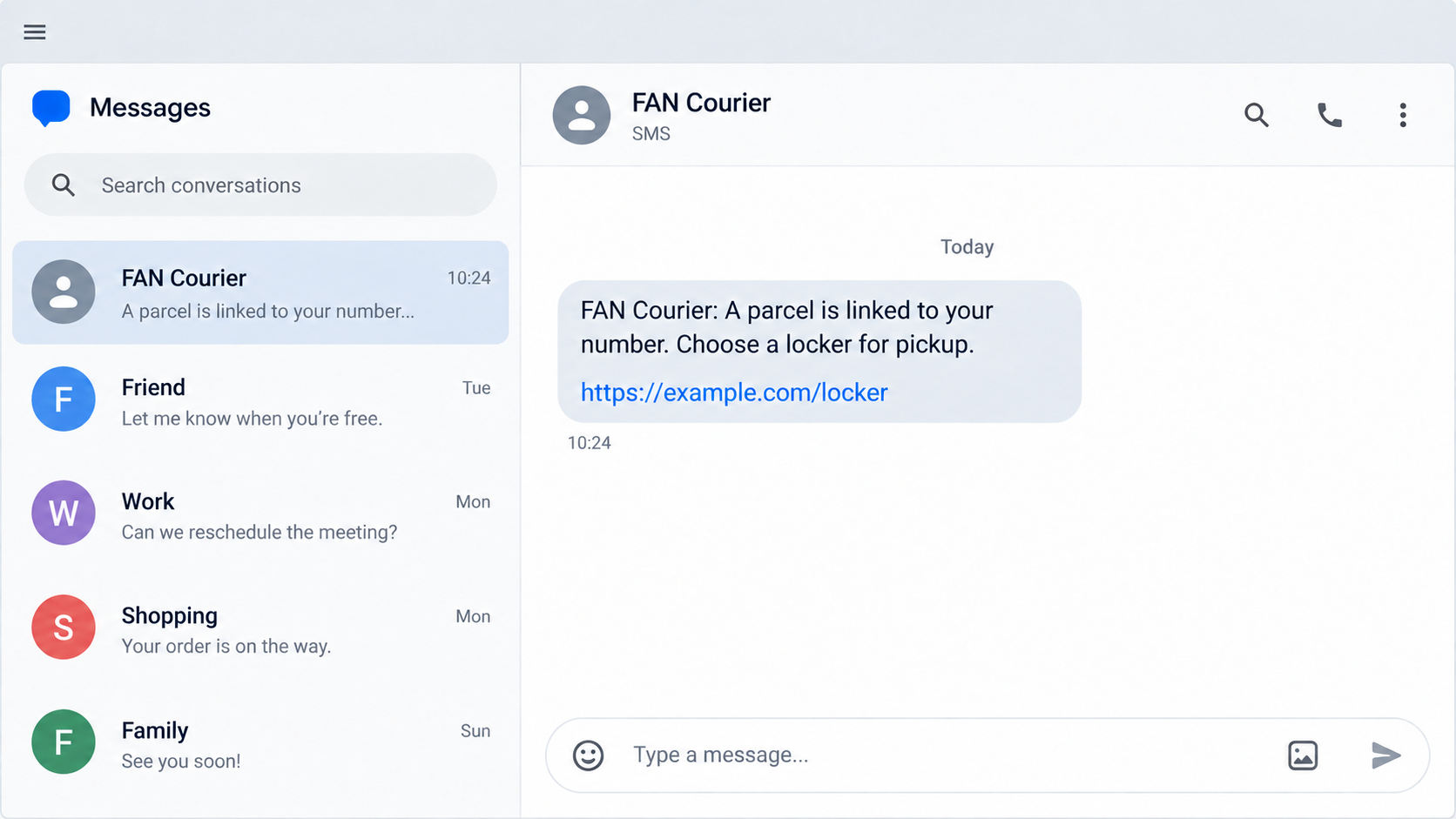
The first image is a safe reconstruction of the message format. Its example address does not lead to a courier or an attacker.
Why a Locker Story Is Such Effective Bait
Delivery fraud usually invents a problem: an incomplete address, an unpaid fee, or a failed attempt. This campaign offers a choice instead.
Choosing a locker sounds like a normal step the customer controls. It feels less alarming than a threat to return the parcel.
That matters because a person can act while still feeling careful. They may think they are simply updating a preference, not handling a security alert.
The message also avoids needing a name. A parcel supposedly tied to a phone number could plausibly belong to anyone in a broad SMS list.
Timing does the rest. If a household member recently ordered something, the recipient may make the connection themselves. The attacker need not know the order.
Even a genuine parcel on the way does not authenticate the text. Criminals send bulk messages and benefit when chance aligns with a real delivery.
The switch to WhatsApp is deliberately out of place. Courier services may send notifications through many channels, but they do not need your private registration code.
A code request can be dressed as a delivery confirmation. The page might say it has sent a number for security, while the actual sender is WhatsApp.
Read the code message itself. The app name tells you what account the digits control, regardless of the story told by the website asking for them.
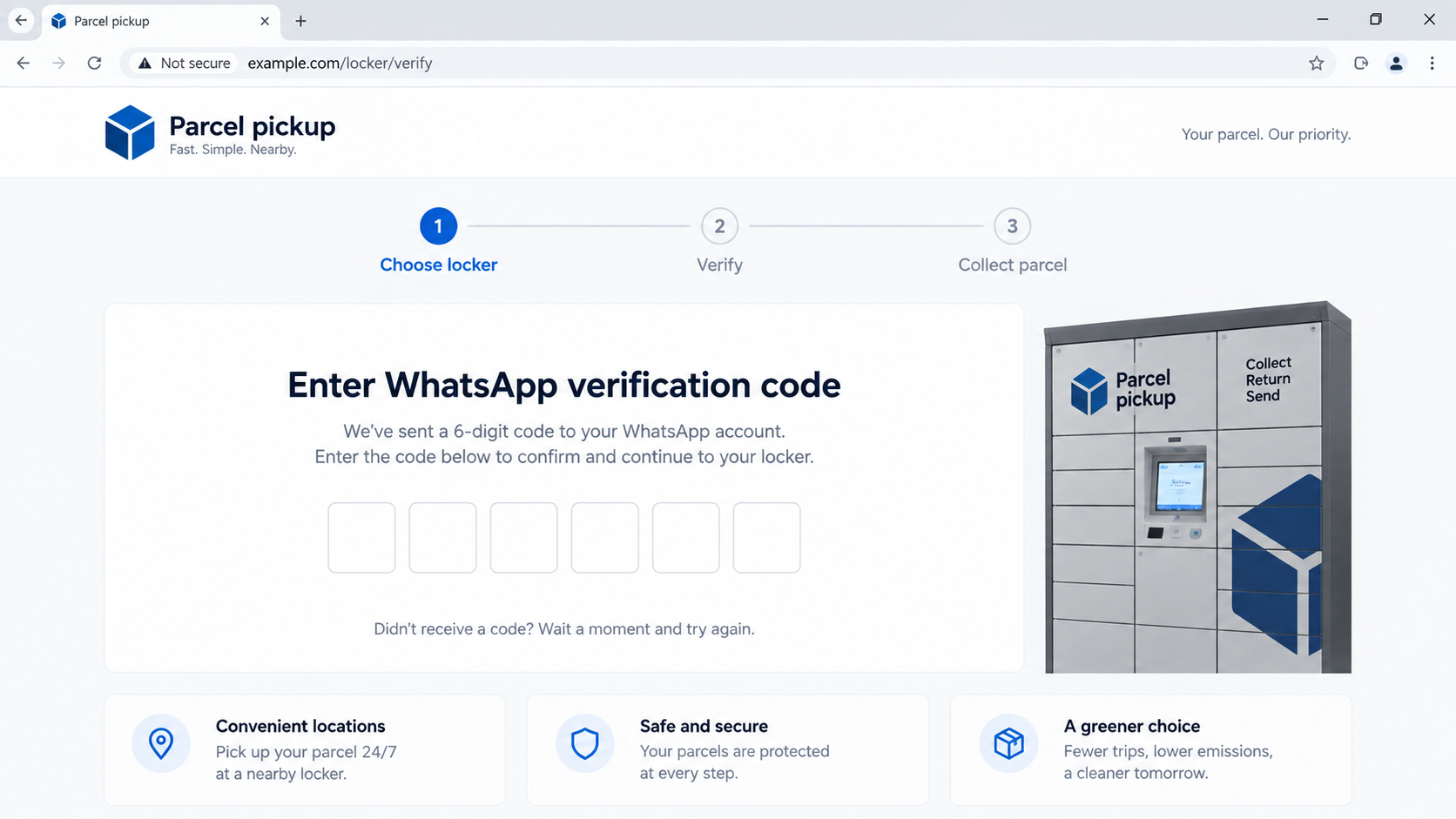
The second image reconstructs that mismatch using empty fields. It is illustrative, not a capture of a live fraudulent domain.
How the FAN Courier Locker Text Scam Works
Step 1: A bulk SMS claims a parcel needs a locker
The attacker sends many texts with a delivery premise. The wording may say a package is attached to your number or that you must choose where to collect it.
It may display FAN Courier in the message, but a visible name can be typed by anyone. Sender IDs and message threads can also mislead.
The message includes a link because the attacker needs to move the recipient away from a trusted courier application or website.
There may be no tracking number, merchant, shipment date, or sender. Those omissions are easy to overlook when the text feels like a routine reminder.
Do not infer that the courier’s customer database was breached merely because the text arrived. A broad campaign can reach legitimate customers by chance.
Step 2: A courier lookalike presents a simple task
The link opens a page resembling a parcel or locker-selection service. Logos, delivery colors, progress bars, and location choices make the page feel operational.
The address bar is more revealing than the artwork. A domain that merely contains courier-related words is not the courier’s verified domain.
Some sites change rapidly or disappear after reports. The precise hostname is less important than the fact that the message directs you outside channels you can verify independently.
A working map or list of lockers would not prove the page is authorized. Public location information can be copied into a fraudulent form.
The page may ask for a phone number first. That gives the attacker the exact number needed to start a WhatsApp registration attempt.
Step 3: WhatsApp sends a real registration code
Once the attacker enters the victim’s number into WhatsApp on another device, WhatsApp sends a genuine registration code to the number owner.
This is a real security message, but it was triggered by an unauthorized attempt. The authenticity of the code does not validate the unrelated courier page.
The fake page frames the digits as parcel verification. A rushed visitor may transfer them without reading which service actually sent them.
The boundary is simple: a code from WhatsApp belongs only in the WhatsApp registration flow you initiated inside the app.
If you did not request a new WhatsApp sign-in, never give those digits to a courier, friend, employee, or website claiming to help you.
Step 4: The attacker completes account registration
Submitting the code to the impostor can let them finish registering the number on their own device. The original user may be logged out or see a registration warning.
The result depends on account settings and the exact flow. Extra account protection can slow or stop a takeover, but the code exposure still needs attention.
WhatsApp’s recovery guidance says re-registering the number with a fresh code can disconnect other logged-in devices. Follow the current in-app recovery prompts.
Do not keep entering codes into the courier site if one fails. Each attempt may give the attacker a new opportunity to synchronize with a registration request.
If access changes unexpectedly, tell people close to you quickly. They may receive money requests before you regain control.
Step 5: Familiar chats carry the money request
The attacker uses the hijacked account to write to contacts. They may claim an urgent bill, temporary emergency, or short loan needed until tomorrow.
Those messages inherit the victim’s profile name and established conversations. A recipient can mistake the sender for someone they know well.
Urgency and embarrassment work together. The fake borrower asks for a private favor and discourages a callback that would expose the impostor.
A second victim may send money to an account unrelated to the real friend. A payment destination should be verified, even when the chat itself looks familiar.
The attack is therefore not just about the account owner. It turns their social circle into the next set of targets.
Why a Real WhatsApp Code Can Be Part of a Fake Delivery
The most confusing detail is that the verification message can be genuine. People are often taught to look for fake messages, so a real one feels reassuring.
But a valid security code proves only that someone initiated a registration flow. It says nothing about whether the person requesting it is trustworthy.
Think of it as a door key mailed to the correct house. The key is real. Giving it to the person standing at an unrelated counter is the mistake.
Delivery pages do not need to know your private messaging account. A code from WhatsApp cannot locate a locker, verify a parcel, or authorize a shipment.
The cross-service request is the strongest red flag. It remains suspicious even if the courier logo is perfect and the website uses HTTPS.
Likewise, a code arriving seconds after you entered your phone number should not make the page seem validated. That timing may show the attack working.
If you accidentally opened the link but did not provide a code, your WhatsApp account is not automatically taken over by the documented mechanism.
Still, inspect what else the page asked for. A name, card number, download, or browser permission would require a different recovery step.
Courier, Link, Code, and Payment Checks
Check the parcel from the purchase record
Open the store or marketplace where you ordered. Find its shipment record, tracking number, and named carrier there.
Then visit FAN Courier through a saved bookmark or manually entered official address. Do not let the SMS provide both the claim and its proof.
If a household member arranged the delivery, ask them for the original merchant confirmation. A parcel story without a verifiable shipment should not drive account-security actions.
Inspect who owns the destination
Look at the registered domain, not only the word FAN in a long path or subdomain. A lock icon means the connection is encrypted, not authorized.
Short links and redirects hide ownership. When you cannot establish where the final page belongs, abandon it and use the courier’s known channels.
Do not search for the suspicious domain and click a sponsored result to confirm it. That can add another attacker-controlled route.
Read the code message as a security instruction
The sender of a legitimate WhatsApp registration code identifies the account being activated. If the request began on a parcel page, the services do not match.
Do not share the digits, forward a screenshot, or type them into a website. Someone who needs your delivery details does not need them.
If you already disclosed a code, begin account recovery immediately rather than arguing with the fake courier page.
Verify every request for money separately
If a contact suddenly needs a transfer, call them using a number you already have. A voice note inside the compromised chat is not independent proof.
Compare the beneficiary name, account details, and reason. Never assume a familiar profile photo authenticates a new payment destination.
If money has moved, contact the bank or payment service quickly. Waiting for the real account owner to regain WhatsApp access can reduce recovery options.
What to Do if You Fell for the FAN Courier Locker Scam
Stop using the linked page. Close it and do not enter another code. Preserve the SMS, destination address, and a screenshot for a report without revisiting the site.
Recover WhatsApp on your own device. Open the genuine app, re-register your number, and enter the fresh code only there. Follow current WhatsApp guidance if extra verification is requested.
Warn your contacts through another channel. Call or text close contacts that your account may be sending false emergency requests. Ask them not to send money or follow links from your chats.
Review account security. Inspect linked devices, enable the current two-step protection or passkey options available to you, and check whether recovery settings changed.
Protect payment details if you entered them. Contact the card issuer or bank through its official app or printed number. Ask about replacing an exposed card, disputing charges, and monitoring activity.
Check any downloaded app. If the page asked you to install software, remove the unfamiliar app and run a Malwarebytes scan. AdGuard can help limit deceptive redirects.
Notify the real courier. Share the message and page details with FAN Courier through its official support route and report the SMS using your carrier’s spam controls. Do not include private codes.
Is Your Device Infected? Run a Free Malware Scan
Slow performance, constant pop-ups, or strange behavior? These are classic signs of a malware infection. The fastest way to find out is to scan your device with Malwarebytes Anti-Malware Free — one of the most trusted malware removal tools available.
The free version detects and removes the most common threats, including:
Adware — the cause of those annoying pop-ups
Browser hijackers — unwanted redirects and changed homepages
Trojans and spyware — hidden programs stealing your data
Potentially unwanted programs (PUPs) — software you never asked for
👉 Select your device below — Windows, Mac, or Android — then follow the simple steps to download Malwarebytes, scan your system, and remove any threats it finds. The whole process takes about 5 minutes.
Malwarebytes for WindowsMalwarebytes for MacMalwarebytes for Android
Run a Malware Scan with Malwarebytes for Windows
Malwarebytes is one of the most popular and trusted anti-malware tools for Windows — and it’s completely free for removing infections. It catches threats that many antivirus programs miss, including adware, browser hijackers, and trojans. Follow the steps below to scan and clean your PC in just a few minutes.
Download Malwarebytes
Click the button below to download the latest version of Malwarebytes for Windows from the official source. The free version is all you need — it will scan your computer and remove adware, browser hijackers, and other malicious software at no cost.
(The link opens in a new page where your download will start)
Install Malwarebytes
When the download finishes, open your Downloads folder and double-click the MBSetup file. If Windows shows a User Account Control pop-up, click “Yes” to allow the installation.
Follow the On-Screen Prompts to Install Malwarebytes
The setup wizard will walk you through a few quick screens:
Choose where you’re installing the program — “Personal Computer” or “Work Computer” — then click Next.
Malwarebytes will now install on your device. This usually takes under a minute.
When installation is complete, the “Welcome to Malwarebytes” screen will open automatically.
On the final screen, click Open Malwarebytes to launch the program.
Enable “Scan for Rootkits”
Before scanning, turn on rootkit detection so Malwarebytes can find even the most hidden threats. Click the Settings gear icon on the left side of the screen.
In the settings menu, find “Scan for rootkits” and click the toggle so it turns blue.
Done? Click “Dashboard” in the left pane to return to the main screen.
Start the Scan
Click the blue Scan button. Malwarebytes will automatically update its virus database and start checking your computer for malware.
Wait for the Scan to Finish
The scan checks your entire system for browser hijackers and other malicious programs, so it can take several minutes. Feel free to do something else — just check back occasionally to see the progress.
Quarantine the Detected Threats
When the scan is done, you’ll see a list of everything Malwarebytes found — malware, adware, and potentially unwanted programs. Click the “Quarantine” button to remove all of them at once.
Malwarebytes will now remove the malicious files and registry entries and move them safely into quarantine.
Restart Your Computer
Some threats can only be fully removed after a reboot. If Malwarebytes asks you to restart, click Yes. Once you’re logged back in, your PC is clean and you can continue with the next steps in this guide.
When the scan finishes, click Quarantine to remove everything Malwarebytes found. That’s it — your Windows PC is now clean of trojans, adware, and other malware, and should be back to running smoothly.
If your current antivirus allowed this malicious program on your computer, you may want to consider purchasing Malwarebytes Premium to protect against these types of threats in the future. If you are still having problems with your computer after completing these instructions, then please follow one of the steps:
Malwarebytes for Mac is a free on-demand scanner that removes the malware other security software tends to miss — adware, browser hijackers, and unwanted programs included. Cleaning an infected Mac with Malwarebytes has always been completely free, and it’s our go-to recommendation. Follow the steps below to scan and clean your Mac in just a few minutes.
Download Malwarebytes for Mac
Click the button below to download the latest version of Malwarebytes for Mac.
When the download finishes, open your Downloads folder and double-click the setup file to begin the installation.
Follow the On-Screen Prompts to Install Malwarebytes
The Malwarebytes for Mac Installer will guide you through a few quick screens. Click “Continue” and keep following the prompts until the installation completes.
When the installation is complete, Malwarebytes opens to the Welcome to Malwarebytes screen. Click “Get started“.
Select “Personal Computer” or “Work Computer”
Malwarebytes will ask what type of computer you’re installing it on. Click either Personal Computer or Work Computer, whichever applies.
Start the Scan
Click the “Scan” button. Malwarebytes will automatically update its detection database and begin checking your Mac for malware.
Wait for the Scan to Finish
Malwarebytes will scan your Mac for adware, browser hijackers, and other malicious programs. This can take a few minutes, so feel free to do something else — just check back occasionally to see the progress.
Quarantine the Detected Threats
When the scan is done, you’ll see a list of everything Malwarebytes found. Click the “Quarantine” button to remove all the threats at once.
Restart Your Mac
Malwarebytes will now remove all the malicious files it found. Some threats can only be fully removed after a reboot — if Malwarebytes asks you to restart, allow it. Once you’re logged back in, your Mac is clean.
Once the scan is done, remove every threat it detected. Your Mac is now free of adware, rogue browser extensions, and other potentially harmful software.
If your current antivirus allowed a malicious program on your computer, you might want to consider purchasing the full-featured version of Malwarebytes Anti-Malware to protect against these types of threats in the future. If you are still experiencing problems while trying to remove a malicious program from your computer, please ask for help in our Mac Malware Removal Help & Support forum.
Run a Malware Scan with Malwarebytes for Android
Malwarebytes for Android automatically detects and removes dangerous threats like malware and ransomware so you don’t have to worry about your most-used device being compromised. Aggressive detection of adware and potentially unwanted programs keeps your Android phone or tablet running smooth.
Download Malwarebytes for Android.
You can download Malwarebytes for Android by clicking the link below.
In the Google Play Store, tap “Install” to install Malwarebytes for Android on your device.
When the installation process has finished, tap “Open” to begin using Malwarebytes for Android. You can also open Malwarebytes by tapping on its icon in your phone menu or home screen.
Follow the on-screen prompts to complete the setup process
When Malwarebytes will open, you will see the Malwarebytes Setup Wizard which will guide you through a series of permissions and other setup options. This is the first of two screens that explain the difference between the Premium and Free versions. Swipe this screen to continue. Tap on “Got it” to proceed to the next step. Malwarebytes for Android will now ask for a set of permissions that are required to scan your device and protect it from malware. Tap on “Give permission” to continue. Tap on “Allow” to permit Malwarebytes to access the files on your phone.
Update database and run a scan with Malwarebytes for Android
You will now be prompted to update the Malwarebytes database and run a full system scan.
Click on “Update database” to update the Malwarebytes for Android definitions to the latest version, then click on “Run full scan” to perform a system scan.
Wait for the Malwarebytes scan to complete.
Malwarebytes will now start scanning your phone for adware and other malicious apps. This process can take a few minutes, so we suggest you do something else and periodically check on the status of the scan to see when it is finished.
Click on “Remove Selected”.
When the scan has been completed, you will be presented with a screen showing the malware infections that Malwarebytes for Android has detected. To remove the malicious apps that Malwarebytes has found, tap on the “Remove Selected” button.
Restart your phone.
Malwarebytes for Android will now remove all the malicious apps that it has found. To complete the malware removal process, Malwarebytes may ask you to restart your device.
After the scan, tap Remove Selected to delete all detected threats. Your Android phone is now clean — no more malicious apps, adware, or browser redirects.
If your current antivirus allowed a malicious app on your phone, you may want to consider purchasing the full-featured version of Malwarebytes to protect against these types of threats in the future. If you are still having problems with your phone after completing these instructions, then please follow one of the steps:
Restore your phone to factory settings by going to Settings > General management > Reset > Factory data reset.
Now that your device is clean, keep it that way. Most infections start with a malicious ad or a fake download button — so blocking them at the source is your best defense.
We recommend AdGuard, which blocks malicious ads, phishing pages, and dangerous redirects before they can reach you.
Yes, a real delivery service can offer locker pickup. The existence of a normal service does not authenticate a particular unsolicited link or code request.
Can a courier ever need my WhatsApp verification code?
No. The code is for registering or securing your WhatsApp account. A courier cannot use it to locate, release, or verify a package.
Was my number stolen from FAN Courier?
The reported mass campaign does not prove a courier data breach. Broad SMS sending can reach people who happen to expect deliveries.
What if I clicked but did not type the code?
Close the page and check whether you supplied other data, allowed notifications, or downloaded anything. The documented takeover hinges on disclosure of the WhatsApp code.
Will reinstalling WhatsApp remove the attacker?
Reinstallation alone is not the key step. Follow WhatsApp’s current recovery flow to re-register your number with a new code, then review linked devices and protection settings.
Should I trust a money request from a familiar chat?
Not until you confirm it outside that chat. A hijacked account can send messages under a real person’s name and profile photo.
The Bottom Line
The FAN Courier locker text uses an ordinary delivery decision to lead recipients toward a WhatsApp code request. That code can enable account takeover and fraud against friends.
Check parcels through the merchant and courier directly. Keep WhatsApp registration codes inside WhatsApp, and call a friend independently before responding to an urgent payment request.
10 Rules to Avoid Online Scams
Here are 10 practical safety rules to help you avoid malware, online shopping scams, crypto scams, and other online fraud. Each tip includes a quick “if you already got hit” action.
Stop and verify before you click, log in, download, or pay.
Most scams win by creating urgency. Verify using a trusted method: type the website address yourself, use the official app, or call a known number (not the one in the message).
If you already clicked: close the page, do not enter passwords, and run a malware scan.
Keep your operating system, browser, and apps updated.
Updates patch security holes used by malware and malicious ads. Turn on automatic updates where possible.
If you saw a scary “update now” pop-up: close it and update only through your device settings or the official app store.
Use layered protection: antivirus plus an ad blocker.
Antivirus helps block malware. An ad blocker reduces scam redirects, phishing pages, and malvertising.
If your browser is acting weird: remove unknown extensions, reset the browser, then run a full scan.
Install apps, software, and extensions only from official sources.
Avoid cracked software, “keygens,” and random downloads. During installs, choose Custom/Advanced and decline bundled offers you do not recognize.
If you already installed something suspicious: uninstall it, restart, and scan again.
Treat links and attachments as untrusted by default.
Phishing often impersonates delivery services, banks, and popular brands. If it is unexpected, do not open attachments or log in through the message.
If you entered credentials: change the password immediately and enable 2FA.
Shop safely: research the store, then pay with protection.
Be cautious with brand-new stores, “closing sale” stories, and prices that make no sense. Prefer credit cards or PayPal for dispute options. Avoid wire transfers, gift cards, and crypto payments.
If you already paid: contact your card issuer or PayPal quickly to dispute the transaction.
Crypto rule: never pay a “fee” to withdraw or recover money.
Common patterns include fake profits, then “tax,” “gas,” or “verification” fees. Another is a “recovery agent” who demands upfront crypto.
If you already sent crypto: stop paying, save evidence (wallet addresses, TXIDs, chats), and report the scam to the platform used.
Secure your accounts with unique passwords and 2FA (start with email).
Use a password manager and unique passwords for every account. Enable 2FA using an authenticator app when possible.
If you suspect an account takeover: change passwords, sign out of all devices, and review recent logins and recovery settings.
Back up important files and keep one backup offline.
Backups protect you from ransomware and device failure. Keep at least one backup on an external drive that is not always connected.
If you suspect infection: do not connect backup drives until the system is clean.
If you think you are a victim: stop losses, document evidence, and escalate fast.
Move quickly. Speed matters for disputes, account recovery, and limiting damage.
Stop payments and contact: do not send more money or respond to the scammer.
Call your bank or card issuer: block transactions, replace the card if needed, and start a dispute or chargeback.
Secure your email first: change the email password, enable 2FA, and remove unfamiliar recovery options.
Secure other accounts: change passwords, enable 2FA, and log out of all sessions.
Scan your device: remove suspicious apps or extensions, then run a full malware scan.
Save evidence: screenshots, emails, order pages, tracking pages, wallet addresses, TXIDs, and chat logs.
Report it: to the payment provider, marketplace, social platform, exchange, or wallet service involved.
These rules are intentionally simple. Most online losses happen when decisions are rushed. Slow down, verify independently, and use payment methods and account controls that give you recourse.
Hello! I'm Lapain Epuran, your go-to source for detailed and honest product reviews. From tech gadgets to miracle cures, I provide insights to help you make informed choices. Join me as we discover what's truly worth your time and money.