

You open a document link, but the page says your Adobe plugin needs attention. The file appears ready, with just one more step before viewing.
The fake document download scam hides behind that small interruption. Before running the suggested file, look carefully at what the page is asking you to install.
Overview
The promised document is a pretext for installing software
This campaign uses counterfeit document pages and Adobe-themed instructions to persuade people to run files. The intended result is unauthorized remote access, not document viewing.
The twist is the software involved. Criminals can misuse genuine administration products, so an installer does not have to look like an obviously homemade virus.
Faronics Deploy and ScreenConnect are legitimate tools. Adobe is also being impersonated. None of those facts gives an unknown sender permission to manage your computer.
The important distinction is who arranged the installation and who controls the resulting connection. A real product can be installed for a fraudulent purpose.
Researchers observed hundreds of encounters with the lures
Huntress documented more than 457 endpoints encountering these lures between July 21 and August 20, 2026.
That number describes encounters, not 457 confirmed successful takeovers. The research traces abuse of Faronics Deploy followed by ScreenConnect deployment.
Huntress notified Faronics on August 5 and reported a decline after mitigations on August 21. This article does not claim the same volume continues today.
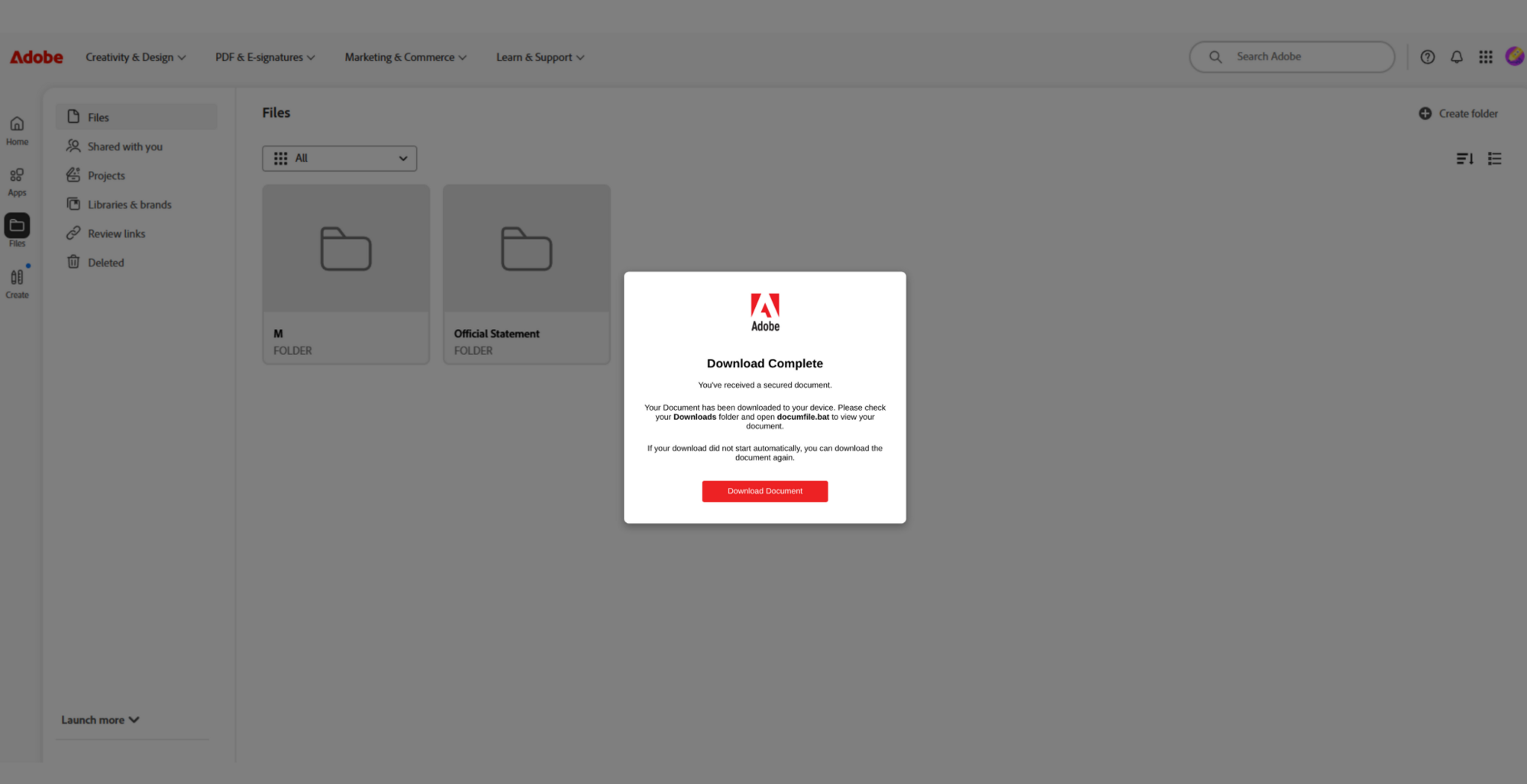
The captured pages show the deception directly: a document-themed interface asks the visitor to execute a downloaded file, including a batch-file example.
The warning signs concern the requested action
You do not need to memorize a campaign hostname. A rotating page can change its address while asking for the same dangerous favor.
- A supposedly readable document requires running a program or script.
- A webpage diagnoses an “outdated plugin” and supplies its own replacement.
- The instructions direct you into Downloads rather than opening the expected document.
- An unfamiliar installer requests administrator permission.
- The sender cannot independently explain why remote-management software is necessary.
A download that never ran is different from an installer you approved. Keep that distinction clear when deciding how urgently to isolate and investigate the computer.
The Signature Can Be Genuine While the Installation Is Wrong
Many people look for a known publisher when Windows asks permission to install something. That is a sensible check, but it answers only one question.
A digital signature helps identify the publisher and detect certain changes to a file. It does not certify that your particular installation was honestly requested.
Consider a legitimate remote-support app. Your trusted technician may use it appropriately. An impostor can ask you to install the same product for a different purpose.
The file can be genuine in both situations. The authority to connect, the account controlling it, and the reason for installation are what differ.
That is why “the software company is real” is not a complete answer to a suspicious prompt. The company may have nothing to do with the lure.
Nor does the presence of an administration tool automatically prove infection. Many workplaces intentionally install these products, and removing them blindly can disrupt support.
Ask a narrower question: did an authorized person arrange this particular installation through your normal IT process?
If the only explanation comes from an unexpected document page, stop there. The page’s own instructions are not independent verification.
How the Fake Document Download Scam Works
Step 1: A business-looking message creates a reason to open a file
The documented lures included ordinary document themes such as invoices and financial records. These are subjects people encounter without expecting to install a new application.
That mismatch is useful to notice. Reading a bill and enrolling a computer in a management service are very different tasks.
A recognizable sender name does not bridge that gap. If the attachment or link was unexpected, verify the file through a previously known contact.
For example, call your usual supplier about the invoice number. Do not use a newly supplied “accounts support” number from the same questionable email.
That is a safe checking example, not a claim that a specific supplier participated in this campaign.
Step 2: The destination presents a document problem to fix
The visitor sees an Adobe-themed page rather than the expected document. The page supplies an explanation for why another action is necessary.
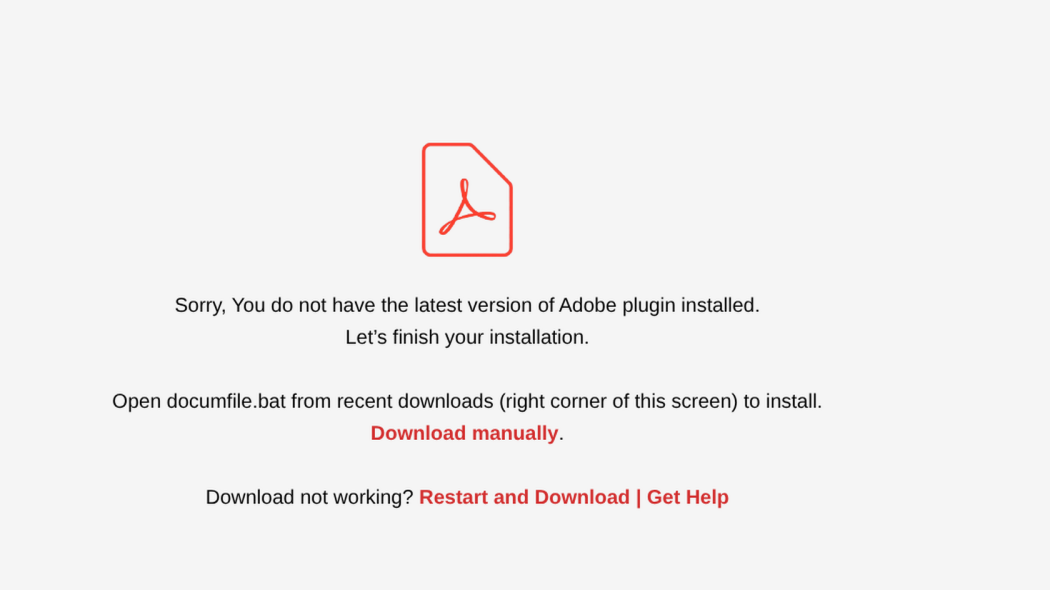
One captured screen claims the required plugin is missing or outdated. It then directs the visitor to open a downloaded batch file.
This creates a convenient story: nothing is wrong with the request, you supposedly just need to finish the installation.
The research also describes visitors receiving different page behavior. A harmless-looking result on one device therefore does not clear the original link for everyone.
A website can display a message about your software without having accurately diagnosed it. Treat an unsolicited browser claim as a claim, not a system finding.
Step 3: The supposed reader update runs an installation chain
The instructions move you from viewing web content to executing software. That is the point where an apparently minor document problem becomes a device-security concern.
In the investigated chain, a signed Faronics Deploy installer enrolled the endpoint in deployment infrastructure controlled by the attacker.
Filenames and intermediate steps can vary. Do not assume a file is safe merely because its name differs from the example shown above.
A name ending in .bat denotes a Windows batch file, not an ordinary PDF. A program disguised by its name still runs as a program.
Stop if a document workflow unexpectedly requests administrator permission. Ask your IT contact before allowing changes, even when the publisher name looks credible.
Step 4: Remote-management access enables further actions
The researched sequence used the deployment foothold to install ScreenConnect. The issue is unauthorized control, not the mere existence of legitimate support software.
Once a stranger has remote-management access, possible consequences depend on permissions and what they do next. Those possibilities should not be confused with confirmed outcomes.
Files, accounts, or business applications could be exposed. An investigator must establish whether anything was accessed, copied, altered, or additionally installed.
Closing the original browser tab is not a reliable way to undo software installation. The webpage and an installed background service are separate things.
That is why recovery after execution needs more attention than deleting the original email. The computer itself may require containment and inspection.
Check the File, the Request, and the Support Relationship
Confirm the document without running the offered fix
Ask the sender to identify the document and its intended delivery method. If appropriate, request a normal attachment through the established conversation.
Do not ask an unknown sender to recommend another download. That simply lets the same person choose the next tool you install.
For workplace files, your organization’s approved document viewer or portal is the right starting point. Use IT support for a genuine compatibility problem.
For a personal computer, obtain software from the publisher’s official site or the operating system’s trusted distribution channel, not from the document’s warning.
Do not use the page’s reassurance as proof
A reassuring badge, support link, or familiar brand can be copied into a page. None independently confirms who sent the original request.
The same applies to a statement that installation is necessary for security. A security-themed explanation can still ask for the wrong action.
Look at what permission is being requested. If the task was reading a statement, why does someone need to add remote-management software?
You do not have to solve that contradiction yourself. Declining the installation and checking with a trusted contact is enough.
Recognize the broader fake-reader pattern without conflating cases
MalwareTips has also examined fake Adobe Reader pages used for remote-access malware.
That separate investigation covers a different delivery setup. Here, the distinctive issue is enrollment through deployment software before the additional remote-access tool appears.
Both patterns exploit a gap between the task you intended and the software you were asked to run. Their indicators should not be mixed indiscriminately.
When reporting an incident, supply your own message and filenames. Do not replace them with details copied from an article because the pages look similar.
What to Do if You Have Fallen Victim to This Scam
- Work out whether the file actually ran.
Write down whether you merely opened the page, downloaded a file, launched it, or accepted an administrator prompt. Those are separate levels of exposure.
If you are unsure, say so. A technician can investigate uncertainty more effectively than an inaccurate reassurance that nothing happened.
Do not double-click the file again to identify it. Preserve its name and download time without repeating the risky action.
- Contain a computer on which the installer was executed.
Contact workplace IT immediately if it is a managed device. Explain that a document link prompted installation of possible remote-management software.
On a personal computer, disconnect its network connection while arranging trusted assistance if unauthorized access may be active. Use another device to communicate.
Avoid signing into banking, email, or other sensitive services on the suspect machine. Do not continue browsing merely because the screen appears normal.
- Preserve the trail before cleanup.
Keep the original email, visible URL, downloaded filename, and any installation prompts you remember. Record the approximate time the file was opened.
Administrators can compare installed services and deployment records with their approved inventory. An unfamiliar management tenant may matter more than the product’s familiar name.
Do not erase logs or uninstall every support tool yourself. Legitimate company installations need to be distinguished from unauthorized additions.
- Use trusted security tools without treating one clean result as closure.
For a personal Windows computer, Malwarebytes can help inspect unwanted software after containment. Download it through the official publisher, preferably using a clean device.
For an office endpoint, the security team should direct scanning, evidence collection, and any rebuild. Follow its process rather than stacking unapproved cleanup utilities.
A legitimate administration product may not be classified as malware simply because an attacker misused it. Authorization and configuration still need review.
Depending on the findings, a clean reinstall may be safer than selective removal. Backups should be assessed so unwanted software is not immediately restored.
- Protect accounts that may have been exposed.
From a separate trusted device, review important account activity and change exposed passwords. Tell the administrator if work accounts were open during the incident.
Ask whether active sessions should be revoked and whether stored credentials require attention. The appropriate scope depends on the access investigators confirm.
If financial activity looks unfamiliar, notify the bank promptly using an established contact. Avoid assuming that removing software automatically reverses transactions.
- Warn the right people about the original lure.
Tell the apparent sender that their identity or account may have been abused. Use a different trusted channel instead of replying into the suspicious chain.
At work, let the security team distribute indicators safely. Forwarding a live download link to everyone can create additional opportunities for accidental execution.
- Add prevention after the immediate incident is contained.
Keep the browser and document reader updated through their normal update mechanisms. Routine maintenance reduces the temptation to trust an unexpected “repair” page.
AdGuard can provide an additional malicious-site blocking layer where its relevant protections are enabled. It does not remove an already installed remote-management agent.
Review who can install software on shared computers. A clear approval process is more useful than asking family members or staff to recognize every deceptive filename.
Why a Normal-Looking Computer Can Still Need Investigation
Remote-support software is designed to work without constantly disrupting the person at the keyboard. Lack of dramatic symptoms is therefore not a dependable safety test.
You may not see a ransom note, browser crash, or obvious pop-up. That does not establish whether an unauthorized account can still reach the machine.
Equally, a slow computer does not prove this campaign caused the problem. Investigators need the installation history and observed behavior, not just general symptoms.
Ask for a clear recovery summary: what was installed, what controlled it, what access occurred, and what was done to remove that access.
If the answers remain uncertain, keep sensitive activity off the device until a trusted professional explains the remaining risk. Uncertainty is a reason to investigate.
Be cautious of unsolicited cleanup offers after posting about the incident online. A stranger offering remote help can recreate the same problem under a recovery pretext.
Choose assistance through someone you already trust or a provider you independently verify. Never let urgency make the unknown download page your technical support desk.
Frequently Asked Questions
Is Faronics Deploy itself a scam?
No. It is legitimate deployment software. The confirmed deception is tricking a person into an installation controlled by unauthorized operators.
Why would a fake document page use genuine software?
Real management tools already provide useful administrative capabilities. A genuine installer does not establish that the person arranging its use has permission.
Does downloading the file mean someone controls my PC?
Not necessarily. Downloading and executing are different. Report exactly what happened, especially whether you launched the file or accepted an installation prompt.
Can I fix this by closing the browser?
Closing the page stops that browsing interaction. It does not reliably remove software already installed or revoke a remote-management connection.
Should I uninstall ScreenConnect wherever I find it?
No. Your organization may use it legitimately. Have the responsible technician verify the installation and controlling account before removing approved tools.
Were all 457 observed endpoints successfully compromised?
The cited research describes endpoints encountering lures. Treating that encounter count as a confirmed takeover count would overstate the evidence.
The Bottom Line
The fake document download scam turns a simple viewing task into a software installation. A recognizable publisher does not make that switch legitimate.
If an unexpected document needs a script, installer, or administrator approval, stop and verify. If you already ran it, investigate the computer, not just the email.








