

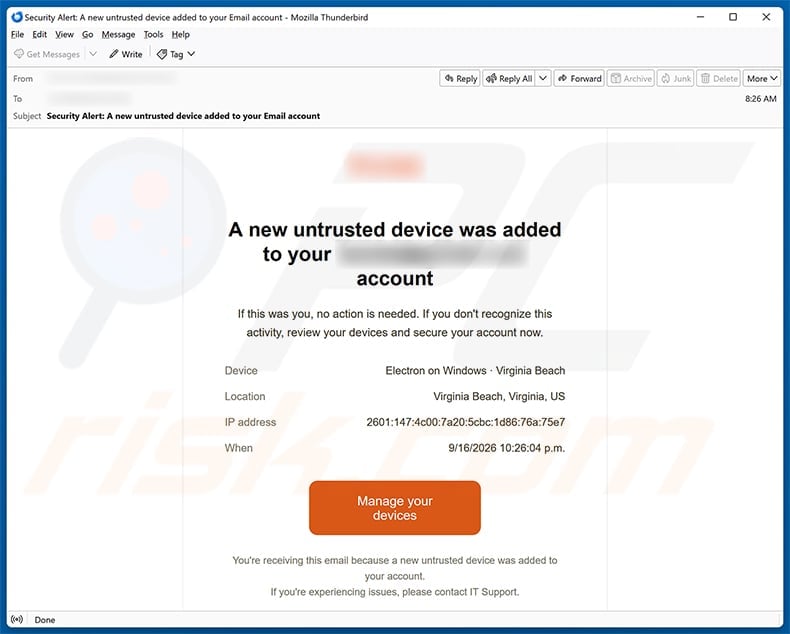
A security alert says an untrusted device appeared on your email account from Virginia Beach. It includes a timestamp, software name, location, and IP address.
Those details give the Untrusted Device Added email scam enough realism to feel personal, especially when the location seems unfamiliar.
Overview
The message simulates a modern device-security notification
The observed subject reads “Security Alert: A new untrusted device added to your Email account.”
Inside, the supposed device is “Electron on Windows,” accompanied by Virginia Beach, a full IPv6 address, and a precise time.
The notice says no action is needed if the activity is recognized, mirroring the balanced language used by genuine security alerts.
If it looks unfamiliar, an orange Manage your devices button offers the path to secure the account.
The information sounds specific, but none is tied to authenticated account records that the recipient can inspect independently.
The destination adapts its disguise to the target
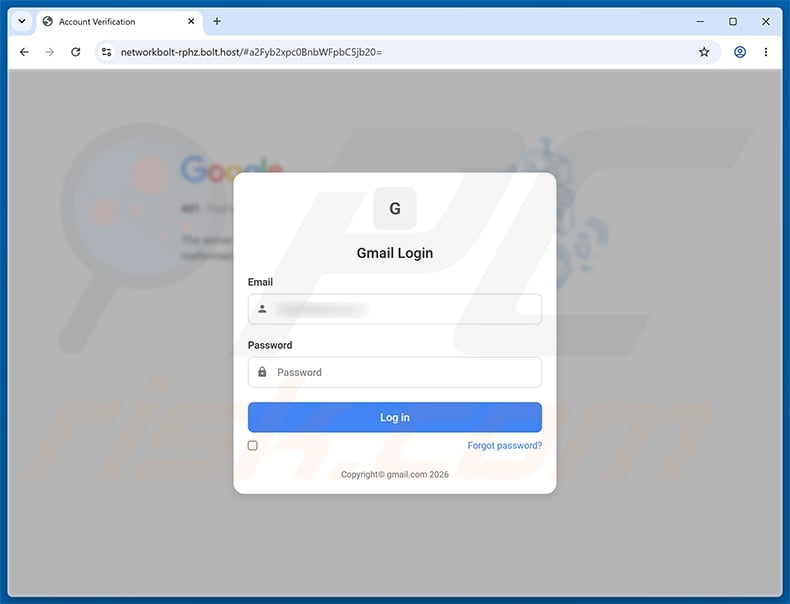
The button leads to networkbolt-rphz.bolt[.]host, an address unrelated to any major email provider.
The captured link carries an encoded form of the recipient’s address. The page can decode it and infer which provider branding to display.
In the reviewed sample, the user sees a Gmail-themed login overlay, although another address could trigger a different visual identity.
This personalization is not provider recognition. It is a presentation choice made by the phishing code.
The requested password is sent through an attacker-controlled page rather than the service named by its copied logo.
The real email services are not behind the warning
Google, Gmail, and other providers have no connection to this fraudulent campaign.
Legitimate device pages are reached through the provider’s own application or account-security domain, not a bolt[.]host subdomain.
The incident details should be treated as lure content until the real account independently reports a matching session.
Reading the email does not add a device or expose a password. Interaction with the false login creates the principal risk.
- A precise device, place, IP address, and time create credibility.
- The provider identity is blurred or generic in the email.
- The action button leaves the legitimate account environment.
- networkbolt-rphz.bolt[.]host hosts the examined phishing page.
- The URL encodes information about the recipient address.
- Page branding can change according to the inferred provider.
- The form requests an email password.
- Real session activity remains independently verifiable.
How the Untrusted Device Added Email Scam Works
Step 1: The alert presents a security event that feels measurable
Generic warnings are easy to dismiss, so this campaign adds technical-looking fields normally found in account notifications.
“Electron on Windows” resembles a desktop application description, while Virginia Beach provides a location the reader can accept or reject.
An IPv6 address appears authoritative because most people cannot interpret or compare it quickly.
The timestamp supplies urgency and encourages the recipient to reconstruct where they were at that moment.
All four details can be invented without access to the mailbox.
Step 2: Conditional wording encourages self-selection
The message tells users who recognize the activity to do nothing, which sounds less aggressive than a universal command.
Anyone outside Virginia Beach or unfamiliar with Electron immediately places themselves in the “secure your account” group.
That design lets recipients convince themselves the warning is relevant before the phisher has proven anything.
Real alerts use similar conditional language, making process verification more reliable than tone analysis.
The safest response is opening the provider’s security dashboard separately, not following the supplied control.
Step 3: The button passes identity data inside the URL
Links can include parameters after the main hostname, and those values may hold readable or encoded information.
In this campaign, the recipient address is represented using Base64, an encoding method that changes appearance without providing secrecy.
The destination can reverse that encoding inside the browser and learn which domain follows the @ symbol.
That allows one phishing kit to prepare different visuals for Gmail, Outlook, Yahoo, or organizational addresses.
Adaptive branding makes mass fraud look personally configured, but the address bar still exposes the common criminal host.
Step 4: A matching login overlay completes the illusion
The reviewed page places a Gmail Login card over a blurred background containing familiar Google colors.
It displays the target address and asks for a password, while a generic copyright line attempts to finish the imitation.
The correct logo is irrelevant when the browser remains on networkbolt-rphz.bolt[.]host.
Genuine Google authentication occurs on google.com domains and can be reached from the account without using an email button.
Provider-aware styling is evidence that the kit is optimized for credential collection across several platforms.
Step 5: Stolen passwords are used before doubt becomes certainty
The victim may receive an error or be redirected to a real account page after the form records the entry.
Meanwhile, automated infrastructure can attempt the captured combination from another browser, region, or proxy.
If multi-factor authentication is enabled, the attacker may trigger approval prompts or ask for a code through another fabricated screen.
Repeated unexpected prompts should be denied, not approved to silence them.
A valid session cookie or consent grant can sometimes preserve access even after the initial password changes.
Step 6: The authentic security event may arrive after the fake one
Once the phisher successfully logs in, the real provider might send an unfamiliar-device warning.
That genuine message can be mistaken for a duplicate of the scam and ignored.
The intruder may also delete it, alter recovery details, register an authentication method, or establish forwarding.
Every post-exposure alert should be checked from inside the account’s security history.
Recovery is complete only after unknown sessions and persistence are removed, not when email stops arriving.
Why the Technical Details Are Persuasive
“Electron on Windows” sounds precise but remains ambiguous
Electron is a framework used by many desktop applications, so the phrase does not identify one program or prove a login occurred.
Most recipients cannot compare that label with their normal session list from memory.
The uncertainty increases pressure to press the management button.
Geolocation is never exact proof of a person
IP locations can reflect an internet provider, corporate gateway, mobile carrier, VPN exit, or security proxy rather than the user’s physical position.
Virginia Beach may simply be invented in this message.
Only the real provider can show whether its systems observed the listed address and session.
IPv6 complexity discourages quick checking
A long hexadecimal address looks like raw telemetry, even when copied randomly into a template.
Recipients rarely maintain a list of their public IPv6 values, and those values can change.
Technical complexity is being used as atmosphere, not as independently verifiable evidence.
Exact time creates a false memory test
The recipient may ask where they were at 10:26 p.m. and decide uncertainty means compromise.
That reasoning starts from the unproven assumption that the timestamp came from an account log.
Open the genuine history first, then compare events listed by the actual provider.
How the Adaptive Phishing Page Identifies Its Target
The email address can travel with the link
A URL may contain the target address directly, reversed, encrypted, or encoded after a question mark or hash.
Base64 is easy for scripts to decode and often recognizable through letters, digits, plus signs, slashes, or trailing equals symbols.
Obscuring a value is not the same as protecting it.
Security teams should preserve the complete address because its parameters can reveal how the phishing kit selects and personalizes each target.
The domain after @ selects the visual template
Once decoded, an address ending in gmail.com can prompt Google colors, while outlook.com can trigger a Microsoft-style panel.
Private business domains may receive a neutral webmail screen.
The password still goes to the same unauthorized operator regardless of which logo appears.
Correct branding can appear without contacting the provider
The kit can store images and page layouts locally or download them from public sources.
It does not need permission from Google, Microsoft, or another company to display their marks.
Authentication legitimacy comes from the registered hostname and trusted session, never from visual accuracy.
Prefilled identity reduces friction
Showing the user’s address eliminates one field and suggests the page already knows which account needs attention.
The phisher already obtained that address for delivery, so no privileged knowledge is demonstrated.
The only new item requested is the one secret the attacker lacks.
How to Check a New-Device Alert Safely
Open the provider’s security center yourself
Use a saved application, trusted bookmark, or manually entered provider address.
Find recent sign-ins, active sessions, devices, and security events without using the Manage your devices button from the email.
Compare the real event list with the claimed software, location, IP address, and time.
Review message authentication and destination
Expand the sender address and inspect where the button points before opening it.
An official-looking display name cannot authorize a link on bolt[.]host.
Security teams can preserve headers and trace redirect chains without asking ordinary users to visit the destination.
Consider normal reasons for unfamiliar legitimate entries
VPNs, mobile networks, browser updates, shared devices, mail clients, and security gateways can change how a genuine session is labeled.
If the provider shows a real event, revoke it first and investigate from the secured account.
Do not dismiss a genuine alert merely because the location estimate seems slightly inaccurate.
Contact support through published channels
Use help links inside the real account or official documentation reached from the provider homepage.
No legitimate agent needs the current mailbox password to explain a device listing.
Workplace users should report the suspicious message through their organization’s established security route.
What to Do if You Have Fallen Victim to This Scam
- Close the adaptive login page. Do not approve follow-up prompts, enter additional codes, or retry another password after an error.
- Use a trusted path to change the password. Secure the real mailbox with a unique credential, preferably from a device you know is clean.
- Reject unexpected authentication requests. Remove unfamiliar multi-factor methods, passkeys, recovery addresses, and telephone numbers added after the exposure.
- Sign out unknown devices and sessions. Invalidate tokens, remembered browsers, app passwords, delegated access, and connected applications you cannot identify.
- Inspect the account’s genuine event history. Record suspicious IP addresses, locations, timestamps, password changes, and consent grants before logs rotate.
- Audit the mailbox for stealth changes. Check forwarding, filters, blocked addresses, sent items, trash, signatures, automatic replies, and rules hiding security messages.
- Secure reused-password accounts. Change matching credentials elsewhere and prioritize the primary email, financial services, storage, and identity platforms.
- Scan when the encounter included downloads. Run Malwarebytes and built-in protection if content executed or permissions changed. AdGuard can reduce future malicious-link exposure, not undo password theft.
- Tell administrators and contacts. Report business accounts immediately and warn recipients to distrust unusual files, payments, or emergencies sent during the compromise.
- Save proof and report losses. Keep the email, headers, full URL, encoded parameter, screenshots, login records, and financial activity for service providers and authorities.
Preventing Adaptive Login Phishing
Use passkeys or physical security keys
Origin-bound credentials verify the real service domain and do not provide a reusable password to an imitation page.
Protect email first because it controls recovery for many other accounts.
Let a password manager refuse the wrong host
Autofill normally activates only where the credential was saved.
If a familiar-looking page receives no suggestion, examine the hostname instead of manually pasting the secret.
Navigate from the account, not the alert
Treat security messages as prompts to inspect a service through a separate route.
This habit remains safe even when criminals improve the design, grammar, geolocation, or personalization of their lures.
Teach encoded links as a warning, not a puzzle
Users do not need to decode every parameter.
An unexpected link carrying personal information toward an unrelated host is enough reason to stop and report it.
Frequently Asked Questions
Was an Electron device really added to my account?
The email does not prove that event. Check the genuine provider’s recent-device and sign-in history through an independently opened account session.
Why does the message include a full IP address?
Technical detail makes the alert look authentic. The value can be invented, and only the real account log can associate it with a session.
How did the fake page know to display Gmail?
The link encodes the recipient address. The page can decode its domain and select matching provider graphics without communicating with Gmail.
Is networkbolt-rphz.bolt.host operated by Google?
No. It is not a Google domain. A Gmail-styled overlay hosted there has no authority to request Google account credentials.
What if the real account also shows an unknown session?
Revoke that session, change the password, remove unfamiliar recovery methods, and review mailbox settings. The genuine event may reflect access after credential submission.
Can opening the alert alone compromise the account?
Reading the email does not disclose the password. Danger rises after visiting its destination, entering data, approving authentication, downloading content, or granting permissions.
The Bottom Line
The Untrusted Device Added email scam surrounds a fabricated alert with convincing telemetry, then uses the recipient’s address to customize a counterfeit login.
The adaptive graphics do not change who controls the page. The decisive fact is the unrelated networkbolt-rphz.bolt[.]host destination.
Check device activity from the genuine provider. If credentials were entered, revoke sessions and persistence quickly enough to prevent the fake warning from becoming a real compromise.








