

An email says your workspace has run out of room, and shared folders could disappear next. Suddenly, every unfinished file feels vulnerable.
The Email Workspace Storage Limit scam uses that anxious moment. Before choosing a plan, check what the warning actually knows about your account.
Overview
A file-loss warning leads toward credential theft
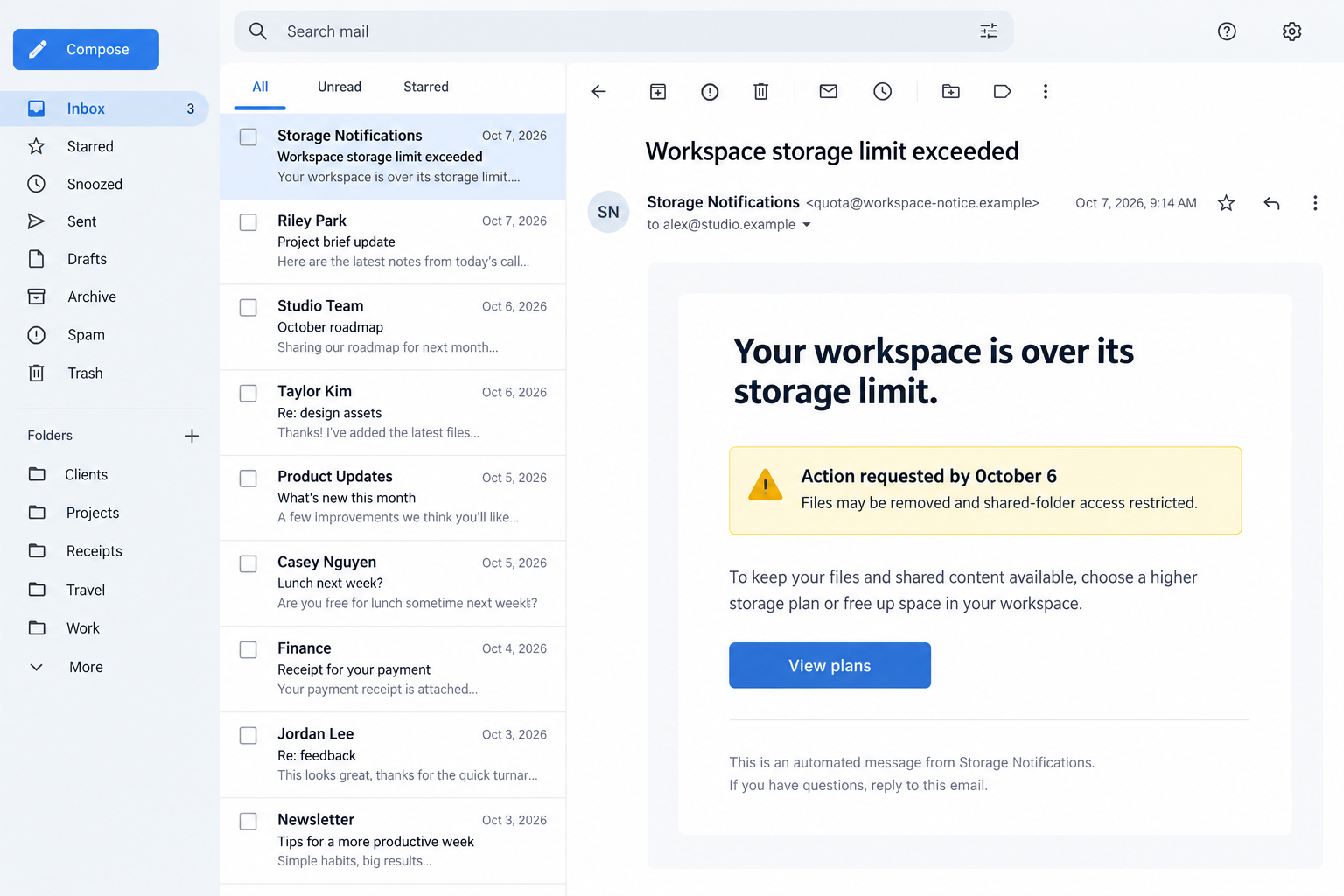
This campaign disguises a phishing request as a workspace capacity problem. It asks the reader to resolve a storage warning through an unverified authentication page.
The email threatens removal of files and exclusion from shared folders. Those claims push the reader toward immediate action before the supposed deadline.
The reported version uses a plans button, suggesting an ordinary upgrade decision. The next stage instead requests account credentials through a provider-style imitation.
No evidence in the message establishes that your files are about to disappear. Only the genuine service can show the current quota and any applicable restrictions.
A storage alert can be real. That possibility deserves a direct account check, not acceptance of whichever sign-in form arrives inside the alert’s route.
The mixed login identities are a meaningful warning
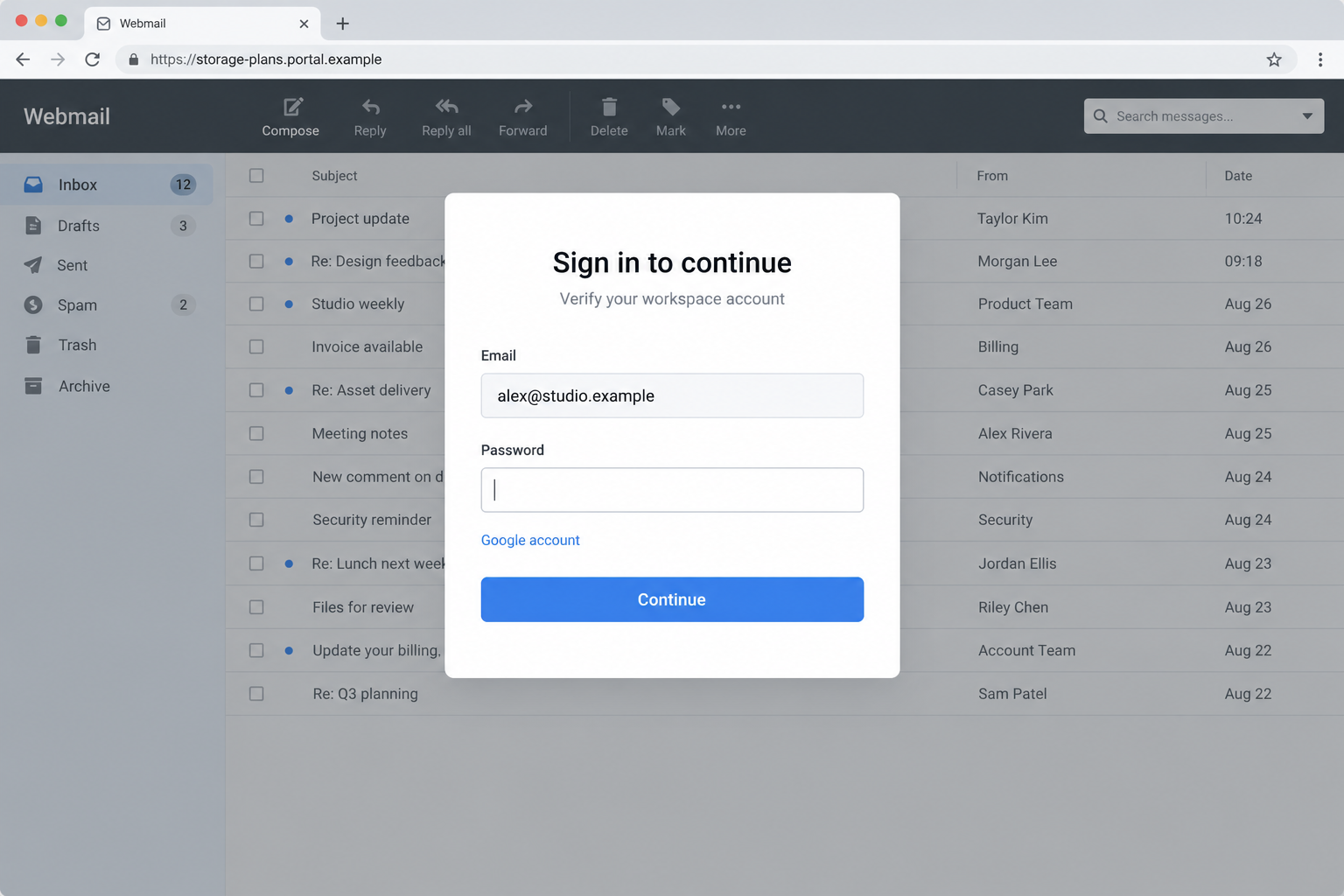
The described destination combines a Roundcube-like mail background with a Google-styled authentication overlay. This confusing mixture tries to make the password request appear familiar.
Organizations can legitimately use multiple services or a shared sign-in provider. Their arrangement should be established and recognizable through normal workplace access.
A surprise overlay on an unrelated page cannot establish such an arrangement. Copying an interface does not connect it to your employer or provider.
The illustrations below use fictional accounts to show the contrast between the storage message and the sign-in request. They are explanatory examples, not account records.
- An unsolicited warning describes a workspace capacity problem.
- Deletion and shared-folder threats increase pressure.
- A plans action becomes an authentication request.
- The page mixes cues from different email services.
- The genuine account remains the place to verify storage.
A date or typo cannot authenticate the notice
The sample spells its deadline with a zero at the beginning of 0ctober. The detail may help you recognize it, but does not prove why it was written.
Do not assume that substitution definitely defeats spam filters. Spelling choices alone cannot establish the sender’s technical strategy.
The specimen’s date is also not a current instruction for your account. A reused deadline may be stale, inconsistent, or simply unrelated to your storage.
The appropriate conclusion is straightforward: verify capacity and sharing inside the actual service, then handle any genuine issue through its established controls.
What a Storage Warning Should Be Able to Explain
Identify which space is supposedly full
A mailbox quota, personal cloud allowance, team storage pool, and computer disk are different things. The vague word workspace does not identify which one needs attention.
Look for the account, service, measured usage, applicable plan, and genuine notice history. You should be able to see corresponding information without using the email’s link.
An organization may also control storage centrally. Its administrator can confirm whether individual users are allowed to buy capacity or change a plan themselves.
If the warning provides no usable context, do not invent one. Ask which system it refers to before treating the described problem as yours.
Distinguish shared access from storage ownership
Access to a shared document does not necessarily make you responsible for storing the original. The owner, team, or platform can determine how capacity is counted.
For example, Google’s published guidance generally counts a shared file against its owner’s storage. Copies you create can have different consequences for your own allowance.
Other providers and workplace plans can operate differently. The relevant rule is the one attached to your actual account, not a general statement in a stranger’s email.
A threat of shared-folder exclusion should therefore be checked with the folder owner or administrator. Buying an unrelated plan may have no effect on those permissions.
Understand the real policy before deleting anything
Providers can restrict services when capacity is exceeded, and some have deletion policies after specified conditions and notices. It would be inaccurate to say deletion never happens.
But that does not validate this warning. Read the policy through the genuine service and check how it applies to your account or organization.
Do not hurriedly erase important documents because a suspicious email says the alternative is automatic removal. First identify the real issue and protect essential copies.
A clear diagnosis gives you choices. An anonymous deadline mainly gives the sender control over where you click.
How the Email Workspace Storage Limit Scam Works
Step 1: The notice turns everyday clutter into a crisis
Many people have large attachments, old photographs, and unfinished projects in cloud accounts. A claim that space is running out can sound plausible without supporting measurements.
The sender uses that familiarity to introduce a more serious consequence: loss of files or collaboration. You are encouraged to protect work before checking the premise.
Ask whether ordinary account activity supports the warning. An email does not become an accurate diagnosis simply because full storage is a real possibility.
Even if your allowance is nearly exhausted, the phishing route remains unsafe. A genuine problem and a fraudulent proposed solution can exist at the same time.
Step 2: A deadline discourages a careful account check
The threatened cutoff suggests that comparing details could be costly. The reader may prioritize keeping files over checking the source of the instruction.
That pressure is particularly effective before a meeting or deadline. You might fear letting coworkers down by losing access to a shared folder.
Take the warning out of the email and verify it independently. Your normal provider login or IT contact can establish whether any urgent action is actually required.
A deadline cannot grant a sender authority over your account. Its significance depends on a real policy and a real notice from the responsible service.
Step 3: The plans button moves the decision onto another page
The button promises something recognizable: review an upgrade or select more storage. That wording makes the trip seem commercially routine.
Once the page opens, however, the reader is asked to authenticate before seeing a meaningful account-specific plan. The original problem becomes an excuse for collecting access.
Read the destination carefully. A legitimate cloud host, a professional design, or an encrypted connection does not identify the customer who created the page.
Close the questionable route and reach the actual billing or storage settings through a bookmark. A real upgrade should be available there.
Step 4: Borrowed interface cues make the login feel familiar
The imitation can combine a mail interface with another provider’s sign-in dialog. Familiar colors and account wording encourage the reader to overlook that mismatch.
An email address shown in the form is easily supplied as text. It does not prove the destination has recognized an authenticated account.
Some legitimate organizations use federated sign-in, but the approved route should match their established process. Ask IT when a new combination appears unexpectedly.
Do not use the suspicious page to determine whether the combination is valid. Completing its fields gives the operator information before your question is answered.
Step 5: Account exposure can create the problems the email only threatened
Stolen credentials may allow an attacker to access the mailbox or associated services. Whether an attempt succeeds depends on authentication controls and the permissions involved.
If access is obtained, confidential correspondence and reset messages can be exposed. Shared documents may also be at risk when the same identity controls collaboration tools.
Those outcomes are possible consequences, not verified events for every recipient. The email’s original deletion threat should not be confused with proof of an actual compromise.
After submitting credentials, address account security promptly. Checking whether files still exist is useful, but it does not answer whether another session remains active.
How to Resolve a Genuine Capacity Problem Safely
Open the provider normally and find its storage summary. Confirm which identity is signed in before interpreting a usage meter.
With multiple personal and work accounts, it is easy to inspect the wrong allowance. Compare the address and organization with the account mentioned in the notice.
If capacity is truly limited, review the largest items and their ownership. Identify what can be archived, backed up, or removed without disrupting shared work.
Ask a folder owner before deleting team material. Being able to remove a file does not mean doing so is appropriate for everybody using it.
Check whether your employer already supplies the required capacity. A separate personal subscription might not solve a centrally managed workplace restriction.
If a paid change is necessary, review the full price, renewal terms, and account receiving the upgrade in the genuine settings.
Keep important files in an appropriate backup system. Synchronization alone may reproduce unwanted changes, so understand how version history and restoration work.
For Google accounts, the official storage explanation describes what counts. Use the corresponding documentation for another service.
When Several Accounts Share the Same Computer
A browser may already contain both a personal identity and a workplace identity. That can make a vague account warning harder to interpret.
Check the signed-in address inside the genuine application before following any billing instruction. An upgrade purchased for one identity cannot automatically expand another organization’s storage.
Do not supply several passwords to a page that keeps rejecting your login. Repeated errors can be an invitation to expose more accounts.
Record which identities you used if that happened. Your recovery checklist should include each exposed account, even when the original email mentioned only one.
For shared computers, avoid leaving a recovery session open afterward. Finish through the provider’s normal controls and keep coworkers informed through the appropriate administrator.
What to Do if You Have Fallen Victim to This Scam
-
Leave the upgrade route and verify your files directly. Open the known workspace application and check storage, recent activity, and important shared folders.
If a real restriction appears, contact the responsible administrator. Do not continue using the email’s form merely because part of its story resembles a genuine problem.
-
Secure the identity whose password you supplied. Change that password through the actual provider and replace it anywhere else you reused it.
If you entered more than one account while troubleshooting, treat each as exposed. Record which address belonged to each password without saving passwords in incident notes.
Use official recovery if you cannot sign in. Avoid a newly advertised support number claiming it can remove a storage suspension.
-
Review access beyond the password. Examine device sessions, connected applications, recovery details, and multifactor methods for additions you do not recognize.
Revoke unfamiliar access using the provider’s controls. Your workplace may require IT to handle session termination or organization-wide identity settings.
A successful password change is a useful step, but it does not replace this review.
-
Check collaboration permissions and mailbox behavior. Inspect unexpected forwarding, sharing invitations, delegated access, file deletions, and sent messages.
Preserve suspicious changes and ask the service or administrator about restoration. Do not erase the whole account in an attempt to remove one questionable invitation.
Let affected collaborators know what changed through a channel you already trust.
-
Get help for downloads or browser changes. If the page prompted an installer, extension, or unfamiliar notification permission, tell IT exactly what you accepted.
A reputable tool such as Malwarebytes can investigate software exposure. Scanning a computer cannot restore a cloud account’s compromised sharing settings.
AdGuard can reduce some risky advertising and web destinations during future browsing. Continue checking account alerts independently even when filtering is enabled.
-
Contact the payment provider if you bought a fake upgrade. Preserve the receipt, amount, merchant description, and date before reporting the transaction.
Ask what dispute or reversal options apply to your payment. A request for another fee to activate a refund should be assessed as a fresh warning.
If card details were entered, ask the issuer whether replacement or additional monitoring is appropriate.
-
Report the warning and watch for follow-ups. Share the original email with your mail-security team or provider’s phishing-report process.
Keep an eye on real security alerts and billing activity. Messages about a failed upgrade or account restoration may reuse the same invented storage problem.
Use direct account access for each check, especially when you are tired of dealing with the incident.
Frequently Asked Questions
Does this warning prove my workspace is full?
No. Verify usage in the actual service. An invented alert can arrive whether your allowance is empty, nearly full, or already exceeded.
Can a real provider remove data because of storage policies?
Some services have restrictions and deletion policies under specified conditions. Read the authentic policy and account notices rather than trusting this email’s deadline.
Why does the page mix Google and webmail cues?
The mixture can make a fraudulent form feel recognizable. Legitimate shared authentication exists, but an unexpected overlay needs confirmation through your established access process.
Does viewing someone else’s shared file always use my storage?
No. Ownership and provider rules matter. Copies, uploads, and team plans may be counted differently, so check the applicable service documentation.
Should I delete files immediately to satisfy the email?
First verify the actual usage and preserve essential data. A suspicious warning should not decide what you erase from a shared workspace.
Will a malware scan secure an exposed cloud password?
No. A scan addresses software threats. Password replacement, session review, recovery settings, and sharing checks remain necessary after account information is exposed.
The Bottom Line
The Email Workspace Storage Limit scam turns possible file loss into pressure to authenticate through an unverified page. Resolve storage questions inside the genuine service.
If you already submitted information, secure the account and inspect sharing activity. Keep the warning’s urgency from controlling your next decision.








