

A new Minecraft mod promises an advantage, a better tool, or a feature your friends are discussing. Downloading one small file seems like ordinary game setup.
Then a security warning appears, or an account behaves strangely. Before you try another launcher, it helps to understand what that mod may have brought along.
Overview
WeedHack hides inside Minecraft-related Java files
WeedHack is malware distributed through malicious Minecraft mods. It can steal information and, in versions with additional capabilities, provide remote access to an infected computer.
The harmful file may use the same JAR format as legitimate Java mods. That familiar format tells you how a file can run, not whether it is trustworthy.
A mod can also perform its advertised game function while carrying malicious code. Seeing the feature work is not proof that the computer remains safe.
Minecraft, Java, and ordinary mod developers are not the malware operators. This warning concerns altered downloads and deceptive distribution, not modding as an inherently criminal activity.
The exposure extends beyond the Minecraft account
Analyzed WeedHack versions target stored browser information, session material, and data associated with gaming, messaging, and cryptocurrency services.
That means the immediate concern may not be the game installation. Accounts used elsewhere on the same computer can require attention after a credible infection.
Remote-access features are an additional risk in some versions, not a confirmed outcome for every person who encountered a download page.
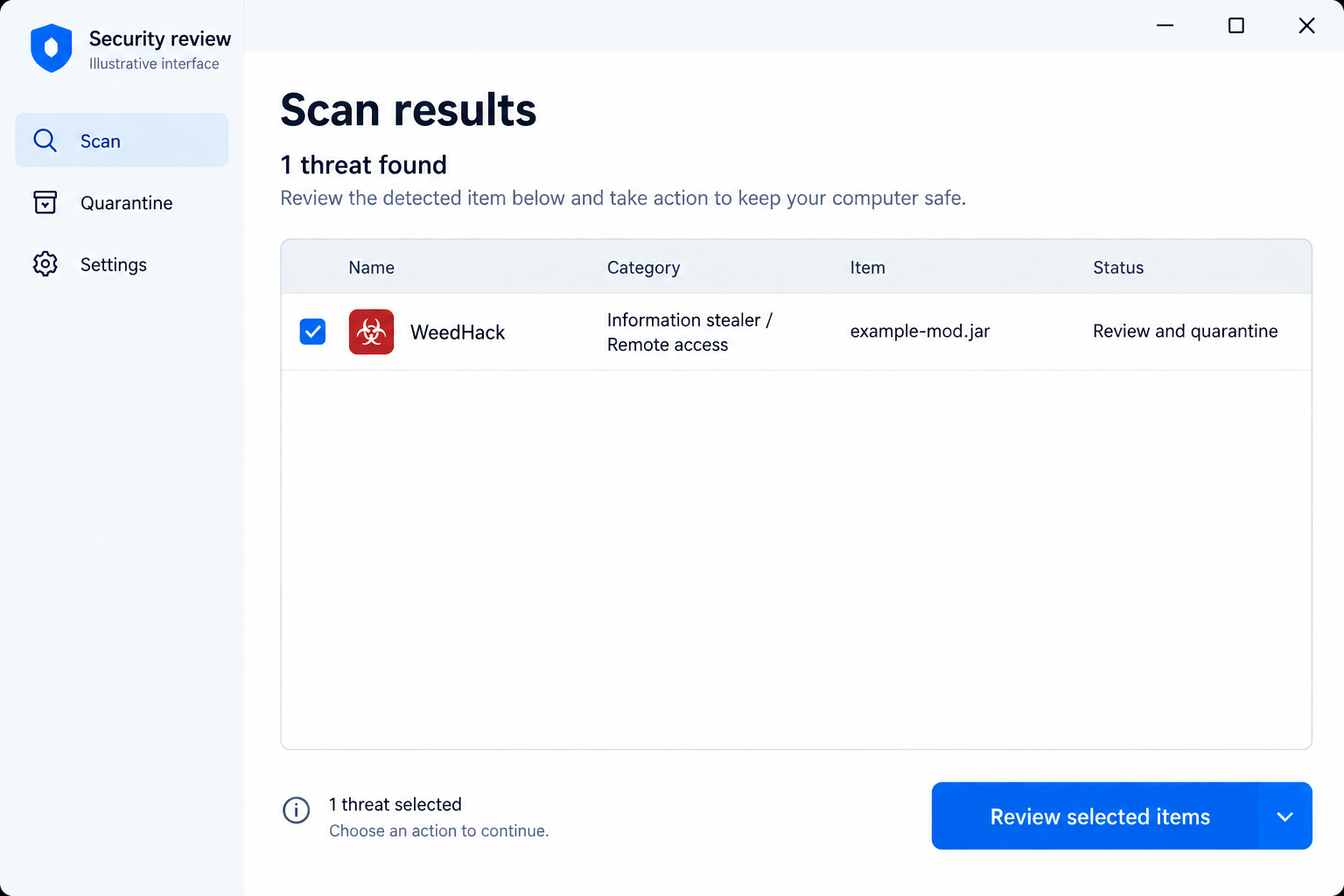
The lead image is an illustrative security interface with a fictional filename. It does not document a MalwareTips test or a detection on your computer.
What the analyzed campaign shows
McAfee’s WeedHack campaign research documents malicious mods, staged payloads, deceptive promotion, and an infrastructure offering malware capabilities to other operators.
Those findings establish a real malware campaign. They do not prove that every suspicious Minecraft file belongs to it or collects the same information.
- A working mod can carry a second, hidden function.
- Executing a JAR or loading it through the game can trigger malicious code.
- Stolen sessions can expose accounts independently of a visible password change.
- Deleting the original mod may leave later payloads or persistence behind.
A useful response addresses two separate problems: making the device trustworthy again and removing access an attacker may already have obtained.
How WeedHack Infection Can Unfold
Step 1: A video or download page makes the mod look useful
The analyzed campaign uses Minecraft-related promotion, including deceptive videos and search-oriented pages. A claimed game benefit supplies the reason to download.
For a player, the attraction might be an exploit or a tool that appears unavailable through ordinary channels. The promise encourages accepting an unfamiliar source.
A page may also link to real community services. A genuine Discord or GitHub link somewhere on the page does not authenticate the file it offers.
Watch what the instructions ask you to bypass. A mod guide that tells you to ignore security warnings has not demonstrated that those warnings are mistakes.
Step 2: The JAR runs directly or through the game
A Java archive is executable code, even when presented as a game add-on. It is not comparable to downloading a screenshot or reading a text guide.
Some users run the file directly. Others place it in a mods folder and start a compatible game configuration, which can load the malicious code.
Downloading without running is a different exposure. Do not open an uncertain file to find out whether it is the one described in a warning.
If the mod does work, hidden activity may run alongside its legitimate-looking function. The visible game behavior is only part of what the file does.
Step 3: Additional components and persistence may be installed
McAfee analyzed a sample that retrieved further stages rather than keeping every function in the first download. The original JAR is therefore not the entire incident.
Observed techniques include scheduled activity and added security exclusions. These can help later components run again or avoid ordinary scanning paths.
The precise changes vary by sample. Do not assume every WeedHack infection uses identical task names, files, or an identical sequence of downloads.
Likewise, do not delete legitimate Java or Windows components because a malicious sample used a similar name. Trusted cleanup tools and technical review are safer than name matching.
Step 4: Browser and service information can be collected
The information-stealing component targets data useful for taking over accounts. Saved passwords are one concern; existing sessions and service tokens are another.
A stolen session may represent access already established on the device. That is why changing a password and revoking sessions are related but distinct tasks.
Gaming and messaging accounts matter even when no payment card is stored. An attacker may impersonate you, reach friends, or exploit the associated recovery email.
Cryptocurrency-related data can create financial exposure. Determine which wallet applications or secrets were accessible rather than assuming every wallet on every platform was necessarily compromised.
Step 5: Some versions support ongoing remote control
The campaign’s additional remote-access capabilities can allow actions beyond one-time information theft. Research describes features including remote commands, file access, and input or camera-related surveillance.
Capability is not proof that a camera recorded you. Investigate the device and preserve evidence instead of treating every possible feature as an observed event.
Continuing access also explains why simply removing the game mod may be inadequate. A separate payload can remain after its original delivery file disappears.
When a credible detection indicates remote access, isolate the device and involve trusted support. Avoid signing into sensitive accounts while that computer’s state remains uncertain.
What Stolen Minecraft Sessions Mean for Your Other Accounts
Your recovery email is a priority
Many gaming services rely on email to confirm ownership and reset passwords. Losing that mailbox can turn one gaming incident into a wider account-recovery problem.
From trusted equipment, check its sign-ins, forwarding, recovery contacts, and active sessions. A normal-looking inbox does not exclude an unauthorized background rule.
Keep the compromised computer out of this recovery process until it has been cleaned or rebuilt. Otherwise, newly entered information may be exposed again.
Messaging accounts can carry the next malicious download
A friend may trust a mod recommendation coming from your established account. If that account is misused, the original campaign can reach people who distrust unknown senders.
Warn contacts when evidence shows your account sent unexpected links or files. Specify what should be ignored, rather than circulating another copy of the attachment.
A copied username or profile photo alone does not prove takeover. Use service records and actual messages to distinguish impersonation from access to your real account.
Wallet recovery is not ordinary password recovery
If private keys or recovery words were accessible to malware, consider them separately from a gaming password. Those secrets may control assets without a central account administrator.
A new local wallet password does not invalidate an attacker’s copy of the underlying secret. Seek verified provider guidance for fresh secrets and safe migration.
Do not transfer valuable assets onto the affected computer to simplify cleanup. Keep recovery activity on trusted equipment and avoid strangers offering guaranteed reversal.
What to Do After a WeedHack Infection
Disconnect a credibly infected device. Remove its network connection to limit ongoing communication. Stop gaming and avoid entering new passwords on it.
For a managed school or work computer, contact its administrator. Record the warning, filename, and when the suspicious mod was loaded before making major changes.
Preserve useful evidence without spreading the file. Keep the download address, promotional message, and detection report. Do not send the JAR to friends for testing.
A trusted technician may request a sample through a controlled process. Share only what is needed, and remove personal information from screenshots intended for public discussion.
Remove active malware through trusted security software. Obtain Malwarebytes from its verified download route, not the same page that supplied the mod.
Run its scan, review the results, and follow quarantine or restart instructions. A filename alone is not a reason to remove unrelated Windows processes.
Review persistence and security exclusions. Let trusted support examine scheduled tasks, startup entries, and exclusions when a detection or investigation indicates they were altered.
Microsoft’s malware-removal guidance covers additional scanning options. A rebuild may be appropriate when remote access or continuing uncertainty prevents confidence in cleanup.
Recover the associated email and Microsoft account. Use a different trusted device. Replace exposed passwords, review recovery methods, and remove unfamiliar sign-ins or authorized applications.
Enable stronger authentication where supported. Do not assume a second factor repairs a session that was already stolen from an infected computer.
Secure other services used on the computer. Review Minecraft-related launchers, gaming platforms, messaging accounts, and sensitive browser accounts relevant to your own usage.
Revoke sessions where the service supports it. Choose different passwords for each account instead of moving the same exposed credential between services.
Assess financial and wallet exposure. Contact your bank if payment access was misused. Follow verified wallet guidance if secrets or wallet files were accessible.
Document actual transactions and disputed charges. Account protection and malware removal cannot promise a refund or reverse a completed blockchain transfer.
Return to gaming only after addressing both risks. Reinstall needed software from trusted sources and leave the suspicious mod out of the restored setup.
AdGuard can reduce deceptive advertising and some unsafe navigation. It does not certify a Java mod or replace malware detection and account recovery.
Is Your Device Infected? Run a Free Malware Scan
Slow performance, constant pop-ups, or strange behavior? These are classic signs of a malware infection. The fastest way to find out is to scan your device with Malwarebytes Free — one of the most trusted malware removal tools available.
The free version detects and removes the most common threats, including:
- Adware — the cause of those annoying pop-ups
- Browser hijackers — unwanted redirects and changed homepages
- Trojans and spyware — hidden programs stealing your data
- Potentially unwanted programs (PUPs) — software you never asked for
👉 Select your device below — Windows, Mac, or Android — then follow the simple steps to download Malwarebytes, scan your system, and remove any threats it finds. The scan usually takes 5 to 20 minutes.
Run a Malware Scan with Malwarebytes for Windows
Malwarebytes is one of the most popular and trusted anti-malware tools for Windows — and it’s completely free for removing infections. It catches threats that many antivirus programs miss, including adware, browser hijackers, and trojans. Follow the steps below to scan and clean your PC in just a few minutes.
Download Malwarebytes
Click the button below to download the latest version of Malwarebytes for Windows from the official source. The free version is all you need — it will scan your computer and remove adware, browser hijackers, and other malicious software at no cost.
Download MalwarebytesOfficial installer for Windows 11 and 10. Your download starts right away.Want real-time protection? See Malwarebytes Premium Malwarebytes Free for WindowsScans and removes malware at no cost
-
Install Malwarebytes
When the download finishes, open your Downloads folder and double-click the MBSetup file. If Windows shows a User Account Control pop-up, click “Yes” to allow the installation.

Follow the On-Screen Prompts to Install Malwarebytes
The setup wizard will walk you through a few quick screens:
-
Choose where you’re installing the program — “Personal Computer” or “Work Computer” — then click Next.

-
Malwarebytes will now install on your device. This usually takes under a minute.

-
When installation is complete, the “Welcome to Malwarebytes” screen will open automatically.

-
On the final screen, click Open Malwarebytes to launch the program.

-
Enable “Scan for Rootkits”
Before scanning, turn on rootkit detection so Malwarebytes can find even the most hidden threats. Click the Settings gear icon on the left side of the screen.

In the settings menu, find “Scan for rootkits” and click the toggle so it turns blue.

Done? Click “Dashboard” in the left pane to return to the main screen.
Start the Scan
Click the blue Scan button. Malwarebytes will automatically update its virus database and start checking your computer for malware.

-
Wait for the Scan to Finish
The scan checks your entire system for browser hijackers and other malicious programs, so it can take 5 to 20 minutes depending on your computer. Feel free to do something else — just check back occasionally to see the progress.

-
Quarantine the Detected Threats
When the scan is done, you’ll see a list of everything Malwarebytes found — malware, adware, and potentially unwanted programs. Click the “Quarantine” button to remove all of them at once.

Malwarebytes will now remove the malicious files and registry entries and move them safely into quarantine.

-
Restart Your Computer
Some threats can only be fully removed after a reboot. If Malwarebytes asks you to restart, click Yes. Once you’re logged back in, Malwarebytes has finished removing the threats it found.

That’s it — your Windows PC is now clean of trojans, adware, and other malware, and should be back to running smoothly.
If you are still having problems with your computer after completing these instructions, then please follow one of the steps:
- Run a computer scan with ESET Online Scanner
- Ask for help in our Windows Malware Removal Help & Support forum.
Run a Malware Scan with Malwarebytes for Mac
Malwarebytes for Mac is a free on-demand scanner that removes the malware other security software tends to miss — adware, browser hijackers, and unwanted programs included. Cleaning an infected Mac with Malwarebytes has always been completely free, and it’s our go-to recommendation. Follow the steps below to scan and clean your Mac in just a few minutes.
-
Download Malwarebytes for Mac
Click the button below to download the latest version of Malwarebytes for Mac.
Download MalwarebytesOfficial installer for macOS. Your download starts right away.Want real-time protection? See Malwarebytes PremiumMalwarebytes Free for MacScans and removes malware at no cost -
Open the Malwarebytes setup file
When the download finishes, open your Downloads folder and double-click the setup file to begin the installation.

-
Follow the On-Screen Prompts to Install Malwarebytes
The Malwarebytes for Mac Installer will guide you through a few quick screens. Click “Continue” and keep following the prompts until the installation completes.



When the installation is complete, Malwarebytes opens to the Welcome to Malwarebytes screen. Click “Get started“.
-
Select “Personal Computer” or “Work Computer”
Malwarebytes will ask what type of computer you’re installing it on. Click either Personal Computer or Work Computer, whichever applies.

-
Start the Scan
Click the “Scan” button. Malwarebytes will automatically update its detection database and begin checking your Mac for malware.

-
Wait for the Scan to Finish
Malwarebytes will scan your Mac for adware, browser hijackers, and other malicious programs. This can take a few minutes, so feel free to do something else — just check back occasionally to see the progress.

-
Quarantine the Detected Threats
When the scan is done, you’ll see a list of everything Malwarebytes found. Click the “Quarantine” button to remove all the threats at once.

-
Restart Your Mac
Malwarebytes will now remove all the malicious files it found. Some threats can only be fully removed after a reboot — if Malwarebytes asks you to restart, allow it. Once you’re logged back in, your Mac is clean.

That’s it — your Mac is now free of adware, rogue browser extensions, and other potentially harmful software.
If you are still experiencing problems while trying to remove a malicious program from your computer, please ask for help in our Mac Malware Removal Help & Support forum.
Run a Malware Scan with Malwarebytes for Android
Malwarebytes for Android automatically detects and removes dangerous threats like malware and ransomware so you don’t have to worry about your most-used device being compromised. Aggressive detection of adware and potentially unwanted programs keeps your Android phone or tablet running smooth.
-
Download Malwarebytes for Android.
You can download Malwarebytes for Android by clicking the link below.
Get Malwarebytes for AndroidOpens Google Play in a new tab.Want real-time protection? See Malwarebytes Premium for AndroidMalwarebytes for AndroidScans your phone and removes malware at no cost -
Install Malwarebytes for Android on your phone.
In the Google Play Store, tap “Install” to install Malwarebytes for Android on your device.

When the installation process has finished, tap “Open” to begin using Malwarebytes for Android. You can also open Malwarebytes by tapping on its icon in your phone menu or home screen.

-
Follow the on-screen prompts to complete the setup process
When Malwarebytes will open, you will see the Malwarebytes Setup Wizard which will guide you through a series of permissions and other setup options.
This is the first of two screens that explain the difference between the Premium and Free versions. Swipe this screen to continue.
Tap on “Got it” to proceed to the next step.
Malwarebytes for Android will now ask for a set of permissions that are required to scan your device and protect it from malware. Tap on “Give permission” to continue.
Tap on “Allow” to permit Malwarebytes to access the files on your phone.
-
Update database and run a scan with Malwarebytes for Android
You will now be prompted to update the Malwarebytes database and run a full system scan.

Click on “Update database” to update the Malwarebytes for Android definitions to the latest version, then click on “Run full scan” to perform a system scan.

-
Wait for the Malwarebytes scan to complete.
Malwarebytes will now start scanning your phone for adware and other malicious apps. This process can take a few minutes, so we suggest you do something else and periodically check on the status of the scan to see when it is finished.

-
Click on “Remove Selected”.
When the scan has been completed, you will be presented with a screen showing the malware infections that Malwarebytes for Android has detected. To remove the malicious apps that Malwarebytes has found, tap on the “Remove Selected” button.

-
Restart your phone.
Malwarebytes for Android will now remove all the malicious apps that it has found. To complete the malware removal process, Malwarebytes may ask you to restart your device.
That’s it — your Android phone is now clean — no more malicious apps, adware, or browser redirects.
If you are still having problems with your phone after completing these instructions, then please follow one of the steps:
- Restore your phone to factory settings by going to Settings > General management > Reset > Factory data reset.
- Ask for help in our Mobile Malware Removal Help & Support forum.
Stay Protected: Block Ads and Malicious Sites
Now that your device is clean, keep it that way. Most infections start with a malicious ad or a fake download button — so blocking them at the source is your best defense.
We recommend AdGuard, which blocks malicious ads, phishing pages, and dangerous redirects before they can reach you.
👉 Download AdGuard and browse safely
When Removing the Mod Is Not Enough
Think of the JAR as the entry point, not necessarily the only thing installed. Staged payloads can have their own files and startup behavior.
If a detection keeps returning, do not keep clicking through warnings to finish a gaming session. Escalate to trusted technical help or consider a clean reinstall.
Keep backups of personal documents separate from the suspicious application files. Reintroducing the same mod into a rebuilt environment can recreate the original exposure.
A trusted scanner reporting no active threat is useful information, but it cannot establish that previously stolen data was erased from an attacker’s systems.
That is why the account checklist continues after cleanup. Passwords, sessions, and recovery settings may still need attention even when the computer behaves normally again.
For a household computer, include other users in the review. Their sessions might have been present even if only one person installed the Minecraft mod.
Uninstalling a launcher and reinstalling the game only replaces game-related files. It does not reliably remove a scheduled task or a payload stored elsewhere.
Before restoring your usual setup, review the mods you plan to keep. A folder copied from the affected installation can include the same uncertain downloads.
Keep a list of trusted projects and their actual distribution addresses. That makes rebuilding easier without retracing every promotional video that originally led you to a file.
A technician can help distinguish an intentionally configured exclusion from one introduced by malware. Do not remove organizational security settings blindly on a managed computer.
Choose Mods Without Treating Popularity as Proof
A high view count is not a file-integrity check. Promotional videos can be reposted, manipulated, or paired with a download different from the one originally demonstrated.
Use established distribution channels and check the actual author, project history, and intended game version. No single badge makes executable code harmless.
Minecraft’s official mod guidance notes the limits of official support for third-party mods. An add-on should not be mistaken for Mojang-provided software.
Be particularly cautious when a download advertises cheats, duplicates, or advantages while asking you to disable protections. The unusual benefit is part of the distribution risk.
Ask a knowledgeable adult or trusted technician for help when a warning is confusing. Young players should not have to negotiate with someone threatening their accounts.
If harassment or blackmail occurs, preserve the messages and seek appropriate support. Do not pay or send intimate material to make a malware operator promise silence.
Frequently Asked Questions
Is WeedHack a fake antivirus warning or actual malware?
WeedHack is an analyzed malware campaign associated with malicious Minecraft mods. The illustrative image here is not an actual scan of your device.
Can a mod work and still contain WeedHack?
Yes. A file can provide its advertised game function while also running malicious code. Working gameplay does not authenticate the download.
Does downloading a JAR automatically mean I am infected?
No. Execution or loading is important. Do not run an uncertain file to test it; let trusted security software or support assess it.
Why should I revoke sessions after changing passwords?
Stolen session information can represent existing access. Follow each service’s instructions to end unwanted sessions as well as replacing exposed credentials.
Did every WeedHack victim have their webcam recorded?
No such universal claim is established. Some versions have surveillance capabilities, but actual use must be investigated for the affected device.
Will deleting the Minecraft mod remove every component?
Not necessarily. Further payloads and persistence may remain. Complete trusted malware removal and relevant account recovery before considering the incident resolved.
The Bottom Line
WeedHack turns an appealing Minecraft download into a device and account problem. Do not trust a mod merely because it runs or appears in a popular video.
After credible exposure, clean or rebuild the computer and separately recover affected access. Removing the entry file does not undo stolen passwords or sessions.








