

A game download fails, then a friend asks why your account sent them a strange link. A Nyxar Stealer warning makes that coincidence harder to dismiss.
There may be several accounts to check, but you do not have to fix everything at once. Start by understanding which access needs protecting.
Overview
Nyxar is described as a modular information stealer
Nyxar Stealer is reported malware marketed to other criminals. Its advertised modules target browser credentials, messaging sessions, gaming accounts, cryptocurrency wallets, and other local information.
Reports also describe screen viewing and file-management functions. These broaden the concern beyond a copied password, although advertised capabilities do not prove every build used every function.
Ordinary users do not need an account with the malware operator to be affected. A malicious program may arrive disguised as something else.
The important distinction is execution, not the download’s label
An unfamiliar file icon or an unsuccessful installation does not tell you whether code ran. Retain the actual security warning and the sequence of events.
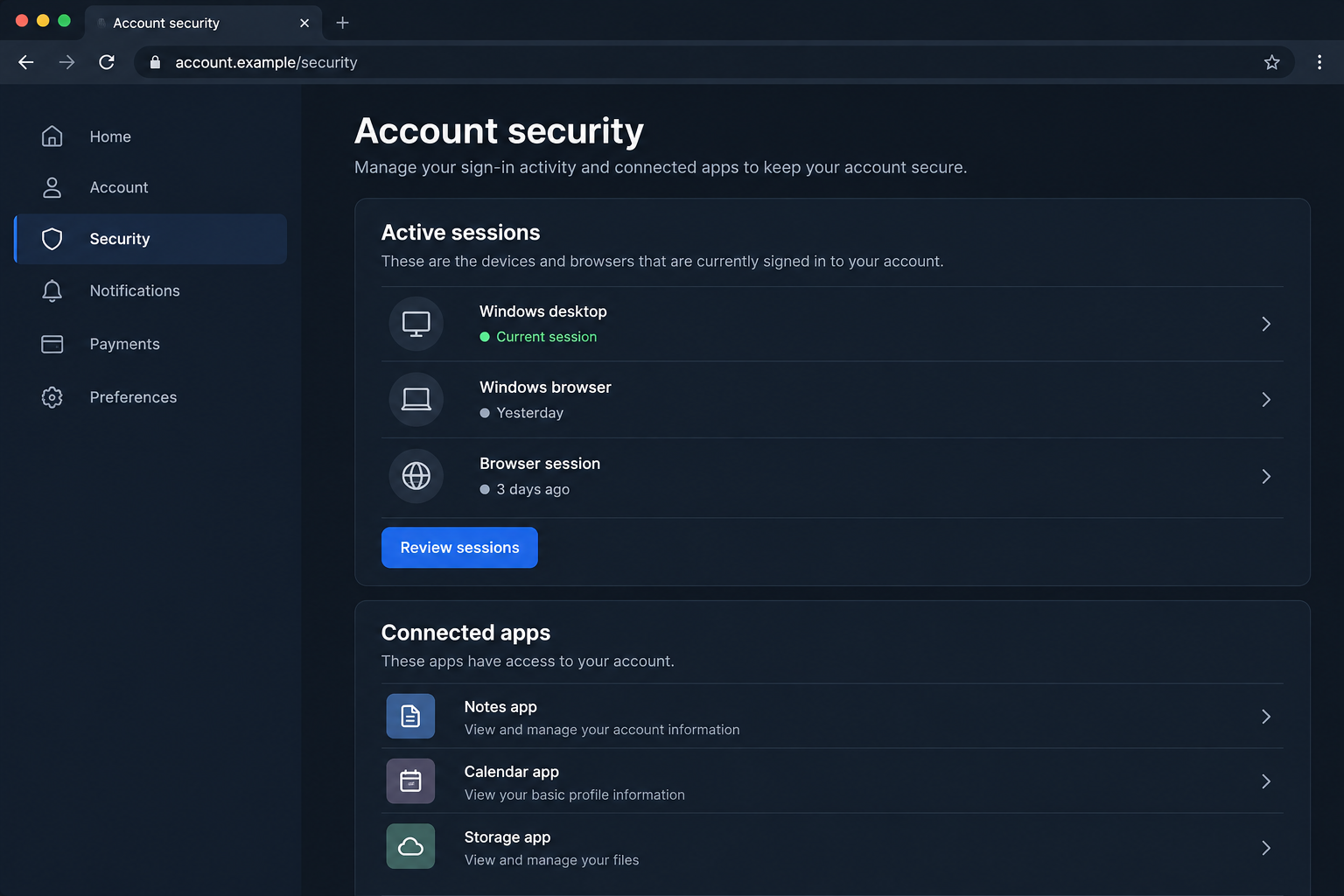
The security page above is a fictional illustration. It demonstrates the kind of session controls worth checking, not a real Nyxar panel or evidence of unauthorized access.
No program was run, account accessed, or wallet connected for this article. The delivery route and consequences on a particular device require their own investigation.
A gaming or chat account can be the next victim’s introduction
- A familiar account can send an unfamiliar file after someone else gains access.
- Saved sessions deserve review alongside passwords and recovery information.
- Unknown applications authorized to an account should be investigated separately.
- Valuable inventories, purchases, and linked payment methods can make gaming accounts worth targeting.
- Security software addresses the device; the platform controls recovery of the online account.
When a Friend’s Account Is Not the Same as Your Friend
Messages inside a game community can feel less formal than email. People trade screenshots, share tools, and download small projects without the usual business-account caution.
That familiarity is useful to an attacker controlling a real account. The username, past conversation, and shared server history may all be genuine.
What changed is who is sending the current message. An old friendship does not authenticate a new executable, archive, or sign-in request.
A request to test a game or review a project might be legitimate. Verify it through another established contact method when the file or behavior is unexpected.
Ask a specific question the real person can answer, but do not rely on a conversation happening entirely inside the possibly compromised account.
This is a general delivery risk, not proof of one Nyxar campaign. The exact file, download location, and execution history matter more than an invented backstory.
If your own account sent the link, warn people directly through a trusted channel. Ask them not to download or forward the file.
Keep the warning short and specific. Friends need the message time, affected account, and dangerous action to avoid, not an alarming claim that every device was hacked.
Server moderators may need to remove the malicious message and investigate its reach. Preserve useful identifiers before content disappears, without circulating the payload itself.
How Nyxar Stealer Works
Step 1: A disguised file gains the user’s trust
The reported tooling can produce executable or Java-archive builds and change their presentation. A recognizable icon is therefore not a reliable identity check.
That does not make every EXE or JAR malicious. It means you should establish where a program came from before allowing it to run.
A downloader may claim that antivirus flags are expected or that protection must be paused. Do not accept that explanation from the same source supplying the file.
Similarly, a password-protected archive is not evidence of safety. A password can simply prevent a mail gateway from inspecting what is inside.
After an alert, preserve the filename and source details. Do not send the file to friends for testing or execute it again under a different account.
Step 2: Local sessions and account data are collected
Nyxar’s reported targets include browser stores and services such as Discord, Telegram, Steam, and Epic Games. That is a potential collection scope, not an affected-account list.
Build your own list from the applications installed and used on the device. Include alternate profiles that other family members or teammates used there.
Session material can matter even when you carefully chose a unique password. Account access is not always a fresh login asking for that password again.
Security controls vary between platforms. Use their actual session and recovery options rather than assuming one change will sign out every possible connection.
If an authenticator backup or secret was accessible, raise that specific issue with the provider. Do not conclude that all two-factor authentication is useless.
Step 3: Remote functions may expose activity beyond saved logins
Reported screen-viewing and file-management features mean an affected computer may reveal information that was never stored as a browser password.
For example, sensitive material visible on screen can deserve attention during a remote-access incident. Avoid opening private accounts to investigate while that access may remain active.
The presence of a remote function does not establish that anyone watched a particular moment. Keep suspected capability separate from confirmed observations.
Disconnecting the affected device limits further network communication while you arrange help. Do not reconnect it merely to keep chatting with the person who supplied the file.
For workplace equipment, let the authorized team decide how to preserve evidence. Restarting, scanning, or reinstalling immediately may change information useful to their investigation.
Step 4: A stolen identity creates opportunities on other services
Control of a chat or gaming account can lead to impersonation, unauthorized purchases, or further malicious messages. Each consequence still needs confirmation.
A linked email address may also be valuable because it receives reset messages. Review its security instead of focusing only on the game that first attracted attention.
Watch for changes to recovery details, unfamiliar authorized applications, new sign-ins, and transactions you do not recognize. Preserve the relevant records.
Do not buy the account back from someone claiming to hold it. Payment does not establish ownership, erase copied data, or guarantee access will stay restored.
Use the platform’s support process and your original proof of ownership. A recovery specialist appearing in direct messages can be the next scam.
Different Accounts Need Different Checks
Chat services: review access, then warn contacts
For Discord, use the official compromised-account instructions to find the genuine support route and account controls.
Review authorized apps as well as the password. Do not assume an app is harmless because its name sounds like a moderation bot or game companion.
Preserve account-change emails. They may contain a legitimate recovery option, but verify the sender and destination before using any urgent link.
Discord warns that staff do not approach users through in-app direct messages for support. Do not supply credentials or payment to a supposed employee in chat.
Games: check more than the ability to sign in
Look at recent purchases, inventory activity, marketplace transactions, linked accounts, and recovery settings. Successfully opening the game does not mean nothing else changed.
Take concerns about missing items or unauthorized purchases to the platform. Keep receipt numbers and original account details rather than sending them to an unknown intermediary.
Do not assume every platform will restore traded items or reverse a purchase. Ask what its process can actually do, and report promptly.
If the account has administrative privileges in a community, tell the other moderators. A compromised moderator identity can affect people who never downloaded the original file.
Wallets: distinguish files, keys, and permissions
A copied wallet file may be protected in ways that differ from a revealed recovery phrase. Do not publish either while asking strangers for help.
Record what was accessible and follow the wallet provider’s genuine safety guidance. Avoid entering an old phrase into a website that promises to check whether it leaked.
Revoking a token allowance addresses a contract permission. It does not change the underlying signing secret if that secret was stolen from the device.
A legitimate support agent should not need your recovery phrase. Anyone asking for it has turned a recovery conversation into another exposure.
What to Do After a Nyxar Stealer Warning
Separate the computer from your recovery work. Stop using it for chat, purchases, and account resets. Disconnect it if execution or remote access is suspected.
Use a trusted alternative device for urgent changes. Do not carry the suspicious installer or an unknown extension across with your personal files.
Tell anyone responsible for the device. A workplace team, school administrator, or family member may need to coordinate the response and protect additional profiles.
Provide the detection and a clear timeline. Say what you actually opened, including whether you approved a prompt or installed supporting software.
Remove malicious software using trusted tools. Malwarebytes is relevant to finding unwanted programs on the affected device. Review the scan results and retain the report.
Windows users can also consult Microsoft Defender Offline guidance. Check device compatibility and recovery requirements before starting a scan that restarts the system.
Recover the accounts through their real providers. Protect the email used for recovery, replace exposed passwords, and inspect active access and account settings.
Where unfamiliar apps have authorization, remove that access through the genuine account. Keep multifactor protection enabled and repair recovery information that someone changed.
Handle financial or wallet exposure separately. Report unauthorized purchases to the platform and relevant payment provider. Save transaction references and ask about available remedies.
For exposed wallet secrets, plan protection through a clean environment and trusted guidance. Do not send funds to a supposed unlock, synchronization, or recovery address.
Stop the account from passing the threat onward. Warn contacts about specific unauthorized messages and ask moderators to remove harmful links after preserving useful evidence.
Avoid reposting the live download as a warning. People skim messages, and an actionable link can expose someone who misses the explanation.
Check the route that brought the file in. After cleaning, update applications and reconsider the download source. AdGuard can help reduce some harmful advertising and redirects.
It is not a Nyxar remover or an account-recovery service. Continue watching genuine security alerts and report fresh suspicious activity through the provider.
Is Your Device Infected? Run a Free Malware Scan
Slow performance, constant pop-ups, or strange behavior? These are classic signs of a malware infection. The fastest way to find out is to scan your device with Malwarebytes Free — one of the most trusted malware removal tools available.
The free version detects and removes the most common threats, including:
- Adware — the cause of those annoying pop-ups
- Browser hijackers — unwanted redirects and changed homepages
- Trojans and spyware — hidden programs stealing your data
- Potentially unwanted programs (PUPs) — software you never asked for
👉 Select your device below — Windows, Mac, or Android — then follow the simple steps to download Malwarebytes, scan your system, and remove any threats it finds. The scan usually takes 5 to 20 minutes.
Run a Malware Scan with Malwarebytes for Windows
Malwarebytes is one of the most popular and trusted anti-malware tools for Windows — and it’s completely free for removing infections. It catches threats that many antivirus programs miss, including adware, browser hijackers, and trojans. Follow the steps below to scan and clean your PC in just a few minutes.
Download Malwarebytes
Click the button below to download the latest version of Malwarebytes for Windows from the official source. The free version is all you need — it will scan your computer and remove adware, browser hijackers, and other malicious software at no cost.
Download MalwarebytesOfficial installer for Windows 11 and 10. Your download starts right away.Want real-time protection? See Malwarebytes Premium Malwarebytes Free for WindowsScans and removes malware at no cost
-
Install Malwarebytes
When the download finishes, open your Downloads folder and double-click the MBSetup file. If Windows shows a User Account Control pop-up, click “Yes” to allow the installation.

Follow the On-Screen Prompts to Install Malwarebytes
The setup wizard will walk you through a few quick screens:
-
Choose where you’re installing the program — “Personal Computer” or “Work Computer” — then click Next.

-
Malwarebytes will now install on your device. This usually takes under a minute.

-
When installation is complete, the “Welcome to Malwarebytes” screen will open automatically.

-
On the final screen, click Open Malwarebytes to launch the program.

-
Enable “Scan for Rootkits”
Before scanning, turn on rootkit detection so Malwarebytes can find even the most hidden threats. Click the Settings gear icon on the left side of the screen.

In the settings menu, find “Scan for rootkits” and click the toggle so it turns blue.

Done? Click “Dashboard” in the left pane to return to the main screen.
Start the Scan
Click the blue Scan button. Malwarebytes will automatically update its virus database and start checking your computer for malware.

-
Wait for the Scan to Finish
The scan checks your entire system for browser hijackers and other malicious programs, so it can take 5 to 20 minutes depending on your computer. Feel free to do something else — just check back occasionally to see the progress.

-
Quarantine the Detected Threats
When the scan is done, you’ll see a list of everything Malwarebytes found — malware, adware, and potentially unwanted programs. Click the “Quarantine” button to remove all of them at once.

Malwarebytes will now remove the malicious files and registry entries and move them safely into quarantine.

-
Restart Your Computer
Some threats can only be fully removed after a reboot. If Malwarebytes asks you to restart, click Yes. Once you’re logged back in, Malwarebytes has finished removing the threats it found.

That’s it — your Windows PC is now clean of trojans, adware, and other malware, and should be back to running smoothly.
If you are still having problems with your computer after completing these instructions, then please follow one of the steps:
- Run a computer scan with ESET Online Scanner
- Ask for help in our Windows Malware Removal Help & Support forum.
Run a Malware Scan with Malwarebytes for Mac
Malwarebytes for Mac is a free on-demand scanner that removes the malware other security software tends to miss — adware, browser hijackers, and unwanted programs included. Cleaning an infected Mac with Malwarebytes has always been completely free, and it’s our go-to recommendation. Follow the steps below to scan and clean your Mac in just a few minutes.
-
Download Malwarebytes for Mac
Click the button below to download the latest version of Malwarebytes for Mac.
Download MalwarebytesOfficial installer for macOS. Your download starts right away.Want real-time protection? See Malwarebytes PremiumMalwarebytes Free for MacScans and removes malware at no cost -
Open the Malwarebytes setup file
When the download finishes, open your Downloads folder and double-click the setup file to begin the installation.

-
Follow the On-Screen Prompts to Install Malwarebytes
The Malwarebytes for Mac Installer will guide you through a few quick screens. Click “Continue” and keep following the prompts until the installation completes.



When the installation is complete, Malwarebytes opens to the Welcome to Malwarebytes screen. Click “Get started“.
-
Select “Personal Computer” or “Work Computer”
Malwarebytes will ask what type of computer you’re installing it on. Click either Personal Computer or Work Computer, whichever applies.

-
Start the Scan
Click the “Scan” button. Malwarebytes will automatically update its detection database and begin checking your Mac for malware.

-
Wait for the Scan to Finish
Malwarebytes will scan your Mac for adware, browser hijackers, and other malicious programs. This can take a few minutes, so feel free to do something else — just check back occasionally to see the progress.

-
Quarantine the Detected Threats
When the scan is done, you’ll see a list of everything Malwarebytes found. Click the “Quarantine” button to remove all the threats at once.

-
Restart Your Mac
Malwarebytes will now remove all the malicious files it found. Some threats can only be fully removed after a reboot — if Malwarebytes asks you to restart, allow it. Once you’re logged back in, your Mac is clean.

That’s it — your Mac is now free of adware, rogue browser extensions, and other potentially harmful software.
If you are still experiencing problems while trying to remove a malicious program from your computer, please ask for help in our Mac Malware Removal Help & Support forum.
Run a Malware Scan with Malwarebytes for Android
Malwarebytes for Android automatically detects and removes dangerous threats like malware and ransomware so you don’t have to worry about your most-used device being compromised. Aggressive detection of adware and potentially unwanted programs keeps your Android phone or tablet running smooth.
-
Download Malwarebytes for Android.
You can download Malwarebytes for Android by clicking the link below.
Get Malwarebytes for AndroidOpens Google Play in a new tab.Want real-time protection? See Malwarebytes Premium for AndroidMalwarebytes for AndroidScans your phone and removes malware at no cost -
Install Malwarebytes for Android on your phone.
In the Google Play Store, tap “Install” to install Malwarebytes for Android on your device.

When the installation process has finished, tap “Open” to begin using Malwarebytes for Android. You can also open Malwarebytes by tapping on its icon in your phone menu or home screen.

-
Follow the on-screen prompts to complete the setup process
When Malwarebytes will open, you will see the Malwarebytes Setup Wizard which will guide you through a series of permissions and other setup options.
This is the first of two screens that explain the difference between the Premium and Free versions. Swipe this screen to continue.
Tap on “Got it” to proceed to the next step.
Malwarebytes for Android will now ask for a set of permissions that are required to scan your device and protect it from malware. Tap on “Give permission” to continue.
Tap on “Allow” to permit Malwarebytes to access the files on your phone.
-
Update database and run a scan with Malwarebytes for Android
You will now be prompted to update the Malwarebytes database and run a full system scan.

Click on “Update database” to update the Malwarebytes for Android definitions to the latest version, then click on “Run full scan” to perform a system scan.

-
Wait for the Malwarebytes scan to complete.
Malwarebytes will now start scanning your phone for adware and other malicious apps. This process can take a few minutes, so we suggest you do something else and periodically check on the status of the scan to see when it is finished.

-
Click on “Remove Selected”.
When the scan has been completed, you will be presented with a screen showing the malware infections that Malwarebytes for Android has detected. To remove the malicious apps that Malwarebytes has found, tap on the “Remove Selected” button.

-
Restart your phone.
Malwarebytes for Android will now remove all the malicious apps that it has found. To complete the malware removal process, Malwarebytes may ask you to restart your device.
That’s it — your Android phone is now clean — no more malicious apps, adware, or browser redirects.
If you are still having problems with your phone after completing these instructions, then please follow one of the steps:
- Restore your phone to factory settings by going to Settings > General management > Reset > Factory data reset.
- Ask for help in our Mobile Malware Removal Help & Support forum.
Stay Protected: Block Ads and Malicious Sites
Now that your device is clean, keep it that way. Most infections start with a malicious ad or a fake download button — so blocking them at the source is your best defense.
We recommend AdGuard, which blocks malicious ads, phishing pages, and dangerous redirects before they can reach you.
👉 Download AdGuard and browse safely
Do Not Turn Cleanup Into Another Untrusted Download
Search results and private messages can fill with people promising an instant Nyxar fix. A malware name in a filename does not authenticate a removal utility.
Use security products through their established websites. Do not install a stranger’s script, browser extension, or remote-support program because it claims to specialize in your exact detection.
Keep a simple record of completed actions and unresolved accounts. That prevents repeated resets while an important recovery address or linked service goes unchecked.
If another person is helping, agree on responsibilities. Two simultaneous changes to recovery information can accidentally lock out the legitimate owner.
When the computer cannot be trusted after cleanup, consider qualified assistance or a properly prepared reinstall. Preserve necessary personal data without restoring the original suspect software.
Also review what will automatically return after sign-in. Browser synchronization, extensions, and application restoration deserve attention before you resume normal use.
An account restored today may receive follow-up phishing tomorrow. An attacker who learned your friends, purchases, or communities can make the next approach more personal.
That does not mean recovery failed. It means the information already exposed may continue to influence later messages, even after you close the usable account access.
On a shared gaming computer, identify who used each profile. A parent’s saved payment method and a child’s community account may need attention from different people.
Do not circulate screenshots of private chats to explain the incident. Share the minimum relevant message details, and keep personal conversations inside the authorized support process.
Once access is restored, review any community roles the account held. Remove unauthorized administrative changes rather than assuming that a successful login reversed them.
Frequently Asked Questions
Is Nyxar Stealer a legitimate monitoring application?
No. It is described as malware for criminal operators. Its reported theft and remote functions should not be confused with authorized account-security software.
Does every Nyxar build contain the same features?
Not necessarily. Modular tooling can produce different builds. A feature advertisement is not proof that a particular function operated on your computer.
Is a file safe because a real friend sent it?
No. The account may be compromised. Confirm unexpected downloads through a separate trusted contact method, especially when the message asks you to ignore security warnings.
Why should I check sessions if my password was unique?
A unique password prevents reuse elsewhere, but stolen session material presents a different issue. Review access controls and provider activity alongside changing exposed credentials.
Can a malware scan recover stolen game items?
No. A scan addresses malicious software. Missing items, unauthorized purchases, and account restoration must be handled through the relevant platform and payment processes.
Should I answer someone offering recovery in Discord messages?
Do not give them secrets, money, or remote access. Reach support through the platform’s genuine help center rather than an unsolicited recovery pitch.
The Bottom Line
A Nyxar Stealer warning calls for a coordinated response: isolate possible execution, clean the device, and protect the online identities it could reach.
If your accounts sent files or links, warn the recipients too. Use genuine support channels, and do not let a recovery promise create a second compromise.

Join the discussion
0 commentsShare your experience or ask a question about this article.
Your progress
Did these steps help?
Let us know how the guide worked for you.
Describe what you see and the step you reached. Keep passwords and other private information out.
Discussion
Start the conversation
Have a question or something useful to share? Add the first comment.