

An HR message says your schedule and annual leave need attention. It sounds like a small task to finish before lunch.
The words “encrypted message” add another reason to open it carefully. Before checking your status, take a moment to examine the route being offered.
Overview
A workplace notice built around something personal
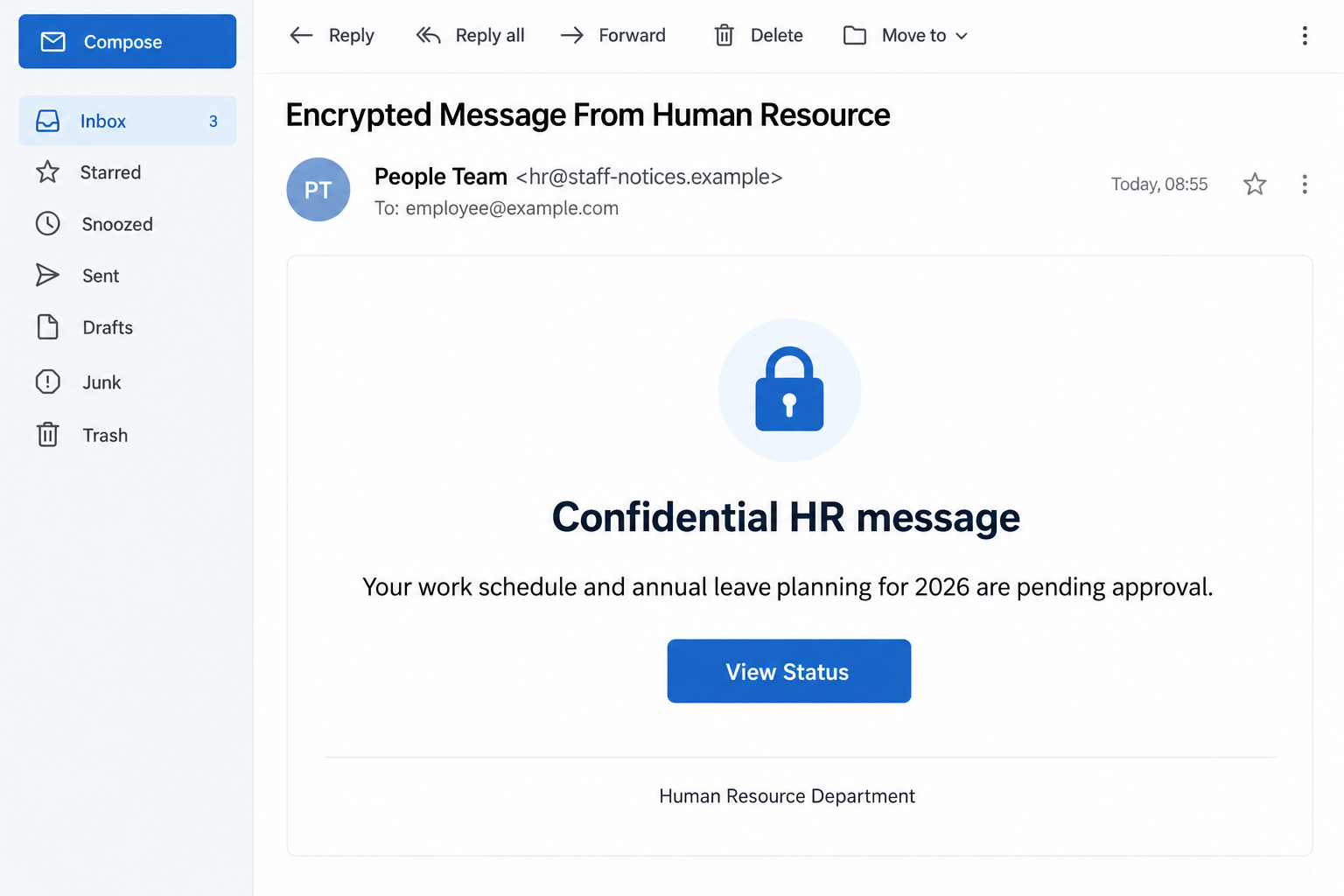
The encrypted HR message scam uses annual leave and staff scheduling as its opening. The reported email presents the information as confidential and pending approval.
Its View Status button is meant to feel like an ordinary shortcut into a staff system. No unusual payment or dramatic emergency is needed.
That matters because time off is personal. You may want to confirm a holiday, resolve a roster conflict, or make sure an application was received.
The email illustration uses invented addresses. It demonstrates the notice’s workplace framing without attributing it to a real employer or employee.
The route changes into a copied Zoho password check
The reported destination imitates Zoho and says a sensitive operation requires identity verification. It asks for a password rather than simply displaying leave information.
Zoho is a genuine service being impersonated. A copied identity screen does not establish that Zoho sent the message or approved the destination.
Reauthentication can be legitimate in a real account. The concern here is the unsolicited HR route and counterfeit page, not the existence of password checks.
Use the staff system you already recognize
- Check leave requests through your established employee portal or HR contact.
- Examine the destination before supplying account credentials.
- If a password was exposed, protect the account and its sessions promptly.
An authentic schedule does not depend on trusting this particular email. Your employer can confirm the request through its normal process.
No password submission or account intrusion was reproduced here. The warning addresses the reported impersonation and the practical response to each possible exposure.
Why “Confidential” Can Lower Your Guard
A confidential notice encourages you to deal with it privately. That can remove the quick informal check you might otherwise make with a colleague.
It may also explain why the information is not included in the email. A missing document starts to feel like a security feature rather than a question.
Neither idea is unreasonable in a genuine workplace. Employers do protect employee information, and some portals require a separate sign-in.
The trap lies in letting those general truths authenticate an unfamiliar message. You still need to know who sent it and which service receives your details.
A lock illustration proves nothing about encryption. It is an image that can be copied into a message as easily as a department name.
The same applies to a professional signature. A sender can write Human Resource Department without belonging to your organization’s people team.
Do not get stuck deciding whether one grammatical detail proves fraud. The full route, unexpected task, and request for a secret provide a more useful assessment.
How the Encrypted HR Message Scam Works
Step 1: The sender introduces a believable employee task
Instead of asking for money, the message asks you to look after your own schedule. That is a task many employees already handle online.
An approval reference gives the request a place in a familiar process. You may assume a manager has acted and only your confirmation remains.
The notice does not need to know your actual vacation dates. A broad annual-leave reference can still feel relevant to many people receiving it.
If the email arrives outside your usual HR system, pause. Compare the task with an application you actually submitted rather than inventing an explanation for the mismatch.
For a new employer, ask how leave notifications normally arrive. An established contact can explain that without directing you through an unknown password form.
Step 2: The button turns curiosity into a login journey
View Status promises information, not a decision. Clicking can therefore seem less consequential than approving an expense or making a bank transfer.
However, a label describes what the sender wants you to expect. It does not constrain the page that opens afterward.
Read the destination independently of the button. A reference to HR in the message does not mean the linked site belongs to your employer.
On a managed device, use the organization’s reporting feature if available. You do not need to load the page personally so a security team can inspect it.
If you already opened it, do not keep testing its controls. Note where you landed and whether you entered anything, then stop the interaction.
Step 3: A sensitive-operation notice borrows a real security habit
The copied page frames the password as an identity check. That creates a reasonable-sounding explanation for an action unrelated to viewing a roster.
People are accustomed to confirming identity before accessing private records. Scammers exploit that habit by putting an imitation checkpoint in the middle of the task.
Go back to the origin. Did you open a known portal yourself, or did an unexpected message deliver you to a new site?
A genuine-looking logo and familiar colors do not answer that question. The password must go only to an authenticated service you intend to use.
Zoho’s phishing explanation describes this impersonation problem and directs users to report suspicious mail rather than supply requested private information.
Step 4: The password becomes useful beyond a leave request
The page’s purpose is to collect a credential. That secret may then be tried against the real service, subject to its account protections.
The scope is not automatically every Zoho product. Access depends on the account, its organization, enabled applications, permissions, and additional authentication requirements.
Still, a work account can contain correspondence that helps an intruder sound convincing. Messages from that account may appear to come from a trusted colleague.
For example, a later document request could arrive inside a real business conversation. That is a possible follow-on risk to investigate, not a confirmed event here.
Using the same password elsewhere adds another route for misuse. A credential stolen under an HR pretext need not stay confined to HR-related services.
Step 5: An ordinary result can hide the need to act
After a suspicious submission, readers sometimes wait to see whether their leave status changes. That is not a reliable way to assess credential exposure.
A page can display an error, stop loading, or send you somewhere else without explaining what happened to the information you supplied.
You do not need proof of a successful intrusion before replacing an exposed password. The reason to act is that an untrusted destination received it.
Likewise, an unchanged mailbox does not guarantee that no one signed in. Review account records through the real service instead of relying on visible disruption.
Keep the two tasks separate: your employer handles the leave question, while the account owner or administrator handles the compromised credential.
Check the Employer and the Login Separately
Confirm the actual HR request
Use an internal directory, saved number, or existing conversation to contact HR. Do not use a newly supplied support address inside the suspect notice.
Ask whether the department sent a confidential schedule update and where employees normally review it. You should not need to describe private medical or family plans.
If the message mentions a pending approval you never requested, say that. It gives HR a concrete discrepancy to investigate.
Open the usual account route yourself
Your organization may use single sign-on, a regional Zoho address, or another approved identity provider. Follow its established instructions rather than guessing a replacement login.
A browser bookmark or managed application launcher is useful when its origin is already trusted. A bookmark created from the phishing page is not.
Once inside the genuine staff portal, compare your actual leave balance and submitted requests. Do not change them merely to match the email’s story.
Do not turn verification into another disclosure
An unsolicited caller may offer to check the notice for you. Do not read out a password, one-time code, or recovery information.
If your own IT team contacts you, confirm them through the organization’s normal help desk. Their assistance should not depend on visiting the counterfeit HR page.
Avoid posting screenshots containing employee identifiers in public groups. Send necessary evidence through the reporting channel your employer provides.
What to Do If You Used the Fake HR Verification Page
Tell the right people what happened. Notify your workplace IT or security contact and identify the account, message, device, and approximate submission time.
Say whether you typed only a password or also approved a code, sign-in notification, or application permission. Leave the actual secret out of the report.
HR should know about the impersonation too, but technical containment belongs with the team managing access. One report can be routed internally without forwarding the lure widely.
Replace the exposed credential through a genuine route. On an unaffected device, follow your employer’s procedure or Zoho’s official password-reset guidance.
Account recovery may require an existing recovery address, phone, or configured authentication method. Use those established routes rather than details supplied by the email.
If the organization manages your login centrally, ask its administrator before attempting conflicting resets. The aim is to restore control, not lock legitimate staff out unnecessarily.
End unwanted access and inspect account activity. Review the real account’s sessions and connected applications with your administrator where appropriate.
Zoho’s session controls include Active Sessions and Connected Apps. Investigate unfamiliar entries rather than assuming a new password addresses every access route.
Check recovery settings, mailbox forwarding, and important account changes. Preserve relevant records before removing unauthorized settings if your incident team needs evidence.
Review the information the account could expose. Identify the work services you actually use and the permissions attached to the affected account.
Ask IT to assess unusual sent messages, shared documents, or sensitive records. Do not announce a company-wide breach based only on the email’s existence.
If contacts received suspicious messages from you, warn them through a verified channel. Give a specific instruction not to open the affected request.
Deal with reused passwords and unexpected prompts. Change matching passwords on other services, prioritizing those holding personal, financial, or confidential work information.
Enable the authentication protection your organization supports. Never approve an unexpected sign-in request just to stop repeated notifications.
If you lose access during recovery, coordinate through a previously verified contact method. A mailbox the attacker may control should not be your only reporting channel.
Assess software exposure without confusing it with password theft. A credential page does not, by itself, establish a malware installation.
If you also downloaded or installed something, let IT inspect the device. Malwarebytes can help with malicious software; it cannot undo a Zoho sign-in or account permission.
AdGuard can add filtering against some harmful web content. Keep that preventive role separate from the urgent account and workplace response.
Close the real administrative loop. Report the phishing email, retain the incident reference, and verify your leave request inside the legitimate employee system.
If your actual schedule needs correction, discuss it directly with HR. The phishing event should not force you to abandon a genuine time-off request.
Be alert for follow-ups claiming your leave will be canceled unless you repeat verification. Refer them to the existing incident instead of responding again.
Is Your Device Infected? Run a Free Malware Scan
Slow performance, constant pop-ups, or strange behavior? These are classic signs of a malware infection. The fastest way to find out is to scan your device with Malwarebytes Free — one of the most trusted malware removal tools available.
The free version detects and removes the most common threats, including:
- Adware — the cause of those annoying pop-ups
- Browser hijackers — unwanted redirects and changed homepages
- Trojans and spyware — hidden programs stealing your data
- Potentially unwanted programs (PUPs) — software you never asked for
👉 Select your device below — Windows, Mac, or Android — then follow the simple steps to download Malwarebytes, scan your system, and remove any threats it finds. The scan usually takes 5 to 20 minutes.
Run a Malware Scan with Malwarebytes for Windows
Malwarebytes is one of the most popular and trusted anti-malware tools for Windows — and it’s completely free for removing infections. It catches threats that many antivirus programs miss, including adware, browser hijackers, and trojans. Follow the steps below to scan and clean your PC in just a few minutes.
Download Malwarebytes
Click the button below to download the latest version of Malwarebytes for Windows from the official source. The free version is all you need — it will scan your computer and remove adware, browser hijackers, and other malicious software at no cost.
Download MalwarebytesOfficial installer for Windows 11 and 10. Your download starts right away.Want real-time protection? See Malwarebytes Premium Malwarebytes Free for WindowsScans and removes malware at no cost
-
Install Malwarebytes
When the download finishes, open your Downloads folder and double-click the MBSetup file. If Windows shows a User Account Control pop-up, click “Yes” to allow the installation.

Follow the On-Screen Prompts to Install Malwarebytes
The setup wizard will walk you through a few quick screens:
-
Choose where you’re installing the program — “Personal Computer” or “Work Computer” — then click Next.

-
Malwarebytes will now install on your device. This usually takes under a minute.

-
When installation is complete, the “Welcome to Malwarebytes” screen will open automatically.

-
On the final screen, click Open Malwarebytes to launch the program.

-
Enable “Scan for Rootkits”
Before scanning, turn on rootkit detection so Malwarebytes can find even the most hidden threats. Click the Settings gear icon on the left side of the screen.

In the settings menu, find “Scan for rootkits” and click the toggle so it turns blue.

Done? Click “Dashboard” in the left pane to return to the main screen.
Start the Scan
Click the blue Scan button. Malwarebytes will automatically update its virus database and start checking your computer for malware.

-
Wait for the Scan to Finish
The scan checks your entire system for browser hijackers and other malicious programs, so it can take 5 to 20 minutes depending on your computer. Feel free to do something else — just check back occasionally to see the progress.

-
Quarantine the Detected Threats
When the scan is done, you’ll see a list of everything Malwarebytes found — malware, adware, and potentially unwanted programs. Click the “Quarantine” button to remove all of them at once.

Malwarebytes will now remove the malicious files and registry entries and move them safely into quarantine.

-
Restart Your Computer
Some threats can only be fully removed after a reboot. If Malwarebytes asks you to restart, click Yes. Once you’re logged back in, Malwarebytes has finished removing the threats it found.

That’s it — your Windows PC is now clean of trojans, adware, and other malware, and should be back to running smoothly.
If you are still having problems with your computer after completing these instructions, then please follow one of the steps:
- Run a computer scan with ESET Online Scanner
- Ask for help in our Windows Malware Removal Help & Support forum.
Run a Malware Scan with Malwarebytes for Mac
Malwarebytes for Mac is a free on-demand scanner that removes the malware other security software tends to miss — adware, browser hijackers, and unwanted programs included. Cleaning an infected Mac with Malwarebytes has always been completely free, and it’s our go-to recommendation. Follow the steps below to scan and clean your Mac in just a few minutes.
-
Download Malwarebytes for Mac
Click the button below to download the latest version of Malwarebytes for Mac.
Download MalwarebytesOfficial installer for macOS. Your download starts right away.Want real-time protection? See Malwarebytes PremiumMalwarebytes Free for MacScans and removes malware at no cost -
Open the Malwarebytes setup file
When the download finishes, open your Downloads folder and double-click the setup file to begin the installation.

-
Follow the On-Screen Prompts to Install Malwarebytes
The Malwarebytes for Mac Installer will guide you through a few quick screens. Click “Continue” and keep following the prompts until the installation completes.



When the installation is complete, Malwarebytes opens to the Welcome to Malwarebytes screen. Click “Get started“.
-
Select “Personal Computer” or “Work Computer”
Malwarebytes will ask what type of computer you’re installing it on. Click either Personal Computer or Work Computer, whichever applies.

-
Start the Scan
Click the “Scan” button. Malwarebytes will automatically update its detection database and begin checking your Mac for malware.

-
Wait for the Scan to Finish
Malwarebytes will scan your Mac for adware, browser hijackers, and other malicious programs. This can take a few minutes, so feel free to do something else — just check back occasionally to see the progress.

-
Quarantine the Detected Threats
When the scan is done, you’ll see a list of everything Malwarebytes found. Click the “Quarantine” button to remove all the threats at once.

-
Restart Your Mac
Malwarebytes will now remove all the malicious files it found. Some threats can only be fully removed after a reboot — if Malwarebytes asks you to restart, allow it. Once you’re logged back in, your Mac is clean.

That’s it — your Mac is now free of adware, rogue browser extensions, and other potentially harmful software.
If you are still experiencing problems while trying to remove a malicious program from your computer, please ask for help in our Mac Malware Removal Help & Support forum.
Run a Malware Scan with Malwarebytes for Android
Malwarebytes for Android automatically detects and removes dangerous threats like malware and ransomware so you don’t have to worry about your most-used device being compromised. Aggressive detection of adware and potentially unwanted programs keeps your Android phone or tablet running smooth.
-
Download Malwarebytes for Android.
You can download Malwarebytes for Android by clicking the link below.
Get Malwarebytes for AndroidOpens Google Play in a new tab.Want real-time protection? See Malwarebytes Premium for AndroidMalwarebytes for AndroidScans your phone and removes malware at no cost -
Install Malwarebytes for Android on your phone.
In the Google Play Store, tap “Install” to install Malwarebytes for Android on your device.

When the installation process has finished, tap “Open” to begin using Malwarebytes for Android. You can also open Malwarebytes by tapping on its icon in your phone menu or home screen.

-
Follow the on-screen prompts to complete the setup process
When Malwarebytes will open, you will see the Malwarebytes Setup Wizard which will guide you through a series of permissions and other setup options.
This is the first of two screens that explain the difference between the Premium and Free versions. Swipe this screen to continue.
Tap on “Got it” to proceed to the next step.
Malwarebytes for Android will now ask for a set of permissions that are required to scan your device and protect it from malware. Tap on “Give permission” to continue.
Tap on “Allow” to permit Malwarebytes to access the files on your phone.
-
Update database and run a scan with Malwarebytes for Android
You will now be prompted to update the Malwarebytes database and run a full system scan.

Click on “Update database” to update the Malwarebytes for Android definitions to the latest version, then click on “Run full scan” to perform a system scan.

-
Wait for the Malwarebytes scan to complete.
Malwarebytes will now start scanning your phone for adware and other malicious apps. This process can take a few minutes, so we suggest you do something else and periodically check on the status of the scan to see when it is finished.

-
Click on “Remove Selected”.
When the scan has been completed, you will be presented with a screen showing the malware infections that Malwarebytes for Android has detected. To remove the malicious apps that Malwarebytes has found, tap on the “Remove Selected” button.

-
Restart your phone.
Malwarebytes for Android will now remove all the malicious apps that it has found. To complete the malware removal process, Malwarebytes may ask you to restart your device.
That’s it — your Android phone is now clean — no more malicious apps, adware, or browser redirects.
If you are still having problems with your phone after completing these instructions, then please follow one of the steps:
- Restore your phone to factory settings by going to Settings > General management > Reset > Factory data reset.
- Ask for help in our Mobile Malware Removal Help & Support forum.
Stay Protected: Block Ads and Malicious Sites
Now that your device is clean, keep it that way. Most infections start with a malicious ad or a fake download button — so blocking them at the source is your best defense.
We recommend AdGuard, which blocks malicious ads, phishing pages, and dangerous redirects before they can reach you.
👉 Download AdGuard and browse safely
What to Keep in a Workplace Incident Record
Preserve the original subject and message where your organization permits. An administrator may need its headers to distinguish spoofing from misuse of a real account.
Record the destination shown in the address bar, not only the word Zoho displayed inside the page. Those are separate pieces of evidence.
If the same notice appeared in a shared mailbox, identify who interacted with it. Avoid a shared assumption that someone else already reported the incident.
Keep personal leave reasons out of the technical summary unless they are genuinely relevant. Security staff need the exposure details, not every private circumstance.
When the account is usable again, confirm that essential work applications still function. Coordinate restoration with IT rather than reauthorizing every disconnected application without review.
A practical recovery leaves both the account and the real task under control. It does not require returning to the message that introduced the problem.
Frequently Asked Questions
Does this mean Zoho is a scam?
No. The deceptive notice borrows Zoho’s identity. Use the genuine service and your organization’s approved login process rather than the copied verification page.
Can a real HR system send encrypted messages?
Yes. Confidential delivery is not suspicious by itself. Verify the particular sender and route through your employer instead of treating the label as authentication.
Is every request to reenter a password fraudulent?
No. Sensitive actions can require genuine reauthentication. An unsolicited message leading to an unfamiliar form is different from a task initiated within your trusted account.
What if I clicked View Status but entered nothing?
Stop there and report the notice. Check for any download or permission request, but do not assume a password was stolen when you supplied none.
Why review sessions after changing the password?
Existing sessions and authorized applications can require separate attention. Use genuine account controls and involve the administrator for organization-managed access.
Should I cancel my real annual leave request?
Not because of this email alone. Confirm the genuine request with HR and resolve the phishing incident through your technical support team.
The Bottom Line
Do not enter your password through the fake encrypted HR message. Check schedules and leave through your established workplace portal instead.
If you responded, secure the genuine account and notify IT promptly. Review sessions and affected information while HR confirms the real status of your request.

Join the discussion
0 commentsShare your experience or ask a question about this article.
Discussion
Start the conversation
Have a question or something useful to share? Add the first comment.