


A message from Adobe Acrobat seems to say somebody finished signing a document. It addresses your team, so it looks like something you’re expected to review.
Before you open it, ask which agreement it could be. An authentic completion notice should fit a task you can verify independently.
Overview
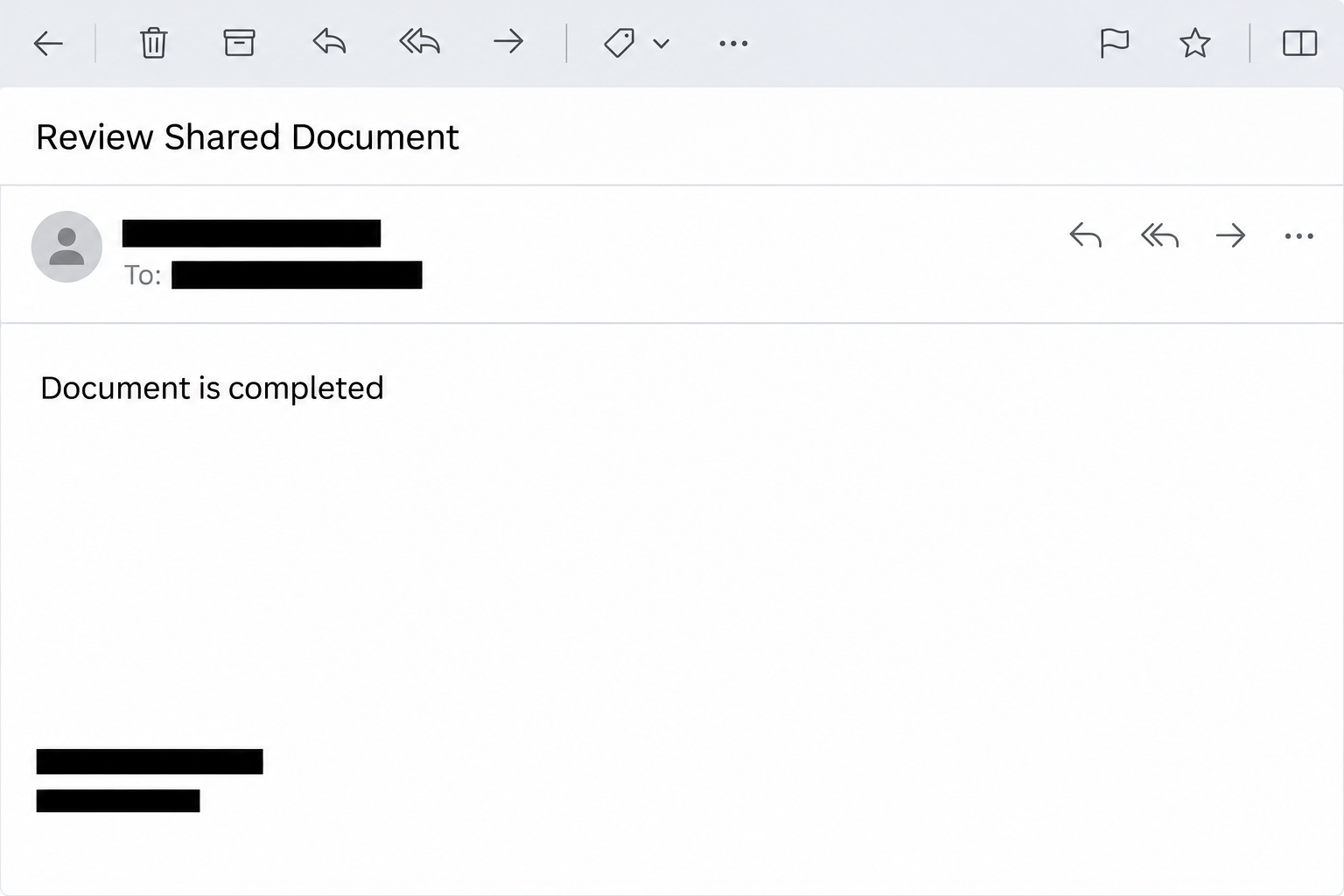
The email presents a signed document as ready for review
The Adobe Acrobat Document Is Completed email scam uses the subject fragment “Review Shared Document” followed by a date. It claims that a completed and signed document needs your attention.
The documented example addressed a team by its organization name. It also included an Adobe-style marketing footer, which can persuade a reader that recognizable branding is enough.
Neither the greeting nor the footer tells you which agreement was signed. An organization’s name can be found or copied without access to its document system.
The email image recreates the review and completion wording. It does not show an actual agreement or a notification from Adobe.
The button goes to a counterfeit Google Drive view
The reported destination showed a fake Google Drive view with document previews behind a dialog. The dialog asked the reader to verify their email address.
An email address was already visible in the form. The remaining request was for the mailbox password, not an acknowledgment of a document you could identify.
The page was reported on a hostname used by Cloudflare’s Quick Tunnels. Cloudflare’s technical documentation explains the service; the hostname is not an Adobe or Google endorsement.
No genuine document was established by those thumbnails. The recorded interaction concerns credential phishing, not a confirmed installer or a completed signature in your account.
The legitimate workflow leaves records you can check
Adobe’s agreement management guidance describes checking agreements and their status inside its service. Start there if you expected an Acrobat Sign notification.
A genuinely shared Google Drive file can also have access restrictions. Those restrictions don’t make an unexpected second sign-in page trustworthy.
Look for a few independently checkable details before opening any document:
- A known sender who can tell you what was signed and which organization was involved.
- A corresponding agreement, file, or request in the service you already use.
- A filename or subject that makes sense for the task you were expecting.
- A source that does not need you to submit your email password to a page selected by the notice.
- Confirmation through an established project thread if both the timing and sender seem plausible.
An email that switches from an Acrobat notification to a lookalike Drive form does not meet those checks. Verify the document without supplying anything to that page.
How the Adobe Acrobat Document Is Completed Email Scam Works
Step 1: A finished task sounds easier to trust than a new request
Someone who has been waiting for a signature may expect a handoff as soon as it is completed. The notice looks like that ordinary end of a workflow.
The surrounding phrasing asks you to review, not to decide whether to sign or pay. That lower-stakes request can make clicking feel like an administrative courtesy.
On a busy team, recipients may also assume another coworker arranged the document. Nothing in the reported wording provides a trustworthy way to establish who did.
Ask the person responsible for the agreement instead. A real completion has a history before the alert, even when you didn’t see every part of it.
Step 2: A team greeting and familiar footer supply false context
A generic personal greeting is easy to dismiss. A team name can feel like evidence that the sender knew whose agreement it was processing.
The example also copied legal and marketing material associated with Adobe. Those public details can be reproduced without permission or any connection to an agreement.
The combination makes the top and bottom of the email look finished while leaving the key question unanswered. You still don’t know which document belongs to you.
Before using the button, find an agreement reference through the genuine service or ask your usual contact. They can give you context without needing your password.
Step 3: The next screen switches brands and appears to contain files
The reported page resembles Google Drive rather than an Adobe signing account. File previews in the background make the visitor feel as though the document is just out of reach.
People do use multiple document platforms at work. That makes a brand switch plausible in isolation, but it cannot explain why an unrelated address should collect a mailbox credential.
The preview is only an image or page element until you verify its origin. It might suggest recognizable documents without providing access to anything authorized.
Inspect the workflow, not how many icons look right. If the next screen doesn’t belong to the service you intended to use, close it.
Step 4: A prefilled address makes the password request feel routine
The page displays the recipient’s address before asking for the password. That can make it seem as though the service already looked up a real account.
Someone who knew where to send the phishing email may already know the address. Showing it on the next page does not prove account access or proper authorization.
The password request is the consequential step. If you submit it, the form operator can capture it without creating a valid Google or Adobe session.
An error message won’t tell you whether the data was received. If you did enter it, stop retrying and protect the real mailbox.
Step 5: A stolen mailbox may expose other document conversations
Work email often contains the context missing from the original lure: names of signers, vendor relationships, recent attachments, and links to shared material.
An intruder with working access may use that context for further impersonation. You need to look for actual account changes before attributing other messages to this incident.
Someone could also attempt a reset for a different service that relies on the same inbox. That possibility is why session and forwarding checks matter alongside a password change.
Tell your administrator whether you approved anything in addition to entering a password. The recorded first screen does not establish that a later authentication prompt was used against everyone.
What to Do if You Have Fallen Victim to This Scam
-
Close the imitation and check the document from a known route. Use your official Acrobat account, authorized signing tool, or existing project conversation to look for it.
If a coworker requested a signature, ask them to confirm the actual agreement. Don’t send the phishing link back as something they should inspect.
-
Report the message through the workplace or provider. Include the message subject, delivery time, and whether the list of documents or the prefilled address appeared.
A report can help teams find other copies without asking employees to open it. Keep the original if your organization needs the mail headers.
-
If you submitted your email password, replace it through the real account. Contact your workplace administrator if your sign-in belongs to the organization rather than to you personally.
Change the same password on other services where you used it. Do not assume securing Adobe fixes an exposed Google or other mailbox password.
If you use a personal Google Account, its compromised account guidance covers suspicious activity and recovery. Ask an administrator for managed-account procedures.
-
Review what an intruder might still have access to. Ask about sessions, recovery methods, forwarding settings, mailbox rules, and connected apps that you don’t recognize.
Report any one-time approval you accepted without sharing the code. Tell support whether the request appeared during this incident or came later.
If possible, check for messages from your account that you did not send. Preserve examples through the organization’s reporting route rather than posting client correspondence publicly.
-
Use the verified document service to check its own activity. Look for unfamiliar sharing changes or completed agreements if that account was exposed as well.
Do not revoke coworkers’ access based only on a copied screenshot. Confirm the actual file, account, and changes first, then ask the owner to adjust permissions.
-
Handle any software or unusual download as a separate incident. The documented page asked for credentials. If a variant saved a file and you ran it, tell security promptly.
Note the device and what opened, but keep the file closed. Do not reproduce the interaction just to collect a better screenshot.
-
Warn affected colleagues through an established channel. Identify the false completion notice and tell them where to verify the real agreement instead.
If someone receives a later request to change bank details or grant document access, confirm it separately. Don’t treat a reply inside a potentially exposed mailbox as proof.
Verify a Document Without Using the Link That Announced It
Trace the request back to the person who owns it
Start from the existing agreement, request, or project contact. A team that initiated a real signature can identify the sender and subject without referring to an unrelated viewer.
If nothing matches, open your own agreement list or ask the sender to confirm the purpose. An authentic notice can be checked even if you decline its shortcut.
If a known supplier confirms they sent a file, confirm which account it was shared to. That prevents a legitimate request from being confused with a copy sent elsewhere.
Do not ask another person to use their sign-in to get around an unexpected roadblock. The appearance of a protected file can be part of the false story.
Keep the account boundary visible when a link opens in the browser
For Google Drive questions, use Google’s sharing and access instructions and open the service independently. Check that the owner recognizes the record.
Other tools have different account boundaries. A site can describe itself as an official document viewer without being entitled to a password for a separate service.
If you land on an unexpected form, read the service name your password manager associates with it. A mismatch is a reason to check, not to force autofill.
When the situation is unclear, ask your administrator to review the link as evidence. An employee does not need to sign in to help determine who controls the page.
Keep genuine signing work moving while security investigates
You can still prepare for a deadline without trusting the message. Ask the agreement owner to give you the established reference or confirm status inside the approved service.
If someone must review a file immediately, use a known document location with the expected permissions. A suspected phishing incident need not move the project into an unfamiliar portal.
Handle account exposure in parallel through the help desk. Keeping those jobs separate protects the mailbox without leaving people uncertain about whether the contract was actually completed.
How to Handle the Email in a Shared Inbox
An agreement can be real while the notice is fake
Suppose your finance team expects a lease to come back signed this week. A notice arriving at the right time is worth checking, but its timing doesn’t authenticate it.
Compare the agreement name, parties, and current status in Acrobat Sign with the information you already have. If the title is generic, ask the deal owner for the original reference.
Call the person responsible using an existing contact record. Don’t treat a phone number in an email signature as independent confirmation of that same email.
If you cannot match the notice, pause only the activity it requested. You can still ask the owner to confirm the deadline or supply the agreement through the real workspace.
What to record before someone deletes the email
A screenshot showing the subject and time can help colleagues recognize related messages. An administrator might need the original message and headers to identify where those copies came from.
Record which mailbox received it and whether anyone went past the button. The response differs if everyone stopped at the message or an employee typed a password.
Keep the original within your organization’s approved reporting system. A copy sent to a public inbox or chat might share names or addresses unrelated to the fraud.
If the help desk finds similar messages elsewhere, ask it to coordinate the warning. People need to recognize the lure without receiving another copy of it.
Frequently Asked Questions
Is the “Review Shared Document” subject enough to prove fraud?
A subject alone is not conclusive. In this case, the reported button opened an imitation Drive view that asked for a mailbox password.
Why does the page already know my email address?
The sender may already know the address used to deliver the message. Displaying it does not show that Google, Adobe, or your employer authorized the page.
Does a Cloudflare address mean Cloudflare sent the email?
A hosting or tunnel provider isn’t the sender merely because its infrastructure appears in a link. Verify who controls the particular site before providing anything.
Did opening the page install malware?
The recorded route was a fake sign-in form without an established installer. If you actually ran an unexpected file, report that separately as a device concern.
Can I check the real signing status if I already lost mailbox access?
Ask the agreement owner through another trusted channel. Use your mail provider or administrator for account recovery instead of trying the same document link again.
What if I entered the password but never saw a document?
Treat the credential as potentially exposed. Replace it through the real account and tell support when you entered it, even if the counterfeit page showed an error.
The Bottom Line
Don’t use the Adobe Acrobat completion email to review a document. The reported button goes to a counterfeit Drive view that asks for your email password.
Verify any real agreement where you normally manage it. If you submitted a credential, secure the mailbox and review its recent access rather than trying the link again.

Join the discussion
0 commentsShare your experience or ask a question about this article.
Community experiences
Did this happen to you?
Your experience could help someone recognize the same scam. Submit a private report for our team to review.
I experienced this tooReports are reviewed before publication. Sharing publicly is always your choice.
Discussion
Start the conversation
Have a question or something useful to share? Add the first comment.