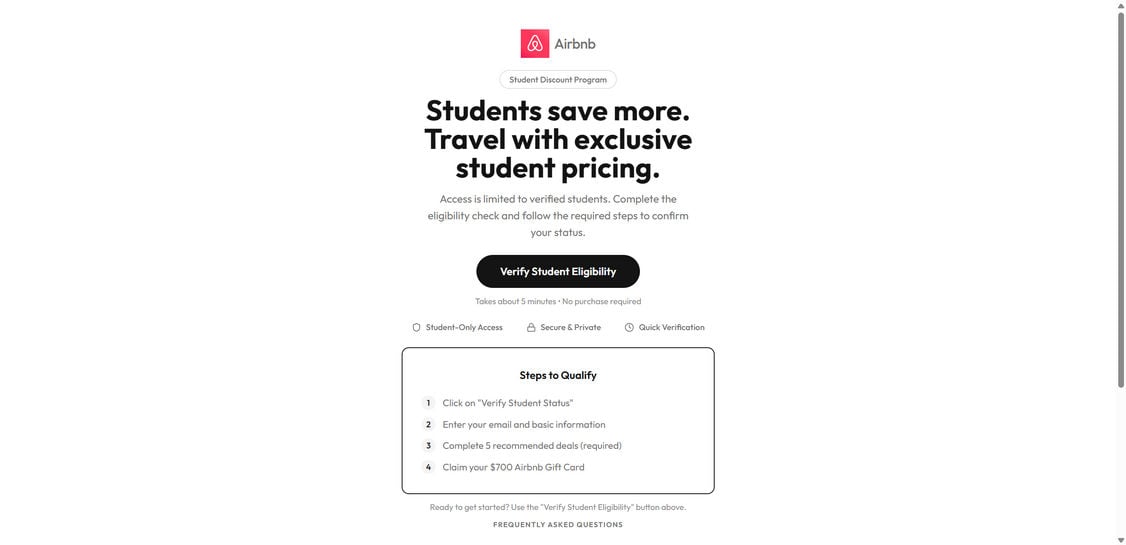
AirGifted.com looks like the kind of page you click when you are trying to stretch a student budget. It uses familiar Airbnb-style language, talks about “exclusive student pricing,” and makes the process sound quick and safe.
“Complete 5 recommended deals (required)” and “Claim your $700 Airbnb Gift Card.”
That is where the story changes, because once you understand what those “deals” really are, the whole page reads less like a student discount program and more like a carefully built trap.
Scam Overview
AirGifted.com presents itself as an “Airbnb Student Discount Program,” offering students access to special travel pricing. On the surface, that sounds plausible. Student discounts exist across many industries, including travel.
But the AirGifted.com pitch goes much further than a typical discount.
The page strongly suggests you can unlock benefits by “verifying student eligibility,” and then it escalates into a high-value reward claim, a $700 Airbnb gift card, after completing a set of required steps. This combination is a major red flag. Real student discounts are usually verified through established methods like student email domains, third-party verification providers, or a partner page hosted on the brand’s official website.
AirGifted.com does not behave like that.
Instead, it follows the classic structure of an affiliate offer funnel, sometimes called an offer wall scam, rewards bait funnel, or lead generation trap.
The big tell: “Complete 5 recommended deals (required)”
On the AirGifted.com page, the steps are presented as simple and legitimate:
Click on “Verify Student Status”
Enter your email and basic information
Complete 5 recommended deals (required)
Claim your $700 Airbnb gift card
The page even includes an FAQ that defines “deals” as tasks like downloading an app, completing a survey, or signing up for a trial using provided links. That detail matters, because it reveals the business model.
Those “deals” are not part of an Airbnb student verification process.
They are third-party affiliate offers.
That means the operator of the page earns money when you complete those tasks, whether you get a gift card or not. Your “progress” is not really about eligibility. It is about conversion.
Why scammers use the Airbnb name
Airbnb is a trusted household brand. Scammers know that trust can be borrowed with a logo and the right wording.
A page that says “Student Discount Program” with an Airbnb-style header makes people relax. It feels like a perk, not a risk. It also targets a specific audience, students, who are more likely to click on travel savings offers and may be more willing to complete “quick tasks” to get a reward.
This type of scam is not about one brand. Airbnb is simply the costume.
The underlying scam pattern appears again and again across the internet using different names:
gift card rewards
student discount verification
product reviewer programs
survey-to-reward pages
The layout and language change, but the engine underneath stays the same.
Why the offer sounds “safe,” even when it isn’t
AirGifted.com uses reassuring phrasing such as “Secure & Private” and “Quick Verification.” It also claims the process takes about 5 minutes and includes “No purchase required.”
Those phrases are chosen carefully. They are meant to remove hesitation.
But here is the problem: many of the third-party “deals” that appear in these funnels involve subscriptions, trial signups, app installs, or data-sharing agreements. Some are truly free, but many are not harmless, and the risk is often hidden in the fine print of the offer itself.
Even if a deal is technically “free,” it may require:
your phone number
your address
demographic data
consent to marketing
downloading an app that tracks usage
signing up for a trial that auto-renews
That is how people end up with spam, unwanted subscriptions, or unexpected charges days later.
The domain and legitimacy gap
A legitimate Airbnb student program, if it existed, would almost always be hosted on Airbnb’s official web properties or clearly linked from them. The domain AirGifted.com is not Airbnb’s official domain.
That does not automatically prove fraud on its own, but when you combine it with the offer wall requirement and the $700 gift card promise, the legitimacy gap becomes difficult to ignore.
A real discount program typically includes:
clear program terms
eligibility requirements that make sense
official support channels
a legitimate privacy policy explaining how student data is handled
a verification method tied to real student status, not random offers
AirGifted.com instead pushes people into “deals” that look unrelated to travel discounts, because the real purpose is not verification.
It is monetization.
What victims commonly report with this scam style
Scams built on offer walls and “complete deals to claim reward” funnels tend to produce the same outcomes:
You do the tasks, but the progress does not update.
You are told to complete more deals to “finish verification.”
One deal fails to track, so you are asked to try another.
The reward is delayed, “pending,” or requires additional steps.
You never receive the promised gift card.
At the same time, you may notice side effects:
more spam emails
more marketing texts or calls
aggressive retargeting ads
subscriptions you do not remember signing up for
unexpected charges from trial offers
Even when no money is stolen directly, your personal information becomes part of a marketing ecosystem you did not consent to, at least not in a way you fully understood.
Why the “student” angle is especially effective
The scam targets a very real pain point. Students are trying to save money, travel affordably, and find discounts wherever possible. A $700 Airbnb gift card sounds like a rare break.
The offer is also framed as an “eligibility check,” which feels like a harmless administrative step. That framing lowers suspicion compared to a page that simply says “Win a $700 gift card.”
But the mechanics do not match the promise.
Student verification does not require you to download random apps or sign up for unrelated trials. Those actions only make sense in one context: affiliate revenue.
The most important takeaway
AirGifted.com is best understood as a reward funnel that uses Airbnb-themed branding to drive users into third-party offers. The site’s core “requirement,” completing 5 deals, strongly suggests the operator is being paid per conversion, while the user is kept chasing a reward that is difficult or impossible to claim.
If a program requires you to complete unrelated offers before you can access a discount or gift card, the safest assumption is that the “program” is not for you. It is for the person getting paid when you click, install, sign up, and submit your data.
How The Scam Works
AirGifted.com is designed as a step-by-step funnel. Each step feels small and reasonable, which is exactly how it gets people to continue.
Below is how the scam typically works, from first click to the point where users realize something is wrong.
Step 1: The ad or link creates a student-only opportunity
Most people do not type AirGifted.com directly.
They arrive through:
social media ads
clickbait posts about student travel deals
discount forums
pop-ups or redirects from other pages
“limited access” style promotions
The message is usually simple: students can save more, and a special program is available right now.
The student framing does two things at once.
It makes the offer feel exclusive, and it makes the user feel pre-qualified.
Step 2: The landing page borrows Airbnb trust signals
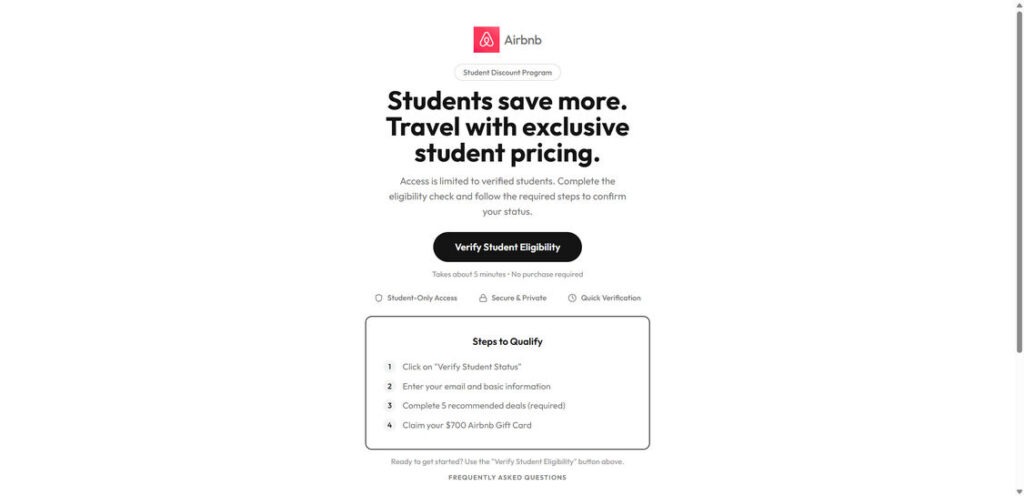
When the page loads, it looks clean and official at a glance.
You see:
Airbnb branding cues
the phrase “Student Discount Program”
a large headline about student pricing
a button such as “Verify Student Eligibility”
icons that imply safety and speed
This is the trust-building layer. It is not meant to provide proof. It is meant to create comfort.
The page also uses structured steps, which gives the illusion of a real process.
Step 3: You are pushed to enter your email and basic information
The next step is typically a form.
This is where the value extraction starts.
Even if you leave immediately after entering your email, the operator may still profit because:
your data becomes a lead
your email can be sold or shared
you can be retargeted with ads later
If the form asks for a phone number, the risk increases. Phone numbers are valuable in lead markets and can trigger waves of marketing calls and texts.
Step 4: The “verification” turns into a task list
After you submit information, the funnel introduces the requirement that matters most: completing “deals.”
This is framed as part of verification, but it is not.
Deals commonly include:
app installs
survey completions
newsletter signups
trial subscriptions
account registrations with partner sites
Some offers are harmless but annoying. Others are financially risky, especially trials that auto-renew.
At this stage, the scam relies on a psychological shift. You have already started, so you feel motivated to finish.
Step 5: The offer wall creates friction, then blames you for it
This is where many people get trapped.
Offer-based funnels often have tracking problems on purpose, or they use systems that are unreliable enough to create plausible deniability.
Common experiences include:
“Completed” offers not showing as completed
instructions to wait 24 to 48 hours for tracking
being told you must complete a different offer instead
being pushed toward higher-value offers that pay the operator more
The longer you stay, the more likely you are to complete an offer that generates meaningful affiliate revenue.
If you quit, the operator still often keeps your lead data.
Step 6: Some deals introduce subscription traps
A frequent turning point is the “trial offer.”
You might see something that sounds safe:
“Start a $1 trial”
“Free trial, cancel anytime”
“Verify with a subscription”
These offers can be legitimate businesses, but the context is deceptive. You are not signing up because you wanted the service. You are signing up because you are chasing the gift card.
That is how people end up with charges later.
Even if you cancel, you may have to deal with:
confusing cancellation steps
customer support delays
surprise billing cycles
multiple separate subscriptions from different offers
Step 7: The reward becomes “pending,” delayed, or impossible to claim
After completing multiple deals, users often hit one of these outcomes:
A message says the reward is being processed.
The system requests more deals to finalize verification.
The user is told to confirm identity again.
The claim page loops back to more offers.
This is the moment the funnel reveals its true nature.
There is rarely a clean finish line.
The reward exists mainly as motivation to keep completing tasks.
Step 8: Afterward, the spam and follow-ups begin
Once your email and other details are in circulation, you may start receiving:
marketing emails that feel unrelated
travel-themed promos from unknown brands
“congratulations” messages from other reward sites
scammy follow-ups that claim you have unclaimed rewards
This is not accidental.
Reward funnels often feed into wider advertising and lead networks. One signup can lead to months of spam, unless you take steps to protect yourself.
What To Do If You Have Fallen Victim to This Scam
If you clicked AirGifted.com, entered information, or completed deals, you are not alone. These pages are designed to look safe and “official enough.”
Here is a calm, practical checklist to reduce damage and protect yourself.
Stop completing offers immediately Do not try to “finish” the process. If the reward has not appeared by now, more deals usually will not change that. The safest move is to exit the funnel.
Take screenshots and save details Save the page URL, screenshots of the steps, and any confirmation screens. If you need to dispute charges or report the scam, documentation helps.
Check your email for trial and subscription confirmations Search your inbox for words like “trial,” “welcome,” “subscription,” “receipt,” and “billing.” Make a list of anything you do not recognize.
Review your bank and card statements carefully Look for small charges, test charges, and recurring billing. If you see anything suspicious, contact your bank quickly. The sooner you act, the easier disputes usually are.
Cancel any trials you started If you entered card information for any “deal,” cancel that service immediately through the official website of the service, not through random links. Also check PayPal or wallet subscriptions if you used them.
Change passwords if you reused any login info If you used a password you also use elsewhere, update it right away. Start with your email account, because email access can unlock password resets for other accounts.
Turn on 2-factor authentication for your email This adds a strong layer of security. Even if your password leaks, 2-factor authentication can prevent account takeover.
Prepare for spam and filter aggressively Mark suspicious emails as spam. Consider using email filters to block common marketing phrases. If you shared your phone number, be cautious with unknown calls and texts.
Scan your device if you installed anything If any deal required an app install or browser extension, remove anything you do not trust and run a security scan. Stick to well-known security tools.
Report the scam source Report the ad or post where you found it. Also report the site through your browser’s “report unsafe site” feature when available. Every report helps reduce reach.
Is Your Device Infected? Scan for Malware
If your computer or phone is slow, showing unwanted pop-ups, or acting strangely, malware could be the cause. Running a scan with Malwarebytes Anti-Malware Free is one of the most reliable ways to detect and remove harmful software. The free version can identify and clean common infections such as adware, browser hijackers, trojans, and other unwanted programs.
Malwarebytes works on Windows, Mac, and Android devices. Choose your operating system below and follow the steps to scan your device and remove any malware that might be slowing it down.
Malwarebytes for WindowsMalwarebytes for MacMalwarebytes for Android
Run a Malware Scan with Malwarebytes for Windows
Malwarebytes stands out as one of the leading and widely-used anti-malware solutions for Windows, and for good reason. It effectively eradicates various types of malware that other programs often overlook, all at no cost to you. When it comes to disinfecting an infected device, Malwarebytes has consistently been a free and indispensable tool in the battle against malware. We highly recommend it for maintaining a clean and secure system.
Download Malwarebytes
Download the latest version of Malwarebytes for Windows using the official link below. Malwarebytes will scan your computer and remove adware, browser hijackers, and other malicious software for free.
(The above link will open a new page from where you can download Malwarebytes)
Install Malwarebytes
After the download is complete, locate the MBSetup file, typically found in your Downloads folder. Double-click on the MBSetup file to begin the installation of Malwarebytes on your computer. If a User Account Control pop-up appears, click “Yes” to continue the Malwarebytes installation.
Follow the On-Screen Prompts to Install Malwarebytes
When the Malwarebytes installation begins, the setup wizard will guide you through the process.
You’ll first be prompted to choose the type of computer you’re installing the program on—select either “Personal Computer” or “Work Computer” as appropriate, then click on Next.
Malwarebytes will now begin the installation process on your device.
When the Malwarebytes installation is complete, the program will automatically open to the “Welcome to Malwarebytes” screen.
On the final screen, simply click on the Open Malwarebytes option to start the program.
Enable “Rootkit scanning”.
Malwarebytes Anti-Malware will now start, and you will see the main screen as shown below. To maximize Malwarebytes’ ability to detect malware and unwanted programs, we need to enable rootkit scanning. Click on the “Settings” gear icon located on the left of the screen to access the general settings section.
In the settings menu, enable the “Scan for rootkits” option by clicking the toggle switch until it turns blue.
Now that you have enabled rootkit scanning, click on the “Dashboard” button in the left pane to get back to the main screen.
Perform a Scan with Malwarebytes.
To start a scan, click the Scan button. Malwarebytes will automatically update its antivirus database and begin scanning your computer for malicious programs.
Wait for the Malwarebytes scan to complete.
Malwarebytes will now scan your computer for browser hijackers and other malicious programs. This process can take a few minutes, so we suggest you do something else and periodically check the status of the scan to see when it is finished.
Quarantine detected malware
Once the Malwarebytes scan is complete, it will display a list of detected malware, adware, and potentially unwanted programs. To effectively remove these threats, click the “Quarantine” button.
Malwarebytes will now delete all of the files and registry keys and add them to the program’s quarantine.
Restart your computer.
When removing files, Malwarebytes may require a reboot to fully eliminate some threats. If you see a message indicating that a reboot is needed, please allow it. Once your computer has restarted and you are logged back in, you can continue with the remaining steps.
Once the scan completes, remove all detected threats. Your Windows computer should now be clean and running smoothly again, free of trojans, adware, and other malware.
If your current antivirus allowed this malicious program on your computer, you may want to consider purchasing Malwarebytes Premium to protect against these types of threats in the future. If you are still having problems with your computer after completing these instructions, then please follow one of the steps:
Malwarebytes for Mac is an on-demand scanner that can destroy many types of malware that other software tends to miss without costing you absolutely anything. When it comes to cleaning up an infected device, Malwarebytes has always been free, and we recommend it as an essential tool in the fight against malware.
Download Malwarebytes for Mac.
You can download Malwarebytes for Mac by clicking the link below.
When Malwarebytes has finished downloading, double-click on the setup file to install Malwarebytes on your computer. In most cases, downloaded files are saved to the Downloads folder.
Follow the on-screen prompts to install Malwarebytes.
When the Malwarebytes installation begins, you will see the Malwarebytes for Mac Installer which will guide you through the installation process. Click “Continue“, then keep following the prompts to continue with the installation process.
When your Malwarebytes installation completes, the program opens to the Welcome to Malwarebytes screen. Click the “Get started” button.
Select “Personal Computer” or “Work Computer”.
The Malwarebytes Welcome screen will first ask you what type of computer are you installing this program, click either Personal Computer or Work Computer.
Click on “Scan”.
To scan your computer with Malwarebytes, click on the “Scan” button. Malwarebytes for Mac will automatically update the antivirus database and start scanning your computer for malware.
Wait for the Malwarebytes scan to complete.
Malwarebytes will scan your computer for adware, browser hijackers, and other malicious programs. This process can take a few minutes, so we suggest you do something else and periodically check on the status of the scan to see when it is finished.
Click on “Quarantine”.
When the scan has been completed, you will be presented with a screen showing the malware infections that Malwarebytes has detected. To remove the malware that Malwarebytes has found, click on the “Quarantine” button.
Restart computer.
Malwarebytes will now remove all the malicious files that it has found. To complete the malware removal process, Malwarebytes may ask you to restart your computer.
After scanning, delete any detected threats. Your Mac should now be free from adware, unwanted extensions, and other potentially harmful software.
If your current antivirus allowed a malicious program on your computer, you might want to consider purchasing the full-featured version of Malwarebytes Anti-Malware to protect against these types of threats in the future. If you are still experiencing problems while trying to remove a malicious program from your computer, please ask for help in our Mac Malware Removal Help & Support forum.
Run a Malware Scan with Malwarebytes for Android
Malwarebytes for Android automatically detects and removes dangerous threats like malware and ransomware so you don’t have to worry about your most-used device being compromised. Aggressive detection of adware and potentially unwanted programs keeps your Android phone or tablet running smooth.
Download Malwarebytes for Android.
You can download Malwarebytes for Android by clicking the link below.
In the Google Play Store, tap “Install” to install Malwarebytes for Android on your device.
When the installation process has finished, tap “Open” to begin using Malwarebytes for Android. You can also open Malwarebytes by tapping on its icon in your phone menu or home screen.
Follow the on-screen prompts to complete the setup process
When Malwarebytes will open, you will see the Malwarebytes Setup Wizard which will guide you through a series of permissions and other setup options. This is the first of two screens that explain the difference between the Premium and Free versions. Swipe this screen to continue. Tap on “Got it” to proceed to the next step. Malwarebytes for Android will now ask for a set of permissions that are required to scan your device and protect it from malware. Tap on “Give permission” to continue. Tap on “Allow” to permit Malwarebytes to access the files on your phone.
Update database and run a scan with Malwarebytes for Android
You will now be prompted to update the Malwarebytes database and run a full system scan.
Click on “Update database” to update the Malwarebytes for Android definitions to the latest version, then click on “Run full scan” to perform a system scan.
Wait for the Malwarebytes scan to complete.
Malwarebytes will now start scanning your phone for adware and other malicious apps. This process can take a few minutes, so we suggest you do something else and periodically check on the status of the scan to see when it is finished.
Click on “Remove Selected”.
When the scan has been completed, you will be presented with a screen showing the malware infections that Malwarebytes for Android has detected. To remove the malicious apps that Malwarebytes has found, tap on the “Remove Selected” button.
Restart your phone.
Malwarebytes for Android will now remove all the malicious apps that it has found. To complete the malware removal process, Malwarebytes may ask you to restart your device.
When the scan is finished, remove all detected threats. Your Android phone should now be free of malicious apps, adware, and unwanted browser redirects.
If your current antivirus allowed a malicious app on your phone, you may want to consider purchasing the full-featured version of Malwarebytes to protect against these types of threats in the future. If you are still having problems with your phone after completing these instructions, then please follow one of the steps:
Restore your phone to factory settings by going to Settings > General management > Reset > Factory data reset.
After cleaning your device, it’s important to protect it from future infections and annoying pop-ups. We recommend installing an ad blocker such as AdGuard. AdGuard blocks malicious ads, prevents phishing attempts, and stops dangerous redirects, helping you stay safe while browsing online.
The Bottom Line
AirGifted.com presents itself as an Airbnb student discount program, but the “complete 5 deals to claim a $700 gift card” requirement is the giveaway. That structure matches a common affiliate offer funnel scam, where the site profits from your signups and data, while the promised reward is delayed, denied, or never delivered.
If you already engaged with it, focus on the practical steps: cancel trials, monitor charges, tighten account security, and protect your inbox and phone from follow-up spam.
And going forward, remember the simplest rule that catches most reward scams early: if a “discount program” requires unrelated deals, app installs, or trial signups before you can claim a reward, the reward is usually bait.
FAQ
What is AirGifted.com?
AirGifted.com is a reward-style website that claims to offer an Airbnb student discount program and a $700 Airbnb gift card after “verification.” In practice, it pushes visitors into completing third-party “deals” and collecting personal information, which is a common scam pattern.
Is AirGifted.com affiliated with Airbnb?
No. AirGifted.com is not an official Airbnb website and is not affiliated with Airbnb. Legitimate Airbnb programs and promotions are typically hosted on Airbnb’s official domains or clearly linked from Airbnb’s official site.
Is the “Airbnb Student Discount Program” on AirGifted.com real?
The way it is presented on AirGifted.com is not consistent with a real student discount program. Real student discounts usually involve straightforward student verification, not completing multiple unrelated “deals” or offer tasks.
What does AirGifted.com mean by “Verify Student Eligibility”?
It is marketing language used to make the process sound official. On these sites, “verification” often leads to a funnel where you are asked to enter your details and complete offer-based tasks, not confirm real student status.
What are the “5 recommended deals” they require?
“Deals” usually mean third-party offers such as:
downloading apps
signing up for trials
completing surveys
registering for promotional offers
These deals are designed to generate affiliate commissions for the site operators when users complete them.
Will I actually receive a $700 Airbnb gift card?
In most cases, people do not receive the promised gift card. Offer-based funnels commonly create tracking issues, add extra requirements, or keep users stuck in a loop. The reward is often delayed indefinitely or never delivered.
Why does AirGifted.com ask for my email and basic information?
Collecting personal data is a major goal. Your email, phone number, and other details can be used for marketing, sold to lead networks, or used to target you with more ads and promotions.
What happens after I submit my information?
Many people experience:
increased spam emails
marketing texts or calls if a phone number was entered
follow-up links to other “reward” sites
retargeting ads across social media
This is common with lead-generation funnels.
Can AirGifted.com cause unwanted charges on my card?
Yes, if you entered payment information for any “deal” that involved a trial subscription. Some offers auto-renew and can create recurring charges if you do not cancel in time.
I only entered my email. Am I in danger?
You are less exposed than someone who entered payment details, but you may still see spam and marketing follow-ups. It is smart to tighten your email filters and avoid clicking suspicious links.
I completed one or more deals, but it says I’m not qualified. Why?
This is a common tactic in offer-based reward scams. The system may claim offers did not track, require additional deals, or delay verification. It keeps users completing more tasks, which generates more revenue for the operators.
What should I do if I started a trial through one of the deals?
Take action quickly:
find the confirmation email for the trial
cancel through the official website of that service
check your bank statement for billing names
set reminders to confirm cancellation and watch for renewals
How do I check if I’ve been signed up for subscriptions?
Search your inbox for words like:
receipt
subscription
trial
billing
welcome
payment
Then review your bank or card statement for recurring charges you do not recognize.
Should I keep trying to finish the steps to get the gift card?
No. If a site requires multiple unrelated offers to “unlock” a reward, continuing usually increases your risk without improving your chances of getting paid.
How can I report AirGifted.com?
You can report it through:
the platform where you saw the ad or link
your browser’s phishing or unsafe site report option
consumer protection or scam reporting sites in your country
How do I avoid scams like this in the future?
Use these simple filters before you click:
Only trust promotions hosted on official brand domains
Avoid any offer that requires “deals” to claim rewards
Be cautious of large gift card promises like $700
Never enter card details just to “verify” eligibility
Search the domain name plus “scam” before signing up
What is the safest way to find real Airbnb discounts for students?
Check only official sources:
Airbnb’s official website and help center
Airbnb’s verified social media accounts
legitimate student verification partnerships that are clearly linked from Airbnb
If a student program is real, it will have transparent terms, official support, and verification that makes sense.
Thomas is an expert at uncovering scams and providing in-depth reporting on cyber threats and online fraud. As an editor, he is dedicated to keeping readers informed on the latest developments in cybersecurity and tech.