It sounds serious. It sounds official. It sounds like something that happens when a security system detects a threat you cannot see.
And that is exactly why scammers use it.
They do not need to hack your iPhone. They do not need to break into Apple. They just need a message that makes you feel like you are already late, already exposed, and one wrong move away from losing money.
So they send a text that looks like a high-level Apple security notification, add a big charge amount, sprinkle in heavy technical language, and then offer you a single way out…call this number.
Scam Overview
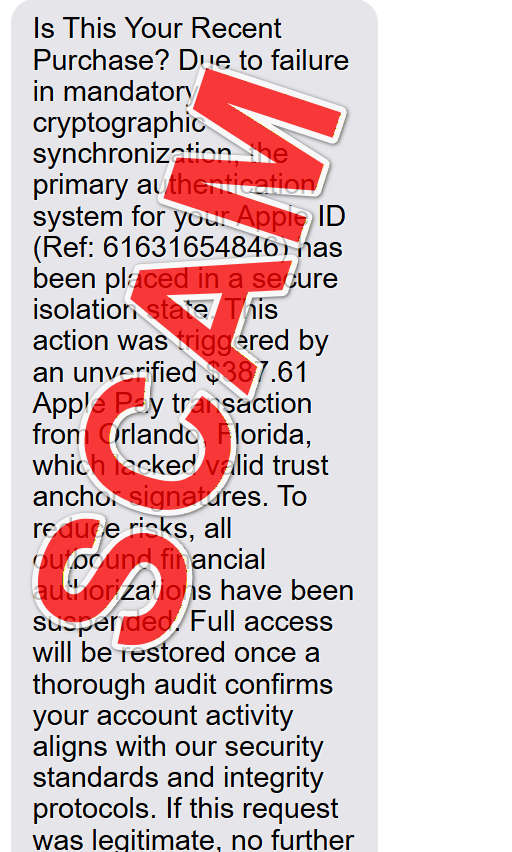
The Apple ID “Secure Isolation State” scam is a phone-based tech support and financial fraud scam that arrives as a text message. It claims Apple’s “primary authentication system” flagged your Apple ID due to a suspicious Apple Pay transaction, then says your account has been placed into a “secure isolation state” until you verify activity or complete an “audit.”
The message usually includes a large dollar amount, a location, a reference number, and authoritative-sounding security phrases like “cryptographic synchronization,” “trust anchor signatures,” and “integrity protocols.”
The goal is not to inform you. The goal is to push you into calling a scam phone number where fake “Apple Support” agents try to steal your information, gain remote access to your device, and extract money through transfers or gift cards.
What these scam texts often look like
While the wording varies, most “secure isolation state” texts share a similar structure:
A prompt that feels urgent, like “Is this your recent purchase?”
A claim that security systems detected a failure or anomaly
A dramatic action taken by Apple, such as restricting access, suspending authorizations, or isolating your Apple ID
A suspicious Apple Pay transaction, commonly $200 to $500, sometimes higher
A location attached to the transaction, like a city and state
A “resolution timeline,” often 24 hours, to create a pressure window
A phone number presented as Apple Support or Apple Customer Care
The language is designed to feel like it came from a security operations team, not from a customer service template.
That is intentional. It makes the scam feel more credible and more urgent.
Why the phrase “secure isolation state” is a psychological weapon
Most people have never seen Apple describe an account event that way.
That is the point.
When you read something unfamiliar but authoritative, you naturally assume:
It might be real, because it sounds like an internal security term.
You may not know enough to judge it.
You should contact support.
Scammers rely on that reflex. They want you to outsource your judgment to the “support number” they control.
It is not about the vocabulary being correct.
It is about the vocabulary making you doubt yourself.
The technical language is not proof, it is camouflage
Phrases like “mandatory cryptographic synchronization” and “trust anchor signatures” are meant to sound advanced. They create the impression that Apple’s systems caught something sophisticated.
But here is what matters: the text gives you no reliable way to verify anything.
No legitimate security process relies on a random phone number in a text message as the single point of resolution.
A real alert from Apple should always be verifiable through official channels that you access independently, like your Apple ID settings, your purchase history, or a support contact path you initiate yourself from Apple’s official website or device settings.
Why scammers include a big Apple Pay charge
The dollar amount is carefully chosen.
It needs to be:
Big enough to trigger panic
Small enough to feel believable
Specific enough to look like a real transaction
A number like $387.61 does two things at once. It feels detailed, which people interpret as truth, and it feels painful, which pushes you to act quickly.
Scammers often attach a location such as Orlando, Florida to make it feel even more real. Most people do not live where the transaction is allegedly happening, so the “distance” adds urgency.
“If it is in Florida and I am not in Florida, someone must have my account.”
The call is the real danger
In many phishing scams, the link is the trap.
In “secure isolation state” scams, the call is the trap.
Scammers want you on the phone because they can adapt their approach based on what you say. They can pressure you. They can keep you from checking facts. They can create a false sense of authority that is hard to shake.
Once you are speaking to a confident voice that claims they can “restore access,” your brain starts to treat them like the solution, not the threat.
That is how social engineering works.
What happens when you call
If you call the number, you typically reach a fake support desk. The person may introduce themselves as Apple Support, Apple Security, Apple Billing, or something similar.
They will usually do three things fast:
Confirm basic details about you and your device
Escalate the fear by claiming there are active attempts on your account
Offer an urgent “security procedure” you must follow right now
From there, the scam usually moves into one of these paths:
Account takeover path: They try to get your Apple ID email, password, and verification codes.
Remote access path: They try to get you to install software like AnyDesk on a computer, or share your screen and follow steps on a phone.
Payment extraction path: They push you toward bank transfers, payment apps, or gift cards.
Hybrid approach: They combine the above, especially if you are cooperative.
How the scam turns into real financial loss
The scam often uses a “resolution” narrative that sounds helpful:
“We will reverse the Apple Pay transaction.”
“We will restore your account after a security audit.”
“We need to verify your payment method.”
“We need to confirm your identity.”
Then they push actions that benefit them, not you.
Common dangerous requests include:
Reading one-time codes out loud
Installing remote access tools on a laptop or desktop
Logging into your bank account while they watch
Approving transfers to “secure funds”
Buying gift cards as a “verification step”
Gift cards are a favorite because once the code is shared, the money is effectively gone.
Why these scams are spreading now
Scammers follow attention.
Apple ID and Apple Pay are familiar to millions of people. People know Apple is security-focused, so “security alert” messaging feels believable.
At the same time, many people have seen real fraud alerts from banks and payment services. The idea of a security system suspending authorizations does not sound crazy.
Scammers exploit that reality and add dramatic language to increase conversion.
The more “official” it sounds, the more calls they get.
Common red flags that almost always mean it is a scam
If you see any of the following, treat the message as suspicious:
It tells you your Apple ID is in a “secure isolation state”
It uses heavy security jargon without clear, verifiable details
It claims a large Apple Pay transaction you do not recognize
It includes a phone number and urges you to call immediately
It tells you to stay on the phone while completing steps
It asks for Apple ID verification codes
It asks you to install AnyDesk or similar remote tools
It asks for gift cards, bank transfers, or “security deposits”
Real support does not need you to buy gift cards to protect your account.
A scammer does.
What to do immediately if you receive the text
Even before we get into the full victim recovery steps, here is the safest immediate reaction:
Do not call the number.
Do not reply to the text.
Do not trust the “24 hours” line as a real deadline.
Verify your Apple ID and payment activity through official account settings.
If you are concerned, contact Apple using official support options you find independently.
That one decision, refusing the phone call, blocks the main path of harm.
How The Scam Works
Below is the typical “secure isolation state” scam flow, broken into a small number of steps, with clear subheadings so you can see how the pressure builds. Scammers may change the details, but the skeleton stays the same.
1. You receive a text that sounds like an internal Apple security alert
The scam begins with a message that feels different from typical spam.
It often includes:
A reference number
A precise dollar amount
A location
Technical security phrases
A claim that a protective action has already been taken
The message is designed to create the feeling that Apple’s systems are actively defending you, but that you must act quickly to complete the process.
It is basically a staged emergency.
2. The text creates urgency without giving you a real way to verify
The message suggests a tight time window, often 24 hours.
It claims:
The charge will process if you do nothing
Your account will remain restricted unless verified
Financial authorizations are suspended until an audit completes
Notice what it does not do.
It does not direct you to verify through your Apple ID settings, your Wallet activity, or your bank statement. It does not encourage you to independently open Apple’s official support pages and start a case there.
Instead, it gives you a phone number.
That is the funnel.
3. You call, and the scammer immediately frames themselves as your rescuer
Once you call, the scammer’s job is to take control of the emotional tone.
They often sound calm and confident, which makes you feel safer. They may use a script that mimics real support. They may give you a case number, and they may repeat it.
Then they will ask questions that sound like verification, but are really reconnaissance:
What device are you using?
Do you have Apple Pay enabled?
Do you see any alerts on your screen?
Are you currently logged into your Apple ID?
They are mapping your situation so they can choose the best attack route.
4. They escalate the threat to make cooperation feel necessary
After a few minutes, the scammer typically “checks” something and returns with bad news.
They might say:
There are multiple attempted charges
A new device is being added
Your Apple ID has a high-risk sign-in attempt
Your wallet is being compromised
Your account is not safe until they perform a procedure
They may sprinkle in jargon from the original text to keep the illusion consistent.
At this stage, many victims stop thinking like investigators and start thinking like patients in an emergency room.
“Tell me what to do.”
5. They push you into sharing codes or information that enables account takeover
A very common move is to trigger a real Apple verification code.
They may claim they are sending you a code “to verify identity” or “to cancel the transaction.” But what they are often doing is attempting to sign into your Apple ID, reset your password, or add their device.
If you read the code to them, you may be granting access.
Other details they may request include:
Your Apple ID email
Your password
Your full name and billing address
Card details “for confirmation”
Real Apple Support does not need your password, and they do not need you to read out one-time codes.
6. If you hesitate, they pivot to remote access or screen sharing
If the scammer senses you are cautious, they may switch tactics and focus on “device security.”
They may claim:
Malware is interfering with authentication
Your device is compromised
Your network has been breached
A “secure audit” must be performed
Then they ask you to install a tool, often AnyDesk, especially if you are on a computer.
Remote access is powerful because it allows the scammer to watch, guide, and sometimes control what happens next. It also gives them a way to move the scam forward even if you are reluctant to share passwords directly.
7. The scam becomes a money extraction operation
Once the scammer has leverage, they move to the payoff.
Common narratives include:
Refund processing: They claim they will reverse the charge, but you must verify banking details.
Account security deposit: They claim a temporary payment is needed to restore authorizations.
Safe transfer: They claim you must move money to protect it from unauthorized charges.
Gift card verification: They claim gift cards are needed as a security token.
Gift cards are especially common because they cannot be reversed like many card transactions can.
If a “support agent” tells you to buy gift cards, it is not support. It is theft.
8. They try to keep you isolated until you comply
Scammers know that if you talk to someone else or take time to verify, the scam collapses.
So they may:
Keep you on the phone while you drive to a store
Tell you not to contact your bank “yet”
Warn you not to close the call or you will “lose your place in the queue”
Create a false deadline, like “the authorization window is closing”
Their goal is to prevent the moment of calm where you realize the story does not add up.
What To Do If You Have Fallen Victim to This Scam
If you called, shared information, installed anything, or sent money, take a breath and move step by step. You can reduce harm quickly when you act with focus.
End contact and block the number Hang up. Do not reply. Do not answer follow-up calls. Scammers often try to pull you back in with new pressure once they sense you are slipping away.
Change your Apple ID password immediately Do it through your device settings or official account management pages you navigate to yourself. Use a strong, unique password you do not reuse anywhere else.
Review your Apple ID security settings and signed-in devices Check for:
Devices you do not recognize
New trusted phone numbers
Account recovery changes Remove anything suspicious. If possible, sign out of all devices you do not trust.
If you shared a one-time code, assume an access attempt occurred Treat it like a near-account-takeover event. After changing your password, monitor for additional sign-in alerts, and re-check your device list later to ensure nothing new appears.
Uninstall remote access tools and scan your device If you installed AnyDesk or any remote support app:
Uninstall it
Restart your device
Run a scan with Malwarebytes Then consider installing AdGuard to help block malicious ads and scam pages that often lead to repeat attacks.
Contact your bank or card issuer if any payment information was shared If you gave card details, logged into banking while screen sharing, or approved any transfers:
Call your bank immediately
Ask them to review transactions and apply extra fraud monitoring
Replace compromised cards if needed If you sent money, ask about recall options.
If gift cards were involved, report it immediately and save receipts Keep every receipt and any packaging. Contact the gift card issuer as quickly as possible. Recovery is not guaranteed, but speed matters.
Change passwords for other accounts that may have been exposed Prioritize:
Your email account
Banking and payment apps
Any account you accessed during the call
Your password manager, if you use one If a scammer had remote access, assume they may have seen what you typed.
Check your device for unusual changes Look for:
New apps
New browser extensions
Unfamiliar configuration profiles
Email forwarding rules or security changes Scammers sometimes leave behind small changes that help them later.
Document and report the incident Save screenshots of the text message, the phone number, and call logs. Reporting helps platforms and carriers identify patterns and reduce future targeting.
How to Remove Unwanted Apps and Malware
If you have accidentally downloaded unwanted programs or malware from a pop-up scam, you can find below a full malware removal guide.
This malware removal guide may appear overwhelming due to the number of steps and numerous programs that are being used. We have only written it this way to provide clear, detailed, and easy-to-understand instructions that anyone can use to remove malware for free. Please perform all the steps in the correct order. If you have any questions or doubts at any point, stop and ask for our assistance.
Browser hijackers, unwanted apps, and adware can infect Windows, Mac, iOS, or Android devices, so we’ve covered below all these operating systems. Depending on which operating system is installed on your device, please click on the operating system icon below and follow the displayed steps.
In this first step, we will manually check if any unknown or malicious programs are installed on the computer. Sometimes adware and browser hijackers can have a usable Uninstall entry that can be used to remove them.
Windows 11Windows 10Windows 8Windows 7
Press the Windows key + I on your keyboard to open the Settings app.
First, open Windows Settings by pressing Windows+I on your keyboard. You can also right-click your Start button and select “Settings” from the list.
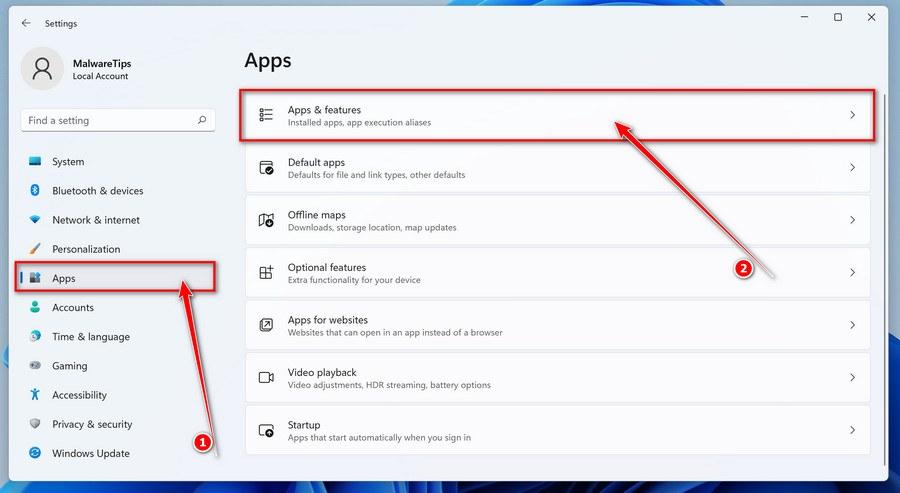
In the Settings app, click on “Apps” and then “Apps & features”.
When Settings opens, click “Apps” in the sidebar, then select “Apps & Features”.
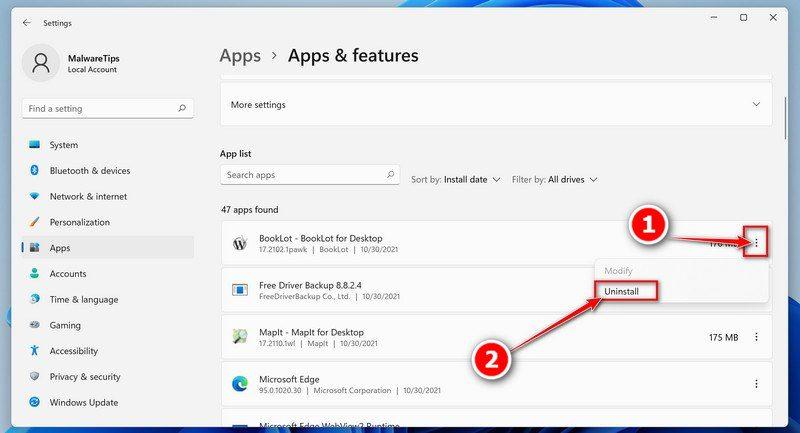
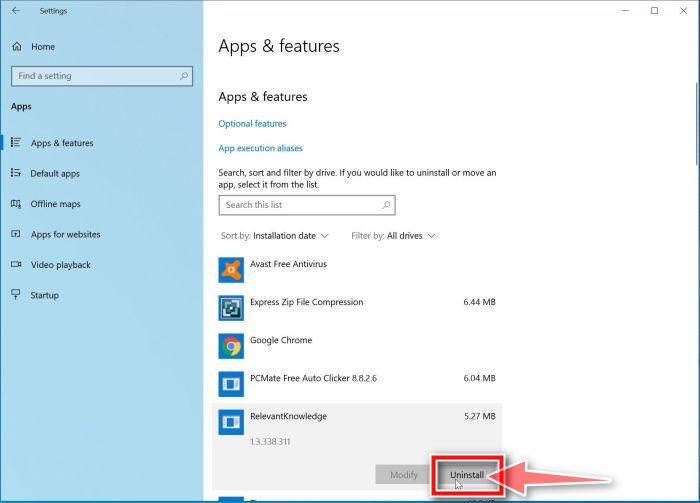
Find the malicious program in the list of installed apps and uninstall it.
In Apps & Features settings, scroll down to the app list and search for unknown or suspicious programs. To make things easier, you can sort all installed programs by their installation date. To do this, click “Sort by” and select “Install date”. Look out for any suspicious program that could be behind all the drama – anything you don’t remember downloading or that doesn’t sound like a genuine program. When you find a malicious program, click the three dots button beside it and select “Uninstall” in the menu that appears.
If you have checked your computer for malicious programs and did not find any, you can proceed with the next step in this guide.
Follow the prompts to uninstall the program.
In the next message box, confirm the uninstall process by clicking on Uninstall, then follow the prompts to uninstall the malicious program. Make sure to read all of the prompts carefully, because some malicious programs try to sneak things in hoping that you won’t read them closely.
Press the Windows key + I on your keyboard to open the Settings app.
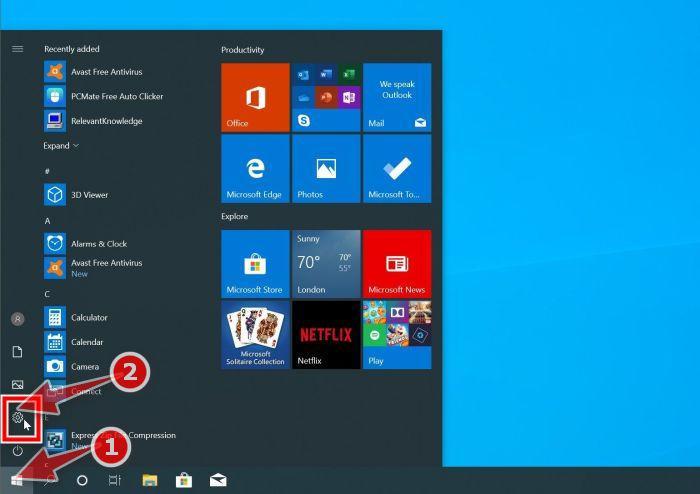
Press the Windows key + I on your keyboard to open the Settings app. You can also ope the Settings app by clicking the Start button on the taskbar, then select “Settings” (gear icon).
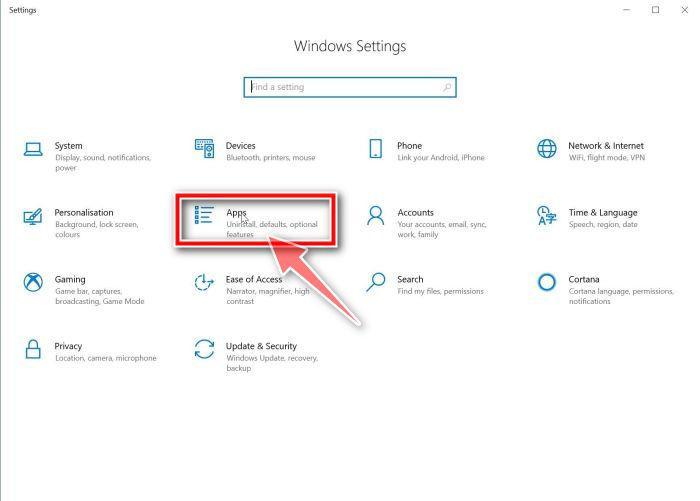
In the Settings app, click on “Apps”.
When the “Windows Settings” window opens, click on “Apps“. By default, it should open “Apps and Features” but if it doesn’t, select it from the list on the left.
Find the malicious program in the list of installed apps and uninstall it.
In Apps & Features settings, scroll down to the app list and search for unknown or suspicious programs. To make things easier, you can sort all installed programs by their installation date. To do this, click “Sort by” and select “Install date”. Look out for any suspicious program that could be behind all the drama – anything you don’t remember downloading or that doesn’t sound like a genuine program. When you find a malicious program, click on it and select “Uninstall” in the menu that appears.
If you have checked your computer for malicious programs and did not find any, you can proceed with the next step in this guide.
Follow the prompts to uninstall the program.
In the next message box, confirm the uninstall process by clicking on Uninstall, then follow the prompts to uninstall the malicious program. Make sure to read all of the prompts carefully, because some malicious programs try to sneak things in hoping that you won’t read closely.
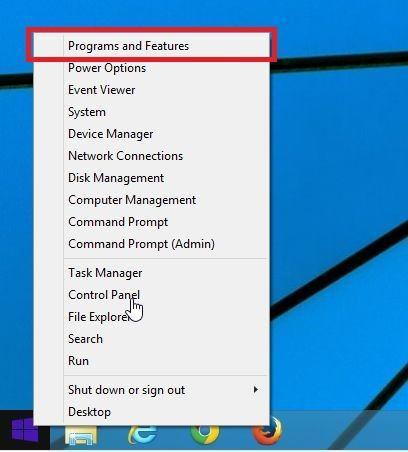
Go to “Program and Features”.
Right-click on the Start button in the taskbar, then select “Programs and Features”. This will take you directly to your list of installed programs.
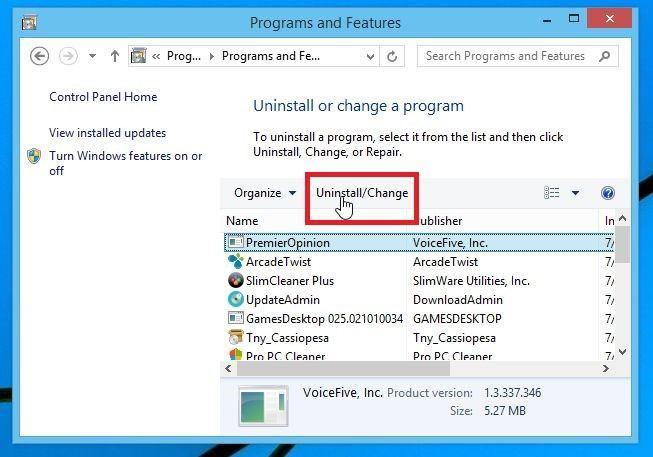
Search for malicious program and uninstall it.
The “Programs and Features” screen will be displayed with a list of all the programs installed on your computer. Scroll through the list until you find any unknown or suspicious program, then click to highlight it, then click the “Uninstall” button.
Look out for any suspicious program that could be behind all the drama – anything you don’t remember downloading or that doesn’t sound like a genuine program.
If you have checked your computer for malicious programs and did not find any, you can proceed with the next step in this guide.
Follow the on-screen prompts to uninstall malicious program.
In the next message box, confirm the uninstall process by clicking on Yes, then follow the prompts to uninstall malicious program. Make sure to read all of the prompts carefully, because some malicious programs try to sneak things in hoping that you won’t read closely.
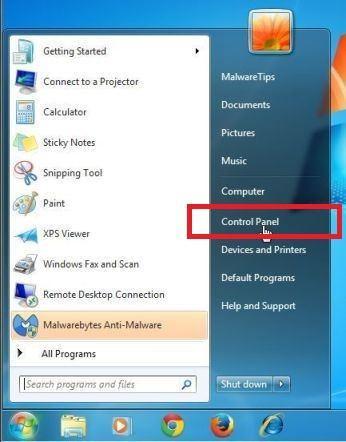
Open the “Control Panel”.
Click on the “Start” button, then click on “Control Panel“.
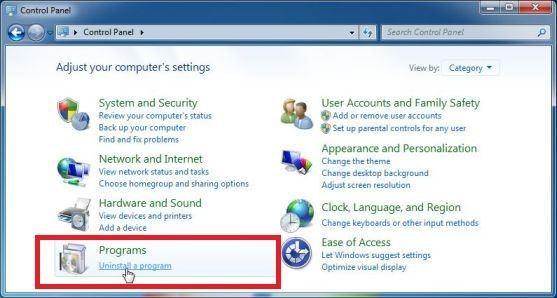
Click on “Uninstall a Program”.
When the “Control Panel” appears, click on “Uninstall a Program” from the Programs category.
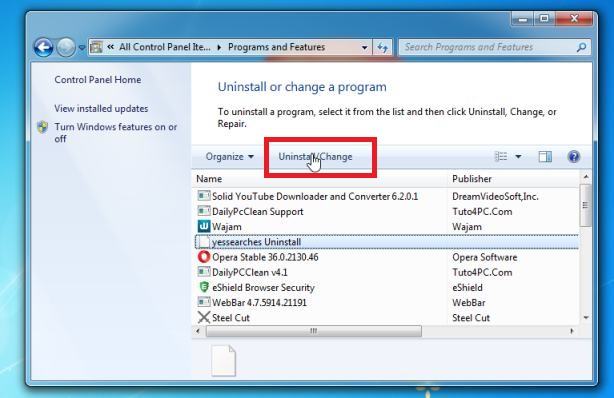
Search for malicious programs and uninstall them.
The “Programs and Features” screen will be displayed with a list of all the programs installed on your computer. Scroll through the list until you find any suspicious or unknown program, then click to highlight it, then click the “Uninstall” button. Look out for any suspicious program that could be behind all the drama – anything you don’t remember downloading or that doesn’t sound like a genuine program.
If you have checked your computer for malicious programs and did not find any, you can proceed with the next step in this guide.
Follow the on-screen prompts to uninstall malicious program.
In the next message box, confirm the uninstall process by clicking on Yes, then follow the prompts to uninstall malicious program. Make sure to read all of the prompts carefully, because some malicious programs try to sneak things in hoping that you won’t read closely.
If you are experiencing difficulty while attempting to uninstall a program, you can use Revo Uninstaller to completely remove the unwanted program from your computer.
Now that the malicious programs have been removed from your computer, we can proceed with the next step in this guide.
STEP 2: Reset browsers back to default settings
In this step, we will remove spam notifications, malicious extensions, and change to default any settings that might have been changed by malware. Please note that this method will remove all extensions, toolbars, and other customizations but will leave your bookmarks and favorites intact. For each browser that you have installed on your computer, please click on the browsers tab below and follow the displayed steps to reset that browser.
ChromeFirefoxMicrosoft EdgeInternet Explorer
Reset Chrome for Windows to default settings
We will now reset your Chrome browser settings to their original defaults. This will reset your startup page, new tab page, search engine, and pinned tabs. It will also disable all extensions and clear temporary data like cookies. Your favorites, history, and saved passwords will not be cleared.
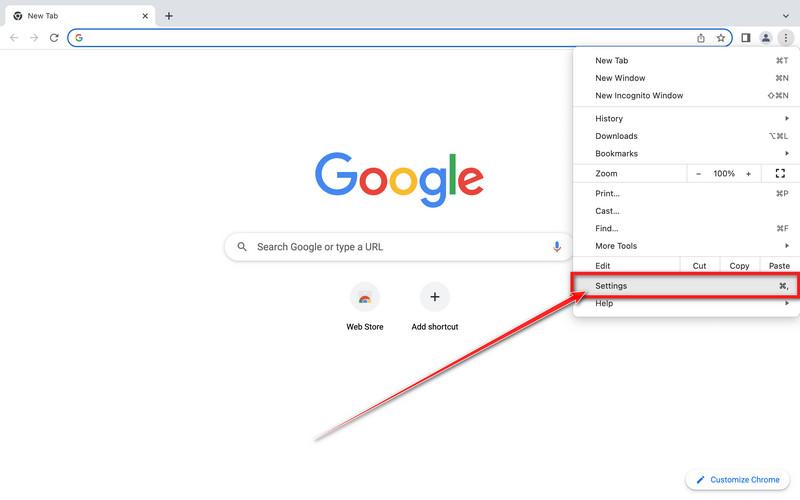
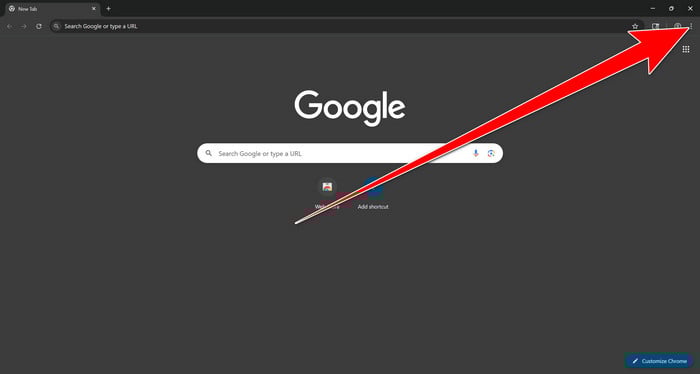
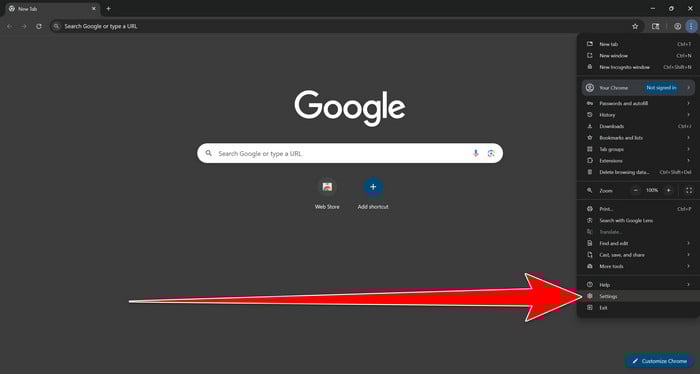
Open the Chrome menu
In the top-right corner of Chrome, click the three-dot (⋮) icon to open the menu.
Go to Settings
From the menu, select Settings.
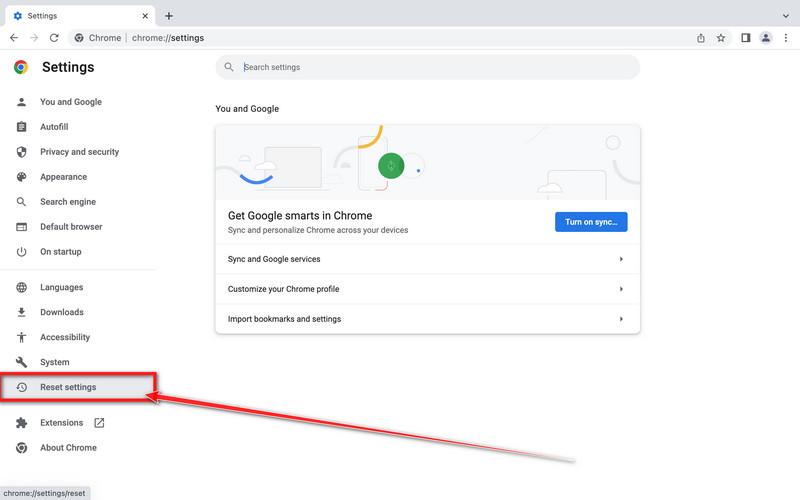
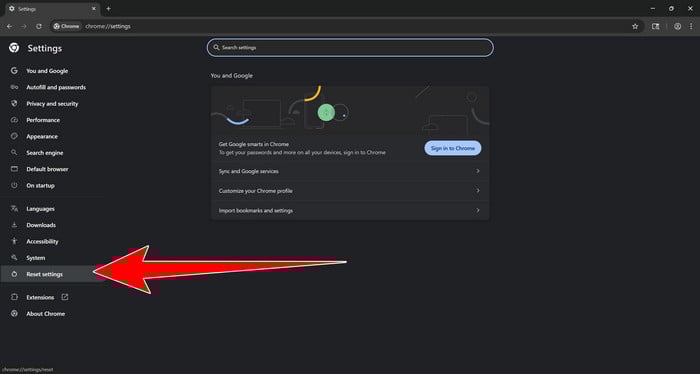
Select “Reset settings”
In the left sidebar, scroll down and click Reset settings.
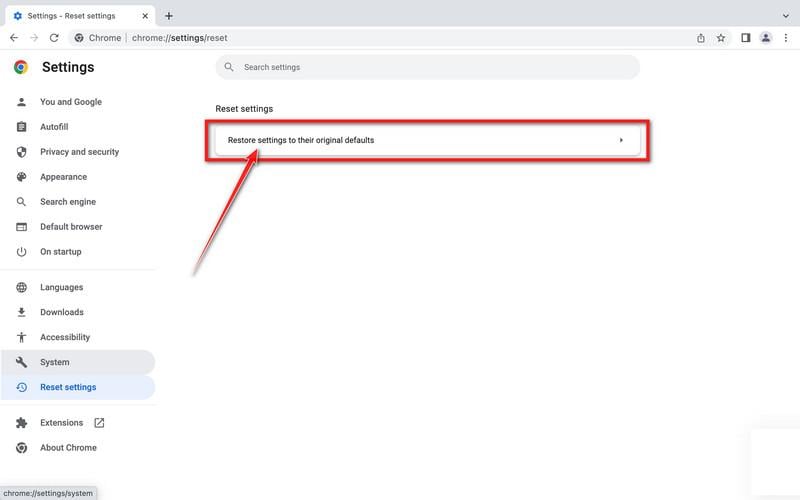
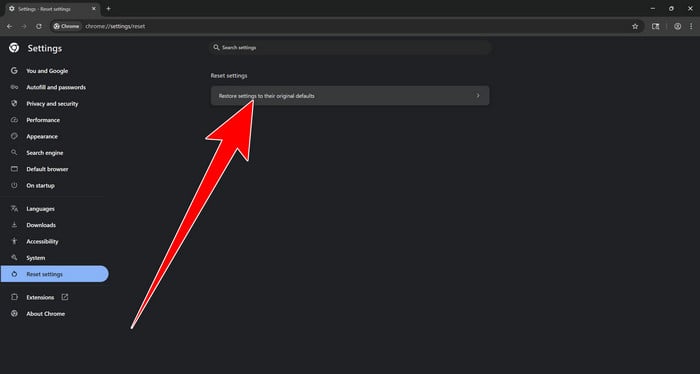
Choose “Restore settings to their original defaults”
Click the Restore settings to their original defaults option.
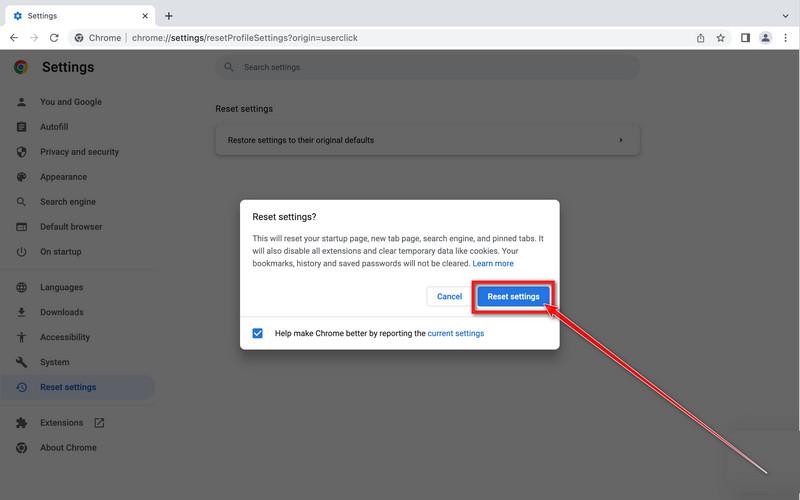
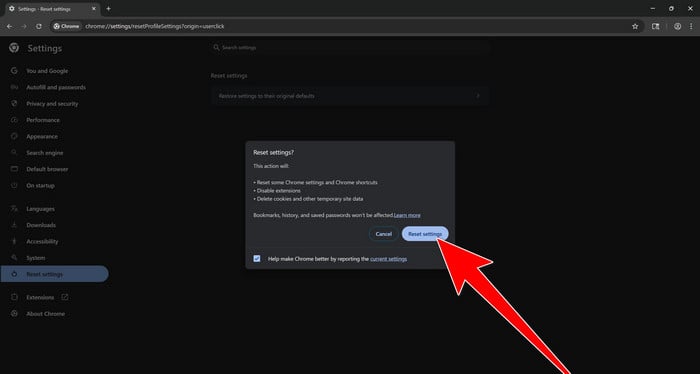
Confirm the reset
In the dialog that appears, click Reset settings to restore Chrome to its default state. Bookmarks, history, and saved passwords will remain, but extensions will be disabled and temporary data cleared.
Reset Firefox for Windows to default settings
We will now reset your Firefox browser settings to their default. The reset feature fixes many issues by restoring Firefox to its factory default state while saving your essential information like bookmarks, passwords, web form auto-fill information, browsing history, and open tabs.
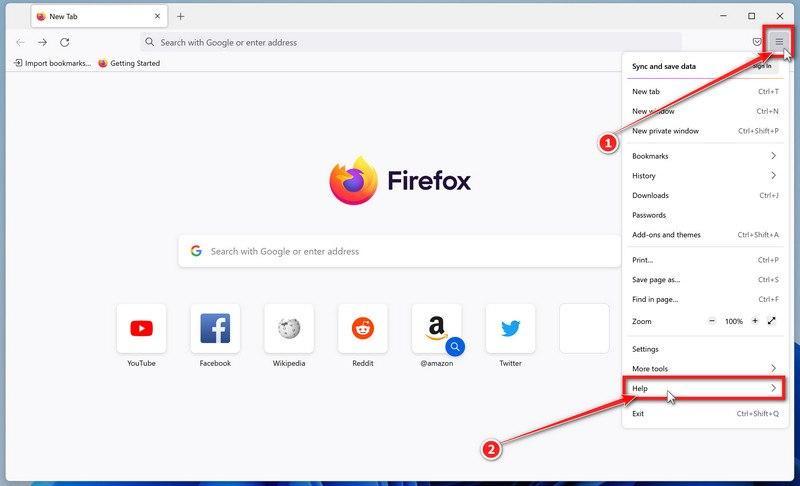
Click the three horizontal lines in the top-right corner and then click on “Help”.
Click on Firefox’s main menu button, represented by three horizontal lines. When the drop-down menu appears, select the option labeled “Help“.
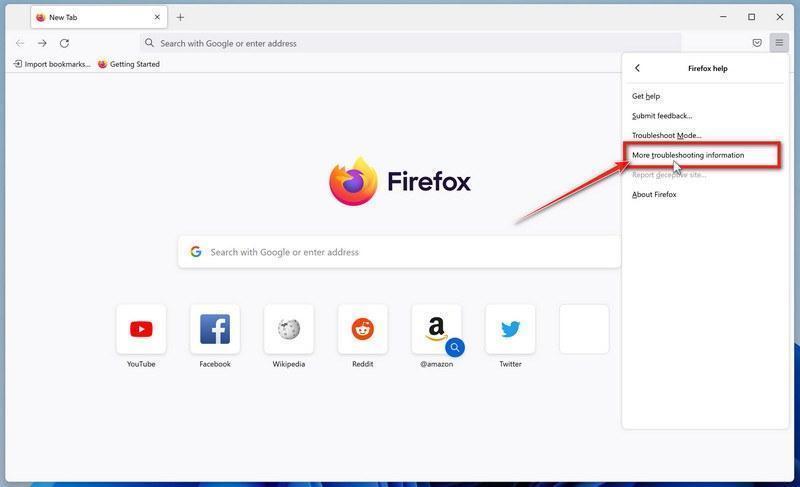
Click “More troubleshooting information”.
From the Help menu, click on “More troubleshooting information“.
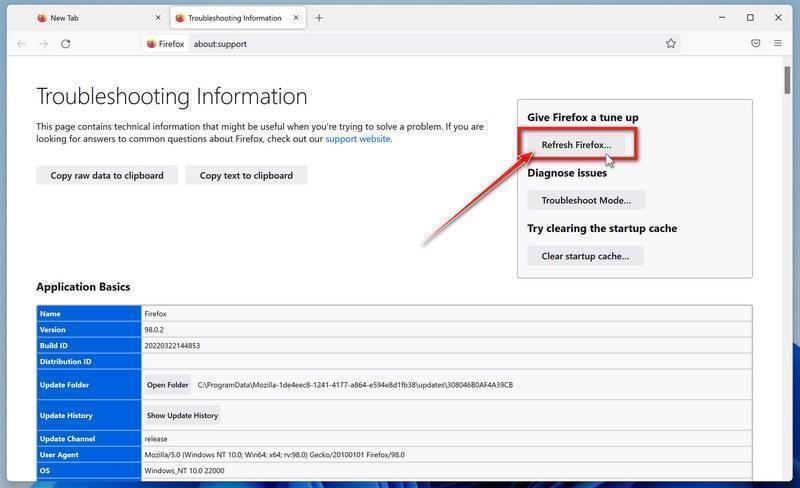
Click on “Refresh Firefox”
When the “Troubleshooting Information” page opens, click on the “Refresh Firefox” button.
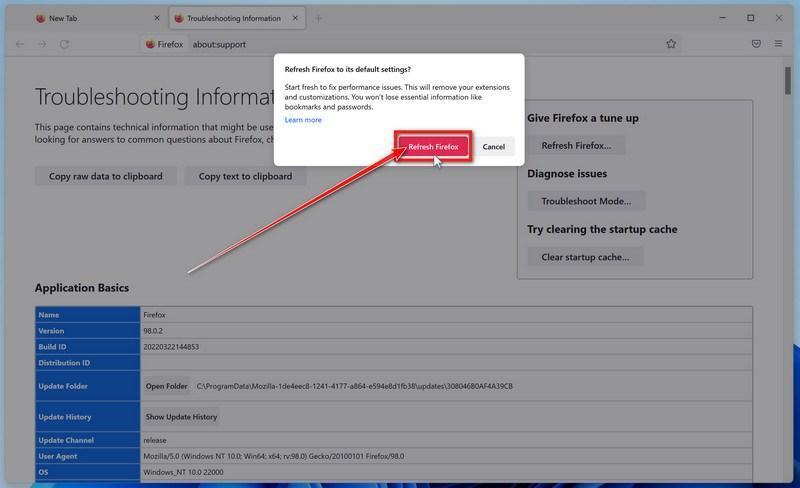
Confirm that you want to reset your browser settings.
To finish the reset process, click on the “Refresh Firefox” button in the new confirmation window that opens.
Click “Finish”.
Firefox will now close itself and will revert to its default settings. When it’s done, a window will list the information that was imported. Click on “Finish“.
Your old Firefox profile will be placed on your desktop in a folder named “Old Firefox Data“. If the reset didn’t fix your problem you can restore some of the information not saved by copying files to the new profile that was created. If you don’t need this folder any longer, you should delete it as it contains sensitive information.
Reset Microsoft Edge to default settings
We will now reset your Microsoft Edge browser settings to their default. This will reset your startup page, new tab page, search engine, and pinned tabs. It will also disable all extensions and clear temporary data like cookies. Your favorites, history, and saved passwords will not be cleared.
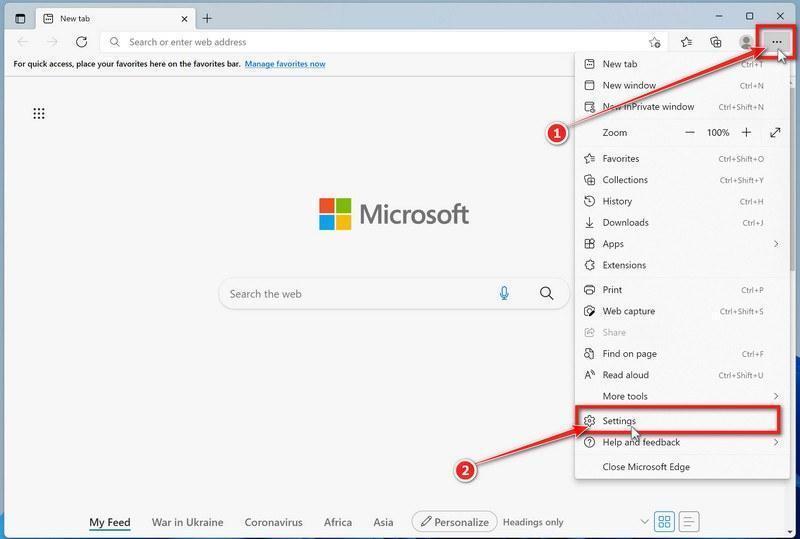
Click the three dots in the top-right corner and then click on “Settings”.
In the top right corner, click on Microsoft Edge’s main menu button, represented by three horizontal dots. When the drop-down menu appears, click on “Settings“.
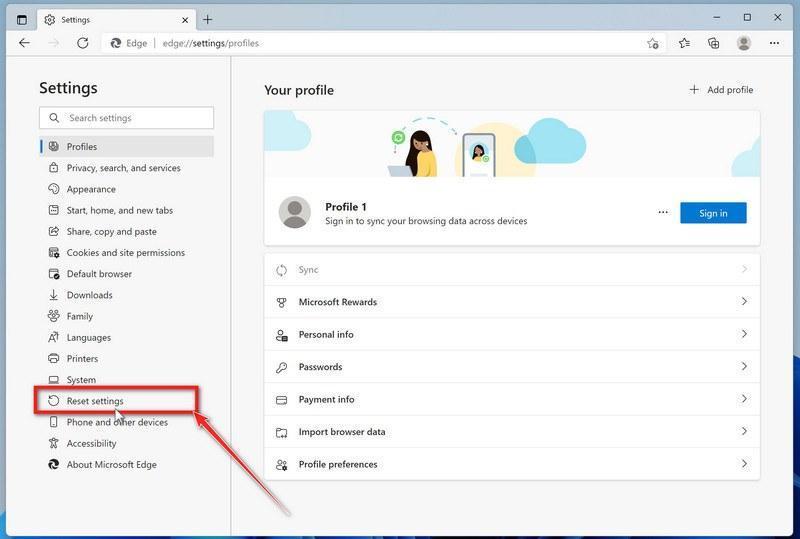
Click on “Reset Settings”.
On the left side of the window, click on “Reset Settings“.
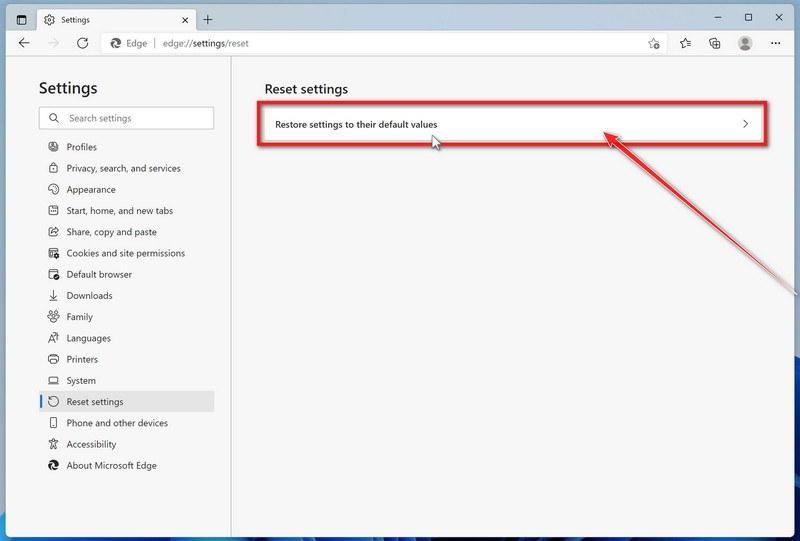
Click on “Restore settings to their default values”.
In the main window, click on “Restore settings to their default values“.
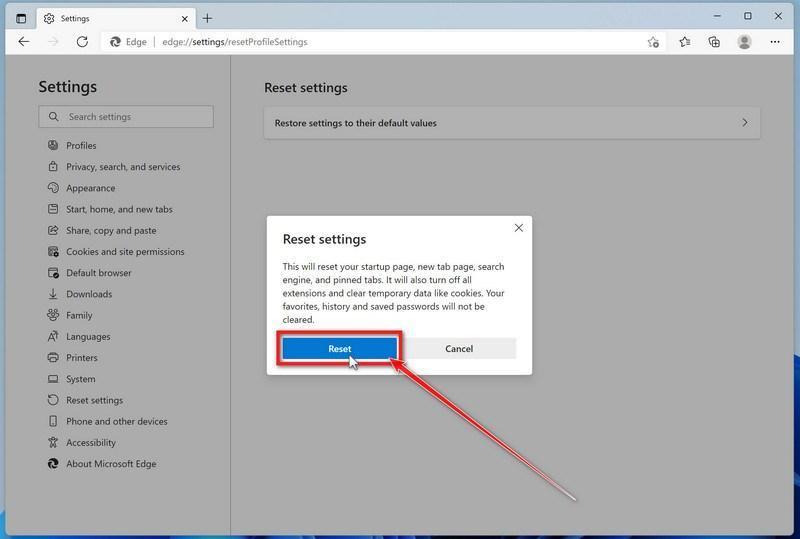
Click “Reset”.
A confirmation dialog should now be displayed, detailing the components that will be restored to their default state should you continue with the reset process. To complete the restoration process, click on the “Reset” button. Microsoft Edge will now erase all your personal data, browsing history, and disable all installed extensions. Your bookmarks, though, will remain intact and still be accessible.
Reset Internet Explorer to default settings
We will now reset your Internet Explorer browser settings to their default. You can reset Internet Explorer settings to return them to the state they were in when Internet Explorer was first installed on your computer.
Go to “Internet Options”.
Open Internet Explorer, click on the gear icon in the upper-right part of your browser, then select “Internet Options“.
Select the “Advanced” tab, then click “Reset”
In the “Internet Options” dialog box, select the “Advanced” tab, then click on the “Reset” button.
Click on “Reset”.
In the “Reset Internet Explorer settings” section, select the “Delete personal settings” checkbox, then click on the “Reset” button.
Click on “Close”.
When Internet Explorer has completed its task, click on the “Close” button in the confirmation dialogue box. Close your browser and then you can open Internet Explorer again.
STEP 3: Use Malwarebytes Anti-Malware to remove malware and unwanted programs
In this third step, we will install Malwarebytes to scan and remove any infections, adware, or potentially unwanted programs that may be present on your computer.
Malwarebytes stands out as one of the leading and widely-used anti-malware solutions for Windows, and for good reason. It effectively eradicates various types of malware that other programs often overlook, all at no cost to you. When it comes to disinfecting an infected device, Malwarebytes has consistently been a free and indispensable tool in the battle against malware. We highly recommend it for maintaining a clean and secure system.
Download Malwarebytes
Download the latest version of Malwarebytes for Windows using the official link below. Malwarebytes will scan your computer and remove adware, browser hijackers, and other malicious software for free.
(The above link will open a new page from where you can download Malwarebytes)
Install Malwarebytes
After the download is complete, locate the MBSetup file, typically found in your Downloads folder. Double-click on the MBSetup file to begin the installation of Malwarebytes on your computer. If a User Account Control pop-up appears, click “Yes” to continue the Malwarebytes installation.
Follow the On-Screen Prompts to Install Malwarebytes
When the Malwarebytes installation begins, the setup wizard will guide you through the process.
You’ll first be prompted to choose the type of computer you’re installing the program on—select either “Personal Computer” or “Work Computer” as appropriate, then click on Next.
Malwarebytes will now begin the installation process on your device.
When the Malwarebytes installation is complete, the program will automatically open to the “Welcome to Malwarebytes” screen.
On the final screen, simply click on the Open Malwarebytes option to start the program.
Enable “Rootkit scanning”.
Malwarebytes Anti-Malware will now start, and you will see the main screen as shown below. To maximize Malwarebytes’ ability to detect malware and unwanted programs, we need to enable rootkit scanning. Click on the “Settings” gear icon located on the left of the screen to access the general settings section.
In the settings menu, enable the “Scan for rootkits” option by clicking the toggle switch until it turns blue.
Now that you have enabled rootkit scanning, click on the “Dashboard” button in the left pane to get back to the main screen.
Perform a Scan with Malwarebytes.
To start a scan, click the Scan button. Malwarebytes will automatically update its antivirus database and begin scanning your computer for malicious programs.
Wait for the Malwarebytes scan to complete.
Malwarebytes will now scan your computer for browser hijackers and other malicious programs. This process can take a few minutes, so we suggest you do something else and periodically check the status of the scan to see when it is finished.
Quarantine detected malware
Once the Malwarebytes scan is complete, it will display a list of detected malware, adware, and potentially unwanted programs. To effectively remove these threats, click the “Quarantine” button.
Malwarebytes will now delete all of the files and registry keys and add them to the program’s quarantine.
Restart your computer.
When removing files, Malwarebytes may require a reboot to fully eliminate some threats. If you see a message indicating that a reboot is needed, please allow it. Once your computer has restarted and you are logged back in, you can continue with the remaining steps.
STEP 4: Use HitmanPro to scan your computer for badware
In this next step, we will scan the computer with HitmanPro to ensure that no other malicious programs are installed on your device.
HitmanPro is a second-opinion scanner that takes a unique cloud-based approach to malware scanning. HitmanPro scans the behavior of active files and also files in locations where malware normally resides for suspicious activity. If it finds a suspicious file that’s not already known, HitmanPro sends it to its clouds to be scanned by two of the best antivirus engines today, which are Bitdefender and Kaspersky.
Although HitmanPro is shareware and costs $24.95 for 1 year on 1 PC, there is no limit on scanning. The limitation only kicks in when there is a need to remove or quarantine detected malware by HitmanPro on your system and by then, you can activate the one-time 30-days trial to enable the cleanup.
Download HitmanPro.
You can download HitmanPro by clicking the link below.
HITMANPRO DOWNLOAD LINK (The above link will open a new web page from where you can download HitmanPro)
Install HitmanPro.
When HitmanPro has finished downloading, double-click on “hitmanpro.exe” (for 32-bit versions of Windows) or “hitmanpro_x64.exe” (for 64-bit versions of Windows) to install this program on your computer. In most cases, downloaded files are saved to the Downloads folder.
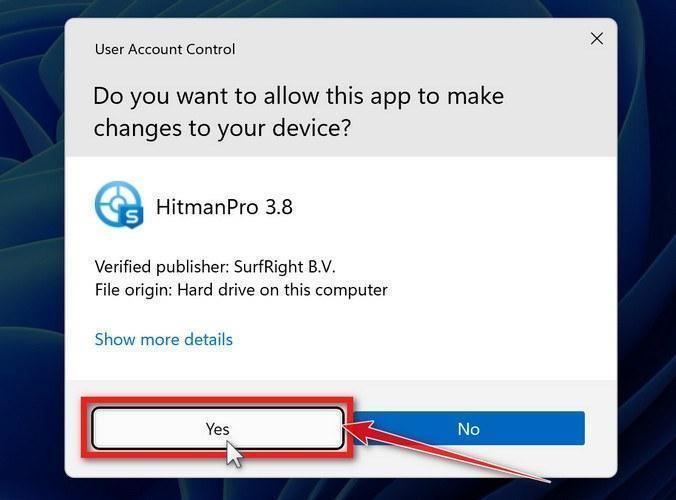
You may be presented with a User Account Control pop-up asking if you want to allow HitmanPro to make changes to your device. If this happens, you should click “Yes” to continue with the installation.
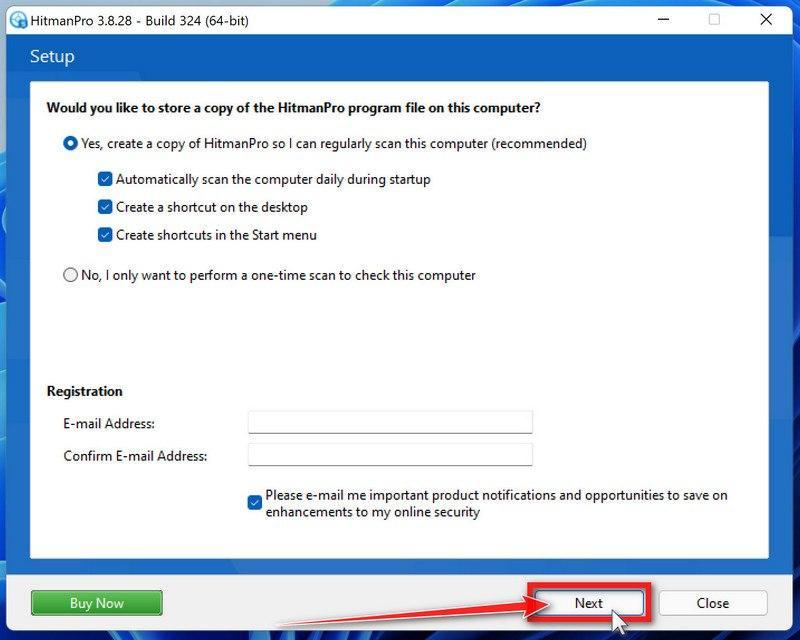
Follow the on-screen prompts.
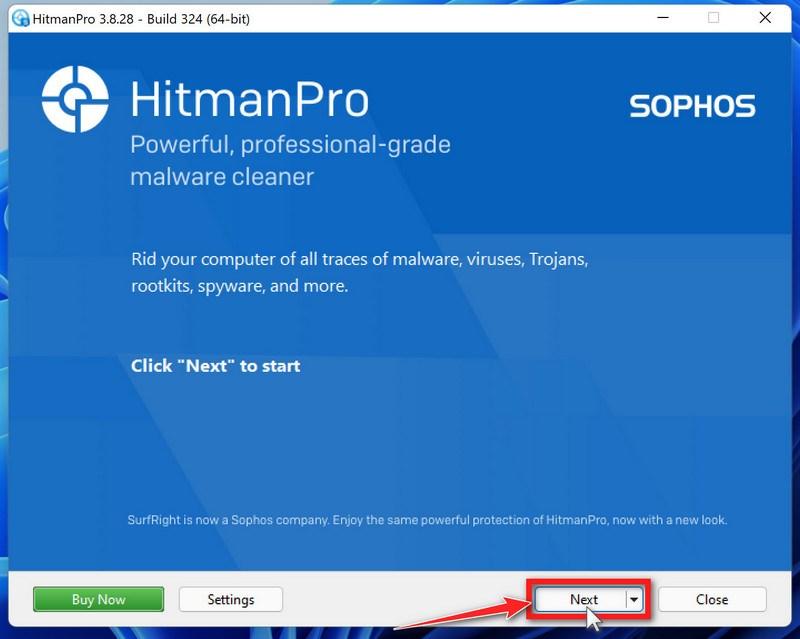
When HitmanPro starts you will be presented with the start screen as shown below. Click on the “Next” button to perform a system scan.
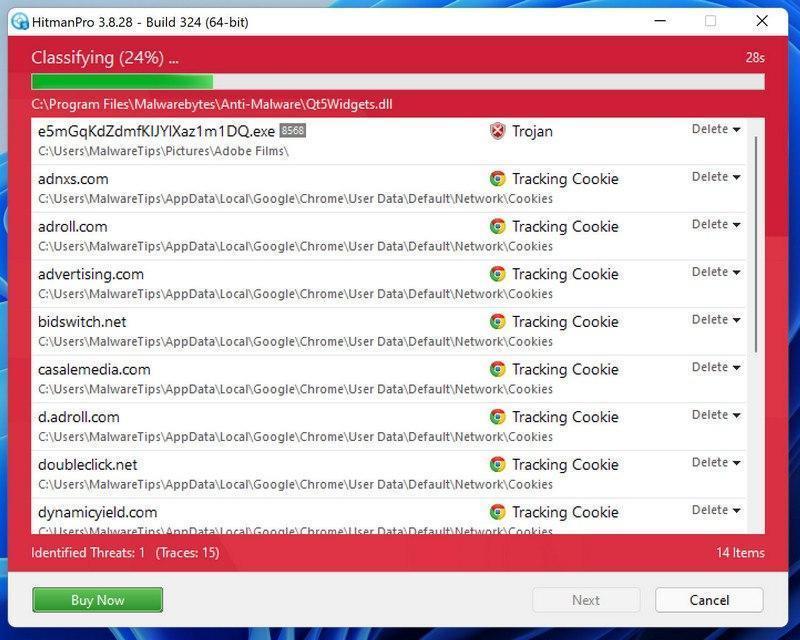
Wait for the HitmanPro scan to complete.
HitmanPro will now begin to scan your computer for malicious programs.
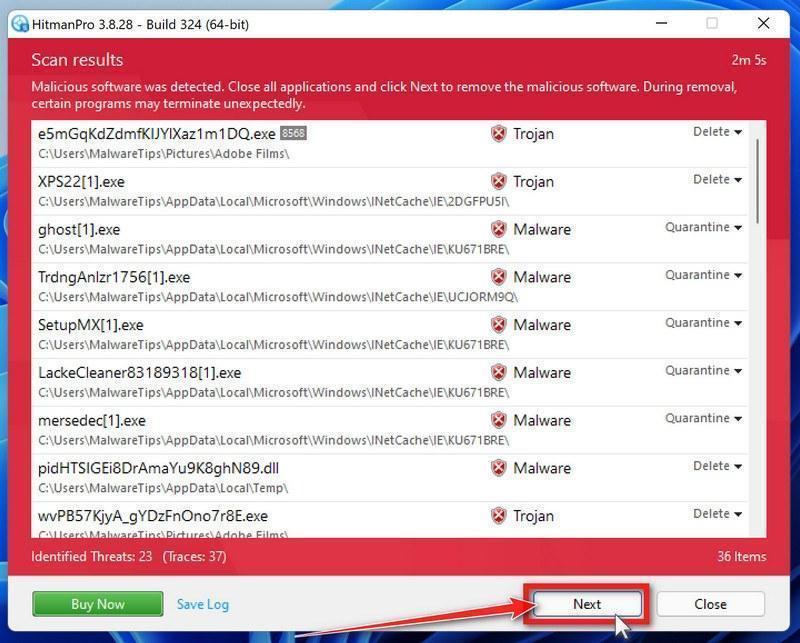
Click on “Next”.
When HitmanPro has finished the scan, it will display a list of all the malware that it has found. Click on the “Next” button to have HitmanPro remove the detected items.
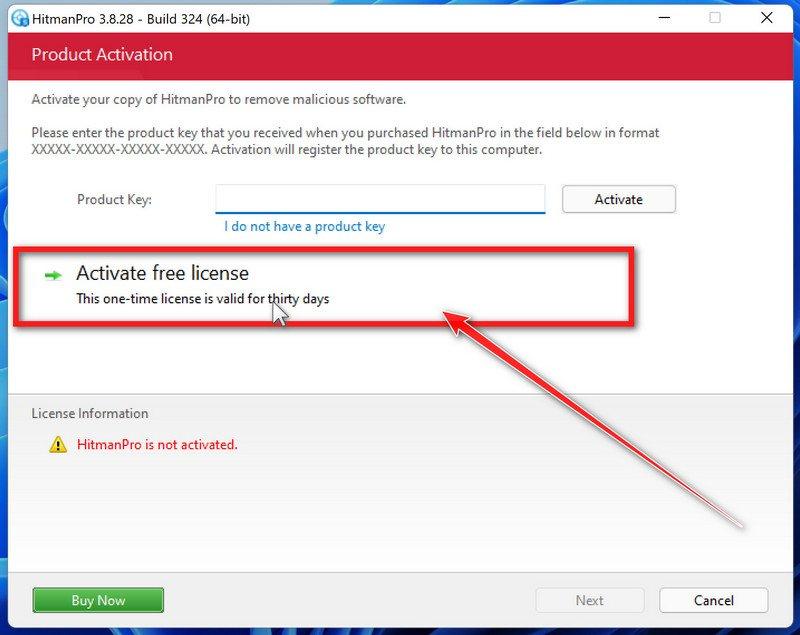
Click on “Activate free license”.
HitmanPro may now require to activate the free 30-days trial to remove the malicious files. To do this, click on the “Activate free license” button to begin the free 30 days trial and remove all the malicious files from your computer.
When the malware removal process is complete, it will display a screen that shows the status of the various programs that were removed. At this screen, you should click on the Next button and then if prompted you should click on the Reboot button. If HitmanPro does not prompt you to reboot, please just click on the Close button.
STEP 5: Use AdwCleaner to remove adware and malicious browser policies
In this final step, we will use AdwCleaner to remove the malicious browser policies that were set by browser hijackers on your computer and delete malicious browser extensions.
AdwCleaner is a free popular on-demand scanner that can detect and remove malware that even the most well-known anti-virus and anti-malware applications fail to find. This on-demand scanner includes a lot of tools that can be used to fix the side effects of adware. browser hijackers and other malware.
Download AdwCleaner.
You can download AdwCleaner by clicking the link below.
ADWCLEANER DOWNLOAD LINK (The above link will open a new web page from where you can download AdwCleaner)
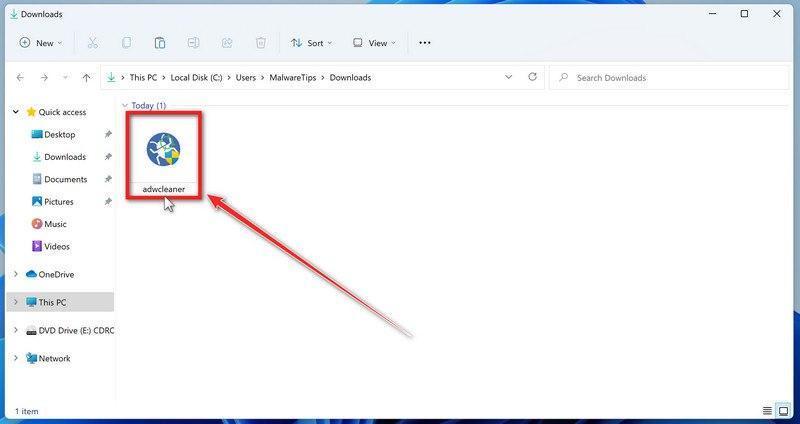
Double-click on the setup file.
Double-click on the file named “adwcleaner_x.x.x.exe” to start AdwCleaner. In most cases, downloaded files are saved to the Downloads folder.
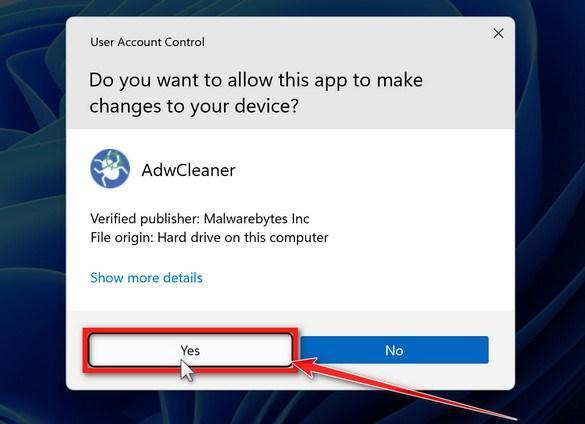
AdwCleaner program will now open and you will be presented with the program’s license agreement. After you read it, click on the I agree button if you wish to continue. If Windows prompts you as to whether or not you wish to run AdwCleaner, please allow it to run.
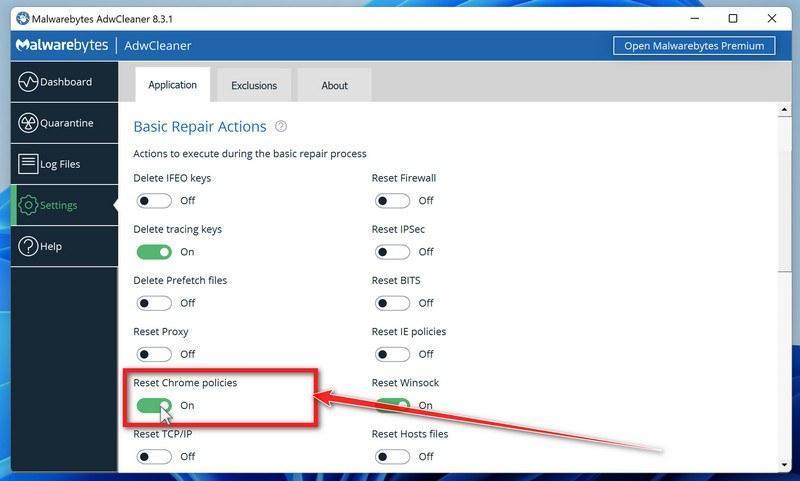
Enable “Reset Chrome policies” to remove malicious browser policies.
When AdwCleaner starts, on the left side of the window, click on “Settings” and then enable “Reset Chrome policies“.
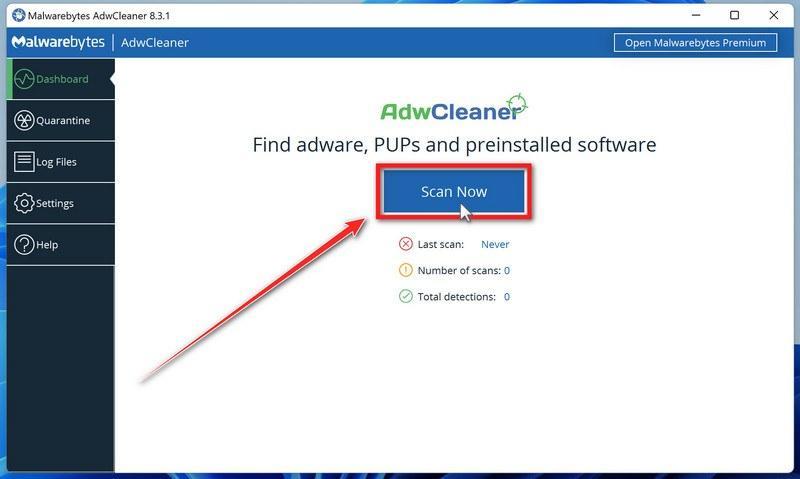
Click on the “Scan” button.
On the left side of the AdwCleaner window, click on “Dashboard” and then click “Scan” to perform a computer scan.
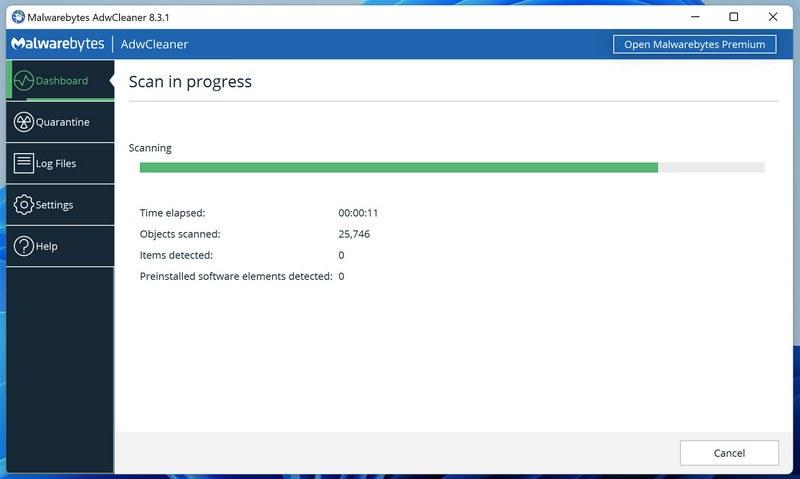
Wait for the AdwCleaner scan to finish.
AdwCleaner will now scan your computer for malware. This process can take a few minutes.
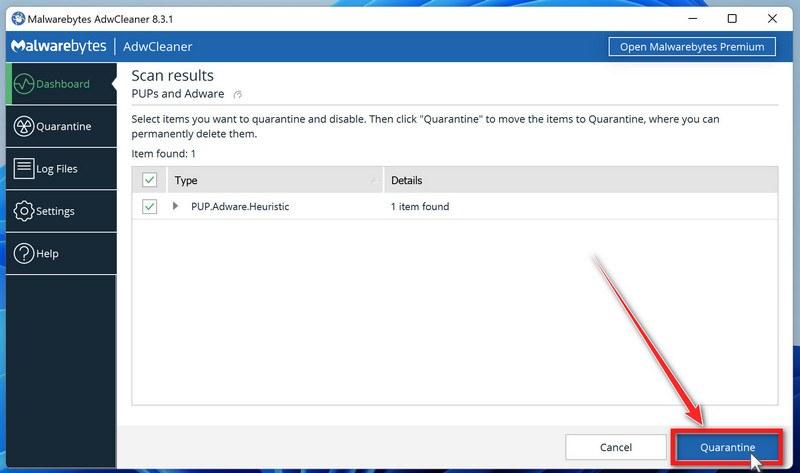
Click on “Quarantine” to remove malware.
When the AdwCleaner scan is completed it will display all of the items it has found. Click on the “Quarantine” button to remove the malicious programs from your computer.
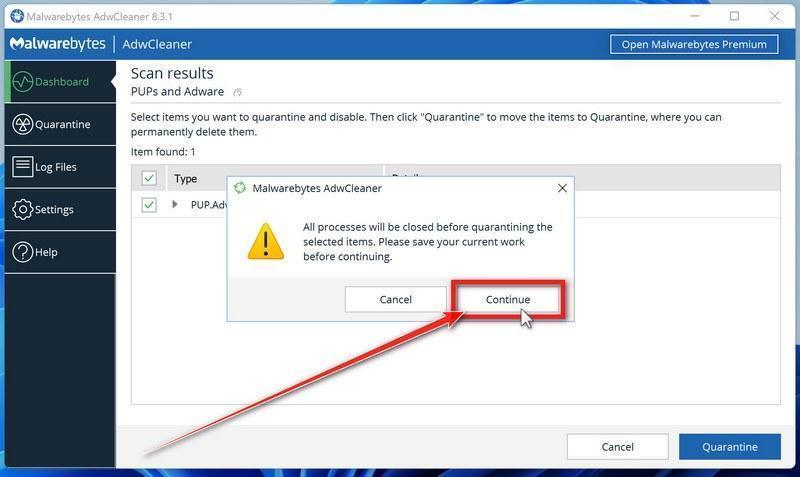
Click on “Continue” to remove the malicious programs.
AdwCleaner will now prompt you to save any open files or data as the program will need to close any open programs before it starts to clean. Click on the “Continue” button to finish the removal process.
AdwCleaner will now delete all detected malware from your computer. When the malware removal process is complete, you may be asked to restart your computer.
Your computer should now be free of Unwanted Apps and Malware and other malware.
If your current antivirus allowed this malicious program on your computer, you may want to consider purchasing Malwarebytes Premium to protect against these types of threats in the future. If you are still having problems with your computer after completing these instructions, then please follow one of the steps:
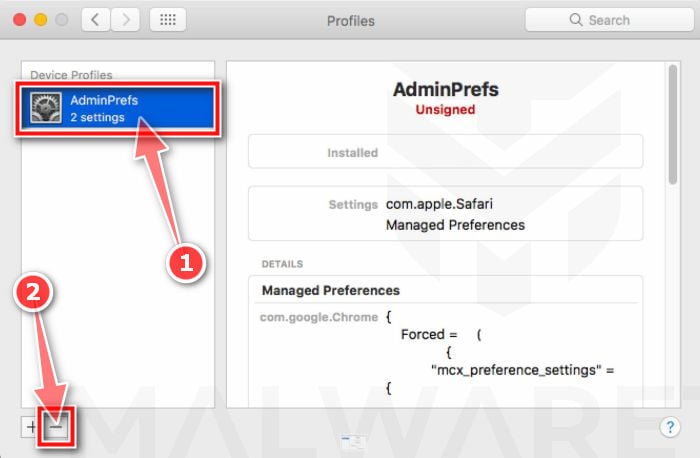
Profiles are used by IT admins in businesses to control the behavior of their Macs. These profiles can configure a Mac to do many different things, some of which are not otherwise possible. When it comes to home users, adware and browser hijackers are using the configuration profile to prevent users from removing malicious programs from the computer. This also prevents the user from changing that behavior in the browser’s settings.
In this first step, we will check your computer to see if any configuration profiles are installed. To do this, follow the below steps:
Open “System Preferences”
From the Apple menu, select System Preferences.
Search for “Profiles”
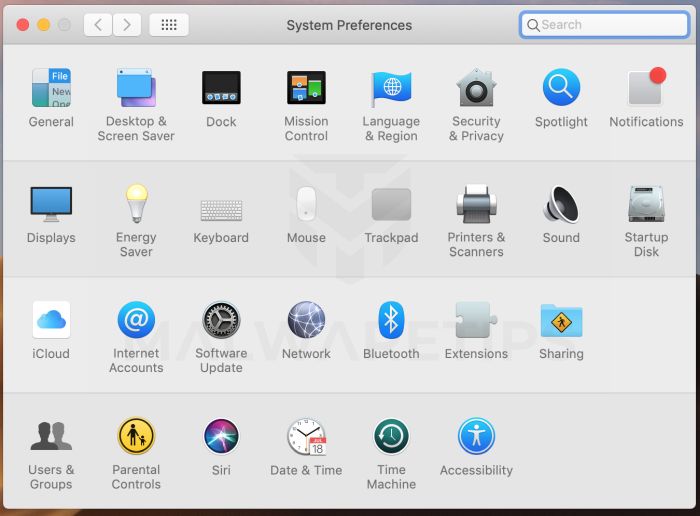
When the System Preferences window opens, search for the Profiles icon.
If there isn’t a Profiles icon, you don’t have any profiles installed, which is normal and you can continue with the next steps.
Remove the malicious profiles
If there’s a Profile icon, click on it and select any suspicious profile that you want to remove, and then press the – (minus) button. Click Remove to remove the profile.
STEP 2: Delete malicious apps
In this second step, we will try to identify and remove any malicious apps and files that might be installed on your computer. Sometimes redirects or adware programs can have usable Uninstall entries that can be used to remove these programs.
Quit the malicious programs
On the Apple menu bar, in the top-right corner, if you see any unknown or suspicious icon, click on it and then select Quit.
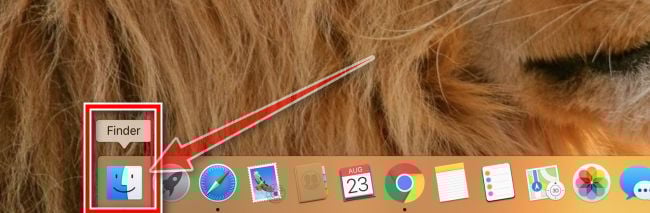
Open “Finder”
Click the Finder application on your dock.
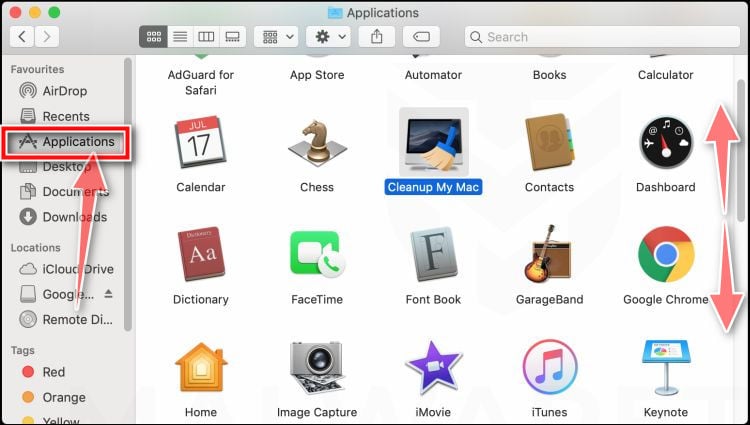
Click on “Applications”
In the Finder left pane, click on “Applications“.
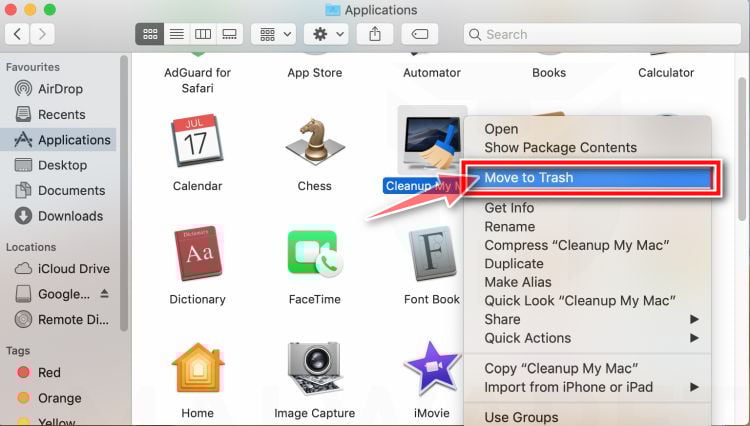
Find and remove the malicious app.
The “Applications” screen will be displayed with a list of all the apps installed on your device. Scroll through the list until you find the malicious app, right-click it, and then click “Move to Trash”.
Look out for any suspicious program that could be behind all the drama – anything you don’t remember downloading or that doesn’t sound like a genuine program. Here are some known malicious programs: SearchMine, TakeFresh, TopResults, FeedBack, ApplicationEvents, GeneralOpen, PowerLog, MessengerNow, ImagePrime, GeneralNetSearch, Reading Cursors, GlobalTechSearch, PDFOnline-express, See Scenic Elf, MatchKnowledge, Easy Speedtest, or WebDiscover.
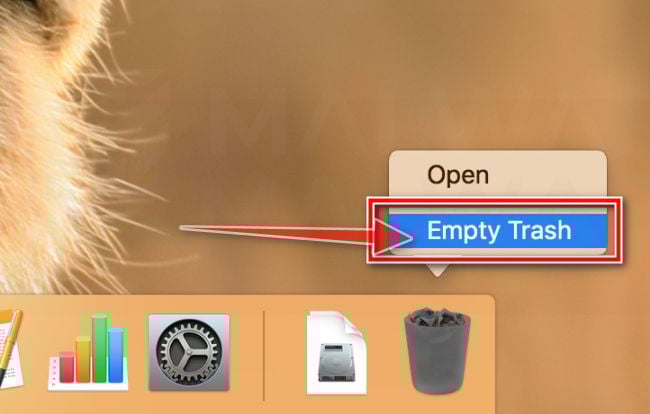
Click “Empty Trash”
On the dock, right-click on the trash icon and select “Empty Trash”. Doing so deletes the Trash’s contents, including the program that you just sent to the Trash.
Find and remove the malicious files
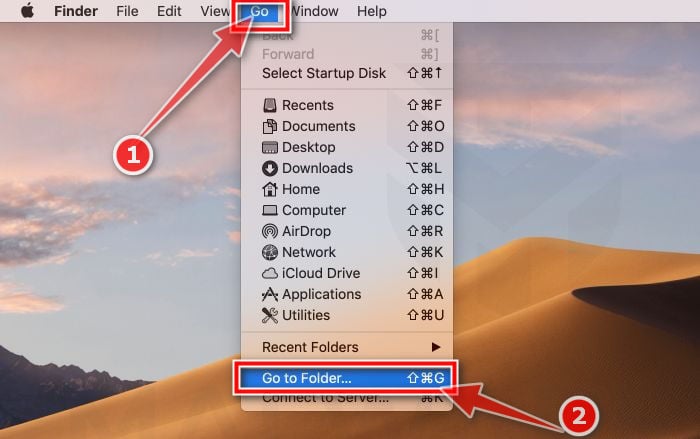
Click the desktop to make sure you’re in the Finder, choose “Go” then click on “Go to Folder“.
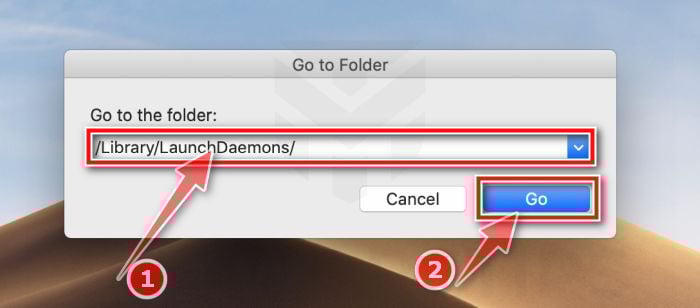
Type or copy/paste each of the below paths into the window that opens, then click Go.
/Library/LaunchAgents
~/Library/LaunchAgents
/Library/Application Support
/Library/LaunchDaemons
Look out for any suspicious files that could be behind all the drama – anything you don’t remember downloading or that doesn’t sound like a genuine program. These are some known malicious files: “com.adobe.fpsaud.plist” “installmac.AppRemoval.plist”, “myppes.download.plist”, “mykotlerino.ltvbit.plist”, or “com.myppes.net-preferences.plist”. When you find a malicious file move it to the Trash.
STEP 3: Reset browsers back to default settings
In this third step, we will remove spam push notifications and malicious extensions, and change to default any settings that might have been changed by malware. For each browser that you have installed on your computer, please click on the tab below and follow the displayed steps to reset that browser.
Safari BrowserChrome for Mac BrowserFirefox for Mac Browser
Remove malicious extensions and settings from Safari
To remove malware from Safari we will check if there are any malicious extensions installed on your browser and what settings have been changed by this malicious program.
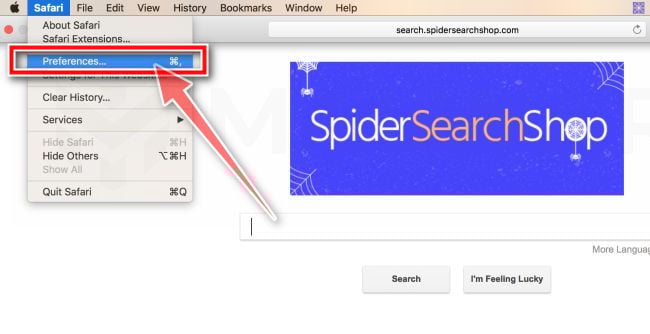
Go to Safari’s “Preferences”.
On the menu bar, click the “Safari” menu and select “Preferences”.
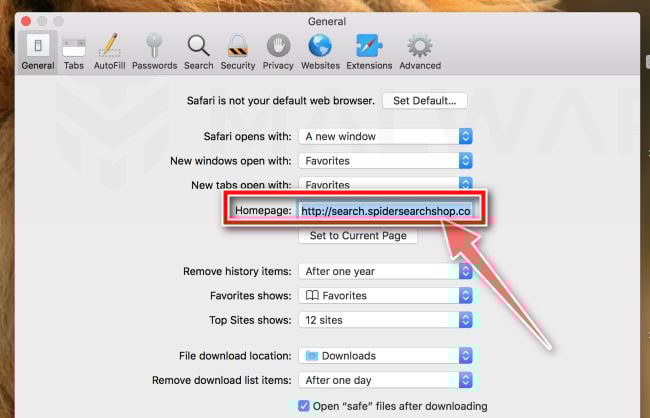
Check Homepage.
This will open a new window with your Safari preferences, opened to the “General” tab. Some browser hijackers may change your default homepage, so in the Homepage field make sure it’s a web page you want to use as your start-up page.
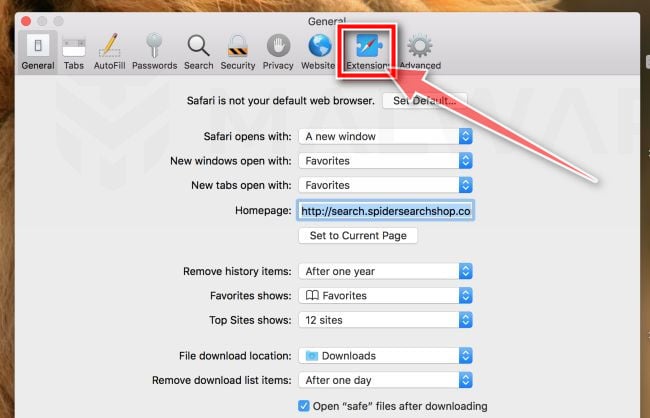
Click “Extensions”
Next, click on the “Extensions” tab.
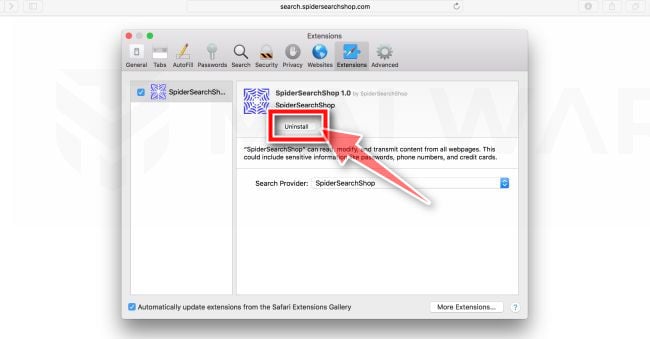
Find and uninstall malicious extensions.
The “Extensions” screen will be displayed with a list of all the extensions installed on Safari. Look out for any suspicious browser extension that could be behind all the drama – anything you don’t remember downloading or that doesn’t sound like a genuine extension. By default, there are no extensions installed on Safari so it’s safe to remove an extension
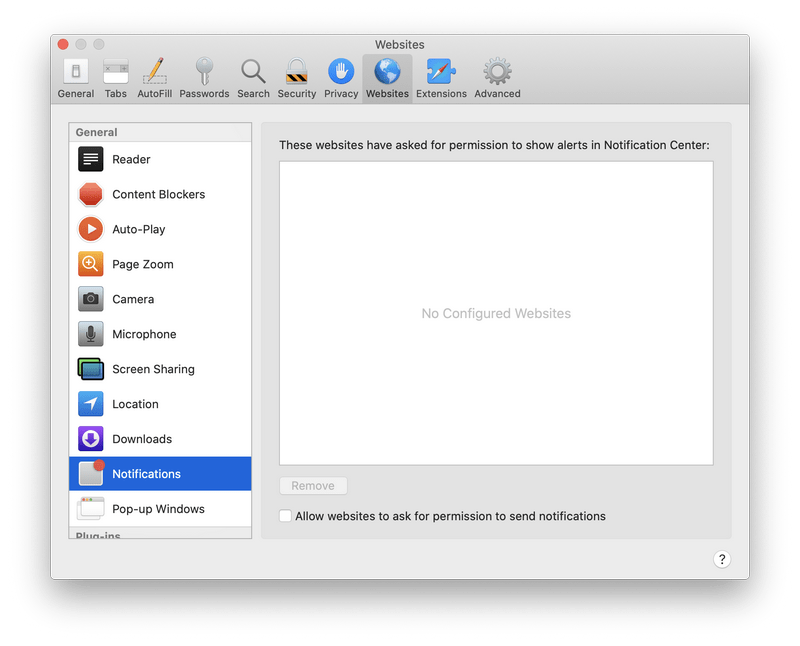
Remove spam notifications ads
Click Preferences, click Websites, then click Notifications. Deselect “Allow websites to ask for permission to send push notifications”.
Remove all data stored by websites on your computer.
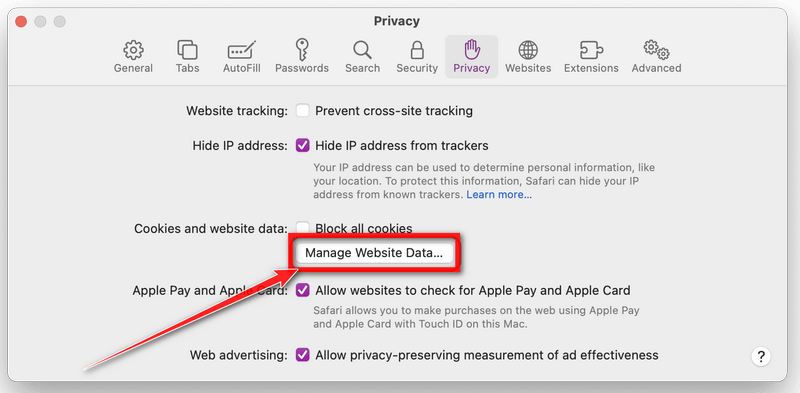
In the Safari menu, choose “Preferences…”, select “Privacy” at the top of the new window that appears, and then click the “Manage Website Data” button.
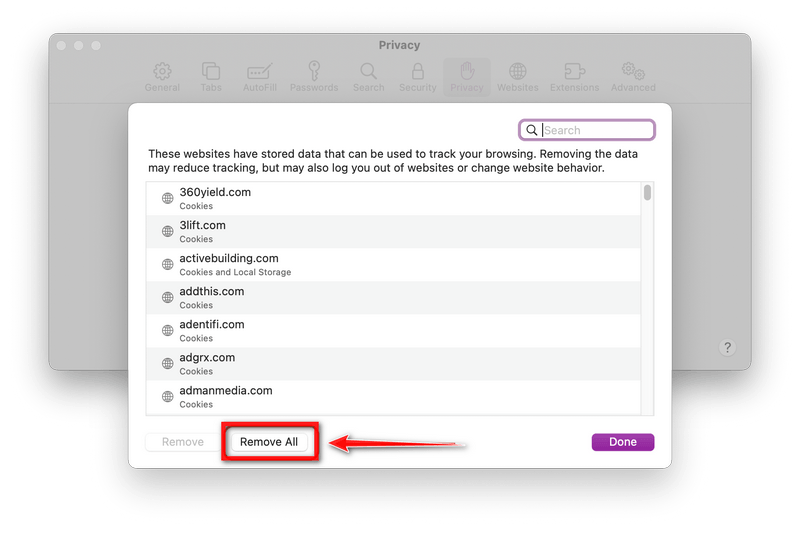
In the next dialog box, click “Remove All“. It will ask you if you are sure you want to remove all data stored by websites on your computer. Select “Remove Now” to clear data that could be used to track your browsing.
Empty Safari Caches.
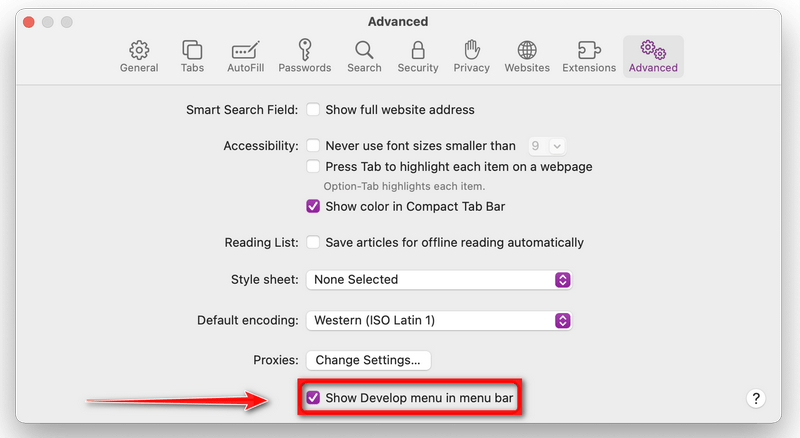
From your Safari menu bar, click Safari and select Preferences, then select the Advanced tab. Enable the checkbox to “Show Develop menu in menu bar“.
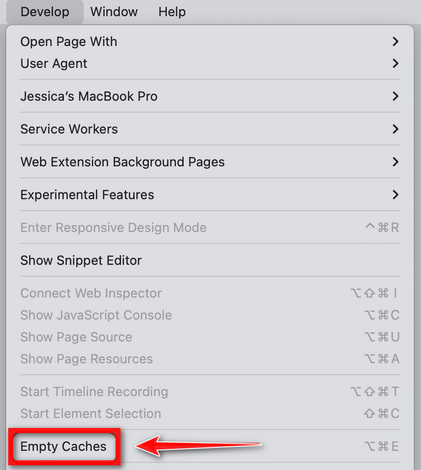
From the menu bar select Develop, then click on Empty Caches as seen in the image below.
Remove malware from Chrome for Mac
To remove malware from Chrome for Mac we will reset the browser settings to their default. Doing these steps will erase all configuration information from Chrome such as your home page, tab settings, saved form information, browsing history, and cookies. This process will also disable any installed extensions. All of your bookmarks, though, will be preserved.
Click on the three dots at the top right and go to Settings.
Click on Chrome’s main menu button, represented by three dots at the top right corner. Now click on the menu option labeled Settings as shown by the arrow in the picture below, which will open the basic settings screen.
In the left sidebar, click on the “Reset and Cleanup” option.
In the left sidebar, click on “Reset and clean up“.
Click “Reset settings to their original defaults”.
Now click on the “Reset settings to their original defaults”. link as shown in the image below.
Click “Reset Settings” button.
A confirmation dialog should now be displayed, detailing the components that will be restored to their default state should you continue with the reset process. To complete the restoration process, click on the “Reset Settings” button.
(Optional) Reset Chrome Data Sync.
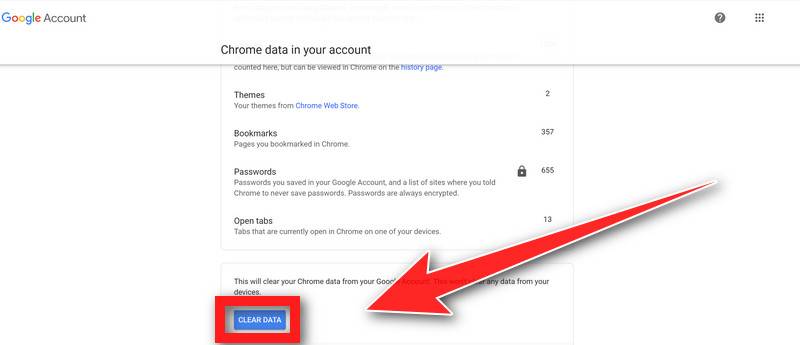
In case a malicious extension reinstalls itself even after performing a browser reset, you have an additional option to reset the data sync for your browser. To do this, navigate to chrome.google.com/sync and click on the Clear Data button.
Remove malware from Firefox for Mac
To remove malware from Firefox for Mac we will reset the browser settings to its default. The reset feature fixes many issues by restoring Firefox to its factory default state while saving your essential information like bookmarks, passwords, web form auto-fill information, browsing history, and open tabs.
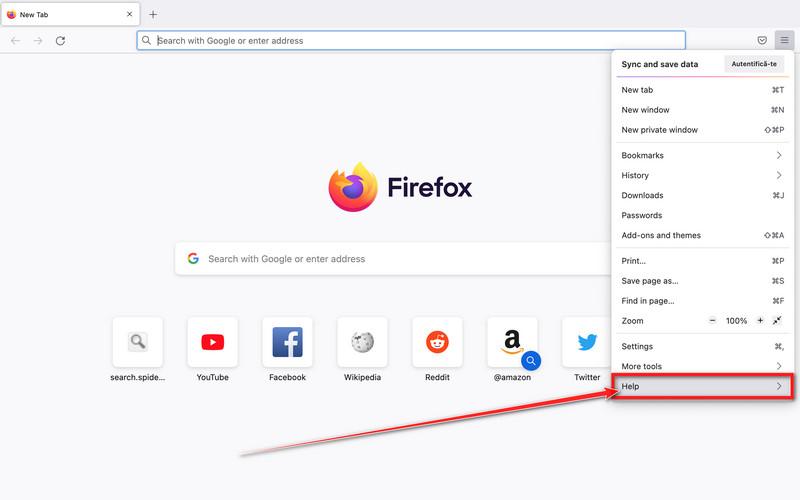
Go to the “Help” menu.
Click on Firefox’s main menu button, represented by three horizontal lines. When the drop-down menu appears, select the option labeled “Help“.
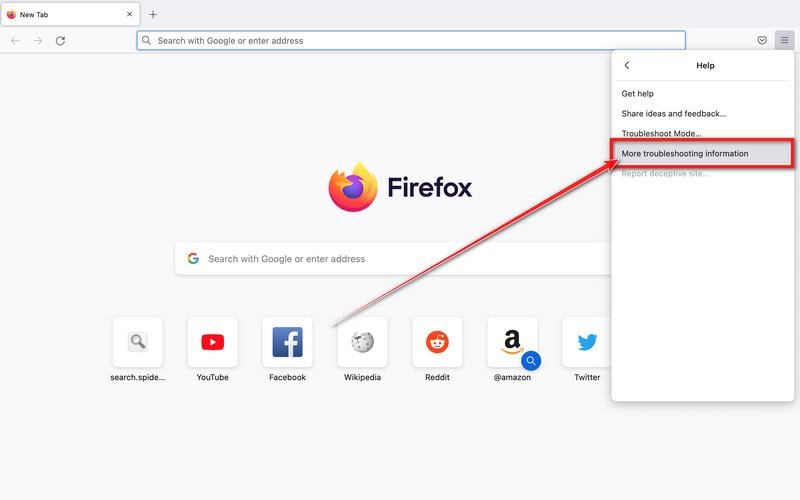
Click “Troubleshooting Information”.
Next click on the “Troubleshooting Information” option as indicated by the arrow in the image below. This will bring you to a Troubleshooting page.
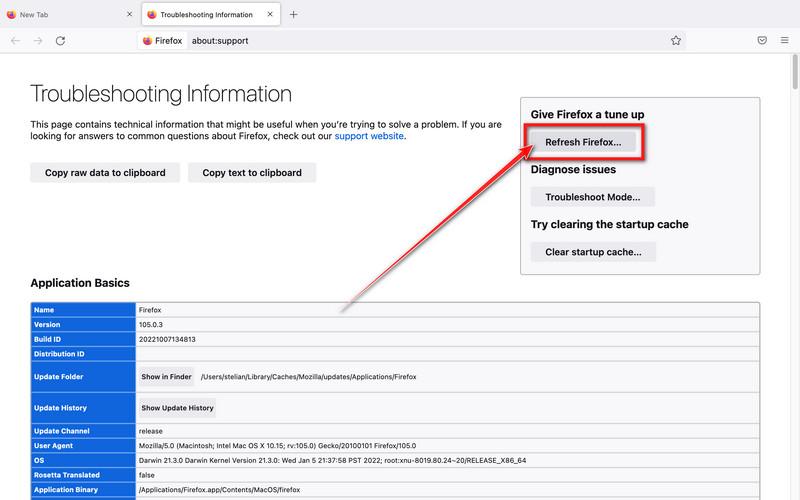
Click on “Refresh Firefox”
Click the “Refresh Firefox” button in the upper-right corner of the “Troubleshooting Information” page.
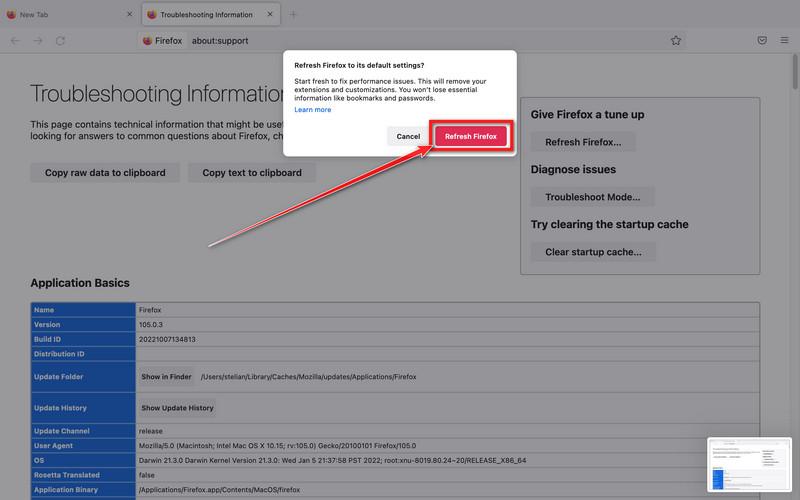
Confirm.
To continue, click on the “Refresh Firefox” button in the new confirmation window that opens.
Click on “Finish”.
Firefox will close itself and will revert to its default settings. When it’s done, a window will list the information that was imported. Click on the “Finish“.
Your old Firefox profile will be placed on your desktop in a folder named “Old Firefox Data“. If the reset didn’t fix your problem you can restore some of the information not saved by copying files to the new profile that was created. If you don’t need this folder any longer, you should delete it as it contains sensitive information.
STEP 4: Run a scan with Malwarebytes for Mac to remove malware
In this final step, we will scan the computer with Malwarebytes for Mac to find and remove any malicious programs that might be installed on your Mac.
Malwarebytes for Mac is an on-demand scanner that can destroy many types of malware that other software tends to miss without costing you absolutely anything. When it comes to cleaning up an infected device, Malwarebytes has always been free, and we recommend it as an essential tool in the fight against malware.
Download Malwarebytes for Mac.
You can download Malwarebytes for Mac by clicking the link below.
When Malwarebytes has finished downloading, double-click on the setup file to install Malwarebytes on your computer. In most cases, downloaded files are saved to the Downloads folder.
Follow the on-screen prompts to install Malwarebytes.
When the Malwarebytes installation begins, you will see the Malwarebytes for Mac Installer which will guide you through the installation process. Click “Continue“, then keep following the prompts to continue with the installation process.
When your Malwarebytes installation completes, the program opens to the Welcome to Malwarebytes screen. Click the “Get started” button.
Select “Personal Computer” or “Work Computer”.
The Malwarebytes Welcome screen will first ask you what type of computer are you installing this program, click either Personal Computer or Work Computer.
Click on “Scan”.
To scan your computer with Malwarebytes, click on the “Scan” button. Malwarebytes for Mac will automatically update the antivirus database and start scanning your computer for malware.
Wait for the Malwarebytes scan to complete.
Malwarebytes will scan your computer for adware, browser hijackers, and other malicious programs. This process can take a few minutes, so we suggest you do something else and periodically check on the status of the scan to see when it is finished.
Click on “Quarantine”.
When the scan has been completed, you will be presented with a screen showing the malware infections that Malwarebytes has detected. To remove the malware that Malwarebytes has found, click on the “Quarantine” button.
Restart computer.
Malwarebytes will now remove all the malicious files that it has found. To complete the malware removal process, Malwarebytes may ask you to restart your computer.
Your computer should now be free of Unwanted Apps and Malware and other malware.
If your current antivirus allowed a malicious program on your computer, you might want to consider purchasing the full-featured version of Malwarebytes Anti-Malware to protect against these types of threats in the future. If you are still experiencing problems while trying to remove a malicious program from your computer, please ask for help in our Mac Malware Removal Help & Support forum.
Remove Unwanted Apps and Malware from Android
Remove Unwanted Apps and Malware from Android
To remove Unwanted Apps and Malware from your phone or tablet, follow these steps:
In this first step, we will check if any malicious apps are installed on your phone. Sometimes browser hijackers or adware apps can have usable Uninstall entries that can be used to remove these apps.
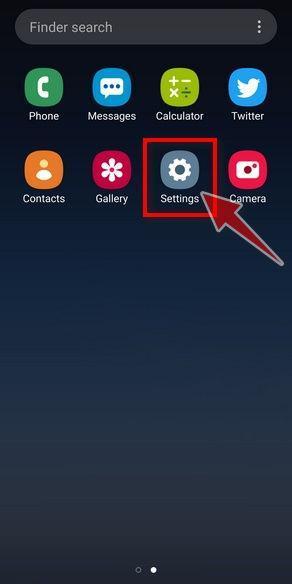
Open the “Settings” menu.
Tap on the “Settings” app from your phone menu or home screen.
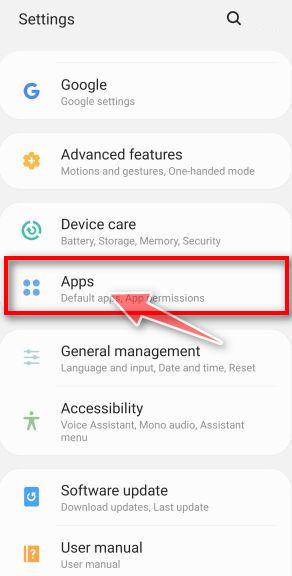
Tap on “Apps”.
When the “Settings” menu opens, tap on “Apps” (or “App Manager”) to see all the installed applications on your phone.
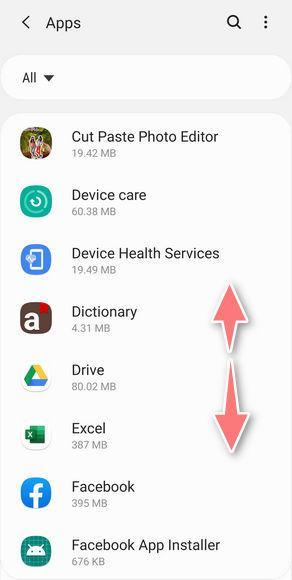
Find the malicious app.
The “Apps” screen will be displayed with a list of all the applications that are installed on your phone. Scroll through the list and look out for any suspicious app that could be behind all the drama – anything you don’t remember downloading or that doesn’t sound like a genuine program. Most often, cyber criminals hide malware inside video or photo editing apps, weather apps, and camera apps.
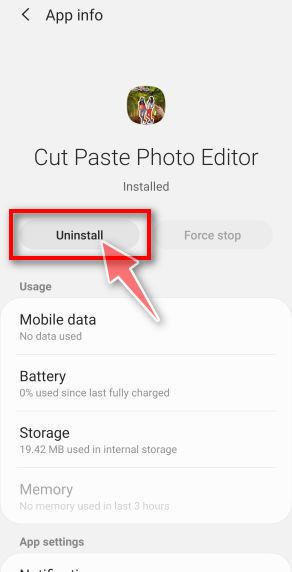
Uninstall the malicious app
When you find a suspicious or malicious app, tap on it to uninstall it. This won’t start the app but will open up the app details screen. If the app is currently running press the “Force stop” button, then tap on “Uninstall”.
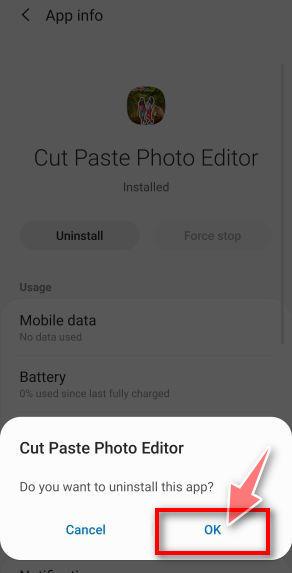
A confirmation dialog should be displayed to confirm you want to uninstall the app, tap on “OK” to remove the malicious app from your phone.
STEP 2: Reset browsers back to default settings
In this second step, we will reset your browser to its default settings to remove spam notifications, unwated search redirects, and restore its factory settings
Resetting the browser settings to their default it’s an easy task on Windows or Mac computers; however, when it comes to Android, this can’t be done directly because it’s not an option built-in into the browser settings. Restoring the browser settings on Android can be done by clearing the application data. This will remove all the cookies, cache, and other site settings that may have been saved. So let’s see how we can restore your browser to its factory settings.
Chrome for AndroidFirefoxOperaSamsung Internet BrowserMicrosoft Edge
Remove malware from Chrome for Android
To reset Chrome for Android to its default settings, follow the below steps:
Open the “Settings” menu.
Tap on the “Settings” app from your phone menu or home screen.
Tap on “Apps”.
When the “Settings” menu opens, tap on “Apps” (or “App Manager”) to see all the installed applications on your phone.
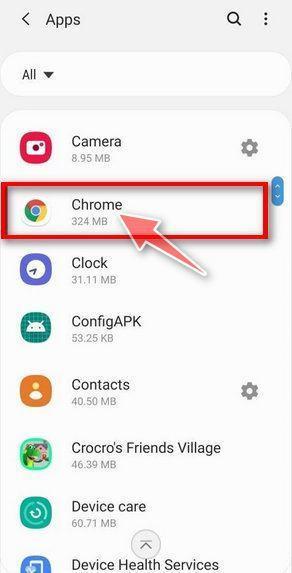
Find and tap on Chrome.
The “Apps” screen will be displayed with a list of all the apps installed on your phone. Scroll through the list until you find the Chrome app, then tap on it to open the app’s details.
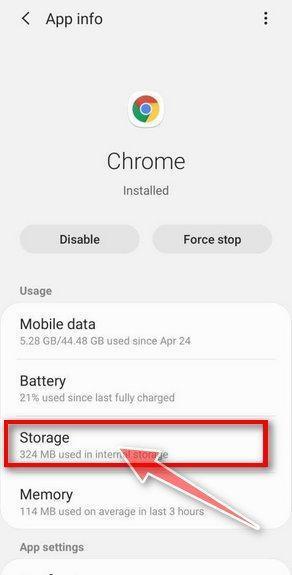
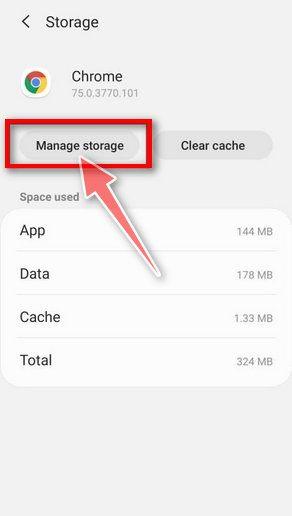
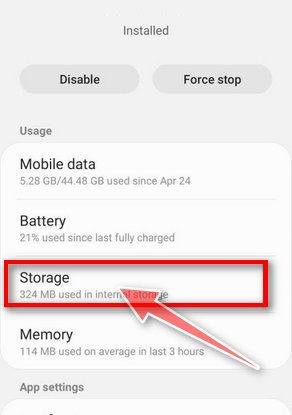
Tap “Storage”.
When Chrome’s app info menu is displayed, tap on “Storage“.
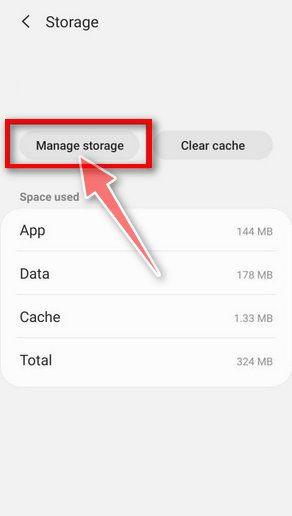
Tap “Manage Space”.
Under the storage settings, you will get two options — Manage Space and Clear Cache. Tap on “Manage Space“.
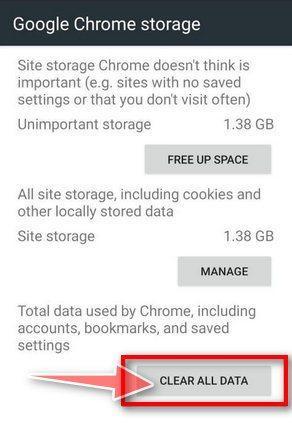
Tap “Clear all data”.
Tap “Clear all data” to delete all Chrome’s data including accounts, bookmarks, and your settings to reset the default settings.
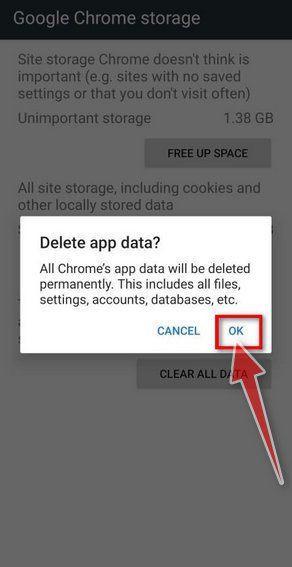
Confirm by tapping “Ok”.
A confirmation dialog should now be displayed, detailing the components that will be restored to their default state should you continue with the reset process. To complete the restoration process, tap “Ok“.
Remove malware from Firefox for Android
To reset Firefox for Android to its default settings, follow the below steps:
Open the “Settings” menu.
Tap on the “Settings” app from your phone menu or home screen.
Tap on “Apps”.
When the “Settings” menu opens, tap on “Apps” (or “App Manager”) to see all the installed applications on your phone.
Find and tap on Firefox.
The “Apps” screen will be displayed with a list of all the apps installed on your phone. Scroll through the list until you find the Firefox app, then tap on it to open the app’s details.
Tap “Storage”.
When Firefox’s app info menu is displayed, tap on “Storage“.
Tap “Manage Space”.
Under the storage settings, you will get two options — Manage Space and Clear Cache. Tap on “Manage Space“.
Tap “Clear all data”.
Tap “Clear all data” to delete all Firefox data including accounts, bookmarks, and your settings to reset the default settings.
Confirm by tapping “Ok”.
A confirmation dialog should now be displayed, detailing the components that will be restored to their default state should you continue with the reset process. To complete the restoration process, tap “Ok“.
Remove malware from the Opera browser
To reset the Opera browser to its default settings, follow the below steps:
Open the “Settings” menu.
Tap on the “Settings” app from your phone menu or home screen.
Tap on “Apps”.
When the “Settings” menu opens, tap on “Apps” (or “App Manager”) to see all the installed applications on your phone.
Find and tap on Opera.
The “Apps” screen will be displayed with a list of all the apps installed on your phone. Scroll through the list until you find the Opera app, then tap on it to open the app’s details.
Tap “Storage”.
When Opera’s app info menu is displayed, tap on “Storage“.
Tap “Manage Space”.
Under the storage settings, you will get two options — Manage Space and Clear Cache. Tap on “Manage Space“.
Tap “Clear all data”.
Tap “Clear all data” to delete all Opera’s data including accounts, bookmarks, and your settings to reset the default settings.
Confirm by tapping “Ok”.
A confirmation dialog should now be displayed, detailing the components that will be restored to their default state should you continue with the reset process. To complete the restoration process, tap “Ok“.
Remove malware from Samsung Internet Browser
To reset the Samsung Internet Browser to its default settings, follow the below steps:
Open the “Settings” menu.
Tap on the “Settings” app from your phone menu or home screen.
Tap on “Apps”.
When the “Settings” menu opens, tap on “Apps” (or “App Manager”) to see all the installed applications on your phone.
Find and tap on Samsung Internet Browser.
The “Apps” screen will be displayed with a list of all the apps installed on your phone. Scroll through the list until you find the Samsung Internet Browser app, then tap on it to open the app’s details.
Tap “Storage”.
When the Samsung Internet Browser’s app info menu is displayed, tap on “Storage“.
Tap “Manage Space”.
Under the storage settings, you will get two options — Manage Space and Clear Cache. Tap on “Manage Space“.
Tap “Clear all data”.
Tap “Clear all data” to delete all Samsung Internet Browser’s data including accounts, bookmarks, and your settings to reset the default settings.
Confirm by tapping “Ok”.
A confirmation dialog should now be displayed, detailing the components that will be restored to their default state should you continue with the reset process. To complete the restoration process, tap “Ok“.
Remove malware from Microsoft Edge for Android
To reset the Microsoft Edge for Android to its default settings, follow the below steps:
Open the “Settings” menu.
Tap on the “Settings” app from your phone menu or home screen.
Tap on “Apps”.
When the “Settings” menu opens, tap on “Apps” (or “App Manager”) to see all the installed applications on your phone.
Find and tap on Microsoft Edge.
The “Apps” screen will be displayed with a list of all the apps installed on your phone. Scroll through the list until you find the Microsoft Edge app, then tap on it to open the app’s details.
Tap “Storage”.
When the Microsoft Edge’s app info menu is displayed, tap on “Storage“.
Tap “Manage Space”.
Under the storage settings, you will get two options — Manage Space and Clear Cache. Tap on “Manage Space“.
Tap “Clear all data”.
Tap “Clear all data” to delete all Microsoft Edge’s data including accounts, bookmarks, and your settings to reset the default settings.
Confirm by tapping “Ok”.
A confirmation dialog should now be displayed, detailing the components that will be restored to their default state should you continue with the reset process. To complete the restoration process, tap “Ok“.
STEP 3: Use Malwarebytes for Android to remove malicious apps
In this final step, we will install Malwarebytes for Android to scan and remove malicious apps from your phone or tablet.
Malwarebytes for Android automatically detects and removes dangerous threats like malware and ransomware so you don’t have to worry about your most-used device being compromised. Aggressive detection of adware and potentially unwanted programs keeps your Android phone or tablet running smooth.
Download Malwarebytes for Android.
You can download Malwarebytes for Android by clicking the link below.
In the Google Play Store, tap “Install” to install Malwarebytes for Android on your device.
When the installation process has finished, tap “Open” to begin using Malwarebytes for Android. You can also open Malwarebytes by tapping on its icon in your phone menu or home screen.
Follow the on-screen prompts to complete the setup process
When Malwarebytes will open, you will see the Malwarebytes Setup Wizard which will guide you through a series of permissions and other setup options. This is the first of two screens that explain the difference between the Premium and Free versions. Swipe this screen to continue. Tap on “Got it” to proceed to the next step. Malwarebytes for Android will now ask for a set of permissions that are required to scan your device and protect it from malware. Tap on “Give permission” to continue. Tap on “Allow” to permit Malwarebytes to access the files on your phone.
Update database and run a scan with Malwarebytes for Android
You will now be prompted to update the Malwarebytes database and run a full system scan.
Click on “Update database” to update the Malwarebytes for Android definitions to the latest version, then click on “Run full scan” to perform a system scan.
Wait for the Malwarebytes scan to complete.
Malwarebytes will now start scanning your phone for adware and other malicious apps. This process can take a few minutes, so we suggest you do something else and periodically check on the status of the scan to see when it is finished.
Click on “Remove Selected”.
When the scan has been completed, you will be presented with a screen showing the malware infections that Malwarebytes for Android has detected. To remove the malicious apps that Malwarebytes has found, tap on the “Remove Selected” button.
Restart your phone.
Malwarebytes for Android will now remove all the malicious apps that it has found. To complete the malware removal process, Malwarebytes may ask you to restart your device.
Your phone should now be free of Unwanted Apps and Malware and other malware.
If your current antivirus allowed a malicious app on your phone, you may want to consider purchasing the full-featured version of Malwarebytes to protect against these types of threats in the future. If you are still having problems with your phone after completing these instructions, then please follow one of the steps:
Restore your phone to factory settings by going to Settings > General management > Reset > Factory data reset.
In this first step, we will clean your Safari browser by using the built-in “Clear History and Website Data” feature. “Clear History and Website Data” allows you to delete the browsing history and website data that is stored on your device. This can include information such as the websites you have visited, your search history, and any data that has been stored by websites you have visited, such as cookies and cache.
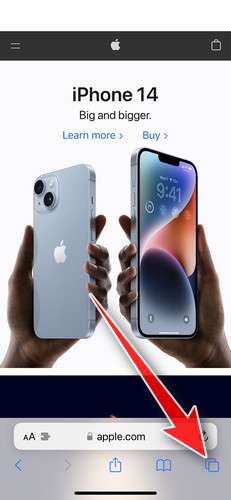
Do not tap on the malicious browser window or pop-ups. Instead, tap on the tab icon located in the lower right corner of the screen, as shown in the image below.
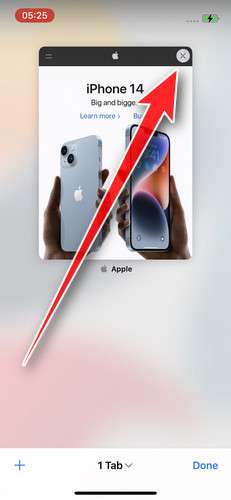
Tap the X button on the tab or swipe up to safely close it.
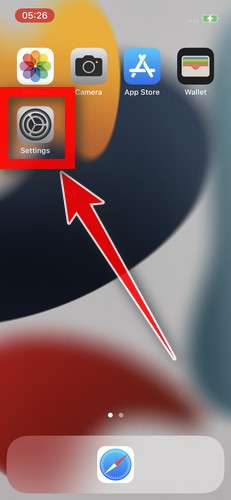
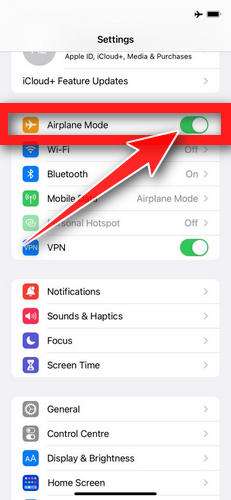
Tap the Settings app.
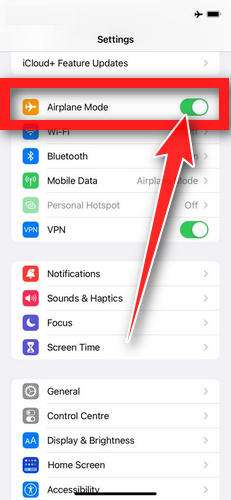
Toggle on Airplane Mode to temporarily disconnect your phone from the internet and block unwanted access.
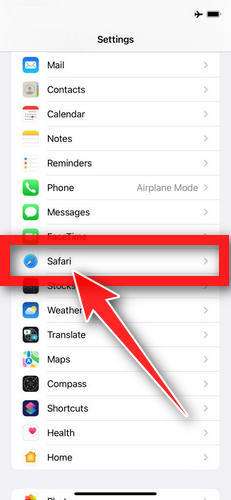
Scroll down and tap Safari.
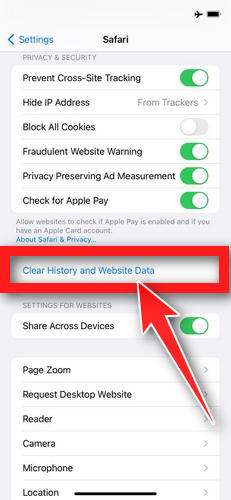
Tap Clear History and Website Data.
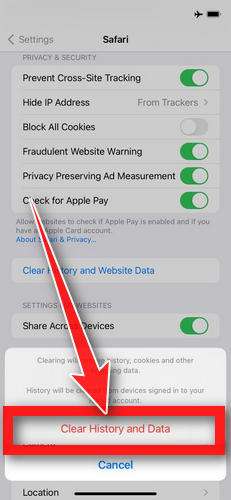
Confirm that you want to clear the history and data by tapping “Clear History and Data” in the pop-up window.
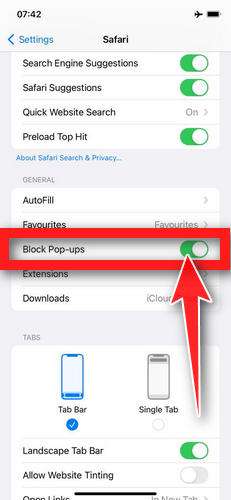
While in Safari settings, make sure to toggle on Block Pop-ups and Fraudulent Website Warning.
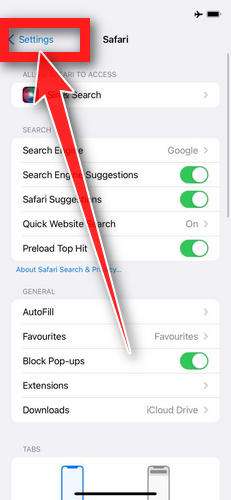
Tap on Settings in the upper-left corner to return to the main Settings menu.
Toggle Airplane Mode back off to re-connect your phone to the internet.
STEP 2: Delete unwanted apps
In the next step, we will remove any potentially unwanted apps that may be installed on your iPhone. If you have downloaded an app after being redirected to the App Store by suspicious websites, it is recommended to delete it.
On the home screen, tap and hold on the app icon until all of the icons start to wiggle.
Tap the “X” button that appears on the top left corner of the app icon.
Confirm that you want to delete the app by tapping “Delete”.
That’s it, your iPhone should be clean and you can continue browsing the Internet. We recommend that you install an ad blocker like AdGuard to block the malicious ads.
If you continue to have malware related issues with your device after completing the above steps, we recommend to take one of these actions:
The Apple ID “Secure Isolation State” scam is built to make you feel like a high-level security event is unfolding and the only safe move is to call immediately.
But the phone number is the trap.
These texts use fear, technical jargon, and a believable Apple Pay charge to pull you into a fake support call, where scammers aim for access, money, or both.
If you receive one, do not call the number. Verify through your Apple account and your bank directly, using paths you open yourself. And if you already engaged, take calm, practical steps to secure your Apple ID, scan your devices, and protect your financial accounts.
FAQ
What is the Apple ID “Secure Isolation State” scam text?
It is a fake Apple security alert sent by scammers. The text claims your Apple ID has been placed into a “secure isolation state” due to a suspicious Apple Pay transaction or a “cryptographic” failure. The real goal is to scare you into calling a phone number that reaches fake support agents.
Is “secure isolation state” a real Apple term?
Scammers use phrases like this because they sound official. Apple can restrict or lock accounts for security reasons, but a random text that tells you to call a number is not a reliable indicator of a legitimate Apple action. Always verify inside your Apple ID settings and purchase history.
Why does the scam message sound so technical?
Because technical language makes people hesitate and assume the situation is too complex to verify on their own. Terms like “trust anchor signatures” and “integrity protocols” are meant to impress and intimidate, not to help you confirm anything.
The text included a reference number, does that prove it is real?
No. Reference numbers are easy to generate and are commonly used in scams to create authority. What matters is whether you can confirm the issue through official Apple account pages and real support channels you access independently.
The message mentions Apple Pay and a charge like $387.61, does that mean money was taken?
Not necessarily. Scammers often invent realistic amounts to trigger panic. Confirm by checking your bank or card statement directly and reviewing your Apple purchase history. Do not rely on the text as proof.
What is the biggest red flag in these messages?
The phone number and the urgency to call it. Apple does not ask you to resolve security events by calling a random number inside a text message.
If the text includes a real Apple link like getsupport.apple.com, is it safe?
A real Apple link does not make the entire message legitimate. Scammers include genuine Apple URLs to make the scam feel authentic. The dangerous part is the phone number and the pressure to call.
What happens if I call the number in the text?
You will likely reach scammers pretending to be Apple Support. They may:
Ask for your Apple ID email and personal details
Try to get one-time verification codes
Pressure you to install AnyDesk or other remote access tools
Push you to transfer money or buy gift cards
Would real Apple Support ever ask me for my Apple ID password?
No. Never share your Apple ID password with anyone, including someone claiming to be support. If a caller asks for it, treat it as a scam.
Would real Apple Support ask me to read a verification code out loud?
No. One-time codes are meant to prevent account takeover. If you share them, you may be approving a login or password reset attempt.
Why do scammers push remote access tools like AnyDesk?
Because remote access lets them see what you do and sometimes control your device. They can guide you into banking logins, capture sensitive information, change settings, and pressure you into sending money.
If I clicked the link but did not call, am I still in trouble?
Often no, especially if you did not enter any information or install anything. Still, it is smart to:
Close the page
Run a Malwarebytes scan if you used a computer
Use AdGuard to reduce exposure to malicious ads and scam pages
Monitor your Apple ID security and bank statements
If I called but did not pay anything, what should I do?
You should still protect yourself:
Block the number and stop contact
Change your Apple ID password
Review your Apple ID device list for unknown devices
Watch for login alerts or unusual account changes If you shared any code or password, treat it as urgent and act immediately.
What should I do if I gave them a verification code?
Change your Apple ID password right away, then check for unknown devices and suspicious security changes. If a new device was added, remove it immediately and review trusted phone numbers and recovery methods.
What if I installed AnyDesk or allowed remote access?
Uninstall the remote tool, restart your device, then run a full Malwarebytes scan. After that, change passwords for Apple ID, email, banking, and any accounts you accessed during the session. If you are unsure what was changed, consider a professional device check.
What if I bought gift cards and shared the codes?
Report it immediately to the gift card issuer and keep the receipts. Gift card losses can be difficult to recover, but speed matters. Also notify your bank if the cards were purchased using a card you control.
How can I check if my Apple ID has been compromised?
Look for:
Unknown devices signed into your Apple ID
Password changes you did not make
New trusted phone numbers or recovery settings
Unfamiliar payment methods or subscriptions If you see any of these, secure your account immediately.
How do I verify a real Apple billing or security issue safely?
Use official paths you open yourself:
Check Apple ID security settings on your iPhone, iPad, or Mac
Review purchase history and subscriptions inside your Apple account
Contact Apple through official support options, not a number from a text
Can this scam affect people who do not use Apple Pay?
Yes. Apple Pay is often just a scare trigger. The scam still works if it convinces you to call, share Apple ID details, install remote access tools, or send money.
Will blocking the number stop future scams?
It helps, but scammers constantly rotate numbers. The best defense is recognizing the pattern, refusing to call, and verifying activity through official sources.
What security tools can help reduce future risk?
Two practical additions:
Malwarebytes to scan and remove malware or unwanted software, especially on computers
AdGuard to block malicious ads, scam pages, and aggressive tracking that often leads to phishing attempts
What is the safest single rule to remember?
Never trust the contact method inside the message. If you are worried, verify through your Apple account and your bank directly, using official channels you navigate to yourself.
Thomas is an expert at uncovering scams and providing in-depth reporting on cyber threats and online fraud. As an editor, he is dedicated to keeping readers informed on the latest developments in cybersecurity and tech.


 Remove Unwanted Apps and Malware from Windows
 Remove Unwanted Apps and Malware from Mac
 Remove Unwanted Apps and Malware from Android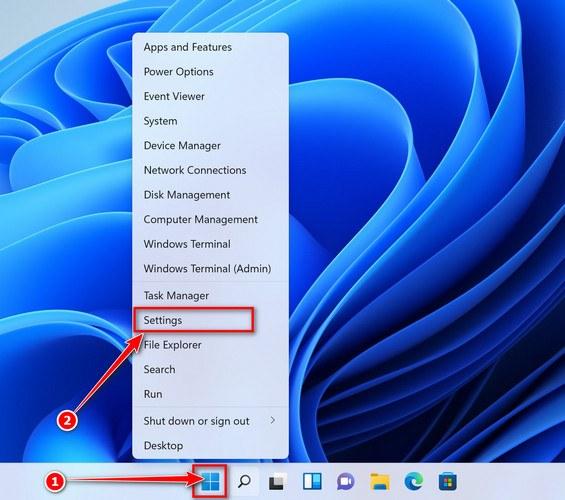
 If you have checked your computer for malicious programs and did not find any, you can proceed with the next step in this guide.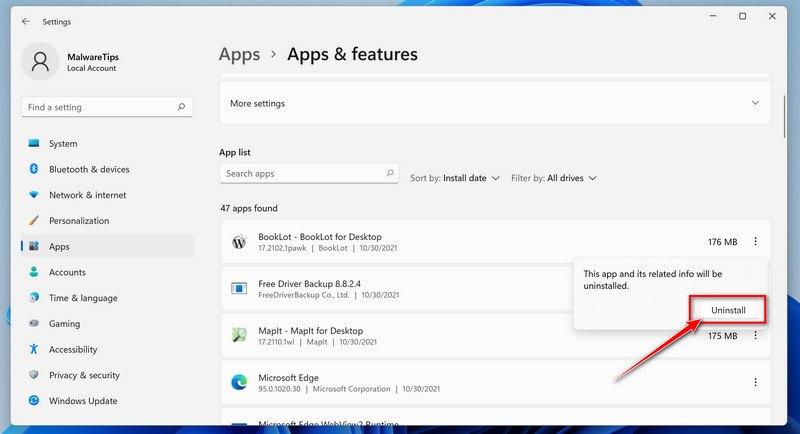
 If you have checked your computer for malicious programs and did not find any, you can proceed with the next step in this guide.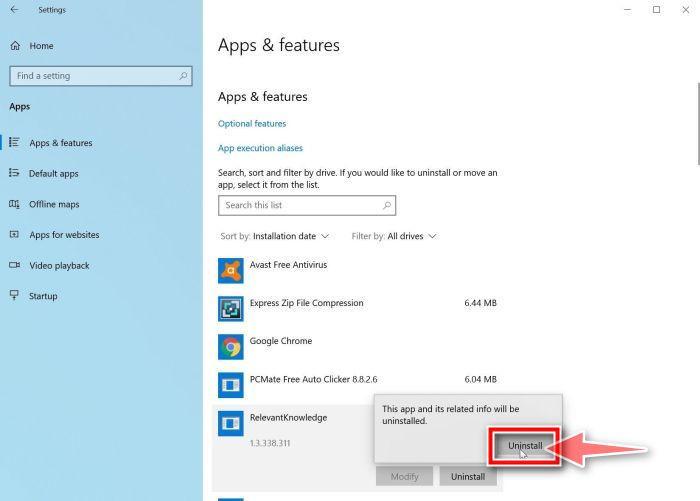













 HITMANPRO DOWNLOAD LINK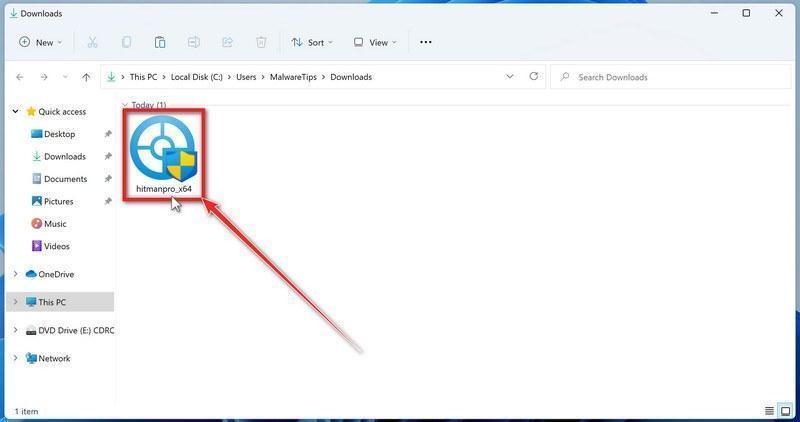

 If there isn’t a Profiles icon, you don’t have any profiles installed, which is normal and you can continue with the next steps.