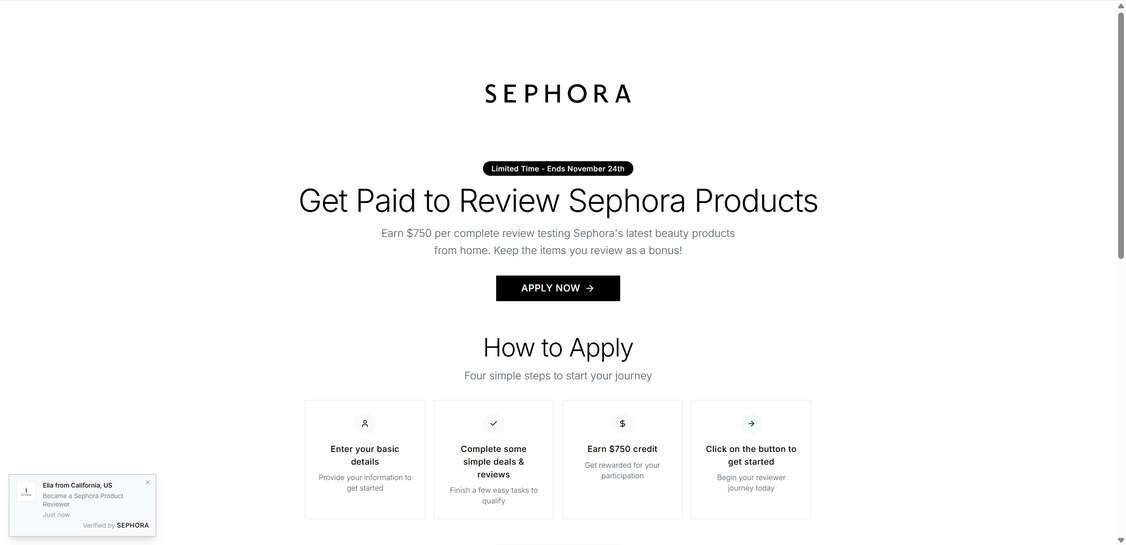
The promise sounds almost irresistible. Ads claim you can earn $750 simply by reviewing Sephora beauty products, all from home, with no experience needed. The website Apply-Seph.Vercel.app looks sleek and modern, complete with the Sephora logo, clean typography, and professional visuals. You’re told that you’ll get paid after completing a few simple steps, and you can even keep the products you review.
But as convincing as it looks, Apply-Seph.Vercel.app is not associated with Sephora, and the “reviewer program” it promotes does not exist. Instead, it’s part of a rapidly expanding network of affiliate reward scams designed to capture personal information, push users into completing sponsored deals, and generate revenue for scammers. No one gets the promised $750 credit. No one receives free Sephora products. The only people earning money are the operators behind the website.
This article provides a detailed breakdown of how the Apply-Seph.Vercel.app scam works, how it tricks people, and what you should do if you entered your information. If you want a full understanding of this scam and how to protect yourself, keep reading.
Scam Overview
The Apply-Seph.Vercel.app Sephora Reviewer Scam is one of the latest variations of a broader pattern of fraudulent “reviewer” promotions that have impersonated brands such as Target, Sephora, TikTok, Costco, Starbucks, and Apple. Each scam offers a high-value reward, typically between $100 and $1,000, in exchange for completing simple tasks. The scammers count on the appeal of getting paid for easy work and the trust that comes with major brand names.
Apply-Seph.Vercel.app advertises that users can:
Get paid $750 for reviewing Sephora products
Keep the products they review
Participate for free
Start earning immediately
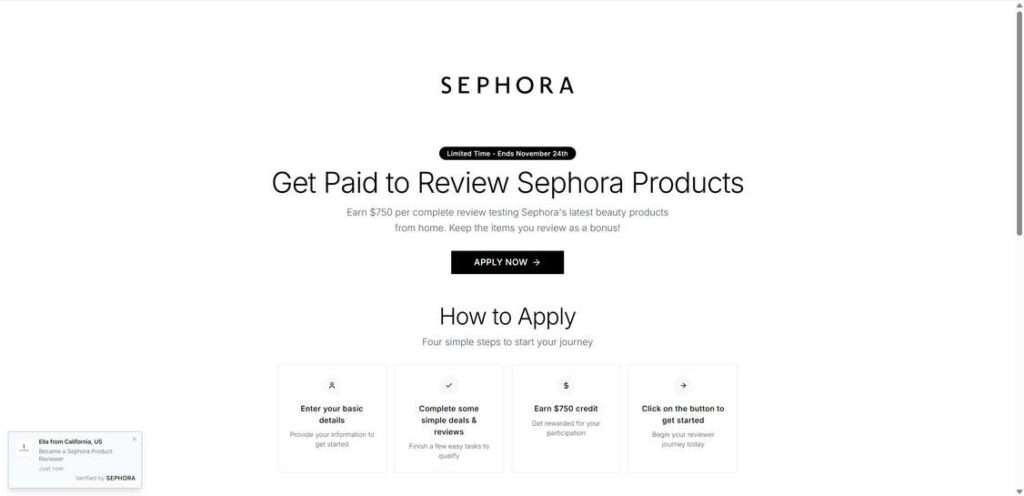
The homepage features a large Sephora logo and the headline “Get Paid to Review Sephora Products.” Beneath it, users see a call-to-action button labeled “Apply Now,” followed by a step-by-step explanation of how to join the supposed reviewer program. Everything is designed to look like an official recruitment page.
Why It Looks Real
The site uses several tricks to appear credible:
Branding precision Fonts, spacing, and color schemes closely match Sephora’s branding. To an untrained eye, the page looks convincing and professional.
Fake notifications Small pop-ups appear saying things like “Ella from California became a Sephora Reviewer.” These are fabricated and generated automatically.
Artificial urgency A banner reads “Limited Time – Ends November 24th,” even though that date updates automatically and has no meaning. Scammers use urgency to push users into acting quickly.
Simple, believable steps The “How to Apply” section lists easy steps: enter details, complete deals, earn credit. It mimics real application pages, making users believe the process is legitimate.
The Real Goal
The true objective of Apply-Seph.Vercel.app is to funnel users into completing third-party offers, such as:
Downloading apps
Signing up for free trials
Entering additional surveys
Providing personal details
Subscribing to digital services
Sharing credit card information
Each time a user completes one of these offers, the scammers earn an affiliate commission, often ranging from $1 to $30 per offer. The victim receives nothing in return.
No Actual Sephora Program Exists
Sephora does not operate any program that pays people $750 to review products. Any legitimate Sephora-related testing program would:
Only appear on Sephora’s official website
Never require completing unrelated offers
Never ask for payment information
Never offer such abnormally high payouts for simple reviews
Apply-Seph.Vercel.app is pretending to be Sephora to exploit brand trust and lure in victims.
A Pattern of Cloned Scams
Apply-Seph.Vercel.app is nearly identical to other scams using different brand names, including:
ApplyCost.com
TikReview.com
ReviewersCost.com
Bucks100.com
Cart700.com
AppleStudentRewards
WalletRewards scams
Target reviewer scam
Costco reviewer scam
These sites use the same layout, same steps, and the same affiliate-driven backend. Only the logos and brand names change.
What Victims Experience
People who complete the tasks often report:
Endless loops of offers with no reward
Spam emails and texts
Unwanted subscription charges
Lots of time wasted completing fake tasks
Zero payout
No Sephora products
Increased scam targeting
Some victims report over 30–50 junk emails appearing within hours of signing up.
In short, Apply-Seph.Vercel.app is a fake program designed to generate income for scammers, not a legitimate reviewer opportunity.
How the Apply-Seph.Vercel.app Scam Works
This section provides a clear, step-by-step breakdown of how the scam operates, from the moment a user encounters the ad to the point scammers profit.
Step 1: The TikTok or Social Media Ad
The scam begins with an ad on TikTok, Instagram, Facebook, or Snapchat. These ads usually feature:
A model unboxing beauty products
Screenshots of fake earnings
Claims like “I just got paid $750 for testing Sephora products”
Videos showing a $750 “credit balance”
A link to Apply-Seph.Vercel.app
The content appears authentic because it looks like user-generated videos, even though they’re produced by affiliate marketers.
Step 2: The Fake Sephora Reviewer Page
When users click the ad, they land on Apply-Seph.Vercel.app. The site is minimalist, polished, and uses Sephora’s iconic black-and-white branding. It displays phrases like:
“Earn $750 per complete review”
“Keep the items you review as a bonus”
“Starts November 24th”
A button labeled “Apply Now” leads users to a short sign-up form.
Step 3: Collecting Personal Information
The site asks for basic details:
Name
Email
Sometimes phone number
The purpose is not to start a reviewer job — it’s to collect data. The information is later:
Sold to advertisers
Added to spam lists
Used to target victims with future scams
Potentially used for identity-based phishing
Step 4: The Offer Wall
After entering information, users are told:
“Complete some recommended deals to qualify.”
These deals are where the affiliate scam begins. Offers may include:
Installing games and reaching certain levels
Signing up for subscription trials
Entering contests
Completing multiple surveys
Registering for “reward programs”
Providing credit card details for “verifications”
Each completed deal puts money into the scammers’ pockets.
Step 5: The Endless Loop
Victims soon learn that completing the required offers doesn’t unlock anything. Instead, the system says:
“One more offer required”
“Complete Level 2 offers”
“Verify your identity”
“You still have deals left to finish”
The site ensures users never reach the final “reward.”
Step 6: The Scammers Get Paid
Whenever users complete a task:
The affiliate network pays Apply-Seph.Vercel.app operators
The advertisers gain a new subscriber or download
The victim gains nothing
The reward is intentionally unachievable, but the affiliates still profit.
Step 7: Aftermath of the Scam
Many victims face:
Sudden credit card charges
Endless spam
Scam robocalls
Subscriptions they didn’t know they agreed to
Increased exposure to future scams
Some users sign up for dozens of offers without realizing they’re inflating the scammers’ earnings.
What to Do If You Fell Victim to the Apply-Seph.Vercel.app Scam
If you interacted with Apply-Seph.Vercel.app, take these steps immediately to protect yourself.
1. Stop Interacting With the Website
Exit the site and avoid any links or emails it sends you.
2. Change Passwords Associated With the Email You Used
If your email is compromised, other accounts connected to it may be vulnerable.
3. Check Your Bank Statements
Look for suspicious charges, especially subscriptions connected to:
Trials you signed up for
App installs
“Verification fees”
Dispute unfamiliar charges with your bank.
4. Cancel Any Free Trials You Signed Up For
Log into each service you joined and cancel before recurring charges appear.
5. Run a Security Scan
Use updated antivirus software to check your device for malware or tracking scripts.
6. Report the Scam to Authorities
Report the site to:
Federal Trade Commission (FTC)
Internet Crime Complaint Center (IC3)
Better Business Bureau’s Scam Tracker
This helps others avoid the scam.
7. Mark All Emails From the Site as Spam
Do not click unsubscribe links — they often lead to more scams.
8. Monitor Your Identity
If you submitted personal details, consider using credit monitoring or identity protection services.
9. Warn Friends and Family
Scams spread quickly. Warning others limits the damage.
Is Your Device Infected? Scan for Malware
If your computer or phone is slow, showing unwanted pop-ups, or acting strangely, malware could be the cause. Running a scan with Malwarebytes Anti-Malware Free is one of the most reliable ways to detect and remove harmful software. The free version can identify and clean common infections such as adware, browser hijackers, trojans, and other unwanted programs.
Malwarebytes works on Windows, Mac, and Android devices. Choose your operating system below and follow the steps to scan your device and remove any malware that might be slowing it down.
Malwarebytes for WindowsMalwarebytes for MacMalwarebytes for Android
Run a Malware Scan with Malwarebytes for Windows
Malwarebytes stands out as one of the leading and widely-used anti-malware solutions for Windows, and for good reason. It effectively eradicates various types of malware that other programs often overlook, all at no cost to you. When it comes to disinfecting an infected device, Malwarebytes has consistently been a free and indispensable tool in the battle against malware. We highly recommend it for maintaining a clean and secure system.
Download Malwarebytes
Download the latest version of Malwarebytes for Windows using the official link below. Malwarebytes will scan your computer and remove adware, browser hijackers, and other malicious software for free.
(The above link will open a new page from where you can download Malwarebytes)
Install Malwarebytes
After the download is complete, locate the MBSetup file, typically found in your Downloads folder. Double-click on the MBSetup file to begin the installation of Malwarebytes on your computer. If a User Account Control pop-up appears, click “Yes” to continue the Malwarebytes installation.
Follow the On-Screen Prompts to Install Malwarebytes
When the Malwarebytes installation begins, the setup wizard will guide you through the process.
You’ll first be prompted to choose the type of computer you’re installing the program on—select either “Personal Computer” or “Work Computer” as appropriate, then click on Next.
Malwarebytes will now begin the installation process on your device.
When the Malwarebytes installation is complete, the program will automatically open to the “Welcome to Malwarebytes” screen.
On the final screen, simply click on the Open Malwarebytes option to start the program.
Enable “Rootkit scanning”.
Malwarebytes Anti-Malware will now start, and you will see the main screen as shown below. To maximize Malwarebytes’ ability to detect malware and unwanted programs, we need to enable rootkit scanning. Click on the “Settings” gear icon located on the left of the screen to access the general settings section.
In the settings menu, enable the “Scan for rootkits” option by clicking the toggle switch until it turns blue.
Now that you have enabled rootkit scanning, click on the “Dashboard” button in the left pane to get back to the main screen.
Perform a Scan with Malwarebytes.
To start a scan, click the Scan button. Malwarebytes will automatically update its antivirus database and begin scanning your computer for malicious programs.
Wait for the Malwarebytes scan to complete.
Malwarebytes will now scan your computer for browser hijackers and other malicious programs. This process can take a few minutes, so we suggest you do something else and periodically check the status of the scan to see when it is finished.
Quarantine detected malware
Once the Malwarebytes scan is complete, it will display a list of detected malware, adware, and potentially unwanted programs. To effectively remove these threats, click the “Quarantine” button.
Malwarebytes will now delete all of the files and registry keys and add them to the program’s quarantine.
Restart your computer.
When removing files, Malwarebytes may require a reboot to fully eliminate some threats. If you see a message indicating that a reboot is needed, please allow it. Once your computer has restarted and you are logged back in, you can continue with the remaining steps.
Once the scan completes, remove all detected threats. Your Windows computer should now be clean and running smoothly again, free of trojans, adware, and other malware.
If your current antivirus allowed this malicious program on your computer, you may want to consider purchasing Malwarebytes Premium to protect against these types of threats in the future. If you are still having problems with your computer after completing these instructions, then please follow one of the steps:
Malwarebytes for Mac is an on-demand scanner that can destroy many types of malware that other software tends to miss without costing you absolutely anything. When it comes to cleaning up an infected device, Malwarebytes has always been free, and we recommend it as an essential tool in the fight against malware.
Download Malwarebytes for Mac.
You can download Malwarebytes for Mac by clicking the link below.
When Malwarebytes has finished downloading, double-click on the setup file to install Malwarebytes on your computer. In most cases, downloaded files are saved to the Downloads folder.
Follow the on-screen prompts to install Malwarebytes.
When the Malwarebytes installation begins, you will see the Malwarebytes for Mac Installer which will guide you through the installation process. Click “Continue“, then keep following the prompts to continue with the installation process.
When your Malwarebytes installation completes, the program opens to the Welcome to Malwarebytes screen. Click the “Get started” button.
Select “Personal Computer” or “Work Computer”.
The Malwarebytes Welcome screen will first ask you what type of computer are you installing this program, click either Personal Computer or Work Computer.
Click on “Scan”.
To scan your computer with Malwarebytes, click on the “Scan” button. Malwarebytes for Mac will automatically update the antivirus database and start scanning your computer for malware.
Wait for the Malwarebytes scan to complete.
Malwarebytes will scan your computer for adware, browser hijackers, and other malicious programs. This process can take a few minutes, so we suggest you do something else and periodically check on the status of the scan to see when it is finished.
Click on “Quarantine”.
When the scan has been completed, you will be presented with a screen showing the malware infections that Malwarebytes has detected. To remove the malware that Malwarebytes has found, click on the “Quarantine” button.
Restart computer.
Malwarebytes will now remove all the malicious files that it has found. To complete the malware removal process, Malwarebytes may ask you to restart your computer.
After scanning, delete any detected threats. Your Mac should now be free from adware, unwanted extensions, and other potentially harmful software.
If your current antivirus allowed a malicious program on your computer, you might want to consider purchasing the full-featured version of Malwarebytes Anti-Malware to protect against these types of threats in the future. If you are still experiencing problems while trying to remove a malicious program from your computer, please ask for help in our Mac Malware Removal Help & Support forum.
Run a Malware Scan with Malwarebytes for Android
Malwarebytes for Android automatically detects and removes dangerous threats like malware and ransomware so you don’t have to worry about your most-used device being compromised. Aggressive detection of adware and potentially unwanted programs keeps your Android phone or tablet running smooth.
Download Malwarebytes for Android.
You can download Malwarebytes for Android by clicking the link below.
In the Google Play Store, tap “Install” to install Malwarebytes for Android on your device.
When the installation process has finished, tap “Open” to begin using Malwarebytes for Android. You can also open Malwarebytes by tapping on its icon in your phone menu or home screen.
Follow the on-screen prompts to complete the setup process
When Malwarebytes will open, you will see the Malwarebytes Setup Wizard which will guide you through a series of permissions and other setup options. This is the first of two screens that explain the difference between the Premium and Free versions. Swipe this screen to continue. Tap on “Got it” to proceed to the next step. Malwarebytes for Android will now ask for a set of permissions that are required to scan your device and protect it from malware. Tap on “Give permission” to continue. Tap on “Allow” to permit Malwarebytes to access the files on your phone.
Update database and run a scan with Malwarebytes for Android
You will now be prompted to update the Malwarebytes database and run a full system scan.
Click on “Update database” to update the Malwarebytes for Android definitions to the latest version, then click on “Run full scan” to perform a system scan.
Wait for the Malwarebytes scan to complete.
Malwarebytes will now start scanning your phone for adware and other malicious apps. This process can take a few minutes, so we suggest you do something else and periodically check on the status of the scan to see when it is finished.
Click on “Remove Selected”.
When the scan has been completed, you will be presented with a screen showing the malware infections that Malwarebytes for Android has detected. To remove the malicious apps that Malwarebytes has found, tap on the “Remove Selected” button.
Restart your phone.
Malwarebytes for Android will now remove all the malicious apps that it has found. To complete the malware removal process, Malwarebytes may ask you to restart your device.
When the scan is finished, remove all detected threats. Your Android phone should now be free of malicious apps, adware, and unwanted browser redirects.
If your current antivirus allowed a malicious app on your phone, you may want to consider purchasing the full-featured version of Malwarebytes to protect against these types of threats in the future. If you are still having problems with your phone after completing these instructions, then please follow one of the steps:
Restore your phone to factory settings by going to Settings > General management > Reset > Factory data reset.
After cleaning your device, it’s important to protect it from future infections and annoying pop-ups. We recommend installing an ad blocker such as AdGuard. AdGuard blocks malicious ads, prevents phishing attempts, and stops dangerous redirects, helping you stay safe while browsing online.
FAQ for the Apply-Seph.Vercel.app Sephora Reviewer Scam
Is Apply-Seph.Vercel.app a real Sephora reviewer program?
No. Apply-Seph.Vercel.app is not affiliated with Sephora in any way. The site uses Sephora’s branding, logo, and design style without permission to trick users into believing it is an official program. Sephora does not pay people $750 to review products, nor does it run surveys or reviewer recruitment through third-party websites.
How does the Apply-Seph.Vercel.app scam work?
The scam lures users with a fake promise of earning $750 for reviewing beauty products. After entering basic information, users are pushed into completing “deals” such as downloading apps, signing up for trials, or entering personal details. Each completed task earns money for the scammers through affiliate commissions. Users never receive the promised reward, no matter how many deals they finish.
Why does Apply-Seph.Vercel.app look so professional?
Scammers intentionally copy Sephora’s clean branding to create legitimacy. This includes matching fonts, black-and-white color schemes, high-resolution product images, and fake notifications pretending to show real people joining the program. The professional appearance is designed to lower suspicion.
What information does Apply-Seph.Vercel.app collect?
The site gathers personal information such as names, email addresses, phone numbers, zip codes, and sometimes credit card details through its “deals.” This data can be sold to advertisers, added to spam lists, or used for future scam campaigns.
Will I really get paid $750 for reviewing Sephora products?
No. No one receives any payment or product from Apply-Seph.Vercel.app. The reward is intentionally unattainable, and the system keeps adding more “required deals” to prevent users from ever reaching the payout stage. The promise of $750 is bait to push users deeper into the scam.
Can Sephora verify this program?
Yes. If you contact Sephora directly, they will confirm that they do not run a reviewer program through Apply-Seph.Vercel.app or any similar website. Real Sephora product-testing opportunities only appear through official company channels, not through third-party survey sites.
How do the scammers make money?
Scammers earn affiliate commissions every time a user:
signs up for a free trial
downloads an app
enters credit card information
completes a survey
subscribes to a service
These small payouts add up quickly, especially when the scam goes viral.
What are the dangers of submitting my information?
Victims often experience:
heavy spam emails
unwanted promotional texts
suspicious subscription charges
targeted scam attempts
increased phishing risk
exposure to identity theft
In some cases, victims accidentally authorize recurring payments because many “free trials” convert into monthly billing.
What should I do if I entered my credit card information?
Immediately contact your bank or card provider. Explain that you were tricked by an online scam and ask them to:
block future charges
reverse fraudulent transactions
issue a new replacement card
Acting quickly reduces the likelihood of ongoing billing.
How can I avoid scams like Apply-Seph.Vercel.app in the future?
You can protect yourself by:
avoiding offers that promise large payouts for simple tasks
checking official brand websites for legitimate promotions
being skeptical of offers requiring multiple “deals”
never entering credit card information for rewards
researching unknown domains before participating
using strong spam filters and antivirus tools
If a deal offers extremely high rewards for minimal effort, it is almost always a scam.
The Bottom Line
Apply-Seph.Vercel.app is not a real Sephora reviewer program. It’s an affiliate scam disguised with professional branding, fake urgency, and promises of easy money. Users never receive Sephora products, never earn $750, and instead end up trapped in an endless cycle of offers designed to profit scammers.
The safest choice is to avoid Apply-Seph.Vercel.app entirely and rely only on verified Sephora channels for promotions or product-testing opportunities. If a deal sounds too generous or requires completing unrelated offers, it’s almost always a scam.
Being informed, cautious, and skeptical of quick-cash online promises is the best protection against schemes like the Apply-Seph.Vercel.app Sephora Reviewer Scam.
Thomas is an expert at uncovering scams and providing in-depth reporting on cyber threats and online fraud. As an editor, he is dedicated to keeping readers informed on the latest developments in cybersecurity and tech.