


Removal guide for Best Virus Protection (Uninstall Guide)
Best Virus Protection is a malicious software that will display fake alerts, claiming malware has been detected on your computer.
In reality, none of the issues are real, and are only used to scare you into buying Best Virus Protection and stealing your personal financial information.
We strongly advise you to follow our Best Virus Protection removal guide and ignore any alerts that this malicious software might generate.Under no circumstance should you buy this rogue security software as this can lead to identity theft.
If you’ve got a Best Virus Protection infection , you’ll be seeing this screens :


Registration codes for Best Virus Protection
You can use the following registration code to register this malicious software and stop the fake alerts.
U2FD-S2LA-H4KA-UEPB
Please keep in mind that entering the above registration code will NOT remove Best Virus Protection from your computer , instead it will just stop the fake alerts so that you’ll be able to complete our removal guide without being interrupted by this rogue.
Removal guide for Best Virus Protection
STEP 1 : Start your computer in Safe Mode with Networking
To boot into Safe Mode with Networking press and hold the F8 key as your computer restarts.
On the Advanced Boot Options screen, use the arrow keys to highlight Safe Mode with Networking , and then press ENTER

STEP 2 : Remove Best Virus Protection malicious proxy server which is preventing the you from accessing the internet.
Open Internet Explorer → Click on the gear icon  (Tools for Windows XP Users) → Select Internet Options → Connections tab → Click on LAN Settings → Uncheck the option Use a proxy server for your LAN

If you are a Firefox users, go to Firefox(upper left corner) → Options → Advanced tab → Network → Settings → Select No Proxy
STEP 3: Run RKill to terminate Best Virus Protection malicious processes
- While your computer is in Safe Mode with Networking ,download and run RKill to terminate Best Virus Protection malicious processes.

- Run Rkill , when the program has completed its task, it will generate a log. You can then proceed with the rest of the guide.
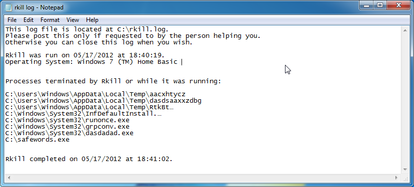
WARNING: Do not reboot your computer after running RKill as the malware process will start again , preventing you from properly performing the next step.
STEP 4: Download and scan with Malwarebytes Anti-Malware FREE to remove Best Virus Protection malicious files from your computer.
- Download and run Malwarebytes Anti-Malware FREE
- Install Mawlarebytes Anti-Malware by following the prompts. Do not make any changes to the default installation settings and do not restart your computer if asked so.

- On the Scanner tab,please select Perform full scan and then click on the Scan button to start scanning your computer for any possible infections.

- When the scan is finished click the ‘OK‘ button and then you will be presented with a screen showing you the malware infections that Malwarebytes’ Anti-Malware has detected.
Make sure that everything is Checked (ticked) and click on Remove Selected button.

- Malwarebytes’ Anti-Malware will now start removing the malicious files.
If during the removal process Malwarebytes will display a message stating that it needs to reboot, please allow this request.


STEP 5: Download ans scan with HitmanPro to double check your system for any left over infections.
- This step can be performed in Normal Mode ,so please download the latest official version of HitmanPro.
- Start HitmanPro by double clicking on the previously downloaded file. and then following the prompts.

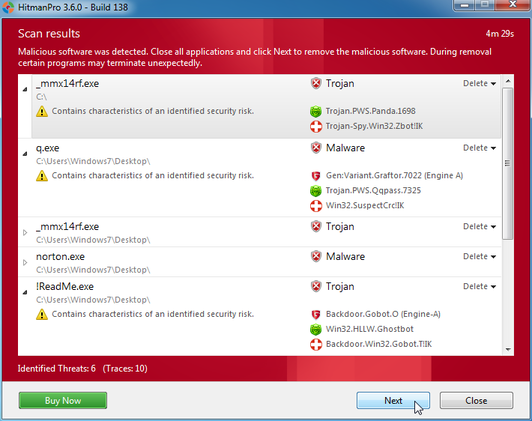
- Once the scan is complete, a screen displaying all the malicious files that the program found will be shown as seen in the image below.After reviewing each malicious object click Next .
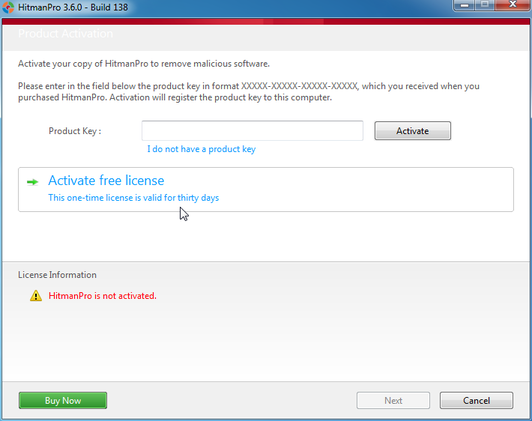
- Click Activate free license to start the free 30 days trial and remove the malicious files.
- HitmanPro will now start removing the infected objects, and in some instances, may suggest a reboot in order to completely remove the malware from your system. In this scenario, always confirm the reboot action to be on the safe side.


STEP 6: Remove the residual damage from Best Virus Protection
Best Virus Protection may also modify your HOSTS file default settings, which can cause browser redirects or errors while trying to access antivirus and security websites.
To protect itself, Best Virus Protection has changed the permissions of the HOSTS file so you can’t edit or delete it.
- Please download the following batch file to revert your HOSTS file permissions:
 hostfix.bat (Size: 134 bytes)
- Click on hostfix.bat and allow this file to run.Once it starts you will see a small black window that opens and then quickly goes away, then you should be able access your HOSTS file.
- Please download and run the below file from Microsoft to revert your host file to its original settings.Please note that if you have added custom entries to your HOSTS file then you will need to add them again after restoring the default HOSTS file.

If you are still experiencing problems on your machine, please start a new thread in our Malware Removal Assistance forum.
For more detailed instructions on how to perform each step, you can read our Best Virus Protection Complete Removal guide

Join the discussion
0 commentsShare your experience or ask a question about this article.
Your progress
Did these steps help?
Let us know how the guide worked for you.
Describe what you see and the step you reached. Keep passwords and other private information out.
Discussion
Start the conversation
Have a question or something useful to share? Add the first comment.