

A group booking can bring a welcome burst of business to a hotel. A message asking staff to check a guest list seems entirely routine.
This particular reservation request deserves a pause. Before opening the supplied file, look at what the supposed guest has actually sent.
Overview
A hotel task conceals a script download
The Booking.com guest-list email virus uses a supposed group reservation to persuade accommodation staff to download a file presented as booking information.
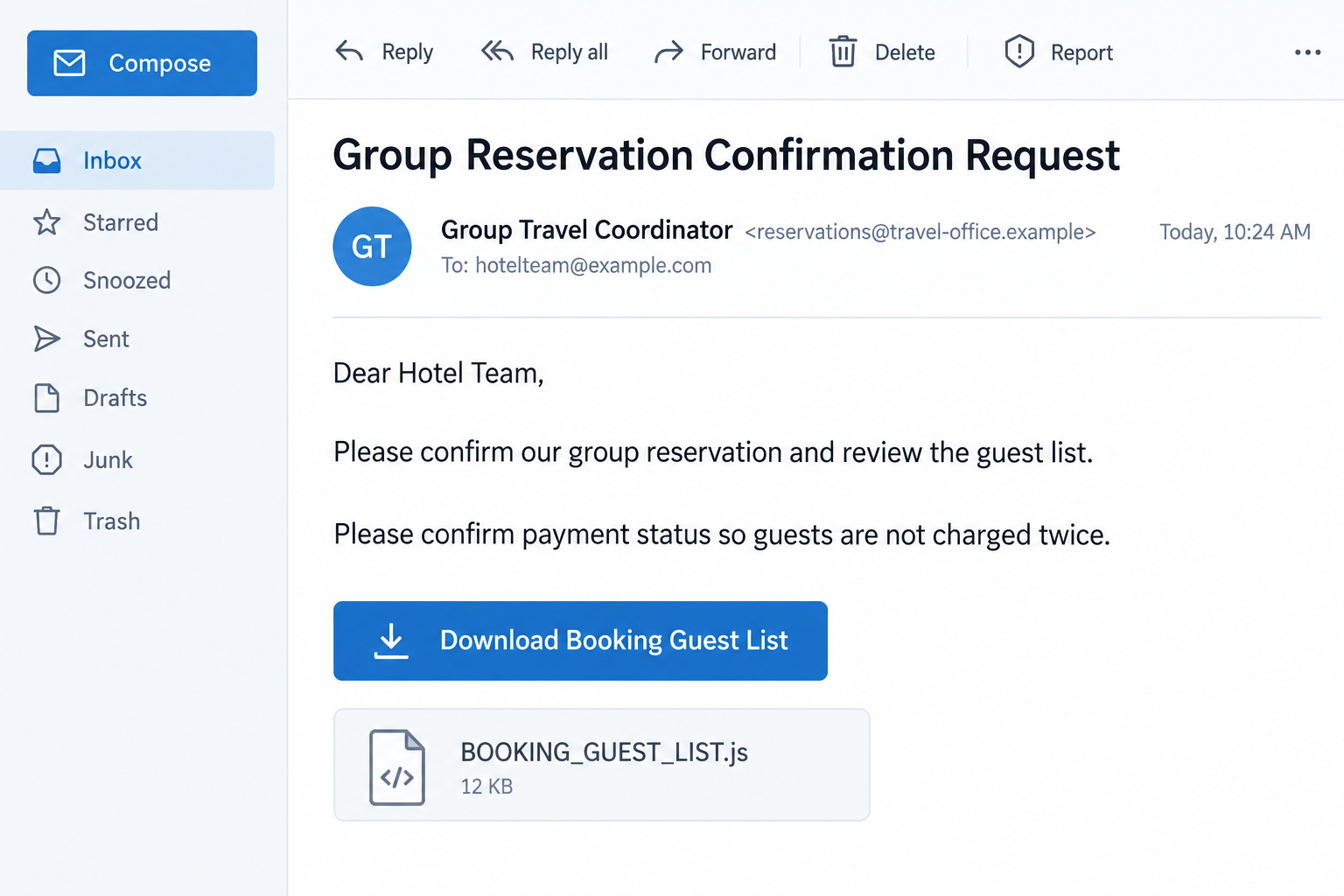
The reported message asks the hotel to confirm the reservation, review the guests, and check that an agent has paid so travelers will not be charged directly.
The dangerous file is named BOOKING_GUEST_LIST.js. That final .js identifies JavaScript, not an ordinary guest-list document.
The customer story is not proof of a genuine reservation
Booking.com is referenced as the platform through which the group supposedly booked. That does not establish that the sender is a guest, authorized agent, or Booking.com employee.
The legitimate platform is not accused of sending the malicious script. The deception is the reservation pretext and the executable content offered as a list.
- The message targets a task hotel staff already handle.
- Payment wording creates a reason to investigate before guests arrive.
- The download label sounds like a document the team should review.
- Running a script can expose the computer rather than reveal reservation details.
Possible consequences must not become an invented malware diagnosis
The script was reported as malicious and downloader-like. The evidence available here does not identify one final payload delivered to every recipient.
Credential theft, further malware installation, and file damage are possible outcomes of malicious execution. They are not all confirmed effects of this particular email.
The accompanying illustration uses sample correspondence and fictional addresses. It shows the mismatch between a guest-list promise and a script, not an authentic customer’s message.
Why This Request Fits a Busy Hotel’s Workflow
Group arrangements naturally create extra paperwork
A group stay can involve room allocation, arrival information, payment arrangements, and several people coordinating the same booking. Extra correspondence may not seem unusual.
That makes a purported guest list persuasive. Staff may expect a document listing names and room assignments, particularly when the message refers to an agent.
The risky shortcut is assuming that every file attached to a plausible task is a document. The business purpose described in the email does not determine the file’s behavior.
Someone can write a convincing reservation request without controlling any genuine booking. The reservation must be checked in the hotel’s established systems before opening unexplained content.
The payment question adds pressure without sounding threatening
Staff do not want to charge arriving guests twice or discover an unpaid group at reception. A request to confirm payment can therefore move ahead of other inbox tasks.
The message exploits that responsibility. The employee may open the supposed list to resolve an operational concern rather than because they trust an unfamiliar sender.
Check payment in the real reservation or property-management system. A file sent by a stranger should not become the authority for whether an agent paid.
If the booking cannot be found, escalate the discrepancy internally. Do not run the file to discover which reservation the sender might mean.
Shared workstations can make the consequences wider
A reception computer may be used by several employees and have access to email, booking tools, supplier records, or shared folders. Its role matters during a malware assessment.
That does not mean every such system stores payment-card data or that all those accounts were stolen. Access and exposure must be checked on the actual machine.
A quick report can help the hotel’s IT provider preserve useful logs and protect connected accounts. Quietly deleting the email after execution can leave important questions unanswered.
How the Booking.com Guest-List Email Attack Works
Step 1: A supposed guest introduces a group reservation
The documented subject is “Group Reservation Confirmation Request.” The message addresses the hotel team and claims a booking was made through Booking.com.
A sender name and telephone number can make the correspondence seem complete. Those details remain claims until confirmed through an independent booking record.
Do not call an unfamiliar number in the email as your only verification. The person controlling the message may also control its callback route.
Look in the actual extranet or property-management system first. Use the staff’s normal access method rather than any login link introduced by the sender.
Step 2: The download is framed as necessary reservation information
The email asks staff to review a group list and confirm payment status. Its download button makes the file sound like routine supporting material.
That framing can override an employee’s caution about unexpected attachments. The task seems legitimate, so the associated file receives the same assumed legitimacy.
Keep those questions separate. A real reservation can still be accompanied by a malicious message, and a plausible message can describe a reservation that does not exist.
The employee should not need to execute unknown code to read guest details. If an attachment’s format is wrong for the task, stop and ask for trusted assistance.
Step 3: The .js suffix reveals a different kind of file
BOOKING_GUEST_LIST.js is a JavaScript filename. On Windows, depending on configuration and installed handlers, opening a downloaded script can run it through a script host.
This is different from the JavaScript an ordinary website uses inside a browser. A standalone file opened from the computer deserves its own execution-risk assessment.
Show complete file extensions when checking downloads. A friendly name such as guest list, invoice, or itinerary cannot make a script into a spreadsheet.
Do not test it by double-clicking, allowing warnings, or using another colleague’s machine. The same uncertainty should be resolved by IT, not by another attempted opening.
Step 4: Executed code may retrieve or launch additional malware
The reported script behaves as a malicious delivery mechanism. A downloader’s initial file can be small while the software it retrieves has different capabilities.
The final result can depend on the server response, environment, and version. We have not run the sample or established one payload for this message.
Therefore, do not diagnose ransomware, a miner, or a particular password stealer merely from the filename. Record execution and let the technical investigation determine what followed.
No visible window is not proof that nothing ran. Conversely, a blocked download is not proof that malicious code executed successfully.
Step 5: A local infection can become an account-security problem
If malware gains access to stored credentials or active sessions, the incident may reach beyond the reception computer. That possibility requires assessment, not automatic assumptions about a breach.
A compromised hotel account could be used to send convincing messages to travelers. This is a general risk of account compromise, not an observed outcome attributed to every sample.
Review account activity with the relevant provider and the hotel’s IT team. Changing a password from the potentially affected machine may expose the replacement too.
Keep guests and payment decisions out of an improvised response. Management should coordinate any confirmed account misuse, customer notifications, and operational changes.
How to Handle a Suspicious Guest List Safely
Reconcile the request with a real reservation
Check the booking reference, dates, room count, and agent against the records your property already holds. Do not rely only on information repeated in the email.
If a genuine guest appears involved, contact them through the established reservation thread or a previously verified route. Ask about the request without forwarding the script.
Booking.com’s partner safety advice discusses suspicious messages, account compromise, staff education, and multifactor authentication.
Use the platform’s authentic support channels when its account is involved. A logo on an email is not a substitute for checking the booking inside the real service.
Give IT the right information without spreading the file
Report the original message location, full filename, download time, and whether anyone opened it. Include any security alert or prompt you remember.
Do not circulate the script as an ordinary email attachment to show colleagues what happened. Follow your team’s agreed method for collecting suspicious files.
Also note which workstation and Windows account were used. A shared reception desk can otherwise make it difficult to identify the affected system and timeline.
Keep uncertainty explicit. If you are unsure whether a double-click executed the file, say so rather than guessing that an error meant it was harmless.
What to Do if You Opened the Fake Booking Guest List
The first useful distinction is whether the file was only downloaded or actually executed. Tell your IT provider immediately if execution happened or is uncertain.
Stop interacting with the message and file.
Do not retry the download or open it on another workstation. Leave a blocked file blocked, and preserve the original message for the responder.
If no code ran, explain that clearly. The presence of a downloaded .js file alone does not establish an infected system.
Contain a suspected executed infection.
Follow the hotel’s incident-response instructions and disconnect the affected workstation from networks if advised or necessary to contain activity. Avoid attaching backup drives.
Do not rush into wiping the machine. Your responder may need evidence to identify persistence, additional downloads, or affected accounts.
Arrange trusted malware assessment.
Use your established IT provider or security team. Malwarebytes can assist with malware detection and removal, but an enterprise incident may require broader investigation.
Record detection names and cleanup results. A scan finding nothing is not, by itself, a complete review of every account used on the workstation.
Protect exposed accounts from an unaffected environment.
Prioritize email, Booking.com access, property-management services, and other accounts the responder identifies as at risk. Replace exposed credentials and review sessions and authentication settings.
Do not change every password on the same possibly compromised computer. Coordinate resets so essential hotel operations continue through trusted systems.
Check the genuine reservation and payment separately.
Verify any real group stay inside the hotel’s normal records. Do not mark an agent payment complete or issue a refund solely because the email requests it.
If unauthorized payment activity is discovered, involve management and the appropriate payment provider. Preserve references and the actual sequence of approvals.
Escalate confirmed guest-data or messaging misuse.
Ask management and the platform provider to assess unauthorized access, messages, or account changes. Follow the organization’s privacy and incident-reporting obligations.
Do not announce an unverified breach to every guest or promise that no data was accessed without investigation. Communicate the confirmed facts through the authorized team.
Improve the handover process after containment.
Make sure the next shift knows the filename and affected workstation. Confirm that normal work resumes only after the responsible team approves it.
AdGuard may reduce some malicious advertising exposure, but this email-script attack requires attachment discipline, account security, and a clear staff reporting route.
Is Your Device Infected? Run a Free Malware Scan
Slow performance, constant pop-ups, or strange behavior? These are classic signs of a malware infection. The fastest way to find out is to scan your device with Malwarebytes Free — one of the most trusted malware removal tools available.
The free version detects and removes the most common threats, including:
- Adware — the cause of those annoying pop-ups
- Browser hijackers — unwanted redirects and changed homepages
- Trojans and spyware — hidden programs stealing your data
- Potentially unwanted programs (PUPs) — software you never asked for
👉 Select your device below — Windows, Mac, or Android — then follow the simple steps to download Malwarebytes, scan your system, and remove any threats it finds. The scan usually takes 5 to 20 minutes.
Run a Malware Scan with Malwarebytes for Windows
Malwarebytes is one of the most popular and trusted anti-malware tools for Windows — and it’s completely free for removing infections. It catches threats that many antivirus programs miss, including adware, browser hijackers, and trojans. Follow the steps below to scan and clean your PC in just a few minutes.
Download Malwarebytes
Click the button below to download the latest version of Malwarebytes for Windows from the official source. The free version is all you need — it will scan your computer and remove adware, browser hijackers, and other malicious software at no cost.
Download MalwarebytesOfficial installer for Windows 11 and 10. Your download starts right away.Want real-time protection? See Malwarebytes Premium Malwarebytes Free for WindowsScans and removes malware at no cost
-
Install Malwarebytes
When the download finishes, open your Downloads folder and double-click the MBSetup file. If Windows shows a User Account Control pop-up, click “Yes” to allow the installation.

Follow the On-Screen Prompts to Install Malwarebytes
The setup wizard will walk you through a few quick screens:
-
Choose where you’re installing the program — “Personal Computer” or “Work Computer” — then click Next.

-
Malwarebytes will now install on your device. This usually takes under a minute.

-
When installation is complete, the “Welcome to Malwarebytes” screen will open automatically.

-
On the final screen, click Open Malwarebytes to launch the program.

-
Enable “Scan for Rootkits”
Before scanning, turn on rootkit detection so Malwarebytes can find even the most hidden threats. Click the Settings gear icon on the left side of the screen.

In the settings menu, find “Scan for rootkits” and click the toggle so it turns blue.

Done? Click “Dashboard” in the left pane to return to the main screen.
Start the Scan
Click the blue Scan button. Malwarebytes will automatically update its virus database and start checking your computer for malware.

-
Wait for the Scan to Finish
The scan checks your entire system for browser hijackers and other malicious programs, so it can take 5 to 20 minutes depending on your computer. Feel free to do something else — just check back occasionally to see the progress.

-
Quarantine the Detected Threats
When the scan is done, you’ll see a list of everything Malwarebytes found — malware, adware, and potentially unwanted programs. Click the “Quarantine” button to remove all of them at once.

Malwarebytes will now remove the malicious files and registry entries and move them safely into quarantine.

-
Restart Your Computer
Some threats can only be fully removed after a reboot. If Malwarebytes asks you to restart, click Yes. Once you’re logged back in, Malwarebytes has finished removing the threats it found.

That’s it — your Windows PC is now clean of trojans, adware, and other malware, and should be back to running smoothly.
If you are still having problems with your computer after completing these instructions, then please follow one of the steps:
- Run a computer scan with ESET Online Scanner
- Ask for help in our Windows Malware Removal Help & Support forum.
Run a Malware Scan with Malwarebytes for Mac
Malwarebytes for Mac is a free on-demand scanner that removes the malware other security software tends to miss — adware, browser hijackers, and unwanted programs included. Cleaning an infected Mac with Malwarebytes has always been completely free, and it’s our go-to recommendation. Follow the steps below to scan and clean your Mac in just a few minutes.
-
Download Malwarebytes for Mac
Click the button below to download the latest version of Malwarebytes for Mac.
Download MalwarebytesOfficial installer for macOS. Your download starts right away.Want real-time protection? See Malwarebytes PremiumMalwarebytes Free for MacScans and removes malware at no cost -
Open the Malwarebytes setup file
When the download finishes, open your Downloads folder and double-click the setup file to begin the installation.

-
Follow the On-Screen Prompts to Install Malwarebytes
The Malwarebytes for Mac Installer will guide you through a few quick screens. Click “Continue” and keep following the prompts until the installation completes.



When the installation is complete, Malwarebytes opens to the Welcome to Malwarebytes screen. Click “Get started“.
-
Select “Personal Computer” or “Work Computer”
Malwarebytes will ask what type of computer you’re installing it on. Click either Personal Computer or Work Computer, whichever applies.

-
Start the Scan
Click the “Scan” button. Malwarebytes will automatically update its detection database and begin checking your Mac for malware.

-
Wait for the Scan to Finish
Malwarebytes will scan your Mac for adware, browser hijackers, and other malicious programs. This can take a few minutes, so feel free to do something else — just check back occasionally to see the progress.

-
Quarantine the Detected Threats
When the scan is done, you’ll see a list of everything Malwarebytes found. Click the “Quarantine” button to remove all the threats at once.

-
Restart Your Mac
Malwarebytes will now remove all the malicious files it found. Some threats can only be fully removed after a reboot — if Malwarebytes asks you to restart, allow it. Once you’re logged back in, your Mac is clean.

That’s it — your Mac is now free of adware, rogue browser extensions, and other potentially harmful software.
If you are still experiencing problems while trying to remove a malicious program from your computer, please ask for help in our Mac Malware Removal Help & Support forum.
Run a Malware Scan with Malwarebytes for Android
Malwarebytes for Android automatically detects and removes dangerous threats like malware and ransomware so you don’t have to worry about your most-used device being compromised. Aggressive detection of adware and potentially unwanted programs keeps your Android phone or tablet running smooth.
-
Download Malwarebytes for Android.
You can download Malwarebytes for Android by clicking the link below.
Get Malwarebytes for AndroidOpens Google Play in a new tab.Want real-time protection? See Malwarebytes Premium for AndroidMalwarebytes for AndroidScans your phone and removes malware at no cost -
Install Malwarebytes for Android on your phone.
In the Google Play Store, tap “Install” to install Malwarebytes for Android on your device.

When the installation process has finished, tap “Open” to begin using Malwarebytes for Android. You can also open Malwarebytes by tapping on its icon in your phone menu or home screen.

-
Follow the on-screen prompts to complete the setup process
When Malwarebytes will open, you will see the Malwarebytes Setup Wizard which will guide you through a series of permissions and other setup options.
This is the first of two screens that explain the difference between the Premium and Free versions. Swipe this screen to continue.
Tap on “Got it” to proceed to the next step.
Malwarebytes for Android will now ask for a set of permissions that are required to scan your device and protect it from malware. Tap on “Give permission” to continue.
Tap on “Allow” to permit Malwarebytes to access the files on your phone.
-
Update database and run a scan with Malwarebytes for Android
You will now be prompted to update the Malwarebytes database and run a full system scan.

Click on “Update database” to update the Malwarebytes for Android definitions to the latest version, then click on “Run full scan” to perform a system scan.

-
Wait for the Malwarebytes scan to complete.
Malwarebytes will now start scanning your phone for adware and other malicious apps. This process can take a few minutes, so we suggest you do something else and periodically check on the status of the scan to see when it is finished.

-
Click on “Remove Selected”.
When the scan has been completed, you will be presented with a screen showing the malware infections that Malwarebytes for Android has detected. To remove the malicious apps that Malwarebytes has found, tap on the “Remove Selected” button.

-
Restart your phone.
Malwarebytes for Android will now remove all the malicious apps that it has found. To complete the malware removal process, Malwarebytes may ask you to restart your device.
That’s it — your Android phone is now clean — no more malicious apps, adware, or browser redirects.
If you are still having problems with your phone after completing these instructions, then please follow one of the steps:
- Restore your phone to factory settings by going to Settings > General management > Reset > Factory data reset.
- Ask for help in our Mobile Malware Removal Help & Support forum.
Stay Protected: Block Ads and Malicious Sites
Now that your device is clean, keep it that way. Most infections start with a malicious ad or a fake download button — so blocking them at the source is your best defense.
We recommend AdGuard, which blocks malicious ads, phishing pages, and dangerous redirects before they can reach you.
👉 Download AdGuard and browse safely
A Better Rule for Reservation Attachments
Set an agreed policy for unexpected scripts, executables, and archives. Staff should know which formats are acceptable and whom to ask when a guest sends something different.
Make reporting easy during busy shifts. A single contact and a short checklist are more useful than expecting every receptionist to analyze malicious code.
Keep an approved alternative for sharing legitimate group information. That reduces pressure to open an unexplained file simply because a booking needs attention.
The goal is to complete the reservation safely, not to make the guest’s chosen attachment work at any cost.
Include booking status in the shift handover: confirmed independently, awaiting verification, or unrelated to a real reservation. That prevents the next employee from restarting the suspicious process.
Keep payment confirmation with the genuine booking record. A fraudulent email should not become the only explanation for changing a balance or refunding an agent.
When ordinary work resumes, use the approved guest-information route. Staff should not have to choose between serving a real customer and following security instructions.
Frequently Asked Questions
Is BOOKING_GUEST_LIST.js a normal booking document?
No. The .js ending identifies a script. The reported file was malicious, and staff should not execute it to read a supposed guest list.
Did Booking.com send the malicious script?
The message invokes Booking.com as part of its reservation story. That does not establish that the platform sent, authorized, or hosted the malicious file.
Am I infected if the file is in Downloads?
Downloading and executing are different events. Do not open it to investigate. Ask IT to assess whether execution occurred and what evidence is available.
Which malware does this email install?
The available case identifies a malicious JavaScript delivery file, not a single confirmed final payload for every recipient. Avoid diagnosing a specific stealer or ransomware from the name alone.
Can I verify the sender by calling the number in the email?
Not independently. A number supplied by the same unverified message can lead back to its operator. Start with the genuine reservation record and known contact route.
Will scanning restore any stolen hotel credentials?
No. Device cleanup does not withdraw already exposed credentials or sessions. Secure affected accounts separately, using the provider and your incident-response team.
The Bottom Line
Do not run BOOKING_GUEST_LIST.js to resolve a reservation. Verify the booking through the hotel’s established systems and send the suspicious file question to IT.
If someone already executed it, contain the workstation and assess both malware and account exposure. A believable group-booking request does not make a script safe.

Join the discussion
0 commentsShare your experience or ask a question about this article.
Discussion
Start the conversation
Have a question or something useful to share? Add the first comment.