


A new wave of online scams promises easy money through social media referrals. Dubbed the “Bumble scam”, these fraudulent schemes lure victims with claims of earning thousands passively if they share referral links. This article will provide an in-depth look at how the Bumble scam operates, enabling readers to avoid falling prey.



Scam Overview
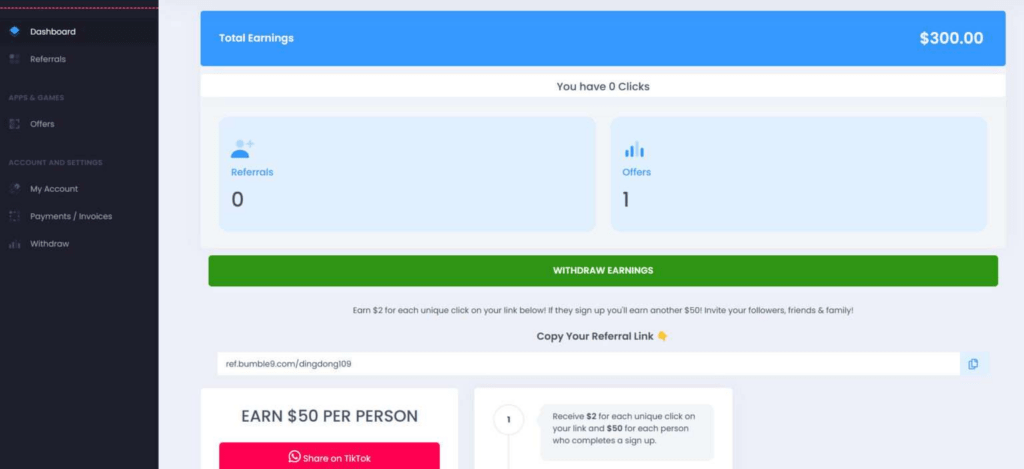
A new type of viral scam is capitalizing on interest in earning passive income through social media referrals. These scams, commonly known as “Bumble scams”, trap victims by promising easy money if they share referral links and get signups. However, the payouts advertised are completely fictional, and any funds shown in victim accounts exist only on a fabricated dashboard.
Here is a quick look at how the Bumble scam tricks targets:
- Scammers drive traffic to persuasive registration pages like Bumble9.com or Bumble360.xyz that promise to pay from $2-$50 for each referral signup. By emphasizing how easy it is to earn from home in your spare time, these pages convince visitors to hand over their personal information to register.
- After registering, victims are redirected to dashboards showing an available balance between $300-$500. This provides the illusion that earnings have already accrued from referrals, further reinforcing the scam’s legitimacy.
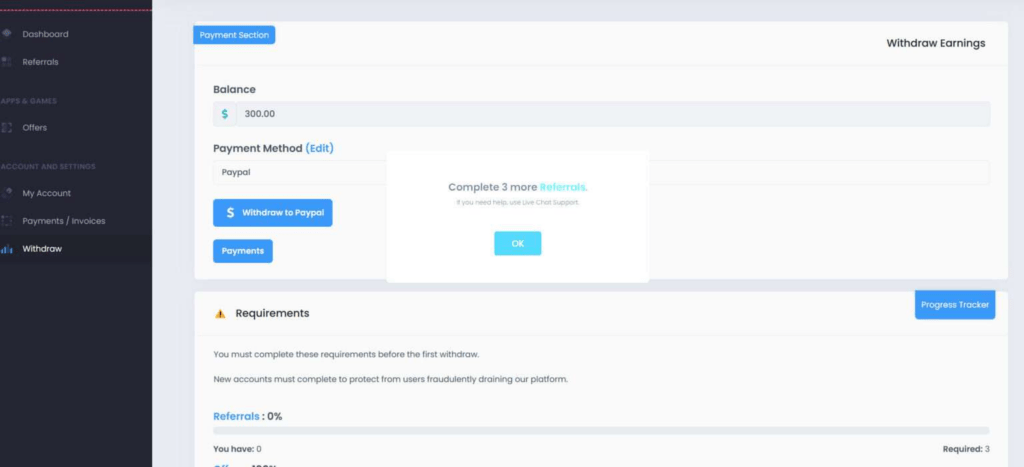
- When victims attempt to withdraw the funds shown in their account, the site imposes impossible requirements that prevent payouts. These include demands for 50+ direct referrals or 10 referrals who each have 10 referrals themselves.
- If a victim contacts customer support to inquire about withdrawals, the scammers will instruct them to pay a “verification fee” via cryptocurrency first to unlock payments. This introduces another means for the scammers to steal money.
- After accumulating enough victims, the Bumble scam cycles to a new domain name while using the same fraudulent site. Previous iterations have used domains like Bumble7.com, Bumble88.net, and Bumble360.xyz. This rebranding allows the scam to shed negative associations while continuing seamlessly.
The rebranding technique and endless referral requirements enable the Bumble scam to ensnare new victims endlessly. The fabricated balances provide compelling social proof that makes the scam appear highly legitimate. In reality, the site is only displaying fake earnings to deception victims, and no payments ever occur. Avoiding participation in any program promising easy passive income through social media referrals is crucial to avoid getting defrauded through this prevalent viral scam.
How the Bumble Scam Works
The Bumble scam tricks victims through a seamless process maximizing deception. Here is an in-depth look at each step:
Step 1: Luring Registration Pages
The scam starts by driving traffic to registration pages like Bumble9.com and other variants. These showcase persuasive claims of earning $2-$50 per referral and emphasize how easy it is to make money through social media.

The pages use language like “Earn from home”, “Get paid for your free time”, and “Enjoy daily income” to entice registrations. With promises of quick passive income requiring little effort, victims readily hand over their info.
Step 2: Fake Dashboard Displaying False Earnings
Once registered, the site redirects to a dashboard showing an available balance between $300-$500. This gives the false impression that funds have already been earned from referrals.
Below the balance, a widget prompts victims to “Copy Your Referral Link” for earning commissions. These claims reinforce that making money will be effortless.
Step 3: Imposing Impossible Withdrawal Requirements
When victims try withdrawing their balance, the site imposes arbitrary requirements preventing payouts. These include:
- Obtaining 50+ referrals before withdrawing.
- Getting 10 referrals who each have 10 referrals themselves.
Since these referral levels are extremely difficult, almost no one can withdraw funds. The cycle continues endlessly to trap victims.
Step 4: Deceitful Verification Fees
If victims inquire about withdrawing, support staff claim a one-time verification fee is required first. They direct victims to shady payment portals to pay large fees via cryptocurrency.
Once paid, the site invents new reasons why the verification was declined. The victim rarely sees any payments despite completing this process.
Step 5: Constant Rebranding Using New Domains
After accumulating enough victims, the Bumble scam rebrands itself using new domains tied to the same fraudulent site.
Previous iterations used Bumble4.com, Bumble7.com, and Bumble5.com. The site remains identical – only the domain name changes.
This rebranding allows the scam to shed negative associations while recruiting new victims. By generating fresh domains, the cycle continues indefinitely.
Here is an expanded “What To Do If You Are A Victim” section:
What To Do If You Are A Victim
If you lost money or compromised personal data through a Bumble scam, take these steps immediately to minimize damages:
Contact Financial Institutions and Payment Providers
Act swiftly to contact your bank, credit card provider, or any payment channels used to send money to the scammers. Ask them to halt any transactions that are still processing. The quicker you can stop payments, the better chance you have of recovering funds.
Provide information on when the payments occurred and the entity they were sent to. Point out these were fraudulent transactions to an illegal scam website you now realize was deceiving you.
Reset Passwords and Enable Two-Factor Authentication
If you used the same passwords on the scam site as other legitimate sites, change them immediately. This prevents the scammers from accessing your other accounts. Enable two-factor authentication as well for an added layer of security.
Prioritize changing credentials for any sites holding sensitive personal or financial information to deny scammers access. Monitor these accounts closely for suspicious activity.
Place Fraud Alerts and Monitor Credit Reports
Since scammers now have your personal information, there is risk of identity fraud. Combat this by placing fraud alerts on your credit reports. This requires creditors to verify your identity before opening new accounts, making it harder for scammers to act as you.
Also check your credit reports frequently yourself for any accounts you don’t recognize. Look for inquiries from creditors you didn’t contact yourself as well. Report any suspicious activity to the credit bureau right away.
Report the Scam to Relevant Agencies
To assist getting scam websites shut down, report your experience to agencies like:
- FTC Complaint Assistant
- FBI Internet Crime Complaint Center (IC3)
- BBB Scam Tracker
Provide details on the website, account names, payment channels, and any other relevant information. The more reports these agencies receive, the stronger the case for investigating and prosecuting the scammers.
Spread Awareness of the Scam
Post about your experience on social media and write online reviews warning others of the Bumble scam. Describe the red flags you overlooked and what you learned to help others avoid being victimized. This raises public awareness of the scam’s deceptive tactics.
By taking these steps, you can contain the damage from any Bumble scam encounter and prevent yourself from being victimized again in the future. Protect yourself and help safeguard others by acting quickly.
Is Your Device Infected? Run a Free Malware Scan
Slow performance, constant pop-ups, or strange behavior? These are classic signs of a malware infection. A quick way to check is to scan your device with Malwarebytes Free, one of the most trusted malware removal tools available. If you only visited a scam page and didn’t download or install anything, this scan is optional.
The free version detects and removes the most common threats, including:
- Adware — the cause of those annoying pop-ups
- Browser hijackers — unwanted redirects and changed homepages
- Trojans and spyware — hidden programs stealing your data
- Potentially unwanted programs (PUPs) — software you never asked for
👉 Select your device below — Windows, Mac, or Android — then follow the simple steps to download Malwarebytes, scan your system, and remove any threats it finds. The scan usually takes 5 to 20 minutes.
Run a Malware Scan with Malwarebytes for Windows
Malwarebytes is one of the most popular and trusted anti-malware tools for Windows — and it’s completely free for removing infections. It catches threats that many antivirus programs miss, including adware, browser hijackers, and trojans. Follow the steps below to scan your PC and remove what Malwarebytes finds.
Download Malwarebytes
Click the button below to download the latest version of Malwarebytes for Windows from the official source. The free version is all you need — it will scan your computer and remove adware, browser hijackers, and other malicious software at no cost.
Download MalwarebytesOfficial installer for Windows 11 and 10. Your download starts right away.Want real-time protection? See Malwarebytes Premium Malwarebytes Free for WindowsScans and removes malware at no cost
-
Install Malwarebytes
When the download finishes, open your Downloads folder and double-click the MBSetup file. If Windows shows a User Account Control pop-up, click “Yes” to allow the installation.

Follow the On-Screen Prompts to Install Malwarebytes
The setup wizard will walk you through a few quick screens:
-
Choose where you’re installing the program — “Personal Computer” or “Work Computer” — then click Next.

-
Malwarebytes will now install on your device. This usually takes under a minute.

-
When installation is complete, the “Welcome to Malwarebytes” screen will open automatically.

-
On the final screen, click Open Malwarebytes to launch the program.

-
Optional: Check for rootkits with a Custom Scan
You don’t need to change any settings for a normal scan. The standard Threat Scan in the next step is enough for most problems, so you can go straight to it.
If you also want to check for rootkits, use a Custom Scan. In current versions of Malwarebytes, rootkit scanning is only available there:
- On the Scanner tile, click the three-dot menu and select Advanced Scan.
- Choose Custom Scan. In its options, check Scan for rootkits.
- Select your system drive (usually C:\) as the location to scan, then start the scan. It takes longer than a Threat Scan.
- When it finishes, review and quarantine the results as described in the steps below.
Rootkit scanning isn’t available on Windows devices with ARM processors.
Start the Scan
Click the blue Scan button. Malwarebytes will automatically update its virus database and start checking your computer for malware.

-
Wait for the Scan to Finish
The scan checks your entire system for browser hijackers and other malicious programs, so it can take 5 to 20 minutes depending on your computer. Feel free to do something else — just check back occasionally to see the progress.

-
Quarantine the Detected Threats
When the scan is done, you’ll see a list of everything Malwarebytes found — malware, adware, and potentially unwanted programs. Click the “Quarantine” button to remove all of them at once.

Malwarebytes will now remove the malicious files and registry entries and move them safely into quarantine.

-
Restart Your Computer
Some threats can only be fully removed after a reboot. If Malwarebytes asks you to restart, click Yes. Once you’re logged back in, Malwarebytes has finished removing the threats it found.

When the scan is done, check whether the problems you noticed have stopped. If they continue, see the options below.
If you are still having problems with your computer after completing these instructions, then please follow one of the steps:
- Run a computer scan with ESET Online Scanner
- Ask for help in our Windows Malware Removal Help & Support forum.
Run a Malware Scan with Malwarebytes for Mac
Malwarebytes for Mac is a free on-demand scanner that removes the malware other security software tends to miss — adware, browser hijackers, and unwanted programs included. Cleaning an infected Mac with Malwarebytes has always been completely free, and it’s our go-to recommendation. Follow the steps below to scan your Mac and remove what Malwarebytes finds.
-
Download Malwarebytes for Mac
Click the button below to download the latest version of Malwarebytes for Mac.
Download MalwarebytesOfficial installer for macOS. Your download starts right away.Want real-time protection? See Malwarebytes PremiumMalwarebytes Free for MacScans and removes malware at no cost -
Open the Malwarebytes setup file
When the download finishes, open your Downloads folder and double-click the setup file to begin the installation.

-
Follow the On-Screen Prompts to Install Malwarebytes
The Malwarebytes for Mac Installer will guide you through a few quick screens. Click “Continue” and keep following the prompts until the installation completes.



When the installation is complete, Malwarebytes opens to the Welcome to Malwarebytes screen. Click “Get started“.
Malwarebytes needs Full Disk Access to check your whole Mac. When it asks, open System Settings > Privacy & Security > Full Disk Access, turn on Malwarebytes (it may be listed as Malwarebytes Protection), and confirm with your password or Touch ID. Then return to Malwarebytes. On macOS Monterey and earlier, this setting is in System Preferences > Security & Privacy > Privacy.
-
Select “Personal Computer” or “Work Computer”
Malwarebytes will ask what type of computer you’re installing it on. Click either Personal Computer or Work Computer, whichever applies.

-
Start the Scan
Click the “Scan” button. Malwarebytes will automatically update its detection database and begin checking your Mac for malware.

-
Wait for the Scan to Finish
Malwarebytes will scan your Mac for adware, browser hijackers, and other malicious programs. This can take a few minutes, so feel free to do something else — just check back occasionally to see the progress.

-
Quarantine the Detected Threats
When the scan is done, you’ll see a list of everything Malwarebytes found. Click the “Quarantine” button to remove all the threats at once.

-
Restart Your Mac
Malwarebytes will now remove all the malicious files it found. Some threats can only be fully removed after a reboot — if Malwarebytes asks you to restart, allow it. Once you’re logged back in, check whether the problems you noticed have stopped. If they come back, save the scan report and ask for help in our forum.

If the problems you noticed continue after the scan, see the options below.
If you are still experiencing problems while trying to remove a malicious program from your computer, please ask for help in our Mac Malware Removal Help & Support forum.
Run a Malware Scan with Malwarebytes for Android
Malwarebytes for Android scans your phone or tablet for malware, adware, and potentially unwanted apps. The free version scans only when you start a scan. Real-time protection, which checks apps automatically, is part of the paid Premium version.
-
Download Malwarebytes for Android.
You can download Malwarebytes for Android by clicking the link below.
Get Malwarebytes for AndroidOpens Google Play in a new tab.Want real-time protection? See Malwarebytes Premium for AndroidMalwarebytes for AndroidScans your phone and removes malware at no cost -
Install Malwarebytes for Android on your phone.
In the Google Play Store, tap “Install” to install Malwarebytes for Android on your device.

When the installation process has finished, tap “Open” to begin using Malwarebytes for Android. You can also open Malwarebytes by tapping on its icon in your phone menu or home screen.

-
Follow the on-screen prompts to complete the setup process
When Malwarebytes opens, it walks you through a short setup. Tap Get started and follow the prompts. If you see an offer for a trial or a paid plan, read it before you accept. You can skip it and keep using the free scanner.
Malwarebytes will ask for permission to access the files on your phone so it can scan them. Tap Allow, or turn on the permission in the Android screen that opens, then return to Malwarebytes.
-
Run a scan with Malwarebytes for Android
On the main screen, tap Scan now. In some versions, you open the menu, tap Scanner, and then tap Run a scan.
-
Wait for the Malwarebytes scan to complete.
Malwarebytes will now start scanning your phone for adware and other malicious apps. This process can take a few minutes, so we suggest you do something else and periodically check on the status of the scan to see when it is finished.

-
Remove the detected apps.
When the scan has been completed, you will see a list of the threats that Malwarebytes for Android has detected. Next to each detected item, tap the menu icon (three dots), then choose to uninstall the app or delete the file. Android then asks you to confirm. Tap OK or Uninstall to remove the app.
-
Restart your phone.
When the detected apps are removed, restart your phone if Malwarebytes asks you to. Then check whether the problems you noticed have stopped.
If the problems you noticed continue after the scan, see the options below.
If you are still having problems with your phone after completing these instructions, then please follow one of the steps:
- Ask for help in our Mobile Malware Removal Help & Support forum.
- Only as a last resort, reset your phone to factory settings. Read the warning below first.
- Back up your photos, videos, files, and messages, for example to your Google account or a computer.
- Make sure you know your Google account email and password. The phone asks for them after the reset. If you changed the password recently, Google recommends waiting 24 hours before you reset.
- On a Samsung phone, also make sure you know your Samsung account password.
- If you use an authenticator app for two-step verification, move your accounts to another device or save your backup codes first.
Stay Protected: Block Ads and Malicious Sites
No scan can prove a device is completely clean, so it helps to block threats before they reach you. Most infections start with a malicious ad or a fake download button — so blocking them at the source is your best defense.
We recommend AdGuard, which blocks malicious ads, phishing pages, and dangerous redirects before they can reach you.
👉 Download AdGuard and browse safely
Frequently Asked Questions About the Bumble Scam
1. What is the Bumble scam?
The Bumble scam is an online fraud promising users easy money if they share referral links and get signups. Users are directed to sites like Bumble9.com and asked to register. After signing up, they see dashboard balances of $300-$500, implying they’ve already earned money. However, funds can never be withdrawn due to endless referral requirements invented by the scammers. The goal is to steal personal information and convince victims to pay fake “verification fees.”
2. How does the Bumble scam work?
The scam begins by driving traffic to persuasive registration pages promising payments per referral, typically $2-$50. After registering, users are shown dashboards with balances already earned to reinforce legitimacy. When withdrawing funds, impossible requirements are imposed, like 50 direct referrals. If users contact support, they are told to pay a fee to “verify” their account and unlock withdrawals. The cycle continues as the site rebrands under new domains to find new victims.
3. What are some examples of Bumble scam websites?
Some known examples of scam domains used are Bumble9.com, Bumble360.xyz, Bumble7.com, Bumble88.net, and Bumble500.com. The site is rebranded regularly using new domains tied to the same fraudulent company. The format often includes “Bumble” and a number.
4. How can you identify the Bumble scam?
Red flags include promises of easy money by sharing links, earnings dashboards showing balances before you’ve done any work, extremely difficult withdrawal requirements, and demands for account verification fees. Avoid any site promoting easy income through referrals.
5. How much money can you make with the Bumble scam?
You cannot earn any money through Bumble scams – any balances shown are fabricated with the intent to deceive. No funds can ever be withdrawn, as endless excuses will be invented requiring more referrals or fees. All money sent is lost to the scammers.
6. Is Bumble the dating app associated with this scam?
No, the popular dating app Bumble is not involved. The scammers simply use “Bumble” in their website names to give legitimacy through brand recognition. Do not trust any site promising easy money related to Bumble.
7. What should you do if you are a victim of the Bumble scam?
Contact your bank to halt payments, reset passwords on compromised accounts, place fraud alerts with credit bureaus, report the scam to authorities, and spread awareness about the scam online to help protect others. Learn more about recovering here [link to victim section].
8. How can you avoid the Bumble scam?
Be wary of promised passive income opportunities online requiring little work, especially through referral programs. Check site legitimacy, read reviews, and search if the domain is associated with scams. Avoid entering personal info or payment details into any suspicious platform.
9. Are Bumble scams illegal?
Yes, Bumble scams violate various laws against online fraud, deceptive advertising, and identity theft. However, most operate overseas using fake business identities, making prosecutions challenging. Reporting scams helps law enforcement pursue legal action when possible.
10. Who typically gets targeted for Bumble scams?
Anyone looking to earn extra income online in their spare time can be targeted. Students, stay-at-home parents, retirees, and remote workers often get ensnared given the promises of easy passive money through social media. Be vigilant and never provide personal data to earn income online.
The Bottom Line
The Bumble scam exploits promises of passive income via social media referrals. Using deception at every stage, the scam ensnares countless victims lured by seemingly easy money.
Avoiding any website promoting similar money-making schemes protects you from losing money in this viral scam. Exercise extreme caution with promised income opportunities requiring only referral sharing to maximize safety online.

Join the discussion
0 commentsShare your experience or ask a question about this article.
Discussion
Start the conversation
Have a question or something useful to share? Add the first comment.