

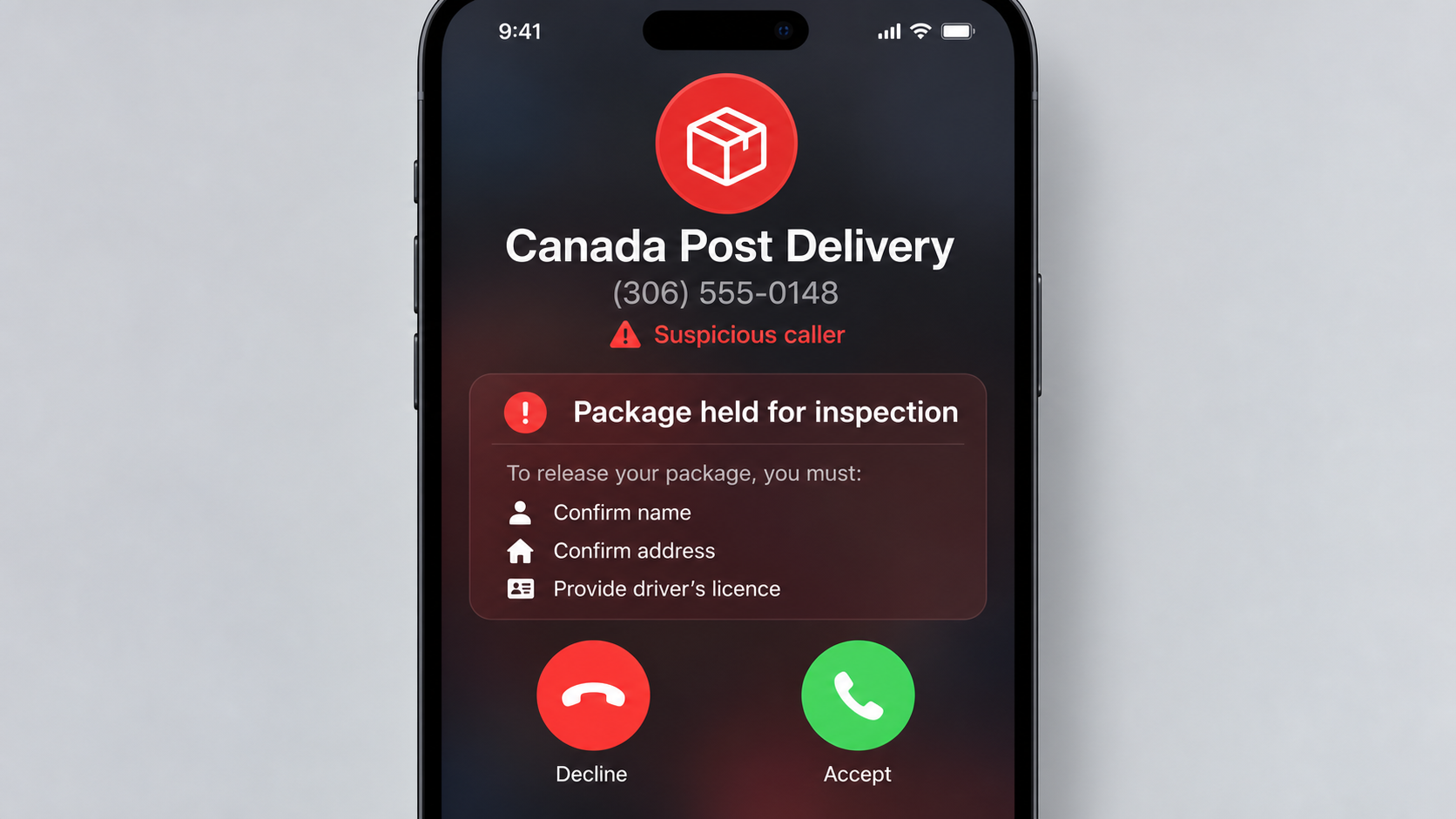
A caller says Canada Post is holding a package connected to your name. The delivery problem sounds routine until the questions become strangely personal.
The voice may know one accurate detail, which makes the next request feel reasonable. That small advantage is often enough to keep someone listening.
Overview
The call is an impersonation attempt
The Canada Post package scam call is a vishing operation that uses a supposed delivery problem to collect identity information.
“Vishing” means phishing conducted by voice, usually through an unsolicited telephone call or recorded message.
The caller may claim a parcel is delayed, incorrectly addressed, intercepted, suspicious, or waiting for identity verification.
Canada Post is the organization being impersonated and is not responsible for the fraudulent call.
The package story can change quickly
One reported call came from caller ID 306-660-6963 and involved questions about a name, address, and driver’s licence.
That number is a reported display value, not proof of where the call originated.
Telephone identifiers can be spoofed, reassigned, or manipulated by internet calling systems.
The operator may switch from ordinary delivery verification to drugs, customs violations, unpaid fees, or identity theft when fear produces a stronger reaction.
The safest response is independent verification
Hang up without confirming personal details and check the package through Canada Post’s official website or application.
Enter a tracking number obtained from the retailer or genuine shipping confirmation, not from the caller.
If no expected shipment matches the story, the call has even less credibility.
Common warning signs include:
- An unsolicited caller asks you to verify a full address or licence number.
- The parcel cannot be identified with a valid tracking number.
- The caller threatens seizure, police action, fines, or immediate return.
- A small delivery fee must be paid through an unusual method.
- The operator refuses to let you verify through official Canada Post channels.
- You are transferred to supposed customs, police, or fraud departments.
- The caller asks for a one-time code sent to your telephone.
- The number displayed on your screen is treated as proof of identity.
Why the Caller May Already Know Your Name
Many people assume a caller must be legitimate when the person knows who answered.
Names and telephone numbers are not difficult for criminals to obtain.
They can appear in breached databases, marketing lists, public directories, social profiles, delivery records, and previous scam responses.
A caller may also guess the name from voicemail or ask a vague question that encourages the recipient to supply it.
Knowing one detail is useful because it changes the conversation from “Who are you?” to “What happened to my package?”
The criminal then collects additional facts one at a time.
A full address can help answer credit questions, redirect mail, or make later impersonation messages more convincing.
A driver’s licence number is far more sensitive because it is a durable government identifier.
Date of birth, postal code, and email address can complete an identity profile.
The information may be used directly or sold to another criminal group.
Never “correct” a caller who reads an old or incomplete address.
That apparent mistake may be a deliberate prompt designed to make you provide the current information.
The Reported 306-660-6963 Number Does Not Authenticate the Call
Consumers have associated 306-660-6963 with a suspicious Canada Post package-verification call.
Reporting the number helps other recipients recognize the current script.
It should not be used to accuse the present subscriber because caller ID does not establish ownership or origin.
Scammers can choose a local area code so the call feels familiar.
They can also imitate a genuine business number through caller-ID spoofing.
A trustworthy-looking display name is equally weak evidence.
Your telephone normally shows data supplied through the calling network, not a verified identity document.
Blocking the number may stop one route, but the same operation can call again from another displayed identifier.
The durable defense is recognizing the behavior.
An incoming call should never become the place where you disclose sensitive information about a shipment.
End the conversation, locate the official contact independently, and begin a new call yourself if verification remains necessary.
How the Canada Post Package Scam Call Works
Step 1: The criminal selects a believable everyday event
Millions of Canadians regularly expect online orders, replacement cards, documents, gifts, and marketplace purchases.
A random package story therefore has a good chance of reaching someone who is already waiting for delivery.
The caller does not need access to Canada Post systems for coincidence to create credibility.
Step 2: A local-looking caller ID lowers suspicion
The call may display a Saskatchewan, Ontario, British Columbia, or other familiar area code.
Some screens can even show a business-style label.
Spoofing allows the operator to choose an identifier unrelated to the true location.
Step 3: The package problem creates urgency
The operator says the address is incomplete, the parcel is blocked, or suspicious contents were found.
A deadline may be added, such as return within hours or transfer to authorities.
The recipient feels pressure to resolve the issue before independently checking it.
Step 4: Routine questions build an identity file
The caller begins with information that sounds relevant to delivery, including name, street, postal code, and telephone number.
More intrusive requests follow after the recipient has already cooperated.
A licence number, birth date, account login, or verification code has no reasonable role in an unexpected package call.
Step 5: The script introduces money or a more serious threat
A small redelivery or customs fee may be requested to capture card details.
In another version, the parcel supposedly contains illegal items and exposes the recipient to investigation.
The criminal offers to transfer the frightened person to a fake government officer.
Step 6: A second impersonator reinforces the story
The next voice may claim to represent police, border services, a bank, or a national fraud unit.
The transfer creates the illusion that separate institutions confirmed the same emergency.
In reality, people at the same operation may simply pass the call between extensions.
Step 7: Stolen details support later attacks
Even when no payment occurs, the collected identity data remains valuable.
Follow-up texts can mention the victim’s real address, bank, or supposed case number.
Those details make account-takeover, credit, parcel-redirection, and recovery scams more persuasive.
The Main Variations of the Package Story
A redelivery script claims the parcel cannot be delivered until the address is confirmed.
The caller might send a link that copies Canada Post branding and requests a small card payment.
A customs script says taxes or import fees remain unpaid.
Real import charges can exist, but an unsolicited caller should not dictate an unfamiliar payment channel.
A prohibited-contents script alleges that drugs, passports, cash, or illegal purchases were discovered.
This version uses shame and fear to stop the recipient from contacting family or local police.
An identity-theft script claims someone used the victim’s name to send the suspicious parcel.
The operator then requests sensitive documents under the pretext of clearing the person’s record.
A missed-delivery version sounds less threatening.
It asks the recipient to confirm availability and location, which can reveal when a home is empty.
Some operations combine methods by calling first and sending a fake tracking link during the conversation.
The real purpose may change according to what the victim reveals.
Information You Should Never Give an Unexpected Caller
Do not provide a driver’s licence number, passport number, Social Insurance Number, banking login, card security code, or one-time authentication code.
A courier does not need remote access to your telephone or computer to locate a parcel.
Do not install an application at the caller’s direction.
Legitimate remote-support software can be abused to view screens, intercept messages, and control financial sessions.
A photograph of identification can be more dangerous than reading one number because it includes several reusable data points.
Do not send a selfie holding the document.
That combination may help criminals bypass identity checks on financial platforms.
Never read a one-time code aloud, regardless of what the text says.
The code may authorize a password reset or a new digital wallet.
Even ordinary information should be minimized.
Confirming an email address or current location tells the operation that the record is active and the recipient is responsive.
How to Verify a Real Canada Post Delivery
Begin with the retailer, sender, or marketplace where the purchase originated.
Open the account independently and locate its shipping details.
Copy the tracking number into the official Canada Post website or application.
Do not use a link supplied by the incoming caller or a later text.
A genuine tracking record should show events that correspond with the known order.
Be cautious when a number produces no result or shows activity unrelated to your location.
If a card or document is expected, contact the issuing organization through its published number.
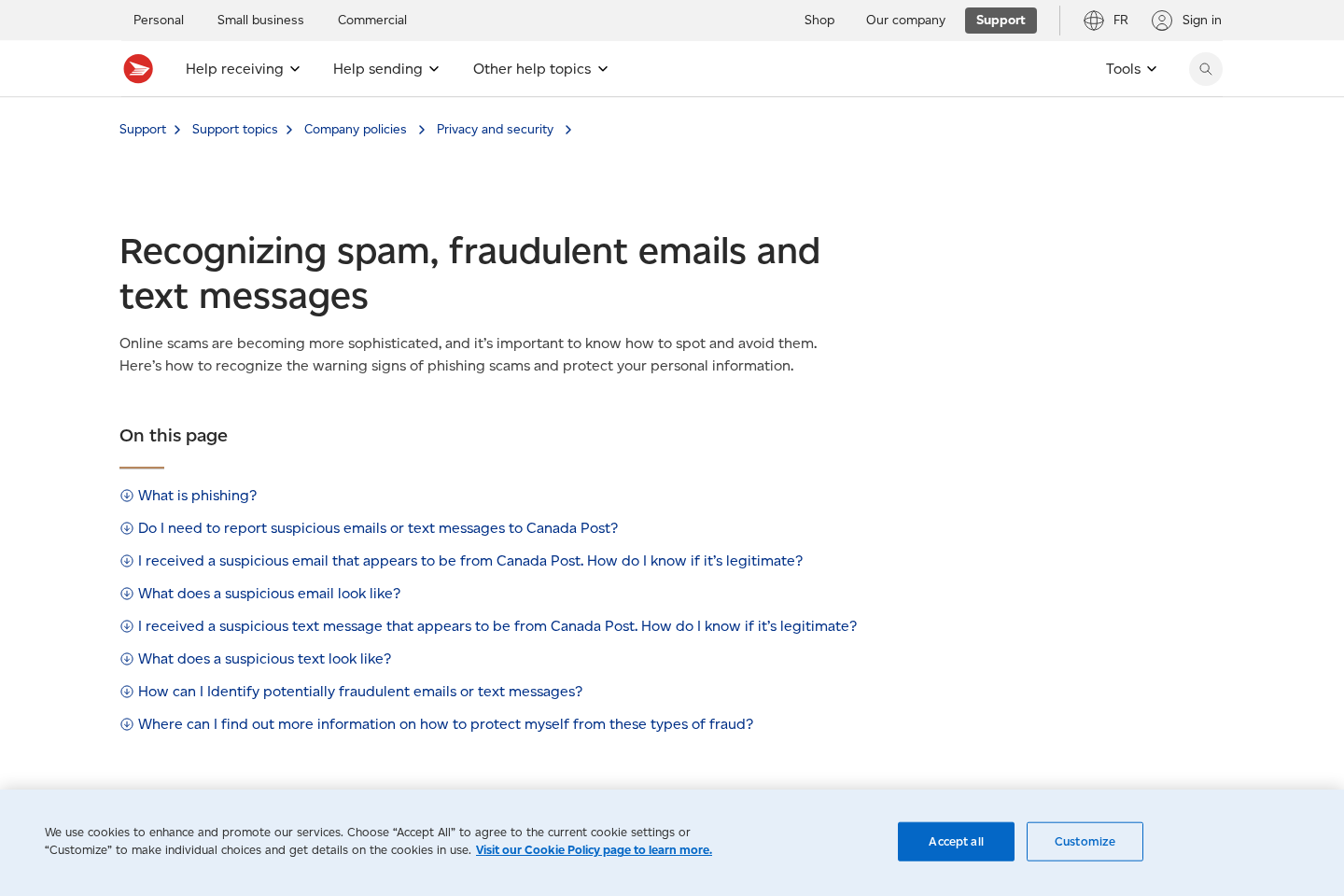
Canada Post advises customers not to provide personal or financial information in response to suspicious communications.
When necessary, call Canada Post using contact details found on its official domain.
Explain that you ended an unsolicited verification call and want to check an expected shipment.
A legitimate representative will not object to independent confirmation.
The ability to pause is one of the clearest differences between a real service problem and a pressure script.
When the Caller Pretends to Transfer You to Police
The most frightening variation begins after the supposed parcel problem has already been established.
The operator says illegal contents were shipped using your identity and that a criminal investigation is now open.
You may hear a badge number, case number, department name, or carefully rehearsed legal language.
None of those details verifies the person speaking.
A second operator can join the line and introduce themselves as a police officer, border agent, investigator, or bank-security specialist.
The staged transfer makes the situation feel independently confirmed.
The impersonator may order you to remain on the line, avoid local police, or keep the case secret from family.
Secrecy prevents calmer people from interrupting the manipulation.
The victim may be instructed to move money into a “safe account” while an investigation supposedly continues.
No legitimate authority protects funds by transferring them to an account controlled by a stranger.
Another version asks for gift cards, cryptocurrency, cash deposits, or payment to clear an arrest warrant.
Real Canadian agencies do not cancel criminal allegations through secret retail payments.
Do not follow instructions to visit several banks or stores.
Criminals may divide transactions to avoid fraud warnings and tell the victim to lie about the reason.
That coaching proves the payment route cannot withstand honest scrutiny.
Hang up and contact local police through a published number if a threat remains concerning.
Do not press a key or accept a transfer offered by the suspicious caller.
A genuine official can document your independent call and explain whether any real case exists.
Company, Address, and Fulfillment Checks
Canada Post is legitimate and is being impersonated
Canada Post is the country’s national postal service and operates official tracking, delivery notices, support channels, and retail locations.
This article concerns criminals borrowing that identity.
Never interpret a scam report as evidence that the genuine postal organization initiated the call.
Use the official domain to reach it.
Caller ID is not a company record
A displayed number cannot prove that a call came from a Canada Post office, contractor, or local facility.
Numbers can be spoofed and legitimate subscribers can be impersonated.
Search results showing previous complaints are useful warnings, but they do not establish the caller’s physical address.
Do not confront an unrelated number owner.
A real parcel should have a traceable commercial origin
Verify the retailer, sender, purchase date, order number, destination, and tracking history.
A criminal often cannot connect the invented package to a genuine transaction.
If the caller says secrecy is required, that instruction is another warning.
Real delivery questions can be discussed with the sender and official postal support.
Payment routes reveal the impersonation
Inspect the exact merchant and web domain before paying any fee.
Gift cards, cryptocurrency, wire transfers, and remote banking access are never normal solutions for a delayed package.
A small card charge can be used to capture full payment details for larger fraud.
Contact the issuer if anything was entered.
What to Do if You Have Fallen Victim to This Scam
- End the contact immediately. Stop answering questions, do not call back, and avoid any links or applications the operator provided.
- Write down what was disclosed. Record the time, displayed number, exact claims, names used, and every personal or financial detail shared.
- Contact financial institutions. Freeze affected cards, secure banking access, and ask fraud staff to monitor or reverse unauthorized transactions.
- Protect government identification. Notify the appropriate provincial licensing authority if a driver’s licence number or image was exposed.
- Change compromised passwords. Begin with email, banking, shopping, and mobile accounts, then enable unique passwords and multifactor authentication.
- Call the mobile provider when necessary. Add account protections if enough information was shared to support a SIM-swap attempt.
- Check devices and browsers. Use Malwarebytes after suspicious downloads, and enable AdGuard to reduce malicious advertisements, trackers, and phishing redirects.
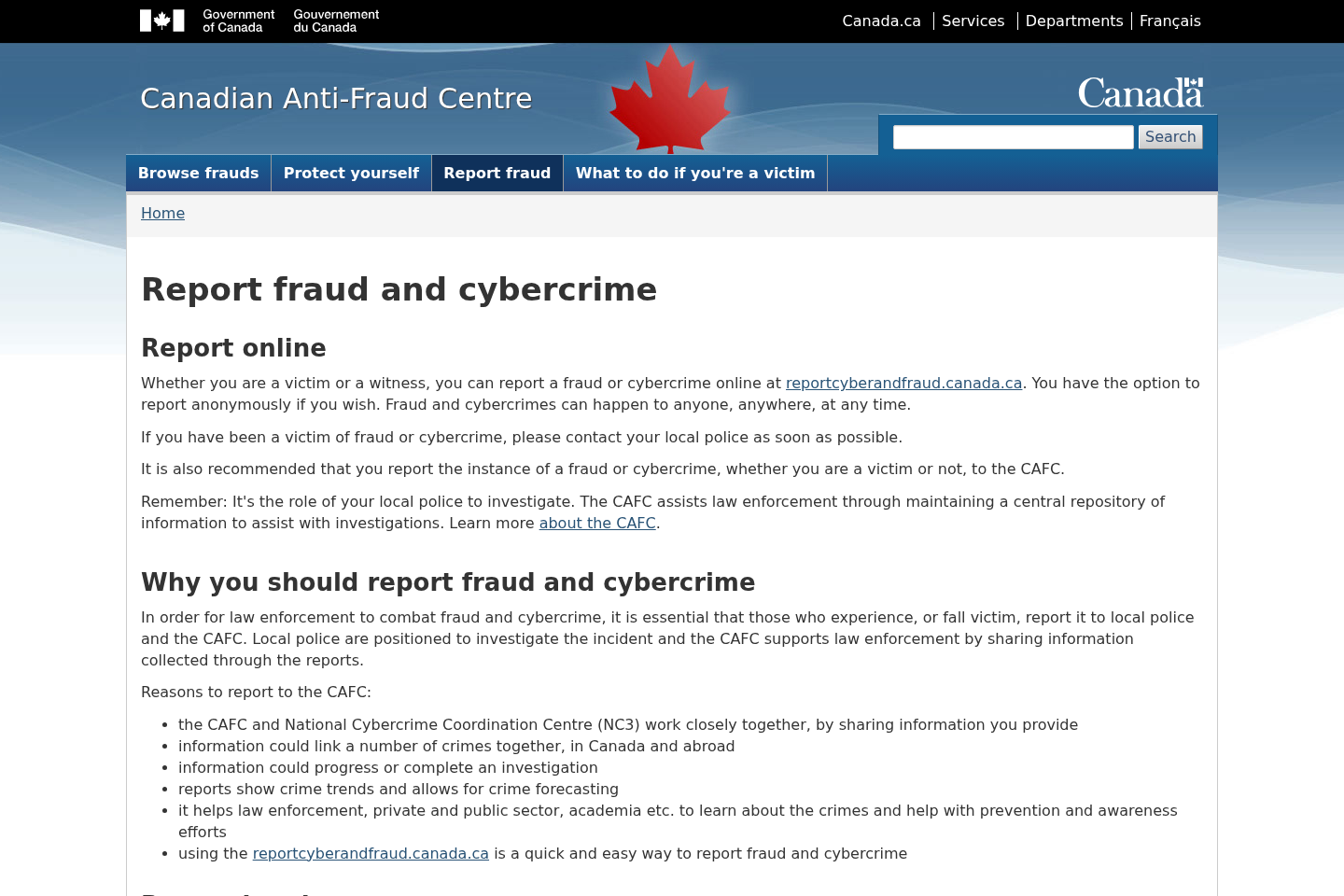
- Report the incident. Contact the Canadian Anti-Fraud Centre, local police for losses, Canada Post, and the platform carrying any related message.
- Watch for follow-up impersonators. Criminals may pose as banks, police, or recovery agents because they already know details from the first call.
Is Your Device Infected? Run a Free Malware Scan
Slow performance, constant pop-ups, or strange behavior? These are classic signs of a malware infection. The fastest way to find out is to scan your device with Malwarebytes Free — one of the most trusted malware removal tools available.
The free version detects and removes the most common threats, including:
- Adware — the cause of those annoying pop-ups
- Browser hijackers — unwanted redirects and changed homepages
- Trojans and spyware — hidden programs stealing your data
- Potentially unwanted programs (PUPs) — software you never asked for
👉 Select your device below — Windows, Mac, or Android — then follow the simple steps to download Malwarebytes, scan your system, and remove any threats it finds. The scan usually takes 5 to 20 minutes.
Run a Malware Scan with Malwarebytes for Windows
Malwarebytes is one of the most popular and trusted anti-malware tools for Windows — and it’s completely free for removing infections. It catches threats that many antivirus programs miss, including adware, browser hijackers, and trojans. Follow the steps below to scan and clean your PC in just a few minutes.
Download Malwarebytes
Click the button below to download the latest version of Malwarebytes for Windows from the official source. The free version is all you need — it will scan your computer and remove adware, browser hijackers, and other malicious software at no cost.
Download MalwarebytesOfficial installer for Windows 11 and 10. Your download starts right away.Want real-time protection? See Malwarebytes Premium Malwarebytes Free for WindowsScans and removes malware at no cost
-
Install Malwarebytes
When the download finishes, open your Downloads folder and double-click the MBSetup file. If Windows shows a User Account Control pop-up, click “Yes” to allow the installation.

Follow the On-Screen Prompts to Install Malwarebytes
The setup wizard will walk you through a few quick screens:
-
Choose where you’re installing the program — “Personal Computer” or “Work Computer” — then click Next.

-
Malwarebytes will now install on your device. This usually takes under a minute.

-
When installation is complete, the “Welcome to Malwarebytes” screen will open automatically.

-
On the final screen, click Open Malwarebytes to launch the program.

-
Enable “Scan for Rootkits”
Before scanning, turn on rootkit detection so Malwarebytes can find even the most hidden threats. Click the Settings gear icon on the left side of the screen.

In the settings menu, find “Scan for rootkits” and click the toggle so it turns blue.

Done? Click “Dashboard” in the left pane to return to the main screen.
Start the Scan
Click the blue Scan button. Malwarebytes will automatically update its virus database and start checking your computer for malware.

-
Wait for the Scan to Finish
The scan checks your entire system for browser hijackers and other malicious programs, so it can take 5 to 20 minutes depending on your computer. Feel free to do something else — just check back occasionally to see the progress.

-
Quarantine the Detected Threats
When the scan is done, you’ll see a list of everything Malwarebytes found — malware, adware, and potentially unwanted programs. Click the “Quarantine” button to remove all of them at once.

Malwarebytes will now remove the malicious files and registry entries and move them safely into quarantine.

-
Restart Your Computer
Some threats can only be fully removed after a reboot. If Malwarebytes asks you to restart, click Yes. Once you’re logged back in, Malwarebytes has finished removing the threats it found.

That’s it — your Windows PC is now clean of trojans, adware, and other malware, and should be back to running smoothly.
If you are still having problems with your computer after completing these instructions, then please follow one of the steps:
- Run a computer scan with ESET Online Scanner
- Ask for help in our Windows Malware Removal Help & Support forum.
Run a Malware Scan with Malwarebytes for Mac
Malwarebytes for Mac is a free on-demand scanner that removes the malware other security software tends to miss — adware, browser hijackers, and unwanted programs included. Cleaning an infected Mac with Malwarebytes has always been completely free, and it’s our go-to recommendation. Follow the steps below to scan and clean your Mac in just a few minutes.
-
Download Malwarebytes for Mac
Click the button below to download the latest version of Malwarebytes for Mac.
Download MalwarebytesOfficial installer for macOS. Your download starts right away.Want real-time protection? See Malwarebytes PremiumMalwarebytes Free for MacScans and removes malware at no cost -
Open the Malwarebytes setup file
When the download finishes, open your Downloads folder and double-click the setup file to begin the installation.

-
Follow the On-Screen Prompts to Install Malwarebytes
The Malwarebytes for Mac Installer will guide you through a few quick screens. Click “Continue” and keep following the prompts until the installation completes.



When the installation is complete, Malwarebytes opens to the Welcome to Malwarebytes screen. Click “Get started“.
-
Select “Personal Computer” or “Work Computer”
Malwarebytes will ask what type of computer you’re installing it on. Click either Personal Computer or Work Computer, whichever applies.

-
Start the Scan
Click the “Scan” button. Malwarebytes will automatically update its detection database and begin checking your Mac for malware.

-
Wait for the Scan to Finish
Malwarebytes will scan your Mac for adware, browser hijackers, and other malicious programs. This can take a few minutes, so feel free to do something else — just check back occasionally to see the progress.

-
Quarantine the Detected Threats
When the scan is done, you’ll see a list of everything Malwarebytes found. Click the “Quarantine” button to remove all the threats at once.

-
Restart Your Mac
Malwarebytes will now remove all the malicious files it found. Some threats can only be fully removed after a reboot — if Malwarebytes asks you to restart, allow it. Once you’re logged back in, your Mac is clean.

That’s it — your Mac is now free of adware, rogue browser extensions, and other potentially harmful software.
If you are still experiencing problems while trying to remove a malicious program from your computer, please ask for help in our Mac Malware Removal Help & Support forum.
Run a Malware Scan with Malwarebytes for Android
Malwarebytes for Android automatically detects and removes dangerous threats like malware and ransomware so you don’t have to worry about your most-used device being compromised. Aggressive detection of adware and potentially unwanted programs keeps your Android phone or tablet running smooth.
-
Download Malwarebytes for Android.
You can download Malwarebytes for Android by clicking the link below.
Get Malwarebytes for AndroidOpens Google Play in a new tab.Want real-time protection? See Malwarebytes Premium for AndroidMalwarebytes for AndroidScans your phone and removes malware at no cost -
Install Malwarebytes for Android on your phone.
In the Google Play Store, tap “Install” to install Malwarebytes for Android on your device.

When the installation process has finished, tap “Open” to begin using Malwarebytes for Android. You can also open Malwarebytes by tapping on its icon in your phone menu or home screen.

-
Follow the on-screen prompts to complete the setup process
When Malwarebytes will open, you will see the Malwarebytes Setup Wizard which will guide you through a series of permissions and other setup options.
This is the first of two screens that explain the difference between the Premium and Free versions. Swipe this screen to continue.
Tap on “Got it” to proceed to the next step.
Malwarebytes for Android will now ask for a set of permissions that are required to scan your device and protect it from malware. Tap on “Give permission” to continue.
Tap on “Allow” to permit Malwarebytes to access the files on your phone.
-
Update database and run a scan with Malwarebytes for Android
You will now be prompted to update the Malwarebytes database and run a full system scan.

Click on “Update database” to update the Malwarebytes for Android definitions to the latest version, then click on “Run full scan” to perform a system scan.

-
Wait for the Malwarebytes scan to complete.
Malwarebytes will now start scanning your phone for adware and other malicious apps. This process can take a few minutes, so we suggest you do something else and periodically check on the status of the scan to see when it is finished.

-
Click on “Remove Selected”.
When the scan has been completed, you will be presented with a screen showing the malware infections that Malwarebytes for Android has detected. To remove the malicious apps that Malwarebytes has found, tap on the “Remove Selected” button.

-
Restart your phone.
Malwarebytes for Android will now remove all the malicious apps that it has found. To complete the malware removal process, Malwarebytes may ask you to restart your device.
That’s it — your Android phone is now clean — no more malicious apps, adware, or browser redirects.
If you are still having problems with your phone after completing these instructions, then please follow one of the steps:
- Restore your phone to factory settings by going to Settings > General management > Reset > Factory data reset.
- Ask for help in our Mobile Malware Removal Help & Support forum.
Stay Protected: Block Ads and Malicious Sites
Now that your device is clean, keep it that way. Most infections start with a malicious ad or a fake download button — so blocking them at the source is your best defense.
We recommend AdGuard, which blocks malicious ads, phishing pages, and dangerous redirects before they can reach you.
👉 Download AdGuard and browse safely
Frequently Asked Questions
Does Canada Post call customers about packages?
Legitimate contact can occur in some delivery circumstances, but an incoming call should never be trusted solely because of its display name.
Verify independently through official tracking and support.
Is 306-660-6963 a confirmed scammer’s number?
It has been reported in connection with a suspicious package call.
Caller-ID spoofing means the display does not prove the true origin or implicate the number’s current owner.
Why would a caller ask for my driver’s licence?
The information can support identity theft, account recovery attempts, fraudulent applications, or more convincing follow-up scams.
Do not provide it during an unexpected delivery call.
Can a $1 or $2 redelivery fee be dangerous?
Yes. The small amount can make a fake payment page feel harmless while criminals capture the complete card details entered.
What if the caller knew my name and address?
Those details may come from public records, commerce data, or previous breaches.
They do not prove access to Canada Post systems or knowledge of a real parcel.
Where should I report the call?
Report it to the Canadian Anti-Fraud Centre and Canada Post.
Contact local police and financial institutions promptly if identification or money was taken.
The Bottom Line
The Canada Post package scam call turns an everyday delivery concern into a route for identity theft, payment fraud, or a more elaborate impersonation scheme.
Hang up, verify through official channels, protect any exposed information, and remember that a familiar caller ID is not proof of a caller’s identity.

Join the discussion
0 commentsShare your experience or ask a question about this article.
Discussion
Start the conversation
Have a question or something useful to share? Add the first comment.