

The message opens with advice every cryptocurrency owner recognizes. Never surrender your coins, private keys, or recovery phrase to another person.
That sensible warning creates an unusual feeling of safety. The offer that follows deserves far more scrutiny than its cautious opening suggests.
Overview
A safety lesson disguises an investment pitch
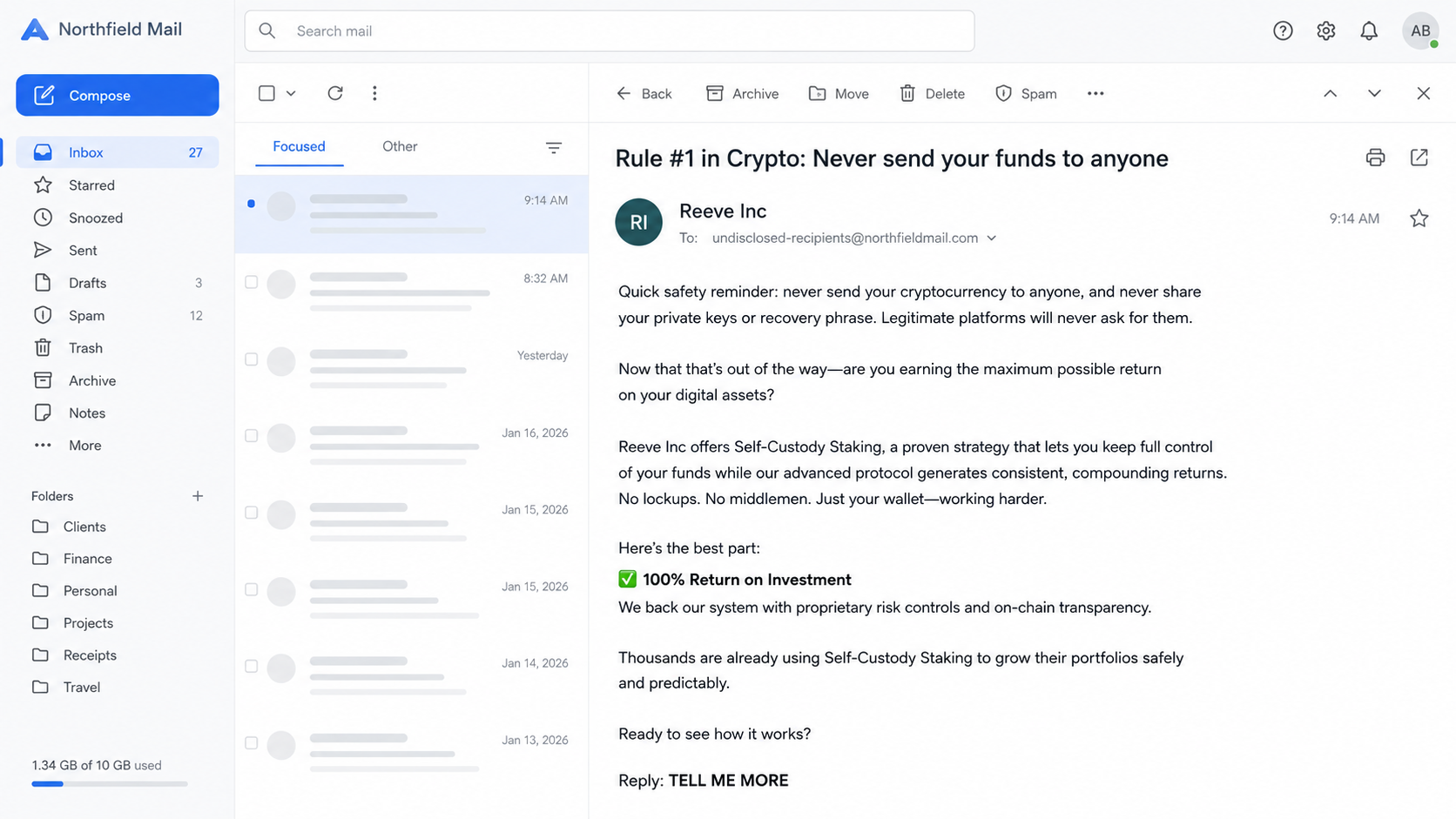
The email uses the subject “Rule #1 in Crypto: Never send your funds to anyone.” That statement lowers the reader’s defenses immediately.
After warning against custodial risk, the sender promotes “Self-Custody Staking” and claims the recipient can earn while retaining wallet control.
The offer is signed by someone presenting themselves as a financial adviser and senior expert trader associated with “Reeve Inc.”
Recipients are asked to reply with “TELL ME MORE,” beginning a private conversation rather than using a verifiable investment platform.
The 100% return claim changes the meaning
The message promises a 100% return on investments. That is not ordinary staking language or a credible risk disclosure.
Crypto staking rewards vary with the network, validator performance, token price, lockups, fees, and slashing rules.
No honest operator can remove those variables with a sentence. A guaranteed or nearly guaranteed exceptional return is a classic investment-fraud warning.
The sender never provides the documentation needed to evaluate the strategy, legal entity, custody model, or source of returns.
The reply is the real doorway
The first email may contain no malicious attachment. Its job is to identify recipients willing to discuss cryptocurrency privately.
A responder can be moved to WhatsApp, Telegram, a telephone call, or a convincing dashboard controlled by the operator.
Key warning signs include:
- An unsolicited investment approach from an unknown adviser.
- A 100% return presented without credible risk.
- A generic company name with no verifiable registration details.
- A reply address using an unrelated free-email service.
- Instructions to continue privately rather than through regulated channels.
- Claims of self-custody without a precise technical explanation.
- Pressure to connect a wallet or sign an unfamiliar transaction.
- Later fees required to unlock supposed profits.
Why “Self-Custody” Can Be Misleading Here
Self-custody normally means the user controls the keys needed to authorize blockchain transactions.
That principle is valuable, but it does not make every application requesting wallet access safe.
A wallet can remain on your device while a malicious contract receives permission to move tokens.
Signing a transaction is not the same as typing a password. The signature can authorize a transfer, token approval, or contract interaction.
Scammers exploit this distinction by saying funds “never leave your wallet” before asking for a dangerous approval.
Other operations use watch-only dashboards. Deposits go to addresses controlled by criminals, while the website displays fabricated balances and rewards.
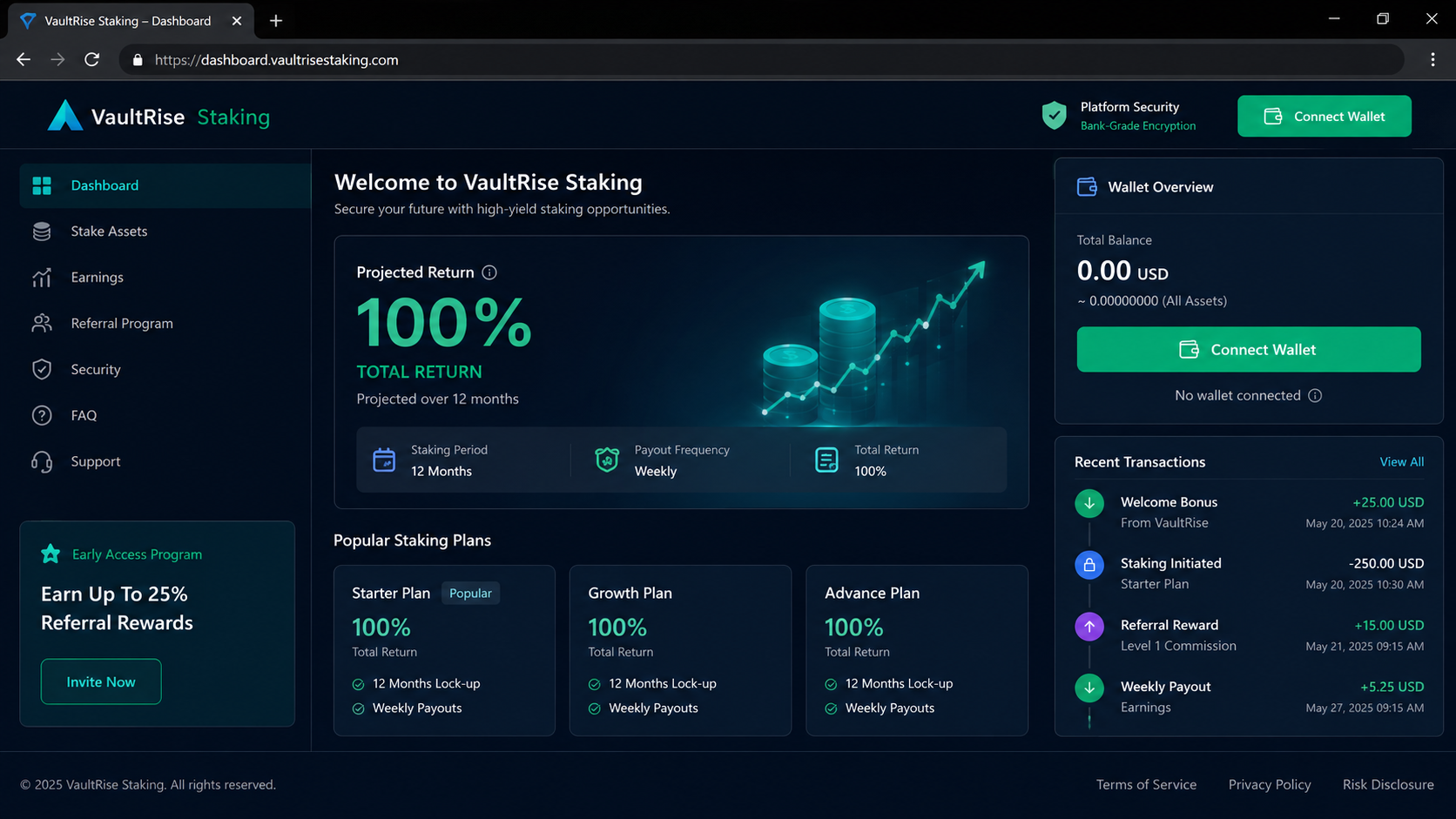
A polished dashboard proves only that somebody built a webpage. Numbers displayed there are not independently verified blockchain assets.
Even a visible on-chain transaction can be deceptive. Tokens may have no liquidity, manipulated prices, or restrictions preventing sale.
Genuine staking arrangements explain network mechanics, validator identity, reward calculation, lockup period, slashing risk, and withdrawal process.
This email replaces those details with reassurance and an extraordinary headline return.
What a 100% Return Promise Leaves Out
Investment returns come from economic activity, market risk, or incentives. They do not appear because a stranger labels a system proprietary.
Native staking yields are determined by a blockchain’s rules. They cannot be doubled at will by an email adviser.
A claimed 100% return needs a time period. The message’s ambiguity lets the sender adjust the explanation later.
Daily, monthly, and annual returns are radically different promises. Avoid any offer that uses a dramatic percentage without precise assumptions.
Risk also matters. Token prices can fall faster than staking rewards accumulate, producing a loss even when more tokens are earned.
Lockup periods can prevent an exit during market stress. Validators can fail, platforms can disappear, and smart contracts can contain exploitable code.
A legitimate disclosure describes those possibilities prominently. Fraudulent pitches place “safe” and “guaranteed” near the headline instead.
The sender may show screenshots of other clients’ withdrawals. Such images are easily fabricated and do not establish broad, repeatable access.
Small early withdrawals can also be deliberate. Operators sometimes release a little money to encourage much larger deposits.
When a later withdrawal fails, the victim is told to pay tax, gas, insurance, verification, or account-upgrade charges.
How the Self-Custody Crypto Staking Email Scam Works
Step 1: The sender leads with correct security advice
The email warns readers never to send cryptocurrency away or reveal private keys. That advice makes the sender sound cautious and technically competent.
It also anticipates a common objection. The recipient begins believing the offer cannot involve surrendering control.
This is persuasion, not proof. A scammer can repeat accurate advice while planning a different route to the wallet.
Step 2: An impossible return creates curiosity
The message introduces a strategy supposedly delivering 100% returns through self-custody staking.
Details remain deliberately thin. The lack of specificity encourages the reader to reply for a personalized explanation.
Greed is not the only lever. Some recipients respond because they fear missing a safer way to protect idle assets.
Step 3: A private conversation builds trust
The sender answers politely, asks about holdings, and may discuss familiar market events to demonstrate apparent expertise.
Messages can continue for days or weeks. Patient contact makes the eventual request feel like advice from a relationship.
The operator may introduce a mentor, analyst, account manager, or satisfied client. These roles can belong to the same criminal team.
Step 4: The victim receives a platform or wallet instruction
A link opens a professional-looking staking portal, decentralized application, or account dashboard.
The victim may be told to create a wallet, purchase cryptocurrency, connect an existing wallet, or transfer a small test amount.
Every address, domain, contract, and application must be verified independently. Instructions from the promoter are not independent verification.
Step 5: Fabricated earnings encourage larger deposits
The dashboard begins showing rewards, bonuses, or compounding gains. Values may rise predictably regardless of real market movement.
A successful small withdrawal can be staged as proof. The victim then receives a limited upgrade or larger pool opportunity.
Social pressure may appear through group chats filled with fake members celebrating payouts.
Step 6: Withdrawal introduces an invented obstacle
When the victim requests substantial funds, the platform demands a separate payment for tax, liquidity, gas, compliance, or anti-money-laundering clearance.
Real fees are generally deducted from available balances where permitted. Sending fresh cryptocurrency to unlock funds is a severe warning.
Each paid charge creates another requirement. The displayed profit remains inaccessible because it may never have existed.
Step 7: Wallet permissions or transfers create the loss
If the victim transferred coins, blockchain settlement usually makes reversal extremely difficult.
If they signed malicious approvals, tokens can be drained immediately or later when more value reaches the wallet.
The operator then blocks contact, closes the domain, or reappears as a recovery specialist demanding another advance fee.
How to Investigate the Offer Safely
Do not reply to test the sender. Engagement confirms your address and interest in cryptocurrency.
Search the claimed adviser and company through official financial-regulator databases, not links supplied in the email.
A real registration entry must match the exact person, domain, telephone number, and legal entity.
Impostors frequently borrow the name of a genuine professional while using different contact details.
Ask which blockchain provides the return, which validator is used, and where rewards can be verified on-chain.
Demand a written explanation of slashing, smart-contract, liquidity, lockup, token-price, and counterparty risks.
Do not install a special wallet or remote-access tool to complete verification. Legitimate investment firms do not need computer control.
Check destination addresses with reputable blockchain explorers. Remember that a clean address today can still be controlled by a fraudster.
Never share seed words, private keys, screen images containing recovery information, or one-time codes.
Use a separate empty test wallet when researching unknown decentralized applications. Never connect the wallet holding important savings.
Reading the Blockchain Evidence Correctly
Fraudsters sometimes invite victims to inspect a block explorer, knowing that unfamiliar technical data can look authoritative without being understood.
A transaction hash proves that a transaction occurred. It does not prove the recipient is licensed, honest, or able to return the assets.
Wallet labels supplied by the promoter are equally weak. Anyone can describe an address as a treasury, validator, or liquidity pool.
Token balances need context. A newly created token can display a large nominal value while having no practical market.
Price widgets may rely on tiny manipulated trades. Selling the displayed balance can be impossible because liquidity is absent or transfers are restricted.
Contract audits deserve verification at the auditor’s own domain. Forged certificates and copied audit badges are common on fraudulent platforms.
Even a genuine audit covers particular code and assumptions. It does not endorse the promoter, expected return, or later changes.
Validator performance should be visible independently on the named network. A private dashboard is not the network’s official record.
Ask who controls upgrades, administrative keys, and withdrawals. Central control can contradict marketing built around decentralization.
Smart-contract permissions should be understandable before signature. If the promoter discourages independent review, do not connect.
A wallet simulation can reveal likely token movements, but simulations are not infallible. Use them as one layer, never a guarantee.
Experienced users can also be deceived by signature requests that resemble routine login actions.
Hardware wallets protect keys, yet they still execute transactions the owner approves. Read the device display carefully before confirming.
When the promised economics make no sense, technical decoration cannot rescue the offer. Start with the return claim and accountable operator.
Search each wallet address independently rather than accepting a screenshot. Compare its age, incoming origins, outgoing patterns, and interaction history.
Rapid transfers through many fresh addresses can indicate laundering, although transaction patterns require expert interpretation.
Do not publish your recovery phrase while seeking help. Public forums attract impersonators who offer private assistance.
A legitimate analyst can review transaction hashes without controlling your wallet. Never install remote software for blockchain tracing.
Report addresses to the exchange used for purchase and to reputable fraud databases. Multiple reports may support later investigations.
Preserve the original time zone shown in chats and receipts. Accurate timing helps correlate transactions with account access.
Separate realized losses from dashboard profits. A fabricated balance is evidence of deception, but it was never recoverable money.
This distinction helps investigators and families understand the actual transfer history without repeating the criminal’s accounting.
Victims should write a plain chronology while memories remain fresh, including promises, payments, failed withdrawals, and every new fee request.
That record prevents changing explanations from obscuring what happened and helps investigators follow the operator’s escalation pattern.
Company, Address, and Fulfillment Checks
Verify Reeve Inc as a legal entity
A name in an email signature is not corporate proof. Locate registration records, directors, jurisdiction, and regulator status independently.
Multiple unrelated businesses may share similar names. The sender must match the exact verified contact information.
Trace the communication infrastructure
Inspect the reply-to address, sending domain, and message headers. A free mailbox or unrelated domain undermines the claimed professional identity.
Spoofed display names are easy to create. Authentication failures and unusual sending routes add further concern.
Separate hosting from ownership
A platform can use a reputable cloud host, domain registrar, wallet provider, or blockchain. Those services do not endorse the operator.
Abuse of legitimate infrastructure is common because familiar technology makes fraudulent pages appear dependable.
Follow the money, not the interface
For digital investments, fulfillment means the actual transaction path. Record wallet addresses, contract permissions, transaction hashes, and exchange receipts.
If funds move to personal wallets while the page claims corporate custody, stop immediately and preserve evidence.
What to Do if You Have Fallen Victim to This Scam
- Stop sending cryptocurrency. Taxes, verification charges, and recovery deposits will not release fabricated profits. Further payment usually increases the loss.
- Disconnect the wallet. Remove the site connection inside your wallet, then review and revoke suspicious token approvals using a trusted blockchain tool.
- Move remaining assets carefully. If seed words or private keys were exposed, create a new wallet on a clean device and transfer unaffected assets promptly.
- Contact the exchange. Provide destination addresses and transaction hashes. An exchange cannot reverse blockchain settlement, but it may freeze identifiable accounts.
- Preserve evidence. Save emails, headers, chat exports, profiles, domains, wallet addresses, contracts, receipts, and screenshots before accounts disappear.
- Secure your email. Change its password, end unknown sessions, review forwarding rules, and enable phishing-resistant multifactor authentication.
- Scan every involved device. Use Malwarebytes to check for remote-access tools, credential stealers, or unwanted browser extensions installed during the process.
- Block malicious destinations. AdGuard can reduce exposure to known scam advertisements and tracking domains, though it cannot validate investment offers.
- Report the fraud. Notify local law enforcement, the FTC, IC3, relevant securities regulator, exchange, wallet provider, registrar, and hosting service.
- Warn your contacts. If a social or email account was compromised, tell contacts not to trust recent investment messages from you.
- Reject recovery guarantees. Criminals often revisit public complainants and promise blockchain recovery for another fee.
- Document the financial impact. Keep fiat purchase records and fees for police, tax, insurer, and financial-adviser discussions.
Is Your Device Infected? Run a Free Malware Scan
Slow performance, constant pop-ups, or strange behavior? These are classic signs of a malware infection. The fastest way to find out is to scan your device with Malwarebytes Free — one of the most trusted malware removal tools available.
The free version detects and removes the most common threats, including:
- Adware — the cause of those annoying pop-ups
- Browser hijackers — unwanted redirects and changed homepages
- Trojans and spyware — hidden programs stealing your data
- Potentially unwanted programs (PUPs) — software you never asked for
👉 Select your device below — Windows, Mac, or Android — then follow the simple steps to download Malwarebytes, scan your system, and remove any threats it finds. The scan usually takes 5 to 20 minutes.
Run a Malware Scan with Malwarebytes for Windows
Malwarebytes is one of the most popular and trusted anti-malware tools for Windows — and it’s completely free for removing infections. It catches threats that many antivirus programs miss, including adware, browser hijackers, and trojans. Follow the steps below to scan and clean your PC in just a few minutes.
Download Malwarebytes
Click the button below to download the latest version of Malwarebytes for Windows from the official source. The free version is all you need — it will scan your computer and remove adware, browser hijackers, and other malicious software at no cost.
Download MalwarebytesOfficial installer for Windows 11 and 10. Your download starts right away.Want real-time protection? See Malwarebytes Premium Malwarebytes Free for WindowsScans and removes malware at no cost
-
Install Malwarebytes
When the download finishes, open your Downloads folder and double-click the MBSetup file. If Windows shows a User Account Control pop-up, click “Yes” to allow the installation.

Follow the On-Screen Prompts to Install Malwarebytes
The setup wizard will walk you through a few quick screens:
-
Choose where you’re installing the program — “Personal Computer” or “Work Computer” — then click Next.

-
Malwarebytes will now install on your device. This usually takes under a minute.

-
When installation is complete, the “Welcome to Malwarebytes” screen will open automatically.

-
On the final screen, click Open Malwarebytes to launch the program.

-
Enable “Scan for Rootkits”
Before scanning, turn on rootkit detection so Malwarebytes can find even the most hidden threats. Click the Settings gear icon on the left side of the screen.

In the settings menu, find “Scan for rootkits” and click the toggle so it turns blue.

Done? Click “Dashboard” in the left pane to return to the main screen.
Start the Scan
Click the blue Scan button. Malwarebytes will automatically update its virus database and start checking your computer for malware.

-
Wait for the Scan to Finish
The scan checks your entire system for browser hijackers and other malicious programs, so it can take 5 to 20 minutes depending on your computer. Feel free to do something else — just check back occasionally to see the progress.

-
Quarantine the Detected Threats
When the scan is done, you’ll see a list of everything Malwarebytes found — malware, adware, and potentially unwanted programs. Click the “Quarantine” button to remove all of them at once.

Malwarebytes will now remove the malicious files and registry entries and move them safely into quarantine.

-
Restart Your Computer
Some threats can only be fully removed after a reboot. If Malwarebytes asks you to restart, click Yes. Once you’re logged back in, Malwarebytes has finished removing the threats it found.

That’s it — your Windows PC is now clean of trojans, adware, and other malware, and should be back to running smoothly.
If you are still having problems with your computer after completing these instructions, then please follow one of the steps:
- Run a computer scan with ESET Online Scanner
- Ask for help in our Windows Malware Removal Help & Support forum.
Run a Malware Scan with Malwarebytes for Mac
Malwarebytes for Mac is a free on-demand scanner that removes the malware other security software tends to miss — adware, browser hijackers, and unwanted programs included. Cleaning an infected Mac with Malwarebytes has always been completely free, and it’s our go-to recommendation. Follow the steps below to scan and clean your Mac in just a few minutes.
-
Download Malwarebytes for Mac
Click the button below to download the latest version of Malwarebytes for Mac.
Download MalwarebytesOfficial installer for macOS. Your download starts right away.Want real-time protection? See Malwarebytes PremiumMalwarebytes Free for MacScans and removes malware at no cost -
Open the Malwarebytes setup file
When the download finishes, open your Downloads folder and double-click the setup file to begin the installation.

-
Follow the On-Screen Prompts to Install Malwarebytes
The Malwarebytes for Mac Installer will guide you through a few quick screens. Click “Continue” and keep following the prompts until the installation completes.



When the installation is complete, Malwarebytes opens to the Welcome to Malwarebytes screen. Click “Get started“.
-
Select “Personal Computer” or “Work Computer”
Malwarebytes will ask what type of computer you’re installing it on. Click either Personal Computer or Work Computer, whichever applies.

-
Start the Scan
Click the “Scan” button. Malwarebytes will automatically update its detection database and begin checking your Mac for malware.

-
Wait for the Scan to Finish
Malwarebytes will scan your Mac for adware, browser hijackers, and other malicious programs. This can take a few minutes, so feel free to do something else — just check back occasionally to see the progress.

-
Quarantine the Detected Threats
When the scan is done, you’ll see a list of everything Malwarebytes found. Click the “Quarantine” button to remove all the threats at once.

-
Restart Your Mac
Malwarebytes will now remove all the malicious files it found. Some threats can only be fully removed after a reboot — if Malwarebytes asks you to restart, allow it. Once you’re logged back in, your Mac is clean.

That’s it — your Mac is now free of adware, rogue browser extensions, and other potentially harmful software.
If you are still experiencing problems while trying to remove a malicious program from your computer, please ask for help in our Mac Malware Removal Help & Support forum.
Run a Malware Scan with Malwarebytes for Android
Malwarebytes for Android automatically detects and removes dangerous threats like malware and ransomware so you don’t have to worry about your most-used device being compromised. Aggressive detection of adware and potentially unwanted programs keeps your Android phone or tablet running smooth.
-
Download Malwarebytes for Android.
You can download Malwarebytes for Android by clicking the link below.
Get Malwarebytes for AndroidOpens Google Play in a new tab.Want real-time protection? See Malwarebytes Premium for AndroidMalwarebytes for AndroidScans your phone and removes malware at no cost -
Install Malwarebytes for Android on your phone.
In the Google Play Store, tap “Install” to install Malwarebytes for Android on your device.

When the installation process has finished, tap “Open” to begin using Malwarebytes for Android. You can also open Malwarebytes by tapping on its icon in your phone menu or home screen.

-
Follow the on-screen prompts to complete the setup process
When Malwarebytes will open, you will see the Malwarebytes Setup Wizard which will guide you through a series of permissions and other setup options.
This is the first of two screens that explain the difference between the Premium and Free versions. Swipe this screen to continue.
Tap on “Got it” to proceed to the next step.
Malwarebytes for Android will now ask for a set of permissions that are required to scan your device and protect it from malware. Tap on “Give permission” to continue.
Tap on “Allow” to permit Malwarebytes to access the files on your phone.
-
Update database and run a scan with Malwarebytes for Android
You will now be prompted to update the Malwarebytes database and run a full system scan.

Click on “Update database” to update the Malwarebytes for Android definitions to the latest version, then click on “Run full scan” to perform a system scan.

-
Wait for the Malwarebytes scan to complete.
Malwarebytes will now start scanning your phone for adware and other malicious apps. This process can take a few minutes, so we suggest you do something else and periodically check on the status of the scan to see when it is finished.

-
Click on “Remove Selected”.
When the scan has been completed, you will be presented with a screen showing the malware infections that Malwarebytes for Android has detected. To remove the malicious apps that Malwarebytes has found, tap on the “Remove Selected” button.

-
Restart your phone.
Malwarebytes for Android will now remove all the malicious apps that it has found. To complete the malware removal process, Malwarebytes may ask you to restart your device.
That’s it — your Android phone is now clean — no more malicious apps, adware, or browser redirects.
If you are still having problems with your phone after completing these instructions, then please follow one of the steps:
- Restore your phone to factory settings by going to Settings > General management > Reset > Factory data reset.
- Ask for help in our Mobile Malware Removal Help & Support forum.
Stay Protected: Block Ads and Malicious Sites
Now that your device is clean, keep it that way. Most infections start with a malicious ad or a fake download button — so blocking them at the source is your best defense.
We recommend AdGuard, which blocks malicious ads, phishing pages, and dangerous redirects before they can reach you.
👉 Download AdGuard and browse safely
Frequently Asked Questions
Can self-custody staking be legitimate?
Yes, some blockchain networks support legitimate staking. That does not validate an unsolicited offer, unknown contract, or guaranteed return.
Does keeping coins in my wallet prevent theft?
No. A malicious approval or signature can authorize token movement even when you never reveal the recovery phrase.
Is a 100% return ever guaranteed?
No investment is risk-free. An exceptional guaranteed return should be treated as a fraud warning, not a premium opportunity.
Why does the email ask me to reply?
The response identifies an interested target and begins a private persuasion process that automated filters cannot observe.
Can blockchain transactions be reversed?
Usually not by the sender. Rapid reporting may help trace funds or alert an exchange, but recovery is never guaranteed.
Should I pay a specialist to recover my crypto?
Be extremely cautious. Verify licensing, fees, identity, and realistic capabilities. Never pay someone promising certain recovery.
The Bottom Line
The Self-Custody Crypto Staking email weaponizes good security advice to sell an unverifiable 100% return. Its reassuring opening does not make the opportunity safe.
Do not reply, connect a wallet, or transfer assets. Verify every investment through independent regulatory and technical channels before signing anything.

Join the discussion
0 commentsShare your experience or ask a question about this article.
Discussion
Start the conversation
Have a question or something useful to share? Add the first comment.