

There are few things that spike your heart rate quite like a sudden alert claiming your bank account is in danger. A text that says you have a $1,200 iPhone charge pending. A call showing an official looking 800 number that warns you of “suspicious activity.” A message urging you to verify a code because someone is trying to drain your balance. All of it is designed to scare you into acting fast before you pause and think.
The Capital One Fraud Department Phone Scam takes full advantage of this panic. It is one of the fastest growing financial scams in the United States, spreading through texts, calls, and fake support lines that look convincingly real. Many people have already fallen for it, and the scam continues to evolve. This article breaks down exactly how it works, why it seems so believable, and what to do if you have been targeted.
Scam Overview
The Capital One Fraud Department Phone Scam is not a single trick. It is a combination of several strategies that scammers blend together to create the illusion of a genuine security emergency. They move the target from one step to the next with confidence and urgency. Everything is crafted to feel familiar and believable. If you have ever received a fraud alert from your bank, this scam will feel almost identical.
At its core, the scam begins with a fake alert about suspicious charges. Victims receive a text or call claiming that someone has made expensive purchases in their name. The alerts often mention brand names like Foot Locker, Apple, Sephora, or large hotel chains. These are chosen because they trigger a sense of alarm. It feels personal. It feels targeted. The message implies that criminals already have access to your card number.
The text usually includes an amount that is high enough to worry people, often between $300 and $1,500. Some texts mention multiple charges, recurring payments, or international transactions. The scammers understand psychology. The higher the fear, the faster the victim acts.
Once the victim responds to the text or follows instructions, the scam deepens. They may be instructed to call a phone number that appears legitimate. Scammers spoof official Capital One numbers so that they show up correctly on caller ID. If a victim calls these numbers, they do not reach Capital One. They reach a fraudulent call center operated by scammers, often using VoIP systems and cheap offshore labor.
These fake call centers are surprisingly polished. The scammers often use common customer service phrases. They sound calm and professional. They follow scripts that mimic real banking procedures. Some even play background sound effects of call centers to create realism. It feels safe. It feels like you got through to the right place.
Victims are often told that their device has been compromised or that hackers are actively inside their account. The scammer exaggerates the situation to heighten urgency. They explain that the only way to stop the fraudulent charges is to verify a security code. This is usually where the most dangerous part begins.
The scammers trigger an actual code to be sent to the victim. This is a legitimate Capital One authentication code, but the victim does not know that. The scammer claims the code is necessary to “block charges,” “verify your identity,” or “freeze your account.”
In reality, the scammer is using the victim’s phone number to start a login attempt. The code that arrives is Capital One’s two factor authentication code. If the victim reads the code aloud, the scammer now has full access to the account.
This moment is the pivot point. Once the scammers enter the account, they can do almost anything. They may transfer money, open new credit lines, change passwords, or lock the victim out.
From here, the scam can take several directions.
Some scammers claim that the victim’s money needs to be “secured” by moving it to a special safe account. They instruct victims to transfer funds through Zelle or Cash App. No legitimate bank will ever ask you to transfer money away to protect it. This is always a scam.
Other scammers escalate the situation further by pretending the victim’s device has been infected. They claim that hackers are watching the victim’s banking information. They insist that they need remote access to “clean” or “secure” the device. They request that victims install remote control apps like AnyDesk, TeamViewer, or QuickSupport.
Once connected, scammers dig through the device. They open banking apps, email accounts, password managers, and saved photos. They may hide the screen behind a fake loading window. All of this is done to extract usernames, passwords, and financial information.
Some victims are pressured to buy gift cards, with the excuse that the cards are needed for “verification,” “account restoration,” or “temporary holds.” Gift cards are always a red flag. No real bank, government agency, or financial institution will ever ask for gift cards.
The scam is powerful because it mixes legitimate looking details with emotional pressure. Scammers use familiar brands in their text messages. They reference real security practices like two factor authentication. They spoof numbers that look exactly like official Capital One contact lines. By the time the victim realizes something is wrong, the scammers may already have drained accounts or collected enough information to do long term damage.
The scam can affect anyone. Young adults respond out of fear. Older adults respond out of trust. Even people who believe they would “never fall for a scam” can be tricked in the right moment. Panic makes people skip logical steps that they would normally follow.
This scam continues to spread for one simple reason. It works. It preys on fear, uncertainty, and the desire to protect what is yours. That is why understanding how the scam works is one of the most effective ways to prevent it. When you recognize the tactics, you can stop them before they escalate.
How the Scam Works
Step 1: The Fake Alert Arrives
The scam usually starts with a text message or phone call. The alert appears to be from Capital One. The text may mention suspicious activity, a large pending charge, or a questionable recurring payment.
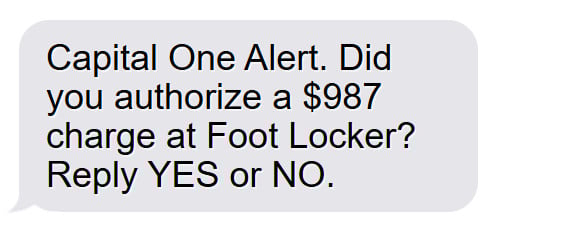
A typical message might look like:
“Capital One Alert. Did you authorize a $987 charge at Foot Locker? Reply YES or NO.”
Or:
“Capital One Fraud Dept. We detected an unusual iPhone purchase. If this was not you, call 1 800 XXX XXXX immediately.”
The language is simple and direct. It is designed to scare the victim. The scammers want a fast emotional reaction. They know people respond quickly when they think their money is being stolen.
In many cases, the phone number sending the message is spoofed. This means the scammer manipulates the number so that it looks like an official Capital One number. Spoofing makes people feel safe because the number appears familiar.
If the victim replies or calls the number, the scam progresses.
Step 2: The Fake Call Center Takes Over
When victims call the number in the text, the scammers answer instantly. The call may begin with a professional sounding greeting. Some scammers use prerecorded audio that mimics a corporate phone menu. They want the experience to feel official.
Once connected to a real person, victims often hear a calm, steady voice claiming to be from the Capital One Fraud Department. The scammer uses phrases that sound reassuring.
“Thank you for calling. I will help secure your account.”
“We have detected suspicious charges and need to act quickly.”
“We just need to verify some information to freeze your account.”
The scammers ask for basic details like the victim’s name or the last four digits of their card. They often already know partial details from data leaks, which makes the call feel more believable.
The scammer’s tone is never aggressive. It is polite and helpful. This makes the victim feel they are speaking to a real bank employee.
Step 3: They Set Up the Urgency
The scammer explains the fraudulent charges. They repeat the large amounts. They mention the stores by name. They say things like:
“These purchases are still pending. We can remove them if we act fast.”
Or:
“It looks like someone is using your card right now.”
The key is urgency. Scammers want the victim to act before thinking. They create a sense of danger and time pressure.
If the victim expresses confusion, the scammer reassures them. If the victim expresses fear, the scammer comforts them. Everything is scripted.
Step 4: The Scammer Triggers a Real Authentication Code
This is the most deceptive stage of the scam.
The scammer says they need to “verify your identity” or “confirm that we are speaking with the real account owner.” They explain that a security code will be sent by text.
They say things like:
“I will send a verification code to your phone now. Please read it back so I can remove the fraudulent charges.”
The code the victim receives is real. It is a legitimate Capital One two factor authentication code. The scammer has initiated a login attempt on Capital One’s website. The code is needed to complete the login.
The victim believes the code is part of the fraud removal process. They do not realize they are giving the scammer full access to their account.
Once the scammer enters the code, they are logged in. They can see the victim’s balance, account history, and transfer options.
Step 5: The Scammer Takes Control of the Account
Once they are inside the account, scammers may take several actions.
They may transfer funds immediately. They may set up external accounts for future transfers. They may change security settings, lock the victim out, or update contact information.
In some cases, scammers do not act right away. They stay in the account while pretending they are “removing charges.” They talk the victim through fake steps designed to keep them distracted.
Some victims notice unusual account behavior while still on the call. The scammer deflects concerns with technical jargon or excuses.
Step 6: The Scammer Pushes for Money Movement
If the scammer thinks they can extract more money, they escalate the situation. They claim that the victim’s funds are at risk and must be “secured.”
They say things like:
“We need to move your money to a safe account before the hackers drain it.”
“Your existing checking account is compromised. We need to isolate your money.”
They instruct victims to transfer funds through:
• Zelle
• Cash App
• Venmo
• Wire transfers
They often frame these transfers as temporary or reversible. They promise the money will be returned once the account is “secured.” This is always a lie. Money sent through Zelle or Cash App is nearly impossible to recover.
Step 7: The Scammer Requests Remote Access
Some versions of the scam go even deeper. The scammer claims the victim’s phone or computer is infected. They warn that hackers may be monitoring the victim’s device in real time.
They say they must “secure your device” or “clean malware” before the account can be protected. Then they ask the victim to install remote access software.
Common apps include:
• AnyDesk
• TeamViewer
• QuickSupport
• Zoho Assist
Once connected, scammers can control the device. They open bank apps, email accounts, and browser tabs. They steal saved passwords. They may even create hidden screens so the victim cannot see what the scammer is doing.
This step often leads to the largest financial attacks, because the scammer can freely explore everything.
Step 8: The Gift Card Trick
If the scammer senses the victim is hesitant to transfer money, they shift tactics. They claim the victim must purchase gift cards for “verification,” “temporary holds,” or “fraud recovery.”
They request popular brands such as:
• Apple
• Google Play
• Walmart
• Target
• Best Buy
Once the cards are purchased, the scammers ask for photos or the codes on the back. The money is gone instantly.
Gift card requests are a hallmark of scams. No legitimate financial institution ever uses gift cards for verification or account protection.
Step 9: The Scammer Ends the Call and Disappears
Once the scammer takes everything they can, they end the call. Sometimes they tell the victim to wait for a follow up email or that the account will be frozen for 48 hours. They may say they are transferring the victim to another department. In many cases, they simply hang up.
Victims are left confused and scared. Many do not realize they were scammed until they try to log into their account or see missing funds.
The scammer, meanwhile, dissolves into the background. The phone numbers they used may change daily. The call center may move. The VoIP accounts may be deleted. This makes it incredibly difficult for law enforcement to trace them.
What To Do If You Fell Victim
If you have already given information, sent money, or shared a verification code, take action quickly. You are not alone. Many people have fallen for this scam. These steps will help protect your accounts and limit further damage.
- Contact Capital One immediately through the number on the back of your card.
Explain that you may have been targeted by a scam. Ask them to freeze or secure your account. Request a password reset and a full review of recent activity. - Change your online banking password and security questions.
Use a strong password that is unique. Do not reuse passwords from other sites. Update your PIN if your card PIN was shared. - Remove any unauthorized devices or trusted phone numbers linked to your account.
Inside your account settings, remove any device or phone number that you do not recognize. Scammers may add their own devices for future access. - Report any fraudulent transfers or charges.
Zelle, Cash App, or wire transfers should be reported immediately. Banks can sometimes intervene if the transfer is recent. The faster you report, the higher the chance of recovery. - Check your email accounts for unusual activity.
Scammers may attempt password resets or try to break into other accounts. Change your email passwords and enable two factor authentication using an authenticator app instead of SMS if possible. - Scan your device for malware.
If you installed AnyDesk or other remote access software, uninstall it right away. Check for unknown apps. Restart your device. Consider a full malware scan using reputable security software. - Monitor your credit reports.
Look for unusual accounts or inquiries. If you see anything suspicious, place a fraud alert through the major credit bureaus or freeze your credit entirely. This will prevent scammers from opening new lines of credit in your name. - Document what happened.
Write down the phone numbers, texts, and steps you took. Save screenshots. This information can help your bank, law enforcement, or financial institutions in the future. - Report the scam to the Federal Trade Commission.
Use the official website ReportFraud.ftc.gov. Reports help investigators track patterns and warn others. - Inform friends or family if the scammers gained access to your contacts.
Some scammers use compromised devices to reach out to your contacts. A quick warning may prevent your friends or family from becoming targets.
Stay calm throughout the process. You are not the first person to go through something like this. With quick action and proper steps, you can reduce the impact and regain control of your accounts.
Is Your Device Infected? Run a Free Malware Scan
Slow performance, constant pop-ups, or strange behavior? These are classic signs of a malware infection. The fastest way to find out is to scan your device with Malwarebytes Free — one of the most trusted malware removal tools available.
The free version detects and removes the most common threats, including:
- Adware — the cause of those annoying pop-ups
- Browser hijackers — unwanted redirects and changed homepages
- Trojans and spyware — hidden programs stealing your data
- Potentially unwanted programs (PUPs) — software you never asked for
👉 Select your device below — Windows, Mac, or Android — then follow the simple steps to download Malwarebytes, scan your system, and remove any threats it finds. The scan usually takes 5 to 20 minutes.
Run a Malware Scan with Malwarebytes for Windows
Malwarebytes is one of the most popular and trusted anti-malware tools for Windows — and it’s completely free for removing infections. It catches threats that many antivirus programs miss, including adware, browser hijackers, and trojans. Follow the steps below to scan and clean your PC in just a few minutes.
Download Malwarebytes
Click the button below to download the latest version of Malwarebytes for Windows from the official source. The free version is all you need — it will scan your computer and remove adware, browser hijackers, and other malicious software at no cost.
Download MalwarebytesOfficial installer for Windows 11 and 10. Your download starts right away.Want real-time protection? See Malwarebytes Premium Malwarebytes Free for WindowsScans and removes malware at no cost
-
Install Malwarebytes
When the download finishes, open your Downloads folder and double-click the MBSetup file. If Windows shows a User Account Control pop-up, click “Yes” to allow the installation.

Follow the On-Screen Prompts to Install Malwarebytes
The setup wizard will walk you through a few quick screens:
-
Choose where you’re installing the program — “Personal Computer” or “Work Computer” — then click Next.

-
Malwarebytes will now install on your device. This usually takes under a minute.

-
When installation is complete, the “Welcome to Malwarebytes” screen will open automatically.

-
On the final screen, click Open Malwarebytes to launch the program.

-
Enable “Scan for Rootkits”
Before scanning, turn on rootkit detection so Malwarebytes can find even the most hidden threats. Click the Settings gear icon on the left side of the screen.

In the settings menu, find “Scan for rootkits” and click the toggle so it turns blue.

Done? Click “Dashboard” in the left pane to return to the main screen.
Start the Scan
Click the blue Scan button. Malwarebytes will automatically update its virus database and start checking your computer for malware.

-
Wait for the Scan to Finish
The scan checks your entire system for browser hijackers and other malicious programs, so it can take 5 to 20 minutes depending on your computer. Feel free to do something else — just check back occasionally to see the progress.

-
Quarantine the Detected Threats
When the scan is done, you’ll see a list of everything Malwarebytes found — malware, adware, and potentially unwanted programs. Click the “Quarantine” button to remove all of them at once.

Malwarebytes will now remove the malicious files and registry entries and move them safely into quarantine.

-
Restart Your Computer
Some threats can only be fully removed after a reboot. If Malwarebytes asks you to restart, click Yes. Once you’re logged back in, Malwarebytes has finished removing the threats it found.

That’s it — your Windows PC is now clean of trojans, adware, and other malware, and should be back to running smoothly.
If you are still having problems with your computer after completing these instructions, then please follow one of the steps:
- Run a computer scan with ESET Online Scanner
- Ask for help in our Windows Malware Removal Help & Support forum.
Run a Malware Scan with Malwarebytes for Mac
Malwarebytes for Mac is a free on-demand scanner that removes the malware other security software tends to miss — adware, browser hijackers, and unwanted programs included. Cleaning an infected Mac with Malwarebytes has always been completely free, and it’s our go-to recommendation. Follow the steps below to scan and clean your Mac in just a few minutes.
-
Download Malwarebytes for Mac
Click the button below to download the latest version of Malwarebytes for Mac.
Download MalwarebytesOfficial installer for macOS. Your download starts right away.Want real-time protection? See Malwarebytes PremiumMalwarebytes Free for MacScans and removes malware at no cost -
Open the Malwarebytes setup file
When the download finishes, open your Downloads folder and double-click the setup file to begin the installation.

-
Follow the On-Screen Prompts to Install Malwarebytes
The Malwarebytes for Mac Installer will guide you through a few quick screens. Click “Continue” and keep following the prompts until the installation completes.



When the installation is complete, Malwarebytes opens to the Welcome to Malwarebytes screen. Click “Get started“.
-
Select “Personal Computer” or “Work Computer”
Malwarebytes will ask what type of computer you’re installing it on. Click either Personal Computer or Work Computer, whichever applies.

-
Start the Scan
Click the “Scan” button. Malwarebytes will automatically update its detection database and begin checking your Mac for malware.

-
Wait for the Scan to Finish
Malwarebytes will scan your Mac for adware, browser hijackers, and other malicious programs. This can take a few minutes, so feel free to do something else — just check back occasionally to see the progress.

-
Quarantine the Detected Threats
When the scan is done, you’ll see a list of everything Malwarebytes found. Click the “Quarantine” button to remove all the threats at once.

-
Restart Your Mac
Malwarebytes will now remove all the malicious files it found. Some threats can only be fully removed after a reboot — if Malwarebytes asks you to restart, allow it. Once you’re logged back in, your Mac is clean.

That’s it — your Mac is now free of adware, rogue browser extensions, and other potentially harmful software.
If you are still experiencing problems while trying to remove a malicious program from your computer, please ask for help in our Mac Malware Removal Help & Support forum.
Run a Malware Scan with Malwarebytes for Android
Malwarebytes for Android automatically detects and removes dangerous threats like malware and ransomware so you don’t have to worry about your most-used device being compromised. Aggressive detection of adware and potentially unwanted programs keeps your Android phone or tablet running smooth.
-
Download Malwarebytes for Android.
You can download Malwarebytes for Android by clicking the link below.
Get Malwarebytes for AndroidOpens Google Play in a new tab.Want real-time protection? See Malwarebytes Premium for AndroidMalwarebytes for AndroidScans your phone and removes malware at no cost -
Install Malwarebytes for Android on your phone.
In the Google Play Store, tap “Install” to install Malwarebytes for Android on your device.

When the installation process has finished, tap “Open” to begin using Malwarebytes for Android. You can also open Malwarebytes by tapping on its icon in your phone menu or home screen.

-
Follow the on-screen prompts to complete the setup process
When Malwarebytes will open, you will see the Malwarebytes Setup Wizard which will guide you through a series of permissions and other setup options.
This is the first of two screens that explain the difference between the Premium and Free versions. Swipe this screen to continue.
Tap on “Got it” to proceed to the next step.
Malwarebytes for Android will now ask for a set of permissions that are required to scan your device and protect it from malware. Tap on “Give permission” to continue.
Tap on “Allow” to permit Malwarebytes to access the files on your phone.
-
Update database and run a scan with Malwarebytes for Android
You will now be prompted to update the Malwarebytes database and run a full system scan.

Click on “Update database” to update the Malwarebytes for Android definitions to the latest version, then click on “Run full scan” to perform a system scan.

-
Wait for the Malwarebytes scan to complete.
Malwarebytes will now start scanning your phone for adware and other malicious apps. This process can take a few minutes, so we suggest you do something else and periodically check on the status of the scan to see when it is finished.

-
Click on “Remove Selected”.
When the scan has been completed, you will be presented with a screen showing the malware infections that Malwarebytes for Android has detected. To remove the malicious apps that Malwarebytes has found, tap on the “Remove Selected” button.

-
Restart your phone.
Malwarebytes for Android will now remove all the malicious apps that it has found. To complete the malware removal process, Malwarebytes may ask you to restart your device.
That’s it — your Android phone is now clean — no more malicious apps, adware, or browser redirects.
If you are still having problems with your phone after completing these instructions, then please follow one of the steps:
- Restore your phone to factory settings by going to Settings > General management > Reset > Factory data reset.
- Ask for help in our Mobile Malware Removal Help & Support forum.
Stay Protected: Block Ads and Malicious Sites
Now that your device is clean, keep it that way. Most infections start with a malicious ad or a fake download button — so blocking them at the source is your best defense.
We recommend AdGuard, which blocks malicious ads, phishing pages, and dangerous redirects before they can reach you.
👉 Download AdGuard and browse safely
The Bottom Line
The Capital One Fraud Department Phone Scam is one of the most convincing financial scams operating today. It blends fake alerts, spoofed numbers, and well scripted call center conversations to pressure victims into giving up sensitive information. Understanding how it works is one of the strongest defenses you can have. When you recognize the warning signs, you gain the power to stop the scam before it starts.
If you ever receive a message about suspicious charges, take a breath and slow down. Do not call the number provided. Contact your bank directly using the number printed on your card. Real fraud departments will never ask for verification codes, remote access apps, gift cards, or money transfers to protect your account.
FAQ
What is the Capital One Fraud Department Phone Scam?
It is a phishing and social engineering scam where criminals send fake fraud alerts, spoof Capital One phone numbers, and pretend to be fraud agents. Their goal is to trick victims into sharing authentication codes, sending money through Zelle or Cash App, installing remote access programs, or buying gift cards.
How do scammers make the calls look real?
They use caller ID spoofing. This allows the call to appear as if it is coming from a real Capital One 800 number. The number may look legitimate on your phone, but spoofing tools make it easy for scammers to fake it.
Why do scammers ask for a verification code?
They are trying to log into your Capital One account. When they attempt a login, Capital One sends a two factor authentication code to your phone. If you read that code aloud, they immediately gain access to your account.
Does Capital One ever ask for verification codes by phone?
No. Capital One will never ask you to read a verification code to a representative. Anyone requesting that code is a scammer.
What do scammers do once they have access to your account?
They may transfer money, add external bank accounts, lock you out of your profile, change passwords, redeem rewards, or gather personal data for future fraud.
Why do scammers tell victims to send money through Zelle or Cash App?
Because these transfers are fast and often irreversible. Once money is sent, it becomes extremely difficult to recover. Scammers claim it is a “secure account” or “temporary safety transfer,” but no bank uses these methods for fraud protection.
What is the purpose of the remote access apps like AnyDesk or TeamViewer?
Scammers use these to take control of your phone or computer. Once connected, they can see your banking apps, email, passwords, and private information. They can also hide their activity behind fake screens.
Why do scammers ask for gift cards?
Gift cards are untraceable and easy to convert to cash. Scammers claim the cards are needed for validation, security holds, or fraud investigations. No real bank or government agency ever asks for gift cards.
How do I know if a fraud alert from Capital One is real?
Real alerts will never ask you to call a number sent in a text. They will never request verification codes, gift cards, or remote access. To confirm any alert, call the number printed on the back of your card.
What should I do if I already gave a scammer my verification code?
Call Capital One immediately using the number on your card. Change your password, ask them to secure your account, and review recent transactions. The faster you act, the better your chances of limiting damage.
Can I recover money lost to this scam?
Recovery is possible in some cases, especially if you act quickly. Zelle or Cash App transactions are difficult to reverse, but banks may assist if the report is immediate. Capital One can help secure your account and dispute unauthorized charges.
Should I report the scam?
Yes. Report it to Capital One, the FTC at ReportFraud.ftc.gov, and local law enforcement. Reporting helps investigators track trends and warn others.
How can I protect myself going forward?
Never trust phone numbers from texts. Never share verification codes. Never install remote access software at someone’s request. Always contact Capital One directly using the number on your card.









amazing this article was posted because i got SCAMMED by Capital one bank, these POS RUINED my credit Been trying for 6 months go speak to someone in their fraud dept,,Guess what.They are a bunch of drunken bums from OVERSEAS… Cap. one doesnt even have a CORP NUMBER you can call, Everyone one i tried goes overseas. Seems CAP ONE doesnt want to be bothered,, gee, wonder why. THEY ARE HIDING,, KEEP away from these SHYSTERS, Still trying to get help from someone at CORP.. BEEN 6 MONTHS,, Yeah im pissed , sad when you OWN bank scams you,,,,
Six months without reaching a human is genuinely unacceptable, Joe, and worth separating from the scam itself: the article covers criminals impersonating the fraud department, which is a different problem from your bank handling the aftermath badly. For that second part there is a route that works better than the phone queue – file a complaint with the Consumer Financial Protection Bureau at consumerfinance.gov/complaint. Banks are required to respond in writing, usually within 15 days, and it creates a paper trail. Send your dispute in writing as well, keep copies, and if your credit report was damaged, dispute the entries directly with the credit bureaus at the same time.