

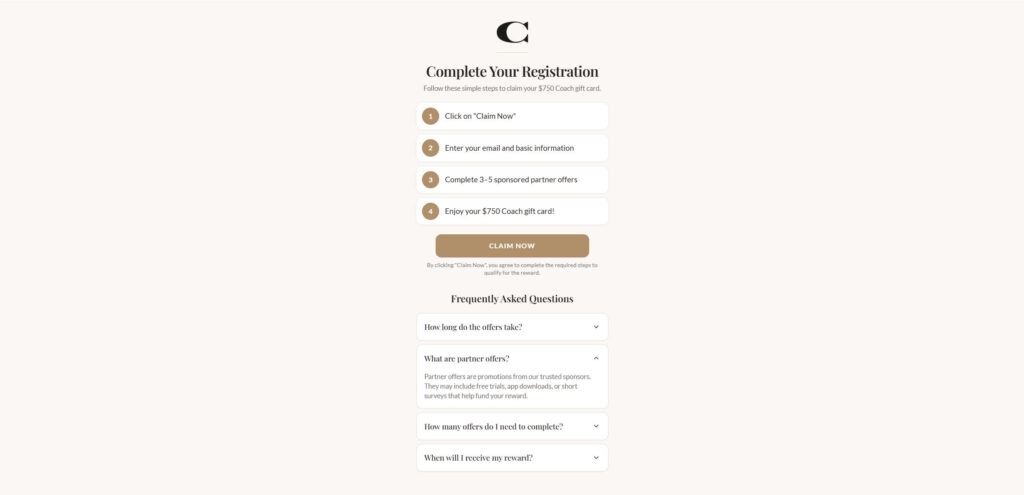
ChGifted.com presents itself like a simple registration portal for a high-value reward.
The page typically promises a $750 Coach gift card, asks for your email and basic information, and then requires you to complete 3 to 5 sponsored partner offers to “qualify.”
That combination is a common pattern used by reward-style affiliate scam funnels. This article breaks down how ChGifted.com works, what risks it creates, and what to do if you already interacted with it.
Scam Overview
ChGifted.com is usually framed as a reward claim or registration page. The pitch is deliberately straightforward and “process” driven, which makes it feel legitimate at first glance.
Common wording and structure includes:
- “Complete Your Registration”
- “Follow these simple steps to claim your $750 Coach gift card”
- A short checklist:
- Click “Claim Now”
- Enter your email and basic information
- Complete 3 to 5 sponsored partner offers
- Enjoy your $750 Coach gift card
A page like this is designed to look like the final step of a real promotion, not the start of a marketing funnel.
The key red flag: sponsored partner offers
Legitimate brand promotions do not require you to complete unrelated third-party offers to unlock a gift card.
That “complete 3 to 5 sponsored partner offers” requirement is the core mechanism of the scam.
It signals that the site’s business model is not “give users a gift card.” It is “monetize users through affiliate offers.”
What ChGifted.com is in practice
ChGifted.com is best understood as a reward funnel tied to affiliate marketing networks.
That means the operator can generate revenue when users:
- Submit their email and personal details
- Sign up for third-party services
- Install apps
- Start “free trials” that require a credit card
- Enroll in subscriptions that later auto-renew
The reward promise is designed to push you into those actions.
Even if you never receive a gift card, the funnel can still be profitable.
Why the Coach branding is used
Coach is a premium brand. That matters.
A $750 gift card tied to a premium brand feels plausible to more people because it aligns with the idea of high-priced handbags and seasonal promotions.
The brand name also creates instant trust. Many users glance at the logo and assume the page is connected to the real company.
This is a classic impersonation tactic: borrow a trusted name to reduce skepticism, then move the user into steps that benefit the operator.
Why these pages look professional
ChGifted.com pages are usually clean and minimal. That is not a sign of legitimacy.
Modern scam funnels are built to convert. A professional design:
- Reduces suspicion
- Keeps the user focused on one button
- Makes the steps feel structured and official
- Increases email submissions and offer completions
The site is not trying to provide proof. It is trying to build momentum.
The “FAQ” section is part of the funnel
Many versions of these pages include an FAQ that answers questions like:
- What are partner offers?
- How long do offers take?
- When will I receive my reward?
Those questions are not included to protect you.
They are included to neutralize your objections and keep you moving forward.
The explanations often normalize risk by describing offers as “trusted sponsor promotions,” including “free trials” and “app downloads.”
That is precisely where users get harmed.
Why people often never receive anything
With reward funnels like ChGifted.com, the most common outcomes are:
- The reward never appears
- The site claims your completion is pending
- The site says one or more offers did not track
- The site pushes you to complete more offers to finalize eligibility
The finish line is intentionally flexible.
If the site can always claim you are missing one more step, it can keep you completing offers.
Tracking ambiguity protects the operator
Affiliate offers depend on tracking systems: cookies, device IDs, referral parameters, and conversion pixels.
Tracking can fail for many reasons:
- Cookies blocked or cleared
- Private browsing mode
- Switching devices or browsers
- VPN use
- Ad blockers and privacy extensions
- Not completing all hidden steps inside an offer
In a fair system, these issues would be rare and resolvable.
In scam funnels, they become the perfect excuse to deny completion and push you toward more offers.
The real risks: financial, privacy, and follow-up scams
ChGifted.com is dangerous because the harm may not be immediate.
Financial risk
Some sponsor offers require a credit card. Many are trials that convert into monthly billing.
Victims often report:
- Unexpected charges after a short trial window
- Recurring subscriptions they did not intend to keep
- Billing descriptors that do not clearly match what they signed up for
- Complicated cancellation processes
Privacy risk
Even without payment info, your email and phone number can be spread through marketing lists.
That can lead to:
- Increased spam emails
- Scam texts and calls
- More gift card scam offers using other brands
- More targeted phishing attempts
Follow-up scam risk
Once a scammer sees you engaged, you may be targeted again with messages like:
- Your reward is pending
- Verify your identity to release the gift card
- Pay a small processing fee
- Confirm shipping details
Those follow-ups are often more dangerous than the original page.
How The Scam Works
Step 1: You get routed to ChGifted.com through ads or redirects
Most people do not type ChGifted.com directly. They arrive through:
- Pop-ups and redirect ads
- Spam emails or texts
- Social posts framed as giveaways
- Push notification spam
- Low-quality ad networks
The link is designed to trigger quick clicks and minimal verification.
Step 2: The page creates trust with a structured checklist
Once the page loads, it presents a neat four-step path.
This structure makes users feel like the process is legitimate and already validated.
Instead of questioning the offer, people start following the steps.
Step 3: Email capture happens early
You are asked for your email and basic info early because it converts well.
This step creates value for the operator even if you leave immediately afterward, because your information can be monetized or used for retargeting.
Step 4: Sponsor offers appear as “requirements”
Next, the funnel introduces the offers.
This is where the operator earns affiliate commission.
The offers can include:
- Free trials that require credit cards
- Subscription services
- App installs
- Sweepstakes signups
- Discount clubs
The page presents them as required steps to qualify for the gift card.
Step 5: The funnel escalates toward higher-risk offers
Easy offers come first. Then higher-paying offers appear, which are often the ones that require billing information.
This is where victims end up with subscriptions and recurring charges.
Step 6: The reward is delayed or denied through “verification” and tracking claims
Once you complete offers, the funnel often responds with:
- Pending status
- Verification in progress
- Completion not tracked
- More offers required
This keeps users in the loop longer and increases the chances of additional offer completions.
Step 7: After you leave, spam and charges may appear
Even if you exit, follow-up effects can include:
- More spam emails
- Scam texts and calls
- Subscription charges days later
- Difficulty canceling offers you joined
This is why reward funnels are costly even when they do not steal money directly up front.
What To Do If You Have Fallen Victim to This Scam
- Stop and do not complete any more offers.
Do not chase the reward. That is how the funnel extracts maximum value. - Take screenshots and record the domain.
Save the ChGifted.com URL and any pages showing the $750 promise and “3 to 5 offers” requirement. - Identify every offer you interacted with.
Search your email for “welcome,” “trial,” “subscription,” “receipt,” “invoice,” and “billing.” Make a list. - Cancel any trials or subscriptions immediately.
Cancel through the merchant’s billing page and save cancellation confirmations. - Check Apple and Google subscriptions if you installed apps.
Cancel any subscriptions you did not intend to keep. - Review your card and bank statements for at least 30 days.
Look for small test charges and unfamiliar merchants that may indicate a subscription. - Contact your card issuer if you see suspicious charges or cannot cancel.
Ask about disputing charges, blocking merchants, and replacing your card if needed. - Secure your email account first.
Change your email password and enable 2-factor authentication. - Change reused passwords across important accounts.
Update banking, shopping, and social accounts if you reused any password. - Expect spam and ignore “reward verification” follow-ups.
Treat any message asking for additional steps, fees, or verification as suspicious. - Disable browser notifications for unknown sites.
Remove notification permissions in your browser settings if you started seeing pop-up spam. - Scan your device and remove suspicious extensions.
Uninstall unknown extensions and run a security scan if redirects persist. - Report the scam source.
Report the ad, post, email, or site that routed you to ChGifted.com.
Is Your Device Infected? Run a Free Malware Scan
Slow performance, constant pop-ups, or strange behavior? These are classic signs of a malware infection. The fastest way to find out is to scan your device with Malwarebytes Free — one of the most trusted malware removal tools available.
The free version detects and removes the most common threats, including:
- Adware — the cause of those annoying pop-ups
- Browser hijackers — unwanted redirects and changed homepages
- Trojans and spyware — hidden programs stealing your data
- Potentially unwanted programs (PUPs) — software you never asked for
👉 Select your device below — Windows, Mac, or Android — then follow the simple steps to download Malwarebytes, scan your system, and remove any threats it finds. The scan usually takes 5 to 20 minutes.
Run a Malware Scan with Malwarebytes for Windows
Malwarebytes is one of the most popular and trusted anti-malware tools for Windows — and it’s completely free for removing infections. It catches threats that many antivirus programs miss, including adware, browser hijackers, and trojans. Follow the steps below to scan and clean your PC in just a few minutes.
Download Malwarebytes
Click the button below to download the latest version of Malwarebytes for Windows from the official source. The free version is all you need — it will scan your computer and remove adware, browser hijackers, and other malicious software at no cost.
Download MalwarebytesOfficial installer for Windows 11 and 10. Your download starts right away.Want real-time protection? See Malwarebytes Premium Malwarebytes Free for WindowsScans and removes malware at no cost
-
Install Malwarebytes
When the download finishes, open your Downloads folder and double-click the MBSetup file. If Windows shows a User Account Control pop-up, click “Yes” to allow the installation.

Follow the On-Screen Prompts to Install Malwarebytes
The setup wizard will walk you through a few quick screens:
-
Choose where you’re installing the program — “Personal Computer” or “Work Computer” — then click Next.

-
Malwarebytes will now install on your device. This usually takes under a minute.

-
When installation is complete, the “Welcome to Malwarebytes” screen will open automatically.

-
On the final screen, click Open Malwarebytes to launch the program.

-
Enable “Scan for Rootkits”
Before scanning, turn on rootkit detection so Malwarebytes can find even the most hidden threats. Click the Settings gear icon on the left side of the screen.

In the settings menu, find “Scan for rootkits” and click the toggle so it turns blue.

Done? Click “Dashboard” in the left pane to return to the main screen.
Start the Scan
Click the blue Scan button. Malwarebytes will automatically update its virus database and start checking your computer for malware.

-
Wait for the Scan to Finish
The scan checks your entire system for browser hijackers and other malicious programs, so it can take 5 to 20 minutes depending on your computer. Feel free to do something else — just check back occasionally to see the progress.

-
Quarantine the Detected Threats
When the scan is done, you’ll see a list of everything Malwarebytes found — malware, adware, and potentially unwanted programs. Click the “Quarantine” button to remove all of them at once.

Malwarebytes will now remove the malicious files and registry entries and move them safely into quarantine.

-
Restart Your Computer
Some threats can only be fully removed after a reboot. If Malwarebytes asks you to restart, click Yes. Once you’re logged back in, Malwarebytes has finished removing the threats it found.

That’s it — your Windows PC is now clean of trojans, adware, and other malware, and should be back to running smoothly.
If you are still having problems with your computer after completing these instructions, then please follow one of the steps:
- Run a computer scan with ESET Online Scanner
- Ask for help in our Windows Malware Removal Help & Support forum.
Run a Malware Scan with Malwarebytes for Mac
Malwarebytes for Mac is a free on-demand scanner that removes the malware other security software tends to miss — adware, browser hijackers, and unwanted programs included. Cleaning an infected Mac with Malwarebytes has always been completely free, and it’s our go-to recommendation. Follow the steps below to scan and clean your Mac in just a few minutes.
-
Download Malwarebytes for Mac
Click the button below to download the latest version of Malwarebytes for Mac.
Download MalwarebytesOfficial installer for macOS. Your download starts right away.Want real-time protection? See Malwarebytes PremiumMalwarebytes Free for MacScans and removes malware at no cost -
Open the Malwarebytes setup file
When the download finishes, open your Downloads folder and double-click the setup file to begin the installation.

-
Follow the On-Screen Prompts to Install Malwarebytes
The Malwarebytes for Mac Installer will guide you through a few quick screens. Click “Continue” and keep following the prompts until the installation completes.



When the installation is complete, Malwarebytes opens to the Welcome to Malwarebytes screen. Click “Get started“.
-
Select “Personal Computer” or “Work Computer”
Malwarebytes will ask what type of computer you’re installing it on. Click either Personal Computer or Work Computer, whichever applies.

-
Start the Scan
Click the “Scan” button. Malwarebytes will automatically update its detection database and begin checking your Mac for malware.

-
Wait for the Scan to Finish
Malwarebytes will scan your Mac for adware, browser hijackers, and other malicious programs. This can take a few minutes, so feel free to do something else — just check back occasionally to see the progress.

-
Quarantine the Detected Threats
When the scan is done, you’ll see a list of everything Malwarebytes found. Click the “Quarantine” button to remove all the threats at once.

-
Restart Your Mac
Malwarebytes will now remove all the malicious files it found. Some threats can only be fully removed after a reboot — if Malwarebytes asks you to restart, allow it. Once you’re logged back in, your Mac is clean.

That’s it — your Mac is now free of adware, rogue browser extensions, and other potentially harmful software.
If you are still experiencing problems while trying to remove a malicious program from your computer, please ask for help in our Mac Malware Removal Help & Support forum.
Run a Malware Scan with Malwarebytes for Android
Malwarebytes for Android automatically detects and removes dangerous threats like malware and ransomware so you don’t have to worry about your most-used device being compromised. Aggressive detection of adware and potentially unwanted programs keeps your Android phone or tablet running smooth.
-
Download Malwarebytes for Android.
You can download Malwarebytes for Android by clicking the link below.
Get Malwarebytes for AndroidOpens Google Play in a new tab.Want real-time protection? See Malwarebytes Premium for AndroidMalwarebytes for AndroidScans your phone and removes malware at no cost -
Install Malwarebytes for Android on your phone.
In the Google Play Store, tap “Install” to install Malwarebytes for Android on your device.

When the installation process has finished, tap “Open” to begin using Malwarebytes for Android. You can also open Malwarebytes by tapping on its icon in your phone menu or home screen.

-
Follow the on-screen prompts to complete the setup process
When Malwarebytes will open, you will see the Malwarebytes Setup Wizard which will guide you through a series of permissions and other setup options.
This is the first of two screens that explain the difference between the Premium and Free versions. Swipe this screen to continue.
Tap on “Got it” to proceed to the next step.
Malwarebytes for Android will now ask for a set of permissions that are required to scan your device and protect it from malware. Tap on “Give permission” to continue.
Tap on “Allow” to permit Malwarebytes to access the files on your phone.
-
Update database and run a scan with Malwarebytes for Android
You will now be prompted to update the Malwarebytes database and run a full system scan.

Click on “Update database” to update the Malwarebytes for Android definitions to the latest version, then click on “Run full scan” to perform a system scan.

-
Wait for the Malwarebytes scan to complete.
Malwarebytes will now start scanning your phone for adware and other malicious apps. This process can take a few minutes, so we suggest you do something else and periodically check on the status of the scan to see when it is finished.

-
Click on “Remove Selected”.
When the scan has been completed, you will be presented with a screen showing the malware infections that Malwarebytes for Android has detected. To remove the malicious apps that Malwarebytes has found, tap on the “Remove Selected” button.

-
Restart your phone.
Malwarebytes for Android will now remove all the malicious apps that it has found. To complete the malware removal process, Malwarebytes may ask you to restart your device.
That’s it — your Android phone is now clean — no more malicious apps, adware, or browser redirects.
If you are still having problems with your phone after completing these instructions, then please follow one of the steps:
- Restore your phone to factory settings by going to Settings > General management > Reset > Factory data reset.
- Ask for help in our Mobile Malware Removal Help & Support forum.
Stay Protected: Block Ads and Malicious Sites
Now that your device is clean, keep it that way. Most infections start with a malicious ad or a fake download button — so blocking them at the source is your best defense.
We recommend AdGuard, which blocks malicious ads, phishing pages, and dangerous redirects before they can reach you.
👉 Download AdGuard and browse safely
The Bottom Line
ChGifted.com uses a familiar gift card promise and a clean registration flow to push users into sponsored partner offers that generate affiliate revenue.
If a page claims you can receive a high-value gift card by completing third-party offers, treat it as a reward funnel, not a legitimate brand promotion.
If you already interacted with ChGifted.com, focus on practical cleanup: cancel subscriptions, monitor statements, secure accounts, and ignore follow-up messages that try to pull you back into the loop.
FAQ
Is ChGifted.com legit?
No. ChGifted.com is typically part of a reward-style funnel that promises a $750 Coach gift card to push users into sponsored offers. It is not a straightforward, official brand promotion.
Is ChGifted.com an official Coach website?
No. ChGifted.com is not an official Coach domain. Legitimate Coach promotions should be verifiable through Coach’s official channels and provide clear rules and support.
Why does ChGifted.com require “3 to 5 sponsored partner offers”?
Because that is how the site makes money. Each completed offer can generate affiliate commission, especially trials, subscriptions, and app installs.
What are “sponsored partner offers” on ChGifted.com?
They are third-party promotions that can include:
- Free trials that require a credit card
- Subscription services that auto-renew
- App installs with paid upsells
- Sample offers with shipping fees that may lead to recurring billing
- Survey and sweepstakes signups that collect personal data
Will I actually receive the $750 Coach gift card?
Most people do not. Many users report the reward stays “pending,” requires more offers, or is denied due to tracking issues.
Why does it say my completion is “pending” or “not tracked”?
Affiliate tracking is often used as an excuse. The site may blame cookies, switching devices, VPN use, ad blockers, or incomplete steps inside an offer, then push you to complete additional offers.
Can ChGifted.com lead to unwanted charges?
Yes. Some offers involve trials or memberships that convert into recurring charges. These charges can show up later under unfamiliar merchant names.
I only entered my email. What should I do?
Expect more spam and “finish registration” emails. Tighten spam filters and treat any follow-up asking for extra steps, personal details, or payment as suspicious.
I entered my phone number. What should I expect?
You may receive marketing calls or scam texts. Be wary of messages claiming you must confirm your reward or pay a small fee to release it.
I entered payment info for an offer. What should I do right now?
- Cancel any trials or subscriptions immediately and save confirmation
- Check your statements for pending or posted charges
- Contact your card issuer if you see suspicious billing or cannot cancel
- Consider replacing your card if you used it across multiple offers
How can I spot similar gift card scams fast?
Look for these red flags:
- The domain is not an official brand domain
- The reward is unlocked through third-party offers
- The reward delivery is vague or always “pending”
- The page relies on urgency and “claim now” pressure
- Support and official rules are unclear or missing

Reviews & discussion
0 commentsShare a firsthand experience, or ask a question.
Community reviews
chgifted.com
Moderated reader experiences, not an editorial verdict.
Start the conversation
Have a question or something useful to share? Add the first comment.