


You land on the Chromagraph Camera listing because you want a different look from your iPhone photos. The price is easy to see; the workflow takes a closer look.
This purchase is a camera, editor, and gallery in one app. Before paying, check whether you’ll use all three and know how to get your pictures out.
Overview
The price is the easiest part to verify
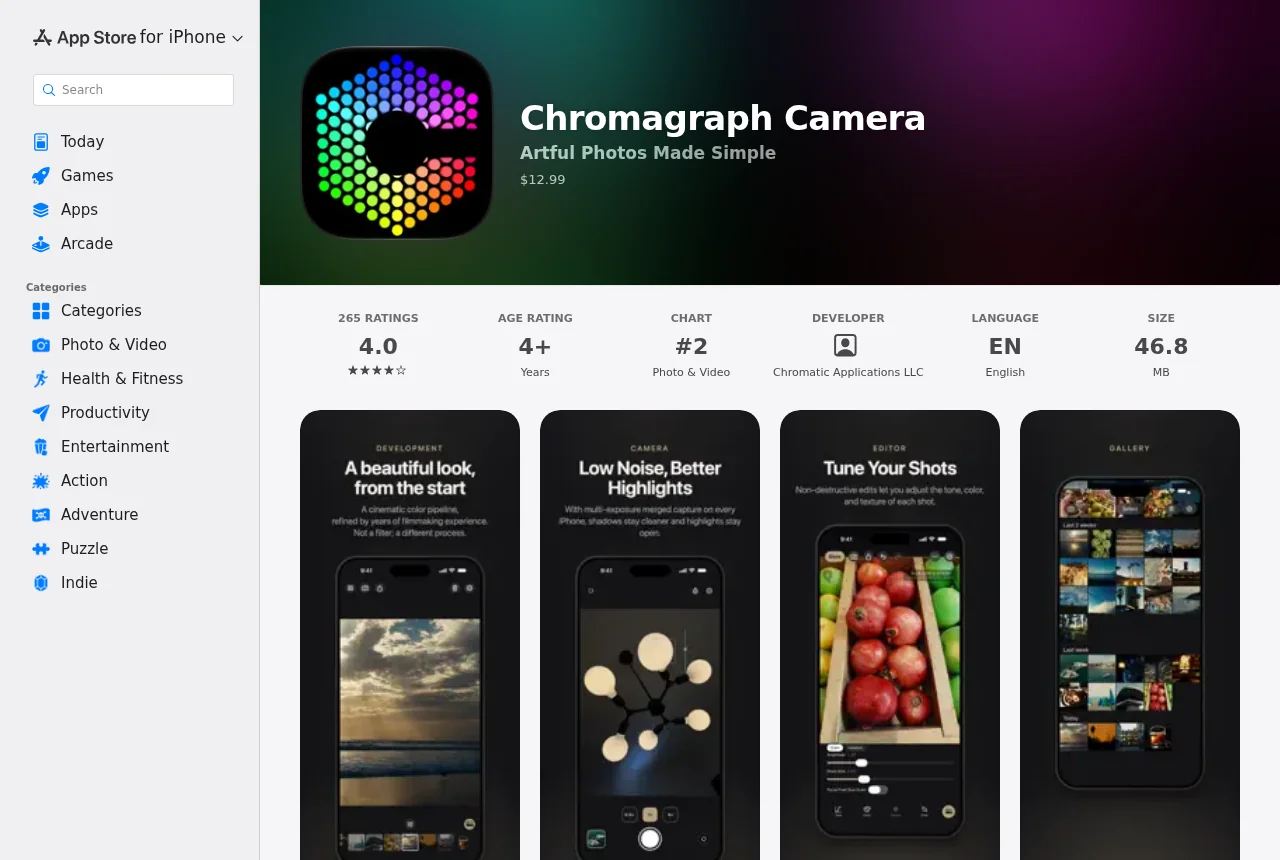
The American App Store listing shows Chromagraph Camera at $12.99 from Chromatic Applications LLC. The developer’s product page sends buyers to that same entry.
The listing puts the price on the app itself. It doesn’t present that price as a trial or disclose a recurring plan as part of the offer shown.
The correct listing is more useful than the app name alone. Search results can contain similarly named editors, and your statement may show Apple’s billing name rather than the developer’s.
This camera processes stills, not movies
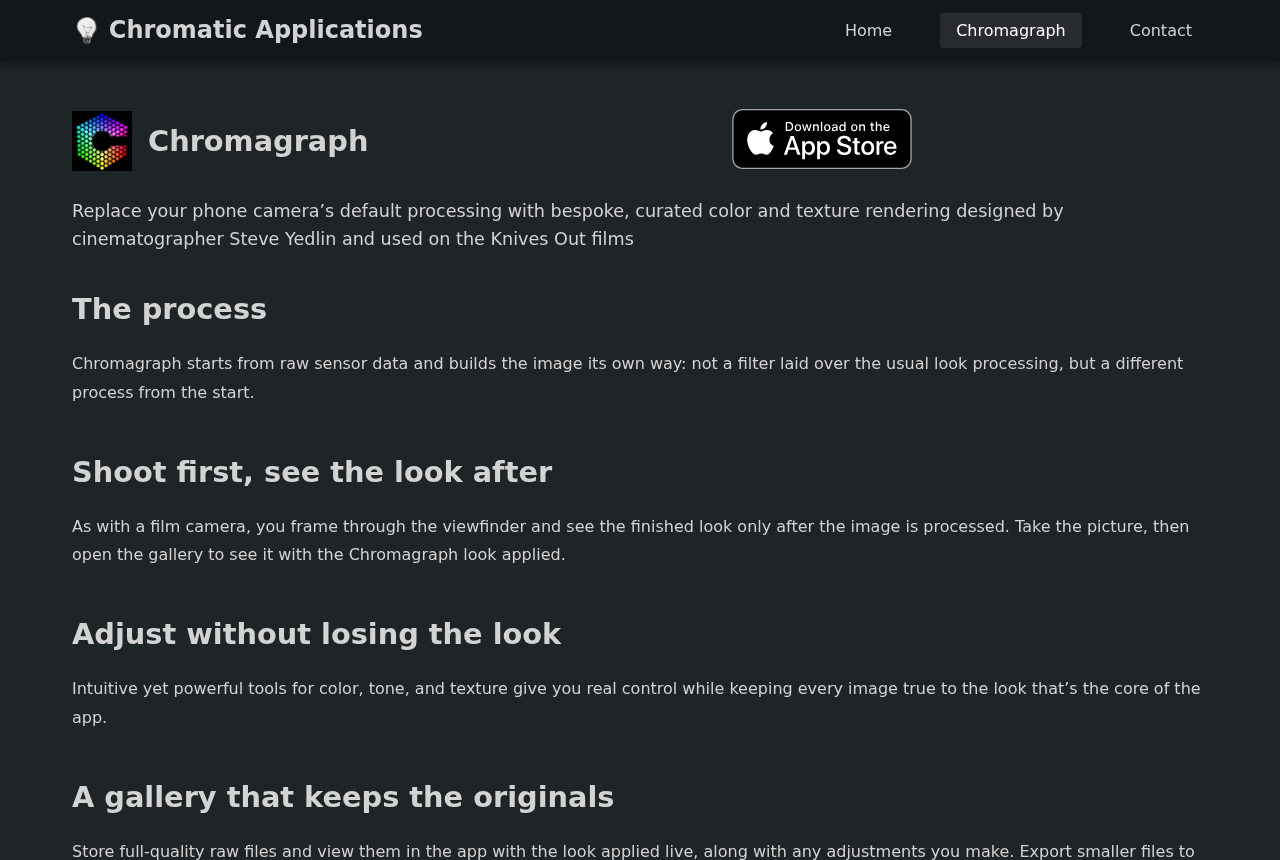
The developer says Chromagraph starts with raw image data and applies its own color and texture processing. You see the finished treatment in the gallery after capturing the photo.
The listing specifically rules out shooting video. A reference to the look used on a film does not make this a movie camera or promise film-equivalent picture quality.
You also need a lens that supports the app’s capture method. The store page warns that some lenses, even on devices it can run on, aren’t supported.
What you export is a separate decision
The in-app gallery keeps full-quality raw files and lets you adjust their appearance. The developer describes exporting a rendered JPEG or HEIC to the system photo library.
Choose whether to retain both the original and a copy you can share. An image visible in Photos may not be the file you want for a raw editor.
- Match the purchase to the official developer and U.S. store listing.
- Check the camera you use, not just whether the app installs.
- Look at the raw original, edited result and shared copy as separate files.
- Confirm the retained files before removing the app or changing devices.
What Chromagraph Changes When You Take a Photo
A different starting point, not a replacement sensor
The developer describes building an image from raw sensor data rather than filtering an image the phone processed already. That changes when and where you choose the look.
It doesn’t change the physical camera. The app can’t turn a lens without the needed raw support into a usable option by applying its look afterward.
That distinction helps you compare it with Photos. Editing a JPEG you already have is a different task from taking a new still through a different processing pipeline.
How you prefer the resulting highlights and colors is a separate judgment. The developer’s examples show its intended look, not how your usual scenes will render.
For instance, a muted interior and a sunlit street may make you prefer different treatments. A single promotional portrait cannot tell you which rendering you would pick for both.
If you want to compare, keep the scene, phone, lens and lighting as close as possible. Judge the photos at normal viewing size and the size you actually share.
Your viewfinder won’t preview the complete result
The developer’s explanation says you compose, take the shot, then see the processed look in the gallery. The wait is part of the design.
That can be enjoyable if you deliberately review what you took afterward. It can also be a nuisance if you need to check the effect before pressing the shutter.
Pay attention to which app you reach for when speed matters. If you often take an unplanned photo and share it immediately, count those extra actions in your decision.
The editor gives separate control over qualities such as color, tone and texture. It isn’t the same promise as being able to publish the finished look straight from the viewfinder.
Use the developer screenshots to identify the decisions the app offers. Don’t treat an image shown inside the editor as a guarantee of a particular result on your device.
Check the actual lens you need
The current listing specifies iOS 17 or later for iPhone and separately lists iPad and Watch compatibility. That doesn’t give every compatible model the same capture options.
The developer calls out iPhone 11 as an example where not all cameras support raw capture. That makes your preferred camera more important than the operating system checkbox.
If you usually use a wider camera for interiors or travel, ask about that camera on your model. An app that runs could still leave your usual view unavailable.
The App Store shows Apple Watch compatibility separately. Don’t infer the watch takes the same raw stills independently; check the developer’s instructions about how it works with your setup.
A release note mentioning a new device or lens option is tied to that version. Make sure the version available to your device contains the change you care about.
What to check before using it for a project
If a project expects video as well as photos, plan for two workflows. Don’t discover after an event that the app you practiced with can’t record the required footage.
If an editor will receive the files from you, confirm whether they want the original, the processed copy, or both. The recipient can’t reconstruct missing raw data from a JPEG.
Check colors on the screen or print you actually use. A particular rendering can appeal to you even if it isn’t the most neutral one.
To compare your actual workflow, try a scene with bright and dark areas. Save the built-in Camera image and the Chromagraph output separately so you can recognize them later.
Where Chromagraph Keeps and Exports Photos
Decide what you want your everyday library to hold
The developer says the app keeps full-quality raw files and displays your edits in its gallery. It describes exporting smaller rendered files separately for storage or sharing.
For example, a JPEG you send to a family group can be exactly what you need for viewing. It won’t serve the same purpose as retaining the original for editing.
The app also describes automatic export to the photo library as JPEG or HEIC. That’s a convenience setting, not a promise that the raw originals are copied there.
Check the first exported file before you assume the setting worked as you intended. Confirm which library received it and whether the shared copy looks the way you expected.
If you use an external photo editor, check its supported formats and the exact file you plan to pass to it. Seeing a thumbnail elsewhere doesn’t answer that question.
Backups deserve their own check
If your plan depends on the app’s gallery, test a harmless photo before storing an entire holiday there. Make sure you can move the type of file you need.
The store’s version history lists an archive import and export feature. Check your version and the developer’s current instructions rather than assuming a standard Photos export preserves the entire gallery.
Don’t delete the app to see what happens to irreplaceable work. Check which outputs you can open separately, and back up originals or archives before removing a library.
When changing phones, confirm your important files on the replacement before letting go of the old one. Spot-check original and rendered files rather than counting thumbnails.
Separate the download size shown by the App Store from the space a growing collection of raw photos can occupy. Your library can grow independently of the app itself.
A privacy declaration isn’t a backup setting
The App Store shows Data Not Collected, attributed to the developer. Apple says it did not verify the declaration. The developer’s own product page also describes its privacy practice.
That label addresses information the developer says it collects. It doesn’t tell you whether an exported image could be synced or shared through another service you’ve configured.
Review the permissions an app asks for when you use it. Access to your camera and a choice to save photos aren’t the same as an instruction to publish them.
If you share a copy, check the sharing options for that destination. What happens after export depends on the app or person receiving it, not on Chromagraph’s store label.
Don’t assume the declaration answers questions about location information inside a specific exported photo. Inspect the file details relevant to how you plan to distribute it.
What to Do Before You Buy or If You Already Paid
- Open the App Store independently and match Chromagraph Camera to Chromatic Applications LLC. Confirm the price and currency shown to the Apple Account making the purchase.
- Check the listing for your operating system and read the raw-camera warning. Confirm support for the particular camera you normally use, especially on a device with several lenses.
- If you already installed it, use a replaceable photo to test capture, review and export. Confirm you can distinguish the original in the app from the copy you shared.
- If the charge looks unfamiliar, read the receipt and check Apple purchase history. A named app there is better evidence than the amount alone.
- If you need a refund for an eligible Apple purchase, use Apple’s refund request instructions. Record the actual issue, such as a duplicate or an unsuitable purchase.
A refund request and a technical support request solve different problems. If a lens is missing, tell the developer your device model and version without sending private photo files.
If you can’t find a receipt, check whether another Apple Account or family organizer handled the payment. Don’t share order details with a support profile from an ad.
Apple describes refund eligibility rather than automatic refunds. If the purchase hasn’t been billed yet, check the current status before trying to file multiple requests.
Don’t pay a person who offers to unlock the app or recover the purchase outside the store. Start with the payer and the order you can actually identify.
Decide whether the problem is an unauthorized charge, a purchase made by someone allowed to use the account, or a feature you don’t like. Explain that difference when seeking help.
Read the version notes for the issue you actually have
An old review might describe a problem with export that a recent release addressed. Compare the review’s version with what’s installed before concluding the same problem persists.
If changes matter to your workflow, record the version when you test a harmless photo. A future update can change an option without the earlier test having been wrong.
Before installing on a second device, confirm the photos are backed up where you expect. A purchase appearing in Apple’s history doesn’t prove that the app’s image library followed it.
Frequently Asked Questions
Is Chromagraph Camera a real App Store app?
Apple lists the app with Chromatic Applications LLC as the seller, and the developer points to that same listing. Use both identifiers if an ad recommends it.
A real store listing doesn’t tell you whether its color treatment is worth paying for. Decide based on the capture and export process you would actually use.
Is $12.99 a subscription or a purchase price?
The U.S. store page showed $12.99 for the app and did not advertise that price as a monthly plan. Confirm your account’s own purchase screen before paying.
If a different charge appears, match the receipt and date before attributing it to Chromagraph. The same number on a statement can describe another purchase.
Does it make videos look like a film?
The store description says Chromagraph is stills-only. If your main reason for buying is video recording or color grading a movie, this listing doesn’t offer that workflow.
The film reference describes the processing style behind the app. It isn’t a guarantee about the quality of a still taken in your own situation.
Will every lens work if the app installs?
The developer warns that only compatible raw cameras can be used. Some supported phones may have individual lenses that don’t work in the app.
Confirm the specific camera you need rather than relying on the model name. You might care more about your usual lens than the overall feature list.
Will every photo already be in Apple Photos?
The developer describes an internal raw gallery and a separate auto-export option for JPEG or HEIC. Don’t assume the originals appear in Photos just because an exported copy does.
Test export with an expendable photo first. Check your backup before deleting the app, resetting the device, or relying on another photo service to hold the original.
Does the privacy label mean Apple tested what the app collects?
No, the declaration is supplied by the developer. Apple’s listing explicitly says the information hasn’t been verified by Apple. Treat the label as one disclosure, not a technical audit.
It doesn’t describe every service you use after exporting an image. Review the settings of anything that stores or receives the exported copy.
The Bottom Line
Chromagraph Camera is a real $12.99 stills app. Buy it for its different capture and editing workflow if your usual lens supports it, not because the marketing mentions cinema.
If you already bought it, check where your raw files and rendered copies live before trusting it with irreplaceable photos. Use the Apple receipt for purchase and refund questions.

Join the discussion
0 commentsShare your experience or ask a question about this article.
Community experiences
Did this happen to you?
Your experience could help someone recognize the same scam. Submit a private report for our team to review.
I experienced this tooReports are reviewed before publication. Sharing publicly is always your choice.
Discussion
Start the conversation
Have a question or something useful to share? Add the first comment.