

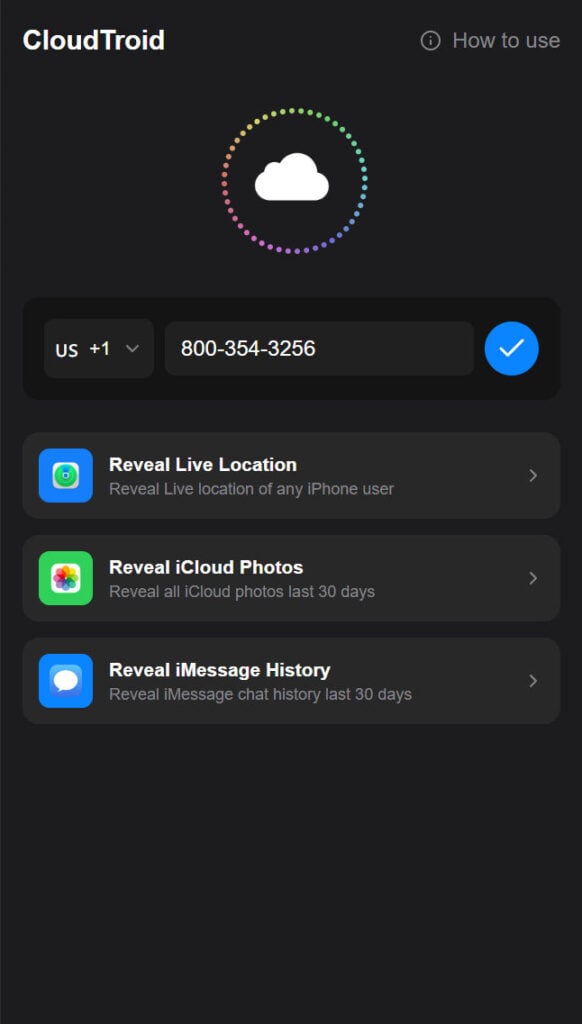
A website called CloudTroid is making bold claims: it can reveal someone’s live iPhone location, access their iCloud photos, uncover iMessage chat history, and even private videos. All it asks for is a phone number. Sounds too good to be true? That’s because it is. CloudTroid is not only deceptive—it’s dangerous.
In this article, we’ll expose the CloudTroid scam in detail, explain exactly how it manipulates users, and provide guidance for anyone who may have fallen victim. If you’ve ever been tempted by this tool or know someone who has, keep reading—what follows could save you or someone else from serious privacy risks and financial consequences.
Scam Overview
CloudTroid markets itself as a sophisticated tool capable of retrieving sensitive information from Apple users’ devices. According to its claims, users can:
- Reveal a target’s live iPhone location
- Access all iCloud photos from the last 30 days
- View iMessage history for the same timeframe
On the surface, the interface looks polished. The branding is modern, and the user experience mimics legitimate tech tools. Users are prompted to enter a phone number, choose a country code, and initiate a search. As the system “processes the request,” several believable animations are displayed, implying that a complex backend is at work.
But behind the scenes, it’s a classic scam operation designed to siphon personal data, redirect users to shady websites, and ultimately generate affiliate revenue through fraudulent means. Here’s how the deception is laid out:
Psychological Manipulation
The entire process leverages psychological tactics:
- Urgency: Statements like “Last live location (10 minutes ago)” and “Initializing Cloudtroid Connection…” are crafted to create a false sense of immediacy.
- Authority mimicry: The interface imitates legitimate services with design cues from Apple and Google.
- Social proof: Star ratings and fabricated reviews add fake credibility.
The Illusion of Progress
Each step in CloudTroid’s fake system is designed to create the illusion of complex technical activity:
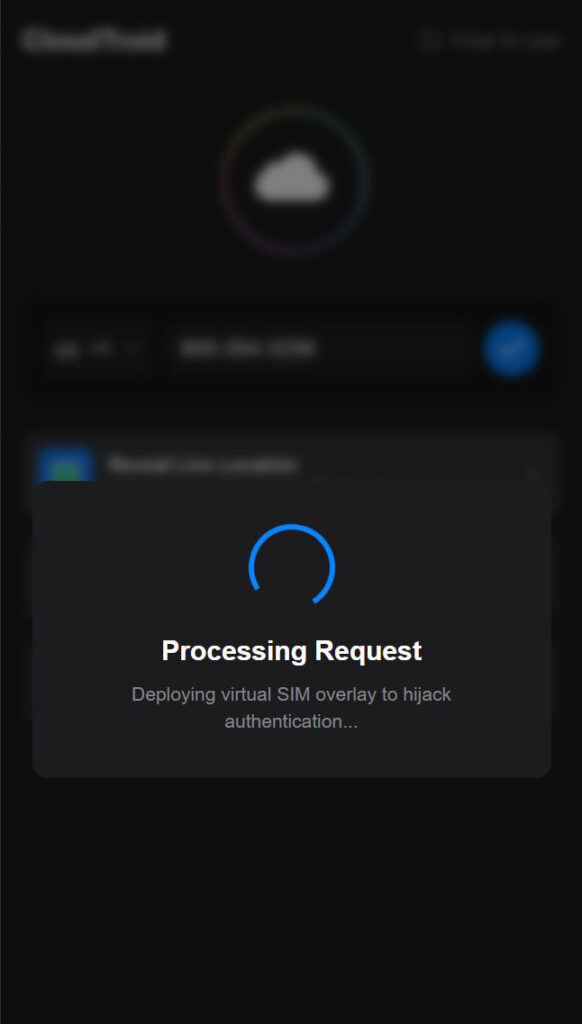
- “Deploying virtual SIM overlay to hijack authentication…”
- “Processing Request…”
- “Initializing Cloudtroid Connection…”
None of these actions are real. They are front-end animations scripted to buy time and increase the user’s belief that the tool is functioning.
Hidden Intentions
The true goal of CloudTroid is not to deliver any actual data—it’s to get users to:
- Click on affiliate links leading to deceptive ads.
- Submit personal information under the guise of “verification.”
- Get tricked into downloading Potentially Unwanted Programs (PUPs).
- Subscribe to premium SMS services without realizing it, leading to unexplained charges on phone bills.
The final layer of manipulation is the fake CAPTCHA and verification step that follows. Instead of a genuine CAPTCHA, users are pushed to “complete one task” from a list. These tasks involve sending an SMS, answering questions, or downloading a file—each of which generates affiliate revenue for the scam operators.
In reality, no location, message, or photo data is ever retrieved. What you get instead is exposure to financial scams, invasive ad tracking, and possibly malware.
How the Scam Works
Let’s dissect the entire process, step by deceptive step, to understand how CloudTroid exploits its victims.
Step 1: The Lure
Users land on the CloudTroid website via social media ads, hacked pages, phishing emails, or redirected domains with sensational headlines like:
- “Find anyone’s iCloud photos instantly!”
- “Track your child’s iPhone in real-time.”
These ads prey on curiosity, fear, or desire for control.
Step 2: Phone Number Entry
Users are prompted to select a country code and enter the target’s phone number. The site assures users that the process is anonymous and secure.
Step 3: Fake System Processing
Next, users see a series of realistic-looking animations:
- Cloud icons spinning
- “Connecting to iCloud Servers…”
- “Decrypting Data Packets…”
- “Deploying SIM hijack overlay…”
These animations are nothing more than JavaScript-driven spinners and progress bars.
Step 4: CAPTCHA Deception
Once the fake scan is “complete,” users are shown a CAPTCHA box that reads “I am not a robot”. This is staged to mimic Google’s reCAPTCHA system but lacks actual verification functionality.
Step 5: Forced Task Completion
After clicking to verify, users are told they must “complete one task” to access the results. These tasks include:
- Downloading a fake app
- Completing a bogus survey
- Sending an SMS to a premium number
All of these tasks result in revenue for the scam operator through affiliate marketing programs.
Step 6: Endless Redirects
Once a task is completed, the user is never shown any data. Instead, they’re redirected again—sometimes endlessly—to:
- Ad-laden landing pages
- Fake antivirus scans
- More scam funnels
Some users may end up subscribing to $5–$20/month SMS services or installing malware, thinking they are one step away from unlocking the desired content.
Step 7: No Exit, No Data
Even after completing multiple tasks, there’s no option to retrieve results. The site either loops back to the original input page or stalls indefinitely, ensuring users remain stuck in a scam cycle.
What to Do If You’ve Fallen Victim
If you’ve interacted with CloudTroid or a similar scam, act immediately to minimize potential damage. Here’s a step-by-step recovery plan:
1. Cancel Premium SMS Subscriptions
- Contact your mobile carrier and ask if any premium services are active on your account.
- Request immediate cancellation and block future activations.
- Dispute any unauthorized charges.
2. Run a Full Malware Scan
- Use a reputable antivirus or anti-malware tool (Malwarebytes, Bitdefender, etc.) to scan your device.
- Remove any flagged programs or browser extensions.
3. Clear Browser Data
- Go to your browser settings and clear cookies, cache, and history.
- Consider resetting your browser to default settings.
4. Change Your Passwords
- If you entered any personal details or login credentials, change those passwords immediately.
- Use strong, unique passwords for each account.
5. Monitor Financial Statements
- Review your bank and mobile statements for suspicious charges.
- Set up alerts for unusual activity.
6. Report the Scam
- Report the website to Google Safe Browsing and your local cybercrime authority.
- Share your experience on scam reporting sites like Scamwatch or Trustpilot.
7. Warn Others
- Post warnings on social media to prevent others from falling into the trap.
- If someone referred the site to you, let them know it’s a scam.
Is Your Device Infected? Run a Free Malware Scan
Slow performance, constant pop-ups, or strange behavior? These are classic signs of a malware infection. The fastest way to find out is to scan your device with Malwarebytes Free — one of the most trusted malware removal tools available.
The free version detects and removes the most common threats, including:
- Adware — the cause of those annoying pop-ups
- Browser hijackers — unwanted redirects and changed homepages
- Trojans and spyware — hidden programs stealing your data
- Potentially unwanted programs (PUPs) — software you never asked for
👉 Select your device below — Windows, Mac, or Android — then follow the simple steps to download Malwarebytes, scan your system, and remove any threats it finds. The scan usually takes 5 to 20 minutes.
Run a Malware Scan with Malwarebytes for Windows
Malwarebytes is one of the most popular and trusted anti-malware tools for Windows — and it’s completely free for removing infections. It catches threats that many antivirus programs miss, including adware, browser hijackers, and trojans. Follow the steps below to scan and clean your PC in just a few minutes.
Download Malwarebytes
Click the button below to download the latest version of Malwarebytes for Windows from the official source. The free version is all you need — it will scan your computer and remove adware, browser hijackers, and other malicious software at no cost.
Download MalwarebytesOfficial installer for Windows 11 and 10. Your download starts right away.Want real-time protection? See Malwarebytes Premium Malwarebytes Free for WindowsScans and removes malware at no cost
-
Install Malwarebytes
When the download finishes, open your Downloads folder and double-click the MBSetup file. If Windows shows a User Account Control pop-up, click “Yes” to allow the installation.

Follow the On-Screen Prompts to Install Malwarebytes
The setup wizard will walk you through a few quick screens:
-
Choose where you’re installing the program — “Personal Computer” or “Work Computer” — then click Next.

-
Malwarebytes will now install on your device. This usually takes under a minute.

-
When installation is complete, the “Welcome to Malwarebytes” screen will open automatically.

-
On the final screen, click Open Malwarebytes to launch the program.

-
Enable “Scan for Rootkits”
Before scanning, turn on rootkit detection so Malwarebytes can find even the most hidden threats. Click the Settings gear icon on the left side of the screen.

In the settings menu, find “Scan for rootkits” and click the toggle so it turns blue.

Done? Click “Dashboard” in the left pane to return to the main screen.
Start the Scan
Click the blue Scan button. Malwarebytes will automatically update its virus database and start checking your computer for malware.

-
Wait for the Scan to Finish
The scan checks your entire system for browser hijackers and other malicious programs, so it can take 5 to 20 minutes depending on your computer. Feel free to do something else — just check back occasionally to see the progress.

-
Quarantine the Detected Threats
When the scan is done, you’ll see a list of everything Malwarebytes found — malware, adware, and potentially unwanted programs. Click the “Quarantine” button to remove all of them at once.

Malwarebytes will now remove the malicious files and registry entries and move them safely into quarantine.

-
Restart Your Computer
Some threats can only be fully removed after a reboot. If Malwarebytes asks you to restart, click Yes. Once you’re logged back in, Malwarebytes has finished removing the threats it found.

That’s it — your Windows PC is now clean of trojans, adware, and other malware, and should be back to running smoothly.
If you are still having problems with your computer after completing these instructions, then please follow one of the steps:
- Run a computer scan with ESET Online Scanner
- Ask for help in our Windows Malware Removal Help & Support forum.
Run a Malware Scan with Malwarebytes for Mac
Malwarebytes for Mac is a free on-demand scanner that removes the malware other security software tends to miss — adware, browser hijackers, and unwanted programs included. Cleaning an infected Mac with Malwarebytes has always been completely free, and it’s our go-to recommendation. Follow the steps below to scan and clean your Mac in just a few minutes.
-
Download Malwarebytes for Mac
Click the button below to download the latest version of Malwarebytes for Mac.
Download MalwarebytesOfficial installer for macOS. Your download starts right away.Want real-time protection? See Malwarebytes PremiumMalwarebytes Free for MacScans and removes malware at no cost -
Open the Malwarebytes setup file
When the download finishes, open your Downloads folder and double-click the setup file to begin the installation.

-
Follow the On-Screen Prompts to Install Malwarebytes
The Malwarebytes for Mac Installer will guide you through a few quick screens. Click “Continue” and keep following the prompts until the installation completes.



When the installation is complete, Malwarebytes opens to the Welcome to Malwarebytes screen. Click “Get started“.
-
Select “Personal Computer” or “Work Computer”
Malwarebytes will ask what type of computer you’re installing it on. Click either Personal Computer or Work Computer, whichever applies.

-
Start the Scan
Click the “Scan” button. Malwarebytes will automatically update its detection database and begin checking your Mac for malware.

-
Wait for the Scan to Finish
Malwarebytes will scan your Mac for adware, browser hijackers, and other malicious programs. This can take a few minutes, so feel free to do something else — just check back occasionally to see the progress.

-
Quarantine the Detected Threats
When the scan is done, you’ll see a list of everything Malwarebytes found. Click the “Quarantine” button to remove all the threats at once.

-
Restart Your Mac
Malwarebytes will now remove all the malicious files it found. Some threats can only be fully removed after a reboot — if Malwarebytes asks you to restart, allow it. Once you’re logged back in, your Mac is clean.

That’s it — your Mac is now free of adware, rogue browser extensions, and other potentially harmful software.
If you are still experiencing problems while trying to remove a malicious program from your computer, please ask for help in our Mac Malware Removal Help & Support forum.
Run a Malware Scan with Malwarebytes for Android
Malwarebytes for Android automatically detects and removes dangerous threats like malware and ransomware so you don’t have to worry about your most-used device being compromised. Aggressive detection of adware and potentially unwanted programs keeps your Android phone or tablet running smooth.
-
Download Malwarebytes for Android.
You can download Malwarebytes for Android by clicking the link below.
Get Malwarebytes for AndroidOpens Google Play in a new tab.Want real-time protection? See Malwarebytes Premium for AndroidMalwarebytes for AndroidScans your phone and removes malware at no cost -
Install Malwarebytes for Android on your phone.
In the Google Play Store, tap “Install” to install Malwarebytes for Android on your device.

When the installation process has finished, tap “Open” to begin using Malwarebytes for Android. You can also open Malwarebytes by tapping on its icon in your phone menu or home screen.

-
Follow the on-screen prompts to complete the setup process
When Malwarebytes will open, you will see the Malwarebytes Setup Wizard which will guide you through a series of permissions and other setup options.
This is the first of two screens that explain the difference between the Premium and Free versions. Swipe this screen to continue.
Tap on “Got it” to proceed to the next step.
Malwarebytes for Android will now ask for a set of permissions that are required to scan your device and protect it from malware. Tap on “Give permission” to continue.
Tap on “Allow” to permit Malwarebytes to access the files on your phone.
-
Update database and run a scan with Malwarebytes for Android
You will now be prompted to update the Malwarebytes database and run a full system scan.

Click on “Update database” to update the Malwarebytes for Android definitions to the latest version, then click on “Run full scan” to perform a system scan.

-
Wait for the Malwarebytes scan to complete.
Malwarebytes will now start scanning your phone for adware and other malicious apps. This process can take a few minutes, so we suggest you do something else and periodically check on the status of the scan to see when it is finished.

-
Click on “Remove Selected”.
When the scan has been completed, you will be presented with a screen showing the malware infections that Malwarebytes for Android has detected. To remove the malicious apps that Malwarebytes has found, tap on the “Remove Selected” button.

-
Restart your phone.
Malwarebytes for Android will now remove all the malicious apps that it has found. To complete the malware removal process, Malwarebytes may ask you to restart your device.
That’s it — your Android phone is now clean — no more malicious apps, adware, or browser redirects.
If you are still having problems with your phone after completing these instructions, then please follow one of the steps:
- Restore your phone to factory settings by going to Settings > General management > Reset > Factory data reset.
- Ask for help in our Mobile Malware Removal Help & Support forum.
Stay Protected: Block Ads and Malicious Sites
Now that your device is clean, keep it that way. Most infections start with a malicious ad or a fake download button — so blocking them at the source is your best defense.
We recommend AdGuard, which blocks malicious ads, phishing pages, and dangerous redirects before they can reach you.
👉 Download AdGuard and browse safely
Frequently Asked Questions About the CloudTroid Scam
What is CloudTroid?
CloudTroid is a fraudulent website that claims to offer access to private iPhone data such as iCloud photos, iMessage history, and live location tracking simply by entering a phone number. In reality, it’s a scam designed to mislead users into completing affiliate offers and downloading potentially harmful software.
Is CloudTroid a real tool that can hack iPhones?
No, CloudTroid is not a legitimate tool. It does not have the capability to access iCloud accounts, intercept messages, or track devices. It’s a deceptive interface meant to trick users into thinking it’s performing real actions, when it’s only collecting clicks and redirecting traffic.
How does CloudTroid make money?
CloudTroid earns revenue through affiliate marketing schemes. It tricks users into completing “verification tasks” like downloading apps, subscribing to premium SMS services, or filling out fake surveys. Each action generates a commission for the scammers behind the site.
What are the risks of using CloudTroid?
Using CloudTroid exposes you to multiple risks, including:
- Unwanted charges from premium SMS subscriptions
- Download of potentially unwanted programs (PUPs)
- Exposure to malware or adware
- Loss of personal data through phishing
- Redirection to unsafe or scam websites
Why does CloudTroid look so legitimate?
Scammers often invest in high-quality design and user interfaces to create a false sense of trust and credibility. CloudTroid mimics the look and feel of professional applications to convince users it’s authentic.
What should I do if I entered my phone number on CloudTroid?
Immediately contact your mobile carrier to check for unauthorized subscriptions or charges. Request a block on third-party SMS services and monitor your phone bill for any suspicious activity.
Can I actually recover someone else’s iCloud data legally?
No. Accessing someone’s private iCloud data without their explicit consent is illegal and a violation of privacy laws. Any website claiming to offer such access should be treated with extreme suspicion.
How do I report CloudTroid?
You can report the site to:
- Google Safe Browsing (https://safebrowsing.google.com/)
- Your local cybercrime authority or internet fraud unit
- Scam reporting sites such as Scamwatch or Better Business Bureau
How can I protect myself from similar scams?
- Avoid websites that promise hacking or unauthorized access to accounts
- Don’t click on suspicious links or ads on social media
- Use antivirus and anti-malware tools regularly
- Educate yourself about common online scams and phishing techniques
- Use strong, unique passwords and enable two-factor authentication where possible
Has anyone actually gotten results from CloudTroid?
No verified user has ever received the promised data from CloudTroid. All testimonials or reviews shown on the site are fake. The goal is to keep you engaged just long enough to generate profit for the operators.
The Bottom Line
CloudTroid is a well-designed, malicious scam disguised as a powerful iCloud hacking tool. It leverages fake verification steps, bogus progress animations, and shady affiliate links to extract money and data from unsuspecting users. There’s no real data access—only financial loss, malware exposure, and potential identity theft.
If you encounter CloudTroid or a similar site, do not engage. Stay alert, think critically, and help others avoid falling for this growing class of digital scams.
Want to stay safe online? Always double-check website claims, avoid tools that promise “hacking” abilities, and report suspicious content whenever you see it.

Join the discussion
0 commentsShare your experience or ask a question about this article.
Discussion
Start the conversation
Have a question or something useful to share? Add the first comment.