

The Costco Survey Scam is a fake reward scheme that uses Costco’s trusted name to trick people into The Costco Survey Scam is a phishing scheme that uses fake emails, texts, pop-ups, and social media ads to impersonate Costco and promote non-existent rewards.
These messages often promise items like a $500 gift card, Ninja CREAMi, Yeti cooler, or Samsung TV in exchange for completing a short survey. In reality, the goal is to steal personal information, payment details, or account credentials.
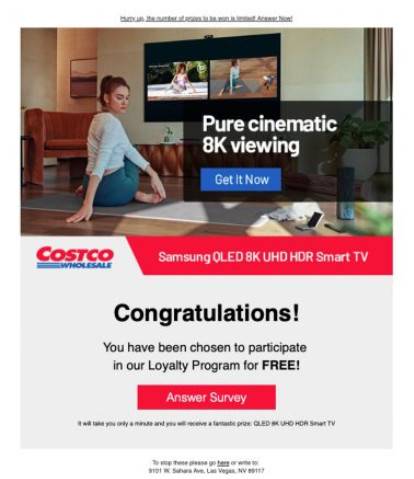
Overview
The Costco Survey Scam is a phishing and financial fraud scheme built around one powerful idea: people trust Costco.
Costco is a major retailer with a loyal membership base, strong brand recognition, and a reputation for value. That makes its name attractive to scammers. If a fake message claims to come from an unknown company, many people ignore it. But if the message appears to come from Costco, some users lower their guard.
That is exactly what scammers count on.
The scam usually begins with a message that says the recipient has been selected for a customer satisfaction survey. The message may claim Costco wants feedback after a recent visit, membership renewal, online order, or shopping experience.
To make the offer more convincing, scammers attach a reward.
The message may say something like:
- “Congratulations, you have been selected for a Costco reward.”
- “Complete this short Costco survey and claim your free gift.”
- “You have been chosen to receive a Ninja CREAMi.”
- “Your $500 Costco gift card is waiting.”
- “Answer 4 questions and claim your exclusive prize.”
- “Costco members only: claim your reward before it expires.”
The survey itself is usually meaningless. It may ask simple questions such as:
- “How often do you shop at Costco?”
- “Are you satisfied with Costco prices?”
- “Would you recommend Costco to friends?”
- “How would you rate your most recent shopping experience?”
These questions are not designed to collect useful feedback. They are there to make the page feel legitimate. The scam needs the victim to believe they are moving through a normal customer survey process.
After the fake survey ends, the page usually announces that the user has “qualified” for a reward. This is where the scam becomes more dangerous.
The victim may be told that the gift is free, but they must pay a small shipping or handling charge. The amount is often low enough to feel harmless, such as $1.95, $4.95, or $9.99.
That small fee is the trap.
Once the victim enters their card number, expiration date, CVV code, name, address, phone number, and email address, the scammers have enough information to commit fraud. They may charge the card immediately, enroll the victim into hidden subscription billing, sell the payment details, or use the information for identity theft.
Some versions of the Costco Survey Scam do not ask for payment immediately. Instead, they collect personal information first. They may request a full name, home address, phone number, email address, date of birth, or even account login details.
Other versions redirect victims through several marketing pages, fake prize pages, or suspicious “partner offers.” These pages can collect data at every step. The victim may think they are simply confirming eligibility, but each form gives scammers or shady lead-generation networks more information.
In more aggressive versions, the scam may attempt to install malware. This can happen through fake “reward verification” downloads, browser notification prompts, malicious attachments, or fake security pages. The Federal Trade Commission warns that scammers commonly use fake prize and gift card messages to get personal information, and clicking links in these messages can also expose users to malware.
The scam appears in several formats.
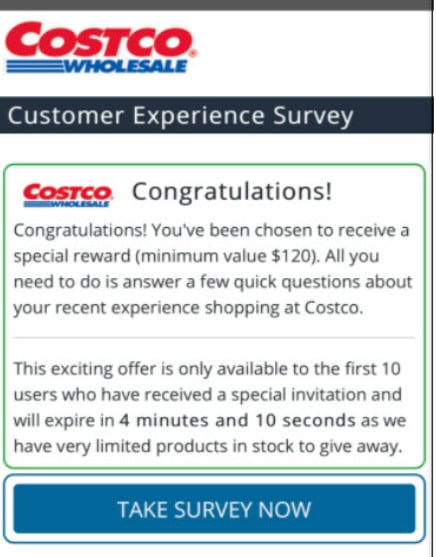
Fake Costco Survey Emails
Email is one of the most common delivery methods. The email may use Costco branding, red and blue colors, fake order references, and urgent subject lines.
Examples include:
- “Costco Reward Waiting”
- “You Have Been Selected”
- “Costco Customer Survey”
- “Claim Your Free Gift Today”
- “Your Costco Prize Confirmation”
- “Membership Reward Available”
The sender name may say “Costco,” “Costco Rewards,” “Costco Member Services,” or “Costco Survey Department.” But the actual email address often comes from a random domain that has no connection to Costco.
This is one of the biggest warning signs.
A scam email may display “Costco” as the sender name, but the address behind it may be something unrelated, such as a random Gmail address, a strange domain, or a newly registered website.
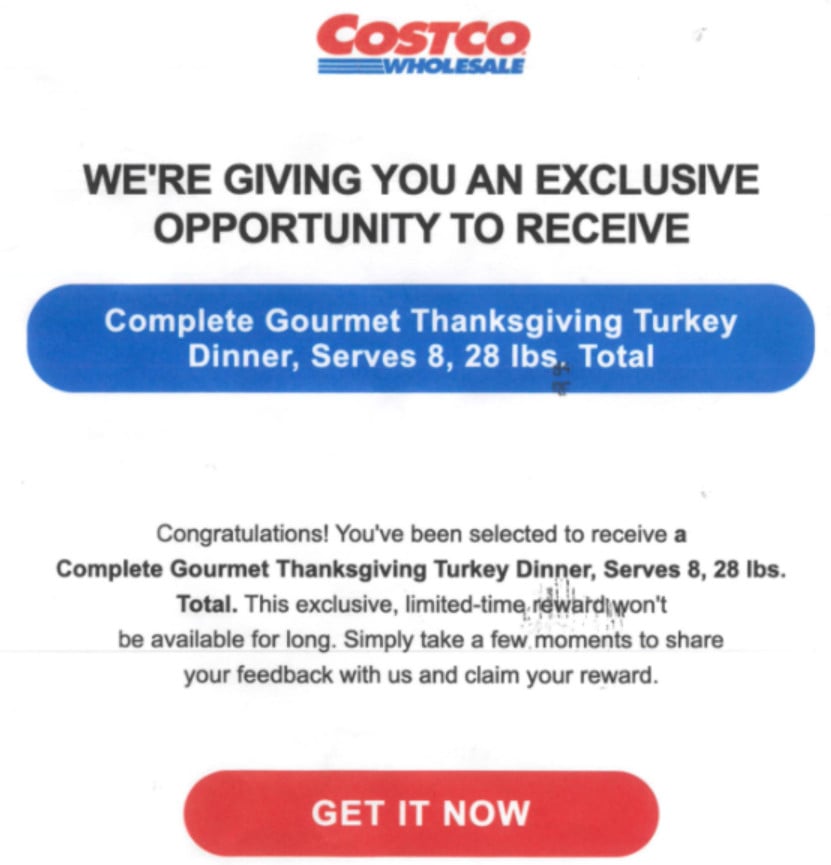
Fake Costco Text Messages
The text message version is known as smishing, which means phishing by SMS.
These messages are short, urgent, and designed for fast clicks. They may say the user has only a few minutes or hours to claim the prize.
A fake Costco text may look like:
“Costco: You have been selected for our loyalty survey. Complete it now to claim your free reward.”
Or:
“Your Costco gift card is ready. Confirm your delivery details here.”
Because text messages feel personal and immediate, many people click before checking the link. That is why smishing campaigns are so effective.
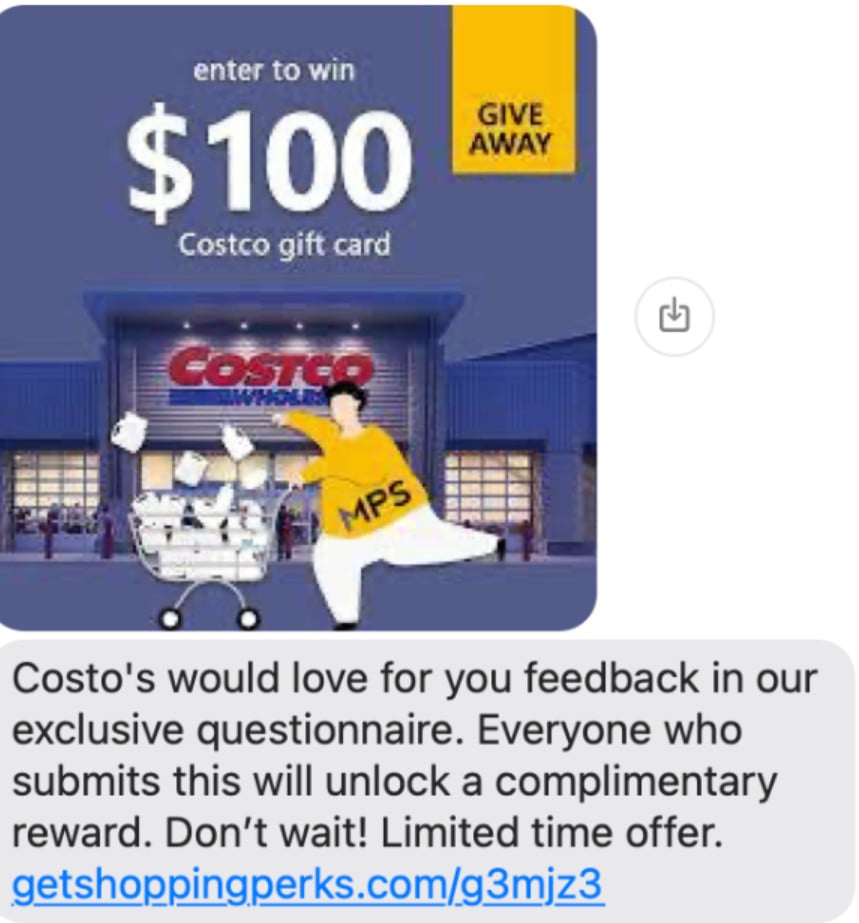
Fake Social Media Ads and Posts
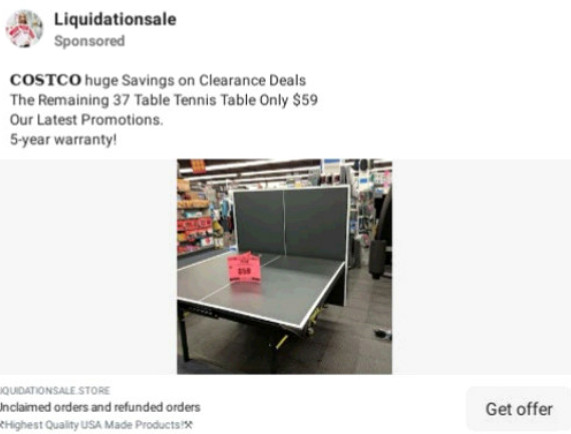
Some versions appear on Facebook, Instagram, TikTok, or other platforms. These may use fake Costco pages, copied logos, stolen product images, and comments that appear to show happy winners.
The post may claim that Costco is clearing extra inventory or rewarding loyal customers. Scammers often use trending products to make the scam more tempting.
For example, a fake survey may promise a Ninja CREAMi because the product is popular and expensive enough to feel exciting. Other campaigns use coolers, TVs, air fryers, cookware sets, laptops, phones, or large gift cards.
Fake Pop-Up Ads
Some users encounter the scam through pop-up ads while browsing. The page may display a message like:
“You are today’s lucky Costco visitor.”
Or:
“Complete this 30-second survey and claim your reward.”
These pop-ups often appear on low-quality websites, pirated streaming pages, fake news sites, or pages filled with misleading ads. They may also appear after adware or a suspicious browser extension has been installed on the device.
Why The Scam Works So Well
The Costco Survey Scam works because it blends several psychological tricks.
First, it uses a trusted brand. People know Costco, shop there, and often associate the company with deals and membership perks.
Second, it offers a prize that feels believable. Costco sells many high-value products, so a free appliance, TV, or gift card may not seem impossible at first glance.
Third, it asks for a small action. Completing a survey feels low-risk. People are used to companies asking for feedback.
Fourth, it introduces urgency. The message may claim the reward expires soon or only a limited number of prizes remain.
Fifth, it starts with a small payment. A $4.95 shipping fee feels minor compared with a free $200 or $500 item. That contrast makes the victim focus on the reward, not the risk.
Costco has made clear that suspicious reward offers are not from Costco and that customers should not click links or provide personal information through those messages.
How The Scam Works
The Costco Survey Scam usually follows a predictable pattern. The details change from campaign to campaign, but the core structure remains the same.
Scammers impersonate Costco, create a fake reward offer, guide the victim through a convincing survey page, then collect sensitive information or money.
Here is how the scam typically unfolds.
1. The Victim Receives a Fake Costco Message
The scam begins with a message designed to look official.
It may arrive as:
- An email
- A text message
- A social media ad
- A Facebook post
- A browser pop-up
- A push notification
- A fake online ad
- A forwarded message from someone who was also tricked
The message usually claims the recipient has been selected for a special opportunity.
It may mention a survey, giveaway, reward program, customer appreciation event, loyalty bonus, or membership benefit.
The wording often tries to sound friendly and exciting:
“Costco values your opinion. Complete our short survey and receive a free reward.”
Or:
“You have been chosen to receive a Costco exclusive prize. Confirm now.”
This first message has one job: get the victim to click.
2. The Link Sends The User To a Fake Costco Page
The link does not lead to Costco’s real website.
Instead, it opens a fake page controlled by scammers. The page may copy Costco’s logo, colors, fonts, product photos, and layout. It may include fake customer reviews, countdown timers, stock counters, and trust badges.
The page may look professional enough to fool someone who is browsing quickly on a phone.
This is especially dangerous on mobile devices because the full web address is often harder to inspect. A fake domain may be hidden behind a shortened link or a button that says “Start Survey.”
The URL may contain words like:
- costco
- rewards
- member
- survey
- loyalty
- prize
- gifts
- claim
- winner
But that does not make it legitimate.
Scammers often use domains that look close to real brands. They may add extra words, hyphens, numbers, or unusual endings to make the link appear related to Costco.
Examples of suspicious patterns include:
- costco-reward-example.com
- costcosurvey-prize.example
- member-costco-gifts.example
- costcofreeclaim.example
- surveyrewardcenter.example
A real Costco promotion should be verified directly through Costco’s official website, not through a random link in an unsolicited message.
3. The Fake Survey Begins
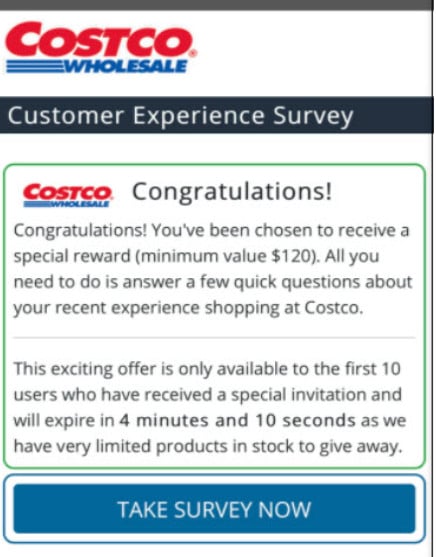
Once the victim lands on the fake site, the page asks several simple questions.
The questions are usually easy and generic. They may ask about shopping habits, product satisfaction, membership use, or customer experience.
The survey may show progress bars such as:
- Question 1 of 4
- Question 2 of 4
- Validating answers
- Checking reward availability
- Confirming eligibility
This creates the feeling that something real is happening. In reality, the victim usually “qualifies” no matter how they answer.
The scam is not interested in honest feedback. It is interested in moving the victim to the next step.
4. The Victim Is Told They Won a Prize
After the fake survey, the site announces that the victim has qualified for a reward.
This is the emotional hook.
The page may show several prize boxes and ask the user to choose one. Or it may show a single prize and claim it has already been reserved.
Common fake rewards include:
- $500 Costco gift card
- $250 Costco voucher
- Ninja CREAMi
- Yeti cooler
- Samsung TV
- KitchenAid mixer
- Air fryer
- iPhone
- Laptop
- Free groceries
- Costco membership extension
The page may say only a few rewards remain. It may show a countdown timer or claim the user has 5 minutes to complete the process.
This urgency is artificial.
The timer is there to stop the victim from thinking carefully, checking Costco’s website, or asking someone else for advice.
5. The Scam Requests Personal Information
Next, the page asks the victim to provide personal details.
This may include:
- Full name
- Email address
- Phone number
- Home address
- ZIP code
- Date of birth
- Costco membership number
- Login credentials
- Security questions
The page may claim this information is needed to ship the reward, verify membership, or confirm eligibility.
But entering this information can expose the victim to more scams.
Once scammers have a name, phone number, address, and email, they can use that data for targeted phishing. The victim may start receiving fake delivery notices, fake bank alerts, fake refund calls, fake tech support messages, or more prize scams.
If the victim provides a Costco login or password used on other sites, criminals may attempt credential stuffing. That means they try the same email and password combination on banks, email accounts, shopping accounts, and other services.
6. The Scam Requests a Small Shipping Fee
This is one of the most common payment traps.
The fake page says the prize is free, but the victim must pay a small shipping or handling fee.
The amount is usually low. That is intentional.
A $3.95 or $4.95 fee seems reasonable if the promised reward is worth $200 or more. Many victims think, “Even if this is a little unusual, it is only a few dollars.”
But the real cost can be much higher.
Once the victim enters payment card details, scammers may:
- Make unauthorized purchases
- Sell the card information
- Enroll the victim in recurring subscriptions
- Attempt larger charges later
- Use the card for online fraud
- Pair the card data with stolen personal information
Some scam pages hide subscription terms in tiny text. The victim may think they are paying shipping, but they are actually agreeing to recurring charges.
These charges may appear under unfamiliar company names, making them harder to connect to the original fake Costco survey.
7. The Victim May Be Redirected Through More Offers
After payment or data entry, the victim may not receive any clear confirmation.
Instead, they may be redirected to another page. Then another. Then another.
These pages may ask the victim to:
- Complete additional surveys
- Sign up for trial offers
- Enter more personal details
- Download an app
- Allow browser notifications
- Confirm their phone number
- Share the offer with friends
- Complete “partner deals”
This redirect chain can be part of a lead-generation scheme. Each page collects data, generates affiliate commissions, or exposes the victim to more scams.
In some cases, the fake Costco reward is simply the doorway into a larger fraud funnel.
8. The Prize Never Arrives
Eventually, the victim realizes the reward is not coming.
There is no Ninja CREAMi. No Yeti cooler. No Samsung TV. No $500 Costco gift card.
If they try contacting the site, they may find:
- No customer service number
- A fake support email
- A contact form that never replies
- A disconnected phone number
- A generic billing company
- A hidden subscription cancellation page
- No record of any order
By then, the scammers may already have the victim’s personal details, payment information, and contact data.
9. The Victim May Receive Follow-Up Scams
Once someone interacts with a scam page, they may be targeted again.
Scammers often reuse or sell victim data. A person who clicked a Costco survey scam may later receive other messages claiming to be from:
- USPS
- FedEx
- UPS
- PayPal
- Amazon
- Walmart
- Best Buy
- Their bank
- A fraud department
- A debt collector
- Tech support
- A prize department
These follow-up scams may reference shipping, refunds, failed payments, account alerts, or suspicious activity.
This is why it is important to act quickly after entering information on a fake survey page.
10. Some Versions Try To Install Malware
Not every Costco Survey Scam stops at data theft.
Some pages may push malware, adware, or unwanted software. This can happen through fake prompts such as:
- “Download your reward confirmation.”
- “Install this app to track your prize.”
- “Update your browser to continue.”
- “Allow notifications to verify you are human.”
- “Open this file to claim your gift.”
These prompts should be treated as suspicious.
Allowing browser notifications can lead to constant scam pop-ups. Installing unknown software can expose the device to spyware, browser hijackers, fake antivirus alerts, or credential theft.
The FTC warns that links in fake prize messages can lead to malware downloads, which is one reason users should avoid clicking unsolicited reward links.
11. The Scam Uses Costco’s Name Without Permission
A key point is that Costco is not running these fake survey campaigns.
Scammers are impersonating Costco to make the fraud look trustworthy. Costco itself is also harmed by these schemes because its brand is being abused.
Costco’s fraud prevention page states that keeping customer information secure is a priority and provides guidance on common scams and identity theft protection.
The safest approach is simple:
Do not trust unsolicited messages offering Costco prizes for surveys.
Do not click the link.
Do not enter personal information.
Do not pay a shipping fee.
Go directly to Costco’s official website or contact Costco through official channels if you are unsure.
Red Flags Of The Costco Survey Scam
The scam can look polished, but it usually leaves clues.
Watch for these warning signs:
The Message Arrives Unexpectedly
If you did not enter a Costco promotion or request a survey, be cautious.
Unexpected prize messages are a classic scam tactic.
The Reward Is Too Generous
A high-value product in exchange for a short survey is suspicious.
A few questions are not usually worth a $500 gift card, a TV, or an expensive appliance.
The Message Creates Urgency
Scam pages often say:
- “Claim within 5 minutes.”
- “Only 3 rewards left.”
- “Your reward expires today.”
- “Final notice.”
- “Act now.”
Urgency is used to pressure you into acting before checking the facts.
The Link Does Not Go To Costco’s Official Website
Always inspect the web address.
A scam may include “Costco” in the domain, but that does not make it real.
The Page Asks For Card Details
A free reward should not require you to enter your full credit card or debit card information through a random survey link.
A small shipping fee is one of the most common tricks in fake reward scams.
The Email Address Looks Wrong
The sender name may say Costco, but the actual email address may be unrelated.
Look carefully at the domain after the @ symbol.
The Page Has Grammar Issues Or Strange Wording
Some scam pages contain awkward phrases, inconsistent capitalization, or unusual formatting.
But do not rely only on grammar. Many modern scam pages are clean and convincing.
The Offer Appears On A Random Social Media Page
A fake Costco page may use stolen logos and product images. Check whether the page is official, verified, and linked from Costco’s real website.
The Survey Always Says You Qualified
If every answer leads to a prize, the survey is not real. It is a funnel.
What To Do If You Have Fallen Victim To This Scam
If you clicked a fake Costco survey link, entered information, paid a fee, or downloaded something, do not panic. Act quickly and methodically.
1. Stop Interacting With The Scam Page
Close the page immediately.
Do not complete more forms. Do not download files. Do not call phone numbers shown on the page. Do not reply to the email or text.
If the page asks you to share the offer with friends, do not send it.
2. Contact Your Bank Or Card Issuer
If you entered credit card or debit card details, call your bank or card issuer using the number on the back of your card.
Tell them you entered your card information on a suspected phishing website.
Ask them to:
- Block or replace the card
- Review recent charges
- Dispute unauthorized transactions
- Stop recurring charges if any appear
- Add extra fraud monitoring
Do this even if the charge was only a few dollars. Small test charges can lead to larger fraud later.
3. Check Your Statements Carefully
Review your bank and credit card statements for unfamiliar charges.
Look for:
- Small shipping charges
- Subscription billing
- Unknown merchant names
- Repeated monthly charges
- International charges
- Trial offer billing
- Random digital service charges
Scam-related charges may not say “Costco.” They may appear under a completely different company name.
4. Change Passwords If You Entered Login Information
If you entered a password on the fake page, change it immediately.
Start with:
- Your Costco account
- Your email account
- Your bank account
- Shopping accounts
- Payment apps
- Any account using the same password
Use strong, unique passwords for each account.
If you reused the same password elsewhere, change it everywhere.
5. Enable Two-Factor Authentication
Turn on two-factor authentication for important accounts.
Prioritize:
- Banking
- Costco
- Amazon
- PayPal
- Apple ID
- Google account
- Microsoft account
- Social media accounts
Two-factor authentication makes it harder for scammers to access your accounts even if they have your password.
6. Watch For Follow-Up Scams
After entering information into a fake survey, you may receive more scam messages.
Be suspicious of future texts, calls, or emails claiming:
- Your package cannot be delivered
- Your card was charged
- Your account was locked
- Your refund is ready
- Your device is infected
- Your bank detected fraud
- You owe a fee
- You won another prize
Scammers may use the information you entered to make future scams sound personal.
7. Scan Your Device For Malware
If you downloaded a file, installed an app, allowed browser notifications, or clicked through suspicious pop-ups, scan your device.
Use trusted security software.
Also check your browser extensions and remove anything unfamiliar.
If you allowed notifications from a suspicious site, disable them in your browser settings.
8. Report The Scam
Report the fake survey to the proper organizations.
You can report:
- The email as phishing in your email provider
- The text as spam through your phone
- The scam website to your browser or security provider
- Fraud to the FTC
- Suspicious Costco-related scams to Costco through official customer service channels
The FTC advises consumers not to respond to fake prize messages or click suspicious links, and it provides guidance for reporting scams. (Consumer Advice)
9. Save Evidence
Keep records in case you need them for your bank, card issuer, or a fraud report.
Save:
- Screenshots of the message
- The sender email or phone number
- The website address
- Payment confirmation screens
- Bank transaction details
- Any emails from the fake site
- Dates and times
Do not click the scam link again to gather evidence. Use what you already have.
10. Warn Family Members
These scams often target ordinary shoppers, parents, seniors, and people who frequently use big-box retailers.
Warn family members not to trust Costco reward surveys sent by email, text, or social media.
This is especially important if someone in your household may have received the same message.
How To Protect Yourself From Costco Survey Scams
Avoiding this scam comes down to a few consistent habits.
Go Directly To Costco’s Website
Do not use links from unsolicited emails or texts.
Open your browser and type Costco’s official website yourself. If there is a real promotion, you should be able to verify it through official channels.
Treat Free High-Value Rewards As Suspicious
A free product worth hundreds of dollars for a short survey should immediately raise concern.
Real companies may conduct surveys, but unsolicited high-value reward claims are frequently abused by scammers.
Never Pay Shipping For A Surprise Prize
If a message says you won a free Costco gift but must pay a small shipping fee, assume it is suspicious.
This is one of the most common ways scammers steal card details.
Check The Sender And URL Carefully
Look beyond the display name.
Check the real email address, domain, and link destination. If anything looks unrelated to Costco, do not proceed.
Do Not Enter Personal Information Through Random Links
Your name, address, phone number, email, date of birth, and card details are valuable.
Do not provide them to a page reached through an unexpected reward message.
Keep Your Browser And Security Software Updated
Updates help protect against malicious pages, browser exploits, and known phishing sites.
Block And Report Scam Messages
Mark suspicious emails as phishing. Report scam texts as spam. This helps reduce similar messages in the future.
Is Your Device Infected? Run a Free Malware Scan
Slow performance, constant pop-ups, or strange behavior? These are classic signs of a malware infection. The fastest way to find out is to scan your device with Malwarebytes Free — one of the most trusted malware removal tools available.
The free version detects and removes the most common threats, including:
- Adware — the cause of those annoying pop-ups
- Browser hijackers — unwanted redirects and changed homepages
- Trojans and spyware — hidden programs stealing your data
- Potentially unwanted programs (PUPs) — software you never asked for
👉 Select your device below — Windows, Mac, or Android — then follow the simple steps to download Malwarebytes, scan your system, and remove any threats it finds. The scan usually takes 5 to 20 minutes.
Run a Malware Scan with Malwarebytes for Windows
Malwarebytes is one of the most popular and trusted anti-malware tools for Windows — and it’s completely free for removing infections. It catches threats that many antivirus programs miss, including adware, browser hijackers, and trojans. Follow the steps below to scan and clean your PC in just a few minutes.
Download Malwarebytes
Click the button below to download the latest version of Malwarebytes for Windows from the official source. The free version is all you need — it will scan your computer and remove adware, browser hijackers, and other malicious software at no cost.
Download MalwarebytesOfficial installer for Windows 11 and 10. Your download starts right away.Want real-time protection? See Malwarebytes Premium Malwarebytes Free for WindowsScans and removes malware at no cost
-
Install Malwarebytes
When the download finishes, open your Downloads folder and double-click the MBSetup file. If Windows shows a User Account Control pop-up, click “Yes” to allow the installation.

Follow the On-Screen Prompts to Install Malwarebytes
The setup wizard will walk you through a few quick screens:
-
Choose where you’re installing the program — “Personal Computer” or “Work Computer” — then click Next.

-
Malwarebytes will now install on your device. This usually takes under a minute.

-
When installation is complete, the “Welcome to Malwarebytes” screen will open automatically.

-
On the final screen, click Open Malwarebytes to launch the program.

-
Enable “Scan for Rootkits”
Before scanning, turn on rootkit detection so Malwarebytes can find even the most hidden threats. Click the Settings gear icon on the left side of the screen.

In the settings menu, find “Scan for rootkits” and click the toggle so it turns blue.

Done? Click “Dashboard” in the left pane to return to the main screen.
Start the Scan
Click the blue Scan button. Malwarebytes will automatically update its virus database and start checking your computer for malware.

-
Wait for the Scan to Finish
The scan checks your entire system for browser hijackers and other malicious programs, so it can take 5 to 20 minutes depending on your computer. Feel free to do something else — just check back occasionally to see the progress.

-
Quarantine the Detected Threats
When the scan is done, you’ll see a list of everything Malwarebytes found — malware, adware, and potentially unwanted programs. Click the “Quarantine” button to remove all of them at once.

Malwarebytes will now remove the malicious files and registry entries and move them safely into quarantine.

-
Restart Your Computer
Some threats can only be fully removed after a reboot. If Malwarebytes asks you to restart, click Yes. Once you’re logged back in, Malwarebytes has finished removing the threats it found.

That’s it — your Windows PC is now clean of trojans, adware, and other malware, and should be back to running smoothly.
If you are still having problems with your computer after completing these instructions, then please follow one of the steps:
- Run a computer scan with ESET Online Scanner
- Ask for help in our Windows Malware Removal Help & Support forum.
Run a Malware Scan with Malwarebytes for Mac
Malwarebytes for Mac is a free on-demand scanner that removes the malware other security software tends to miss — adware, browser hijackers, and unwanted programs included. Cleaning an infected Mac with Malwarebytes has always been completely free, and it’s our go-to recommendation. Follow the steps below to scan and clean your Mac in just a few minutes.
-
Download Malwarebytes for Mac
Click the button below to download the latest version of Malwarebytes for Mac.
Download MalwarebytesOfficial installer for macOS. Your download starts right away.Want real-time protection? See Malwarebytes PremiumMalwarebytes Free for MacScans and removes malware at no cost -
Open the Malwarebytes setup file
When the download finishes, open your Downloads folder and double-click the setup file to begin the installation.

-
Follow the On-Screen Prompts to Install Malwarebytes
The Malwarebytes for Mac Installer will guide you through a few quick screens. Click “Continue” and keep following the prompts until the installation completes.



When the installation is complete, Malwarebytes opens to the Welcome to Malwarebytes screen. Click “Get started“.
-
Select “Personal Computer” or “Work Computer”
Malwarebytes will ask what type of computer you’re installing it on. Click either Personal Computer or Work Computer, whichever applies.

-
Start the Scan
Click the “Scan” button. Malwarebytes will automatically update its detection database and begin checking your Mac for malware.

-
Wait for the Scan to Finish
Malwarebytes will scan your Mac for adware, browser hijackers, and other malicious programs. This can take a few minutes, so feel free to do something else — just check back occasionally to see the progress.

-
Quarantine the Detected Threats
When the scan is done, you’ll see a list of everything Malwarebytes found. Click the “Quarantine” button to remove all the threats at once.

-
Restart Your Mac
Malwarebytes will now remove all the malicious files it found. Some threats can only be fully removed after a reboot — if Malwarebytes asks you to restart, allow it. Once you’re logged back in, your Mac is clean.

That’s it — your Mac is now free of adware, rogue browser extensions, and other potentially harmful software.
If you are still experiencing problems while trying to remove a malicious program from your computer, please ask for help in our Mac Malware Removal Help & Support forum.
Run a Malware Scan with Malwarebytes for Android
Malwarebytes for Android automatically detects and removes dangerous threats like malware and ransomware so you don’t have to worry about your most-used device being compromised. Aggressive detection of adware and potentially unwanted programs keeps your Android phone or tablet running smooth.
-
Download Malwarebytes for Android.
You can download Malwarebytes for Android by clicking the link below.
Get Malwarebytes for AndroidOpens Google Play in a new tab.Want real-time protection? See Malwarebytes Premium for AndroidMalwarebytes for AndroidScans your phone and removes malware at no cost -
Install Malwarebytes for Android on your phone.
In the Google Play Store, tap “Install” to install Malwarebytes for Android on your device.

When the installation process has finished, tap “Open” to begin using Malwarebytes for Android. You can also open Malwarebytes by tapping on its icon in your phone menu or home screen.

-
Follow the on-screen prompts to complete the setup process
When Malwarebytes will open, you will see the Malwarebytes Setup Wizard which will guide you through a series of permissions and other setup options.
This is the first of two screens that explain the difference between the Premium and Free versions. Swipe this screen to continue.
Tap on “Got it” to proceed to the next step.
Malwarebytes for Android will now ask for a set of permissions that are required to scan your device and protect it from malware. Tap on “Give permission” to continue.
Tap on “Allow” to permit Malwarebytes to access the files on your phone.
-
Update database and run a scan with Malwarebytes for Android
You will now be prompted to update the Malwarebytes database and run a full system scan.

Click on “Update database” to update the Malwarebytes for Android definitions to the latest version, then click on “Run full scan” to perform a system scan.

-
Wait for the Malwarebytes scan to complete.
Malwarebytes will now start scanning your phone for adware and other malicious apps. This process can take a few minutes, so we suggest you do something else and periodically check on the status of the scan to see when it is finished.

-
Click on “Remove Selected”.
When the scan has been completed, you will be presented with a screen showing the malware infections that Malwarebytes for Android has detected. To remove the malicious apps that Malwarebytes has found, tap on the “Remove Selected” button.

-
Restart your phone.
Malwarebytes for Android will now remove all the malicious apps that it has found. To complete the malware removal process, Malwarebytes may ask you to restart your device.
That’s it — your Android phone is now clean — no more malicious apps, adware, or browser redirects.
If you are still having problems with your phone after completing these instructions, then please follow one of the steps:
- Restore your phone to factory settings by going to Settings > General management > Reset > Factory data reset.
- Ask for help in our Mobile Malware Removal Help & Support forum.
Stay Protected: Block Ads and Malicious Sites
Now that your device is clean, keep it that way. Most infections start with a malicious ad or a fake download button — so blocking them at the source is your best defense.
We recommend AdGuard, which blocks malicious ads, phishing pages, and dangerous redirects before they can reach you.
👉 Download AdGuard and browse safely
The Bottom Line
The Costco Survey Scam is not a real Costco promotion. It is a phishing scheme that uses fake surveys, fake rewards, and fake urgency to steal personal information, payment details, or both.
The promised prize may be a $500 gift card, Ninja CREAMi, Yeti cooler, Samsung TV, or another attractive item. But the pattern is the same: click the link, answer easy questions, “qualify” for a reward, then provide sensitive information or pay a small shipping fee.
That small fee can lead to card fraud, hidden subscriptions, identity theft, malware, or more targeted scams.
Costco has warned that fraudulent emails, texts, and posts are circulating and that these offers are not from Costco Wholesale. The safest response is to avoid the links, delete the message, and verify any real promotion only through Costco’s official website or customer service.
If you already entered information, act quickly. Contact your bank, change passwords, monitor accounts, scan your device, and report the scam.
A real reward should not pressure you, confuse you, or ask for sensitive information through a suspicious link. When a message promises something expensive for almost nothing, pause before clicking. That pause can protect your money, your identity, and your peace of mind.
FAQ
Is the Costco survey reward real?
No. Fake Costco survey messages promising free gifts, gift cards, or expensive products are scams. Costco does not send unsolicited surveys offering high-value rewards.
What is the Costco Survey Scam?
It is a phishing scam where criminals impersonate Costco and ask users to complete a fake survey. The goal is to steal personal information, credit card details, or login credentials.
Why do scammers ask for a small shipping fee?
The “shipping fee” is used to collect your credit card details. Even if the amount looks small, scammers may use the card for larger charges or hidden subscriptions.
What fake prizes are used in the Costco Survey Scam?
Common fake prizes include $500 Costco gift cards, Ninja CREAMi machines, Yeti coolers, Samsung TVs, air fryers, and other high-value products.
What should I do if I entered my card details?
Contact your bank or card issuer immediately, report the transaction as suspicious, request a new card if needed, and monitor your statements for unauthorized charges.
How can I check if a Costco offer is real?
Do not click links in unsolicited emails or texts. Go directly to Costco’s official website or contact Costco customer service through official channels.








