Online shoppers are always on the lookout for ways to save money, and coupon websites have become a go-to solution for many. But not every site that promises incredible discounts is trustworthy. One site that has recently gained attention is CouponAstra.com, which advertises premium deals and claims to provide verified daily discounts. At first glance, the site looks convincing, with big-name brands like Apple, Expedia, Lululemon, and H&M featured on its homepage. However, the question remains: Is CouponAstra.com legit or a scam? This article will take a deep dive into the website, exposing how it operates, why it raises serious red flags, and what you should do if you’ve fallen victim to it.
CouponAstra.com presents itself as a coupon and deals platform that promises massive discounts on well-known brands. The site is designed to look polished, colorful, and user-friendly, which gives it an air of credibility. But when you start looking closer, the cracks begin to show. Let’s break down the issues in detail.
Too-Good-To-Be-True Discounts
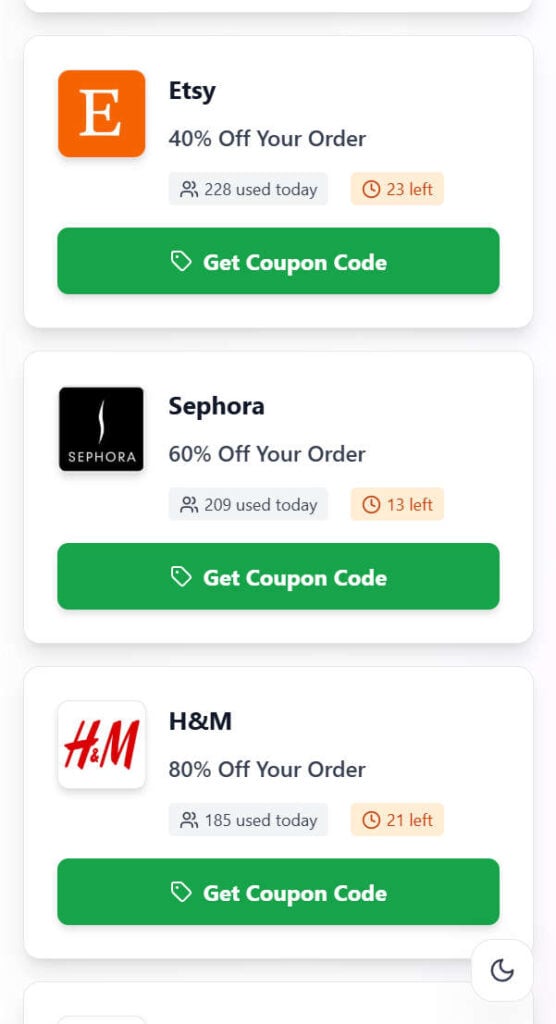
The first sign that something is wrong with CouponAstra.com is the size of the discounts offered. Some deals advertise 95% off Apple products, 80% off H&M orders, or 75% off Lululemon purchases. For anyone familiar with these brands, these discounts are wildly unrealistic. Apple, for example, is notorious for rarely offering discounts beyond a few percent, and even those are limited to specific circumstances. Major retailers like H&M and Lululemon do run sales, but they never slash prices to the point of 80% off sitewide.
When discounts look too good to be true, they usually are. These inflated claims are a tactic used by scam websites to grab attention and lure users into interacting with their system.
Fake Scarcity and Urgency
Another common scam tactic seen on CouponAstra.com is the use of urgency triggers. Each deal includes counters that show how many people used the coupon today and how many coupons are left. For instance, a coupon for Expedia might say, “229 used today” with only “24 left.” These numbers are designed to create a sense of scarcity, making users feel like they must act fast or miss out.
However, these counters are almost always fake. They are programmed to display random numbers that update automatically to manipulate users into clicking. Legitimate coupon websites may display user engagement, but they do not employ aggressive fake scarcity tactics.
Hidden Disclaimers
At the bottom of the site, CouponAstra.com includes a Privacy & Disclaimer section that admits the website is purely for “educational demonstration purposes” and that all brands, logos, and deals are fictional. It also states that the site is not affiliated with any real businesses or brands.
This disclaimer directly contradicts the site’s main purpose. On the one hand, it tries to convince users that they can get legitimate coupon codes for big brands. On the other hand, it admits that everything on the site is fake and only for entertainment. This bait-and-switch approach is a classic scam indicator.
Verification Gateways and Surveys
When users attempt to claim a coupon code, they are prompted to complete tasks to “verify” they are not bots. These tasks usually include filling out surveys, downloading apps, or watching ads. In reality, these activities are affiliate marketing tricks designed to generate revenue for the scammers behind the site. Instead of getting a coupon, users are funneled into completing offers that profit the scammers.
Redirects to Irrelevant Sites
In many cases, after completing these so-called verification steps, users are redirected to unrelated websites. For example, some users have reported being taken to Roblox-related promotions, banking apps, or unrelated advertising campaigns. This is another major red flag, as legitimate coupon sites never force users into irrelevant pages.
Privacy Concerns
While CouponAstra.com claims not to collect personal information, the tasks it forces users to complete often require inputting email addresses or other details. This information may then be sold to marketers or used in future phishing attempts. The false sense of security provided by the “Privacy First” disclaimer is misleading.
Reputation and Lack of Trust Signals
CouponAstra.com does not provide verifiable contact details, customer service, or transparency about who operates the site. There is no “About Us” page, no registered company information, and no legitimate trust signals like Better Business Bureau listings or verified reviews. Reputable coupon platforms always provide transparency about their business.
In summary, CouponAstra.com uses:
Unrealistic deals to attract clicks
Fake urgency tactics to push users to act fast
Misleading disclaimers to cover itself legally
Forced surveys and tasks to profit from users
Redirects to unrelated sites
All of these signs point to CouponAstra.com being a scam operation designed to mislead users and generate revenue for its creators without providing any real value.
How the Scam Works
The way CouponAstra.com operates can be broken down step by step. Understanding this process is important because it reveals how scammers manipulate users into handing over their time, data, and potentially even money.
Step 1: Attractive Deals
The journey begins with flashy deals prominently displayed on the homepage. Big brand names like Apple, Expedia, Lululemon, and Sephora are showcased with promises of discounts ranging from 50% to 95% off. These unbelievable offers hook the user immediately.
Step 2: Fake Social Proof
Each coupon includes counters showing how many people used it “today” and how many coupons are left. This fake social proof creates urgency and convinces users that others are benefiting, so they should act quickly too.
Step 3: Click to Reveal Code
When a user clicks on “Get Coupon Code,” a new window opens, showing a button labeled “Reveal Code.” This mimics the behavior of real coupon websites, where codes are hidden until the user interacts.
Step 4: Verification Gate
Instead of showing a coupon code, the site displays a message asking the user to “verify” that they are not a bot. This involves completing one or more tasks, such as:
Installing a banking app and keeping it open for 30 seconds
Watching a promotional video
Filling out surveys with personal details
Downloading unrelated apps like “Bible App for Kids”
Step 5: Monetization for Scammers
These verification tasks are part of affiliate marketing schemes. Every time a user downloads an app, watches a video, or fills out a survey, the scammers behind CouponAstra.com earn a commission. The users, however, get nothing in return.
Step 6: Redirects to Irrelevant Websites
After completing the verification, users are often redirected to unrelated websites. These may include promotional landing pages, game-related tools, or banking advertisements. At no point do users receive a legitimate coupon code.
Step 7: Data Harvesting
If a user submits personal information during the verification process, such as their name or email address, that data may be collected and used for future spam campaigns or phishing attempts. This poses a long-term risk to victims.
Step 8: Disappointment and Realization
Finally, users realize that no coupon codes exist. Instead, they have wasted time, exposed their data, and potentially downloaded unwanted apps. Meanwhile, the scammers profit off every completed task.
This step-by-step manipulation shows how CouponAstra.com exploits human psychology—specifically greed, urgency, and trust—to generate revenue without providing legitimate value.
What To Do If You Have Fallen Victim to This Scam
If you interacted with CouponAstra.com and completed its tasks, there are steps you should take immediately to protect yourself.
Stop Interacting Immediately Close the website and avoid clicking on any further links or completing more tasks. Do not download additional apps or submit more personal information.
Delete Unwanted Apps If you installed any applications as part of the verification process, uninstall them immediately. Some of these apps may collect unnecessary permissions or data from your device.
Check for Malware or Adware Run a full security scan on your device using reliable antivirus or anti-malware software. Some apps downloaded through these schemes may contain adware or tracking software.
Change Your Passwords If you entered your email or other personal information, change your passwords immediately. Scammers could use your email to send phishing attempts or try password combinations across different sites.
Enable Two-Factor Authentication (2FA) Strengthen your online security by enabling 2FA on important accounts, such as email, banking, and shopping platforms.
Monitor Your Email for Spam Be prepared for an increase in spam emails or phishing attempts. Do not click on suspicious links or download attachments from unknown senders.
Report the Scam Report the website to appropriate authorities, such as the Federal Trade Commission (FTC) in the United States or your country’s consumer protection agency. You can also report it to web hosting providers or Google Safe Browsing.
Warn Others Share your experience with friends, family, and online communities. Raising awareness can prevent others from falling into the same trap.
Is Your Device Infected? Scan for Malware
If your computer or phone is slow, showing unwanted pop-ups, or acting strangely, malware could be the cause. Running a scan with Malwarebytes Anti-Malware Free is one of the most reliable ways to detect and remove harmful software. The free version can identify and clean common infections such as adware, browser hijackers, trojans, and other unwanted programs.
Malwarebytes works on Windows, Mac, and Android devices. Choose your operating system below and follow the steps to scan your device and remove any malware that might be slowing it down.
Malwarebytes for WindowsMalwarebytes for MacMalwarebytes for Android
Run a Malware Scan with Malwarebytes for Windows
Malwarebytes stands out as one of the leading and widely-used anti-malware solutions for Windows, and for good reason. It effectively eradicates various types of malware that other programs often overlook, all at no cost to you. When it comes to disinfecting an infected device, Malwarebytes has consistently been a free and indispensable tool in the battle against malware. We highly recommend it for maintaining a clean and secure system.
Download Malwarebytes
Download the latest version of Malwarebytes for Windows using the official link below. Malwarebytes will scan your computer and remove adware, browser hijackers, and other malicious software for free.
(The above link will open a new page from where you can download Malwarebytes)
Install Malwarebytes
After the download is complete, locate the MBSetup file, typically found in your Downloads folder. Double-click on the MBSetup file to begin the installation of Malwarebytes on your computer. If a User Account Control pop-up appears, click “Yes” to continue the Malwarebytes installation.
Follow the On-Screen Prompts to Install Malwarebytes
When the Malwarebytes installation begins, the setup wizard will guide you through the process.
You’ll first be prompted to choose the type of computer you’re installing the program on—select either “Personal Computer” or “Work Computer” as appropriate, then click on Next.
Malwarebytes will now begin the installation process on your device.
When the Malwarebytes installation is complete, the program will automatically open to the “Welcome to Malwarebytes” screen.
On the final screen, simply click on the Open Malwarebytes option to start the program.
Enable “Rootkit scanning”.
Malwarebytes Anti-Malware will now start, and you will see the main screen as shown below. To maximize Malwarebytes’ ability to detect malware and unwanted programs, we need to enable rootkit scanning. Click on the “Settings” gear icon located on the left of the screen to access the general settings section.
In the settings menu, enable the “Scan for rootkits” option by clicking the toggle switch until it turns blue.
Now that you have enabled rootkit scanning, click on the “Dashboard” button in the left pane to get back to the main screen.
Perform a Scan with Malwarebytes.
To start a scan, click the Scan button. Malwarebytes will automatically update its antivirus database and begin scanning your computer for malicious programs.
Wait for the Malwarebytes scan to complete.
Malwarebytes will now scan your computer for browser hijackers and other malicious programs. This process can take a few minutes, so we suggest you do something else and periodically check the status of the scan to see when it is finished.
Quarantine detected malware
Once the Malwarebytes scan is complete, it will display a list of detected malware, adware, and potentially unwanted programs. To effectively remove these threats, click the “Quarantine” button.
Malwarebytes will now delete all of the files and registry keys and add them to the program’s quarantine.
Restart your computer.
When removing files, Malwarebytes may require a reboot to fully eliminate some threats. If you see a message indicating that a reboot is needed, please allow it. Once your computer has restarted and you are logged back in, you can continue with the remaining steps.
Once the scan completes, remove all detected threats. Your Windows computer should now be clean and running smoothly again, free of trojans, adware, and other malware.
If your current antivirus allowed this malicious program on your computer, you may want to consider purchasing Malwarebytes Premium to protect against these types of threats in the future. If you are still having problems with your computer after completing these instructions, then please follow one of the steps:
Malwarebytes for Mac is an on-demand scanner that can destroy many types of malware that other software tends to miss without costing you absolutely anything. When it comes to cleaning up an infected device, Malwarebytes has always been free, and we recommend it as an essential tool in the fight against malware.
Download Malwarebytes for Mac.
You can download Malwarebytes for Mac by clicking the link below.
When Malwarebytes has finished downloading, double-click on the setup file to install Malwarebytes on your computer. In most cases, downloaded files are saved to the Downloads folder.
Follow the on-screen prompts to install Malwarebytes.
When the Malwarebytes installation begins, you will see the Malwarebytes for Mac Installer which will guide you through the installation process. Click “Continue“, then keep following the prompts to continue with the installation process.
When your Malwarebytes installation completes, the program opens to the Welcome to Malwarebytes screen. Click the “Get started” button.
Select “Personal Computer” or “Work Computer”.
The Malwarebytes Welcome screen will first ask you what type of computer are you installing this program, click either Personal Computer or Work Computer.
Click on “Scan”.
To scan your computer with Malwarebytes, click on the “Scan” button. Malwarebytes for Mac will automatically update the antivirus database and start scanning your computer for malware.
Wait for the Malwarebytes scan to complete.
Malwarebytes will scan your computer for adware, browser hijackers, and other malicious programs. This process can take a few minutes, so we suggest you do something else and periodically check on the status of the scan to see when it is finished.
Click on “Quarantine”.
When the scan has been completed, you will be presented with a screen showing the malware infections that Malwarebytes has detected. To remove the malware that Malwarebytes has found, click on the “Quarantine” button.
Restart computer.
Malwarebytes will now remove all the malicious files that it has found. To complete the malware removal process, Malwarebytes may ask you to restart your computer.
After scanning, delete any detected threats. Your Mac should now be free from adware, unwanted extensions, and other potentially harmful software.
If your current antivirus allowed a malicious program on your computer, you might want to consider purchasing the full-featured version of Malwarebytes Anti-Malware to protect against these types of threats in the future. If you are still experiencing problems while trying to remove a malicious program from your computer, please ask for help in our Mac Malware Removal Help & Support forum.
Run a Malware Scan with Malwarebytes for Android
Malwarebytes for Android automatically detects and removes dangerous threats like malware and ransomware so you don’t have to worry about your most-used device being compromised. Aggressive detection of adware and potentially unwanted programs keeps your Android phone or tablet running smooth.
Download Malwarebytes for Android.
You can download Malwarebytes for Android by clicking the link below.
In the Google Play Store, tap “Install” to install Malwarebytes for Android on your device.
When the installation process has finished, tap “Open” to begin using Malwarebytes for Android. You can also open Malwarebytes by tapping on its icon in your phone menu or home screen.
Follow the on-screen prompts to complete the setup process
When Malwarebytes will open, you will see the Malwarebytes Setup Wizard which will guide you through a series of permissions and other setup options. This is the first of two screens that explain the difference between the Premium and Free versions. Swipe this screen to continue. Tap on “Got it” to proceed to the next step. Malwarebytes for Android will now ask for a set of permissions that are required to scan your device and protect it from malware. Tap on “Give permission” to continue. Tap on “Allow” to permit Malwarebytes to access the files on your phone.
Update database and run a scan with Malwarebytes for Android
You will now be prompted to update the Malwarebytes database and run a full system scan.
Click on “Update database” to update the Malwarebytes for Android definitions to the latest version, then click on “Run full scan” to perform a system scan.
Wait for the Malwarebytes scan to complete.
Malwarebytes will now start scanning your phone for adware and other malicious apps. This process can take a few minutes, so we suggest you do something else and periodically check on the status of the scan to see when it is finished.
Click on “Remove Selected”.
When the scan has been completed, you will be presented with a screen showing the malware infections that Malwarebytes for Android has detected. To remove the malicious apps that Malwarebytes has found, tap on the “Remove Selected” button.
Restart your phone.
Malwarebytes for Android will now remove all the malicious apps that it has found. To complete the malware removal process, Malwarebytes may ask you to restart your device.
When the scan is finished, remove all detected threats. Your Android phone should now be free of malicious apps, adware, and unwanted browser redirects.
If your current antivirus allowed a malicious app on your phone, you may want to consider purchasing the full-featured version of Malwarebytes to protect against these types of threats in the future. If you are still having problems with your phone after completing these instructions, then please follow one of the steps:
Restore your phone to factory settings by going to Settings > General management > Reset > Factory data reset.
After cleaning your device, it’s important to protect it from future infections and annoying pop-ups. We recommend installing an ad blocker such as AdGuard. AdGuard blocks malicious ads, prevents phishing attempts, and stops dangerous redirects, helping you stay safe while browsing online.
The Bottom Line
CouponAstra.com is not a legitimate coupon website. Instead, it is a scam platform designed to trick users into completing tasks that generate revenue for scammers. With fake deals, misleading disclaimers, forced verifications, and irrelevant redirects, it provides no real coupons or savings. If you’ve used the site, take immediate action to protect your data and secure your accounts.
The best way to stay safe is to remember this rule: if a deal looks too good to be true, it probably is. Stick to trusted coupon sites, check for official discounts directly from retailers, and always be cautious when a website pressures you into unnecessary actions. Protecting your time, data, and personal security should always come before chasing unrealistic discounts.
Thomas is an expert at uncovering scams and providing in-depth reporting on cyber threats and online fraud. As an editor, he is dedicated to keeping readers informed on the latest developments in cybersecurity and tech.