


The email says somebody just created a new mailbox under your domain. You don’t recognize the account, and there’s a button for reporting it.
Before reporting the change through the message, confirm that the change actually exists. The place that lists your mailboxes matters more than the button’s label.
Overview
A new address is presented as an account security event
The cPanel account creation email scam claims a mailbox was created under the recipient’s domain. It includes creation details and offers to dismiss the alert or report unauthorized activity.
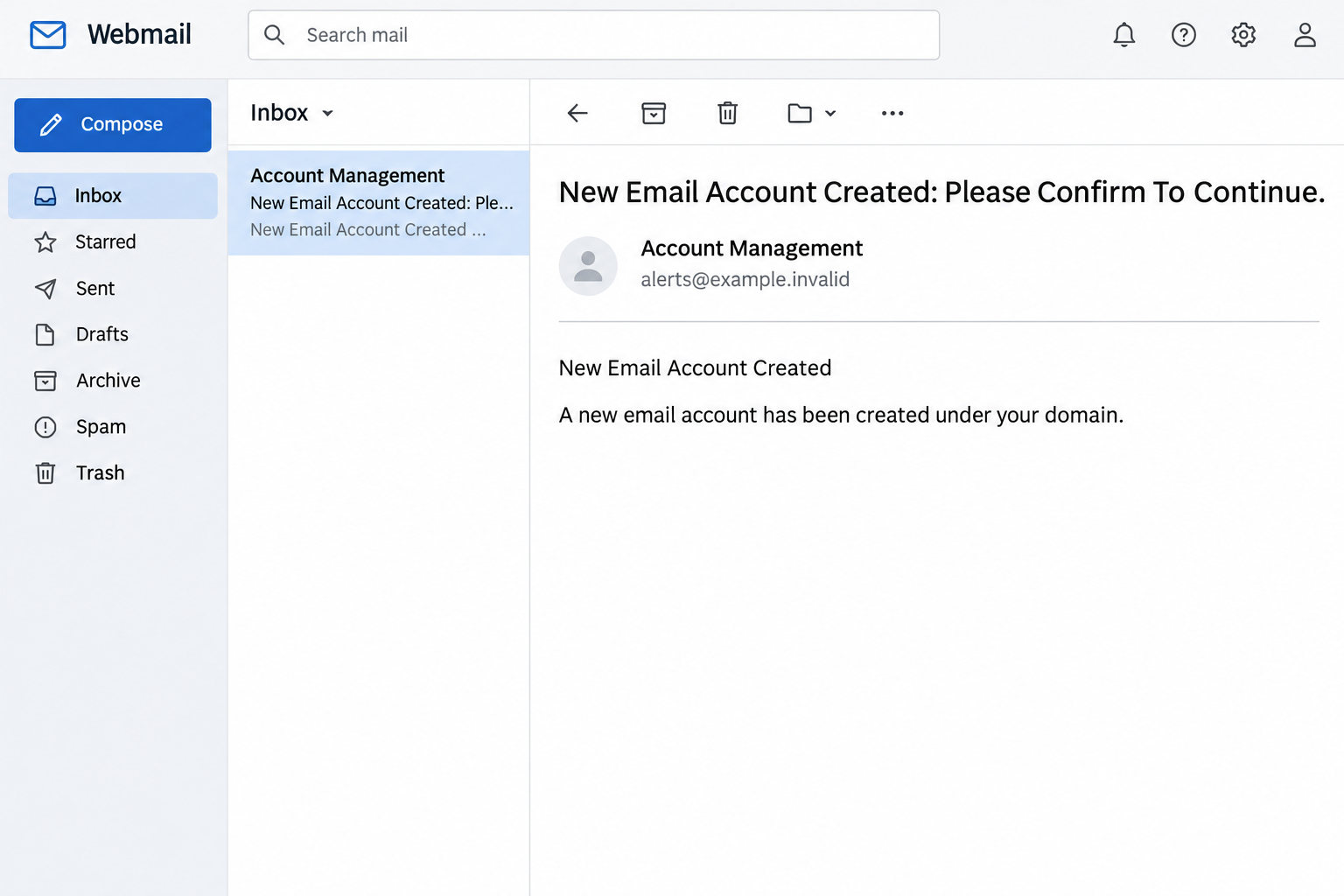
The example’s subject reads “New Email Account Created: Please Confirm To Continue.” The body presents the notice as part of a cPanel email-management process.
The image above recreates the opening, without the user information or action buttons. The alleged mailbox is a claim in the email, not a verified record.
Someone who runs a domain has good reason to pay attention to new accounts. That concern doesn’t make the email a useful place to sign in.
The option that looks cautious is still part of the message
The notice says there is nothing to do if you recognize the creation. It nevertheless offers an “Ignore (was me)” option beside “Report unauthorized.”
Both choices in the recorded lure were reported as routes away from the message. The promoted site was reported unavailable, so the exact destination form and any follow-up remain unverified.
The important part is the trap in the choice. You don’t have to obey either instruction to decide whether a mailbox was added.
A real cPanel service is separate from this impersonation. Use the hosting account you know, not a copied notice that claims to represent its records.
A real mailbox should be visible in the system that created it
cPanel’s Email Accounts documentation describes the genuine area for seeing and managing mailboxes in accounts that have access to it.
If your mail is hosted elsewhere, cPanel might not show what your organization uses. Ask the administrator who actually controls the mail service.
These are better checks than pressing either button:
- Confirm which domain is affected and who has authority over its email accounts.
- Use the established hosting or mail dashboard to look for the claimed address.
- Check whether it is an actual mailbox, an alias, a forwarder or simply a name in the notice.
- Ask the verified administrator about creation records before deleting anything.
How the cPanel Account Creation Scam Works
Step 1: It makes an unfamiliar name feel like evidence
An account that nobody recognizes is worth checking. The email exploits the fact that administrators are taught to investigate changes they did not authorize.
A creation timestamp and an account label give the story the shape of an audit event. That is not the same as seeing the event in the real system.
If you work with more than one domain, find out which system serves the relevant address. The label in the email doesn’t establish who created anything.
Check with the people who normally set up staff or service accounts. Sometimes a legitimate change was planned by someone else on the team.
Step 2: The alert asks you to make a quick judgment
The email presents the situation as two possibilities: it was you or it was unauthorized. That framing skips the question of whether there was any change at all.
When people are worried about access, they may focus on choosing the safer button. “Report unauthorized” sounds responsible even when the source of the button is unverified.
You don’t owe the alert a response. Check the real control panel, use the administrative audit route or contact the host.
If you aren’t responsible for email accounts, report the message privately to the person who is. Don’t attempt to correct a supposed account creation from somebody else’s email.
Step 3: The option to dismiss the alert can create the same risk
An “ignore” option may look like a harmless way to close the incident. It is still an action supplied by the sender.
That is especially useful to the impersonator if the notice reaches someone who did just create an address. Recognizing an event does not authenticate an email about it.
Ignore the message by leaving it alone, not by choosing its dismissal control. You can later report the attempted impersonation through your actual provider.
If another administrator confirms a genuine change, record that confirmation in your own records. It doesn’t make the email a proper shortcut to the hosting panel.
Step 4: The reader is steered toward an unverified destination
The recorded message points readers outside its email via the choices. The linked page was unavailable when reported, so this case doesn’t show a verified credential form.
An impersonation page might ask for your hosting login or a mailbox password. What you type matters because those credentials may grant different access.
You do not need to visit the destination to establish the risk. Use your normal admin route to check the claimed creation, without giving the original link more attention.
If the page did ask you to sign in and you entered a password, identify which account it belonged to. That determines who can help you revoke access.
Step 5: A real access incident needs the right owner
A hosting administrator and a mailbox user may have different powers. A leaked administrative password can warrant checking mailboxes, forwarders and broader account settings.
A leaked mailbox password may primarily affect the address in question and the services it can recover. It still deserves an immediate response.
Don’t guess that a particular account was accessed from the original message. Look at real sessions, access changes and logs available to you.
If you discover an actual unauthorized mailbox, work with your host to preserve evidence and contain it. The phishing email is not your incident response tool.
How to Check for a Real New Mailbox
Start with the account that administers the domain’s mail
Open your host’s dashboard independently. Choose the correct hosting account or domain before looking at the email list.
A domain may use an external provider even if its website is hosted in cPanel. If you cannot match the mail service, check with the organization responsible for it.
Check the name and purpose of an unexpected address. A service account, alias or forwarder can look unfamiliar even when someone created it for an ordinary reason.
If you don’t have administrative access, don’t try to obtain it through the verification message. Give your trusted support contact the claim and let it check.
Verify a new address before trying to remove it
If the address actually exists, ask who requested it and what it does. Removing a mailbox can disrupt legitimate mail or remove information needed for an investigation.
Use owner or administrator records to confirm which person approved the creation. The name printed in an email isn’t the same as a trusted administrative record.
If the account looks suspicious, ask the host about preserving relevant logs and stopping further access. Avoid altering records before deciding what needs to be kept.
Record who followed up and how the decision was made. This helps when several teams have different responsibilities for a domain.
Treat forwarded copies and notifications with the same care
A colleague may forward the notice because it sounds relevant to your job. That doesn’t make the original sender or buttons trustworthy.
Ask to see the text or recipient information needed to identify the claim, without opening any link in the forwarded message. Use your own dashboard for the actual check.
If a hosting provider really issues new-account notices, ask how you can confirm them from inside its system. Don’t rely entirely on formatting.
If someone asks for an immediate reset, check who requested it and which login will change. A hosting password reset can affect legitimate workflows outside the mailbox at issue.
Learn the difference between a mailbox and a forwarding address
A mailbox normally stores incoming mail. A forwarding address may send messages somewhere else without giving a new person a mailbox they can sign into.
Both can matter. An unfamiliar forwarder can be a security concern even when no new account appears in the email list. Check the right control with your administrator.
An alias can also be intentional, such as a team address that passes requests to a group. Ask where the routing belongs before disabling it.
If the suspicious notice uses a name that matches an existing alias, that coincidence doesn’t identify the sender. Look at when the real entry was added and who authorized it.
In a business with several systems, consider where mail is delivered first. A dashboard may manage part of the address setup but not contain every record your provider sees.
Keep a short inventory of approved shared addresses and their owners. It gives you something reliable to check the next time an unfamiliar address appears.
Tell the responsible employee how to reach your hosting provider if the administrator cannot sign in. Use contact information kept outside the mailbox so an account incident doesn’t remove it.
If no creation was found, record that result rather than treating every notification as false. The next genuine account alert should still be checked through the same verified route.
What to Do If You Fell Victim
-
Leave the page and report which action you took.
If you only received the alert, report it through your provider or organization. If you selected an option but supplied nothing, say that and keep the page closed.
Keep the subject, time and affected domain if you already have them. Don’t press the second button to see whether it goes somewhere different.
Check the actual email-account list independently if the claimed creation is still worth investigating.
-
Secure the credential you entered, if any.
Change a hosting password through the verified host. Change a mailbox password through the actual mail provider. Replace any copies of the same password used elsewhere.
Tell support if you also supplied a one-time code or approved an unexpected sign-in. A password change alone may not answer what access was granted.
If the account is managed, tell the owner before touching shared settings. They can coordinate recovery without losing access or logs.
-
Review access based on the affected account.
For a hosting login, ask the provider to help check new users, permissions and account recovery details. Check recent changes to mailboxes or forwarders if you can do so safely.
For a mailbox login, inspect sessions, delegates, filters and recovery settings. Look for suspicious sent mail and record unexpected changes.
If there is another affected account, list it explicitly. Don’t assume one reset secures every service attached to the same domain.
-
Report actual unauthorized changes or separate device activity.
If a real account was added without permission, ask your host how to contain it without destroying evidence. Tell the people whose work or mail service may be affected.
If you separately downloaded or ran a file, describe that action to IT. The recorded notice alone did not show that a device had been infected.
Don’t attempt to inspect the suspected destination again just to fill in missing details about the incident.
-
Close the genuine account question through verified support.
Ask who controls the mailbox, whether it existed and whether any real changes were required. Use the support ticket or account records you can verify.
Save the genuine reference somewhere separate from the phishing message. If another email quotes an earlier alert, use the established route again.
Warn affected colleagues without forwarding the active link. Put the real procedure in the warning so recipients know which task, if any, needs action.
Frequently Asked Questions
Is “New Email Account Created” a genuine cPanel notification?
The documented message impersonates cPanel. Verify whether the claimed account actually exists through your host’s real email-management system.
Is it safe to click “Ignore” if I created a mailbox recently?
No need to use it. Verify the genuine change in the real dashboard. A known event does not authenticate a button in an unexpected message.
What if the notice gives a timestamp and a creator name?
Those details are still claims made by the sender. Compare them with records available through the verified provider or ask the administrator to check.
Is a cPanel password the same as a mailbox password?
Not necessarily. Your host can explain which type of login was affected and what it can access. Report exactly what you entered.
Should I delete an address I don’t recognize?
Verify it first. It may belong to a legitimate service or need to be preserved for an investigation. Ask the account owner or host before removing it.
Does opening the email change anything on my domain?
Reading the email doesn’t create or delete mailboxes. If you entered an account password or approved an action later, report that specific exposure.
The Bottom Line
Don’t use either option in the new-mailbox alert. Verify the account directly in the hosting or mail service you actually use.
If you entered a password, secure the affected account and ask the provider to check real changes. Treat the email as evidence of the lure, not the mailbox.

Join the discussion
0 commentsShare your experience or ask a question about this article.
Community experiences
Did this happen to you?
Your experience could help someone recognize the same scam. Submit a private report for our team to review.
I experienced this tooReports are reviewed before publication. Sharing publicly is always your choice.
Discussion
Start the conversation
Have a question or something useful to share? Add the first comment.