

A manipulative email scam has emerged that sends victims an alarming message claiming their device is hacked. The email states that compromising materials have been collected and demands payment to avoid exposure. This “The Information Below is Crucial” scam employs psychological tactics to frighten recipients into complying.
This article will unravel how this deceitful scam works, arming readers with knowledge to recognize and resist it. We’ll outline detailed actions to take if you fall prey, including critical steps like avoiding payment, reporting the scam, and seeking support.
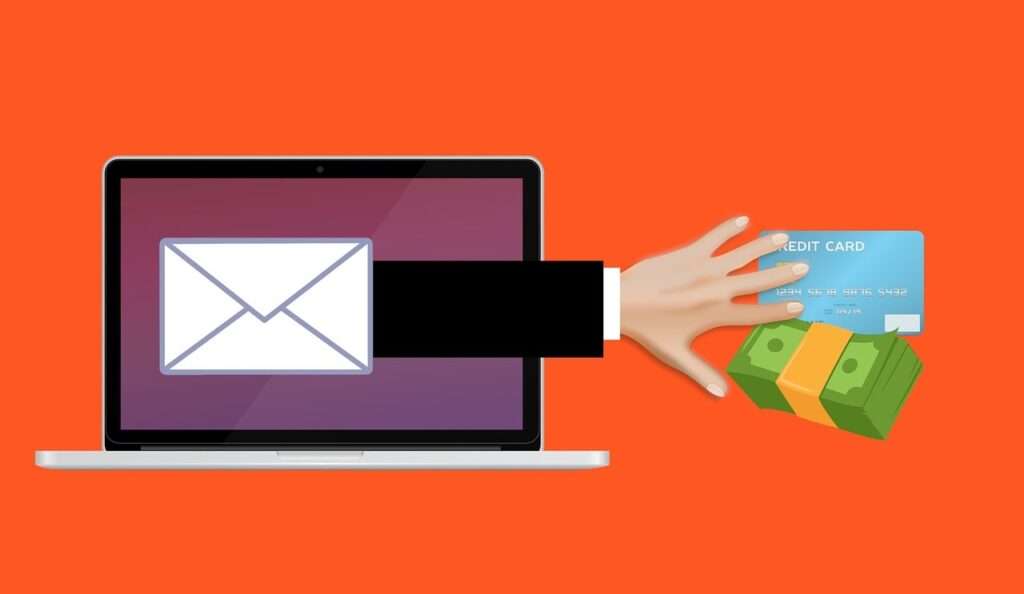
Overview of the “Crucial Information” Email Scam
This scam starts with an email stating it contains urgent information recipients need to be aware of. It claims the sender hacked into your device, installed malware, and now has full access to all your accounts, communications, photos, videos, and other personal data.
The email threatens to create an embarrassing video mashing up your internet history and private information. It states this video will be sent to all your contacts unless you pay a ransom in bitcoin within 48 hours.
Spoofing legitimate notifications, the scam email uses false claims of compromising materials and threats of exposure to trick frightened recipients into paying the ransom. But it is all an elaborate ruse exploiting fear.
Common Traits of This Scam Email
- Vague subject line like “Read This” or “Important Notification”
- Opens stating crucial info being shared
- Claims of hacking your device and total access
- Threats to create and share embarrassing video
- Demand for quick payment in bitcoin
- Promises to delete data after payment
- Discourages reporting to authorities
- Uses urgency, threats, and pressure
- No evidence provided to validate claims
Here is how the “The Information Below is Crucial” email scam looks:
Hello. The information below is crucial and is being shared for your awareness. The date 6/6/2023 11:14:23 PM marks when I successfully hacked into your device’s operating system and secured full control over your account “ops name “. My surveillance of you has been ongoing for a considerable period.
I’ve integrated a software within your system, giving me the ability to control all your devices. The malware I’ve positioned gives me complete command over your device’s essential tools – your microphone, video camera, keyboard, and display. Your data, photos, and browsing history now reside on my servers, along with access to all your communication platforms – messengers, social networks, emails, synced data, chat histories, and contact lists. I learned a lot about you!
I pondered on the possibilities that this data presented… Recently, I’ve conceptualized an intriguing idea: using AI to develop a split-screen video. One side displays you involved in **, while the other casts your internet navigations. Videos like this are currently trending!
Boy, I was really taken aback by what came up.
With a single click, I can distribute this video to all your contacts through email, social networks, and instant messengers. Furthermore, I could expose access to all the emails and messaging apps you use. Additionally, I found a plethora of intriguing materials that I could disseminate online and share with friends.
If you’d rather I didn’t carry this out, send 800 $ (US dollar) in my bitcoin wallet. BTC wallet address: bc1qa7s0gqxyn3922tr4fxcpv7s0n6q7muy29tvc8f
If you’re unfamiliar with how to fund a Bitcoin wallet, you can always use Google for help. It’s quite straightforward. Once the funds have been received, I will immediately remove all unwanted material. Afterward, we can part ways. I assure you that I am committed to deactivating and removing all malware from your devices. You can trust me; I always honor my commitments. This is a fair deal, especially considering the time and effort I’ve invested in tracking your profile and traffic.
I give exactly two days (48 hours) from the moment of opening this letter for payment.
After this period, if I don’t receive the specified amount from you, I’ll distribute access to your accounts, visited sites, personal data, and edited videos to everyone, without any warning.
You see, I don’t mess up. It’s not a good idea to try and pull pranks on me because I have plenty of tricks up my sleeve.
There’s no use reporting me because they won’t be able to locate me. Formatting the drive or destroying your device won’t help because I already possess your data.
It makes no sense to write back to me – I do not write from personal mail and do not look at the answers.
Wishing you luck, and don’t let this raise your hackles!
We all have our roles, and it seems you drew the short straw today.
P.S. In the future, I recommend that you follow the safety rules on the Internet and do not visit dubious sites.
Identificator your device: XXXXXXXXXXXXXXXXXXXXXXXXX
Operating system: Windows 10 Home x64
Understanding the psychological bait built into these scam emails makes it easier to recognize their deceitful nature and malicious intent.
How the “Crucial Info” Email Scam Operates
The criminals behind this scam carefully craft the email content to manipulate, frighten, and deceive recipients. Examining the common structure and messaging used in these scam emails reveals the social engineering tricks being leveraged against victims.
1. The Subject Line
A vague subject line like “Urgent Notification” or “Read This Now” is used. This avoids triggering spam filters while encouraging opening the email. The goal is getting recipients to read the content.
2. The Introduction
Opening sentences proclaim that crucial or urgent information is being shared for the recipient’s awareness. This sparks attention, tricking the reader into expecting legitimate notifications.
But what follows are false claims and demands designed to frighten and control.
3. Claims of Device Hacking
The email asserts that the sender has hacked into the recipient’s device, installed malware, and now has total access. But no specifics or evidence are provided. These breaches are fictional, meant to cause distress.
4. Surveillance and Data Collection
Escalating the deception, the email claims extensive surveillance was conducted, capturing the recipient’s photos, videos, browsing history, messages, and personal information.
This aims to convince victims their privacy has been violated, making the later threats seem more credible. In reality, no such surveillance occurred.
5. Creation of Embarrassing Video
The scam email explains that all the supposedly collected private data will be used to create a video mashing up the recipient’s internet history and intimate information.
This video would then be sent to all the recipient’s contacts, including over email, social media, and messaging apps. This threat preys on fear of humiliation and exposure.
But without any actual data, the criminals cannot create such a video. This threat is pure psychological manipulation.
6. Demand for Bitcoin Payment
The email demands payment of $800 or so in bitcoin within 24-48 hours in exchange for not sending the video to contacts. Bitcoin is demanded assuming it cannot be traced.
A short turnaround time is given to rush victims into paying quickly, without carefully thinking through the scam.
7. False Promises
The email claims all materials will be destroyed and malware removed after payment. But victims report repeated demands even after paying initial ransoms. These false promises aim to build trust so victims pay up.
8. Discouraging Reporting
The email cautions against reporting this to law enforcement, claiming the sender cannot be traced or located. This scare tactic discourages victims from seeking assistance to escape the trap.
9. Urging Compliance
The conclusion urges compliance framed as friendly advice about online safety. This subtly pushes victims to appease demands as an acceptable resolution.
These calculated threats, falsehoods, and coercive techniques amount to targeted psychological pressure to intimidate recipients into paying the ransom. But understanding the manipulation makes it clear this is an exploitive scam, not a real threat.
What to Do If You Fall Victim to This Scam
If you receive this deceptive email, take the following recommended steps to avoid harm and prevent further victimization.
Do Not Reply to the Email
Replying will confirm your email is active, likely triggering more scam demands. Avoid any engagement – block the sender and filter future emails to spam. Do not let them suck you into ongoing communications.
Do Not Pay the Ransom
Paying any amount signals you can be tricked into complying with payment requests, opening the door to repeated extortion attempts. Criminals rarely uphold promises after getting paid. Expect further demands of increasing amounts.
Run Security Scans and Updates
Confirm your device remains secure by running antivirus scans. Install software updates and reset passwords. Enable two-factor authentication where possible. This ensures no real hack has occurred.
Gather Evidence
Retain the email as evidence and document the sender’s address. Note the bitcoin wallet ID. Screenshot all details. This evidence will strengthen any criminal reports filed.
Report the Scam
Contact agencies like the FBI, FTC, and local police to report this scam email. Multiple reports on the same bitcoin wallets and perpetrators help law enforcement disrupt these operations and protect other potential victims.
Seek Emotional Support
Being targeted by cyber extortionists is stressful. Reach out to trusted friends, family, or professionals to process feelings of violation and regain peace of mind. Know you are not alone.
Spread Awareness
Educate contacts about this scam in case they also receive the email. Share your experience to raise public understanding through media interviews or online posts. Increased awareness reduces victimization power.
Taking these responsive actions quickly after receipt of the scam email can prevent harm and help you regain security. Do not let predatory scammers intimidate you.
How to Spot This Email Extortion Scam
While this scam is designed to appear credibly intimidating, there are several indicators that can help recipients identify it as fraudulent before falling prey.
Scrutinize the Sender
Closely examine the sender’s email address. Scams often spoof legitimate addresses or use temporary email accounts. Look for inconsistencies or vagueness. Also note if the email is addressed generically without your name.
Assess the Claims
Evaluate all hacking, surveillance, and data access claims critically. Ask yourself – did I recently click any suspect links or downloads to trigger a real breach? If not, generic claims of compromise are likely bogus.
Look for Specifics
Legitimate warnings will include specifics like source of breach, type of info exposed, which accounts hacked. Vague claims are easier to fabricate. The absence of concrete details indicates an empty threat.
Watch for Poor Spelling and Grammar
Scam emails often contain spelling, grammar or formatting errors. The criminals may not speak your native language fluently. Though not a guarantee, poor writing quality can be a red flag.
Analyze the Threats
Question if the threats seem plausible. Could the sender realistically have the intimate data and hacking capabilities described? If it seems unlikely, it’s probably false. Strict deadlines and dire consequences are intended to preclude logical thinking.
Check Payment Demands
Money demands made through hard to trace means like Bitcoin, gift cards, wire transfers should raise suspicions. Why would a legitimate entity require payment via these obscure methods?
If the email comes from an unknown sender, makes outrageous unverified claims, includes vague threats for money, and discourages reporting, it is most certainly a scam attempt. Stay vigilant against such deception tactics.
Protecting Yourself from Cyber Extortion Scams
While no one deserves exploitation by cyber extortion scammers, some preventative measures can enhance online safety and reduce risks of being targeted.
Keep Software Updated
Maintain devices by regularly installing the latest security patches, browser updates, and app upgrades. Outdated software is more vulnerable to hacking risks and malware. Staying updated better secures you.
Use Strong Passwords
Create long, complex passwords for each account using combinations of random words, letters, numbers, and symbols. Avoid reusing passwords. Use a password manager to enhance security.
Beware of Email Links and Attachments
Only click links and downloads from known, trusted sources. Hover to preview URLs before clicking to check for spoofing. Avoid opening attachments from unfamiliar senders as they may contain malware.
Back Up Your Data
Regularly backing up critical files and data provides peace of mind. Should any malware breach ever occur, backups allow restoring data. Store backups externally as they are not accessible if your system is compromised.
Use Security Software
Protect devices with comprehensive security suites combining antivirus, firewalls, anti-malware, and browsing protection. This software detects viruses, blocks suspicious connections, and prevents unauthorized access.
Avoid Public Wi-Fi
Only access accounts and share private data over secured networks, avoiding unencrypted public Wi-Fi. Use VPNs when on shared networks. Public Wi-Fi makes it easier for criminals to intercept data.
Exercising greater online vigilance and security-awareness reduces the risks of being targeted by extortion scams. Buttargets are not to blame. Responsibility lies solely with unethical fraudsters seeking profits through exploitation. Seeking support and refusing payment disempowers these schemes.
Is Your Device Infected? Run a Free Malware Scan
Slow performance, constant pop-ups, or strange behavior? These are classic signs of a malware infection. The fastest way to find out is to scan your device with Malwarebytes Free — one of the most trusted malware removal tools available.
The free version detects and removes the most common threats, including:
- Adware — the cause of those annoying pop-ups
- Browser hijackers — unwanted redirects and changed homepages
- Trojans and spyware — hidden programs stealing your data
- Potentially unwanted programs (PUPs) — software you never asked for
👉 Select your device below — Windows, Mac, or Android — then follow the simple steps to download Malwarebytes, scan your system, and remove any threats it finds. The scan usually takes 5 to 20 minutes.
Run a Malware Scan with Malwarebytes for Windows
Malwarebytes is one of the most popular and trusted anti-malware tools for Windows — and it’s completely free for removing infections. It catches threats that many antivirus programs miss, including adware, browser hijackers, and trojans. Follow the steps below to scan and clean your PC in just a few minutes.
Download Malwarebytes
Click the button below to download the latest version of Malwarebytes for Windows from the official source. The free version is all you need — it will scan your computer and remove adware, browser hijackers, and other malicious software at no cost.
Download MalwarebytesOfficial installer for Windows 11 and 10. Your download starts right away.Want real-time protection? See Malwarebytes Premium Malwarebytes Free for WindowsScans and removes malware at no cost
-
Install Malwarebytes
When the download finishes, open your Downloads folder and double-click the MBSetup file. If Windows shows a User Account Control pop-up, click “Yes” to allow the installation.

Follow the On-Screen Prompts to Install Malwarebytes
The setup wizard will walk you through a few quick screens:
-
Choose where you’re installing the program — “Personal Computer” or “Work Computer” — then click Next.

-
Malwarebytes will now install on your device. This usually takes under a minute.

-
When installation is complete, the “Welcome to Malwarebytes” screen will open automatically.

-
On the final screen, click Open Malwarebytes to launch the program.

-
Enable “Scan for Rootkits”
Before scanning, turn on rootkit detection so Malwarebytes can find even the most hidden threats. Click the Settings gear icon on the left side of the screen.

In the settings menu, find “Scan for rootkits” and click the toggle so it turns blue.

Done? Click “Dashboard” in the left pane to return to the main screen.
Start the Scan
Click the blue Scan button. Malwarebytes will automatically update its virus database and start checking your computer for malware.

-
Wait for the Scan to Finish
The scan checks your entire system for browser hijackers and other malicious programs, so it can take 5 to 20 minutes depending on your computer. Feel free to do something else — just check back occasionally to see the progress.

-
Quarantine the Detected Threats
When the scan is done, you’ll see a list of everything Malwarebytes found — malware, adware, and potentially unwanted programs. Click the “Quarantine” button to remove all of them at once.

Malwarebytes will now remove the malicious files and registry entries and move them safely into quarantine.

-
Restart Your Computer
Some threats can only be fully removed after a reboot. If Malwarebytes asks you to restart, click Yes. Once you’re logged back in, Malwarebytes has finished removing the threats it found.

That’s it — your Windows PC is now clean of trojans, adware, and other malware, and should be back to running smoothly.
If you are still having problems with your computer after completing these instructions, then please follow one of the steps:
- Run a computer scan with ESET Online Scanner
- Ask for help in our Windows Malware Removal Help & Support forum.
Run a Malware Scan with Malwarebytes for Mac
Malwarebytes for Mac is a free on-demand scanner that removes the malware other security software tends to miss — adware, browser hijackers, and unwanted programs included. Cleaning an infected Mac with Malwarebytes has always been completely free, and it’s our go-to recommendation. Follow the steps below to scan and clean your Mac in just a few minutes.
-
Download Malwarebytes for Mac
Click the button below to download the latest version of Malwarebytes for Mac.
Download MalwarebytesOfficial installer for macOS. Your download starts right away.Want real-time protection? See Malwarebytes PremiumMalwarebytes Free for MacScans and removes malware at no cost -
Open the Malwarebytes setup file
When the download finishes, open your Downloads folder and double-click the setup file to begin the installation.

-
Follow the On-Screen Prompts to Install Malwarebytes
The Malwarebytes for Mac Installer will guide you through a few quick screens. Click “Continue” and keep following the prompts until the installation completes.



When the installation is complete, Malwarebytes opens to the Welcome to Malwarebytes screen. Click “Get started“.
-
Select “Personal Computer” or “Work Computer”
Malwarebytes will ask what type of computer you’re installing it on. Click either Personal Computer or Work Computer, whichever applies.

-
Start the Scan
Click the “Scan” button. Malwarebytes will automatically update its detection database and begin checking your Mac for malware.

-
Wait for the Scan to Finish
Malwarebytes will scan your Mac for adware, browser hijackers, and other malicious programs. This can take a few minutes, so feel free to do something else — just check back occasionally to see the progress.

-
Quarantine the Detected Threats
When the scan is done, you’ll see a list of everything Malwarebytes found. Click the “Quarantine” button to remove all the threats at once.

-
Restart Your Mac
Malwarebytes will now remove all the malicious files it found. Some threats can only be fully removed after a reboot — if Malwarebytes asks you to restart, allow it. Once you’re logged back in, your Mac is clean.

That’s it — your Mac is now free of adware, rogue browser extensions, and other potentially harmful software.
If you are still experiencing problems while trying to remove a malicious program from your computer, please ask for help in our Mac Malware Removal Help & Support forum.
Run a Malware Scan with Malwarebytes for Android
Malwarebytes for Android automatically detects and removes dangerous threats like malware and ransomware so you don’t have to worry about your most-used device being compromised. Aggressive detection of adware and potentially unwanted programs keeps your Android phone or tablet running smooth.
-
Download Malwarebytes for Android.
You can download Malwarebytes for Android by clicking the link below.
Get Malwarebytes for AndroidOpens Google Play in a new tab.Want real-time protection? See Malwarebytes Premium for AndroidMalwarebytes for AndroidScans your phone and removes malware at no cost -
Install Malwarebytes for Android on your phone.
In the Google Play Store, tap “Install” to install Malwarebytes for Android on your device.

When the installation process has finished, tap “Open” to begin using Malwarebytes for Android. You can also open Malwarebytes by tapping on its icon in your phone menu or home screen.

-
Follow the on-screen prompts to complete the setup process
When Malwarebytes will open, you will see the Malwarebytes Setup Wizard which will guide you through a series of permissions and other setup options.
This is the first of two screens that explain the difference between the Premium and Free versions. Swipe this screen to continue.
Tap on “Got it” to proceed to the next step.
Malwarebytes for Android will now ask for a set of permissions that are required to scan your device and protect it from malware. Tap on “Give permission” to continue.
Tap on “Allow” to permit Malwarebytes to access the files on your phone.
-
Update database and run a scan with Malwarebytes for Android
You will now be prompted to update the Malwarebytes database and run a full system scan.

Click on “Update database” to update the Malwarebytes for Android definitions to the latest version, then click on “Run full scan” to perform a system scan.

-
Wait for the Malwarebytes scan to complete.
Malwarebytes will now start scanning your phone for adware and other malicious apps. This process can take a few minutes, so we suggest you do something else and periodically check on the status of the scan to see when it is finished.

-
Click on “Remove Selected”.
When the scan has been completed, you will be presented with a screen showing the malware infections that Malwarebytes for Android has detected. To remove the malicious apps that Malwarebytes has found, tap on the “Remove Selected” button.

-
Restart your phone.
Malwarebytes for Android will now remove all the malicious apps that it has found. To complete the malware removal process, Malwarebytes may ask you to restart your device.
That’s it — your Android phone is now clean — no more malicious apps, adware, or browser redirects.
If you are still having problems with your phone after completing these instructions, then please follow one of the steps:
- Restore your phone to factory settings by going to Settings > General management > Reset > Factory data reset.
- Ask for help in our Mobile Malware Removal Help & Support forum.
Stay Protected: Block Ads and Malicious Sites
Now that your device is clean, keep it that way. Most infections start with a malicious ad or a fake download button — so blocking them at the source is your best defense.
We recommend AdGuard, which blocks malicious ads, phishing pages, and dangerous redirects before they can reach you.
👉 Download AdGuard and browse safely
Frequently Asked Questions About the “Crucial Information” Email Scam
What is the “Crucial Information” email scam?
This is an extortion scam where victims receive an email claiming the sender has hacked their device and gathered embarrassing or compromising information. The email threatens to expose this info publicly unless a ransom is paid in bitcoin. The claims are false, intended to trick recipients into paying out of fear.
What are some typical characteristics of this scam email?
These emails often have vague subject lines like “Urgent Notification”, claim to have crucial info for you, assert device hacking and data access, threaten exposure by sharing videos or data, demand bitcoin payment within 48 hours, discourage reporting, and urge compliance.
What information do the scammers actually have?
The scammers do not actually have any personal information or access to the recipient’s accounts, photos, videos or device. The hacking claims are completely fabricated to manipulate victims through fear and uncertainty. No real breach has occurred.
How do the scammers threaten the victims?
The email threatens to create an embarrassing video mashing up private photos or browsing history that will then be shared with all the victim’s contacts through email, social media and messaging apps. This threat is intended to incite fear but is a bluff.
Should I pay the ransom if I get one of these emails?
No, you should never pay the ransom. Paying does not stop the extortion and risks encouraging repeat demands for more money. The scammers rarely uphold promises to delete data after getting paid. Avoid engagement altogether.
What should I do if I already paid the ransom?
Contact law enforcement immediately to report it. Be prepared for the likely possibility of the scammers demanding larger payments repeatedly. Avoid further engagement and continue reporting. Seek cybersecurity assistance and emotional support.
How can I report this scam?
Save the email and contact agencies like the FBI, FTC, and local police to file reports. Give them any details like the sender’s address and the bitcoin wallet ID used for payment. Multiple reports can help authorities track down scammers.
How can I avoid falling for this scam?
Be wary of unexpected emails demanding money and making alarming claims. Look for patterns of deception and threats. Keep devices updated and use strong passwords, security software, and backups. Avoid clicking unverified links. Seek help rather than reacting out of fear.
Am I at fault if I’m targeted by this scam?
No, victims bear no responsibility for these scams. The blame lies entirely with the criminals exploiting human emotions and vulnerabilities. Do not let predatory scammers make you feel guilty or ashamed. Stand strong against their tactics.
The Bottom Line
This sinister email scam sends false claims of hacking and threats of embarrassment in a deceptive bid to extort bitcoin payments. But a closer look reveals fabricated narratives, empty threats, and manipulation tactics aimed at preying on human fear.
No real hacking or data theft has occurred. The criminals have no capability to follow through on threats of exposure. While the scam email can seem credibly intimidating, it is just an exploitive bluff.
Carefully scrutinize any surprising emails about compromising materials, looking for patterns of deception. Avoid reactionary panic playing into extortionists’ hands. Seek immediate assistance if targeted, and confidently report these scammers to protect others from victimization.
With greater public awareness of cyber extortion scams, we can render them powerless. Stay vigilant in your online security while refusing to be rattled by baseless shakedown attempts. United, we can dismantle these schemes and eliminate their ability to economically profit off the exploitation of vulnerable individuals.

Join the discussion
0 commentsShare your experience or ask a question about this article.
Discussion
Start the conversation
Have a question or something useful to share? Add the first comment.