

An alarming message claims a large DBS transfer is pending. Then the phone stops behaving normally, just when you need it to call the bank.
When your banking device may be under someone else’s control, the fastest safe move starts away from that screen.
Overview
The reported DBS remote-control scenario
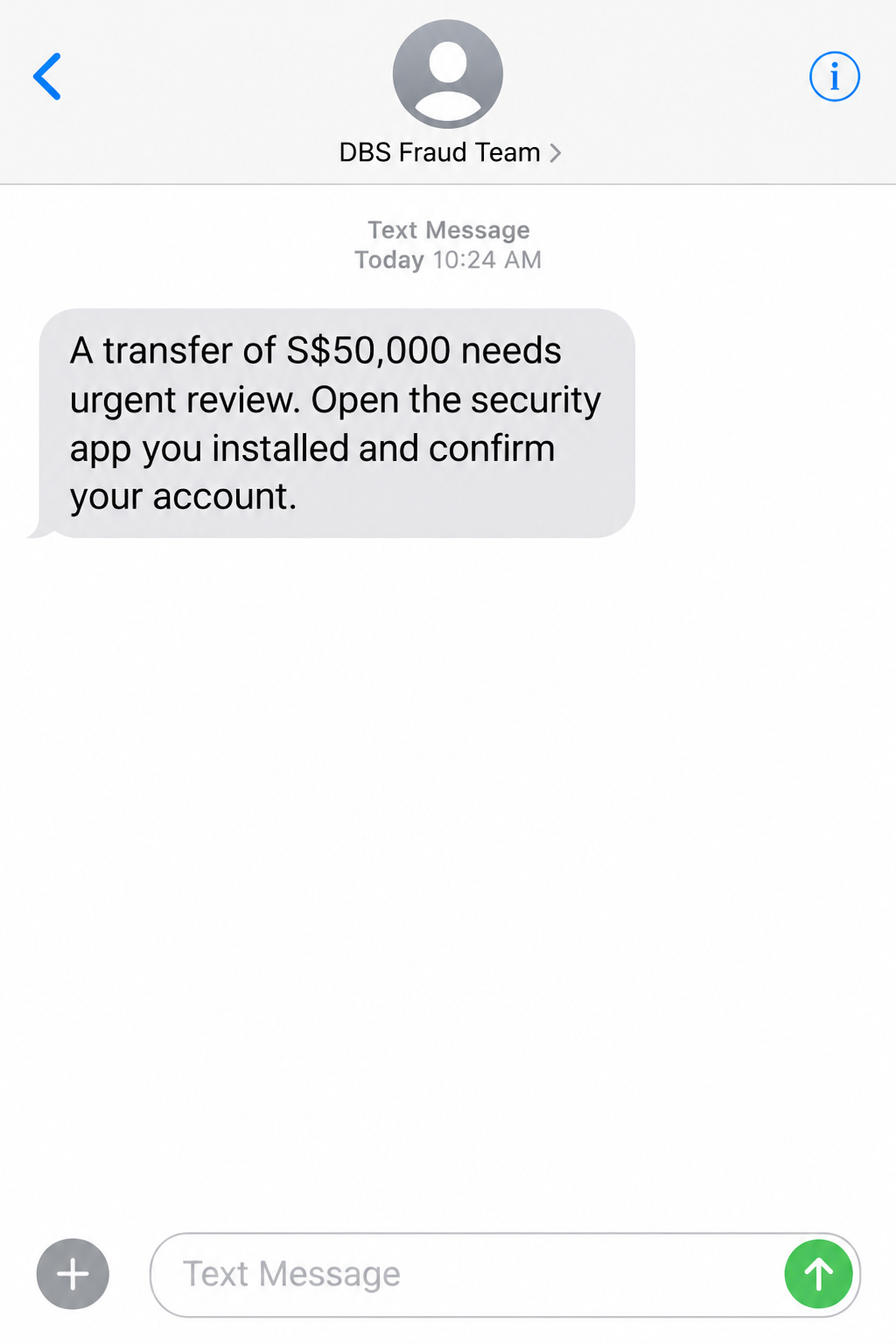
A reported DBS banking scam combines a fake fraud alert with a malicious or untrusted app already present on an Android phone.
In the described version, the message claims a very large transfer, such as S$50,000, is pending. The phone may then become difficult to use.
The alarming amount is bait. The deeper concern is whether an app has permission to read the screen, act through accessibility controls, or allow remote viewing.
Not every DBS-related scam includes a screen lock. The precise app, sender, and sequence in an individual case need separate evidence.
What official guidance confirms
DBS says its mobile banking app can restrict access when it detects malware, risky sideloaded apps with accessibility permission, or active screen sharing.
The Singapore Police Force and Cyber Security Agency warn that malicious Android apps can let scammers control a device and steal banking information.
Those official warnings establish the mechanism. They do not independently confirm every detail of the particular S$50,000 message described in public reports.
What to do first
If you suspect active control, stop using that phone for banking. Use another trusted device or another person’s phone to contact DBS directly.
- Call DBS’s published fraud hotline from a separate device.
- Ask about its Safety Switch if accounts may be exposed.
- Do not follow instructions in the fake alert.
- Preserve evidence without delaying the bank contact.
DBS publishes its Singapore fraud hotline as 1800 339 6963 and its overseas number as +65 6339 6963. Verify current details on DBS’s own Safety Switch page.
Why the Phone Itself Becomes Part of the Scam
Ordinary bank impersonation pushes a link or transfer. Malware-enabled fraud adds another problem: the attacker may influence the device used to verify the claim.
A malicious app does not need to resemble a bank. It might be advertised as a class booking tool, delivery service, shopping aid, or account helper.
The installation path matters. DBS warns about apps obtained outside official stores, especially when accessibility access is enabled.
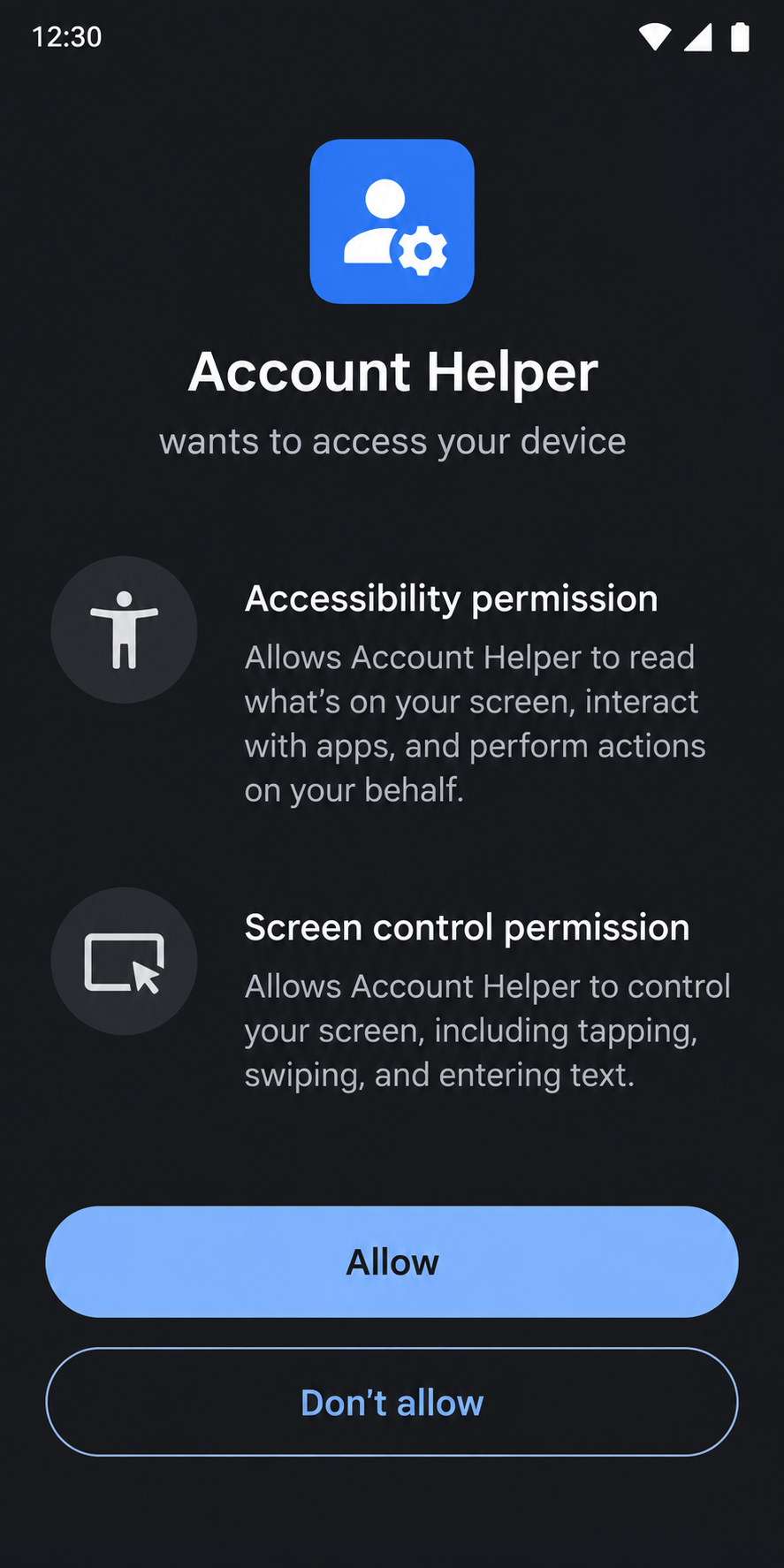
Accessibility features are legitimate tools that help people use their devices. A malicious app can abuse that power to read screen content or perform actions.
Screen-sharing permission is different but also sensitive. A person on a call may claim they need to watch the device to help stop fraud.
If the phone is compromised, a fake bank text can arrive at exactly the wrong moment. It may distract you while the attacker attempts account access.
Some reports describe an attacker locking or dimming the screen as the victim tries to respond. That detail is alarming, but it should not become a universal claim.
A frozen screen can also have ordinary technical causes. The risk rises when it follows an unusual app installation, permission request, and suspicious bank contact.
DBS’s own anti-malware restriction can prevent login when risky conditions exist. A blocked banking app may be a protection, not evidence the bank has been breached.
The safest response is to separate the bank check from the potentially affected phone. A clean channel makes it harder for an attacker to interrupt.
How the DBS Banking Remote Access Scam Works
Step 1: A harmless-looking offer brings in an app
The opening lure may be a social ad, chat, or website promoting a discount, service, class, or delivery. The bank is not necessarily mentioned yet.
A person is guided to download an Android installation file or to open a link outside the usual app store process.
The Singapore Police Force has documented cases where an app advertised for everyday activities became the entry point for malware.
Not every sideloaded app is malicious. The issue is granting powerful permissions to software whose source and purpose you cannot verify.
Pause at any request for accessibility, screen recording, notification access, or permission to install other apps. Ask why the advertised service needs it.
Step 2: The software seeks control or visibility
After installation, the app may request access that lets it observe on-screen information or interact with other apps. Some malicious software can support remote control.
The victim might see a technical settings screen and accept because the original seller says it is required to finish a purchase.
That permission decision can matter more than the initial download. It can open a route to banking data or interfere with attempts to get help.
DBS says it restricts digibank access when it detects certain risky combinations, including unverified apps with accessibility permission.
A bank restriction is a signal to inspect the device. Do not bypass it by following instructions from the person who sent you the app.
Step 3: A DBS-themed fraud alert creates panic
The reported scenario features a message or call posing as a DBS fraud team. It claims a large unauthorized transaction needs immediate action.
One example uses S$50,000. That figure should be treated as part of the reported lure, not proof that the recipient’s account has that pending transfer.
The alert may tell you to open the banking app, call a supplied number, or follow a security procedure. Each instruction keeps you inside the attacker-controlled path.
Caller ID and sender names are weak evidence. Open the bank’s app only from a trusted device or dial the number on DBS’s own website.
Step 4: The device may obstruct the response
With sufficient malicious access, an attacker may attempt to cover the screen, lock it, or interfere with the victim’s efforts to reach the bank.
That is why repeated tapping on the affected phone may be the wrong battle. Your priority is to reach DBS from another clean channel.
Turning off connectivity can help interrupt an active remote session. If possible, place the suspicious phone in airplane mode or power it off.
Do not delay a bank call while trying to identify every app. The bank can act on your account while you later address the device.
Also remember that some banking access restrictions come from DBS security controls. Ask the bank what it sees instead of guessing from one screen.
Step 5: Account access or transfers may follow
If a scammer obtained credentials, observed one-time codes, or controlled the device, they may try to sign in and move money.
The exact loss depends on the permissions, account safeguards, and timing. A suspicious app does not prove a transfer occurred.
DBS Safety Switch can suspend digibank, PayLah!, and cards. Its page also explains limits, including that existing GIRO arrangements are not blocked by default.
Stay on the line after requesting the switch. DBS says a customer service officer should help with follow-up, card replacement, and a fraud report.
Once the account is secured, investigate the device with trusted support. Reinstalling banking software before removing the threat can recreate the risk.
What DBS’s Safety Switch Does and Does Not Do
Safety Switch is designed for customers who believe they may be victims of fraud. It is not a general-purpose troubleshooting button for every app error.
According to DBS, activating it suspends digibank online and mobile access, PayLah!, and physical and digital card transactions.
That is a meaningful protection, but it also disrupts normal banking. A DBS officer can explain what happens next and how access is restored.
Incoming funds and existing GIRO arrangements are not automatically blocked. Ask the officer about any additional controls relevant to your situation.
DBS says the fraud hotline is available around the clock. Use the number published on the bank’s own page, not a screenshot forwarded by a stranger.
If you only saw a suspicious text and never installed an app or shared details, the bank may advise a less disruptive action.
If the phone was remotely controlled, explain that plainly. The bank’s risk decision may differ from a simple spam-message report.
Keep notes on when the suspicious app was installed, which permissions were granted, and when the message arrived. Those details can help an investigation.
If Your Phone Is Locked or Unusable
A phone that will not respond is frightening, but you do not need to solve the screen problem before contacting the bank.
Borrow a trusted phone, use a landline, or ask someone nearby to dial DBS’s published fraud number while you stay with them.
If you are overseas, use the international number shown on the official DBS website. Avoid numbers forwarded in chats or displayed by the suspicious app.
Tell the officer exactly what you saw: the app installed, permissions granted, fake alert, screen behavior, and any transaction notification.
Do not guess that a transfer completed. Ask the bank to check the ledger, recent login activity, and account controls.
If the affected phone is still online, switching it off may interrupt active access. Keep it off until DBS and trusted technical support advise next steps.
Do not let the person who provided the app “repair” it. Their troubleshooting instructions could restore access for the same attacker.
When the immediate banking risk is contained, document the device state. A police report is more useful with a timeline than with a general description.
After evidence is preserved, remove the suspicious software following trustworthy instructions. In some cases, a complete reset may be safer than selective removal.
Restore only from backups you trust. Reinstalling an unknown app or configuration profile could bring the problem back.
Finally, revisit account security after the device is clean. A password changed on a compromised phone may have been visible to the attacker.
Signs the Alert Is Paired With a Device Risk
The fake DBS warning alone is not enough to diagnose malware. Look for additional events that change the risk level.
- You installed an app from a link, file, or unfamiliar store shortly before the alert.
- The app requested accessibility, screen sharing, or device-administrator privileges without a clear reason.
- Your phone displays unfamiliar overlays or acts without your input.
- Banking access suddenly becomes restricted after the app appears.
- A caller tells you not to contact DBS using its normal channels.
- Account limits, recipients, or transactions changed without your authorization.
Do not interpret every performance problem as an attack. But a cluster of these signs deserves urgent bank contact and device inspection.
What to Do if You Have Fallen Victim to This Scam
- Use a separate, trusted device to contact DBS. Call the fraud hotline published on DBS.com.sg. Tell the officer if your phone may be under remote control, not merely that you received a strange text.
- Ask whether Safety Switch is appropriate. If banking credentials, cards, or transactions may be exposed, follow the bank’s instructions. Remain on the line for confirmation and account-specific steps.
- Interrupt the suspicious phone’s connection. Power it off or use airplane mode if you can do so safely. Do not continue banking or changing passwords on a device you suspect someone else can watch.
- Preserve evidence before deep cleanup. Record the fake message, app name, download source, permissions, transaction alerts, and call details. Use a second device for photos if the affected screen is unstable.
- Change credentials from a clean device. Follow DBS guidance for banking access, then secure email, Singpass, and other accounts that may have been visible. Review trusted devices and recovery details.
- Remove the malicious app with trusted help. Follow DBS’s anti-malware guidance. A reputable Android security scanner such as Malwarebytes can help identify threats. AdGuard may reduce malicious-ad exposure later, but neither tool replaces bank intervention or a clean device recovery.
- Review transactions and file a report. Ask DBS about unauthorized transfers, new recipients, and changed limits. The Singapore Police Force advises victims to report malware-enabled fraud to police after informing their bank.
- Do not accept a recovery agent’s shortcut. A new caller may claim to restore funds if you install another app or pay a fee. Work only through DBS, police, and trusted technical support.
Frequently Asked Questions
Does a DBS fraud text mean money has left my account?
No. A text is a claim. Confirm transactions with DBS through an independently obtained channel and check whether any bank alert is authentic.
Can an Android app really control my screen?
Malicious apps can abuse powerful permissions. Singapore authorities warn that some allow remote access and theft of banking information.
Why did digibank block access after I installed an app?
DBS says its anti-malware controls may restrict access when it detects malware, sideloaded apps with accessibility permission, or active screen sharing.
Should I factory-reset the phone immediately?
First contact DBS and preserve important evidence. A reset may be appropriate later, but it should not delay account protection or erase useful details.
Can Safety Switch stop every payment?
No. DBS says it suspends several banking channels and cards, while incoming transfers and existing GIRO arrangements are not blocked by default.
What if I never installed anything?
Do not assume device compromise from a text alone. Ignore its instructions, verify your account with DBS, and report the suspicious message.
The Bottom Line
The DBS remote-control scam is dangerous because the device used to seek help may also be the device an attacker can influence.
Use a clean phone to reach DBS, secure the account first, then investigate the app and permissions. Treat the large-transfer message as unverified until the bank confirms it.

Join the discussion
0 commentsShare your experience or ask a question about this article.
Discussion
Start the conversation
Have a question or something useful to share? Add the first comment.