

The United States Department of Justice MoneyPak Ransom is a computer virus, which will display a bogus notification, that pretends to be from Department of Justice and states that your computer has been blocked due to it being involved with the distribution of pornographic material, SPAM and copyrighted content.
The United States Department of Justice virus will lock you out of your computer and applications, so whenever you’ll try to log on into your Windows operating system or Safe Mode with Networking, it will display instead a lock screen asking you to pay $300 in the form of a MoneyPak code.
Furthermore, to make its alert seem more authentic, this virus also has the ability to access your installed webcam ,so that the bogus The United States Department of Justice shows what is happening in the room.
If your computer is infected with The United States Department of Justice virus,then you are seeing the below notification:
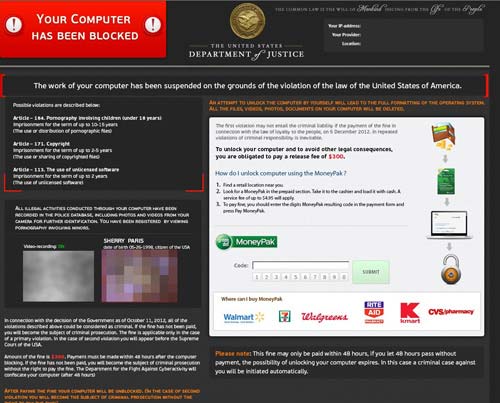
The United States Department of Justice Ransom will display the following bogus notification:
Your computer has been blocked
The work of your computer has been suspended on the grounds of the violation of the law of the United States of America.Article 274 – Copyright
A fine or imprisonment for the term of up to 4 years. (The use or shanng of copyrighted files-movies, software)
Article 183 – Pornography
A fine or imprisonment for the term of up to 2 years (The use or distribution of pornographic Nes)
Article 184- Pornography involving children (under 18 years)
Imprisonment for the term of up to 15 years (The use or distribution of pornographic files)
Article 104- Promoting Terrorism
Imprisonment for the term of up to 15 years (You have visited websites of terrorist organization)
Article 297 – Neglect computer use, entailing serious consequences
A fine or imprisonment for the term of up to 2 years (Your computer has been infected with a virus, which, in turn, Infected other computers)
In connection with the decision of the Government as of August 12, all of the violations described above could be considered as conditional in case of payment of a fine.
Amount of the fine is $200. Payment must be made within 24 hours after the discovery of the violation. If the fine has not been paid, you will become the subject of criminal prosecution.
After paying the fine your computer will be unblocked
The The United States Department of Justice Ransom is a scam and you should ignore any alert that this malicious software might generate and remove this trojan ransomware from your computer.
Under no circumstance should you send any money to this cyber criminals,as this could lead to identity theft,and if you have, you should contact your credit card company and dispute the charge stating that the program is a scam and a computer virus.
The United States Department of Justice MoneyPak Ransomware – Virus Removal Guide
This page is a comprehensive guide, which will remove the Department of Justice infection from your your computer. Please perform all the steps in the correct order. If you have any questions or doubt at any point STOP and ask for our assistance.
The Department of Justice will start automatically when you login to your computer and display its screen locker so that you are unable to access your computer, therefore we will need to remove this infection by using one of the below methods:
OPTION 1: Remove Department of Justice lock screen virus with System Restore
OPTION 2: Remove Department of Justice virus with with HitmanPro Kickstart
OPTION 3: Remove Department of Justice virus with Kaspersky Rescue Disk
OPTION 1: Remove Department of Justice lock screen virus with System Restore
System Restore helps you restore your computer’s system files to an earlier point in time. It’s a way to undo system changes to your computer without affecting your personal files, such as e‑mail, documents, or photos.
Because the Department of Justice virus will not allow you to start the computer in Windows regular mode, we will need to start System Restore from the Safe Mode with Command Prompt mode.
STEP 1: Restore Windows to a previous state using System Restore
- Reboot your computer into Safe Mode with Command Prompt. To do this, turn your computer off and then back on and immediately when you see anything on the screen, start tapping the F8 key on your keyboard.
![[Image: F8 key]](data:image/gif;base64,R0lGODlhAQABAAAAACH5BAEKAAEALAAAAAABAAEAAAICTAEAOw== "Windows F8 key")
If you are using Windows 8, the trick is to hold the Shift button and gently tap the F8 key repeatedly, this will sometimes boot you into the new advanced “recovery mode”, where you can choose to see advanced repair options. On the next screen, you will need to click on the Troubleshoot option, then select Advanced Options and select Windows Startup Settings. Click on the Restart button, and you should now be able to see the Advanced Boot Options screen. - Using the arrow keys on your keyboard, select Safe Mode with Command Prompt and press Enter on your keyboard.
- At the command prompt, type rstrui.exe, and then press ENTER.
Alternatively, if you are using Windows Vista, 7 and 8, you can type: C:\windows\system32\rstrui.exe , and press Enter. And if you are a Windows XP user, type C:\windows\system32\restore\rstrui.exe, then press Enter. - System Restore should start, and you will display also a list of restore points. Try using a restore point created just before the date and time the Department of Justice lock screen virus has infected your computer.
- When System Restore has completed its task, start your computer in Windows regular mode, and perform a scan with Malwarebytes Anti-Malware and HitmanPro, as seen in the next step.
![[Image: F8 key]](http://malwaretips.com/blogs/wp-content/uploads/2013/06/F8-key.jpg.png "Windows F8 key")
![[Image: Starting computer in Safe Mode with Command Prompt]](http://malwaretips.com/blogs/wp-content/uploads/2013/06/Safe-Mode-with-Command-Prompt.jpg "Advanced Boot Options screen")
![[Image: Start System Restore to remove lock screen virus]](http://malwaretips.com/blogs/wp-content/uploads/2013/06/system-restore-command.jpg "rstrui.exe command in Safe Mode with Command Prompt")
![[Image: Restore settings to remove ransomware]](http://malwaretips.com/blogs/wp-content/uploads/2013/06/system-restore.jpg "Restore your computer's system files to an earlier point in time")
STEP 2: Remove Department of Justice malicious files with Malwarebytes Anti-Malware Free
Even after using System Restore,
- You can download Malwarebytes Anti-Malware Free from the below link, then double-click on the icon named mbam-setup.exe to install this program.
MALWAREBYTES ANTI-MALWARE DOWNLOAD LINK(This link will open a download page in a new window from where you can download Malwarebytes Anti-Malware Free) - When the installation begins, keep following the prompts in order to continue with the setup process, then at the last screen click on the Finish button.
- On the Scanner tab, select Perform quick scan, and then click on the Scan button to start searching for the Department of Justice malicious files.
- Malwarebytes’ Anti-Malware will now start scanning your computer for Department of Justice virus as shown below.
- When the Malwarebytes Anti-Malware scan has finished, click on the Show Results button.
- You will now be presented with a screen showing you the computer infections that Malwarebytes Anti-Malware has detected. Make sure that everything is Checked (ticked), then click on the Remove Selected button.
![[Image: Malwarebytes Anti-Malware final installation screen]](http://malwaretips.com/blogs/wp-content/uploads/2013/01/malwarebytes-installation.jpg "Malwarebytes Anti-Malware installation screen")
![[Image: Malwarebytes Anti-Malware Quick Scan]](http://malwaretips.com/blogs/wp-content/uploads/2013/01/malwarebytes-quick-scan.jpg "Run a Quick Scan with Malwarebytes Anti-Malware")
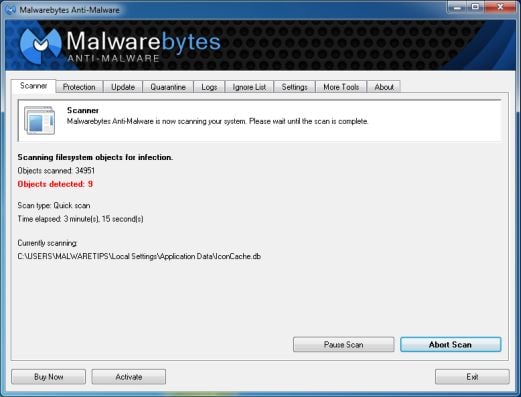
![[Image: Malwarebytes Anti-Malware scan results]](http://malwaretips.com/blogs/wp-content/uploads/2013/01/malwarebytes-scan-results.jpg "Malwarebytes when the system scan has completed")
![[Image: Malwarebytes Anti-Malwar removing Department of Justice virus]](http://malwaretips.com/blogs/wp-content/uploads/2013/01/malwarebytes-virus-removal.jpg "Malwarebytes Anti-Malwar removing Department of Justice virus")
STEP 3: Double-check for the Department of Justice virus with HitmanPro
- You can download HitmanPro from the below link:
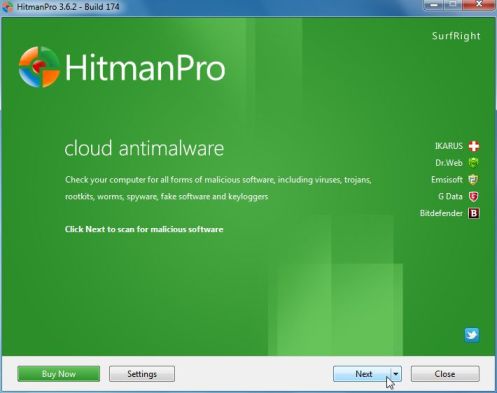
HITMANPRO DOWNLOAD LINK (This link will open a web page from where you can download HitmanPro) - Double-click on the file named HitmanPro.exe (for 32-bit versions of Windows) or HitmanPro_x64.exe (for 64-bit versions of Windows). When the program starts you will be presented with the start screen as shown below.
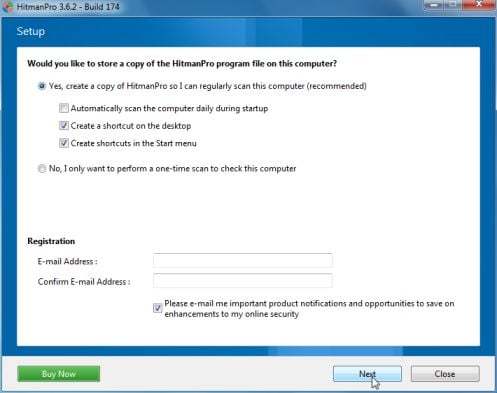
Click on the Next button, to install HitmanPro on your computer.
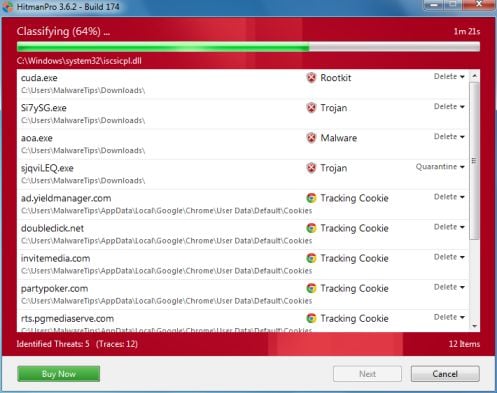
- HitmanPro will now begin to scan your computer for Department of Justice malicious files.
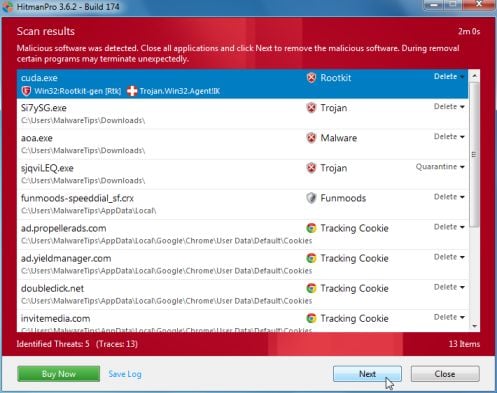
- When it has finished it will display a list of all the malware that the program found as shown in the image below. Click on the Next button, to remove Department of Justice virus.
- Click on the Activate free license button to begin the free 30 days trial, and remove all the malicious files from your computer.
![[Image: HitmanPro 30 days activation button]](http://malwaretips.com/blogs/wp-content/uploads/2012/11/hitmanpro-activation.jpg "HitmanPro free 30 days trial")
OPTION 2: Remove Department of Justice virus with with HitmanPro Kickstart
If you cannot start your computer into Safe Mode with Command Prompt mode, we can use the HitmanPro Kickstart program to bypass Department of Justice lock screen.
As the Department of Justice ransomware infection locks you out of your computer, you will need to create a bootable USB drive that contains the HitmanPro Kickstart program.
We will then boot your computer using this bootable USB drive and use it to clean the infection so that you are able to access Windows normally again.
You will also need a USB drive, which will have all of its data erased and will then be formatted. Therefore, only use a USB drive that does not contain any important data.
- Using a “clean” (non-infected) computer, please download HitmanPro Kickstart from the below link.
HITMANPRO DOWNLOAD LINK (This link will open a download page in a new web page from where you can download HitmanPro Kickstart) - Once HitmanPro has been downloaded, please insert the USB flash drive that you would like to erase and use for the installation of HitmanPro Kickstart. Then double-click on the file named HitmanPro.exe (for 32-bit versions of Windows) or HitmanPro_x64.exe (for 64-bit versions of Windows).
To create a bootable HitmanPro USB drive, please follow the instructions from this video:
- Now, remove the HitmanPro Kickstart USB drive and insert it into the Department of Justice infected computer.
- Once you have inserted the HitmanPro Kickstart USB drive, turn off the infected computer and then turn it on. As soon as you power it on, look for text on the screen that tells you how to access the boot menu.
The keys that are commonly associated with enabling the boot menu are F10, F11 or F12. - Once you determine the proper key (usually the F11 key) that you need to press to access the Boot Menu, restart your computer again and start immediately tapping that key. Next, please perform a scan with HitmanPro Kickstart as shown in the video below.
- HitmanPro will now reboot your computer and Windows should start normally. Then please Malwarebytes Anti-Malware and HitmanPro, and scan your computer for any left over infections.
![[Image: Windows Boot Menu screens]](http://malwaretips.com/blogs/wp-content/uploads/2013/06/windows-boot-manager.jpg "Windows Boot Menu screens")
OPTION 3: Remove Department of Justice virus with Kaspersky Rescue Disk
If any of the above methods did not clean your infected computer, we can use a Kaspersky Rescue Disk Bootable to clean the Windows registry and to perform a system scan to remove the Department of Justice virus.
To create a bootable Kaspersky Rescue Disk, we will need the following items:
- A clean (non-infected) computer with Internet access
- A blank DVD or CD
- A computer with a DVD or CD burner
STEP 1: Download and create a bootable Kaspersky Rescue Disk CD
- You can download Kaspersky Rescue Disk utility from link below:
KASPERSKY RESCUE DISK DOWNLOAD LINK (This link will automatically download Kaspersky Rescue Disk (kav_rescue_10.iso) on your computer.) - To create the bootable rescue disk, we will need to use the ImgBurn program. You can download ImgBurn from the below link, then install this program.
IMGBURN DOWNLOAD LINK (This link will open a new page from where you can download the ImgBurn program) - Insert your blank DVD or CD in your burner, then start ImgBurn and click on the Write image file to disc button.
- Under Source click on the Browse for file button, then navigate to the location where you previously saved the Kaspersky Rescue Disk utility (kav_rescue_10.iso), then click on the Write button.
That’s it, ImgBurn will now begin writing your bootable Kaspersky Rescue Disk.
![[Image: Bootable Kaspersky Rescue CD]](http://malwaretips.com/blogs/wp-content/uploads/2013/06/creating-bootable-kaspersky-rescue-disk.jpg "Creating Kaspersky Rescue Disk bootable CD")
STEP 2: Start your computer using the Kaspersky Rescue Disk
- Once you’ve got the Kasperky Rescue Disk in hand, insert it into the infected computer, and turn off and then turn it on again.
- As soon as you power it on, you will see a screen that tells you to press any key to enter the menu, so please tap any key to boot your machine from the Kaspersky Rescue Disk.
- In the next screen, you will need to chose a language, then you click on Kaspersky Rescue Disk. Graphic Mode and press ENTER, to start the Kaspersky Rescue Disk.
![[Image: Starting infected computer from Kaspersky Rescue Disk]](http://malwaretips.com/blogs/wp-content/uploads/2013/06/Kaspersky-Rescue-Disk-boot.png "Starting infected computer from Kaspersky Rescue Disk")
![[Image: Kaspersky Rescue Disk Graphic Mode screen]](http://malwaretips.com/blogs/wp-content/uploads/2013/06/Kaspersky-Rescue-Disk-graphic-mode.png "Kaspersky Rescue Disk Graphic Mode screen")
STEP 3: Scan your system with Kaspersky Rescue Disk
- Within a few short seconds you should see the full working environment, with the Kaspersky Rescue Disk screen front and center as shown below.
- Switch tabs over to the My Update Center, and then click the Start update button to load the latest anti-virus definitions. Please be patience while this process its completed.
- Switch back over to the Objects Scan tab, select the drives you want to scan, and then click the Start Objects Scan button.
- When Kaspersky Antivirus will detect the Department of Justice virus, you’ll be prompted to select an action. When this happens, please select Quarantine or Delete to remove this infection from your computer.
- When the antivirus scan has completed, you can restart back into Windows regular mode, by clicking on the Kaspersky Start button (lower left corner), and selecting Restart.
Once your computer will start in Windows regular more, download Malwarebytes Anti-Malware and HitmanPro, and scan your computer for any left over infections.
![[Image: Kaspersky Rescue Disk scanner]](http://malwaretips.com/blogs/wp-content/uploads/2013/06/Kaspersky-Rescue-Disk.jpg "Kaspersky Rescue Disk scanner")
![[Image: Updating Kaspersky Rescue Disk antivirus definitions]](http://malwaretips.com/blogs/wp-content/uploads/2013/06/Kaspersky-Rescue-Disk-update.jpg "Updating Kaspersky Rescue Disk antivirus definitions")
![[Image: Kaspersky Rescue Disk scan]](http://malwaretips.com/blogs/wp-content/uploads/2013/06/Kaspersky-Rescue-Disk-scan.jpg "Kaspersky Rescue Disk scan")
![[Image: Kaspersky Rescue Disk prompt]](http://malwaretips.com/blogs/wp-content/uploads/2013/06/Kaspersky-Rescue-Disk-alarm.png "Kaspersky Rescue Disk when detecting malware")
![[Image: Kaspersky Rescue Disk Restart button]](http://malwaretips.com/blogs/wp-content/uploads/2013/06/Kaspersky-Rescue-Disk-restart.jpg "Kaspersky Rescue Disk Restart button") (lower left corner), and selecting Restart.
(lower left corner), and selecting Restart.Your computer should now be free of the Department of Justice infection. If your current anti-virus solution let this infection through, you may want to consider purchasing the PRO version of Malwarebytes Anti-Malware to protect against these types of threats in the future, and perform regular computer scans with HitmanPro.
If you are still experiencing problems while trying to remove Department of Justice Moneypak virus from your machine, please start a new thread in our Malware Removal Assistance forum.









Thanks. Worked great for XP. Used method – 2
I was completely caught off guard when I went to turn on my laptop earlier this evening, and was stopped by the Department of Justice notice. Considering something like this had never happened to me before, and how authentic and real the message looked…it had me ready to go to the nearest store asap and put $300 into a MoneyPak. Feeling scared and helpless that the Police could possibly take legal action if I didn’t pay the fine within 48 years, had me even more shook up. As the night went on, my gut instict told me to search the web (through my phone) to read more about this Fine. As i began searching for information, I had seen something about a Department of Justice virus…which quicly caught my attention. It brought me to this article, and with thanks to following the very detailed and helpful steps, it seems as though the virus as been deleted. At first, the virus wouldn’t even allow me to barely get past the startup screen, before popping up and blocking the computer. But now, after downloading Malware & Hitman Pro as well as completing the listed system scans…my computer seems to be running as normal. I just want to say how much I greatly appreciate this very useful and helpful information for being, 1) Easy to Find, 2) Easy to understand, and most importantly 3) Free. Unlike other things that offer help and assistance but ask for joining/money in return…I never would thing something this helpful would be offered right to my fingertips! Thank you for ALL of Your HELP and for putting together this article!! Now I’m able to relax, have ease of mind, and know that this was all just a Scam/Virus, and that hopefully this has stopped it and will prevent it from returning. THANK YOU VERY MUCH!!!
Brandon
*48 hours (not years!)
I got this virus last night.
Method 3 worked for me.
I’m running windows 7 Ultimate SP1 32-bit.
I was, at the time, and still am, running Avast.
Chrome is my default browser with Adblock Plus and Ghostery running with plug-ins to prompt before running. There was no prompt from a plug-in, it was a link I clicked.
Now, I disabled Adblock and Ghostery previously because I had a perceived conflict with the site I was on, threatening to block my IP from their server if I did not disable Adblock. So I did.
I disabled it and refreshed the page but the message was still present (it was in a banner form on the page with correlating colors and font) so I disabled Ghostery, refreshed with no luck.
I said whatever and went about my business.
Soon after I clicked the link that led to the infection of my comp.
The link took me to a blank page where Avast quickly notified me, detected and quarantined a Trojan Virus,.
It caught the Trojan virus and quarantined it but that didn’t stop it from running, the DOJ screen popped up.
I read it, sat there kind of mystified (this being the first time I’ve heard of it or seen it), read it, examined it chuckled a bit and said bs.
Esc… nothing.
Windows-Key… nothing
Ctrl+Shift+ESC… nothing.
CTRL+ALT+DEL worked. I tried opening task manager but that did not work so I restarted my PC and logged into a separate account.
After a little browsing online someone suggested 2 programs: “Kapersky Anti-rootkit Utility TDSSKiller”, and a temporary file cleaner (in this case “Old Timer Tools TFC”). I downloaded both rebooted into safe-mode, ran both programs and restarted.
I logged on to the account that was affected and the lock was gone, but I would receive a RUNDLL failure/error stating that the 1jfuweif.dll couldn’t run or wasn’t present.
I open Avast UI and looked in the Quarantine. There was a file so I deleted it-
I don’t remember the name of it but it was about 3 or 4 letters with one or two numbers.
I restarted again but I was still getting the RUNDLL error.
I ignored it for a while (procrastinate) until my browser began to slow to a crawl and enter an infinite loading state on every page I visited.
I restart again which fixed the browser (temporarily I presumed) and found your article through google search.
I ran both programs from Method 2 just as soon as they downloaded. I got a positive threat result in Hitman Pro 3 for an application that was located in the:
C:\Users\~USERNAME~\AppData\Roaming\Microsoft\Windows\Start Menu\Programs\Startup file.
The AppData file is hidden by default for those who don’t know (google how to make hidden files and drives visible).
It was named “rnctf” or “rncft” and it was a shortcut with the rundll32.exe as its target, but in the general description of the rnctf/rncft.exe the target was shown as
…\system32\rundll32.exe 1jfuweif.dllM1N1.
Pretty interesting.
Everything as of now seems fixed. My comp is back up to speed and running fine.
I hope the info above may be of some help or use.
Thanks again Stelian, you helped solve my problem!
: D Awsome!
Help!! Nothing is working.
Hello,
Did you try to create a HitmanPro Kickstart USB?
world needs less people spending time trying to ruin our lives with these kind of virus and needs more people like you spending your own time trying to help us out.
thank you very much.
So i think i got the 2013 version. Every website i get on that trys to help me, doesn’t work. But it works for everyone. My computer won’t let me do any of those things. Please help me. I need my computer
Hello Aqua,
Can you boot in any Safe Mode??
Hi, I have a adminstator password on my computer and I have this virus, but I don’t know the admins password and I can’t download anything without the password is there anyway to remove this virus without the consent of a adminstator.
Hello Ryan,
Did you create the HitmanPro Kickstart USB? Please create and scan with this tool as see on Method 3.
If it fails, you’ll need to create a Kaspersky Rescue CD as seen HERE: http://malwaretips.com/blogs/remove-police-trojan/ , on Method 3.
AWESOME!!! thanks so much, this is a great post and is very easy to follow and understand.
I downloaded Kaspersky Rescue Disk 10.0. Ran ultraiso and burned it to a disc, to make it a bootable cd/dvd. Once the burning was complete, I booted the system to the disc, updated the definitions then ran a scan. Found and disinfected the viruses from the computer. Was able to boot the computer up successfully w/out any problems.
Hi I just got this virus and was able to get by it and use Malwarebytes to removes the 2 things it found. However, I want to double check if the virus is completely gone from my computer. Is there a way to do that besides relying on anti-]virus or anti-malware programs? Thanks!
also do I need to run these programs in safe mode? I was able to login to normal mode through method 2; system restore. Just to be clear, I scanned Malwarebytes in normal mode the first time and also redid it in safe mode-network to make sure i got everything. First scan got 2 hits like I mentioned and second time in safe mode got no hits. They were both full system scans not a quick scan. Sorry for a lot of commenting, i just want to make sure my computer is safe! Thanks!
If you can log in into Normal mode, please perform a scan into Windows regular mode.
Stay safe, and you can easily learn how to avoid malware by reading this guide: http://malwaretips.com/blogs/how-to-easily-avoid-pc-infections/
Hi Stelian, first I want to thank you for the speedy help with all this and I really appreciate it, I’m sure everyone who comments do too. I just ran HitmanPro and got no threast, only traces. Does that mean everything is fine? Once again, Thank you so much and will definitely look over that guide!
Hello Jake,
Yes, you now have clean computer, I would suggest that you keep Malwarebytes Anti-Malware Free and HitmanPro installed on your computer, and perform regular scans with these tools, however this is just a suggestion so you can also uninstall them if you want that!
Stay safe, and if you ever have any computer issues, we are ALWAYS HERE to help!
Hello Jake,
If the lock screen is not showing anymore, then Malwarebytes removed this infection. Did you perform a scan with HitmanPro.
As additional tools, you can perform a check with the following utilites:
STEP 1: Run a scan with Eset Online Scanner.
ESET Online Scanner Download Link (This link will automatically download ESET Online Scanner on your computer.)
STEP 2: Run a scan with Emsisoft Emergency Kit.
EMSISOFT EMERGENCY KIT DOWNLOAD LINK (This link will open a download page in a new window from where you can download Emsisoft Emergency Kit)
Stay safe!
besides your anti-virus program/anti-malware program, that is about it unfortunately.
thanks for the hitman pro notion; I’ve used the malwarebytes before.
I went into safe mode— back to critical time and ONLY 1 file was picked up by M-bytes.
I then did hitman pro ( very fast awesome! on the 64 bit ) but it did not pick up the trojan.reveton
file you mentioned above.??? ( it did clear out other files but no ‘trojan’ files….
my set-up : windows 7 w/ ‘1 user’ set up on a Lenovo machine.
I then went into the user to double-check– when I ran Hitman Pro again there– it came up
and started, but in the lower portion of the box there was message” ( blue circle w/ i )
it sez: ” application is not activated” ” removal of viruses ( et al) is disabled’ ?????????
the scan then ran and said no threats found . ?? I still have not seen trojan. reveton’ destroyed??
Can you offer any thoughts? What else should I do ? I am left wondering after re-setting date
back to current time …… thanks!
Hello Bob,
Please perform a scan with the following tools:
STEP 1: Run a scan with RogueKiller
RogueKiller Download Link (This link will automatically download RogueKiller on your computer)
STEP 2: Run a scan with Kaspersky Virus Removal Tool
Click here to download the Kaspersky Virus Removal Tool.
Thank you so much for this!!! I was panic stricken when I realized it was a virus and your step-by-step process was easy to follow! I was able to get it fixed by step two and only needed the malwarebytes program to remove everything.
My 14 year son whom is special needs and has a form of autism saw that on his laptop. I freaked out and called my mom. She told me it was a scam. So I researched it and sure enough. I was grilling my son on what he watched and what pictures he saw. He said there was no pictures on his computer and that all he watched was Hanna Montana music video on youtube… Everything he ever watched has been on youtube. He reminded me that his computer/laptop has restrictions that I put in place. So I know he was not looking at nude pics. Let alone he is special needs and doesn’t even know how to look for nudity. He knows mommy studies the law and he was so upset about it. I had to tell him for hours that it was a scam let alone explain what scam means. I feel so bad about grilling him now. Can you imagine in a 14 year old mind who cannot even fathom what is going on especially since he has a learning disability and form of autism. These damn people scamming innocent people need to be brought to justice no pun intended.
i have windows xp which is 8 yrs old and i am not able to get it in safe mode. Is my cpu too old. I need my files. Please help. Thanks.
Hello Joe,
Did you try to run the HitmanPro scan?
Method 2 worked. I had to look up the command prompt to change directories first (maybe because I’ve got XP?) before I could use cd restore, but I got there eventually. Thanks!
Was surprised my Norton didn’t pick it up. You know, seven years and I’ve never gotten a virus on that computer until today. Weird.
God bless your computer geek self. I was able to perform steps 1&2 without a hitch. I saved a lot of very important material which I am now in the process of backing up as it’s been more than 90 days since I have. Thanks a bunch brother.
The instructions in Step 2 were followed and enabled me to resume using my PC. Thank you very much for posting easy to follow instructions for a non-geek to understand and follow.
Thanks for your help on this. After reading from PC Magazine that these were legit programs, we followed your advice. I realized after the fact that my husband had turned off the PCTools Spyware program and he clicked a link from an email from facebook and got this virus today.
I purchased the Malwarebytes program.
I also had problems with F8 with Windows 7. I found that F11 and the Esc tab worked better. I kept getting errors trying to do the system restore (after 3 attempts). After the third failure, I decided just to let it boot windows to try the email in the background trick that a previous poster did and found that the restore did work afterall.
Couldn’t get steps one or 2. Kept sending me to start page. I downloaded hitman on USB. Plugged it in followed steps. And i says failed to boot. USB on good CPU says its on there and good. Help please
Hello Thomas,
Please try one more time to boot from the HitmanPro USB,pay attention at the booting part and click F11 once your computer starts.
If it still doesn’t work,you’ll need to create a Kaspersky Rescue CD as seen HERE: http://malwaretips.com/blogs/remove-police-trojan/ , on Method 3.
If everything fails, then you’ll need to create an account on our forums and a member of the staff will help you (with more advanced tools) to remove this nasty virus: http://malwaretips.com/Forum-Malware-Removal-Assistance
Good Luck!
I solved mine in a way I haven’t read about.
In Windows 7 I wasn’t able to get into safe mode (endless boot loop), and was almost completely locked out in regular mode. I had the ransom page displayed in full screen. Ctrl+Alt+Del brought up the normal screen, but task manager would not work.
Out of frustration I started clicking the links on the ransom page just so I could see something different (how much worse could it get?) I believe the key was clicking on the email link at the bottom of the page (you’ll see why later). I hit Ctrl+Alt+Del -> Shut Down to make my next attempt at a new strategy. When I did, the shut down hung up asking if I wanted to force Outlook to close. Apparently hitting the email link had launched Outlook in the background. I IMMEDIATELY hit CANCEL when Windows asked if I would like to force Outlook to close before Windows had a chance to close it and continue the shut down. The shutdown stopped, but the virus processes had already ended in prep for shutdown. I had my computer back, but still had to remove the virus with MalwareBytes.
I hope this can help someone else.