

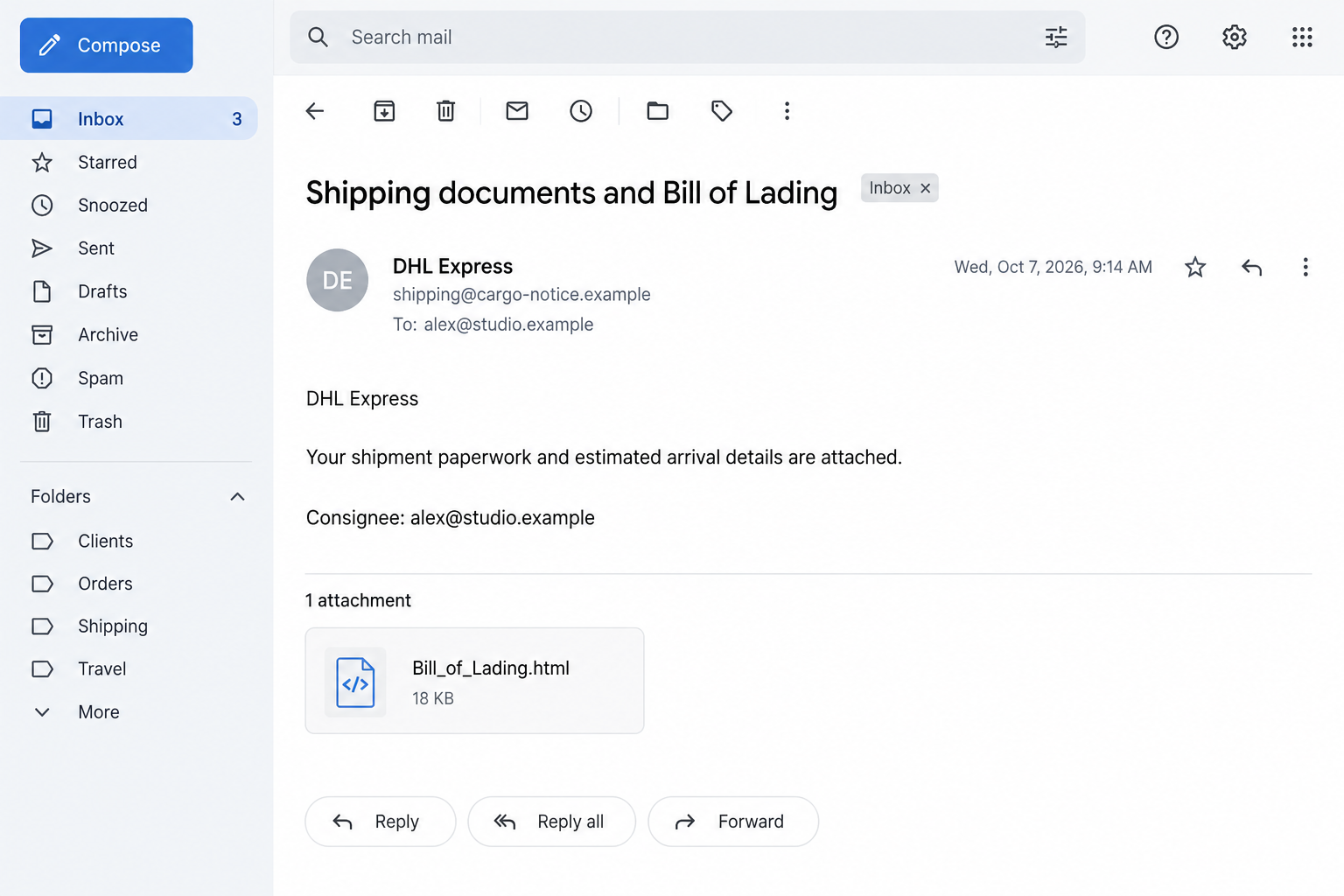
A shipping email names you as the receiver and includes what looks like the missing paperwork. The attachment seems easier to open than to investigate.
The DHL Express Bill of Lading email scam relies on that routine decision. Take a moment to check what kind of document arrived.
Overview
The courier name is borrowed for an attachment-based password trap
This is a phishing campaign impersonating DHL Express. The fraudulent message uses shipping paperwork as the reason to request access to the recipient’s email account.
DHL is a legitimate courier. Its name in the message does not make the sender or attachment part of the company’s service.
The documented email claims that shipment records and arrival information are attached. The file is HTML, a format a web browser can display.
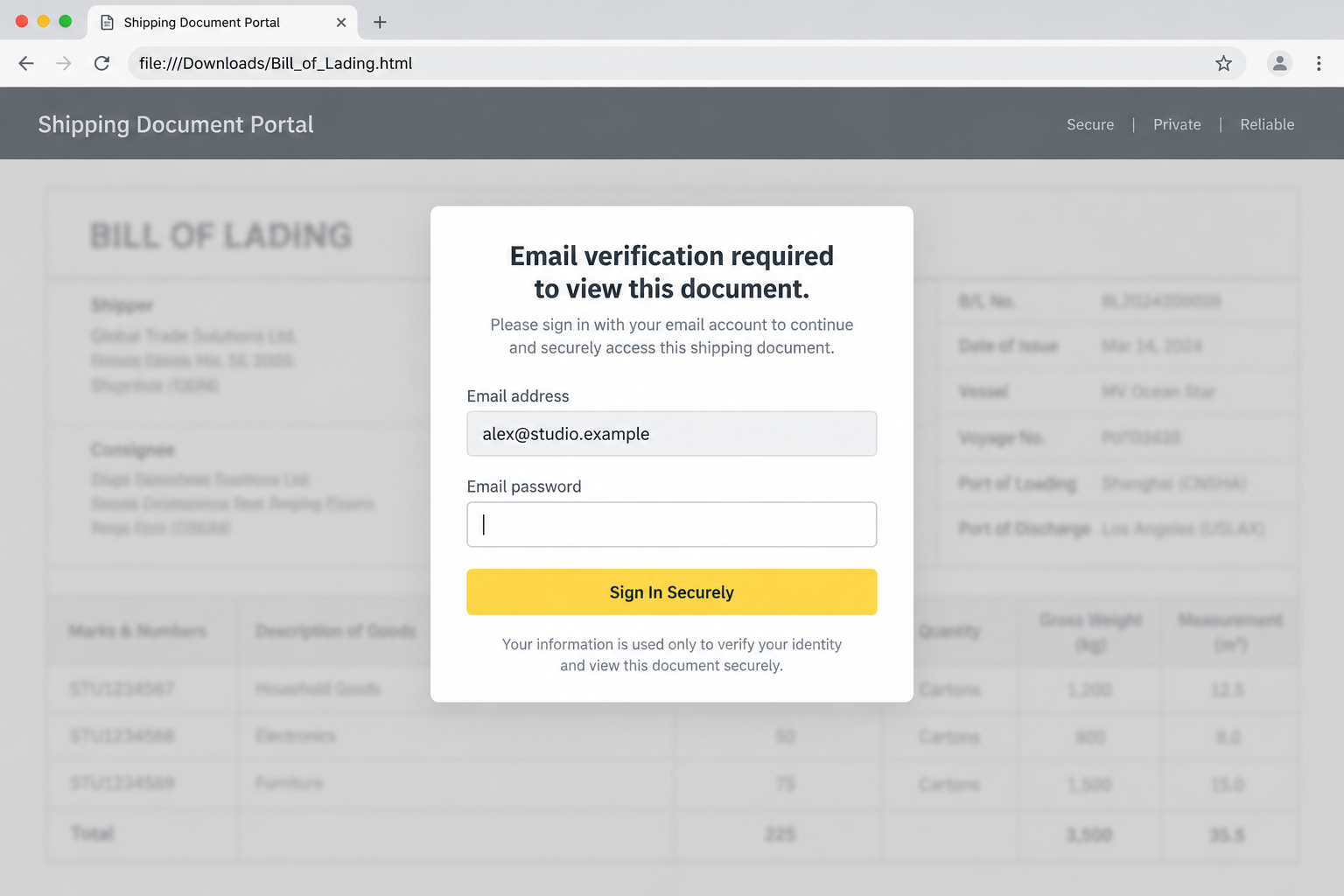
Instead of simply providing verifiable cargo information, the attachment presents an imitation document portal asking for a mailbox password.
That request crosses the relevant boundary. A courier document should not turn into an unverified form collecting the password for your separate email service.
A page on your computer can still send information elsewhere
The reported HTML attachment opens locally in a browser. A local file address can make readers assume that nothing is being sent to a website.
That assumption is unsafe. Depending on its content and browser behavior, an HTML page can include forms or scripts that communicate with remote destinations.
Locally displayed does not mean offline, authenticated, or incapable of transmitting information. The place where a file is stored does not identify who wrote its form.
The illustration later in this article shows that distinction with a fictional document portal. It is not the actual attachment and contains no operative collection endpoint.
The important clues appear before the password is entered
The page displays an email address and describes authentication as necessary before document access. Those cues can make a suspicious request feel like a routine verification step.
An address can be inserted into a document without the sender having entered your account. Personalization is not evidence of an established shipping relationship.
Do not assume every shipping HTML file is malicious. The combination of an unexpected attachment and an unrelated mailbox-password request makes this particular route dangerous.
- Shipping paperwork arrives without independent confirmation.
- The attachment uses a browser-readable HTML format.
- A local document presents an account login.
- The form asks for your email password.
- The courier’s name supplies reassurance without authenticating the file.
Why Shipping Paperwork Is Convincing Bait
Business shipments can involve documents, several companies, and unfamiliar contacts. A notice about paperwork may therefore seem less unusual than a consumer parcel message.
The word consignee refers to a shipment’s designated receiver. Seeing it next to your address can make the message sound specialized and operational.
But specialized vocabulary is easy to reuse. It matters only when the sender can be connected to a shipment your organization actually expects.
A genuine delivery should have context outside this email: a purchase, supplier, order, internal shipping record, or known courier account.
The presence of a real order is still not enough by itself. Fraudulent messages can arrive by coincidence while you are waiting for goods.
Busy logistics staff are particularly exposed to that coincidence. Their inbox already contains enough routine shipping material to make one more attachment feel ordinary.
Verify the document through the supplier or shipping contact already associated with the order. Avoid using the suspicious notice to create a new trusted contact.
The attachment’s extension is worth noticing. An HTML document can act as a page, including asking for input, rather than behaving like a static record.
How the DHL Express Bill of Lading Scam Works
Step 1: The message puts the recipient into a shipping role
The notice describes you as the person receiving goods and presents document review as something required for the shipment. That framing gives the attachment an apparent purpose.
A recipient who regularly handles orders may supply the missing explanation. The sender does not need to demonstrate which actual shipment the notice concerns.
Compare the message with known records before opening anything. A courier display name and your email address are much weaker evidence than an independently confirmed order.
If another department handles freight, send the question through its normal internal route. Do not forward the suspicious attachment to several colleagues asking them to test it.
Step 2: The attachment becomes a browser page
Opening the HTML file causes the browser to display its contents. The reader may see a polished portal rather than recognizing a file supplied by an unknown sender.
The browser’s address can begin with a local file reference. That identifies the document’s location on your computer, not its author’s trustworthiness.
This delivery method differs from an ordinary email link to a web page. The counterfeit interface arrives with the message as a file.
Do not interpret a successful display as a successful security check. A browser’s ability to render content says nothing about whether its request is appropriate.
Step 3: The page introduces a reason the document is unavailable
The imitation claims that email verification is needed before the paperwork can be viewed. Authentication becomes the proposed solution to an obstacle created by the page itself.
A prefilled address reinforces that explanation. The reader may feel that the system already knows the shipment’s receiver and only needs a password to continue.
That is the moment to ask why a shipping file needs credentials for a separate mailbox. The relationship has not been established by the attachment.
A genuine approved single-sign-on flow should be recognizable through your organization’s normal access process. Verify uncertainty with IT rather than resolving it inside the attached form.
Step 4: A reassuring button invites the recipient to submit credentials
The documented form labels its action as a secure sign-in. A button’s wording is chosen by the page author and cannot establish secure handling.
When an untrusted form receives a password, the operator may collect it or use it against the real account. An error message afterward does not undo exposure.
Do not experiment with several passwords when the document fails to open. Repeated attempts can expose additional accounts or a newly changed password.
The identified mechanism is credential theft. The reviewed material does not establish that merely receiving the file installs a particular malware family.
Step 5: Mailbox access can expose the wider shipping conversation
A successful account compromise could reveal supplier contacts, purchase records, invoices, and upcoming deliveries. That information can support more convincing follow-up fraud.
An attacker may impersonate the account owner or introduce payment changes into existing conversations. These are downstream possibilities requiring investigation, not verified events in every case.
For a business, recovery should include the account’s recent activity and sensitive transactions. Removing the downloaded file alone cannot establish that cloud access is contained.
Report credential exposure promptly even if the shipment continues normally. The criminal objective may concern your inbox rather than the cargo.
How to Verify the Message Without Opening the Attachment Again
Start with the order you already know
Find the original purchase or supplier correspondence through existing records. Confirm which courier and shipping contact are actually handling it.
Use the courier’s official application or independently reached website to examine any genuine tracking reference. Avoid copying passwords into a document supplied by email.
For business freight, ask the authorized shipping team what paperwork is expected. A receiving employee should not need to improvise a new authentication process.
Check the full sender and preserve headers
The apparent courier name may conceal an unrelated sender address. Expand the details rather than relying on the name shown in the inbox.
A plausible domain still does not settle the issue, because displayed addresses may be spoofed. The attachment’s behavior and the actual shipment context also matter.
Complete email headers help investigators assess the message’s route. Preserve the original message instead of retyping it into a new email.
Use DHL’s own fraud-reporting instructions
DHL’s fraud-awareness guidance asks for suspicious messages at phishing@dhl.com. It recommends attaching the original email with complete headers when possible.
Obtain current reporting instructions from that official page. Do not use an address inside the suspicious attachment merely because it calls itself a security contact.
A fraud report and a shipment inquiry are different tasks. Use the company’s established customer-service route for an actual delivery question.
If the File Was Opened, Decide What Happened Next
Write down whether you only viewed the document or entered information into it. Also record any downloads, permissions, extensions, or applications introduced afterward.
The HTML page and a separate executable are different exposures. Tell the responder what actually appeared rather than labeling every file a virus.
Do not reopen the attachment to obtain a better screenshot. The original file and email can be preserved for a qualified security team.
If the browser remains on the page, close it without completing more prompts. When software ran or suspicious behavior continues, involve IT or a reputable technician.
An account-focused incident can leave the computer behaving normally. Conversely, unusual device behavior deserves investigation even if no mailbox password was supplied.
Separating those facts makes recovery faster. It identifies whether the immediate task concerns cloud access, downloaded software, or both.
If the Shipment Really Is Due Today
Urgent cargo does not remove the need to verify paperwork. Call the shipping contact already associated with the order and explain that an unexpected attachment arrived.
Ask for the document through the established system. A verified contact can clarify whether it is required and who is authorized to provide it.
Keep operational staff informed about genuine delays without asking them to test the file. That prevents a routine shipping problem from spreading a suspicious attachment.
You can continue handling the real delivery while security staff assess the message. Neither task requires entering a mailbox password into the attached page.
What to Do if You Have Fallen Victim to This Scam
-
Close the imitation document portal. Stop using the attachment and keep the original email for reporting. Do not forward an active file casually to other recipients.
If you received it at work, follow the organization’s reporting procedure and describe whether it was opened. Security staff can handle the attachment appropriately.
-
Replace an exposed email password through the real provider. Use your normal application or known account address, avoiding every link supplied by the shipping notice.
Do this promptly even if the fake form displayed a failed sign-in. If you reused the same password elsewhere, replace those copies too.
Use a trusted device for recovery when you installed software or cannot trust the affected browser.
-
Review the account’s access and mail settings. Check recent sign-ins, connected applications, recovery contacts, forwarding, filters, and delegated access.
Remove unfamiliar sessions through the available controls, or ask your administrator to do so. Add or strengthen multifactor authentication using the provider’s own process.
A working inbox after the password change does not establish that every unwanted access path was removed.
-
Protect active business conversations. Ask the responsible team to verify unexpected bank-detail changes, payment requests, or shipping instructions sent around the incident.
Contact suppliers through details already held in your records. The potentially compromised mailbox should not be the sole channel validating a new financial instruction.
Warn affected colleagues specifically, with enough information to stop risky action and without distributing unnecessary confidential documents.
-
Assess the computer if files or software were introduced. Update reputable security software and run an appropriate scan, especially after an unexpected installer or extension.
Malwarebytes can help identify software threats. It does not revoke remote mailbox access, so keep the account-recovery work moving alongside device checks.
AdGuard can reduce some malicious web and advertising exposure afterward. It cannot make an email attachment trustworthy merely because filtering is active.
-
Report the impersonation through verified channels. Give DHL the original message according to its official instructions and report phishing within your mail provider.
Include the sender details and explain that the file requested mailbox credentials. Do not include your password, authentication codes, or unrelated private records.
If money was transferred during a follow-up, contact the payment provider immediately and ask about available recovery options.
-
Watch the genuine accounts for new activity. Review password-reset notices, sent correspondence, purchases, and security changes that occurred after the exposure.
Reach each service independently. A later message offering courier compensation or special account recovery could continue the same deception.
Keep a brief timeline and incident reference so additional suspicious activity can be connected to the original report.
Frequently Asked Questions
Did DHL send the Bill of Lading password request?
The campaign is an impersonation. Verify actual shipping records with DHL or your established shipping contact rather than accepting the attached form.
Can an HTML file on my computer transmit a password?
It can contain a form or scripts communicating with remote destinations. A local file address does not prove the document is offline or safe.
Is every HTML attachment malicious?
No. The warning concerns this unverified shipping document asking for mailbox credentials. File type and requested behavior should be evaluated together.
Does the displayed email address prove account access?
No. The address can be inserted as text. Examine genuine security activity to determine whether someone actually accessed the account.
What if I opened the file but entered nothing?
Close it, preserve the message, and report the opening. Investigate additional downloads or device changes without assuming credentials were submitted.
Where should the fake DHL message be reported?
Follow DHL’s current official fraud-awareness instructions, including phishing@dhl.com. Also use your provider’s phishing-report option or workplace security channel.
The Bottom Line
The DHL Express Bill of Lading email scam hides a mailbox-password request inside shipping paperwork. A local HTML page can still create a real disclosure.
Verify the shipment through established records. If you entered credentials, secure the account and report the attachment before returning to routine shipping work.

Join the discussion
0 commentsShare your experience or ask a question about this article.
Discussion
Start the conversation
Have a question or something useful to share? Add the first comment.