


A delivery delay is easy to believe when online orders are always moving between warehouses. One brief warning can feel like the difference between receiving a package and losing it.
The “DHL Express, Your Shipment Is On Hold” email uses that everyday uncertainty well. Its next page reveals details no genuine tracking update should request.
Overview
What the delivery notice claims
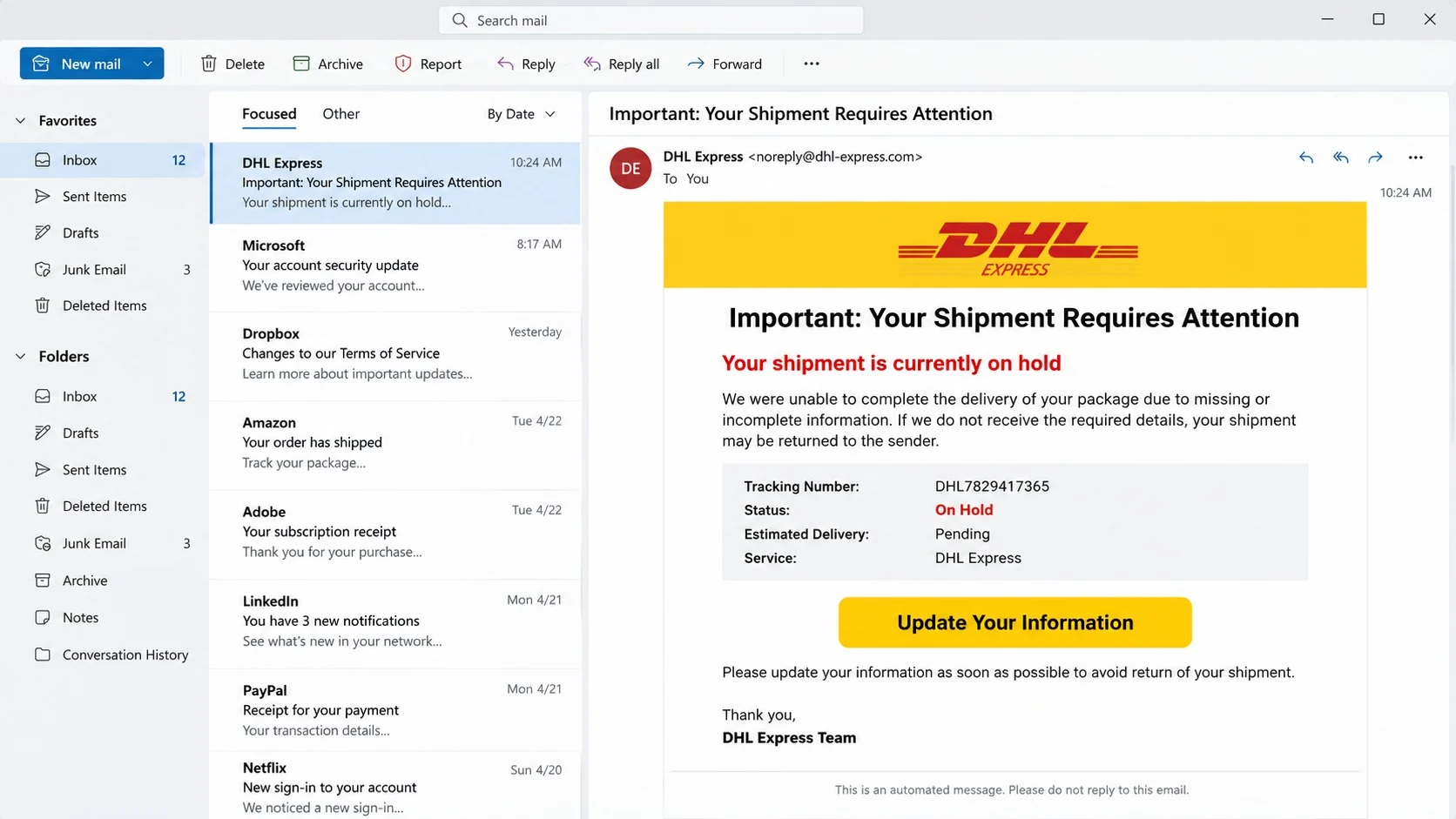
The email impersonates DHL Express and says a shipment is currently on hold. It asks the recipient to update delivery information and track the parcel.
A prominent “Update Your Information” button provides the only suggested solution. The message warns that an unsuccessful attempt could return the shipment to its sender.
The wording is broad enough to reach anyone expecting a purchase, replacement card, business sample, or gift.
Where the button actually leads
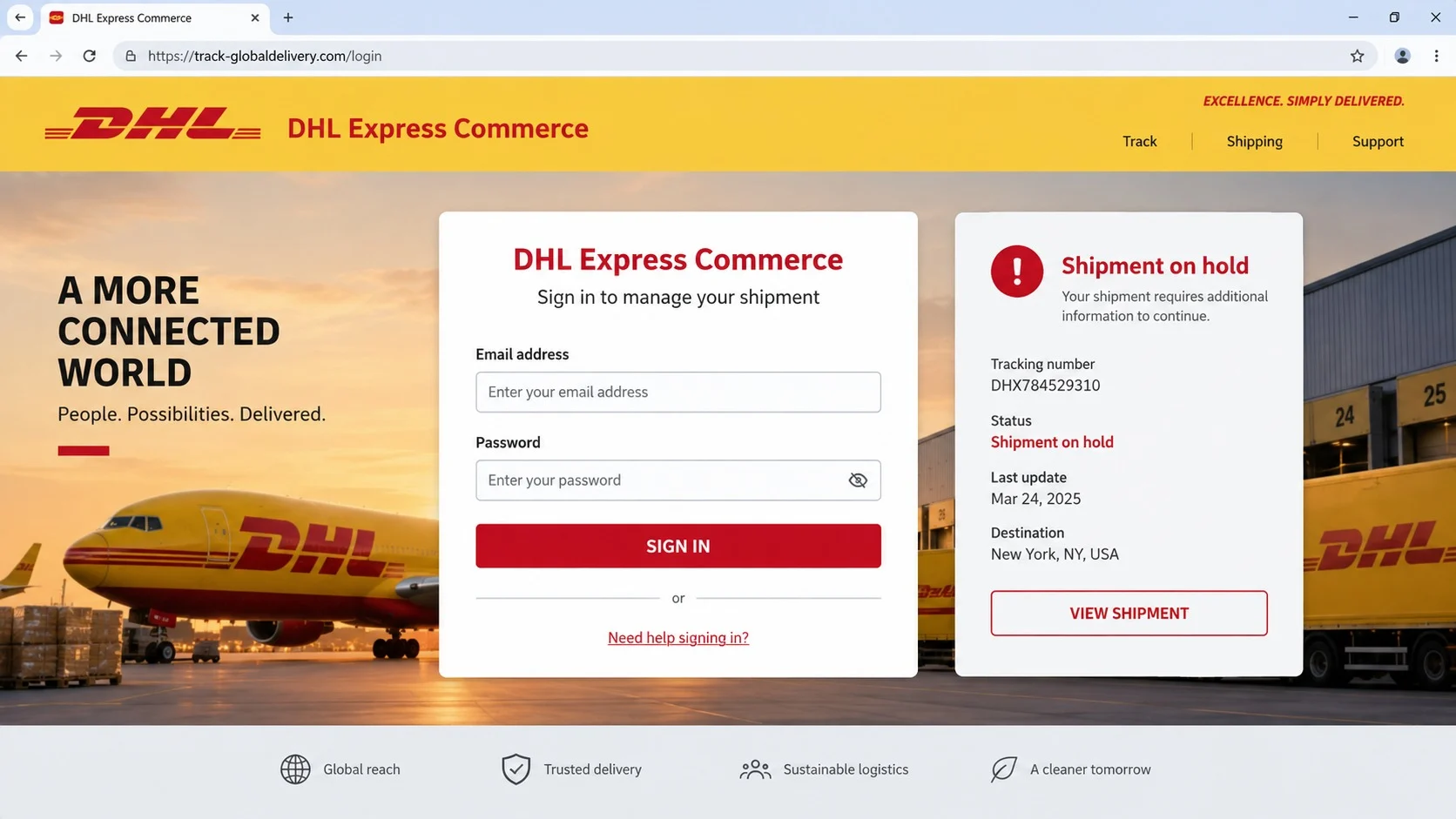
The link opens a counterfeit DHL Express Commerce sign-in page on an unrelated domain. It requests an email address and password before showing useful tracking information.
Credentials submitted there are captured by criminals. The page does not update a delivery, release a parcel, or authenticate with DHL.
DHL is a legitimate delivery company and is not involved in the campaign. Its name and colors are being copied to lend authority to a phishing page.
What makes this message suspicious
- The recipient is not given a verifiable tracking number tied to a known order.
- The actual sender address does not belong to the courier’s normal domain.
- A vague hold is paired with a threat that the parcel will be returned.
- The email insists on an embedded update button instead of independent tracking.
- The destination domain has no legitimate relationship with DHL.
- The fake portal demands login credentials that ordinary parcel tracking does not require.
The scam targets account access rather than a small redelivery payment. That difference matters because a stolen password can damage many services at once.
How the DHL Shipment on Hold Email Scam Works
Step 1: A generic parcel problem reaches a large audience
Criminals distribute the same delivery warning to many addresses. They do not need to know whether each recipient has a real DHL shipment.
Modern shopping volume does the targeting for them. A portion of recipients will be waiting for something, and the timing will feel personally relevant.
The email may address the person by email name or use a generic greeting. Neither confirms access to courier records.
Realistic colors, a logo, and a professional footer are easy to copy. These visual elements show design effort, not sender authenticity.
The message withholds meaningful shipment details. Without an order reference, sender, destination, or verifiable tracking event, the claim cannot be independently connected to a parcel.
That vagueness is useful to the attacker because the same template can work across countries, stores, and delivery situations.
Step 2: A return-to-sender warning creates urgency
The email suggests that missing information has stopped delivery. It then warns that failure to act may send the package back.
Loss aversion makes the threat effective. People react quickly when they believe an order already paid for could disappear.
The campaign does not offer a reasonable timeframe, depot location, or service case. It provides only a button selected by the sender.
Recipients may press it from a phone while distracted, where the destination address is less visible than on a desktop screen.
A genuine delivery concern can be checked safely by opening the merchant’s order history or entering a known tracking number into the courier’s official service.
The scam relies on users skipping those independent routes. Its urgency is a mechanism for controlling how verification occurs.
Step 3: The update button opens a counterfeit commerce portal
The destination copies DHL branding and presents a polished sign-in form. A shipment-on-hold panel may appear beside it to continue the original story.
The browser address exposes the imitation. The page is hosted on infrastructure unrelated to the courier, regardless of how accurate the logo appears.
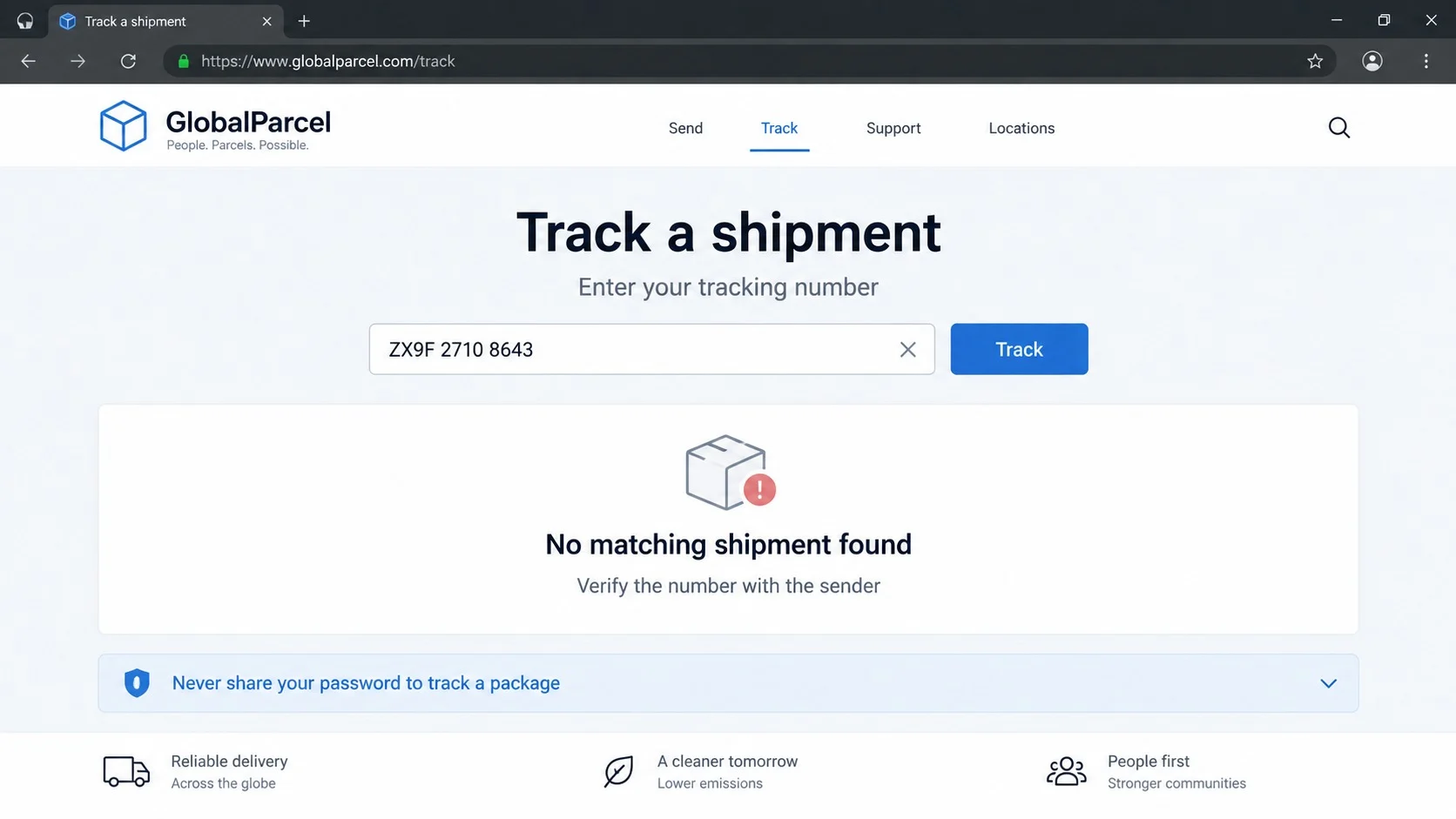
A padlock shows only that the connection is encrypted. Attackers can obtain certificates for domains they control and serve phishing pages over secure connections.
The page may use a fabricated tracking number and destination. Those values can be static decorations displayed to every visitor.
Ordinary public tracking requires a tracking number, not the password for an email account. That mismatch reveals the page’s credential-collection goal.
Close the site rather than trying false information. Interacting further can expose additional browser details or trigger new redirects.
Step 4: Entered credentials are captured
The form sends the supplied email address and password to the phishing operator. No legitimate courier authentication is completed.
The kit may display a failure and ask for another attempt. Victims sometimes provide a second password, expanding the attacker’s options.
Some pages forward visitors to a real courier website afterward. That redirect removes the fake page and makes the earlier failure seem like a harmless glitch.
Captured credentials can be delivered instantly through a panel, messaging bot, or email controlled by the criminal.
If the victim uses the same password elsewhere, automated tools can test it across email, retail, cloud, and financial services.
That process is credential stuffing. One reused delivery-related login can therefore become several unrelated account takeovers.
Step 5: Stolen accounts create financial and identity risk
A compromised delivery account can expose names, saved addresses, shipment history, and contact information. Some accounts may also contain business records.
Control of the associated email is more serious. It lets criminals intercept reset links, review purchases, and impersonate the victim to contacts.
Attackers may redirect real deliveries when an account permits address changes. They can also monitor incoming parcel notifications for valuable items.
Retail accounts using the same password may reveal stored payment methods or loyalty balances. Unauthorized orders can follow quickly.
Business credentials can expose shipping contracts, customer data, invoices, and supply-chain conversations useful for targeted fraud.
Changing only a DHL password is insufficient when the same credential was used on other platforms or the primary mailbox is affected.
Step 6: The original lure is reused with new domains
Phishing domains are often short-lived. Once one address is blocked, the operators can place the same page on another domain and update future emails.
Branding may switch between DHL, FedEx, UPS, postal services, or a local courier. The psychological sequence remains nearly identical.
Other variations request a small customs or redelivery fee and then capture card data. This specific version centers on login credentials.
Defenders should therefore remember the behavior, not only one subject line or web address. Package, pressure, button, unrelated portal, and credential request form the pattern.
Reporting the email helps providers block the current infrastructure. It cannot prevent operators from changing names, so user recognition remains important.
Organizations can add mail controls for brand impersonation and newly registered destinations while still allowing genuine courier communications.
Why Delivery Phishing Catches Careful People
Package notices arrive routinely, and genuine courier messages often contain tracking buttons. Attackers imitate an established habit rather than inventing an unfamiliar action.
People also receive parcels they did not personally order, including workplace shipments, gifts, replacement equipment, and purchases made by household members.
That uncertainty makes “I do not remember ordering this” a weak defense. The recipient may click precisely because the package is mysterious.
Mobile reading helps the scam. Small screens hide full addresses and encourage quick interaction between other tasks.
The hold story introduces a reversible loss. Pressing one button appears easier than risking a return, especially when the alleged solution asks no payment initially.
The best habit is consistent: every shipment alert should be verified through the merchant or courier account opened independently.
How to Verify a DHL Shipment Alert
Match it to a real purchase
Check recent merchant orders and shipping confirmations. A genuine tracking number should appear in the order record and correspond with the stated courier.
Ask household members or coworkers if they arranged the shipment. Do not let uncertainty push you toward the message’s link.
If no order matches, treat the notice as unverified. A real sender can provide shipment details through a known channel.
Use tracking from a clean route
Open the courier’s official application, use a saved bookmark, or type the known site address yourself. Enter the tracking number from the merchant’s record.
Public parcel tracking should not require an email-provider password. A login request on an unfamiliar domain is enough reason to stop.
If the number produces no result, contact the merchant or courier using independently obtained information.
Inspect sender and destination details
Expand the sender address and Reply-To value. Look for free mailboxes, unrelated organizations, extra words, substituted characters, or domains that merely contain “DHL.”
Preview the action button. The registered domain should match the courier, not a random delivery phrase, cloud host, or recently created web address.
Do not rely on the display name, header logo, footer, or certificate padlock. All can appear on a fraudulent message or page.
Evaluate what the page requests
A tracking page needs a parcel identifier. It should not require an email password, banking login, remote-access download, or unrelated identity document.
A small fee request deserves separate verification. Never provide card details merely because the amount seems too minor to matter.
Real support can explain a delivery exception with specific, independently confirmable details. Vague urgency and one compulsory button are hallmarks of social engineering.
What to Do If You Fell Victim to This Scam
- Close the counterfeit page. Do not revisit it, submit another password, download a file, or grant notification access.
- Secure the primary email account. From a trusted device, change its password first, revoke sessions, and verify recovery settings.
- Change every reused credential. Prioritize courier, shopping, payment, workplace, and cloud accounts. Give each service a different password.
- Review shipment and order activity. Look for new addresses, redirects, purchases, saved payment changes, or tracking requests you did not create.
- Enable strong multi-factor authentication. Prefer passkeys, security keys, or authenticator apps. Deny unexpected approval prompts.
- Scan with Malwarebytes. A credential page may coexist with unwanted downloads. Run a full scan and quarantine anything confirmed malicious.
- Add AdGuard after the incident. It can reduce exposure to malicious advertisements and known phishing destinations during future browsing.
- Report and preserve evidence. Save headers and screenshots, notify the courier and email provider, and contact financial institutions if money was exposed.
Is Your Device Infected? Run a Free Malware Scan
Slow performance, constant pop-ups, or strange behavior? These are classic signs of a malware infection. The fastest way to find out is to scan your device with Malwarebytes Free — one of the most trusted malware removal tools available.
The free version detects and removes the most common threats, including:
- Adware — the cause of those annoying pop-ups
- Browser hijackers — unwanted redirects and changed homepages
- Trojans and spyware — hidden programs stealing your data
- Potentially unwanted programs (PUPs) — software you never asked for
👉 Select your device below — Windows, Mac, or Android — then follow the simple steps to download Malwarebytes, scan your system, and remove any threats it finds. The scan usually takes 5 to 20 minutes.
Run a Malware Scan with Malwarebytes for Windows
Malwarebytes is one of the most popular and trusted anti-malware tools for Windows — and it’s completely free for removing infections. It catches threats that many antivirus programs miss, including adware, browser hijackers, and trojans. Follow the steps below to scan and clean your PC in just a few minutes.
Download Malwarebytes
Click the button below to download the latest version of Malwarebytes for Windows from the official source. The free version is all you need — it will scan your computer and remove adware, browser hijackers, and other malicious software at no cost.
Download MalwarebytesOfficial installer for Windows 11 and 10. Your download starts right away.Want real-time protection? See Malwarebytes Premium Malwarebytes Free for WindowsScans and removes malware at no cost
-
Install Malwarebytes
When the download finishes, open your Downloads folder and double-click the MBSetup file. If Windows shows a User Account Control pop-up, click “Yes” to allow the installation.

Follow the On-Screen Prompts to Install Malwarebytes
The setup wizard will walk you through a few quick screens:
-
Choose where you’re installing the program — “Personal Computer” or “Work Computer” — then click Next.

-
Malwarebytes will now install on your device. This usually takes under a minute.

-
When installation is complete, the “Welcome to Malwarebytes” screen will open automatically.

-
On the final screen, click Open Malwarebytes to launch the program.

-
Enable “Scan for Rootkits”
Before scanning, turn on rootkit detection so Malwarebytes can find even the most hidden threats. Click the Settings gear icon on the left side of the screen.

In the settings menu, find “Scan for rootkits” and click the toggle so it turns blue.

Done? Click “Dashboard” in the left pane to return to the main screen.
Start the Scan
Click the blue Scan button. Malwarebytes will automatically update its virus database and start checking your computer for malware.

-
Wait for the Scan to Finish
The scan checks your entire system for browser hijackers and other malicious programs, so it can take 5 to 20 minutes depending on your computer. Feel free to do something else — just check back occasionally to see the progress.

-
Quarantine the Detected Threats
When the scan is done, you’ll see a list of everything Malwarebytes found — malware, adware, and potentially unwanted programs. Click the “Quarantine” button to remove all of them at once.

Malwarebytes will now remove the malicious files and registry entries and move them safely into quarantine.

-
Restart Your Computer
Some threats can only be fully removed after a reboot. If Malwarebytes asks you to restart, click Yes. Once you’re logged back in, Malwarebytes has finished removing the threats it found.

That’s it — your Windows PC is now clean of trojans, adware, and other malware, and should be back to running smoothly.
If you are still having problems with your computer after completing these instructions, then please follow one of the steps:
- Run a computer scan with ESET Online Scanner
- Ask for help in our Windows Malware Removal Help & Support forum.
Run a Malware Scan with Malwarebytes for Mac
Malwarebytes for Mac is a free on-demand scanner that removes the malware other security software tends to miss — adware, browser hijackers, and unwanted programs included. Cleaning an infected Mac with Malwarebytes has always been completely free, and it’s our go-to recommendation. Follow the steps below to scan and clean your Mac in just a few minutes.
-
Download Malwarebytes for Mac
Click the button below to download the latest version of Malwarebytes for Mac.
Download MalwarebytesOfficial installer for macOS. Your download starts right away.Want real-time protection? See Malwarebytes PremiumMalwarebytes Free for MacScans and removes malware at no cost -
Open the Malwarebytes setup file
When the download finishes, open your Downloads folder and double-click the setup file to begin the installation.

-
Follow the On-Screen Prompts to Install Malwarebytes
The Malwarebytes for Mac Installer will guide you through a few quick screens. Click “Continue” and keep following the prompts until the installation completes.



When the installation is complete, Malwarebytes opens to the Welcome to Malwarebytes screen. Click “Get started“.
-
Select “Personal Computer” or “Work Computer”
Malwarebytes will ask what type of computer you’re installing it on. Click either Personal Computer or Work Computer, whichever applies.

-
Start the Scan
Click the “Scan” button. Malwarebytes will automatically update its detection database and begin checking your Mac for malware.

-
Wait for the Scan to Finish
Malwarebytes will scan your Mac for adware, browser hijackers, and other malicious programs. This can take a few minutes, so feel free to do something else — just check back occasionally to see the progress.

-
Quarantine the Detected Threats
When the scan is done, you’ll see a list of everything Malwarebytes found. Click the “Quarantine” button to remove all the threats at once.

-
Restart Your Mac
Malwarebytes will now remove all the malicious files it found. Some threats can only be fully removed after a reboot — if Malwarebytes asks you to restart, allow it. Once you’re logged back in, your Mac is clean.

That’s it — your Mac is now free of adware, rogue browser extensions, and other potentially harmful software.
If you are still experiencing problems while trying to remove a malicious program from your computer, please ask for help in our Mac Malware Removal Help & Support forum.
Run a Malware Scan with Malwarebytes for Android
Malwarebytes for Android automatically detects and removes dangerous threats like malware and ransomware so you don’t have to worry about your most-used device being compromised. Aggressive detection of adware and potentially unwanted programs keeps your Android phone or tablet running smooth.
-
Download Malwarebytes for Android.
You can download Malwarebytes for Android by clicking the link below.
Get Malwarebytes for AndroidOpens Google Play in a new tab.Want real-time protection? See Malwarebytes Premium for AndroidMalwarebytes for AndroidScans your phone and removes malware at no cost -
Install Malwarebytes for Android on your phone.
In the Google Play Store, tap “Install” to install Malwarebytes for Android on your device.

When the installation process has finished, tap “Open” to begin using Malwarebytes for Android. You can also open Malwarebytes by tapping on its icon in your phone menu or home screen.

-
Follow the on-screen prompts to complete the setup process
When Malwarebytes will open, you will see the Malwarebytes Setup Wizard which will guide you through a series of permissions and other setup options.
This is the first of two screens that explain the difference between the Premium and Free versions. Swipe this screen to continue.
Tap on “Got it” to proceed to the next step.
Malwarebytes for Android will now ask for a set of permissions that are required to scan your device and protect it from malware. Tap on “Give permission” to continue.
Tap on “Allow” to permit Malwarebytes to access the files on your phone.
-
Update database and run a scan with Malwarebytes for Android
You will now be prompted to update the Malwarebytes database and run a full system scan.

Click on “Update database” to update the Malwarebytes for Android definitions to the latest version, then click on “Run full scan” to perform a system scan.

-
Wait for the Malwarebytes scan to complete.
Malwarebytes will now start scanning your phone for adware and other malicious apps. This process can take a few minutes, so we suggest you do something else and periodically check on the status of the scan to see when it is finished.

-
Click on “Remove Selected”.
When the scan has been completed, you will be presented with a screen showing the malware infections that Malwarebytes for Android has detected. To remove the malicious apps that Malwarebytes has found, tap on the “Remove Selected” button.

-
Restart your phone.
Malwarebytes for Android will now remove all the malicious apps that it has found. To complete the malware removal process, Malwarebytes may ask you to restart your device.
That’s it — your Android phone is now clean — no more malicious apps, adware, or browser redirects.
If you are still having problems with your phone after completing these instructions, then please follow one of the steps:
- Restore your phone to factory settings by going to Settings > General management > Reset > Factory data reset.
- Ask for help in our Mobile Malware Removal Help & Support forum.
Stay Protected: Block Ads and Malicious Sites
Now that your device is clean, keep it that way. Most infections start with a malicious ad or a fake download button — so blocking them at the source is your best defense.
We recommend AdGuard, which blocks malicious ads, phishing pages, and dangerous redirects before they can reach you.
👉 Download AdGuard and browse safely
What to Check After Changing the Password
Look for unfamiliar account sessions and terminate them. A new password may not invalidate every token automatically.
Review delivery addresses, account contacts, notification preferences, and saved payment instruments. Remove changes you cannot explain.
Inspect the linked mailbox for forwarding rules, deleted alerts, and password-reset confirmations. Courier phishing frequently aims beyond the delivery account itself.
Examine merchant accounts where the password was reused. Search order history, gift-card balances, loyalty points, and recently authorized devices.
Call card issuers through numbers printed on the cards if payment details were entered anywhere in the chain.
Continue monitoring real packages. An attacker who learned shipment details may attempt a redirect after the obvious phishing event ends.
How to Make Package Alerts Safer
Keep order confirmations until delivery completes. They provide a trusted reference for the courier, tracking number, merchant, and expected arrival.
Use merchant and courier applications opened directly rather than email buttons. Notifications can alert you, while verification happens inside an established account.
Turn on shipment notifications only through verified services. Avoid entering an email address into random tracking aggregators promoted by advertisements.
Use unique passwords and a password manager. Refusal to autofill on a lookalike site is a useful signal that the domain is wrong.
Teach family members that a small fee, urgent hold, missing address, and return threat are common delivery lures.
Businesses should separate shipping workflows from personal inbox decisions. Known vendor contacts and purchase-order records make unexpected notices easier to challenge.
Keep browsers, mail applications, and security products updated. AdGuard can reduce malicious ad exposure, while Malwarebytes helps detect accompanying unwanted software.
Most importantly, never reuse an email password on shopping or courier sites. That single habit limits the value of credentials stolen by one fake portal.
Frequently Asked Questions
Is the DHL Shipment on Hold email genuine?
The examined campaign is not genuine. It uses DHL branding but directs recipients to a third-party credential-harvesting page.
Verify any real parcel through the merchant’s order record or the courier service opened independently.
Does DHL need my email password to track a package?
No. Public tracking uses a tracking number. An unrelated page requesting your email-provider password is attempting to collect credentials.
Even account-based courier services should be accessed through their official domain, not an email-selected address.
What if the tracking number looks realistic?
Formatting is easy to imitate. A number becomes meaningful only when it appears in a genuine merchant record and produces matching results through official tracking.
Do not trust a shipment summary displayed solely on the page that asks for your password.
I clicked the link but did not sign in. Am I safe?
Your credentials were not submitted if you entered nothing. Close the page, review downloads, remove notification permission, and update the browser.
Run a scan if the page downloaded a file or the browser behaves differently afterward.
Why did the fake page redirect me to the real DHL website?
A final redirect can hide the collection page and reduce suspicion. It does not erase information already submitted.
Treat credentials as compromised, change them promptly, and inspect related accounts for access.
Can scammers redirect an actual parcel?
They may try if stolen account access permits delivery changes. Capabilities vary by shipment, account, country, and service restrictions.
Contact the courier and merchant immediately when a real delivery shows an address or instruction you did not authorize.
The Bottom Line
The DHL Shipment on Hold email turns a vague delivery delay into a reason to visit a counterfeit commerce login and surrender reusable credentials.
Track parcels through independent order records, never through surprise email buttons. If you entered a password, secure the mailbox and every account sharing that credential immediately.

Join the discussion
0 commentsShare your experience or ask a question about this article.
Discussion
Start the conversation
Have a question or something useful to share? Add the first comment.